# Plans, invoices, and usage
Source: https://docs.tale.dev/cloud/billing
Your Cloud service agreement determines what you pay for hosting, support, seats, and storage. Model usage is a separate consideration: the provider and model you use affect the cost of each AI request.
## Understand the charges
Tale offers the free, self-hosted Community edition and Enterprise for managed Cloud or supported self-hosted deployments. Both include the same product features. Enterprise adds professional services and support; it does not unlock a separate set of product controls.
The [pricing page](https://tale.dev/pricing) is the source for current seat and storage rates, billing periods, and included services. It lists AI usage at provider rates without a markup. Use your agreed quote and service agreement for the terms that apply to your organization.
## Find an invoice or change billing details
Contact the Tale team through your Enterprise support channel for invoices, billing details, seat changes, or questions about a charge. There is no **Settings > Billing** page in the shared product interface. Usage dashboards are operational records, not an invoice portal.
When querying a charge, include the billing period, organization, and invoice reference. Never include provider keys or API keys.
## Understand model usage
Open [Usage analytics](/platform/admin/governance/usage-analytics) to see the usage recorded by the platform. Use the date range and model or user breakdowns to find what generated the activity.
A displayed usage cost and a final invoice serve different purposes. Your commercial agreement and the provider’s billing rules determine the amount payable; do not treat a dashboard total as a final invoice or tax statement.
Before rolling out a new model, try a representative task and review its quality and recorded usage. A cheaper request is useful only if it produces a result your team can use.
## Set limits for the workspace
Use [Policies and limits](/platform/admin/governance/policies-and-limits) to configure the controls your team needs. Check the scope of each rule and test it with an account in that scope. Platform limits apply to the activity they govern; they do not change the terms of your hosting contract.
For self-hosted Community, you operate the infrastructure and pay your chosen providers directly. The same usage and policy pages help you understand that activity.
# Understand Cloud data residency
Source: https://docs.tale.dev/cloud/data-residency
Data residency covers where your data is stored and where it is processed. Choosing a Cloud region addresses the hosted service; it does not by itself determine where every model provider or connected service handles your data.
## Confirm the hosting arrangement
Confirm your instance’s primary region, backup locations, retention, recovery objectives, and support process with Tale before onboarding. Use the service agreement and data-processing documents for the commitments that apply to your deployment. Do not infer a backup city or recovery guarantee from a region label in the product.
The Cloud service is operated by Tale. Configuration files, database credentials, and host environment variables are operator responsibilities. The [self-hosted configuration reference](/self-hosted/configuration/data-residency) explains the technical model for operators.
## Follow the data through a request
A chat message travels to your Tale instance. When the assistant uses knowledge, relevant content is retrieved from the organization’s knowledge store. The message and selected context are then sent to the model provider used for that response. A tool may contact another service, such as a website or a connected application.
| Data flow | What to confirm |
| --- | --- |
| Stored chats, documents, and configuration | The agreed hosting and backup locations |
| Knowledge indexing | Which embedding provider receives document content |
| Model inference | The selected provider’s endpoint, processing terms, and retention |
| Connectors and web tools | Which external systems receive requests and content |
| Operational records | The agreed handling of logs, backups, and support access |
A provider may offer regional or locally hosted endpoints. Verify the endpoint actually configured; its brand name alone does not establish where processing occurs.
Review the embedding provider as well as the chat model. A document can be sent for embedding during indexing before anyone asks a question about it.
## Review a new integration
Before connecting a service, identify what data the intended task will send and which account the connector uses. Check the service’s processing terms, restrict its access, and test with non-sensitive example content. Record the decision alongside your [security review](/cloud/trust-and-compliance).
## Change the region
Arrange a region change with Tale. It requires a migration plan covering stored data, backups, external endpoints, downtime, and validation. Creating a second organization does not move the first organization’s data.
The [migration planning guide](/cloud/migrate-to-self-hosted) lists the questions and verification steps that also apply when moving between Cloud regions.
# Tale Cloud
Source: https://docs.tale.dev/cloud
Tale Cloud is the managed way to run Tale. Your team uses the same product features as the open-source edition, while Tale operates the service under your Enterprise agreement.
## Start with your next task
Request an instance or join the one your organization already uses.
Separate service charges from model usage and find the right support channel.
Check hosting arrangements and the providers and tools that process content.
Gather certification evidence and review your responsibilities.
Coordinate an operator-assisted migration and verify the destination.
For chats, projects, agents, and settings, use the [Platform guides](/platform). Cloud pages cover the hosting service and its responsibilities; the product workflows are shared.
# Plan a move to self-hosted Tale
Source: https://docs.tale.dev/cloud/migrate-to-self-hosted
Moving from Cloud to self-hosted Tale transfers responsibility for the infrastructure to your team. Plan the move with Tale and the operator of the destination so application data, knowledge, files, configuration, and encryption keys remain consistent.
Plan an operator-assisted transfer of the databases, files, configuration and required secrets. Individual API exports cover selected resources; they do not replace a consistent backup of the instance.
## Decide what the move must preserve
List the organizations and data to move, the permitted downtime, the target version, and the people who will approve the result. Confirm the infrastructure requirements in the [self-hosted installation guide](/self-hosted/install/quickstart).
| Area | Questions to resolve before the move |
| --- | --- |
| Application database | Which backup is the consistent source, and which versions can restore it? |
| Knowledge stores | Which per-organization stores, indexes, and embedding settings must move? |
| Files and configuration | Which object-store data and configuration directories belong to the deployment? |
| Encryption | Which encryption and signing keys must be retained securely? |
| External services | Which callback URLs, webhook destinations, credentials, or network rules change? |
| Background work | Which runs must finish or be paused before the final copy? |
Use the [backup and restore guide](/self-hosted/operate/backups-and-restore) with your operator. Do not substitute a collection of API exports for that plan.
## Rehearse on an isolated destination
Restore a copy into an isolated environment before the cutover. Keep outbound automations and scheduled jobs controlled so the rehearsal cannot send duplicate messages or make unintended external changes.
Verify sign-in, roles, representative documents, project files, a chat response, and the configuration of critical integrations. Compare counts and selected records with the source. A service that boots has passed only the first check.
## Agree on the cutover and recovery
Write down who freezes writes, takes the final copy, changes routing, and validates the new instance. Agree on what triggers a rollback and how to prevent both instances accepting changes at once. Keep the source and verified backups available until the migration is accepted.
Update public origins, TLS, SSO callbacks, and integration destinations as required by the new address. Existing sessions or external credentials may need renewal; test them rather than assuming they transfer.
## Hand over operation
Confirm monitoring, backup schedules, restore ownership, upgrade procedures, and support contacts. Record the accepted checks and tell the team which address to use. Your next ongoing responsibilities are [upgrades](/self-hosted/operate/upgrades), [observability](/self-hosted/operate/observability/operations), and rehearsed restores.
# Get started on Tale Cloud
Source: https://docs.tale.dev/cloud/onboarding
Cloud onboarding starts with the instance your organization will use. Once you have access, the same chat, project, and administration guides apply as on a self-hosted instance.
## Join an existing instance
Ask your administrator for the instance address and sign-in method. Open that address and use your own account. If the organization uses SSO, follow its sign-in flow rather than creating a second account.
After signing in, follow [send your first message](/get-started/quickstart). If you cannot see the expected organization or project, ask the administrator to check membership, role, and project sharing.
## Set up a new Cloud service
[Request a demo](https://tale.dev/request-demo) or contact the Tale team. Agree on the hosting region, service terms, identity requirements, and the person who will administer the workspace. Use [data residency](/cloud/data-residency) and [security and compliance](/cloud/trust-and-compliance) to prepare those decisions.
Use the instance address and setup instructions supplied by Tale. If the first-run wizard is shown, create the initial account and organization. If an organization is already present, open it; creating another organization produces a separate workspace.
If organization creation is managed by the operator, the organization picker does not offer a creation action. A direct setup link explains the restriction. Contact the operator to request another workspace.
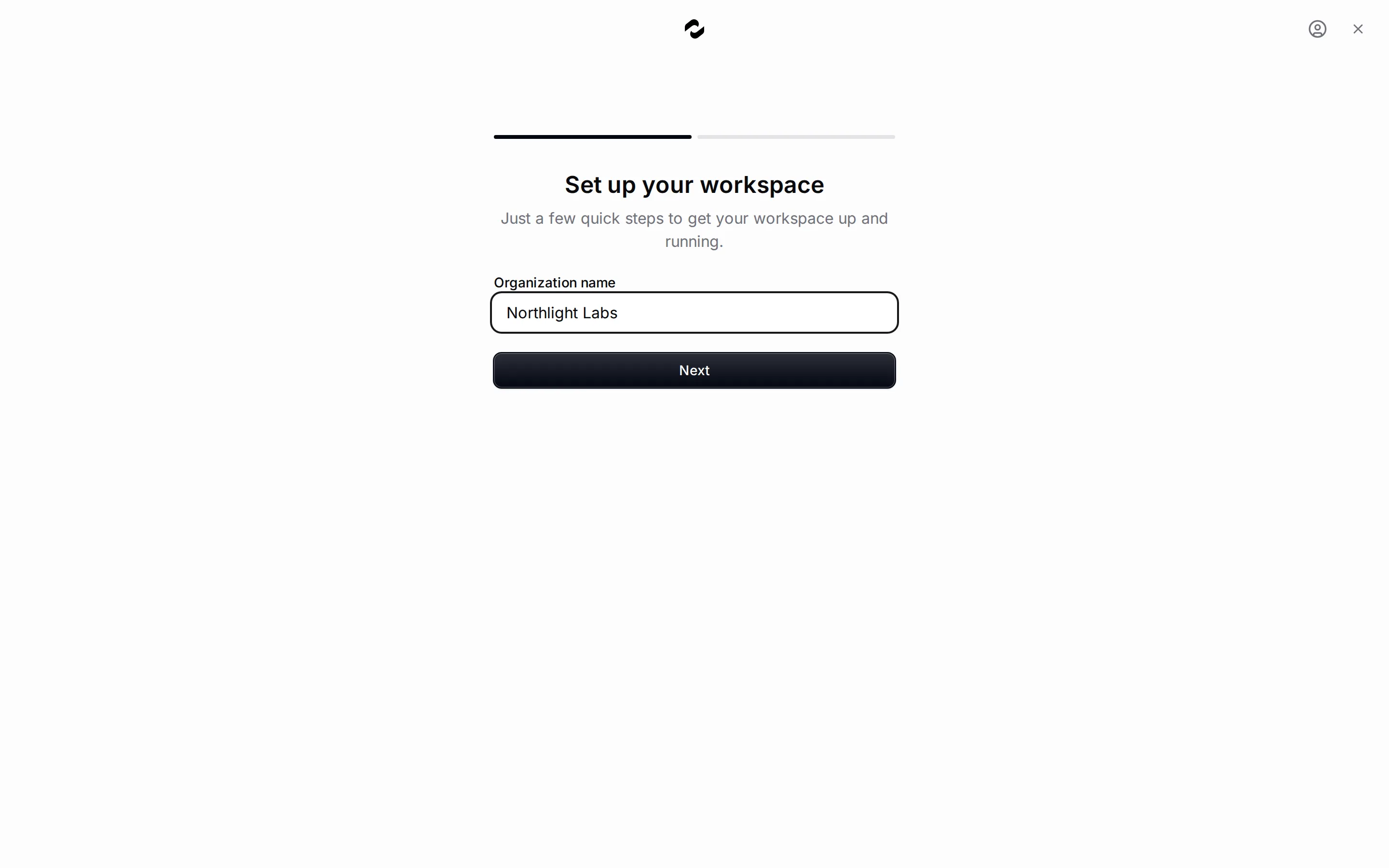
Follow [set up a workspace](/get-started/admins) to add provider credentials, verify a model response, and create member accounts with the appropriate roles. The workspace can exist before a provider is ready; a working chat is the check that model access is configured.
## Confirm the first useful workflow
Choose one task the team actually needs: discuss a document, organize project work, or test a project agent. Check the result with the intended user role. [Use Tale with your team](/get-started/members) and [create a project agent](/get-started/editors) provide the next steps.
Test with a small, non-sensitive sample before importing a large collection. This lets you check access and data flows while the setup is still small enough to understand.
## Get help with access or setup
For account and project access, start with your organization’s administrator. For instance availability, service configuration, or contract questions, use your agreed Tale support channel. Include the instance address, time, action, and displayed error; exclude passwords and keys.
# Security and compliance
Source: https://docs.tale.dev/cloud/trust-and-compliance
Tale holds ISO/IEC 27001 and SOC 2 Type II certifications. For a security review, ask your Tale contact for the applicable certificates, report scope, and supporting documents; use the evidence relevant to the service your organization has purchased.
Product controls support your organization’s processes. Whether a particular use meets your obligations also depends on your configuration, connected providers, and operating procedures.
## Prepare a review
Bring together your service agreement, data-processing agreement, the relevant certification evidence, and a description of your deployment. The [privacy policy](/legal/privacy) and [subprocessor information](/legal/subprocessors) provide additional context. Record the version and scope of each document in your review.
Clarify which organization and deployment the review covers. A certification statement is not a substitute for checking whether a particular service or configuration falls within the report’s scope.
## Know who is responsible
| Area | Tale on Cloud | Your organization |
| --- | --- | --- |
| Hosting and maintenance | Operates the agreed service | Chooses the service and coordinates changes |
| Identity and access | Provides account, role, and SSO controls | Adds members, grants access, and reviews it |
| Model providers and connectors | Provides integration controls | Chooses services, credentials, and permitted uses |
| Usage and content policies | Provides policy controls and records | Configures rules and responds to events |
| Data requests and retention | Provides the supported workflows | Determines requirements and authorizes actions |
For self-hosted deployments, your operator also owns the infrastructure responsibilities. Enterprise support arrangements depend on your agreement.
## Check the controls in the product
- [Members and roles](/platform/admin/members-and-roles) define access. Review inactive accounts and elevated roles.
- [Enterprise SSO](/platform/admin/enterprise-sso) connects your identity provider. Test both sign-in and recovery before requiring it.
- [Audit logs](/platform/admin/governance/audit-logs) help investigate recorded actions. Use [audit-log integrity](/self-hosted/operate/security/audit-log-integrity) when evaluating tamper evidence and its limits.
- [Guardrails](/platform/admin/governance/guardrails), [legal hold](/platform/admin/governance/legal-hold), and [data-subject requests](/platform/admin/governance/data-subject-requests) support specific processes; read their scope before relying on them.
## Report an incident
Use your agreed Enterprise support channel for a service incident. Report a suspected vulnerability through [GitHub’s private security reporting](https://github.com/tale-project/tale/security) or `security@tale.dev`. Include the affected version and reproduction details without sending credentials or personal data in a public issue.
For a review of where data travels, continue with [Cloud data residency](/cloud/data-residency).
# Edit configuration with a coding agent
Source: https://docs.tale.dev/develop/ai-assisted-development
Use a coding agent to help edit a CLI-managed Tale configuration project. The project includes instructions, example configuration and a selected source reference. You still need to review the proposed change and verify which organizations it will affect.
This is different from contributing to Tale’s application source. For a source checkout, start with [Contributor setup](/develop/contributor-setup) and the repository’s own `AGENTS.md`.
## A worked setup
Install the [Tale CLI](/self-hosted/install/cli-install), then create a new directory for the configuration project:
```bash
tale init agent-config-example --no-env
cd agent-config-example
ls -a
```
The following is an excerpt of the generated paths:
```text
AGENTS.md
CLAUDE.md
default/
.gitignore
.tale/
tale.json
```
`--no-env` skips environment setup; it does not create a runnable deployment or generate `.env`. This is useful when you want to inspect configuration before starting containers. `tale dev` performs environment setup when you later launch locally. Review the [quickstart prerequisites](/self-hosted/install/quickstart) first.
Open this directory in your coding editor. Ask the agent to read `AGENTS.md`, the relevant existing configuration and the source under `.tale/reference/` before proposing a change.
## The two instruction files
`AGENTS.md` contains Tale’s configuration guidance. `CLAUDE.md` points to that file so there is one maintained set of project instructions. The CLI also recognizes an existing `AGENT.md`, or a `CLAUDE.md` already stored under `.claude/`.
The CLI owns the section between its `tale:begin` and `tale:end` comment markers. Put your project-specific conventions outside that section; initialization and updates preserve that surrounding content. Do not put credentials into either instruction file.
The CLI does not generate separate Cursor, Windsurf or Copilot rule files. If an editor does not automatically load the project instructions, explicitly include them in the agent’s context. Check the actual configuration schemas rather than relying on the agent’s memory of an earlier release.
## What lives where
| Path | How to use it |
| --- | --- |
| `default/agents/` | Agent configuration catalog, including the supplied coding-agent example. |
| `default/automations/` | Automation definitions available to install or deploy. Presence on disk does not mean an automation is active. |
| `default/skills/` | Skill bundles, including document and visual-analysis skills. Each bundle is a directory. |
| `default/branding/` | Branding configuration and image assets for the template. |
| `default/governance/` | Policy and retention examples. Follow the formats of the files generated by your CLI. |
| `default/README.md` | Explains the template and automatic-install behavior of its catalog. |
| `.tale/reference/` | Selected implementation source embedded in the CLI. Read it; changes here are replaced by regeneration. It is not a complete repository checkout. |
| `.tale/orgs///` | Runtime configuration of actual organizations created in the app. |
| `.tale/checksums.json` | Records scaffolded-file hashes so updates can distinguish your edits from generated content. |
`default/` is the template for new organizations, not a deployable organization itself. Editing it does not by itself update an existing organization. The `.tale/` directory and secret sidecars are ignored by Git; public template files are intended for version control.
## Keep the mirror fresh
`tale update` updates the CLI within its current release line and refreshes generated project content. It regenerates the reference, updates managed instruction sections, adds new catalog files and updates files whose checksums show no local changes. Locally changed catalog files are preserved unless you use `--force`.
Use `tale update --dry-run` to inspect the proposed changes. Keep a version-controlled copy of your public configuration and protected backups of runtime configuration and secrets. Do not treat `.tale/reference/` as a place to maintain a fork. Updating the CLI does not roll running containers; follow [Upgrades](/self-hosted/operate/upgrades) when changing the deployed version.
## Cursor: config plane vs runtime plane
An editor agent working in this directory changes local configuration files. A Tale [project agent](/platform/projects/project-agents) using the Cursor harness runs work in a Tale-managed sandbox. These are separate execution contexts with separate credentials and consequences.
The sandbox harness uses its configured provider account and model. Giving your editor the project instructions does not configure that account. Follow [Harnesses](/platform/agents/harnesses) for runtime setup.
## Review and apply a proposal
1. Ask for one bounded change and name whether it belongs to the new-organization template or an existing organization.
2. Check every changed path, schema field, slug and referenced credential. Keep secrets out of the prompt and public diff.
3. Validate or test through the corresponding product surface. For an automation, inspect validation results and run its mock tests before deployment.
4. Review the deployment plan and the destination organization. `tale deploy --override` can replace runtime configuration with the local copy; use it only for a deliberate, reviewed overwrite.
5. Read back the configuration and exercise the behavior after deployment.
If the agent proposes a field absent from the installed schema, stop at validation and correct the proposal. If an edit to `default/` leaves an existing organization unchanged, check the destination instead of repeatedly deploying the template.
# API reference
Source: https://docs.tale.dev/develop/api-reference
The REST API lets you read and change Tale resources with an API key: projects, files, tasks, automations, runs and chat threads. Start with [your first API request](/get-started/developers) to verify access, then use the operation-specific sections below.
Your instance serves the field-level OpenAPI schema at `/openapi.json` and an interactive reference at `/docs`. Use that instance’s schema when generating a client. This page explains permissions, scope, asynchronous work and errors that apply across those operations.
## A worked request
Set `TALE_URL` to your application origin, `TALE_API_KEY` to your key, and `TALE_ORG_SLUG` to the intended organization. Keep secrets in the environment. Begin with an identity check before creating resources:
```bash
curl --fail-with-body --compressed "$TALE_URL/api/v1/me" \
--header "Authorization: Bearer $TALE_API_KEY" \
--header "X-Organization-Slug: $TALE_ORG_SLUG"
```
A `200` response identifies `user`, the selected `organization`, all current `organizations`, deployment `capabilities`, and this `key`'s name and expiration. Check the organization and role before continuing. The examples below use placeholder project, file, and run IDs: obtain actual IDs from a previous response rather than copying a display name or guessing an ID.
### Read every page of a list
List responses use named collections, not a bare array. The instance's OpenAPI `200` schemas declare `x-tale-pagination`; use it to choose the correct loop.
| Family | Requests | Response and stopping rule |
| --- | --- | --- |
| Keyset | `cursor`, `limit` | Rows plus `isDone` and `continueCursor`; stop at `isDone: true` |
| Offset: website pages only | `cursor` or `offset`, never both | `pages`, `total`, `offset`, `hasMore`, plus `isDone` and a signed `continueCursor` |
| Unpaginated | No `cursor` or `limit` | Named array containing the complete set or the operation's bounded roster |
For keyset lists, send `continueCursor` back unchanged. Do not decode or increment it. At the last page it is empty; sending that empty value again returns `400 INVALID_QUERY`, not the first page. Each operation declares its limit ceiling: usually 100 or 200, and 500 for task comments. Larger query limits are clamped.
Contacts and products are ordered by `updatedAt`, then `id`, both descending. Editing a record while you page can move it ahead of your cursor, so that pass may miss the change. For a full reconciliation, compare each record’s `updatedAt` and repeat complete passes; a cursor does not provide a snapshot of a changing directory. Hub documents, projects, project files, and websites use newest-first `createdAt` order.
Contacts, products, documents, knowledge entries, threads, messages, websites, and notification exports put their keyset rows under `page`. Runs, deliveries, task comments, projects, and project files use their resource name, such as `runs` or `files`. Run lists are newest first, default to 50, and accept limits of 1–200. `GET /api/v1/runs` lists accessible runs across automations.
Automations, agents, skills, folders, models, browser sessions, versions, and triggers are unpaginated. A website-page request with both `cursor` and `offset` receives `400 INVALID_QUERY`; the signed next-offset cursor also works with the normal keyset loop.
## Authentication
Create keys in **Settings > API > REST** with Admin or Developer access; [API keys](/platform/admin/api-keys) explains the UI. A key appears once and acts as the user who created it. This REST surface does not create, list, rotate, or revoke keys.
| Header | Rule |
| --- | --- |
| `Authorization: Bearer ` | The only supported API-key location; preserve the whole opaque string, including its `tale` prefix |
| `X-Organization-Slug: ` | Select a current membership; always send it in reusable integrations |
| `x-api-key` | Rejected with `401`, even beside a valid Bearer header; it cannot turn an API key into an app session |
A user with exactly one organization can omit the organization header. With several memberships, every request needs it, including reads. The dashboard's selected organization never selects API scope. Slugs are matched without regard to case; blank or whitespace-only values count as absent.
| Organization selection | Result |
| --- | --- |
| Several memberships, no slug | `400 ORG_SLUG_REQUIRED` |
| Unknown slug, or a value that cannot be a slug | `404 ORG_SLUG_INVALID` |
| Existing organization without membership, or with a disabled one | `403 ORG_FORBIDDEN` |
| Valid membership | Request proceeds under that organization and role |
Each of the three refusals lists the organizations you can select in `data.organizations`, as `slug` and `name` pairs. Disabled memberships are left out, so the list is empty when none remains. Retry with one of the listed slugs.
`GET /api/v1/me` also returns the membership list as `organizations`. Its `key.expiresAt` is epoch milliseconds, or `null` for a non-expiring key: rotate unattended credentials before expiry causes `401`. `key.name` identifies the credential in use.
Check both the role and the resource scope before offering an operation. Project readers can chat and comment; resource changes and task-workflow starts require edit access.
| Capability returned by `/me` | What it permits |
| --- | --- |
| `developer` | The Owner, Admin, and Developer roles can start arbitrary live runs, cancel or delete runs, bind or unbind triggers, delete automations, and install or uninstall project automations. These REST operations return `403 ROLE_FORBIDDEN` without it. MCP also checks this capability for saving, deploying, and other privileged tools, using its own error envelope. Validation and mock tools remain available to members. Project access is checked separately. |
| `deploymentEditor` | The operator allowlist permits browser-session import and revocation. An administrative role alone does not grant this capability. |
| `notificationExport` | The key may export members’ notifications through `GET /api/v1/notifications/sync`. Owners and Admins have it through their role; any other member only while an Admin’s `tale:notifications.export` grant is live — see [Delegate the export without an Admin role](#delegate-the-export-without-an-admin-role). Without it, the export returns `403 ROLE_FORBIDDEN`. |
| `skillPublish` | The key may share a skill with the whole organization through `PUT /api/v1/skills/{slug}`. Every member may while the organization has no skill sharing policy; under one, only the roles it admits and members holding a live `tale:skills.publish` grant — see [Save and synchronize skill bundles](#save-and-synchronize-skill-bundles). Without it, such a save returns `403 SKILL_PUBLISH_FORBIDDEN`. |
| `actAs` | The key may name an `actor` — the verified member a relayed gesture is recorded for — on `POST …/runs/{runId}/asks/{askId}` and `POST …/tasks/{taskId}/review`. Owners and Admins have it through their role; any other member only while an Admin’s `tale:rest.act-as` grant is live — see [Name the member the gesture is for](#name-the-member-the-gesture-is-for). An `actor` sent without it returns `403 ROLE_FORBIDDEN`. |
## What every request is held to
### JSON and query validation
Send JSON encoded as UTF-8. Invalid UTF-8, NUL characters, unpaired UTF-16 surrogates in keys or values, and integer values beyond 2^53 − 1 return `400 INVALID_BODY`. Represent large identifiers as strings. Nested validation issues include the full field path, such as `messages.0.createdAt`. IDs are strings and timestamps are epoch milliseconds. A timestamp you send is a whole number of milliseconds from `0` to `8640000000000000` (275760-09-13, the latest instant a JavaScript `Date` can hold); any other value returns `400 INVALID_BODY`. A skill’s `updatedAt` records when its `SKILL.md` was written.
| Input | Rule |
| --- | --- |
| Unknown body key | `400 INVALID_BODY`, with the key named in the issue |
| Duplicate JSON key | Last value wins |
| Unknown, repeated, or blank query parameter | `400 INVALID_QUERY` |
| Query on a write operation | Rejected; writes take no query parameters |
| Query `limit` outside its range | Clamped to the operation's range |
| Body number outside its range | `400 INVALID_BODY`; search `limit` and `maxOutputTokens` are examples |
| `Content-Type` | Bodies are parsed as JSON regardless of this header; this surface does not return `415` |
| `Accept` | JSON operations return JSON even when this header requests another format or excludes JSON; there is no `406` |
### Request-size and arrival limits
| Body | Maximum |
| --- | --- |
| Default JSON request | 1 MiB |
| Inline document content | 32 MiB |
| Contact bulk import | 8 MiB |
| Conversation snapshot | 8 MiB |
| Staged conversation upload | 30 MiB |
| Skill save | 4 MiB |
| Delivery claim, failure report, or acknowledgement | 64 KiB |
An oversized body receives `413 BODY_TOO_LARGE`. When the declared length exceeds the cap, the platform rejects before reading the body; otherwise it stops at the first chunk over the cap. It never buffers the complete oversized body. Upload-specific rules can be lower than these transport limits.
Headers and body must finish arriving within 15 minutes. A 30 MiB body needs roughly 35 KB/s to meet that deadline. A slower request receives `408 REQUEST_TIMEOUT` and the connection closes. Use a faster link, smaller supported requests, or the two-step project upload, which transfers file bytes outside this JSON arrival window.
### Methods and response identifiers
Existing read routes accept `HEAD`, with the uncompressed `GET` length and no body; `HEAD` is never compressed. `OPTIONS` is keyless and returns `204` with `Allow`. An unsupported verb on an existing route returns `405 METHOD_NOT_ALLOWED` and its allowed verbs. One trailing slash is tolerated.
The production REST surface is server-to-server and does not enable CORS. Keep API keys behind your own backend. The keyless status JSON is a separate CORS-enabled surface.
Every API response includes `X-Request-Id`. To correlate a request with logs, send up to 255 characters drawn from letters, digits, `_`, `-`, and `=`. An invalid value is replaced by a fresh UUID; the response contains the value actually used. `429`, `500`, `413`, and `414` also include `requestId` in the JSON envelope. Two refusals are the exception, because the edge's HTTP parser answers them before a request exists to log: the bare `431` for headers over the 64 KiB budget and the bare `400` for a control character in a header value carry no `X-Request-Id`, no envelope and no `X-Tale-Api-Version` — there is nothing to quote, and the request itself is what to change.
`Idempotency-Key` is read only by the operations that declare it — a run start, a chat send; the OpenAPI document lists them, and the webhook endpoints read it as a delivery id under their own rule. Any other operation ignores the header: its at-most-once guard is the natural key its body names — a contact's `externalId`, a task's `(externalSystem, externalId)`, a project's `externalItemId`. An `Expect: 100-continue` draws one `100 Continue` from the edge as soon as it starts forwarding the body; the platform's own verdict — a `413` for a declared length over the cap — still arrives before a body byte is read.
Responses from `/api/v1` and webhook routes include `X-Tale-Api-Version`; see [Versioning](#versioning). Keyless `/api/health`, `/status`, `/status.json`, and `/openapi.json` do not implement that contract and have no version header.
The URL, including query, is limited to 32 KiB; a larger one gets `414 URI_TOO_LONG` before route lookup. Request headers have a 64 KiB edge budget. HTTP/1.1 permits a few KiB of slack before a bare `431`, so a 66 KiB URL can still reach the platform and receive `414`. HTTP/2 enforces the header budget exactly by closing the connection without a response.
Header control characters below 0x20, except tab, and DEL are rejected before the platform: HTTP/1.1 receives a bare text `400` with no `X-Request-Id`; HTTP/2 resets the stream or closes a connection carrying a body.
Malformed HTTP/1.1 chunk framing, such as a non-hexadecimal chunk size or missing CRLF, receives `400 BODY_CHUNK_MALFORMED` at the edge. Correct the HTTP client or intermediary that encoded the request; retrying the same malformed bytes will not help.
For an oversized declared body, the HTTP/1.1 edge may drain up to 256 KiB before delivering the refusal, although the platform reads none. If a body ends before its declared length, HTTP/2 returns `400 BODY_LENGTH_MISMATCH`, unless the platform's over-cap `413` won the race. HTTP/1.1 waits for the missing bytes until the 15-minute arrival deadline.
Edge refusals have their own request ID and no `X-Tale-Api-Version`: the proxy does not know the application contract. Examples include a dot-segment `404`, `BODY_LENGTH_MISMATCH`, `BODY_CHUNK_MALFORMED`, and `502`/`503`/`504 UPSTREAM_UNAVAILABLE` during a restart. A `503 DATABASE_UNAVAILABLE` is the platform's own answer while its database restarts, so it carries the platform's request ID and `X-Tale-Api-Version` like any other platform response. Do not assume every intermediary response has the API's JSON envelope.
## Caching, compression and partial reads
### Reuse unchanged responses
Every JSON read — a `GET` that returns **200** — carries an `ETag` computed over its bytes and `Cache-Control: private, no-cache`: keep the answer, and send the tag back as `If-None-Match` on the next read. An unchanged resource returns **304** with no body, so a poller that watches a finished run, an idle thread or a document's indexing state spends a round trip instead of the payload.
Send the tag back exactly as you received it: behind the compressing edge the tag of a compressed answer reads `"…-gzip"` or `"…-zstd"`, and that form matches, as does the weak `W/"…"` form; the 304 carries the tag the API computed. File content — `GET /api/v1/projects/{id}/files/{documentId}/content` and a Hub document's `GET /api/v1/documents/{id}/content` alike — honours `If-None-Match` and `If-Modified-Since` against the `ETag` and `Last-Modified` it issues, the same way — a mirror re-downloads a file only when its bytes changed.
The date is judged at the whole-second precision an HTTP date carries, and `If-None-Match` decides alone when both travel; on a content-only Hub document `Last-Modified` is the document's own `updatedAt`, which a title or metadata patch moves too, so a mirror that tracks bytes sends the `ETag`. A **304** still counts as one request against the [rate limits](/develop/rate-limits).
```bash
# The first read answers 200 and its ETag; the repeat with that tag answers 304
curl -sS --compressed -D - -o /dev/null "https://your-host.example.com/api/v1/projects//runs/?fields=status,finishedAt" \
-H "Authorization: Bearer $TALE_API_KEY" \
-H "X-Organization-Slug: $TALE_ORG_SLUG" \
-H 'If-None-Match: ""'
```
### Request compression
JSON and text responses are compressed when the request offers `gzip` or `zstd` in `Accept-Encoding` — `curl --compressed` does, and every HTTP library can — above a floor of about 512 bytes; `br` is not served. A compressed answer's `Content-Length`, when present, is the compressed size (a large answer streams without one) and its `ETag` reads with the `-gzip`/`-zstd` suffix, as above; a `HEAD` is never compressed and reports the uncompressed length. Request compression for large JSON responses when your HTTP client supports it. The benefit depends on the response content; it does not reduce the number of requests charged to your rate budget.
### Read only the fields you need
Where a resource is large and a read needs only part of it, the operation says so: a run read takes `?fields=status,finishedAt` (any keys of the run, comma-separated) and returns exactly those keys, and a run listing that inlines full rows through `?include=` reads at most 25 rows per page and returns at most 8 MiB of them — it ends at the last row that fits, `isDone: false`, with a `continueCursor` at that row, so keep following the cursor until `isDone`.
## Sign in to an application with Tale
Tale is also an OpenID Connect issuer. A registered application sends you through Tale's native login and consent; it receives a signed identity with a verified email and membership in the one organization bound to its client. An API key does not authenticate a person for this flow.
Register the application with an active Owner or Admin session whose selected organization equals `TALE_ORG_ID`. `TALE_ORIGIN` is your Tale origin and `TALE_SESSION_COOKIE` is that session's cookie header. Use the application's exact HTTPS callback; HTTP is accepted only on loopback for local development:
```bash
curl -sS --compressed -X POST "$TALE_ORIGIN/api/app/identity/clients?orgId=$TALE_ORG_ID" \
-H "Cookie: $TALE_SESSION_COOKIE" \
-H "Origin: $TALE_ORIGIN" \
-H "Content-Type: application/json" \
-d '{"key":"office-app","name":"Office application","redirectUri":"https://office.example.com/api/auth/oauth2/callback/tale"}'
```
The first response is **201** with `{ "created": true, "client": { "client_id": "…", "client_secret": "…", … } }`. Store the secret in the application's secret environment. Repeating the same key and configuration returns **200**, `created: false`, and the same client ID without the secret. A changed callback or policy returns **409** so a rerun cannot silently redirect an existing integration.
| Purpose | Endpoint or requirement |
| ---------------- | ---------------------------------------------------------------------------- |
| Issuer | `https://your-host.example.com/api/auth` |
| Discovery | `GET /api/auth/.well-known/openid-configuration` |
| Authorization | `GET /api/auth/oauth2/authorize` |
| Code exchange | `POST /api/auth/oauth2/token`, `client_secret_basic` or `client_secret_post` |
| Signing keys | `GET /api/auth/jwks` |
| Current identity | `GET /api/auth/oauth2/userinfo`, bearer access token |
| Requested scopes | `openid profile email tale:organization` |
Use a maintained OIDC client with authorization code flow, S256 PKCE, one-use state and a nonce. Validate the issuer, audience, RS256 signature, expiry and nonce of the ID token, then require `email_verified: true`. The `https://tale.dev/organization` claim contains `{ "id", "slug", "role" }` for the registered organization. Every ID token also carries `acr: "0"`. Discovery lists `"0"` under `acr_values_supported` and `acr` under `claims_supported`. Tale asserts no stronger authentication context, MFA enforcement included, so do not gate on `acr`. Releases from v0.5.45 documented `urn:mace:incommon:iap:bronze` while the token already carried `"0"`; a relying party pinned to the URN must accept `"0"`. Discovery's `prompt_values_supported` names what the issuer honours — `none`, `login`, `consent`; `select_account` and `create` are not offered.
The ID token carries the standard claims of the scopes you request, with the values userinfo returns, so you can read them without a userinfo request. `email` adds `email` and `email_verified`. `profile` adds `name`, split into `given_name` (every word but the last) and `family_name` (the last word) when the name has two or more words, and `picture` when the account has one.
Tale rechecks current membership and native MFA enforcement before issuing tokens and when reading userinfo; the application remains responsible for its own account access policy. Codes, access tokens and ID tokens expire after five minutes, and a code can be redeemed once. Dynamic registration, implicit grants and refresh tokens are disabled.
Access tokens serve only native userinfo; external resource audiences are disabled. Use native API keys for REST requests.
### Handle identity-provider errors
Errors follow RFC 6749 and RFC 6750 — what a maintained client expects. `userinfo` returns **401** `invalid_token` with a `WWW-Authenticate: Bearer` challenge for an invalid or expired access token — every five-minute expiry walks this path, so treat it as a sign-in, not a retry — and **401** with the bare challenge when the token is missing; a token without the `openid` scope returns **403** `insufficient_scope`.
The token and authorization endpoints answer `{ "error", "error_description" }`: a grant other than `authorization_code` is `unsupported_grant_type`, a malformed request — a missing `grant_type` included — `invalid_request`, with the description naming the parameter (`grant_type is required`, `client_id is required`, `response_type must be one of "code"`). A body of the wrong media type on a JSON-only endpoint (a form posted to `register`) returns **400** `invalid_request` naming the type it takes — there is no 415 on this surface.
An authorization request whose `client_id` names no registered client is redirected to the issuer's own error page — never to the `redirect_uri` it sent — with `error=invalid_client` and a description that says the client is unknown, so a mistyped id is not mistaken for a missing one. Discovery lists `https://tale.dev/organization` under `claims_supported`; it also advertises the provider's introspection, revocation and end-session endpoints, which the flow above does not need.
### Rotate or disable an application client
For a reviewed client key, `POST /api/app/identity/clients/office-app/rotate-secret?orgId=` with `{}` returns a new `client_secret` once and retires the old secret. `POST /api/app/identity/clients/office-app/status?orgId=` with `{ "disabled": true }` blocks new authorizations; `false` restores the same client. Both require the same current organization, administrator session, Origin header and JSON content type as registration. Deleting an organization removes its clients and consent grants.
## Endpoint groups
For a project resource under `/api/v1`, put its project ID in the URL. These request bodies do not accept `projectId`; strict schemas reject it with **400**. The resource must belong to the named project and be visible to the key holder, otherwise the call returns **404**. Responses may include `projectId` as resource metadata. Organization catalogs, such as automation definitions and skill bundles, keep their organization paths.
Every **201** that creates one addressable resource carries `Location` — the resource's own path, relative to the request URL — so a generic client follows it whatever shape the body has (`{id}` on a contact, `{project}` on a project, `{task}` on a task); the bulk contact import creates many and carries none.
Automation authoring is separate from this REST surface. Use the [MCP endpoint](/develop/mcp-endpoint) or the app’s editor to save, validate, test, and deploy definitions. `tale deploy` releases deployment configuration; it is not a REST authoring endpoint.
| Resource | Route and scope |
| --- | --- |
| Automations | `/api/v1/automations/...`
Organization definitions, versions, triggers and the projects each is installed in; delete a definition; start and list runs that have no project. |
| Project automations | `/api/v1/projects/{id}/automations/...`
List installed automations, install or uninstall one, start and list this project's runs. |
| Runs | `/api/v1/runs`, `/api/v1/projects/{id}/runs`, and one run at `/api/v1/projects/{id}/runs/{runId}` or `/api/v1/runs/{runId}`
List runs across automations; read one in full — status, output, trace, effects; `POST .../cancel` a live one and `DELETE` a finished one; read the question a waiting run asks at `GET .../ask` and answer it at `POST .../asks/{askId}`; use the project path for a project run. |
| Threads | `/api/v1/projects/{id}/threads/...` or `/api/v1/threads/...`
The key holder's project chats or chats with no project: list, create, read, archive or restore, delete, send messages, poll the turn and cancel it. |
| Models | `GET /api/v1/models`
Configured chat models available to the key holder in this organization — plus `harnesses`, the coding harnesses a project agent may run on — with `contextWindow`, `maxOutputTokens` (absent when the catalog declares no ceiling — then no cap check applies to a send), capabilities, optional `pricing` when the catalog publishes rates, and `default: true` on the organization's pick when one is configured and accessible. |
| Teams | `GET /api/v1/teams`
Every team of the organization — `id`, `name` and whether the key holder is a `member` — as a complete set: the ids a team audience takes (`teamIds` on a project or a Hub document, `teams` on a skill). Teams are created and staffed in the app (Settings > Teams) or by an identity provider; nothing on this surface writes one. |
| Agents | `/api/v1/projects/{id}/agents/...`
List, read, create, update (conditionally, with `expectedUpdatedAt`) and delete agents within the required project. A `PUT` that names the configuration already stored writes nothing and leaves `updatedAt` alone. |
| Skills | `/api/v1/skills/...`
List, read, create or update, and delete organization skill bundles; read any file of a bundle — a validated read (`ETag` and `Last-Modified` on the bytes; `If-None-Match` / `If-Modified-Since` answer **304**), so a mirror re-downloads only what changed. Every skill names its version (`etag`, `updatedAt`) and a save can be guarded with `If-Match`; a skill keeps no version history on this surface — the read answers the current bundle only. |
| Knowledge entries | `/api/v1/knowledge-entries/...`
Topic-keyed facts: list (`?topic=`, `?status=`), create, supersede, delete, and one topic's version history at `GET .../{id}/versions`. |
| Knowledge search | `POST /api/v1/projects/{id}/knowledge/search` or `POST /api/v1/knowledge/search`
Search one project's indexed files, or visible non-project Hub documents and websites. |
| Documents | `/api/v1/documents/...`
Knowledge-base documents: CRUD (a `PATCH` returns the updated document), `GET .../content` for the bytes, plus `POST .../retry-indexing`; every file-backed document carries its `indexing` state. Hub only — project files live under Projects. |
| Websites | `/api/v1/websites/...`
Crawled sources: CRUD (a `PATCH` returns the updated website) plus `.../pages` — each page with its `status` (`discovered` until a fetch stores it, `active` from then on), `failCount`, and, when its last attempt failed, `lastError`, `lastErrorKind` and `lastErrorAt`, so a page the fetch guard refused (a redirect into a private address) is told apart from one nobody has fetched yet — `.../sync` and `.../search`. Search returns `{results, total}` — each result its `url`, `title`, `content`, `chunkIndex` and `score` — a shape of its own, not the `{hits, diagnostics}` of the knowledge-search endpoints; its `limit` (1–100, default 10) is a body field, refused with **400**, `INVALID_BODY`, when out of range — never clamped. On the website, `crawledPageCount` counts the pages the crawler attempted, stored or not, and `failedPageCount` those whose last attempt failed; the three counts are stamped by the corpus → row sync, which runs after discovery, after every stored batch, at each link's end and at the scan's end (`metadata.lastStatusSyncAt` says when) and which `POST .../sync` forces, and `lastScannedAt` is when the last scan ended. Discovery honours `robots.txt` `Disallow` rules on every path a URL can enter by, listed URLs excepted, and a page a rule covers leaves the index on the next scan; `POST /api/v1/websites` refuses an `http://` domain (`WEBSITE_DOMAIN_INVALID` — the crawler dials https only) and drops a trailing dot, so `example.com.` is `example.com`; a page's `lastError` is one line naming the cause, never a framework call log. |
| Browser sessions | `/api/v1/browser-sessions/...`
Browser cookies for [video ingestion](/self-hosted/configuration/video-ingestion). Organization members can read the masked list. `POST .../import` and `DELETE .../{id}` require an allowlisted deployment editor; check `capabilities.deploymentEditor` in `/me`. Sessions last 14 days by default and at most 180 days. |
| Products | `/api/v1/products/...`
Product catalog entries: CRUD (a `PATCH` returns the updated product). |
| Contacts | `/api/v1/contacts/...`
Contact records: CRUD (a `PATCH` returns the updated contact) plus `POST /api/v1/contacts/bulk`. |
| Conversations | `/api/v1/conversations/...`
Mirror external conversations into Inbox as versioned snapshots, read a source's snapshot receipt, peek at a source's delivery queue, claim native replies, acknowledge or fail their delivery, re-drive a dead-lettered one, and queue a mirrored conversation to a team; exact schemas are in the running instance’s `/docs`. |
| Notifications | `GET /api/v1/notifications/sync`
Read-only export of one verified member’s personal or organization feed; Owners and Admins, or a member an Admin granted `tale:notifications.export`. Signed pagination, localized text, stable IDs and content/read-state hashes. |
| Projects | `/api/v1/projects/...`
The machine endpoint for external workers: list projects or look one up by external id, create, archive and restore, delete; prepare folders, upload, download and delete files, index a file now, delete folders. |
| Tasks | `/api/v1/projects/{id}/tasks/...`
Idempotent task creation from an external ref, state reads, workflow starts (answering the `runId` to poll), comments, and the task’s review — read at `GET .../review`, decided for a member at `POST .../review` — within the named project. |
| MCP | `POST /api/v1/mcp`
The [MCP endpoint](/develop/mcp-endpoint) — same key, JSON-RPC instead of REST. |
| Webhook trigger | `POST /api/projects/{id}/automations/webhook/{token}` or `POST /api/automations/webhook/{token}`
Start a deployed automation using its token; the [Webhooks page](/develop/webhooks) covers project and non-project URLs. |
### Avoid overwriting a concurrent edit
Use `expectedUpdatedAt` in a contact, product, or document `PATCH` when your change depends on the last row you read. A stale value returns `409 CONTACT_STALE`, `PRODUCT_STALE`, or `DOCUMENT_STALE`. Reload the resource, merge your intended change with the intervening edit, then submit the new precondition.
For Hub documents, `If-Match` offers a representation-level guard: send the strong `ETag` returned by the document’s `GET`. The comparison runs inside the document’s write transaction. A mismatch returns `412 PRECONDITION_FAILED`, includes the current tag in `data.etag`, and writes nothing. A tag list or `*` is accepted; a weak `W/` tag never matches. The tag covers the whole read, including `indexing`, so indexing progress can invalidate it even when the document row’s `updatedAt` has not changed.
A successful contact, product, document, or website `PATCH` returns `200` with the updated resource; a document `PATCH` also carries the new representation's `ETag`, the value the next `If-Match` sends. For contacts, products, documents, and projects, a patch that leaves all stored values unchanged performs no write and preserves `updatedAt`. Preconditions are checked first: a no-op body does not bypass a stale `expectedUpdatedAt` or `If-Match`.
### Edit contacts, products, and website identity
Contacts and products share one editing vocabulary. Strings are trimmed; a contact's `email` is stored lowercase, so duplicates match case-insensitively, and the part before `@` is at most 64 characters. A second contact with the same `email` or `externalId` returns **409**, `CONTACT_DUPLICATE_EMAIL` or `CONTACT_DUPLICATE_EXTERNAL_ID`; a second product with the same `name` — compared without regard to case — or `externalId` returns **409**, `DUPLICATE_PRODUCT_NAME` or `DUPLICATE_PRODUCT_EXTERNAL_ID`, on create and on a `PATCH` that renames onto either.
`null` clears any optional field, and on `PATCH` a blank string reads as `null` — a blank required field (a product's `name`) returns **400**, `INVALID_BODY`; on create and bulk import a blank string — or `null` — reads as the field left out, so a CSV-shaped row or a JSON export imports cleanly (the OpenAPI document declares the optional create fields nullable for that reason). A bulk import carries at least one row — an empty `contacts` array returns **400**, `INVALID_BODY`, never a **201** that created nothing. A contact is filed under at least one of `name`, `email` and `externalId`: a patch that would clear the last one returns **400**, `CONTACT_IDENTITY_REQUIRED`.
Read a contact bulk-import result row by row. `POST /api/v1/contacts/bulk` accepts an object containing only `contacts`, an array of 1–500 rows. It validates rows independently and returns `201` even when some fail:
| Response field | How to use it |
| --- | --- |
| `success`, `failed` | Counts of accepted and rejected rows |
| `created[]` | Each created contact’s `id` and original zero-based `index` |
| `errors[]` | Original `index` and `contact`, human-readable `error`, stable `errorCode`, and field `issues` for schema failures |
A malformed email, unknown row key, or missing identity produces an `INVALID_BODY` row error; duplicate identities have their own codes. Correct only the failed rows before resubmitting. Invalid batch structure, transport limits, or invalid JSON encoding still reject the whole request before row processing.
The contact list’s `source` filter accepts the same closed source enum as writes, including `manual_import`, `api_import`, `shopify`, `hubspot`, `webhook`, and `custom`. Use the full enum in the instance’s OpenAPI schema; an unknown value returns `400 INVALID_QUERY`.
`PATCH` merges `metadata` per RFC 7396 — contacts, products and documents alike: sent keys are set, omitted keys stay, a key sent as `null` is removed, and the whole field sent as `null` clears it — while `address` is replaced whole, an address being a unit. `address` and `metadata` (a document's `metadata` too) are bounded to 64 KiB of JSON, 8 levels of nesting and 500 keys in total; a larger value returns **400**, `INVALID_BODY`, naming the path.
A product’s `price` and `stock` are numbers within the safe-integer range, negative values included (a correction booked through the API); the app’s product form and file import refuse negatives and a non-integer stock. A product’s `currency` is an ISO 4217 code (`USD`, `EUR`), accepted in any case and stored uppercase. Its `imageUrl` must be an absolute HTTP or HTTPS URL with a public host. Relative paths, other schemes, private or loopback IP literals, single-label names, and cloud metadata hosts return `400 INVALID_BODY`. Validation examines the URL without a DNS lookup and does not fetch the image. The operator setting `TALE_ALLOW_PRIVATE_CRAWL_HOSTS=1` allows private-network targets but never metadata hosts.
An image uploaded through the product form is a separate case. The app accepts PNG, JPEG, WebP, GIF, or SVG files up to 5 MiB, checks their bytes, and returns a stable protected URL. REST product reads expose that address as an absolute URL. You may send it back in `imageUrl`, including on a private deployment, if it belongs to this organization and you uploaded it or a current product already uses it. An inaccessible or missing image returns `404 FILE_NOT_FOUND`; an altered managed URL returns `400 INVALID_BODY`. Viewing its bytes requires an authorized app session; the URL is not a public sharing link, and a REST API key does not grant access to this app route. Set `imageUrl` to `null` on PATCH to remove the product’s image. Uploading image bytes uses the app form, not a REST product upload endpoint.
A website's `domain` is immutable: `PATCH /api/v1/websites/{id}` accepts the stored value echoed back (a client may send the resource it read) and returns **400**, `WEBSITE_DOMAIN_IMMUTABLE`, for any other. `POST /api/v1/websites` stores the host as given — `www.` is kept — and the `www.` and apex spellings count as one site: a domain already registered under either spelling returns **409**, `WEBSITE_DUPLICATE_DOMAIN`, with `data.websiteId` and `data.domain` naming the existing row.
The one exception is a URL list posted onto a domain registered as a list under the same spelling, which extends it and returns **200** with the existing id; a list posted onto a whole-site crawl is the same **409** — the crawl keeps its kind and nothing is queued — so read `kind` before you post, or re-post under the spelling the 409 names.
A website’s `status` describes its scan lifecycle. Filter with `GET /api/v1/websites?status=` using `scanning` (a registered site starts here), `active`, `error`, or `deleting`; other values return `400 INVALID_QUERY`, and so does `?scanInterval=` outside its seven values. `active` means a finished scan has stored at least one page, not that every page was refreshed. `error` means the scan failed or no pages remain stored after attempted fetches; inspect `metadata.lastSyncError`.
Each page’s `lastErrorKind` helps distinguish a network or TLS failure (`network_error`, `tls_error`), a refused target (`private_ip`), an HTTP failure (`http_error`), extraction or rendering failures, content that cannot be turned into text (`unsupported_content`), and a `robots_noindex` refusal — the origin answered `X-Robots-Tag: noindex` or the page carries a `` tag. A failed refresh can retain previously indexed content, so inspect page failures alongside the site’s status.
`POST /api/v1/websites/{id}/search` performs keyword search over that site’s stored chunks. Its BM25 `score` is unbounded and comparable only within one response. Deployments without ParadeDB use substring matching and report `0` for every hit. For semantic similarity and `minSimilarity`, use `POST /api/v1/knowledge/search` with `corpus: "web"`; that searches the visible web corpus, not one selected site.
### Save and synchronize skill bundles
`PUT /api/v1/skills/{slug}` creates the skill when the slug is free — **201** — and updates it in place otherwise — **200** — so the status is the create-or-update signal, the same convention as materializing a task, and a sync that mirrors bundles from elsewhere needs no read first: `description` and `body` are required, an omitted `icon`, `labels`, `teams`, `visibility` or `disableModelInvocation` keeps its stored value, `null` clears `icon` or `labels`, and `disableModelInvocation: false` drops the flag.
The body is Markdown of at most 507,893 bytes of UTF-8 — bytes, not characters: the composed `SKILL.md`, frontmatter included, is capped at 512 KiB and this budget always fits inside it — and a body that does not end with a newline gets one appended, so a `GET` reads it back one byte longer. The save rewrites `SKILL.md` only — every other file of the bundle stays, and frontmatter keys the body does not carry (`license`, `recommended-packages`, community keys) are preserved; replacing a whole bundle is the app's zip upload.
Every skill names its version: `etag`, the quoted SHA-256 of its `SKILL.md`, and `updatedAt`, when that file was last written — the tag moves with every save of the document and with nothing else.
A save whose composed `SKILL.md` is byte-identical to the stored one writes nothing: it returns **200** with the stored `etag` and `updatedAt` and adds no history entry — the no-op documents and knowledge entries already follow — so a mirror that re-pushes an unchanged bundle leaves `updatedAt` a change signal; the preconditions are still evaluated first, so a stale `If-Match` on an identical body is still **412**.
`GET /api/v1/skills/{slug}` carries the tag as `ETag` and returns **304** to an `If-None-Match` that names it — the weak `W/"…"` and the edge's `"…-gzip"` forms included — with the same `Cache-Control: private, no-cache` as its **200**. `GET /api/v1/skills` also returns `failures` — bundles on disk that could not be read, each with `slug`, `path` and `message`; normally an empty array — so a listing never fails because one bundle is broken.
Guard an update or a delete with `If-Match`: the `etag` you last read — a skill whose document changed since returns **412**, `SKILL_STALE`, with the current tag in `data.etag`, and nothing is written, so reload and merge before saving again (a guarded `PUT` of a skill that is not there is the same **412** with `data.etag: null`, while a guarded `DELETE` of one answers the plain **404**, `SKILL_NOT_FOUND` — already gone is done); a weak tag (`W/"…"`) never matches, and the body is validated before the precondition is evaluated. Send `If-None-Match: *` to create only: a slug that already has a bundle then returns **412**, `SKILL_EXISTS`, and nothing is written.
`GET /api/v1/skills/{slug}/files/{path}` reads any file of the bundle — `SKILL.md` included — as raw bytes named by `Content-Disposition`, with `path` exactly as `files[].path` lists it (`/` raw or `%2F`); the read is validated — the `ETag` is the file's bytes, `Last-Modified` its modification time, and `If-None-Match` or `If-Modified-Since` answers **304** —; a path the list would never carry returns **404**, `SKILL_FILE_NOT_FOUND`, and a bundle the file layer refuses — a planted symlink, a file over the 4 MiB staging cap — **422**, `SKILL_MALFORMED`.
A raw dot-segment in the URL (`../`, or `%2e%2e/` — the dots encoded, the slash not) never reaches the route: the edge refuses it first with its own **404**, `NOT_FOUND`, an `X-Request-Id` of its own and no `X-Tale-Api-Version`; a spelling whose slashes are encoded too (`%2e%2e%2f…`) reaches the route and reads as `SKILL_FILE_NOT_FOUND`. Every skill carries `canEdit` — whether this key may edit the bundle; shipped skills are organization bundles an administrator may overwrite — so check it before a save that means to replace one. Skills support `org` and `team` visibility; `teams` must name teams in this organization.
Every skill also says who created it and who last edited it. `origin` is `release` for a skill a managed configuration release installed, `builtin` when no creator is recorded (the document skills an organization starts with), and `member` otherwise, with `owner` the creator's user ID. `ownerName` is the creator's display name while they are a member of the organization, and is absent once they have left. `updatedBy` and `updatedByName` name the member whose write through Tale produced the stored `SKILL.md`; they are absent when nobody has edited the skill since it was created, and when its file changed outside Tale since the last edit. A save that changes the skill is recorded in the organization's audit log as the key holder: `skill.created`, `skill.updated`, and `skill.sharing_changed` when `visibility` or `teams` changed (contract 3.4.0).
An organization can reserve organization-wide skills with its [skill sharing policy](/platform/admin/governance/policies-and-limits#skill-sharing): to Editors and above, or to Owners and Admins, plus members holding a live `tale:skills.publish` grant. A key holder outside that set gets **403**, `SKILL_PUBLISH_FORBIDDEN`, for a save that would create a `visibility: org` skill, widen one to `org`, or change an `org` skill in place; nothing is written, and the refusal is recorded in the audit log as `skill.publish_denied`. Saving with `visibility: team` and the holder's own `teams`, a byte-identical save, and `DELETE` stay open. `capabilities.skillPublish` in `GET /api/v1/me` answers the question before the first save (contract 3.5.0).
`private` skill visibility is retired: it cannot be set, and a bundle that already carries it keeps it only when the save omits `visibility`. A slug is at most 64 characters of lowercase letters, digits and single hyphens, and `anthropic` and `claude` are reserved; `PUT` refuses a malformed one with **400**, `INVALID_SKILL_SLUG`, naming the rule it breaks, while `GET` and `DELETE` answer it as absent with **404**, `SKILL_NOT_FOUND`.
### Mirror conversations and deliver replies
Create the contact with `POST /api/v1/contacts` first. A conversation snapshot links `externalContactId` to that contact's `externalId` in the organization. An unknown contact returns **404** `CONTACT_NOT_FOUND`; an ambiguous match returns **409** `CONTACT_AMBIGUOUS`. A snapshot cannot move an existing source conversation to another contact: changing its `externalContactId` returns **409** `CONVERSATION_CONTACT_CONFLICT`.
`POST /api/v1/conversations/sync` compares the integer `version` with the stored snapshot:
| Incoming snapshot | Result |
| --- | --- |
| Newer version | Apply it. |
| Older version | Ignore it. |
| Same version, different content | **409** `CONVERSATION_SNAPSHOT_CONFLICT`. |
| `deleted: true`, version equal to or newer than stored | Close the mirror. Repeating this after closure changes nothing. |
Closing preserves the conversation and messages in the Inbox. This API does not hard-delete them.
`GET /api/v1/conversations/sync` also reports the linked `externalContactId`, the bound row's `contactId`, and `contactStatus`: `active`, `trashed`, or `missing` — and `sourceDeleted` with the Inbox `status`, so an engine that resumes from the receipt knows a teardown landed: a content snapshot onto a torn-down mirror answers **409** `CONVERSATION_CLOSED` at any version (mirror the source conversation under a new `externalId` to start again). The binding keeps the original contact row. Deleting that contact moves it to trash and frees its email and external ID, but recreating those identifiers never transfers the old conversation’s history. A contact re-keyed in the CRM (a `PATCH` of its `externalId`) keeps its conversations: a snapshot naming the current id applies and the receipt follows it, while the id it no longer carries returns **409** `CONVERSATION_CONTACT_CONFLICT` naming the id the conversation is bound to. `GET /api/v1/conversations?source=` lists every conversation you mirrored under a source — `conversationId`, `externalId`, `externalContactId`, `contactId`, `contactStatus`, `version`, `sourceDeleted`, `status`, `subject` — newest first as a keyset page under `conversations` (the same `?cursor=` loop as every list), and `?contactStatus=trashed` finds the mirrors a deleted contact froze.
A newer content snapshot for a trashed contact returns `409 CONVERSATION_CONTACT_TRASHED`. Restore the contact — `POST /api/v1/contacts/{id}/restore`, which applies the create's own rule (a live contact that has since taken its email or `externalId` refuses the restore with the create's **409**), or the app's trash — before sending more content, or close the mirror with `deleted: true` at an equal or newer version; a closed mirror is not reopened by the restore, so a later content snapshot answers the same 409 while the contact stays in the trash. Older snapshots remain ignored, and same-version repeats still follow the version rules above; deleting the contact does not turn every replay into an error.
Claim replies written in the Tale Inbox through `POST /api/v1/conversations/deliveries/claim`. Before including one in a later source snapshot, acknowledge its delivery under its `externalId`, then set `taleMessageId` to the reply's `messageId`. An unacknowledged reply returns **409** `DELIVERY_UNACKNOWLEDGED`. Without `taleMessageId`, a message is treated as originating in the source system, regardless of `isCustomer`.
A claim must name a source you have mirrored. An unknown source returns **404** `CONVERSATION_SOURCE_NOT_FOUND`; one owned only by other service users returns **403** `INTEGRATION_NOT_OWNED`. A source typo therefore produces an error rather than an apparently healthy empty queue.
A claimed delivery includes `attempts`, `leaseExpiresAt`, `lastErrorCode`, and `firstClaimedAt`. Use `GET /api/v1/conversations/deliveries?source=` to inspect the queue without claiming replies. It returns status (`queued`, `leased`, `failed`, `delivered`), attempt counts, and timestamps, but no claim token or message body. Entries are ordered oldest-due first in `{deliveries, isDone, continueCursor}`; pass `?cursor=` for subsequent pages.
Filter with `?status=failed` to find dead-lettered deliveries. `POST /api/v1/conversations/deliveries/{id}/retry` retries one and records the same audit action as **Retry** in the Inbox. A delivery that is not dead-lettered returns **409** `DELIVERY_RETRY_UNAVAILABLE`.
Queue a mirrored conversation to a team with `POST /api/v1/conversations/assignment`: `{source, externalId, teamId}`, where `teamId` comes from `GET /api/v1/teams` and `null` clears it. The team's members can then open the conversation in the Inbox, and each of them is notified. As in the Inbox, only admin and owner keys may assign; an editor key returns **403** `ROLE_FORBIDDEN` and can route its source with a [conversation routing rule](/platform/admin/governance/policies-and-limits) instead. A team outside the organization returns **400** `TEAM_NOT_IN_ORG`, a mirror no snapshot created returns **404** `CONVERSATION_NOT_FOUND`, and one another service user owns returns **403** `INTEGRATION_NOT_OWNED`.
Stage attachments through `POST /api/v1/conversations/uploads` before referencing them in a snapshot. Invalid attachments prevent the snapshot from being applied:
| Problem | Response |
| --- | --- |
| Unstaged, expired, malformed, or cross-organization `storageId` | **400** `ATTACHMENT_NOT_STAGED`. |
| Attachment staged by another service user in the organization | **403** `ATTACHMENT_NOT_OWNED`. |
| Declared `size` differs from the uploaded bytes | **400** `ATTACHMENT_SIZE_MISMATCH`. |
`replyConstraints` limits message length, attachment count, attachment size, and file extensions for replies a person writes in the Inbox. These limits apply when composing a reply, not when accepting a source snapshot.
`GET .../deliveries/{id}/attachments/{index}` returns `DELIVERY_NOT_FOUND` if the claimed delivery does not exist. A missing attachment position, or an index outside the integers 0 through 9, returns `ATTACHMENT_NOT_FOUND`.
There is no staged-upload delete route. Unbound uploads become eligible for cleanup after their two-hour window plus a 24-hour grace period; cleanup runs on a later upload in the organization. Bound attachments follow their message's lifetime. All conversation request bodies are strict: unknown keys, including those inside messages and attachments, return **400** `INVALID_BODY` with the field name.
### Create searchable knowledge and Hub documents
`POST /api/v1/documents` can store text directly as `content`. This inline content remains readable but is not indexed. Knowledge search finds only file-backed documents, so `POST .../retry-indexing` returns `{"status": "skipped", "reason": "content-only"}` for an inline document.
Other skip reasons are `untracked-blob`, `unsupported` (terminal indexing failure; inspect `indexing.errorCode`), and `in-progress` (a fresh indexing job is already queued or running). For `in-progress`, poll the document. Retrying a file that previously opted out of indexing opts it back in and returns `indexing`.
A project file is not this endpoint's — it returns **404**, `DOCUMENT_NOT_FOUND`, like any id outside the Hub — but has the same retry at `POST /api/v1/projects/{id}/files/{documentId}/retry-indexing`, which lifts the bind-time `skipRagIndexing` opt-out (see **Verify what landed** below). Either retry runs through the same guards as the app's **Index now**, a budget of 10 per user per minute included (**429**, `RATE_LIMITED`). Its `fileId` alternative requires the key holder's own unbound Hub upload in the selected organization, created through the app; REST does not mint one.
Use `POST /api/v1/knowledge-entries` to create searchable text. It creates a file-backed Hub document with `sourceProvider: knowledge` and starts indexing. An entry allows at most 8,000 characters, with one active entry per topic. The **201** response `{id, documentId}` already contains the document ID: poll `GET /api/v1/documents/{documentId}` to follow indexing.
A `PATCH` supersedes the active entry and re-indexes under the same `documentId`. If `topic` and `content` are unchanged after trimming, it creates no version and returns the existing entry ID. A `PATCH` of a superseded row returns **409**, `KNOWLEDGE_ENTRY_SUPERSEDED`, naming the topic's active row in `data.activeId` (and its direct successor in `data.supersededBy`) — update that row, no chase down the chain. An entry created or superseded over this door reads `source: "api"` (the app's form writes `manual`, the assistant's capture `chat`), so the Knowledge entries table tells the three apart. Deleting the entry trashes its backing document.
The entry endpoints need the knowledge write grant — a read-only member returns **403**, `KNOWLEDGE_ENTRY_FORBIDDEN` — and an object store that does not accept the content within 30 seconds returns **503**, `KNOWLEDGE_ENTRY_STORE_TIMEOUT`, with nothing written. That document refuses a direct `DELETE /api/v1/documents/{id}`, or a `PATCH` of its title or content, with **409**, `DOCUMENT_HAS_KNOWLEDGE_ENTRY` and `data.entryId` — the entry is the way to change it. `GET /api/v1/knowledge-entries?topic=&status=superseded` lists one topic's replaced versions, each stamped with `supersededAt`, and `GET /api/v1/knowledge-entries/{id}/versions` returns the whole chain from any of its rows, newest first.
`GET /api/v1/documents` lists Hub documents newest first. Choose the folder scope explicitly when reproducing the app’s folder view:
| `folderId` query parameter | Documents returned |
| --- | --- |
| Omitted | All visible Hub documents, including those inside folders. |
| `root` | Only documents that are not in a folder. |
| A folder ID | Documents directly inside that folder. |
Read a document's bytes at `GET /api/v1/documents/{id}/content` — the same download choreography as a project file (`Content-Disposition`, `Range`, `HEAD`), and a content-only document returns its inline text there too, typed as its `mimeType`; `GET /api/v1/documents/{id}` carries `content` only for a content-only document, `null` for a file-backed one. Every document returns `contentHash` — the SHA-256 the platform computed for its bytes (a knowledge entry's content, a synced file), `null` otherwise — as a field of its own, never a key in your `metadata`.
A document `PATCH` that changes nothing — an empty body, or every field already at its value — writes nothing and leaves `updatedAt` alone, so a no-op retry never invalidates another client's `expectedUpdatedAt`; a controlled record's content, MIME type, extension or source provider is refused with **400**, `DOCUMENT_RECORD_FROZEN` (in review or approved) or `DOCUMENT_RECORD_REPLACEMENT_REQUIRED` (a draft — use the replacement flow), and a `teamIds` entry the key holder is not a member of with **403**, `TEAM_ACCESS_DENIED` (a team that is not the organization's is **400**, `TEAM_NOT_IN_ORG`; a repeated id collapses to one).
Every file-backed document carries `indexing` — `status` is `pending`, `queued`, `running`, `completed`, `failed`, `unsupported` or `skipped`, with `indexedAt`, `error` and `errorCode` when set — so poll the document after a create or a `retry-indexing` instead of sleeping. An upload already attached to any document, thread or conversation cannot be reused here. A missing upload, another user's upload or a bound upload returns **404**, `FILE_NOT_FOUND`. Project, chat and conversation uploads cannot become Hub documents through this route. Trashed or expired documents, including files deleted with their project, stay out of this Hub surface. Files you keep when deleting their project are detached and remain in the Hub.
Branch on `indexing.errorCode`, not the wording of `error`. The OpenAPI schema enumerates the closed set:
| Status and codes | Recovery |
| --- | --- |
| `unsupported`: `unsupported_type`, `image_no_vision`, `empty`, `not_text`, `malformed` | Replace or re-export the source in a supported format. For `not_text`, export actual UTF-8 text. `malformed` currently identifies an unreadable PDF; corrupt Office files can instead report `indexer_error`. The retry route skips terminal codes, including older rows still marked `failed`. |
| `failed`: `embedding_upstream`, `indexer_error`, `index_rebuilding` | The background job retries these failures. Poll before requesting another attempt. |
| `failed`: `embedding_not_configured`, `embedding_provider_refused`, `index_repair_failed` | Ask the operator to correct provider configuration, permissions, or index health, then retry. `embedding_provider_refused` also covers a model that answers vectors of another width than the settings state, and an embedding credential the platform cannot use (none configured, deleted, disabled, or unreadable); saving corrected embedding settings, or adding or repairing the credential the embedding model uses, re-queues every document that failed on the embedding model. |
| `failed`: `secret_detected`, `pii_blocked` | Correct the source or the organization’s approved content policy before retrying. |
`POST` and `PATCH` bodies are strict: `projectId` is refused with **400**. Create project files through the project upload and file routes below.
## Mirror a member’s notifications
`GET /api/v1/notifications/sync`, added in API contract 1.8.0, exports the notifications a particular member can see. Use it for a one-way mirror in another application. The caller’s API key must belong to an Owner or Admin of the selected organization, or to a member an Admin granted the `tale:notifications.export` capability (API contract 1.14.0). Any other role alone, Developer included, is insufficient.
### Delegate the export without an Admin role
A mirror worker does not need an Admin account. The Admin role also manages members, administers single sign-on and SCIM, and can reset lower-ranked members’ passwords, so run the worker as an ordinary member and grant that member the one capability the export checks. The grant is an entry in the organization’s competence register: it applies only in that organization, is audited, can carry an expiry, and is revoked automatically when an Admin removes the member or SCIM deprovisions them.
An Owner or Admin grants it under **Settings > Governance > Competences** ([Competences](/platform/admin/governance/competences)), or over HTTP from an active session. `TALE_ORIGIN` is your Tale origin and `TALE_SESSION_COOKIE` that session’s cookie header; `TALE_ORG_ID` and `TALE_WORKER_USER_ID` are the `organization.id` and `user.id` that `GET /api/v1/me` returns for the worker’s key:
```bash
GRANT_BODY=$(jq -n --arg user "$TALE_WORKER_USER_ID" \
'{userId:$user,competence:"tale:notifications.export",evidence:"Notification mirror worker"}')
curl -sS --compressed -X POST "$TALE_ORIGIN/api/app/governance/competences?orgId=$TALE_ORG_ID" \
-H "Cookie: $TALE_SESSION_COOKIE" \
-H "Origin: $TALE_ORIGIN" \
-H "Content-Type: application/json" \
-d "$GRANT_BODY"
```
The response is **201** with `{ "recordId": "…" }`. Add `expiresAt`, a future instant in whole epoch milliseconds no later than `8640000000000000`, to end the grant on its own; without it, the grant does not expire. A past instant returns **400** `COMPETENCE_EXPIRY_IN_PAST`, and a value that is not a whole number in that range **400** `invalid body`. While a grant is live, granting it again returns **409** `COMPETENCE_ALREADY_GRANTED`. Any other name under `tale:` returns **400** `COMPETENCE_CAPABILITY_UNKNOWN`, a user outside the organization **400** `COMPETENCE_USER_NOT_MEMBER`, and a session without the Owner or Admin role **403** `COMPETENCE_FORBIDDEN`. Before the first page, confirm with the worker’s key that `GET /api/v1/me` reports `capabilities.notificationExport: true`.
To withdraw the right, find the grant’s `id` in `GET /api/app/governance/competences?orgId=&userId=` with the same session, then send `POST /api/app/governance/competences//revoke?orgId=`. The worker’s next export request returns `403 ROLE_FORBIDDEN`. A revoked grant stays in the list as the audit trail; grant the capability again to restore the export.
### Select the recipient and stream
Set `TALE_RECIPIENT_EMAIL` to the intended member’s verified email address. The recipient must have exactly one matching, active membership in the selected organization. The endpoint checks membership and verification again on every page. Organization notifications use the recipient’s role for visibility: an administrator caller cannot export security notifications to a recipient who could not see them in Tale.
| Query parameter | Rule |
| --- | --- |
| `recipientEmail` | Required valid email, at most 320 characters; matching ignores case. |
| `stream` | Required: `personal` for the member’s personal feed, or `organization` for organization notifications visible to them. Read both separately for a complete mirror. |
| `locale` | Optional `en`, `de` or `fr`. Defaults to the organization’s language, with English message fallback. |
| `limit` | Default 100, maximum 100, minimum 1. Whole numbers outside the range are clamped. |
| `cursor` | Omit on the first request; pass the preceding `continueCursor` unchanged for the next page. There is no numeric `offset` parameter. |
```bash
curl --fail-with-body --silent --show-error --compressed --get \
"$TALE_URL/api/v1/notifications/sync" \
--header "Authorization: Bearer $TALE_API_KEY" \
--header "X-Organization-Slug: $TALE_ORG_SLUG" \
--data-urlencode "recipientEmail=$TALE_RECIPIENT_EMAIL" \
--data-urlencode 'stream=personal' \
--data-urlencode 'locale=en' \
--data-urlencode 'limit=100'
```
A successful request returns `200` with `{recipientId, page, isDone, continueCursor}`. Missing, disabled, unverified or ambiguous recipients return `recipientId: null`, an empty `page`, `isDone: true` and an empty cursor. This is not an invitation or account-creation operation.
### Read rows and complete a scan
| Row field | Meaning |
| --- | --- |
| `id` | Stable source ID in the form `::`. Use it for matching and upserts within that recipient’s mirror. Organization notification IDs can be shared by recipients; keep their mirrors separate. |
| `version` | A 64-character hexadecimal SHA-256 hash of the exported row before the hash is added. Content or read-state changes change it; localized title/body changes can also change it. This is a change marker, not an incrementing sequence. |
| `title`, `body` | Text rendered from Tale’s notification catalogs and parameters, limited to 500 and 8,000 UTF-16 code units respectively. Keep the chosen locale stable across scans. |
| `path` | The same organization-scoped `/dashboard/...` destination used by the notification bell, including encoded identifiers and query parameters. Resolve it against the Tale browser origin, not an internal API transport URL. The user still needs access and any required private network connection. |
| `createdAt` | Creation time in epoch milliseconds. |
| `read` | Whether the intended recipient has read the notification in Tale. |
Personal pages are ordered by descending notification sequence; organization pages by descending creation time and ID. Both expose signed keyset cursors. A cursor is scoped to the organization, recipient and stream; never reuse it for another recipient or swap streams with it.
To keep the mirror consistent:
1. Start each stream without a cursor and upsert rows by `id`, comparing `version` for changes.
2. While `isDone` is `false`, send the returned cursor. At `true`, stop; do not send the empty final cursor.
3. Finish both streams successfully before retracting destination rows absent from this scan. If any page fails, preserve the previous mirror and recover the failed scan.
4. Begin later scans from the first page to notice read-state or text changes in older notifications. A cursor is a pagination position, not a change-feed checkpoint.
Reading the export never marks a Tale notification read and never deletes it. The endpoint provides no acknowledgement or write-back operation. Changing the destination’s read state does not change Tale’s.
### Recover an export request
| Response | Action |
| --- | --- |
| `401 UNAUTHORIZED` | Replace the missing, invalid or expired API key. |
| `403 ROLE_FORBIDDEN` | Use an Owner or Admin key in the selected organization, or have an Admin grant the key’s user `tale:notifications.export`; `capabilities.notificationExport` in `GET /api/v1/me` confirms it. An expired or revoked grant no longer permits the export. Recipient membership does not grant the caller export permission. |
| `400 INVALID_QUERY` | Correct missing or invalid recipient/stream/locale fields, unknown or repeated parameters, or blank cursor/limit. Inspect `data.issues`. |
| `400 INVALID_LIMIT` | Supply an integer limit. |
| `400 INVALID_CURSOR` | Restart the affected stream without a cursor. A removed or changed recipient can invalidate a cursor because membership is checked again. |
| `200`, `recipientId: null` | Check the recipient’s current membership and verified email. An empty completed page is not proof that an account exists. |
| `429 RATE_LIMITED` | Respect `Retry-After` and the [shared API budget](/develop/rate-limits); retain the previous mirror while waiting. |
The normal organization-selection errors also apply. Never replace a failed export with an empty successful result in the destination.
## Manage a project's agents
Every agent belongs to a project. The project ID is required in the URL for every operation; responses include both `projectId` and the agent's `id`. These are the same agents managed in the project's **Agents** tab, with the same access rules.
| Operation | Route | Success |
| ----------------------- | ----------------------------------------------- | -------------- |
| List the roster | `GET /api/v1/projects/{id}/agents` | `200 {agents}` |
| Create | `POST /api/v1/projects/{id}/agents` | `201 {agent}` |
| Read | `GET /api/v1/projects/{id}/agents/{agentId}` | `200 {agent}` |
| Save full configuration | `PUT /api/v1/projects/{id}/agents/{agentId}` | `200 {agent}` |
| Delete | `DELETE /api/v1/projects/{id}/agents/{agentId}` | `204` |
Choose an existing project, a harness `GET /api/v1/models` lists under `harnesses` — the ones the platform runs with its own credentials — and a model available to it. This example creates a Claude Code agent and reads back its configuration; it does not start a task.
```bash
: "${BASE:?Set BASE to your Tale origin}"
: "${TALE_API_KEY:?Set TALE_API_KEY}"
: "${ORG_SLUG:?Set ORG_SLUG}"
: "${PROJECT_ID:?Set PROJECT_ID to an existing project ID}"
: "${MODEL_ID:?Set MODEL_ID to a model served by your harness}"
AGENT_URL="$BASE/api/v1/projects/$PROJECT_ID/agents"
AGENT_BODY=$(jq -n --arg model "$MODEL_ID" \
'{name:"Reviewer",harness:"claude-code",model:$model,skills:[],connectors:[]}')
AGENT_ID=$(curl -fsS "$AGENT_URL" \
-H "Authorization: Bearer $TALE_API_KEY" \
-H "X-Organization-Slug: $ORG_SLUG" \
-H 'Content-Type: application/json' -d "$AGENT_BODY" | jq -er '.agent.id')
curl -fsS "$AGENT_URL/$AGENT_ID" \
-H "Authorization: Bearer $TALE_API_KEY" \
-H "X-Organization-Slug: $ORG_SLUG" \
| jq '.agent | {name, harness, skills, connectors}'
```
```json
{
"name": "Reviewer",
"harness": "claude-code",
"skills": [],
"connectors": []
}
```
### Save a full agent configuration
`POST` and `PUT` require `name`, `harness`, `model`, `skills` and `connectors`; a `harness` outside the eligible set returns **400**, `PROJECT_AGENT_HARNESS_INVALID`, with the set in `data.harnesses`. Optional fields are `modelProvider`, `tools`, `secrets` and `instructions`. A `PUT` saves the full configuration: omitted provider/instructions reset to `null`, and omitted tools/secrets reset to empty lists. It updates an existing agent; it does not create one at an unknown ID. Pass the `updatedAt` you last read as `expectedUpdatedAt` to make the save conditional: an agent that changed since returns **409**, `PROJECT_AGENT_STALE`, with the current `updatedAt` in `data`, and nothing is written — reload it and merge before saving again.
### Validate models, grants, and limits
A project holds at most 50 agents. Names are unique within the project without regard to case, up to 120 characters; each equipment list allows 25 entries and instructions allow 20,000 characters. An invalid configuration or an exceeded limit returns **400**; a name another agent of the project already carries returns **409**, `PROJECT_AGENT_NAME_TAKEN` — the class every other duplicate on this endpoint returns, so reuse the existing agent rather than retrying.
`model` must be a model the organization's catalog lists (name `modelProvider` when several providers serve it) and `tools` must name known tool grants — a wrong value returns **400** with `PROJECT_AGENT_MODEL_INVALID`, `PROJECT_AGENT_PROVIDER_UNKNOWN` or `PROJECT_AGENT_TOOL_UNKNOWN` naming what to fix, instead of an agent that fails at its first task. `secrets` contains organization secret names, never values; a name the organization has not stored is refused with **400**, `PROJECT_AGENT_SECRET_UNKNOWN`, naming it in `data.secrets` (the app's dialog prunes such names; the API does not, so a typo never yields an agent that runs without its credential).
Only organization Owners and Admins may change secret grants, so an editor's full save must preserve existing grants.
Project readers can read the roster; writes require project edit access and an active project. An invisible or missing project, or an agent ID from another project, returns **404**. A multi-organization key must include `X-Organization-Slug` on reads and writes. [Project agents](/platform/projects/project-agents) explains how these agents work on tasks; direct chat keeps using the built-in assistant.
## Automation names in URLs
An automation's name is a `/`-separated path — `billing/dunning` — and a path cannot travel inside one URL segment. In every `.../automations/{name}/...` URL, write the name with `__` in place of each `/`:
```bash
curl -sS --compressed "https://your-host.example.com/api/v1/automations/billing__dunning/versions" \
-H "Authorization: Bearer $TALE_API_KEY" \
-H "X-Organization-Slug: $TALE_ORG_SLUG"
```
Responses always carry the real name (`"name": "billing/dunning"`); the `__` form exists only in URLs. Skill slugs are flat and need no encoding. Project agents use their project ID and agent ID.
### Read the version that will run
`GET /api/v1/automations` lists each automation with its `latestVersion`, `deployedVersion` and `projectIds` — the projects it is installed in, which the run routes below require — plus what a launcher needs without a second call: its `description`, the `inputs` schema a run must match (the deployed version's, else the newest saved one's) and its `trigger` — kind, switch and health: `lastFiredAt`, `lastSkippedAt` and `lastSkipReason`, the same stamps `GET .../triggers` reads, so one listing call finds every binding that is enabled and not firing — or `null` when none is bound.
`GET /api/v1/automations/{name}` returns the newest saved version by default (`?version=latest` spells the default out), which may be a draft; a live run executes the deployed one, so read the contract of the code that actually runs with `?version=deployed` (a number names any saved version). A version the automation does not have returns **404** `AUTOMATION_VERSION_UNKNOWN` — `?version=deployed` while nothing is deployed too — where an unknown automation returns `AUTOMATION_NOT_FOUND`.
`GET /api/v1/automations/{name}/versions` names the `deployedVersion` and marks each row `deployed`, and each row carries the version's test verdict: `testsPassed` is `null` until the tests were run (a document without tests stays `null`), else `true` or `false` for the last run — the save's, when the MCP `save_automation` saves a document with tests, or the deploy gate's, which persists a refusal — with `testsCheckedAt` saying when — `null` beside a verdict recorded before 0.5.24 kept the time, so branch on `testsPassed` for the verdict and on `testsCheckedAt` for its freshness only; the latest verdict wins.
`DELETE /api/v1/automations/{name}` removes the automation, its versions, triggers and project bindings included — its runs stay: they remain listed by `GET /api/v1/runs`, readable by id, and still answered by name at `GET /api/v1/automations/{name}/runs` (and its project twin) under the name they ran as, which `GET /api/v1/automations/{name}`, its versions and its triggers then return **404** for — and returns **409** `AUTOMATION_HAS_ACTIVE_RUNS` while a run is in flight; it needs the developer capability. Creating, saving and deploying an automation is not on this surface: that is the [MCP endpoint](/develop/mcp-endpoint)'s `save_automation` and `deploy_automation`, the app's canvas, or a `tale deploy` configuration release — REST lists, reads, runs, installs and wires triggers for automations built there.
## Triggers
A trigger starts an automation without a call from you: on a schedule, from a webhook URL, or when the platform raises an event. Bind one with `PUT /api/v1/automations/{name}/triggers` — one trigger per automation, and the `PUT` replaces whatever was bound:
```bash
curl -sS --compressed -X PUT "https://your-host.example.com/api/v1/automations/billing__dunning/triggers" \
-H "Authorization: Bearer $TALE_API_KEY" \
-H "X-Organization-Slug: " \
-H "Content-Type: application/json" \
-d '{ "kind": "event", "event": "contact.created" }'
# → 200 { "name": "billing/dunning", "deployed": true }
```
### Choose the trigger kind
`kind` is `schedule` (with a five-field `cron` and an optional IANA `timezone`), `webhook` (the response carries the URL's `token` once — the [Webhooks page](/develop/webhooks) covers that endpoint) or `event`. A trigger that could never fire is refused with **400** `AUTOMATION_TRIGGER_INVALID` and a sentence naming the fix: a cron that matches nothing (including a day no named month has, `0 0 30 2 *`), a time zone that is not an IANA zone, an event the platform does not raise.
Each kind takes its own keys — `cron` and `timezone` only with `schedule`, `event` only with `event`, `rotateToken` only with `webhook` — and a key that belongs to another kind is refused as an unknown key (**400** `INVALID_BODY`, naming it under `data.issues`), so a webhook trigger can never read back as one that also runs on a schedule. An event trigger binds one of the events the platform raises today, and the run's input is `{ "trigger": "event", "event": "", "payload": }`:
| Event | Raised when |
| ------------------------------------------------------- | ----------------------------------------------------------------------------------------------------------------------- |
| `contact.created`, `contact.updated`, `contact.deleted` | a contact is created, changed or deleted — through the API, the app or an import |
| `conversation.created` | a conversation opens in Inbox — an email arriving, or an external conversation mirrored in |
| `conversation.message_received` | a message lands on an existing conversation |
| `project.created` | a project is created |
| `task.created` | a task is created — on a board, through the API, or by an intake |
| `task.status_changed` | a person moves a task to another status (an agent's own moves raise nothing, so an automation cannot re-trigger itself) |
| `comment.created` | a comment lands on a task |
| `comment.mentioned` | a task comment mentions someone with `@` |
### Check trigger health and pause safely
`GET .../triggers` reads the binding back — as `triggers`, a list of at most one, the one plural in the family — with its health: `lastFiredAt` is the last time this binding **started a run** — `lastRunId` names it, and both stay `null` until it has — while `lastSkippedAt` and `lastSkipReason` record the last time it came due and started nothing: `not_deployed` (nothing is deployed — deploy a version), `unusable_cron` (the expression or zone could not be read; the scheduler leaves the binding alone until it is edited), `start_refused` (the deployed version's `inputs` schema refused the run's input) or `paused_after_failures` (a schedule that turned itself off after repeated failures — see below). A webhook delivery the deployed `inputs` schema refuses is a different case: it is answered **400** `AUTOMATION_INPUT_INVALID` to the sender and starts nothing, and it moves none of these stamps — the binding did not come due, so a webhook whose every delivery is refused reads the same as one that has never been called. Verify deliveries from the sender's side.
A binding is alive when `lastFiredAt` keeps pace with its cadence; one whose `lastSkippedAt` is the newer stamp is coming due and not running, and the reason says what to fix. A rebind to another kind starts every stamp afresh. `enabled: false` pauses a trigger without losing it; `DELETE .../triggers` removes it — and, for a webhook, revokes the URL. So does binding another kind over a live webhook: the `PUT` still returns **200**, with `"revoked": "webhook"` beside the name, and the old URL is gone for good — a later webhook bind mints a different token.
A schedule whose runs keep failing pauses itself. `consecutiveFailures` counts the runs this binding started that failed in a row with a `failureCode` the next occurrence would repeat — `node_error`, `connector_error`, `llm_output_invalid`, `auth_error`, `missing_api_key`, `credit_exhausted` or `model_not_found` — and `lastFailedAt`, `lastFailureCode` and `lastFailedRunId` name the last of them. A success sets the count back to `0`, and any other failure neither counts nor resets it. A schedule that has paused itself (`enabled: false` with `lastSkipReason: "paused_after_failures"`) is the exception: it keeps the count that paused it, even when a run still in flight at the pause succeeds afterwards, and only a `PUT` clears it. When a schedule's count reaches five, the platform sets `enabled: false` and `lastSkipReason: "paused_after_failures"`, writes an `automation.trigger.paused` audit row, and notifies the organization's Owners and Admins. Fix the automation, then `PUT` the trigger with `enabled: true`. Every `PUT` resets the count and clears that reason, and one that omits `enabled` turns the trigger back on, since `enabled` defaults to `true`. Webhook and event bindings keep the count but are never paused (contract 3.1.0).
The `PUT` also returns `deployed`: binding before deploying is accepted, and a trigger bound to an automation with no deployed version starts nothing — every occurrence is skipped as `not_deployed`, which the row's `trigger` on `GET /api/v1/automations` shows — until a version is deployed.
## Start a run, then poll it
A run is durable and may take minutes, so starting one returns **202** with the run's identity, not its result:
```bash
curl -sS --compressed -X POST "https://your-host.example.com/api/v1/projects//automations/billing__dunning/runs" \
-H "Authorization: Bearer $TALE_API_KEY" \
-H "X-Organization-Slug: " \
-H "Content-Type: application/json" \
-d '{ "input": { "customerId": "cus_123" } }'
# → 202 { "runId": "...", "version": 2, "name": "billing/dunning", "mode": "live" }
```
### Interpret running and waiting states
Poll `GET /api/v1/projects/{id}/runs/{runId}?fields=status,finishedAt` until `status` leaves `queued`/`running`/`waiting` — naming the keys keeps the poll to a line instead of the whole run, and sending the answer's `ETag` back as `If-None-Match` turns an unchanged poll into a bodiless **304** ([caching](#caching-compression-and-partial-reads)); then read the run in full: it carries `output`, the per-node `trace`, and the `effects` it produced.
`waiting` covers two families and only one needs you: while a run is parked, `waitingFor` says on what — `approval` (a person's decision on a gate) and `ask` (a question a person has to answer) need a human; `agent` (an agent turn still running) and `repeat` (a node polling until its `repeatUntil` condition holds) do not, and a run can sit in either for minutes while healthy. "Runs that need a person" is `waitingFor` in (`approval`, `ask`) — never `status=waiting` alone, which fills with polling runs. `detail` names the park (`approval:`, `agent:`, `repeat:`) and, once failed, the failure sentence.
Failed runs expose a stable `failureCode` alongside the human-readable `detail`. Non-failed runs return `null`; older failed records can also have no code. Run summaries omit an unset code.
A run a trigger started (`startedBy: "trigger:"`) also carries `startedVia` — `schedule`, `webhook` or `event` — read off the run's own input, so a listing tells a scheduled run from a webhook delivery, and an old run keeps its kind after the binding changes. Runs a person or an API key started omit it (contract 2.1.0).
| Failure family | Examples and next action |
| --- | --- |
| Automation engine | `node_error`, `connector_error`, `llm_output_invalid`, `approval_rejected`, `execution_limit`, `automation_deleted`: inspect the failed node and its trace. Correct the input or definition; if a person rejected an operation, address their reason before requesting another run. |
| Model provider | Codes such as `credit_exhausted` or `rate_limited`: resolve the provider condition before another attempt. |
| Agent execution | Codes such as `harness_error`, `session_gone`, `deadline`, or `budget_exceeded`: inspect the agent’s detail and limits. The complete enum is in OpenAPI. |
A failure code identifies the cause; it does not make a whole-run retry safe. Earlier nodes may already have changed external systems. `startedAt` records when the start was accepted, before a worker claims it. There is no separate pickup timestamp, so `finishedAt - startedAt` includes queueing and other waits.
`POST /api/v1/projects/{id}/runs/{runId}/cancel` stops a run at its next node boundary; completed work is not undone. The response includes `cancelled` and the resulting `status`. A successful cancellation returns `cancelled: true`, `status: "cancelled"`, and clears the run’s `detail`. If the run already finished, `cancelled: false` accompanies its terminal status (`success`, `failed`, or `cancelled`).
### Retry a start without creating another run
A start is safe to retry when you name it: send `Idempotency-Key: ` and a repeat within 24 hours — a retried timeout, a lost response — returns **202** with the run the first attempt started and `"duplicate": true`, so no second run exists; the same key with a different body returns **409** `IDEMPOTENCY_KEY_REUSED`. The key is scoped to the automation and the URL project, and a refused start remembers nothing, so the same key runs once the refusal is fixed.
An optional `Idempotency-Key` must contain 1–255 printable ASCII characters after surrounding whitespace is removed. A header that is present but blank, too long, or contains other characters returns `400 INVALID_HEADER` with the header named in `data.issues`; nothing starts. Reuse the same trimmed value and body for a retry. Omit the header only when you do not want replay protection.
### Choose live or mock execution
`mode` defaults to `live`; arbitrary live runs and run cancellation require `capabilities.developer` from `/me`. Project runs also require edit access to an active project, including `mode: "mock"`. Mock runs use deterministic mocks; a non-project mock run needs only membership. Starting a run needs no trigger. An automation with no deployed version returns **409** unless a saved version is explicitly selected for a mock run.
An unknown automation returns **404**. A live run can only use the deployed `version`; naming another saved version returns **409**. Use `mode: "mock"` to test another saved version. A missing body means `{}`, but malformed JSON returns **400** and starts nothing. When the automation declares an `inputs` schema, the input must match it before a run is created: a mismatch returns **400** `AUTOMATION_INPUT_INVALID` with every problem under `data.issues` (`path`, `message`), the way a refused body does. `input` defaults to `{}` only when it is absent — `null` is sent as null, for the schema to judge.
### Select scope and browse run history
The project in the URL is the context for the run's task and document tools. An automation with project bindings can run only in a bound project; one with no bindings runs in any project the caller can edit — installing it (`POST /api/v1/projects/{id}/automations/{name}`) lists it under that project and scopes it, it is not a gate a never-bound automation has to pass. `GET /api/v1/projects/{id}/automations/{name}/runs` lists that project's history for one automation, `GET /api/v1/projects/{id}/runs` for every automation.
Listings answer summaries — identity, scope, status and timing, each row naming the run as `id` and, under the name the start answered, `runId`, one value under both names — newest first as `{ "runs": [...], "isDone": ..., "continueCursor": ... }`: add `?status=failed` (one or more statuses, comma-separated) to narrow them, `?include=input,output` (also `trace`, `effects`, `checkpoints`) to inline the full-row fields a summary leaves out — an inlining page reads at most 25 rows, is bounded at 8 MiB of them, and ends early, `isDone: false`, when the next row would not fit — and pass `continueCursor` back as `?cursor=` until `isDone`.
`GET /api/v1/runs` is the cross-cutting view: every run the key holder can see, organization runs and the runs of visible projects alike, each row naming its `projectId`. For an automation with no bindings, `POST /api/v1/automations/{name}/runs` starts a non-project run; a bound automation returns **409** there. `GET /api/v1/automations/{name}/runs` and `/api/v1/runs/{runId}` expose only non-project runs. A project run requires its project URL for reading, cancellation and deletion. `DELETE /api/v1/projects/{id}/runs/{runId}` (or `/api/v1/runs/{runId}`) removes a finished run — stored input and output included — under the developer capability; a run still in flight returns **409** `RUN_ACTIVE`, so cancel it first.
## Act for a member: answer a run’s question, decide a task’s review
A run parked on `waitingFor: "ask"` and a task parked in `in_review` both wait on a person. When that person works in another application — an office portal that mirrors the desk, say — the machine caller relays their gesture and names them as the `actor`, so Tale records the person and not the key. Both doors need API contract 1.16.0.
### Answer the question a run is waiting on
`GET /api/v1/projects/{id}/runs/{runId}/ask` answers the live question as `PendingAsk` — the sentence, an optional structured `questions` set, the node that asked and the `expiresAt` deadline — or `ask: null` when nothing waits on a person. Reading it takes the same access as reading the run.
```bash
curl -sS --compressed "https://your-host.example.com/api/v1/projects//runs//ask" \
-H "Authorization: Bearer $TALE_API_KEY" \
-H "X-Organization-Slug: "
# → 200 { "ask": { "askId": "...", "question": "...", "expiresAt": 1758210000000, "taskId": "..." } }
```
Send the answer to `POST /api/v1/projects/{id}/runs/{runId}/asks/{askId}`. Tale records it, resumes the run in the same transaction, and puts the answer on the task timeline as the answerer’s own comment. For a `questions` set, send one line per question the way the app does: ` → ; (in their own words)`.
```bash
curl -sS --compressed -X POST "https://your-host.example.com/api/v1/projects//runs//asks/" \
-H "Authorization: Bearer $TALE_API_KEY" \
-H "X-Organization-Slug: " \
-H "Content-Type: application/json" \
-d '{ "answer": "Book it in February.", "actor": { "email": "reviewer@example.com" } }'
# → 200 { "ok": true, "askId": "...", "runId": "...", "answeredBy": "", "actorUserId": "", "taskId": "..." }
```
A project run needs write access to an active project; an organization run needs membership. Without `actor`, the key answers as itself and `answeredBy` reads `api-key:`. A question that was already answered or closed returns **409** `HUMAN_ASK_NOT_PENDING`, one past its deadline **409** `HUMAN_ASK_EXPIRED` — the run then fails with `failureCode: "ask_expired"` — and a question this run did not ask **404** `HUMAN_ASK_NOT_FOUND`. A blank answer returns **400** `EMPTY_ANSWER`.
### Decide a task’s review
`GET /api/v1/projects/{id}/tasks/{taskId}/review` answers the task’s status and its pending `TaskReview`, or `review: null`. `POST` on the same path decides it — here `actor` is required, because a review is always a person’s decision:
```bash
curl -sS --compressed -X POST "https://your-host.example.com/api/v1/projects//tasks//review" \
-H "Authorization: Bearer $TALE_API_KEY" \
-H "X-Organization-Slug: " \
-H "Content-Type: application/json" \
-d '{ "decision": "approve", "actor": { "email": "reviewer@example.com", "userId": "" } }'
# → 200 { "task": { "id": "...", "status": "done" }, "decision": "approve", "approvalId": "...", "actorUserId": "" }
```
`approve` is the board’s move to Done: the member’s own project access and the organization’s `review_policy` apply exactly as there (**403** `REVIEW_INDEPENDENT_REVIEWER_REQUIRED` or `REVIEW_COMPETENCE_REQUIRED` when the policy refuses them), the review is recorded as approved by the member, and the task becomes `done`; a task with open subtasks returns **409** `TASK_HAS_OPEN_SUBTASKS`. `request_changes` needs `comment` and `workflowSlug`: it withdraws the review, puts the comment on the timeline and starts the workflow again on the task, which reads the comment as feedback; the answer carries the `runId` to poll, with `started: false` when a live run was reused. A task that is not in review returns **409** `TASK_NOT_IN_REVIEW`. Every decision is audited as `task.review_relayed`, naming the member and the key that relayed for them.
### Name the member the gesture is for
`actor.email` names the member by e-mail. Tale resolves it against the organization with the same rule as the notification export: exactly one active membership whose address is verified. No such member returns **404** `ACTOR_NOT_FOUND`, two **409** `ACTOR_AMBIGUOUS`, an unverified address **403** `ACTOR_UNVERIFIED`, a disabled membership **403** `ACTOR_DISABLED`. Every answer returns the resolved `actorUserId`; pin it as `actor.userId` on later calls, and an address that has since moved to another account returns **409** `ACTOR_REBOUND` instead of acting as its new holder. A member who may not see the project — or, on the review door, not write its task — returns **403** `ACTOR_FORBIDDEN`; the key holder's own access is checked first, so this code always speaks of the actor.
Naming an actor is a right of its own. An Owner or Admin key has it by role; any other key holder needs the `tale:rest.act-as` capability, granted and revoked exactly like the export capability in [Delegate the export without an Admin role](#delegate-the-export-without-an-admin-role), with `"competence":"tale:rest.act-as"` in the grant body. `GET /api/v1/me` answers it as `capabilities.actAs`; an `actor` sent without it returns **403** `ROLE_FORBIDDEN` before any member is looked up. The member’s own permissions still decide what the relayed gesture may do.
## Send a message, then poll the turn
Project chat follows the same 202-then-poll shape. Use a project you can read, create a thread, post a message, poll the generation, then read the messages:
### Choose a callable model
List models before sending a message. Each entry carries what a client needs to choose — `contextWindow`, `maxOutputTokens`, `capabilities` (`tools`, `vision`, `reasoning`), `pricing` when the catalog publishes one, `tags` — and `default: true` marks the organization’s pick for this key holder; it appears only when the organization pins a default model, so do not wait for it. Use an entry’s `id` as `model`; add its `providerSlug` when the same id is listed under more than one provider.
`maxOutputTokens` is omitted when the catalog declares no ceiling; the send route then has no catalog ceiling to enforce. Do not require this field when reading the model list.
The list respects the organization’s model-access policy and includes only models callable directly through REST; an empty list means no chat model is available to this key holder.
`capabilities` and `tags` describe the model, not what this surface can send it: the REST send is text only (`content`), so a `vision` model reads an image here only when the thread was continued from the app with an image attachment — a data URI pasted into `content` reaches the model as text and is answered as text, and nothing on the wire marks it; image input over REST is not offered in this version.
The list is the organization’s configured catalog, not a promise from the provider’s account: an operator excludes a model the provider’s plan does not cover through the credential’s model allowlist in Settings. The pair is checked on send, at the endpoint: an id the list does not carry returns **400**, `CHAT_MODEL_UNKNOWN`; an id several providers serve, with none named, **400**, `CHAT_MODEL_AMBIGUOUS` with the candidates in `data.providers`; a `providerSlug` the list does not carry **400**, `CHAT_PROVIDER_UNKNOWN`, and one that does not serve the chosen `model` **400**, `CHAT_MODEL_NOT_ON_PROVIDER`.
The 202 names the provider the turn runs on, and the turn never falls back to another provider behind your back.
```bash
curl -sS --compressed "https://your-host.example.com/api/v1/models" \
-H "Authorization: Bearer $TALE_API_KEY" \
-H "X-Organization-Slug: "
# No available model → 200 { "models": [] }
```
```bash
# 1. A thread of your own
curl -sS --compressed -X POST "https://your-host.example.com/api/v1/projects//threads" \
-H "Authorization: Bearer $TALE_API_KEY" \
-H "X-Organization-Slug: " \
-H "Content-Type: application/json" -d '{}'
# → 201 { "id": "" }
# 2. Send a message — on this API the model is always explicit, never auto-selected
curl -sS --compressed -X POST "https://your-host.example.com/api/v1/projects//threads//messages" \
-H "Authorization: Bearer $TALE_API_KEY" \
-H "X-Organization-Slug: " \
-H "Content-Type: application/json" \
-d '{ "content": "Summarise this quarter for me.", "model": "", "providerSlug": "" }'
# → 202 { "threadId": "...", "status": "accepted", "model": "...", "providerSlug": "...", "messageId": "", "poll": "/api/v1/projects//threads//generation" }
# 3. Poll until idle, then read
curl -sS --compressed "https://your-host.example.com/api/v1/projects//threads//generation" \
-H "Authorization: Bearer $TALE_API_KEY" \
-H "X-Organization-Slug: "
# → 200 { "status": "queued", "messageId": "..." } … then { "status": "streaming", "messageId": "...", "text": "The quarter…", "textOffset": 0, "textLength": 12, "reasoning": "", "reasoningOffset": 0, "reasoningLength": 0, "cancelRequested": false, "updatedAt": 1774... } … then { "status": "idle", "lastMessageId": "", "lastStatus": "complete" }
# 4. Read the reply by the id the 202 named
curl -sS "https://your-host.example.com/api/v1/projects//threads//messages/" \
-H "Authorization: Bearer $TALE_API_KEY" \
-H "X-Organization-Slug: "
# → 200 { "id": "", "role": "assistant", "status": "complete", "finishReason": "stop", "parts": [ … ], "usage": { … }, … }
```
### Poll your accepted message
Keep the `messageId` returned by the send's `202`: this is the assistant message that will contain your result. Poll generation every two to five seconds and inspect its state:
Accepted chat messages share one oldest-first queue across the deployment’s organizations and keys. The background worker processes batches of up to `WORKER_CONCURRENCY` turns (default 5), and the next batch waits for the current batch to settle. Acceptance is not immediate execution; a quiet thread can wait behind work from other clients. The API does not expose queue position or an estimated start time.
| Generation state | Meaning and next action |
| --- | --- |
| `queued` | Accepted and waiting for a worker; keep polling. Until a worker opens the turn this poll is its only view: `GET .../messages` does not list the turn yet (the page reads complete without it) and `.../messages/{messageId}` can answer **404** for the id the send named |
| `streaming` | The provider is producing output; `text` and `reasoning` contain the current partial result |
| `idle`, matching `lastMessageId` | Your turn has settled; `lastStatus` describes its outcome |
| `idle`, different `lastMessageId` | The summary refers to another message; read your saved message ID directly before drawing a conclusion |
Read the result at `GET /api/v1/projects/{id}/threads/{threadId}/messages/{messageId}`. To browse the transcript newest first, use `GET .../messages?order=desc`; a cursor stays bound to the direction in which it was issued. A later turn can change the latest-message summary, so a different ID is not evidence that your earlier turn never ran.
Set a timeout for each poll request and a separate overall deadline for your client; 30 seconds per ordinary poll is a reasonable starting point. The server has no fixed total turn deadline. It abandons a provider request after 180 seconds without activity, and each received byte, including reasoning output, resets that timer. High reasoning effort can therefore keep a turn active before any answer text appears. If you no longer need the turn, call `DELETE .../generation` rather than merely stopping your polling loop.
For incremental updates, send the previous `textLength` as `since` and `reasoningLength` as `reasoningSince`. The unit is UTF-16 code units — JavaScript `String.length`, an emoji counting two; not code points — so echo the lengths the poll answered rather than counting characters yourself. The response's `textOffset` and `reasoningOffset` locate the returned slices: the value you sent, one lower when that would have split a surrogate pair (the slice then re-sends the whole character), or 0 when a completed tool round reset that stream. Reassemble by one rule, `held = held.slice(0, textOffset) + text`, and none of the three cases needs its own handling.
If the send response was lost, read `.../generation` before sending again. `queued` or `streaming` identifies the active turn. When idle, inspect the latest assistant message or find your newest user message by its `content`; without a saved message ID, do not assume an unrelated latest result belongs to the lost request.
### Retry a send safely
A send is safe to retry when you name it: send `Idempotency-Key: ` and a repeat within 24 hours — a retried timeout, a lost 202 — returns **202** with what the first attempt answered, the same `messageId` included, and `"duplicate": true`, so no second turn runs or bills; the same key with a different body returns **409**, `IDEMPOTENCY_KEY_REUSED`. The key is scoped to the thread and the URL project, and a refused send (a thread still mid-turn) remembers nothing, so the same key sends once the poll says idle.
An optional `Idempotency-Key` must contain 1–255 printable ASCII characters after surrounding whitespace is removed. A header that is present but blank, too long, or contains other characters returns `400 INVALID_HEADER` with the header named in `data.issues`; nothing starts. Reuse the same trimmed value and body for a retry. Omit the header only when you do not want replay protection.
### Understand assistant behavior and token limits
A turn is the complete handling of one accepted message, including model rounds and tool calls. REST chat uses the built-in workspace assistant with its instructions, safety rules, and three retrieval tools. These add roughly 3,000 prompt tokens per model round, included in `usage.inputTokens`. A tool-using turn can take up to five rounds, each billing its full prompt. Requests for deliverables such as documents or reports are directed to Tasks.
Project threads can retrieve that project's files and the organization's knowledge hub, but not another project's files. Threads without a project can retrieve the hub only. The assistant chooses whether to search based on the question; naming a file or explicitly asking it to search helps express your intent, but no request field forces a retrieval call.
| Field | Behavior |
| --- | --- |
| `reasoningEffort` | `low`, `medium`, `high`, `extra`, or `max`; ignored when the model lacks `capabilities.reasoning` |
| `maxOutputTokens` | Budget for the whole turn across model rounds; must not exceed the model's declared ceiling from `/models` |
An excessive output budget receives `400 INVALID_BODY` naming the ceiling. Each round receives only the remaining budget; a round with no budget left does not start. Reasoning tokens count toward this budget and `usage.outputTokens`, and are billed at the output-token price. They can consume the entire allowance, leaving a billed `complete` response with no answer text and `finishReason: "length"`. Increase the output allowance or lower reasoning effort when your task needs room for a visible answer.
Thinking-budget providers using Anthropic-style extended thinking have one exception: a budget below 2,048 is raised to 2,048, allowing at least 1,024 for thinking and as much for the answer. Effort-based reasoning models, including the GLM and DeepSeek families, have no such floor.
Read `finishReason`, not just `status: "complete"` or the token count. The values are `stop`, `length`, `tool-calls`, `content-filter`, `cancelled`, and `other`; it is absent when the provider supplies none. When a round ends at the length cap, every tool call from that round is withheld, even if one call’s arguments are complete. Each withheld `tool-result` has `status: "invalid_args"`; its message distinguishes complete from truncated arguments. Final text can still look complete, so inspect the stopping reason and tool results.
An empty answer, or cancellation before any text, has no text part. `parts` can be empty or contain only reasoning and tool parts. Check for actual text before showing or exporting an answer.
Threads, messages, and generation status are visible only to their owning key holder. Sharing project membership does not reveal another user's chats. Use `GET /api/v1/projects/{id}/threads` to list yours and `GET /api/v1/projects/{id}/threads/{threadId}` to read one.
### Read language, status, usage, and message parts
`content` is trimmed; a blank prompt — nothing but whitespace and invisible format characters such as zero-width spaces — receives `400` without starting a turn (markdown that renders as nothing, an empty code fence say, is still a prompt). Optional `locale` is a BCP 47 language tag such as `de` or `en-GB`. It asks the assistant to answer in that language through system and message instructions. Organization-mandated instructions take precedence. Without it, the assistant uses the prompt's language.
Language is an instruction to the model, not a validated output guarantee. A model can answer in another language, especially with a short prompt and reasoning enabled; the response has no language-mismatch flag. If a specific language is required, inspect the answer before accepting it.
| Message status | Meaning |
| --- | --- |
| `pending` | Assistant row exists with empty `parts` while the turn runs; generation names its `messageId` |
| `complete` | Turn finished; inspect `finishReason` for truncation or other stopping conditions |
| `cancelled` | Stopped, with any partial output already received |
| `failed` | Failed, with `error` and `errorCode` when available |
| Usage field | Interpretation |
| --- | --- |
| `inputTokens`, `outputTokens` | Reported input and output counts |
| `reasoningTokens` | Share of output spent reasoning; absent means unreported, while `0` is a reported zero |
| `cachedInputTokens` | Share of input served from the provider's cache |
| `costEstimateCents` | Catalog estimate in fractional US cents, rounded to a millionth of a cent; absent without catalog pricing |
| `estimated: true` | Platform-estimated counts, typically when provider counts were lost on cancellation |
| `stepLimitHit: true` | The tool loop used its full round budget |
The usage ledger books the same catalog estimate. Cached input is priced at the normal input rate, so the estimate is an upper bound for a cached turn. Estimated usage includes the whole prompt, including assistant tools. A turn that fails before any counts are available has no `usage`.
`parts` is an ordered list discriminated by `type`: `text`, `reasoning`, `attachment`, `tool-call`, `tool-result`, or `approval`. The OpenAPI schema types each variant as its own named schema (`TextPart`, `ReasoningPart`, `AttachmentPart`, `ToolCallPart`, `ToolResultPart`, `ApprovalPart`) behind a `type` discriminator with an explicit mapping, so a generated client gets a class per kind. Treat future unknown variants as opaque rather than failing the whole message.
A `reasoning` part is thinking, not the final answer. It may repeat instructions supplied to the model, including organization and project instructions and retrieval trust rules. Display it separately and only to an audience allowed to see those instructions.
### Respect thread scope and access
For a personal chat with no project, use `/api/v1/threads` and its corresponding detail, messages and generation paths. Those URLs cannot address project threads. A wrong project URL returns **404**. Both kinds use the built-in assistant; `projectId`, `agentSlug` and `agentId` in create or message bodies answer **400**. Project readers, including Members, may create and send; an archived project refuses these writes with **403**.
An archived thread refuses a message with **409**, `CHAT_THREAD_ARCHIVED`, a sandbox thread with **409**, `CHAT_THREAD_NOT_DIRECT`, and a thread whose turn is still running — or whose accepted send is still queued — with **409**, `CHAT_TURN_IN_PROGRESS`; nothing is queued and the running turn keeps its `messageId`. Retry the last one once the poll says idle, never the other two.
### Rename, archive, delete, or stop a thread
The lifecycle is yours through the same URLs. `PATCH .../threads/{threadId}` with `{ "archived": true }` archives a thread out of the way and `false` restores it (a thread whose turn is running, or whose send is still queued, refuses the archive with **409** `CHAT_TURN_IN_PROGRESS` as the delete does — cancel first; restoring and renaming stay open mid-turn), and `{ "title": "Q3 review" }` renames it (send at least one of the two; a title is trimmed and 1–120 characters, on create and on rename alike); a thread created without a title is named by the assistant after its first message, and the thread’s `title` carries the name either way.
Archiving stamps `archivedAt` on the thread and leaves `updatedAt` alone — `updatedAt` is the last message activity, so a sync that watches it must read `archived` and `archivedAt` to see an archive or a restore. `DELETE .../threads/{threadId}` moves it to the trash (**409**, `CHAT_TURN_IN_PROGRESS` while a turn runs or a send is still queued); `DELETE .../threads/{threadId}/generation` asks the running turn to stop — **202** `{ "status": "cancelling", "messageId": "..." }`, then poll until idle; the stopped reply settles as `status: "cancelled"` with whatever had streamed.
A send that is still queued (the poll says `queued`) is stopped the same way: **202** naming the reply the send's 202 promised, the model is never called, and that reply settles as `cancelled` with empty `parts`. **404**, `CHAT_TURN_NOT_RUNNING` when nothing runs and nothing is queued — its `data.lastMessageId` and `data.lastStatus` name the newest assistant message the way an idle poll does, so a stop that lost the race against a fast model reads as "the reply is already there" without a second call. An archived project refuses all three with **403**.
### Recover from model and access failures
A model failure can appear as an assistant message with readable `error` text and, when available, `errorCode`. The model list is the organization’s configured catalog, not a promise from the provider’s account, so two codes mean the account rather than the request: `credit_exhausted` (the balance is spent) and `model_not_entitled` (the provider’s plan excludes this model). `error` is the provider's own answer prefixed with its HTTP status — a provider **429** can classify as `model_not_entitled` when the plan, not the rate, refused the model — so branch on `errorCode`, never on the sentence.
Pick another model or fix the account — waiting changes nothing, and neither is a `rate_limited`. The worker rechecks the accepted thread and project access before opening the turn. If the thread moves projects or access is lost while the request waits, it does not run or append an error in the new scope.
## Search a project's files
Use the project search URL when results must come from one project. It searches only that project's indexed files and requires read access, including for an archived project. Hub or team documents, other projects, websites and email attachments are outside this search. Omit `corpus` or set it to `"documents"`; any other corpus or a `projectId` body field returns **400**.
```bash
curl -sS --compressed -X POST "https://your-host.example.com/api/v1/projects//knowledge/search" \
-H "Authorization: Bearer $TALE_API_KEY" \
-H "X-Organization-Slug: " \
-H "Content-Type: application/json" \
-d '{ "query": "Q1 filing deadline", "limit": 10 }'
```
### Interpret search scores and failures
The body requires `query` (trimmed before it is checked) and also accepts `limit` (1–50, default 10) and `minSimilarity` (0–1). `limit` is the size of the page, not of the search: the platform fuses a wider candidate pool, checks every candidate against its live document, and only then cuts the page — so `limit: 1` returns the best readable passage (at equal `fusedScore` a passage the keyword leg ranked precedes one only the vector leg found, then the lower row identity — an exact term is stronger evidence than a nearest neighbour).
`minSimilarity` floors the dense (vector) leg only, before fusion; there is no default on this endpoint, so without it the nearest passages answer however weak, and the keyword leg is never floored (the built-in assistant's search applies the organization's configured floor instead — `minSimilarity` in its [`embedding.json`](/self-hosted/configuration/data-residency#the-organizations-embedding-model), 0.45 when unset). Hits come back in fused order, best first.
`fusedScore` is that order key and nothing more: Σ 1/(60+rank) over the legs that ranked the passage, divided by the best possible for that many legs — a rank, so the best candidate of a one-leg search scores 1.0 however weak the leg found it; comparable only within one response, never a confidence, and not stable across searches. Every candidate is checked against its live document before fusion, so a passage you cannot see never holds a rank.
What you can threshold on is `similarity` — the dense leg's cosine on the embedding model's own 0..1 scale, for the hits that leg ranked; a hit only the keyword leg found carries `similarity: null` and its `keywordScore` — keep those, an exact identifier or phrase match is stronger evidence than any cosine (in code: `hits.filter(h => h.similarity === null ? h.keywordScore !== null : h.similarity >= floor)`); a scale, not a calibrated confidence: a high similarity does not prove relevance, and an unfamiliar or misspelt token can score above a term that appears in the text, so a hit the keyword leg did not also match (`matchedLegs` without `documents:keyword`) deserves a second look before you trust it — beside `keywordScore` (the BM25 weight, unbounded, `null` when only the vector leg found it) and `matchedLegs` (`documents:keyword`, `documents:dense`, `web:keyword`, `web:dense` — which legs ranked it; `legs` is their count, 2 when the keyword and the vector leg agreed).
Each hit carries its passage, its leg `score` (the first matched leg's own number) and its `source`; `diagnostics.cached` and `diagnostics.reranked` are always `false` — Tale ships no semantic cache and no reranker, and both flags stay for compatibility; `diagnostics.legs` names every leg that ran with the admitted candidates it contributed, `0` when it ran and nothing survived (`documents:dense: 0` is a vector leg that found nothing in scope, never a missing one), and `diagnostics.dense` is `false` only when the corpus could not serve the vector leg at all, as `diagnostics.bm25` is for the keyword index; passages carry no control characters other than tab, line feed and carriage return; a passage repeated inside one document — an export of one line, a templated report — is indexed once, through its first occurrence, so a duplicate-heavy file neither crowds the vector leg nor ranks its copies one by one; a documents hit also carries `source.documentId` beside the blob `ref` the index keys it by: for a Hub hit (`source.projectId` null) it is the id `GET /api/v1/documents/{id}` takes, for a project hit the file id the project routes take (`GET /api/v1/projects/{projectId}/files/{documentId}/content`, `DELETE .../files/{documentId}`) — `/api/v1/documents/{id}` returns **404** for a project file.
A missing embedding model returns **409**, `EMBEDDING_NOT_CONFIGURED`; so does an embedding provider that refuses for account reasons — a spent balance, a spend limit, or a plan that excludes the model — as **409**, `EMBEDDING_CREDIT_EXHAUSTED`; a credential the provider rejects, or one it refuses the model, is **409**, `EMBEDDING_CREDENTIAL_REJECTED` — fix the provider settings. The same **409**, `EMBEDDING_CREDENTIAL_REJECTED`, answers when the platform has no usable credential to send at all: the provider has no default credential, or the one the embedding settings name was deleted, disabled or cannot be read; `error` names which. None of these is a rate limit: no wait lifts them, an admin has to act. Any other provider failure returns **503**, `EMBEDDING_UPSTREAM_ERROR`, with `Retry-After` — retry that one with backoff.
To search visible non-project Hub and team documents or registered websites instead, use `POST /api/v1/knowledge/search` with `corpus` set to `"documents"`, `"web"` or `"all"` (the default). That URL excludes project files and email attachments. Both URLs find file-backed documents only — a document created with inline `content` never indexes.
## Mirror an external system into a project
The Projects group is built for an unattended worker that mirrors an external system — a CRM, a practice-management tool — into Tale: find or create the client's project, prepare its folders, upload files, verify. Every call acts as the key holder: a project that user cannot see returns as if it did not exist, and writes need an editing role (Editor or above — Member is read-only here) plus edit access on the project.
These routes, and the Tasks routes below, refuse to guess the organization: a key whose user belongs to several organizations must send `X-Organization-Slug` on every call — a request without it returns **400**. Mint machine keys for a dedicated user with exactly one membership and the question never comes up; the examples keep the header anyway — it is always membership-checked, never ignored.
### Find or create the project
A project carries its audience in `teamIds` — the teams that may see it; empty means the whole organization. Read the ids from `GET /api/v1/teams` (every team, by name, with `member: true` on the ones the key holder belongs to — a key holder who is not an organization admin may only name those), send them on `POST /api/v1/projects` or replace the whole set with `PATCH /api/v1/projects/{id} { "teamIds": [...] }` (an admin verb). A repeated id collapses to one, re-asserting the audience the project already carries is a no-op that leaves `updatedAt` alone, and an archived project refuses the change like every other write (**403**, `PROJECT_ARCHIVED`) unless the same body restores it.
`externalItemId` is your key, not Tale's — an opaque string (your CRM's record id), unique per organization, never interpreted by the platform. It is stored and compared after NFC normalization and trimming, so a key handed over in NFD by a macOS filesystem finds the project a worker created in NFC from a CSV, and a trailing newline from a shell variable never makes a second project.
A legacy row whose key differed from another's only in normalization was released by the platform — its `externalItemId` is empty, the row that held the canonical spelling kept the key — so re-key it with `PATCH /api/v1/projects/{id}` when it is the one you meant. Look it up first; the lookup returns at most one project, and a match the key's user cannot see looks exactly like no match:
```bash
curl -sS --compressed "https://your-host.example.com/api/v1/projects?externalItemId=crm-4711" \
-H "Authorization: Bearer $TALE_API_KEY" \
-H "X-Organization-Slug: "
# → 200 { "projects": [] } — or [ { "id": "...", "name": "ACME Ltd", "externalItemId": "crm-4711" } ]
```
A match carries `archivedAt` when the project is archived — decide what your worker does with that case before it happens. Without `externalItemId`, the same route lists every project the key's user can see, newest first, keyset-paged like every other list — `{projects, isDone, continueCursor}`; pass `continueCursor` back as `?cursor=` until `isDone` (while more pages remain the answer also carries `cursor`, the same token under its pre-1.5 name — deprecated, read `continueCursor`; a lookup returns `isDone: true` with an empty `continueCursor`) — with archived projects left out unless you ask for them (`?archived=include`, or `?archived=only`).
Every row carries `createdAt` and `updatedAt`, so a worker can reconcile what it created:
```bash
curl -sS --compressed "https://your-host.example.com/api/v1/projects?limit=50" \
-H "Authorization: Bearer $TALE_API_KEY" \
-H "X-Organization-Slug: "
# → 200 { "projects": [ { "id": "...", "name": "ACME Ltd", "externalItemId": "crm-4711", "createdAt": 1774..., "updatedAt": 1774... } ], "isDone": true, "continueCursor": "" }
```
An empty lookup means create:
```bash
curl -sS --compressed -X POST "https://your-host.example.com/api/v1/projects" \
-H "Authorization: Bearer $TALE_API_KEY" \
-H "X-Organization-Slug: " \
-H "Content-Type: application/json" \
-d '{ "name": "ACME Ltd", "externalItemId": "crm-4711" }'
# → 201 { "project": { "id": "...", "name": "ACME Ltd", "key": "ACME", "externalItemId": "crm-4711" } }
```
`key` (the task-identifier prefix) and `description` are optional — the key derives from the name when omitted. A second create with the same `externalItemId` — the same after NFC normalization and trimming — returns **409**; the same string in another organization is fine, uniqueness is per organization. A key that is blank once trimmed returns **400**, `INVALID_BODY`.
An explicit project `key` contains 2–6 letters or digits, starting with a letter, and is normalized to uppercase; invalid keys answer **400**, without truncation. A name that yields no valid key creates a keyless project. A derived key that collides is re-derived until it is free; an explicit key that collides returns **409**, `PROJECT_KEY_TAKEN` — supply an unused one. The same `externalItemId` twice is **409**, `PROJECT_DUPLICATE_EXTERNAL_ID`.
### Create folders
Folder creation is get-or-create: the same name under the same parent — compared without regard to case, so `inbox` and `INBOX` are one folder — returns the existing folder with its stored name and `created: false` (**200**) instead of a duplicate, so a worker re-runs its setup step blindly after a crash; two workers creating the same folder at once get one folder.
A name is a name, never a path: a `/` or `\`, a control character, `.` or `..` returns **400**, `FOLDER_NAME_INVALID`, the sentence naming the rule broken and `data.issues` naming `name` — the same rule a file name follows, and like a file name the folder name is stored trimmed and NFC-normalized — and `parentId` is either a folder of this project or omitted for a root folder (a blank one returns **400**, `INVALID_BODY`). Folder names carry no platform-reserved meanings — the layout is yours:
```bash
curl -sS --compressed -X POST "https://your-host.example.com/api/v1/projects//folders" \
-H "Authorization: Bearer $TALE_API_KEY" \
-H "X-Organization-Slug: " \
-H "Content-Type: application/json" \
-d '{ "name": "2026-Q1" }'
# → 201 { "folder": { "id": "", "name": "2026-Q1" }, "created": true }
```
`parentId` (a folder of this project) nests deeper; omit it for a root folder. A name is at most 128 characters, trimmed, and never a path — `a/b`, `.` and `..` answer **400**, `FOLDER_NAME_INVALID` — and a folder 20 levels deep takes no child (**400**, `FOLDER_DEPTH_EXCEEDED`).
The tree reads back one level at a time: `GET .../folders` lists the root folders, `GET .../folders?parentId=` the children of one folder, and every folder carries its `parentId` (`null` at the root); `GET .../folders/{folderId}` resolves a single folder — the `folderId` every file in `GET .../files` carries — so a worker that did not build the tree can still discover it, and a path is the parent chain walked upward. A `parentId` or `folderId` that is not a folder of this project returns **404**, `FOLDER_NOT_FOUND`.
### Upload a file in two steps
Two REST calls surround one direct object-store upload: prepare the handoff, transfer the bytes, then bind them to the project. The shell example requires `jq`, an existing project folder, and a local file whose extension and MIME type are allowed. Run each command only after the previous one succeeds.
```bash
: "${TALE_URL:?Set TALE_URL to your Tale origin}"
: "${TALE_API_KEY:?Set TALE_API_KEY}"
: "${TALE_ORG_SLUG:?Set TALE_ORG_SLUG}"
: "${TALE_PROJECT_ID:?Set TALE_PROJECT_ID}"
: "${TALE_FOLDER_ID:?Set TALE_FOLDER_ID to a folder in this project}"
: "${FILE_PATH:?Set FILE_PATH to an existing local file}"
: "${FILE_MIME:?Set FILE_MIME, for example application/pdf}"
FILE_NAME=$(basename "$FILE_PATH")
FILE_SIZE=$(wc -c < "$FILE_PATH" | tr -d ' ')
UPLOAD_BODY=$(jq -n --arg name "$FILE_NAME" --arg type "$FILE_MIME" \
--argjson size "$FILE_SIZE" '{fileName:$name,contentType:$type,size:$size}')
UPLOAD_JSON=$(curl --fail-with-body --silent --show-error \
"$TALE_URL/api/v1/projects/$TALE_PROJECT_ID/uploads" \
--header "Authorization: Bearer $TALE_API_KEY" \
--header "X-Organization-Slug: $TALE_ORG_SLUG" \
--header 'Content-Type: application/json' --data "$UPLOAD_BODY")
UPLOAD_ID=$(printf '%s' "$UPLOAD_JSON" | jq -er '.uploadId')
UPLOAD_URL=$(printf '%s' "$UPLOAD_JSON" | jq -er '.url')
FILE_REF=$(printf '%s' "$UPLOAD_JSON" | jq -er '.s3Ref')
printf '%s' "$UPLOAD_JSON" | jq '{uploadId,method,expiresAt,maxBytes}'
```
#### Send the bytes before binding
The returned `url` is a presigned URL for a direct `PUT` to object storage. Send no `Authorization` header: the signature already authenticates the request, and adding a second authentication method is rejected. If preparation included `contentType`, the PUT's `Content-Type` must match it exactly. Omitting `contentType` during preparation leaves no required content-type header. Use the returned `s3Ref` as `fileId` when binding the upload.
Include `fileName` during preparation, for example `"fileName": "ledger-2026-q1.pdf"`, to check the format and organization policy before requesting a signed URL. A rejected file type or a name without an extension returns **400** with `UPLOAD_POLICY_REJECTED` or `UNSUPPORTED_FILE_TYPE`. Specifying a MIME type does not replace the required extension.
`maxBytes` reports the permitted size for the declared type: at most 100 MiB (104,857,600 bytes), or a stricter organization limit. Include the optional `size` to check the planned upload before transferring it. Exceeding the platform cap returns **400** `FILE_TOO_LARGE`; exceeding organization policy or volume quota returns **400** `UPLOAD_POLICY_REJECTED`. `data.limitBytes` identifies the limit.
This pre-check avoids transferring an oversized file. Binding still checks the actual stored byte count against the current limits. It does not compare that count with the declared `size`, so understating the declaration cannot bypass the upload limit.
Transfer the bytes to the returned URL. Do not send the Tale API key to this URL: the signature already authenticates the object-store request. Wait for a successful upload before binding.
```bash
curl --fail-with-body --silent --show-error --request PUT "$UPLOAD_URL" \
--header "Content-Type: $FILE_MIME" \
--upload-file "$FILE_PATH"
```
```bash
BIND_BODY=$(jq -n --arg upload "$UPLOAD_ID" --arg ref "$FILE_REF" \
--arg folder "$TALE_FOLDER_ID" --arg name "$FILE_NAME" \
'{uploadId:$upload,fileId:$ref,folderId:$folder,fileName:$name}')
curl --fail-with-body --silent --show-error \
"$TALE_URL/api/v1/projects/$TALE_PROJECT_ID/files" \
--header "Authorization: Bearer $TALE_API_KEY" \
--header "X-Organization-Slug: $TALE_ORG_SLUG" \
--header 'Content-Type: application/json' --data "$BIND_BODY"
```
The binding response is `201 {file}` and includes the new document ID. Keep `file.id` for later listing, download, indexing, or deletion; it is different from `uploadId` and `s3Ref`.
#### Handle expiry, format policy, and abandoned uploads
The stored `mimeType` is resolved from the file extension, and downloads use it as `Content-Type`. A multipart media type or upload hint does not override the extension-based policy.
`uploadId` is single-use. Both it and the signed URL expire after 30 minutes; `expiresAt` is their shared deadline. After an interrupted upload, prepare a new one if that deadline has passed.
`fileName` must be a plain filename. Tale trims it and applies NFC normalization; path separators or control characters return **400**. An allowed extension is required during preparation and binding: `CON` and `attachment-4711` return `UNSUPPORTED_FILE_TYPE`, even when `contentType` is supplied.
Binding rechecks the upload policy. Supported extensions are `pdf`, `doc`, `docx`, `odt`, `ppt`, `pptx`, `xls`, `xlsx`, `csv`, `txt`, `md`, `json`, `yaml`, `yml`, `py`, `jpg`, `jpeg`, `png`, `gif`, `webp`, and `ac2` (Banana accounting ledger), subject to the organization's narrower policy. The `UNSUPPORTED_FILE_TYPE` message includes the sorted format list. Unsupported formats and excessive sizes return **400** with the relevant reason code.
If the bytes have not reached object storage, binding returns **404** `BLOB_NOT_FOUND` and leaves the upload ID usable. Complete the PUT, then bind the same upload again.
Without configured object storage, both preparation and binding return **503** `OBJECT_STORE_UNCONFIGURED`. Unbound blobs are cleaned up automatically: they become eligible 24 hours after the 30-minute upload deadline, and a later upload-preparation request in the same organization removes a batch of expired upload records and blobs. This also covers rejected bindings and clients interrupted between transfer and binding.
Until cleanup, these bytes remain in the bucket but do not appear in file lists or count against a quota.
#### Choose whether to index the file
Files that enter through this endpoint are project working material, not organization knowledge: they skip knowledge indexing by default (`skipRagIndexing` defaults to `true` on the bind; pass `false` to opt in), and they never appear under `/api/v1/documents` — that family stays the knowledge hub's surface.
A skipped file is still listed by the project's chat and reads **Not indexed** on the project's Knowledge tab: a search never finds it until it is indexed (**Index now** on its row, `POST /api/v1/projects/{id}/files/{documentId}/retry-indexing` from REST — the same core and the same 10-per-user-per-minute budget as the Hub document's retry, answering `{"status": "indexing"}` and lifting the opt-out, or `skipped` with its `reason` — or a bind with `skipRagIndexing: false`), but the assistant reads a plain-text file of up to 4 MiB on request — `rag_fetch` on its id serves the bytes as text rather than answering that the file is unindexed.
### Verify what landed
Choose the file scope with `folderId`: omit it for all files in the project, use `folderId=root` for unfiled files at the project root, or pass a folder ID for that folder’s files. A folder outside the project returns **404**, `FOLDER_NOT_FOUND`.
```bash
curl -sS --compressed "https://your-host.example.com/api/v1/projects//files?folderId=" \
-H "Authorization: Bearer $TALE_API_KEY" \
-H "X-Organization-Slug: "
# → 200 { "files": [ { "id": "...", "fileName": "ledger-2026-q1.pdf", "folderId": "", "mimeType": "application/pdf", "size": 48213, "indexing": { "status": "skipped" }, "createdAt": 1774... } ], "isDone": true, "continueCursor": "" }
```
Each row carries the landed `size` and the file's `indexing` state in the vocabulary `GET /api/v1/documents` speaks: a file bound with the default `skipRagIndexing: true` reads `skipped`, and project search does not find it until it is indexed — `POST .../files/{documentId}/retry-indexing`, then poll the single-file read until indexing settles. The listing returns `{files, isDone, continueCursor}`: while `isDone` is `false`, pass `continueCursor` back as `?cursor=` unchanged (it is an opaque signed token) and cap the page with `?limit=` (max 100); while more pages remain the answer also carries `cursor`, the same token under its pre-1.5 name — deprecated, read `continueCursor`.
To monitor one file, read `GET /api/v1/projects/{id}/files/{documentId}`. It returns `{file}` with `id`, `fileName`, `folderId`, `mimeType`, `createdAt`, and `size` in bytes (`null` when unknown), plus indexing state when available. Send its `ETag` as `If-None-Match` for `304` while unchanged; after `POST .../retry-indexing`, poll this row until indexing settles. You do not need to rescan the file list. Missing, trashed, non-file, or out-of-project records return the opaque `404 FILE_NOT_FOUND`.
```bash
curl --fail-with-body --compressed "$TALE_URL/api/v1/projects//files/" \
--header "Authorization: Bearer $TALE_API_KEY" \
--header "X-Organization-Slug: $TALE_ORG_SLUG"
```
### Delete what you no longer need
Nothing this endpoint creates has to stay forever. A file goes with `DELETE .../files/{documentId}` — permanently: its document row, its search-corpus rows and its blob are purged through the same lane every hard delete uses, so the answer is **204** or a refusal, never a silent no-op:
```bash
curl -sS --compressed -X DELETE "https://your-host.example.com/api/v1/projects//files/" \
-H "Authorization: Bearer $TALE_API_KEY" \
-H "X-Organization-Slug: "
# → 204
```
A folder goes with `DELETE .../folders/{folderId}`, and everything beneath it goes too — every file in it and in its subfolders is purged first (their corpus rows released at once, so project search stops matching them), then the subtree. A protected controlled record or a legal hold anywhere beneath refuses the whole delete with **409** before anything is removed; a purge the object store could not finish returns **503**, `PURGE_INCOMPLETE`, with nothing removed — retry it. Both deletes need edit access to an active project; a file or folder of another project, or one already gone, returns **404** (`FILE_NOT_FOUND`, `FOLDER_NOT_FOUND`).
#### Archive, rename, or delete the project
The project itself has a lifecycle too, for organization admins (**403**, `ROLE_FORBIDDEN`, for anyone else). `PATCH /api/v1/projects/{id}` with `{ "archived": true }` archives it — it stays readable through this endpoint, refuses every write with **403**, `PROJECT_ARCHIVED`, keeps its `externalItemId` taken, and `{ "archived": false }` restores it.
The same `PATCH` carries the identity a mirror propagates when the source record changes: `name` (trimmed, never blank), `description` (`null` clears it) and `externalItemId` (stored NFC-normalized and trimmed; `null` releases the key, another project's key returns **409**, `PROJECT_DUPLICATE_EXTERNAL_ID`, with the key in `data`) — for editors with project edit access on an active project, every field optional and at least one required. A body that restores and renames applies the restore first, one that renames and archives applies the archive last; renaming an archived project the body does not restore returns **403**, `PROJECT_ARCHIVED`.
When "ACME Ltd" becomes "ACME Group" in the CRM, `{ "name": "ACME Group" }` is the whole move — nothing under the project is touched. `DELETE /api/v1/projects/{id}` removes it and frees the key: by default a cascade — every document expires into the retention pipeline, your own chats are trashed, every task is retired and its live runs cancelled — or, with the body `{ "mode": "detach" }`, the documents and chats are released into the organization instead. The project's run history goes with it either way, finished runs included — unlike an automation delete, which keeps its runs.
Agents and folders go with the project either way, and a cascade draws on the same per-user budget the app's delete does (5 per minute):
```bash
curl -sS --compressed -X DELETE "https://your-host.example.com/api/v1/projects/" \
-H "Authorization: Bearer $TALE_API_KEY" \
-H "X-Organization-Slug: "
# → 204
```
The delete is refused with **409**, before anything is written, while an automation is installed in the project — `PROJECT_HAS_BOUND_AUTOMATIONS`, with `data.automations` naming them; uninstall each via `DELETE /projects/{id}/automations/{name}` first — while a cascade would destroy a controlled record that is in review, approved or retains an approved version (`PROJECT_HAS_PROTECTED_RECORDS`, `data.documents` naming them), or while a legal hold covers one of its documents (`PROJECT_LEGAL_HOLD`).
## Materialize a task, then run it
The Tasks group turns an external item into a task on a project's board, starts a deployed workflow on it and reports back. A project-bound automation must be installed in this project first. Installing is idempotent: **201** on the first call, **200** when the binding exists. It requires the developer capability and edit access to an active project. Bind ahead of time if the worker's user lacks those permissions:
```bash
curl -sS --compressed -X POST "https://your-host.example.com/api/v1/projects//automations/vat-return" \
-H "Authorization: Bearer $TALE_API_KEY" \
-H "X-Organization-Slug: " \
-H "Content-Type: application/json" \
-d '{}'
# → 201 { "name": "vat-return", "added": true }
```
`GET /api/v1/projects/{id}/automations` lists the automations installed in that project. An automation without any project bindings can also run in an accessible project when the caller has the required edit permissions, but it is not part of that installed list. `DELETE /api/v1/projects/{id}/automations/{name}` uninstalls one again — **204**, or **404** `AUTOMATION_NOT_INSTALLED` when it was not installed there — under the same developer capability and edit access.
### Create or update the mirrored task
Task creation is idempotent per `(projectId, externalSystem, externalId)`: the first call creates (**201**, `created: true`) a task in `backlog` — the mirror's intake column, where the app's own Create task defaults to To do — and a repeat returns with the same task (**200**, `created: false`). Both keys are stored and compared after NFC normalization and trimming — the same rule as a project's `externalItemId` — so a padded or differently normalized repeat is still the same task, and a key that is blank once trimmed returns **400**. Take `projectId` from the URL; sending it in the body returns **400**. Creating a task requires edit access to an active project.
For `externalSystem: "github"` or `"glitchtip"`, `externalState` never changes the Tale task's status. New tasks enter `backlog`; closing, resolving or reopening the upstream issue leaves local progress unchanged. The issue import automations display source status separately on the task.
For other source systems, `externalState` mirrors the source item's lifecycle: `closed` parks the task at `in_review` for a person to complete (only the workflow engine itself lands a close at `done`), and `open` reopens a task the mirror closed — one it parked at `in_review`, or a `done` one — back to `backlog`; a park a person or an agent made is theirs, `open` leaves it, and any move through the board ends the mirror's claim on a park it made. A cancelled task stays cancelled either way.
```bash
curl -sS --compressed -X POST "https://your-host.example.com/api/v1/projects//tasks" \
-H "Authorization: Bearer $TALE_API_KEY" \
-H "X-Organization-Slug: " \
-H "Content-Type: application/json" \
-d '{ "externalSystem": "crm", "externalId": "case-991", "title": "Prepare the Q1 filing" }'
# → 201 { "task": { "id": "", "created": true } }
```
Repeating an active task’s external reference updates its title and description; omitting `description` clears it. Labels change only when supplied. An archived task stays unchanged. The task id stays the same, and `runWorkflowSlug` does not start another run on that repeat. Keep the repeated payload stable when retrying after a lost response.
### Bind a setup folder and choose automation ownership
`description`, `labels`, `externalUrl`, and `setupFolderName` are optional. `title` takes up to 200 UTF-16 code units (most emoji count as 2) and `description` up to 20,000; `labels` takes up to 50 names of up to 50 code units each. `externalUrl` must be an absolute `http(s)` URL. A value past its limit, or another scheme, returns **400** rather than a silently altered task. `setupFolderName` binds the task to one of the project's root folders by name — matched without regard to case — and stores that folder's id as the task's `externalUrl`: the Setup-folder binding a folder-driven automation reads off its task input, resolved again on every repeat.
A name no root folder of the project carries returns **400**, `SETUP_FOLDER_MISSING`, and nothing is created; sent beside `externalUrl`, it returns **400**, `INVALID_BODY`. Labels keep their spelling: a name is trimmed and NFC-normalized, matched against the project's catalog without regard to case, created with the spelling you sent when it is new, and read back as stored in the order you sent — so `["Bug", "P1"]` reads back as `["Bug", "P1"]`, while `["bug"]` on a project that already has `Bug` wears that existing label (two names differing only in case are one label, never two).
Send `automationSlug` when the task belongs to an automation: it becomes the assignee, and the task modal's work panel — the Start button, run progress, and the operator questions a run asks — keys on that ownership (a later re-pick fills a missing attribution, but never overwrites an assignee). `runWorkflowSlug` starts a deployed workflow on a newly created task in the same call — the run starts inline, so the response carries its `runId` (the run id to poll; `executionId` repeats it and is deprecated), or `runId: null` if the slug has no deployed version or starting fails after the task is committed. A null run ID does not undo the saved task; inspect and correct the workflow, then use the explicit start route.
Start explicitly instead when you want to name the workflow in a separate call. The owning `automationSlug` must name an automation that exists — **404**, `AUTOMATION_NOT_FOUND`, otherwise — with a deployed version: one that is saved but not deployed returns **409**, `AUTOMATION_NOT_DEPLOYED`. A workflow bound to other projects returns **403**.
```bash
curl -sS --compressed -X POST "https://your-host.example.com/api/v1/projects//tasks//start" \
-H "Authorization: Bearer $TALE_API_KEY" \
-H "X-Organization-Slug: " \
-H "Content-Type: application/json" \
-d '{ "workflowSlug": "vat-return" }'
# → 200 { "started": true, "runId": "", "executionId": "" }
```
### Check whether a task run started
Starting requires edit access to an active project and an active task — an archived task returns **403**, `TASK_ARCHIVED` (the task read carries `archivedAt` while it is; `PATCH …/tasks/{taskId}` with `{ "archived": false }` restores it — see below). It wraps the task as `{task: ...}` and needs no additional developer capability; the run log attributes the start to your key. Poll `GET /api/v1/projects/{id}/runs/{runId}` with the `runId` (`executionId` carries the same value and is deprecated).
The answer is **200** whether or not a run started, so branch on `started`, never on the status alone: with `started: false`, `reason: "already_running"` carries the in-flight run's `runId` — a task holds at most one live run, whichever automation started it, so that run may belong to another automation (its `name` says which); poll that run. A workflow bound to other projects returns **403**, `AUTOMATION_PROJECT_FORBIDDEN`. The `workflowSlug` names the automation as `GET /api/v1/automations` lists it — the `/` form (`billing/dunning`), never the `__` spelling the URL path takes — and must name one that exists — **404**, `AUTOMATION_NOT_FOUND`, otherwise — with a deployed version: one that is saved but not deployed returns **409**, `AUTOMATION_NOT_DEPLOYED` — the same two refusals the intake gives an `automationSlug`, judged before the execute budget is charged; `reason: "not_started"` is left for the one residual case, a deployment withdrawn between that check and the start.
A task with an active project-agent run refuses a workflow start with **409** `TASK_HAS_LIVE_RUN`. Wait for the agent to finish or cancel its run before starting the workflow. The same rule prevents an agent from starting while a workflow holds the task.
New work also returns **403** `TASK_AUTOMATION_DISABLED` when an administrator has turned off task automation, or **409** `TASK_AUTOMATION_UNAVAILABLE` when its policy cannot be read. Ask an administrator to enable task automation or restore the policy. Existing runs can finish, and comments are still saved.
Concurrent starts for the same task share the one in-flight run, whichever automation they name, including requests that arrive together. This is not `Idempotency-Key` support for task starts: once that run finishes, another start can create another run. Save the returned `runId` and inspect it before retrying an uncertain start.
### Archive or restore a task
`PATCH /api/v1/projects/{id}/tasks/{taskId}` with `{ "archived": true }` archives the task — the board's own archive: it stays readable here and refuses comments and starts with **403**, `TASK_ARCHIVED` — and `{ "archived": false }` restores it. Both are idempotent, so a mirror that supersedes a task (a re-delivery that opened a new one, a source record that was cancelled) retires the old task without reading it first. It needs write access to an **active** project (**403**, `PROJECT_ARCHIVED` or `RBAC_FORBIDDEN`); the task itself may be archived, which is what the restore is for. The body takes exactly `archived`; title, description and labels travel through the intake's repeat. The answer is the task as it now stands.
```bash
curl -sS --compressed -X PATCH "https://your-host.example.com/api/v1/projects//tasks/" \
-H "Authorization: Bearer $TALE_API_KEY" \
-H "X-Organization-Slug: " \
-H "Content-Type: application/json" \
-d '{ "archived": true }'
# → 200 { "task": { "id": "", "status": "in_progress", "archivedAt": 1789921403000, ... } }
```
### Comment and read task state
Report back and read state — the comment posts as the key holder, indistinguishable from the same person commenting in the app, @mentions included. Project readers, including Members, may comment on an active task in an active project; an archived task refuses the comment with **403**, `TASK_ARCHIVED`, the way an archived project does with `PROJECT_ARCHIVED`. Reading a task or its comments is also allowed after archival. Every task URL is judged left to right: a project that is missing or invisible returns **404**, `PROJECT_NOT_FOUND`, and only a task that is missing or belongs to another project returns `TASK_NOT_FOUND`.
```bash
curl -sS --compressed -X POST "https://your-host.example.com/api/v1/projects//tasks//comments" \
-H "Authorization: Bearer $TALE_API_KEY" \
-H "X-Organization-Slug: " \
-H "Content-Type: application/json" \
-d '{ "body": "Filed. Confirmation 2026-8842." }'
# → 201 { "comment": { "id": "..." } }
curl -sS --compressed "https://your-host.example.com/api/v1/projects//tasks/" \
-H "Authorization: Bearer $TALE_API_KEY" \
-H "X-Organization-Slug: "
# → 200 { "task": { "id": "", "title": "...", "status": "in_progress", "externalId": "case-991", "labels": [], "dueDate": 1790719200000, "repeat": null, ... } }
```
A task read also carries its schedule, which is read-only on this API. `startDate` and `dueDate` are epoch milliseconds and appear only when set. When you choose these dates in the app, it writes the midnight that starts the chosen calendar day in your browser’s time zone. `repeat` is always present: `null` when the task doesn't repeat, otherwise a `TaskRepeat` such as `{ "frequency": "weekly", "interval": 2, "weekdays": [2, 4], "timezone": "Europe/Zurich", "createOn": "dueDate" }`. `frequency` is `daily`, `weekly`, `monthly` or `yearly`, and `interval` runs from 1 to 99; `weekly` lists `weekdays` from 0 (Sunday) to 6 (Saturday), `monthly` takes a `monthDay`, and `yearly` a `month` and a `monthDay`. `createOn` appears, as `"dueDate"`, only when the next task is also created at the start of the due date; without it, the next task comes when this one is done or cancelled. When a repeating task closes, in the app or through an approved review here, or its due date begins under `createOn: "dueDate"`, its next task is created in `todo`, and `repeatNextTaskId` names it from then on. Deleting that next task removes `repeatNextTaskId`, but this task still never creates another one (contract 3.3.0).
### Read comments and download deliverables
A comment's canonical `body` is trimmed and takes 1 to 10,000 UTF-16 code units (most emoji count as 2). Comment writes also accept an optional `bodyByLocale`, which comment reads return when present. Supply equivalent nonblank translations for `en`, `de` and `fr`; additional language or language-region keys such as `nl`, `it` and `de-CH` are allowed. Each value is trimmed and held to the same limit, with at most 16 locales per comment. Render the reader's exact locale, then its base language, then `en`, then `body`. Attribution remains the key holder's. A plain-text edit in Tale clears the old translations so they cannot hide the edit.
Task and workflow agents receive instructions to preserve the language established by the task title and description, falling back to the organization's default agent language. Generated title-template words, quarter identifiers, source-document languages and the run starter's UI locale do not establish the task language. The same policy applies to operator questions, resumed turns and related task creation. This is model guidance; localized progress snapshots let clients select a translation independently of the canonical task language.
Read the run output and task comments to collect the automation's results. Whether it also creates files, and where it stores them, depends on the workflow; starting a task does not by itself put files in the example quarter folder.
Comments arrive in pages, newest page first and chronological within each page. `limit` defaults to 200 and allows at most 500. While `isDone` is `false`, pass `continueCursor` unchanged as `cursor` to read older comments. It is an opaque signed token, not a page number.
The content endpoint streams the bytes itself (**200**, no redirect to follow), named by an RFC 6266 `Content-Disposition`, so a plain `curl -o` lands the file and `--fail-with-body` turns a refusal into a non-zero exit instead of a file full of JSON.
`Range` is honoured: a single byte range (`bytes=0-1023`, `bytes=1024-`, `bytes=-512`) returns **206** with `Content-Range`; a range starting at or past the end of the file — what `curl -C -` sends once the local copy is complete — returns **416** with an empty body and `Content-Range: bytes */` naming the size, so a resuming worker learns it is done; several ranges or a `Range` the server cannot read are ignored and the whole file returns **200**.
A `HEAD` returns the same headers a `GET` carries — `Content-Length`, `Content-Type`, `ETag`, `Last-Modified`, `Accept-Ranges` — without the bytes and ignores `Range`, so a poller checks for a new version with `curl -I` (not `curl -X HEAD`, which waits for a body) and sends the `ETag` back as `If-None-Match` to get **304** while nothing changed:
```bash
curl -sS --compressed "https://your-host.example.com/api/v1/projects//tasks//comments?limit=100" \
-H "Authorization: Bearer $TALE_API_KEY" \
-H "X-Organization-Slug: "
# → 200 { "comments": [ { "id": "...", "authorType": "agent", "body": "Return prepared — key figures…", ... } ], "isDone": false, "continueCursor": "" }
curl -sS --compressed --fail-with-body "https://your-host.example.com/api/v1/projects//files//content" \
-H "Authorization: Bearer $TALE_API_KEY" \
-H "X-Organization-Slug: " \
-o report.md
# → the file bytes (Content-Disposition carries the filename)
```
## Error model
API refusals normally use a flat JSON envelope. A conditional `304`, a `HEAD` response, or a refusal from an intermediary can have no JSON body:
```json
{ "error": "Automation not found", "code": "AUTOMATION_NOT_FOUND" }
```
`error` is a sentence for humans; `code` is the stable value to branch on — every refusal the API itself makes carries one, and the OpenAPI document lists the full set as the `Error.code` enum. The set is additive: a new code is a minor change, so treat a value you do not know as a generic refusal of the status you got. Some refusals add `data` — `issues` for a refused body, `retryAfterMs` for a rate limit, `providers` for an ambiguous model. Branch on the code where one is named below, on the status otherwise:
Read the exact error enum without a key:
```bash
curl --fail --silent --show-error "$TALE_URL/openapi.json" \
| jq -r '.components.schemas.Error.properties.code.enum[]'
```
**400: correct the request before retrying.** Invalid bodies return `INVALID_BODY` with `data.issues`. Each issue has a field path, such as `price` or `contacts.2.email`, and a short message suitable for display: `is required`, `must be a string`, `must not be blank`, `must be at most 200 UTF-16 code units`, or `must be one of "a", "b"`. Unknown keys are reported under their own names. Branch on `code`, not this human-readable wording.
Body validation rejects missing required values, incorrect types, unknown keys, malformed JSON, invalid UTF-8, NUL characters, unpaired UTF-16 surrogates, integers beyond 2^53 − 1, and numbers outside the field's permitted range. A search `limit` in the JSON body is rejected when out of range; it is not clamped. The API reads JSON regardless of `Content-Type` and does not return 415 for these bodies.
| Other 400 code | Meaning and recovery |
| --- | --- |
| `INVALID_CURSOR` | The token did not come from this list. Restart pagination without it. |
| `INVALID_LIMIT` | A query `limit` is not an integer. Valid integers outside the range are clamped instead. |
| `INVALID_QUERY` | Another query parameter is invalid. Query failures name the parameter in `data.issues`; none silently restart at page one. |
| `AUTOMATION_INPUT_INVALID` | Correct the input against the automation's `inputs` schema using `data.issues`. |
| `AUTOMATION_TRIGGER_INVALID` | Correct a trigger that cannot fire, including an impossible date such as `0 0 30 2 *`. |
| `CONTACT_IDENTITY_REQUIRED` | Preserve at least one contact identity field. |
| `DOCUMENT_RECORD_FROZEN`, `DOCUMENT_RECORD_REPLACEMENT_REQUIRED` | Follow the controlled-record replacement workflow instead of editing protected content directly. |
| `ORG_SLUG_REQUIRED` | Supply the organization for a key holder with multiple memberships. |
| `INVALID_HEADER` | Use 1–255 printable ASCII characters after trimming for `Idempotency-Key`; `data.issues` names the header. |
| `INVALID_URL` | Remove NUL bytes (`%00`) from the path or query. This check runs before routing and authentication. |
| `BODY_CHUNK_MALFORMED` | Correct malformed HTTP/1.1 chunk framing in the client or intermediary. The edge supplies its own `requestId` and no contract version. |
| `BODY_LENGTH_MISMATCH` | Under HTTP/2, the body ended before its declared `Content-Length`. The edge response has a fresh `requestId` and no `X-Tale-Api-Version`. |
- **401** — missing or invalid API key (`UNAUTHORIZED`), with a `WWW-Authenticate: Bearer` challenge.
- **403** — the holder lacks the required role (`ROLE_FORBIDDEN`, `KNOWLEDGE_ENTRY_FORBIDDEN`) or project edit access, a document's or project's `teamIds` names a team the holder is not in (`TEAM_ACCESS_DENIED`), a skill save would share with the whole organization while the organization reserves that (`SKILL_PUBLISH_FORBIDDEN`), the project or task is archived for a requested mutation (`PROJECT_ARCHIVED`, `TASK_ARCHIVED` — a project's `teamIds` included), an automation cannot run in this project, or `X-Organization-Slug` names an organization the key holder is no member of (`ORG_FORBIDDEN`).
- **404** — the resource is absent, invisible to the holder, owned by another thread user, or belongs to a different project than the URL names; each family names its own code (`PROJECT_NOT_FOUND`, `DOCUMENT_NOT_FOUND`, `THREAD_NOT_FOUND`, …), an `X-Organization-Slug` that names no organization returns `ORG_SLUG_INVALID`, and an unknown route returns `NOT_FOUND` — once the key is checked: keyless, the endpoint's **401** comes first, so a path this endpoint never served (`/api/v1/openapi.json`, say) returns **401** without a key and **404** with one; the document itself lives at `/openapi.json`, outside the endpoint and keyless.
- **405** — the route exists, but not for that verb (`METHOD_NOT_ALLOWED`); `Allow` lists the verbs it serves.
- **409** — the state refuses the action: no deployed version, a bound automation called without a project URL, a run still in flight on delete (`RUN_ACTIVE`), an `Idempotency-Key` reused with a different body (`IDEMPOTENCY_KEY_REUSED`), an archived thread or a turn already running, a duplicate — a contact's `email` or `externalId` (`CONTACT_DUPLICATE_EMAIL`, `CONTACT_DUPLICATE_EXTERNAL_ID`), a product's `name` or `externalId` (`DUPLICATE_PRODUCT_NAME`, `DUPLICATE_PRODUCT_EXTERNAL_ID`), a knowledge entry's topic (`KNOWLEDGE_ENTRY_DUPLICATE`), a project's `externalItemId` (`PROJECT_DUPLICATE_EXTERNAL_ID`) —, a superseded knowledge entry (`KNOWLEDGE_ENTRY_SUPERSEDED`), a stale `expectedUpdatedAt` (`CONTACT_STALE`, `PRODUCT_STALE`, `DOCUMENT_STALE`), a document that backs an active knowledge entry (`DOCUMENT_HAS_KNOWLEDGE_ENTRY` — delete or update the entry instead), a delivery retry on one that is not dead-lettered (`DELIVERY_RETRY_UNAVAILABLE`), a newer conversation content snapshot bound to a trashed contact (`CONVERSATION_CONTACT_TRASHED`), or search without an embedding model.
- **412** — a precondition failed and nothing was written: `If-Match` on a skill whose `SKILL.md` changed since you read it, or with nothing stored (`SKILL_STALE` — `data.etag` names the current tag, `null` when nothing is stored); `If-None-Match: *` on a skill slug that already has a bundle (`SKILL_EXISTS`); a document `If-Match` that no longer matches its read representation (`PRECONDITION_FAILED`, with the current tag in `data.etag`).
- **413** — the body is too large (`BODY_TOO_LARGE`; the sentence names the cap): every JSON body at its cap (1 MiB unless the operation says otherwise — the caps are listed above), the webhook trigger at its 256 KiB (262,144 bytes) cap. An uploaded file that breaks the size or type policy is refused at the bind with **400** and a reason code instead.
- **422** — a skill bundle the file layer cannot read — a planted symlink, a file over the 4 MiB staging cap, a `SKILL.md` that does not parse (`SKILL_MALFORMED`): answered by the reads and, on `PUT`, only for the bundle already stored under the slug — the body you send is validated as **400** (`INVALID_BODY`, `INVALID_SKILL`), so a JSON body alone never provokes it.
- **429** — rate limit exceeded (`RATE_LIMITED`). `error` describes the wait; `requestId` identifies the request. Wait for `Retry-After` in whole seconds or `data.retryAfterMs` in milliseconds before retrying. See [Rate limits](/develop/rate-limits).
| Status | Meaning and recovery |
| --- | --- |
| **414** | the request URL (path and query) exceeds 32 KiB (`URI_TOO_LONG`); the envelope carries a `requestId`. |
| **408** | the request did not finish arriving within 15 minutes, headers and body together (`REQUEST_TIMEOUT`); the envelope carries a fresh `requestId` (the timed-out request never got one of its own) and the connection is closed — retry on a faster link or in smaller pieces. |
| **431** | the request headers as a whole exceed the edge's 64 KiB budget; answered without the envelope and with no `X-Request-Id` (the edge's parser writes it before any route runs) on HTTP/1.1 (which lets a few KiB of slack through first — a URL or header just past the budget still reaches the platform and is judged by its rules, a 66 KiB URL answering **414**), and on HTTP/2, where the budget is exact, by closing the connection. |
| **500** | internal error (`INTERNAL_ERROR`); the envelope carries a `requestId` to quote when you report it. |
| **503** | a dependency the request needed is down: the platform's database, while it restarts or cannot be reached (`DATABASE_UNAVAILABLE`, with `Retry-After` and a `requestId` — on any operation and the webhook trigger, the key check included, so a working key is never refused with **401** meanwhile), the embedding provider (`EMBEDDING_UPSTREAM_ERROR`, with `Retry-After`), the object store behind a file download (`OBJECT_STORE_UNAVAILABLE`, with `Retry-After`) or a deployment without one (`OBJECT_STORE_UNCONFIGURED`), a document purge that could not finish (`PURGE_INCOMPLETE`), or an object store that accepted a knowledge-entry write and never answered it within 30 seconds (`KNOWLEDGE_ENTRY_STORE_TIMEOUT` — nothing is written) — retry with backoff. |
| **502**, **503**, **504** | answered at the edge while the platform restarts or cannot be reached (`UPSTREAM_UNAVAILABLE`, with `Retry-After`, a fresh `requestId` and no `X-Tale-Api-Version`), on every machine endpoint — `/api/*`, `/events`, `/status.json`, `/openapi.json`, `/.well-known/*`; a browser navigation gets the maintenance page instead — retry with backoff. |
Unbinding a trigger from an existing automation (`DELETE .../triggers`) returns **204** whether or not a trigger was bound; an unknown automation returns **404**. Deleting a resource returns **404** when it is absent, including a contact already moved to trash, a product already deleted or a knowledge entry already deleted. A contact's `DELETE` is a move to the trash (`POST /api/v1/contacts/{id}/restore` brings it back); a product's `DELETE` is permanent — products have no trash and no restore, and the name and `externalId` are free for a new product at once, which is a new row with a new id. It takes the product's uploaded image with it (as does a `PATCH` that replaces or removes `imageUrl`) unless another product still shows the same upload; under an active legal hold — the organization's, or a custodian hold on the image's uploader — the delete is refused with **409**, `LEGAL_HOLD_ACTIVE`, and a patch keeps the superseded image. Deleting an active knowledge entry retires every version of its topic and moves the Hub document behind it to the trash — and drops that document's passages from the search corpus at once; deleting that document directly is refused.
Cancelling an unknown run also returns **404**; `{cancelled: false}` means the run exists but has already finished; the accompanying `status` identifies its terminal state.
## Versioning
Three numbers describe a running instance, and they mean different things. The build (`GET /api/health` returns it) is the deployment's release. The REST prefix, `/api/v1/`, is the compatibility line: a route under it is served until a `/api/v2/` exists and the retirement of `/api/v1/` has been announced in the release notes at least two minor releases ahead, with `Deprecation` and `Sunset` headers on the retiring routes in the meantime.
The contract's own version is `info.version` in the OpenAPI document at `/openapi.json` — semver for the wire: a minor bump for an additive change (a new operation, field, header or error code), a major one for a removal or a changed meaning — and every response names the version the instance implements in `X-Tale-Api-Version`, so a client that pins to a version can tell when the instance moved. The document describes the routes and request and response schemas served by the running instance, with `servers` set to that instance; `/docs` renders it.
Use it as the contract for your client, and read each release's notes under **API contract changes** — every wire change to this surface is listed there with the old and the new behaviour ([release notes format](/self-hosted/operate/release-notes/format)). Published notes are available on [GitHub Releases](https://github.com/tale-project/tale/releases).
A few endpoints live outside that document on purpose: `GET /api/health` is the unauthenticated liveness probe (`{"status":"ok","version":""}`), `GET /status` and `/status.json` the deployment's own [status page](/develop/status-page), `/openapi.json` and `/docs` the contract itself; the [WebDAV](/develop/webdav-api) and OpenID Connect surfaces (above) speak their own protocols.
## Where this fits
This page is the REST half of the outside surface. The [MCP endpoint](/develop/mcp-endpoint) exposes the same platform to MCP clients — automation authoring lives there, not in REST. The [Webhooks page](/develop/webhooks) covers the inbound trigger that starts runs without a key. If you are building inside the product — project agents, automations — the [Platform tab](/platform) is your day-to-day; this page is for outside. To bring Tale into opencode, Claude Code, or a shell script, and for what replaced the OpenAI-compatible `/api/v1/chat/completions`, read [Use Tale from your editor or a script](/develop/use-tale-from-your-editor).
# Contributor Compose files
Source: https://docs.tale.dev/develop/compose-files
Use the repository’s Compose files to develop or test Tale from source. For the usual local workflow, [run the app and backend natively with Docker dependencies](/develop/contributor-setup). Use the container workflow below when your change needs to exercise the development images.
Packaged self-hosted installations use the CLI-generated stack described in [Quickstart](/self-hosted/install/quickstart). The source-tree overlays have development ports and mounts; review them before exposing a host publicly.
Choose one workflow for the change you are testing. Starting native development and the container frontend on the same port produces a conflict, not a second isolated instance.
## Start the container development workflow
Run from the repository root with the pinned Bun version and Docker Compose available:
```bash
bun install
bun run docker:dev
bun run docker:dev:logs
```
The `docker:dev` wrapper prepares the sandbox runtime image and network, generates an environment overlay, and starts the base, development and docs files together. Prefer that entry point to copying only its final Compose command: the preparation is part of the workflow. The generated environment overlay forwards most host variables into the platform container, so review the environment you run it from.
Stop the live log stream with `Ctrl-C`. Use `bun run docker:dev:down` to stop this stack. Keep data volumes and the existing environment when you want to resume with the same instance. A second worktree needs its own ports, container identities and storage to run independently.
## Choose an overlay
| File | Purpose |
| --- | --- |
| `compose.yml` | Source-build base services and their dependencies. |
| `compose.dev.yml` | Source mounts and development commands. |
| `compose.docs.yml` | The documentation site and proxy routing. |
| `compose.web.yml` | The marketing site and proxy routing. |
| `compose.test.yml` | Platform container test configuration. |
| `compose.docs.test.yml` | Documentation container test configuration. |
| `compose.web.test.yml` | Marketing-site container test configuration. |
| `compose.test.mock.yml` | Mock-backed integration configuration. |
Read the script that invokes a test overlay before running it directly; the test harness may prepare images, ports and fixtures. [Docker contributions](/develop/contributing-docker) covers the relevant checks.
## Inspect what Compose will merge
Files apply from left to right. Later files override or extend earlier configuration according to Compose’s merge rules. Inspect service names without printing the resolved environment and its secrets:
```bash
docker compose -f compose.yml -f compose.dev.yml -f compose.docs.yml config --services
```
This inspects the static files. The `docker:dev` command also supplies its generated environment overlay. A complete `docker compose config` can print interpolated credentials; keep that output out of public logs and bug reports.
## Understand the main services
The source stack separates `backend-api` from `backend-worker`. The API handles application requests and authentication; the worker runs jobs, model turns and knowledge processing. `platform` serves the web app. `proxy` routes traffic, while `db`, `knowledge-db` and `object-store` hold application, knowledge and blob data.
`sandbox`, `sandbox-egress` and `sandbox-llm-gateway` provide isolated execution and its network/model paths. The source stack also includes the video-ingestion sidecar. Production topology can differ: the generated single-host stack combines the application and knowledge databases. Use [Container architecture](/self-hosted/operate/container-architecture) for service responsibilities and [Environment reference](/self-hosted/configuration/environment-reference) for their configuration.
## Diagnose the first failure
If preparation fails, read the wrapper’s first error before retrying Compose. Check Docker availability and image builds for an image error; network creation for an absent sandbox network; occupied ports or existing containers for a second-checkout conflict. Inspect `docker compose ps` and the failing service’s logs before changing configuration. Avoid removing volumes to solve a startup error: that discards the state needed to reproduce it.
# Connectors
Source: https://docs.tale.dev/develop/connectors
A connector gives Tale a reusable way to call a service. Its definition describes authentication, permitted destinations, and actions; each organization supplies its own credentials. Use this page to inspect that contract or contribute a new connector.
If your goal is to connect an account in the app, use [Connector credentials](/platform/admin/connectors). To choose an existing integration, browse the [connector catalog](/platform/connectors/overview).
## How a connector is declared
Definitions live in `configs/platform/system/connectors//connector.yml`, alongside the connector's icon. The directory slug must match `name`. An automation calls an action using `.`, for example `tavily.search`. Vendor connectors appear in Settings; internal connectors with platform authentication do not.
This is the identity and authentication excerpt from the shipped Tavily definition. It is not a complete connector: the file also needs its action definitions.
```yaml
name: tavily
displayName: Tavily
description: Real-time web search and page extraction for AI research.
tags:
- Search
allowedHosts:
- api.tavily.com
auth:
- method: api-key
```
### Set the destination boundary
| Field | Meaning |
| --- | --- |
| `endpointMode: fixed` | Default. Live HTTP calls use fixed vendor URLs; `allowedHosts` contains exact hosts |
| `endpointMode: per-credential` | Each credential supplies an HTTPS `endpointUrl`; actions read its origin as `ctx.endpoint`, without a trailing slash |
| `allowedHosts` in per-credential mode | Host suffixes: `atlassian.net` allows its subdomains |
| `configFields` | Non-secret per-credential values such as server host, port, region, or API version |
Confluence and Shopify use per-credential origins. Keep secrets out of `configFields`; use the encrypted credential payload. For JavaScript actions, `ctx.http` enforces the declared HTTP destination boundary. Native backends, such as mailbox protocols, implement their own transport checks; an HTTP allowlist alone does not describe their whole security boundary.
Adding a connector is a source contribution. The runtime reads the platform catalog, with no organization-level connector upload. Start from [Contributor setup](/develop/contributor-setup), then inspect a shipped connector with the same authentication and transport before adding yours.
## What an action declares
| Field | Contract for the author and caller |
| --- | --- |
| `name`, `description` | Stable snake_case action name and an explanation of when to use it |
| `input` | Object JSON Schema, validated before execution; describe fields and mark required ones |
| `output` | TypeScript-style signature describing the result; this is documentation, not a runtime output validator |
| `effects` | `read` or `write`; writes pass through approval policy |
| `mock` | Required deterministic JavaScript implementation; same input, same output, no network I/O |
| `backend` | Optional live implementation: `yaml-js` with `live`, or `native` with an `impl` identifier |
| `exampleInput` | Optional small, meaningful example for discovery and testing |
A connector with no live backend can run in mock mode but refuses live execution. Write actions do not run if the platform cannot obtain an approval decision. See the [approval-policy reference](/self-hosted/configuration/approvals) for rule precedence and pending decisions.
When inspecting a result contract, read the live implementation too. For example, Tavily's search input describes `max_results`, but the shipped action caps the returned results at five. The output signature alone does not explain that bound.
### Resolve the right account
Credentials are selected at call time: the one named by the caller, otherwise the connector's default. Changing a default can therefore change which account a later run uses. Name the credential explicitly when the account is part of your integration's contract.
Mailbox discovery has a deliberate exception: `conversation.sync_mailbox` and `conversation.list_mailbox_messages` enumerate every active credential for the connector. They cover all connected mailboxes instead of limiting themselves to the default.
## The authentication methods
A connector can support several methods; a stored credential uses exactly one.
| Method | UI label | What the credential holds |
| --------- | ------------------- | ------------------------------------------------------------------------------------------------ |
| `api-key` | API key | A single secret the action body places itself — a vendor header, a query param, or a body field. |
| `bearer` | Token | A token sent as the Authorization header, under the scheme the connector names. |
| `basic` | Username & password | A username and password sent as HTTP Basic, which is also the shape a mailbox login takes. |
| `oauth2` | OAuth | An authorization-code grant: access token, refresh token, expiry, and the granted scopes. |
The internal `platform` method has no stored credential and cannot be combined with vendor methods. It is reserved for native platform capabilities such as task and document actions.
Credential secrets are encrypted at rest. Lists return a masked preview and metadata rather than plaintext; the authorized live runtime resolves the secret when it performs the action. A successful credential save proves storage, not that the vendor accepts the credential or grants the required scopes.
## Registering an OAuth app
The connector declares authorization/token URLs and requested scopes. Configure the vendor application separately, then connect an account using that application.
| Source | Precedence and configuration |
| --- | --- |
| Organization app | Takes precedence. An administrator supplies client ID and secret in **Settings > Connectors > OAuth apps** |
| Deployment app | Default when no organization app is configured: `CONNECTOR_OAUTH__CLIENT_ID` and `CONNECTOR_OAUTH__CLIENT_SECRET` |
In environment variable names, uppercase the slug and replace dashes with underscores. For a single-tenant Microsoft app, also configure its directory ID so authorization uses that tenant rather than `/common`. Organization app secrets are encrypted and not revealed again.
### Register the callback exactly
All organization OAuth connectors use this redirect URI:
```text
${SITE_URL}${BASE_PATH}/api/connectors/oauth2/callback
```
Match the scheme, host, path, and absence of a trailing slash exactly. Tale refuses to begin consent when `SITE_URL` is missing; it does not infer a public callback from the incoming request. A `redirect_uri` refusal on the vendor screen usually means the registered URI differs from the one Tale sent.
Personal OneDrive/Google Drive knowledge imports are a separate flow. Google Drive shares its OAuth application between connector and import, so register both redirect URIs on that Google client. Find the import callback in the [environment reference](/self-hosted/configuration/environment-reference).
### Configure Slack's event endpoint
Slack's app is deployment-only: `CONNECTOR_OAUTH_SLACK_*` and `CONNECTOR_SLACK_SIGNING_SECRET`. Its incoming event must be verified before Tale knows the organization, so an organization app cannot supply this secret.
Register `${SITE_URL}${BASE_PATH}/api/connectors/slack/events` as the Events Request URL. Without the signing secret, even the registration handshake returns `503`. With valid configuration, Tale verifies signatures and identifies the organization from the Slack workspace. The endpoint currently acknowledges events; it does not turn inbound Slack messages into conversations or automatically run an automation.
## Choosing a surface
| Need | Use |
| --- | --- |
| A supported vendor action | A shipped connector and an organization credential |
| A reusable action missing from the catalog | A source contribution with schema, deterministic mock, live backend, and tests |
| Project-specific calls to your own service | A project agent's **Secrets** and sandbox code, within that sandbox's network permissions |
| Custom logic inside an automation | A `transform` node, within the runner's available capabilities and network rules |
A secret provides authentication; it does not make an unreachable private service reachable. Confirm network access from the actual sandbox or runner before designing an integration around it.
External MCP-server registration is not available. Tale's [MCP endpoint](/develop/mcp-endpoint) lets an external client call Tale; it does not add an outbound connector to another MCP server.
## Where this fits
Test three things separately when contributing: schema validation, deterministic mock behavior, and the live vendor path. Check failure handling as well as success: missing credential, wrong scope, denied destination, invalid input, vendor refusal, and an approval wait for writes. The [contributor guide](/develop/contributor-setup) explains the local source environment; the [credential guide](/platform/admin/connectors) explains the administrator's setup.
# Build and maintain Tale images
Source: https://docs.tale.dev/develop/contributing-docker
Build an image when a change affects container dependencies, startup behavior or packaged application code. Start from a source checkout with the prerequisites in [Contributor setup](/develop/contributor-setup), a running Docker daemon and access to the base-image and package registries used by the Dockerfile.
A successful build proves that an image can be assembled. Run it in a separate development stack and exercise the changed behavior before using it in a deployment.
## What the images are
Dockerfiles use the repository root as their build context. Open the relevant Dockerfile for exact base-image versions and build arguments; the table describes each image’s purpose.
| Image | Dockerfile directory | Contents and role |
| --- | --- | --- |
| `tale-platform` | `services/platform/` | Debian-based application image with the built web app and native backend. Build stages use Bun and Node; API and worker roles reuse this image. |
| `tale-db` | `services/db/` | PostgreSQL with the supplied search/vector extensions, based on ParadeDB. Both application and knowledge database services use it. |
| `tale-proxy` | `services/proxy/` | Caddy configuration and proxy startup. |
| `tale-sandbox` | `services/sandbox/` | Sandbox orchestration, including Bun and the Docker CLI. |
| `tale-sandbox-runtime` | `services/sandbox-runtime/` | Python-based execution environment with coding harnesses, Node, Bun, browsers and document tools. |
| `tale-sandbox-egress` | `services/sandbox-egress/` | Alpine-based outbound proxy and DNS support. |
| `tale-sandbox-buildkitd` | `services/sandbox-buildkitd/` | BuildKit with the sandbox’s networking and startup configuration. |
| `tale-sandbox-llm-gateway` | `services/sandbox-llm-gateway/` | Model gateway built from Bifrost. |
Object storage and the video-ingestion sidecar use upstream images directly. They are not built from a Tale Dockerfile. Sandbox runtime and BuildKit images are launched on demand; do not assume that building only the services in a Compose file also builds them.
## Building locally
For an isolated proxy-image build, run this from the repository root:
```bash
docker build -f services/proxy/Dockerfile -t tale-proxy:docs-review .
```
The local `docs-review` tag makes the result distinguishable from a published release. The build must finish successfully before you test or tag it for distribution.
For services declared with `build:` in the repository Compose file, use:
```bash
docker compose build platform
```
`docker compose build` without a service selects all services that have a build definition. Build time depends on cached layers, network access, platform and the image; a browser or application image has different requirements from the proxy.
The repository Compose file defaults `PULL_POLICY` to `build`. Generated production Compose normally pulls release images. Use [Compose files](/develop/compose-files) for the supported development launcher, which also prepares services and images that a bare build does not start.
## The customisation seams
Choose the narrowest change that satisfies the requirement:
| Requirement | Where to start |
| --- | --- |
| Routing, TLS or public headers | `services/proxy/Caddyfile` and proxy configuration. Test callbacks and streaming after changes. |
| Application UI, backend or extraction behavior | Application source under `services/platform/`, followed by an application-image build and relevant tests. |
| A package or browser in agent sessions | `services/sandbox-runtime/Dockerfile`. Test in a newly created session using the changed image. |
| Sandbox outbound policy | Existing environment configuration first; proxy templates and startup code only when the configuration cannot express the change. |
| BuildKit behavior | `services/sandbox-buildkitd/`, including its network assumptions. |
Entrypoints, health checks and internal paths are implementation contracts. A fork must maintain and test changes to them across upgrades. A configuration-only change may not need a new image; see [Run Compose yourself](/self-hosted/install/own-compose).
## Tagging and pushing your own registry
After testing the image, set your registry namespace and an immutable tag. This example publishes only the proxy image built above; it is not a complete deployment image set. Registry authentication and permission to push are prerequisites.
```bash
export REGISTRY=registry.internal.example.com/tale
export IMAGE_TAG=reviewed-build-1
docker tag tale-proxy:docs-review "$REGISTRY/tale-proxy:$IMAGE_TAG"
docker push "$REGISTRY/tale-proxy:$IMAGE_TAG"
```
Record the resulting digest, source commit and build platform. Distribute all images required by the destination, including sandbox images and upstream dependencies. An offline environment also needs a plan for packages, browser downloads and model access; moving a single image does not make the system self-contained.
The CLI reads `GHCR_REGISTRY` for the Tale image namespace. Its selected version still determines the image tag, so publish the names and version tags the deployment expects. For independently pinned images and source commits, follow the [managed deployment reference](/self-hosted/install/cli-install#managed-deployments).
## Staying in sync with upstream
Keep the fork’s source changes under version control and review upstream changes before rebuilding. Record base-image versions or digests with the build. Review updates to those pins deliberately; rebuilding against an unchanged pin does not incorporate a newer upstream image automatically.
Before rollout, verify the startup role, health checks, public routes and the feature you changed. For sandbox changes, include a new session and its required network calls. Contribute generally useful fixes upstream when possible to reduce the code your fork must maintain.
## Diagnose a failed build or startup
| Symptom | Next check |
| --- | --- |
| A `COPY` source is missing | Run from the repository root with the expected build context; check `.dockerignore` and the source path. |
| Package or base-image download fails | Check registry access, authentication and the first failed build step. |
| The image builds but exits | Read that container’s startup logs and confirm its environment, mounts and role. |
| A sandbox still uses old packages | Confirm the configured runtime image and create a new session. An existing container is not replaced by retagging an image. |
Use [Container architecture](/self-hosted/operate/container-architecture) to trace service dependencies and [Upgrades](/self-hosted/operate/upgrades) for rollout and recovery.
# Run Tale from source
Source: https://docs.tale.dev/develop/contributor-setup
Run Tale from source when you want to change the product or test a contribution. You will run the web app and backend on your machine, with databases and sandbox services in Docker. For a packaged installation, follow the [self-hosted quickstart](/self-hosted/install/quickstart).
## Prepare your machine
Use a local checkout of the [Tale repository](https://github.com/tale-project/tale). Run the commands below from its root.
| Requirement | What it runs | Check |
| --- | --- | --- |
| Bun version pinned in the root `package.json` | Workspaces, dependency installation, Vite and development scripts | `bun --version` |
| Node.js 22.21.1 or newer in the 22.x line | The application backend; the container pins 22.21.1 | `node --version` |
| Docker with Compose | Application and knowledge databases, object storage and sandbox services | `docker info` and `docker compose version` |
| Free local ports | App on 3000 and backend on 3005 | `bun run setup:check` |
The repository pins its package-manager version. Match that version when reproducing a failure or contributing a lockfile change; the startup pre-flight checks only a minimum version.
The pre-flight command checks Bun and the two ports. Check Node and Docker separately; a green pre-flight result does not verify them. The first boot also needs network access to fetch dependencies and container images. A model provider is needed for real AI replies, but not for signing in and inspecting the app.
## Install and start
Install the workspace dependencies, check the local ports, then start the development stack:
```bash
bun install
bun run setup:check
bun run dev
```
The root development script creates missing secrets in the gitignored root `.env` and keeps existing values. Keep that file private and retain it between restarts: the backend and sandbox must share the same secrets.
The orchestrator starts Docker dependencies, starts the Node backend, waits for its API and authentication routes, then starts Vite. If the sandbox runtime image is missing, for example on a first run or after you removed local images, the orchestrator builds it from source before the backend starts. That single step can take several minutes, and agent sessions and code execution stay unavailable until it finishes. The backend applies database migrations during startup. Wait for the `READY` banner before opening `http://localhost:3000`; image downloads and first-time provisioning can make a cold boot slower.
Open the app and sign in. Loading the dashboard verifies the browser-to-backend path; send a message with a configured provider to check an actual model turn.
Stop the foreground processes with `Ctrl-C`. Docker data volumes persist; stopping development does not erase the instance.
## Sign in to the local workspace
The local development seeder creates `dev@tale.test` with password `TaleDev!Passw0rd` and a **Dev Workspace** organization. It leaves an existing account unchanged. The seed is restricted to loopback `SITE_URL` values.
Set `TALE_DEV_SEED_USER=0` to test first-time setup instead. To use a different local identity, supply `TALE_DEV_SEED_USER_EMAIL` and `TALE_DEV_SEED_USER_PASSWORD` through the environment. Changing these values does not reset an existing account’s password.
## Choose what to run
For normal product work, keep `bun run dev`. It starts the backend and app together and supplies the shared configuration they need.
If the backing services already run with the correct ports and credentials, skip only their Docker startup:
```bash
TALE_DEV_SKIP_DOCKER=1 bun run dev
```
This still starts a local backend. It does not make the app independent of Postgres, object storage or the sandbox. Use [Contributor compose files](/develop/compose-files) when your change needs the full container build.
For frontend-only work against an existing backend, run Vite directly from `services/platform` and point it at that backend:
```bash
cd services/platform
TALE_BACKEND_URL=http://localhost:3005 bunx --bun vite --host 127.0.0.1 --port 3000
```
This command does not start services, seed accounts or run migrations. The backend must already be configured for the browser origin you use.
## Resolve startup failures
| Symptom | Check next |
| --- | --- |
| `node` is missing or a Node flag is unknown | Install the Node version above and confirm that your shell resolves it. |
| Docker cannot connect | Start Docker and check `docker info` in the same shell. |
| Port 3000 or 3005 is busy | Identify the process before stopping it; it may belong to another checkout. |
| Backend fails before Vite starts | Read the first backend error and check database connectivity and credentials. |
| Sign-in works but model calls fail | Check the provider credential, selected model and sandbox services. |
| Changes appear in the wrong app | Check the URL and which checkout owns the listening process. |
On macOS or Linux, inspect the listener with:
```bash
lsof -nP -iTCP:3000 -sTCP:LISTEN
lsof -nP -iTCP:3005 -sTCP:LISTEN
```
Stop a known development process from its original terminal. Do not kill a process solely because it holds a port.
## Keep or reset local data deliberately
Databases and uploaded files persist outside the source checkout. A second Git worktree does not automatically isolate Docker service names, ports, volumes or `.env` credentials. Before running two instances, give each its own backing services and configuration.
A reset destroys development data and can affect another checkout using the same Compose project. Inspect the project's containers and volumes, back up anything you need, and stop the stack before removing state. Configuration trees under `TALE_CONFIG_DIR` have their own lifecycle; deleting a database does not reset those files.
## Use the design system
For interface changes, start with the [design-system guides](https://ui.tale.dev). They cover `@tale/ui` for app interfaces and `@tale/marketing-ui` for marketing pages, with interactive examples, tokens, and layout patterns. Reuse a package component before adding one. The guide content is in English.
## Verify a contribution
Read the repository's `AGENTS.md` and `.agents/repo.md` before changing code. Run the relevant checks while working, then the shared gate from the repository root:
```bash
bun run check
```
The gate includes formatting, lint, types and automated tests. Its Python formatting step also uses `uvx`; install that tooling before running the full gate. Browser behavior still needs a browser check, and database changes need the real-Postgres integration check required by the repository contract.
Update affected docs and every shipped locale with your change. For container work, continue with [Build Docker images](/develop/contributing-docker); for external integrations, start with [Call Tale from a script](/tutorials/developer/call-tale-from-a-script).
# MCP endpoint
Source: https://docs.tale.dev/develop/mcp-endpoint
Connect an MCP client when an agent needs to discover Tale's tools, retrieve knowledge, or build and run automations. The connection uses the same API key and organization scope as [REST](/develop/api-reference). Tale is the server in this connection: your external client calls Tale.
Start with `initialize`, inspect `tools/list`, then call `get_docs` before writing an automation. The deployment supplies its own supported grammar, so the client does not need to invent node types or configuration fields.
## Connect a client
### Prepare the connection
Create an [API key](/platform/admin/api-keys) and keep it in your client's secret configuration. The app's **Settings > API > MCP** page shows the endpoint, organization slug, and a copyable discovery request.
| Setting | Value |
| --- | --- |
| Endpoint | `https://your-host.example.com/api/v1/mcp` |
| Transport | HTTPS POST with JSON-RPC; plain JSON responses |
| Authorization | `Authorization: Bearer ` |
| Organization | `X-Organization-Slug: ` |
| Protocol revisions | `2025-06-18`, or `2025-03-26` when proposed by the client |
Use a client that supports a remote HTTP endpoint with custom headers. There is no SSE event stream, session deletion, or OAuth authorization flow. OAuth discovery URLs return JSON `404`; a client requiring that flow needs a different authentication configuration. A client that only launches local stdio servers cannot use this URL directly. [Use Tale from your editor or a script](/develop/use-tale-from-your-editor) has ready configurations for opencode and Claude Code.
Always send the organization header in reusable integrations. It is optional only when the key holder has one organization. With several memberships, omitting it returns `400 ORG_SLUG_REQUIRED`; an unknown slug returns `404 ORG_SLUG_INVALID`, and a non-member organization returns `403 ORG_FORBIDDEN`. Each of these refusals lists the slugs you can send in `data.organizations`.
### Initialize and retrieve the authoring reference
The examples assume `TALE_URL`, `TALE_API_KEY`, and `TALE_ORG_SLUG` are already set in your environment. `TALE_URL` is the application origin, without `/api/v1`.
```bash
curl --fail-with-body "$TALE_URL/api/v1/mcp" \
--header "Authorization: Bearer $TALE_API_KEY" \
--header "X-Organization-Slug: $TALE_ORG_SLUG" \
--header 'Content-Type: application/json' \
--data '{"jsonrpc":"2.0","id":1,"method":"initialize","params":{"protocolVersion":"2025-06-18","capabilities":{},"clientInfo":{"name":"docs-client","version":"1.0.0"}}}'
```
The response identifies the server as `tale-platform`. Read `result.protocolVersion` and send that negotiated value as `MCP-Protocol-Version` on later calls. The next example uses `2025-06-18`; replace it if your initialization negotiated the older revision. An unsupported header value returns `400`.
```bash
curl --fail-with-body "$TALE_URL/api/v1/mcp" \
--header "Authorization: Bearer $TALE_API_KEY" \
--header "X-Organization-Slug: $TALE_ORG_SLUG" \
--header 'MCP-Protocol-Version: 2025-06-18' \
--header 'Content-Type: application/json' \
--data '{"jsonrpc":"2.0","id":2,"method":"tools/call","params":{"name":"get_docs","arguments":{}}}'
```
A successful `get_docs` result contains the automation reference as text and has no error flag set. To inspect tool schemas instead, send `method: "tools/list"`. The current inventory has 22 tools. Keep the JSON-RPC `id` so a client can match a result to its request.
### Transport and batches
| Request | Response behavior |
| --- | --- |
| One JSON-RPC message | One JSON-RPC result or error |
| Batch of up to 20 messages | An array of responses; notifications have no response entry |
| Notifications only | HTTP `202` |
| `OPTIONS` | HTTP `204`, `Allow: POST, OPTIONS`; no key required |
| Any other HTTP method | HTTP `405`, `Allow: POST, OPTIONS` |
Every additional tool call in a batch consumes the same request budget as a separate call. If a batch exhausts its budget, the refused entry is JSON-RPC `-32000` with `data.retryAfterMs`; the enclosing HTTP response remains `200` and has no `Retry-After`. A single request rejected at the HTTP boundary gets REST `429`. Handle both cases using the [rate-limit guidance](/develop/rate-limits).
The endpoint supplies no CORS headers for browser key use. Keep the API key on a trusted server or in the MCP client's credential store.
## The tools
`tools/list` is the source for each tool's input schema. Missing, mistyped, blank, or unexpected arguments receive JSON-RPC `-32602` before execution. The document passed to `validate_automation`, `run_automation`, `test_automation`, or `save_automation` is intentionally an open envelope: `get_docs` explains its grammar, and the engine validates its contents.
Tools also expose `readOnlyHint`, `destructiveHint`, `idempotentHint`, and `openWorldHint`. Hosts can use these annotations to explain a call, but they do not grant permission or guarantee safety. Reads are marked read-only; saving writes a version; deployment and trigger changes can replace existing state; live runs can contact real services.
### Authoring
| Tool | What it does |
| --------------------- | ---------------------------------------------------------- |
| `get_docs` | The automation authoring reference — grammar, node kinds, capability nodes and the method table in this endpoint's own `tools/call` dialect — as text. |
| `get_catalog` | Every node type this deployment can execute; `kind` narrows to one node kind and `compact: true` drops the input schemas. |
| `search_catalog` | Search the node-type catalog by keyword. |
| `validate_automation` | Validate an automation document without saving it. |
| `run_automation` | Run an automation document directly against the deterministic mocks. |
| `test_automation` | Run an automation's own acceptance tests. |
| `save_automation` | Save an automation document as a new immutable version. |
| `get_automation` | Read one saved version — the latest when unversioned, `version: "deployed"` for the live one (`AUTOMATION_VERSION_UNKNOWN` while nothing is deployed). |
| `list_automations` | The organization's automations with their latest and deployed versions and the projects each is installed in (`projectIds`). |
| `deploy_automation` | Promote one saved version to be the live version. |
Use the authoring loop in this order: read the grammar and catalog, validate the document, run it against mocks, run its acceptance tests, save a version, then deploy that version. A successful mock run verifies the simulated path; it does not prove vendor credentials, network access, or real effects.
### Run & trigger management
| Tool | What it does |
| ---------------- | -------------------------------------------------------------------------------------------------------------- |
| `run_deployed` | Run the deployed version live and WAIT for the finished result — output, trace and effects in one answer; a run that outlives the wait answers with its `runId` to poll. Takes the same optional `idempotencyKey` as `start_run`, on the same ledger the REST endpoint keeps: a repeat answers the first run with `duplicate: true` and starts nothing, whichever door started it. |
| `start_run` | Start the deployed version in the background and return a run handle immediately; poll get_run for the result. Takes an optional `idempotencyKey` — the REST endpoint's `Idempotency-Key`, the same ledger: the same key with the same arguments answers the first run's handle with `duplicate: true` and starts nothing, the same key with different arguments is refused (`IDEMPOTENCY_KEY_REUSED`). The `Idempotency-Key` HTTP header is refused on this endpoint (**400**, `INVALID_HEADER`) — a batch carries up to 20 calls, so the key rides in the tool arguments. |
| `list_runs` | Recent runs the key may read, newest first — of one automation or across the organization's projects; each names its `projectId`. |
| `get_run` | One run in full: status, output, trace, effects and `projectId` — a project run's id is the one `GET /api/v1/projects/{id}/runs/{runId}` takes. |
| `cancel_run` | Stop a run at its next node boundary. |
| `list_versions` | One automation's immutable version history; each row says whether it is the `deployed` one, and `deployedVersion` names it beside the list (`null` while nothing is deployed). |
| `list_triggers` | What starts the automations (never the webhook secret). |
| `delete_trigger` | Unbind an automation's trigger; its versions and run history stay. |
| `set_trigger` | Bind what starts the automation (schedule/webhook/event). A webhook's `token` is answered once, here, and never again — store it; `deployed` says whether deliveries will run: a trigger bound to an automation with no deployed version is stored and fires nothing until one is deployed. |
| Choose | When |
| --- | --- |
| `run_automation` | Try an unsaved document against deterministic mocks; `mode: "live"` is refused |
| `run_deployed` | Run the saved deployment live and wait up to 30 seconds; poll the returned `runId` if it continues |
| `start_run` | Start the saved deployment in the background and poll `get_run`; pass `idempotencyKey` to make a retry safe |
Both deployed-run tools use the durable runner with the same authorization and execution records. `start_run` accepts an optional `projectId`. A project-bound automation must run in a project where it is installed; a sole binding can be selected automatically. With no bindings, omission means organization scope. Read `projectIds` from `list_automations` and the actual `projectId` from the returned handle rather than guessing a REST polling URL.
### Capabilities & knowledge
| Tool | What it does |
| --------------------- | ------------------------------------------------------------------------------------------------------------------- |
| `search_capabilities` | Search everything this organization can do — its deployed automations, by name and description. |
| `invoke_capability` | Invoke one capability by id. An action the organization gates returns a pending-approval result instead of running. |
| `get_knowledge` | Retrieve passages from the organization's knowledge — its documents and its crawled web pages. `corpus` is `private` (documents), `public-web` (crawled pages) or `all`; the REST spellings `documents` and `web` are taken too. `query` is capped at 2000 characters. Each passage carries `text`, `source` (a title), `ref`, `corpus`, `chunkIndex`, `score`, `similarity` when the dense leg ranked it, `url` for a web page, and — for a document — the `documentId` that `GET /api/v1/documents/{id}` takes (a project file's id for a project hit) and its `projectId`, the same citation the REST search answers. |
The capability registry currently contains deployed automations. It does not include builtin tools, connector actions, skills, or external MCP servers. Invoking a deployed automation is the same live operation as `run_deployed`. If approval is needed, a `pending` result lets the client explain that a person must decide before execution continues.
## What the key may do
| Operation | Required access |
| --- | --- |
| Reads, validation, mock runs and acceptance tests, capability search, knowledge retrieval | Organization membership, plus the resource's normal access rules |
| Save, deploy, set/delete a trigger, cancel a run, or execute live | Developer capability, plus the resource's normal access rules |
The key identifies its holder; it does not expand that person's role or project access. Live `invoke_capability` calls also pass through the execution checks.
Read `GET /api/v1/me` before configuring privileged tools: `capabilities.developer` reports the current role gate, while `deploymentEditor` is a separate operator allowlist and does not authorize MCP authoring. The MCP tool-error envelope below still applies; a REST capability check does not change JSON-RPC error handling.
### Distinguish a transport error from a refused tool
| Result | How to handle it |
| --- | --- |
| JSON-RPC `-32601` | Correct the unknown method |
| JSON-RPC `-32602` | Correct the tool name or arguments using `tools/list`; a value outside an enumerated set is refused with the set named |
| Tool result with `isError: true` | Read its text payload's stable `code`, explanatory `error`, and actionable `hint`; `data` may contain field problems |
| `validate_automation` with `valid: false` | Normal validation result; inspect `errors`, even though `isError` remains false |
| Capability result `pending` | Normal approval outcome; do not treat it as completion or retry it as a failure |
| Capability result `refused` | Error result; correct the stated cause |
Tool refusal codes include `AUTOMATION_NOT_FOUND`, `AUTOMATION_VERSION_UNKNOWN`, `AUTOMATION_NOT_DEPLOYED`, `RUN_NOT_FOUND`, `AUTOMATION_INVALID`, `AUTOMATION_TESTS_FAILING`, `LIVE_MODE_UNAVAILABLE`, and `NOT_SUPPORTED`. The latter means the host does not support that run/version/trigger operation. `start_run` refuses a reused `idempotencyKey` with different arguments as `IDEMPOTENCY_KEY_REUSED`; `invoke_capability` refuses an id the registry does not hold — a saved-only automation is not in it — as `CAPABILITY_NOT_FOUND` and input its schema rejects as `CAPABILITY_INPUT_INVALID`; `get_knowledge` lifts the knowledge endpoint's own codes through (`KNOWLEDGE_UNAVAILABLE` when the search itself failed). Platform errors retain their own code, hint, and optional data; for example, missing developer access returns `FORBIDDEN_DEVELOPER_SETTINGS`.
An unknown automation name is an error even for `list_versions`, `list_runs`, and `list_triggers`; an empty list means an existing automation has no matching items. The one exception is run history: a deleted automation keeps its runs, so `list_runs {name}` answers them for as long as they exist, and only a name that never ran is `AUTOMATION_NOT_FOUND`. `get_catalog` narrowed to a core node kind (`transform`, `llm`, `agent`, `subautomation`) answers an empty list with a `hint` pointing at `get_docs`, as `search_catalog` does. Invalid documents passed to tools that need a valid one, search failures, and missing deployments set `isError: true`. Only the validation tool reports an invalid document as its ordinary verdict.
## Where this fits
REST and MCP share keys, organization scoping, and durable run objects. Use REST when you want explicit HTTP routes; use MCP when your client understands tool discovery and calls. Tale does not register or call external MCP servers through this endpoint.
# Build with Tale
Source: https://docs.tale.dev/develop/overview
Use these guides when writing a client, connecting an external system, or changing Tale itself. Start with the smallest working request, then add the authentication, scope, and recovery handling your integration needs.
## Choose a development task
| What you want to build | Start here |
| --- | --- |
| A script that sends a message and reads the reply | [Call Tale from a script](/tutorials/developer/call-tale-from-a-script) |
| A client for projects, tasks, files, or other resources | [API reference](/develop/api-reference) |
| A connection from an MCP client | [MCP endpoint](/develop/mcp-endpoint) |
| AI help in your editor, with Tale's knowledge or models | [Use Tale from your editor or a script](/develop/use-tale-from-your-editor) |
| An automation triggered by another system | [Webhooks](/develop/webhooks) |
| A filesystem client for documents | [WebDAV API](/develop/webdav-api) |
| A new connector | [Connector development](/develop/connectors) |
| A change to Tale's application code | [Contributor setup](/develop/contributor-setup) |
## Make the first request reliable
Choose the credential with the surface: REST and MCP use API keys, WebDAV uses an app password, and a webhook uses a secret trigger URL. These credentials are not interchangeable.
Create a separate API key for each integration, send it only to the intended instance, and keep it out of source control. [Make your first API request](/get-started/developers) explains instance URLs and organization scope. For a long-running operation, distinguish the accepted request from its eventual result: poll the resource or run and handle a failed outcome.
Read the [rate limits](/develop/rate-limits) before adding retries. Check [instance availability](/develop/status-page) when troubleshooting a connection. The API reference describes the error envelope and the generated specification for the current checkout.
## Build inside the platform
For agents, projects, and the automation editor, use the [Developer guide](/platform/developer/overview). [AI-assisted development](/develop/ai-assisted-development) explains how to combine authoring tools with validation and review.
# Handle rate limits
Source: https://docs.tale.dev/develop/rate-limits
Tale limits API traffic by the key holder. All API keys belonging to the same person share that person’s budget. Account for every integration and polling worker using that identity, rather than budgeting each key independently.
The limits below describe the current backend. An operator’s proxy or a downstream provider may impose additional limits.
## The buckets
A token bucket refills continuously up to its burst capacity. A short batch can use that capacity, but sustained traffic must stay within the refill rate.
| Traffic | Sustained rate | Burst | Budget owner |
| --- | --- | --- | --- |
| General `/api/v1` traffic, including MCP | 120/minute | 200 | Key holder |
| Run starts, model-message sends and task starts | 20/minute | 40 | Key holder |
| Project upload handoff and file binding | 240/minute | 300 | Key holder |
| Failed API-key authentication | 20/minute | 40 | Source IP |
| Webhook deliveries before token validation | 120/minute | 240 | Sender address |
| Deliveries to a verified webhook trigger | 20/minute | 40 | Trigger |
REST execution and upload requests also consume the general budget. For example, a project file needs an upload-handoff request and a file-bind request; each counts against both the general and upload budgets. The larger upload bucket does not allow a user to bypass the general limit.
Execution includes project and non-project automation starts, thread-message sends and explicit task starts. Task intake also consumes the execution budget when `runWorkflowSlug` is supplied. A starting-work request is charged once its body and headers have passed the endpoint's own checks — a `400 INVALID_BODY` or `INVALID_HEADER` spends nothing — and before anything is looked up, so a `404` for a thread, task or automation you cannot see costs a token, as does a `409` the state answers. Some mutations, such as task comments and folder changes, have additional domain budgets shared with the app.
MCP batches have their own accounting: additional tool calls consume additional request budget. See [MCP endpoint](/develop/mcp-endpoint) for the difference between an HTTP `429` and a refused message inside a batch. Webhook budgets are separate from API-key traffic; both sender and trigger limits must allow a delivery.
The execution bucket limits how quickly messages are accepted, not how many turns run at once. Accepted chat messages share a deployment-wide queue across organizations and keys. Each worker batch runs up to `WORKER_CONCURRENCY` turns, 5 by default; the next batch waits for the current one to settle. A successful send can therefore wait behind other clients’ work. Queue position and estimated start time are not exposed.
## The 429
An HTTP limit refusal includes `Retry-After` in whole seconds. The JSON body provides the same wait in milliseconds. This illustrative response means wait at least two seconds:
```http
HTTP/1.1 429 Too Many Requests
Retry-After: 2
Content-Type: application/json
{
"error": "Too many requests — retry after 1500 ms",
"code": "RATE_LIMITED",
"requestId": "example-request-id",
"data": {"retryAfterMs": 1500}
}
```
Branch on `code`; `error` is a sentence describing the wait, and `requestId` identifies the request for investigation. This is the REST response format. The app’s `/api/app` and webhook limit responses keep the machine code in `error`, so do not parse that text across surfaces. Tale does not expose remaining-budget counters: track your traffic and honor the server’s wait instruction.
1. Stop the worker’s immediate retry loop.
2. Wait at least `Retry-After`. If multiple workers share the identity, coordinate their pause.
3. Retry with a bounded exponential delay and jitter when refusals continue. For example, grow a delay from one second up to sixty seconds, always honoring a longer server-provided wait.
4. Preserve the original idempotency key for operations that support one. A timeout after a run start may mean the run was already accepted.
A spending cap answers `429` too, with `code` `BUDGET_EXCEEDED`: a budget rule that applies to the key holder — their own, a team’s, the organization’s, or the API key’s — has been reached. A short wait does not help. `Retry-After` names the time until the cap’s period resets, and `data` names the cap: `scope`, `period`, `limitCode`, `used`, `limit`, and `resetsAt` in epoch milliseconds. Nothing is queued; pause the work until `resetsAt`, or ask an administrator to raise the limit under [Policies & Limits](/platform/admin/governance/policies-and-limits).
Other `4xx` responses usually need a corrected request, credential or permission. Do not treat every failure as a rate limit; use the [error model](/develop/api-reference#error-model).
## Plan polling and retries
An `ETag` response of `304` still costs a request. It saves response bytes, not budget. Polling one run every five seconds consumes twelve reads per minute before any retries or other work. Leave capacity for those other calls instead of filling the entire budget with polls.
Request only the fields you need, such as `?fields=status,finishedAt` on a run. Slow down when a run is waiting for a human, and stop polling terminal runs. Follow [Start a run, then poll it](/develop/api-reference#start-a-run-then-poll-it) for states and idempotent starts.
For larger imports, use supported batch operations such as `POST /api/v1/contacts/bulk`, and spread batches over time. Creating more keys for the same user does not increase the budget. If a workflow needs its own service identity, provision that identity through your normal account and permission process; do not use key rotation as a retry strategy.
# Check instance availability
Source: https://docs.tale.dev/develop/status-page
Open `/status` on your Tale host to check availability without signing in. Monitors can read the same summary from `/status.json`. The summary covers the backend and deployment stores; it does not prove that every model or organization-specific connection works.
## Poll the status document
Set `TALE_BASE_URL` to the instance URL and request its status:
```bash
curl --fail-with-body --silent --show-error \
"$TALE_BASE_URL/status.json"
```
Inspect the JSON body, not only the HTTP status. During local verification with an unavailable object store, the endpoint returned HTTP `200` and this degraded result:
```json
{
"status": "degraded",
"checkedAt": "2026-09-14T04:31:20.847Z",
"components": [
{ "id": "backend", "status": "operational" },
{ "id": "database", "status": "operational" },
{ "id": "object-store", "status": "outage" }
]
}
```
In this case the app can answer requests and reach its database, while file operations need investigation. A monitor that treats every HTTP `200` as healthy would miss that failure.
## Interpret the components
| Field or component | Meaning |
| --- | --- |
| `status: operational` | All reported components are available. |
| `status: degraded` | Some components are unavailable. |
| `status: outage` | All reported components are unavailable. |
| `checkedAt` | Time of the status check, in UTC. |
| `backend` | Application backend reachability. |
| `database` | Application and deployment knowledge database health, combined. |
| `object-store` | Deployment file-store health. |
Component entries report `operational` or `outage`. If the backend cannot answer, the dependent store rows cannot be established and show as unavailable too. Accept new component IDs without breaking your parser.
## Configure a monitor
For an automated health check, install `jq` and make the verdict affect the command’s exit status. This example fails on a network error, invalid JSON, or any overall state other than `operational`:
```bash
set -o pipefail
curl --fail-with-body --silent --show-error --max-time 10 \
"$TALE_BASE_URL/status.json" | jq -e '.status == "operational"'
```
The JSON endpoint requires no API key and does not consume an API-key budget. Its result is cached for five seconds; backend store probes refresh separately, so it is a recent summary rather than a fresh storage transaction per poll. Set a request timeout and alert on repeated failures or a non-operational body according to your service needs.
`/status.json` allows cross-origin reads with `Access-Control-Allow-Origin: *`. `HEAD` returns headers without the body and `OPTIONS` advertises `GET, HEAD, OPTIONS`. Use `GET` when your monitor must inspect the component verdict.
## Distinguish liveness from readiness
The production web server’s `/api/health` endpoint is a lightweight process check. It is useful for container liveness, but does not replace the status document’s dependency checks. A development Vite server can proxy that path differently and return `404`; use `/status.json` to inspect the running development app.
On a production deployment, `/health` is the edge proxy’s own liveness response: it returns `OK` even while the application restarts. An unrecognized route such as `/healthz` can return the app shell with HTTP `200`. Neither is a readiness check. Use the documented `/status.json` or `/api/health` endpoint according to what your monitor needs to establish.
A green status does not check an external model’s credit, entitlement or availability. It also does not exercise a full upload, knowledge query, chat turn or automation. Add a controlled end-to-end check for the operation your integration depends on.
## Investigate a failure
For a degraded component, use [Troubleshooting](/self-hosted/operate/observability/troubleshooting) to find the corresponding logs. For a failed API call with healthy instance status, inspect the [API error code](/develop/api-reference#error-model); `429` is a [rate-limit response](/develop/rate-limits), not an instance-outage verdict.
Cloud instances expose the same status paths on their own host. Service incident communication and assurance materials are described in [Trust and compliance](/cloud/trust-and-compliance).
# Use Tale from your editor or a script
Source: https://docs.tale.dev/develop/use-tale-from-your-editor
Tale reaches your development work in three ways. They differ in where the language model runs and in how much of the work Tale governs:
| You want | Use | Model | What Tale governs |
| --- | --- | --- | --- |
| Ask the workspace assistant from a script | [The REST chat API](#script-the-rest-chat-api) | An organization model you name in each request | The whole turn: model access, budgets, usage under your name |
| Tale's knowledge and automation tools inside opencode or Claude Code | [The MCP endpoint](#connect-opencode-or-claude-code) | The model configured in your editor | Only the tool calls; the editor's model calls stay outside Tale |
| Have a script edited on your organization's models | [A project agent on a task](#let-a-project-agent-edit-scripts) | An organization model the agent is configured with | The whole run: sandbox, budgets, usage, review |
Tale has no OpenAI-compatible model endpoint, so an editor cannot use Tale as its model provider. [The last section](#where-the-openai-compatible-endpoint-went) explains what happened to `/api/v1/chat/completions`.
## Create an API key
Every path from outside the app starts with a personal API key. Owners, Admins, and Developers create one under **Settings > API > REST** with **Create API key**, choosing a name and an expiration. The secret is shown once; copy it into your secret store or a private shell environment before closing the dialog. [API keys](/platform/admin/api-keys) covers creation, rotation, and revocation.
A key acts as you. It carries your current role and project access, and the usage it causes is booked under your name. Chat turns and automation runs you start with the key also record the key, so API-key limits apply to them as well; a project-agent run is booked to you alone. An Admin can cap what you spend with a personal, team, or role budget under [Policies and limits](/platform/admin/governance/policies-and-limits); a request over a cap is refused with `429 BUDGET_EXCEEDED`.
The examples on this page read three environment variables. `TALE_URL` is your instance's origin without `/api/v1`. `TALE_ORG_SLUG` is the organization slug, shown under **Settings > API > MCP** and returned by `GET /api/v1/me`. Export all three in your shell, and keep `TALE_API_KEY` out of files you commit.
## Script the REST chat API
The REST chat API gives a script the same assistant members use in the app's chat. It is not a bare model call: every turn runs the built-in workspace assistant, which searches your organization's knowledge when the question calls for it and redirects requests for documents or other deliverables to Tasks. The API is asynchronous. A send answers `202` with the ID of the reply, and you poll until the turn settles.
The examples share one helper, which sends the key and the organization header on every request. Save it as `tale-api.sh`:
```bash
# tale-api.sh: source it from your shell or from a script
: "${TALE_URL:?Set TALE_URL to your Tale origin, without /api/v1}"
: "${TALE_API_KEY:?Set TALE_API_KEY}"
: "${TALE_ORG_SLUG:?Set TALE_ORG_SLUG}"
tale_api() {
curl --fail-with-body -sS \
-H "Authorization: Bearer $TALE_API_KEY" \
-H "X-Organization-Slug: $TALE_ORG_SLUG" \
-H 'Content-Type: application/json' "$@"
}
```
Load it in your shell, check the key, and list the models you can call. The examples need curl and `jq`.
```bash
source ./tale-api.sh
# Who the key acts as, and in which organization
tale_api "$TALE_URL/api/v1/me" | jq '{email: .user.email, organization: .organization.slug, role: .organization.role}'
# The models you can name: id and providerSlug
tale_api "$TALE_URL/api/v1/models" | jq -r '.models[] | "\(.id)\t\(.providerSlug)"'
```
Export `MODEL_ID` and `PROVIDER` from one line of that list. The conversation is a script, `ask-tale.sh`, saved next to the helper and run with `bash ask-tale.sh`. It creates a personal thread, sends one question, waits for the turn to settle, and prints the reply's text. `set -euo pipefail` stops it at the first failed request, so it never goes on with an empty ID.
```bash
#!/usr/bin/env bash
set -euo pipefail
source "$(dirname "$0")/tale-api.sh"
: "${MODEL_ID:?Set MODEL_ID to an id from /models}"
: "${PROVIDER:?Set PROVIDER to the providerSlug listed with it}"
THREAD_ID=$(tale_api -X POST "$TALE_URL/api/v1/threads" -d '{"title":"Script help"}' | jq -er '.id')
BODY=$(jq -n --arg model "$MODEL_ID" --arg provider "$PROVIDER" \
'{content: "What does our runbook say about rotating database passwords?", model: $model, providerSlug: $provider}')
MESSAGE_ID=$(tale_api -X POST "$TALE_URL/api/v1/threads/$THREAD_ID/messages" -d "$BODY" | jq -er '.messageId')
# Poll every three seconds, for up to ten minutes, until the turn settles
STATUS=queued
for _ in $(seq 200); do
STATUS=$(tale_api "$TALE_URL/api/v1/threads/$THREAD_ID/generation" | jq -r '.status')
[ "$STATUS" = idle ] && break
sleep 3
done
if [ "$STATUS" != idle ]; then
echo "No reply within ten minutes; stopping the turn." >&2
tale_api -X DELETE "$TALE_URL/api/v1/threads/$THREAD_ID/generation" > /dev/null
exit 1
fi
# Read the reply the send named, then check how it ended
REPLY=$(tale_api "$TALE_URL/api/v1/threads/$THREAD_ID/messages/$MESSAGE_ID")
if [ "$(jq -r '.status' <<< "$REPLY")" != complete ]; then
jq -r '"Turn \(.status): \(.errorCode // "") \(.error // "")"' <<< "$REPLY" >&2
exit 1
fi
if [ "$(jq -r '.finishReason // ""' <<< "$REPLY")" = length ]; then
echo "The reply reached its output limit and may be cut off." >&2
fi
jq -r '[.parts[] | select(.type == "text") | .text] | join("")' <<< "$REPLY"
```
While the send waits for a worker, `GET .../messages/$MESSAGE_ID` can still answer `404 MESSAGE_NOT_FOUND`, so the script reads the reply only once the thread is idle. A turn that has not settled after ten minutes is stopped with `DELETE .../generation`. Send follow-up questions to the same `THREAD_ID` to keep the conversation's context. The send is text only, and it is refused with `409 CHAT_TURN_IN_PROGRESS` while the thread's previous turn is still running.
When a script needs the matching passages rather than an answer, `POST /api/v1/knowledge/search` returns them without the assistant; see [Search a project's files](/develop/api-reference#search-a-projects-files). [Call Tale from a script](/tutorials/developer/call-tale-from-a-script) builds the same conversation in Python with error handling, and [Send a message, then poll the turn](/develop/api-reference#send-a-message-then-poll-the-turn) covers retries, token limits, and failures.
## Connect opencode or Claude Code
Tale's [MCP endpoint](/develop/mcp-endpoint), `/api/v1/mcp`, gives an editor agent Tale's tools. The most useful for script work is `get_knowledge`, which retrieves passages from your organization's documents and crawled web pages. The endpoint also exposes the automation tools: validate, test, save, deploy, and run automations, and read their runs. Saving, deploying, setting or deleting a trigger, cancelling a run, and live runs require the Developer capability. The endpoint has no chat tool and no skills tool; to copy your organization's skills into a local skills folder, read them with `GET /api/v1/skills` as described in [Save and synchronize skill bundles](/develop/api-reference#save-and-synchronize-skill-bundles).
The language model on this path is the one configured in your editor, not one of your organization's models. Tale authenticates the tool calls and applies your permissions to them, but the prompts, your code, and every passage a Tale tool returns travel to that editor's model provider. Tale's budgets, usage records, and model-access rules do not apply to those model calls. Check that your organization allows its knowledge to reach that provider before you connect.
The endpoint authenticates with the API key in a header and has no OAuth sign-in. Turn off a client's OAuth detection where it offers the switch.
### opencode
Add a remote server to your global opencode configuration, `~/.config/opencode/opencode.json`, or to an `opencode.json` in the project. `{env:TALE_API_KEY}` makes opencode read the key from your environment, so the file never holds the secret. Replace the host and the slug with your own.
```json
{
"$schema": "https://opencode.ai/config.json",
"mcp": {
"tale": {
"type": "remote",
"url": "https://your-host.example.com/api/v1/mcp",
"oauth": false,
"timeout": 60000,
"headers": {
"Authorization": "Bearer {env:TALE_API_KEY}",
"X-Organization-Slug": "your-org-slug"
}
}
}
}
```
`timeout` raises opencode's five-second default for MCP requests, which a knowledge search under load or a `run_deployed` call that waits up to 30 seconds can exceed. Start opencode from a shell where `TALE_API_KEY` is set. `opencode mcp list` shows whether the server is configured; opencode prefixes the tools with the server name, as in `tale_get_knowledge`.
### Claude Code
Register the endpoint as an HTTP server. The command below stores the expanded key in your private Claude Code configuration for the current project:
```bash
claude mcp add --transport http tale "$TALE_URL/api/v1/mcp" \
--header "Authorization: Bearer $TALE_API_KEY" \
--header "X-Organization-Slug: $TALE_ORG_SLUG"
```
To share the server with a team through a committed `.mcp.json`, reference the key as an environment variable so each person supplies their own:
```json
{
"mcpServers": {
"tale": {
"type": "http",
"url": "https://your-host.example.com/api/v1/mcp",
"headers": {
"Authorization": "Bearer ${TALE_API_KEY}",
"X-Organization-Slug": "your-org-slug"
}
}
}
}
```
`claude mcp list` reports whether Claude Code can reach the server.
## Let a project agent edit scripts
When the model must be one of your organization's, hand the script to a [project agent](/platform/projects/project-agents) instead. Tale runs a coding harness such as OpenCode in a sandbox, on the model the agent is configured with. The run counts against the budgets of the member who started it and is recorded under that person; a run you start over REST is booked to you, not to the API key. The edited files come back as the task's deliverables, and the task waits in review for a person. [Choose an agent runtime](/platform/agents/harnesses) compares the harnesses; OpenCode runs only through Tale's model gateway, so it never receives a provider key.
You need edit access to the project, which starts at the Editor role, and the organization needs a model the harness can use and available sandbox capacity. In the app, open the project's **Agents** tab, select **New agent**, choose OpenCode as the agent type and a model, then create a task with the script attached, assign it to the agent, and start the agent.
The same loop works from a terminal over REST, reusing `tale-api.sh` from the chat example. First check that this deployment runs OpenCode for project agents:
```bash
tale_api "$TALE_URL/api/v1/models" | jq -r '.harnesses[] | "\(.harness)\t\(.label)"'
```
Then save the script below as `hand-to-agent.sh` next to the helper and run it with `bash hand-to-agent.sh`. It reuses the project's agent named Script editor or creates it on the first run, because agent names are unique in a project regardless of case. It then files the script as a task and puts the agent to work with a comment that mentions it.
```bash
#!/usr/bin/env bash
set -euo pipefail
source "$(dirname "$0")/tale-api.sh"
: "${PROJECT_ID:?Set PROJECT_ID to a project you can edit}"
: "${MODEL_ID:?Set MODEL_ID to a model the harness can use}"
: "${PROVIDER:?Set PROVIDER to the providerSlug listed with it}"
AGENT_NAME="Script editor"
AGENT_ID=$(tale_api "$TALE_URL/api/v1/projects/$PROJECT_ID/agents" \
| jq -r --arg name "$AGENT_NAME" 'first(.agents[] | select((.name | ascii_downcase) == ($name | ascii_downcase)) | .id) // ""')
if [ -z "$AGENT_ID" ]; then
AGENT_ID=$(tale_api -X POST "$TALE_URL/api/v1/projects/$PROJECT_ID/agents" \
-d "$(jq -n --arg name "$AGENT_NAME" --arg model "$MODEL_ID" --arg provider "$PROVIDER" '{name: $name, harness: "opencode", model: $model, modelProvider: $provider, skills: [], connectors: [], instructions: "Edit the script from the task description. Return the changed script as a file and list every change in your report."}')" \
| jq -er '.agent.id')
fi
TASK_ID=$(tale_api -X POST "$TALE_URL/api/v1/projects/$PROJECT_ID/tasks" \
-d "$(jq -n --rawfile script backup.ps1 '{externalSystem: "terminal", externalId: "backup-ps1-hardening", title: "Harden backup.ps1", description: ("Add error handling and a dry-run switch to this PowerShell script:\n\n" + $script)}')" \
| jq -er '.task.id')
tale_api -X POST "$TALE_URL/api/v1/projects/$PROJECT_ID/tasks/$TASK_ID/comments" \
-d "$(jq -n --arg agent "$AGENT_ID" '{body: ("@" + $agent + " please take this task.")}')" > /dev/null
echo "TASK_ID=$TASK_ID"
```
`externalSystem` and `externalId` make the task idempotent: sending the same pair again returns the existing task. A description holds up to 20,000 characters; for a longer script, upload it to the project as described in [Upload a file in two steps](/develop/api-reference#upload-a-file-in-two-steps). An agent answers to its ID and to its name in lower case with spaces replaced by dots or removed, so `@script.editor` also works.
The mention assigns the task to the agent and starts a run, and the task moves to `in_progress`. A mention that cannot start a run is saved as an ordinary comment without an error, for example when you lack edit access, task automation is turned off, or another run already holds the task. Set `TASK_ID` to the value the script printed, check the task, and read the agent's report once the task reaches `in_review`:
```bash
tale_api "$TALE_URL/api/v1/projects/$PROJECT_ID/tasks/$TASK_ID" | jq -r '.task.status'
tale_api "$TALE_URL/api/v1/projects/$PROJECT_ID/tasks/$TASK_ID/comments?limit=20" \
| jq -r '.comments[] | select(.authorType == "agent") | .body'
```
Review the edited files under the task's deliverables in the app before you approve the task. To send the agent back with changes, post another comment that mentions it.
## Where the OpenAI-compatible endpoint went
From 0.2.10 through 0.3, Tale served an OpenAI-compatible layer: `POST /api/v1/chat/completions`, `POST /api/v1/images/generations`, and an OpenAI-shaped `GET /api/v1/models`. Tale 0.4 rebuilt the platform without it. On a current release, an OpenAI SDK pointed at `/api/v1` receives `404 NOT_FOUND` for chat completions, or `400 ORG_SLUG_REQUIRED` when your key belongs to several organizations, because the SDK sends no `X-Organization-Slug` by default. `GET /api/v1/models` is now Tale's own listing of models and agent harnesses, not the OpenAI shape.
Use the REST chat API for scripted questions, the MCP endpoint for Tale's knowledge inside your editor, and a project agent when the work must run on your organization's models. [Upgrade and recover a deployment](/self-hosted/operate/upgrades#03-04-the-openai-compatible-api-was-removed) lists the removal for operators moving from 0.3.
# WebDAV API
Source: https://docs.tale.dev/develop/webdav-api
Use WebDAV when a file client needs folders, downloads, uploads, and edit locks over HTTP. This endpoint exposes the organization's Document Hub; project files are outside its tree. For Finder, File Explorer, or another existing client, start with [Connect with WebDAV](/platform/connectors/webdav).
This reference is for client implementers. First verify one authenticated listing, then a small upload. A successful `207` listing proves access; a successful upload followed by the same downloaded bytes proves the complete storage path.
## URL scheme
| Path | Access | Contents |
| --- | --- | --- |
| `/dav//documents/` | Read and write | Active Document Hub documents and folders |
| `/dav//.trash/` | Read only | Trashed documents |
| `/dav//` | Read only | The two collections above |
Encode each path segment separately. The parser normalizes Unicode to NFC and trims leading and trailing whitespace. It rejects empty names, `.` and `..`, `/`, `\`, control characters, and names longer than 255 UTF-16 code units. This is a character-length check, not a 255-byte limit. Organization slugs match `[a-zA-Z0-9_-]{1,64}`. A `.` or `..` segment in the request line, raw or percent-encoded (`%2e%2e`, `.%2e`), is refused with `404` before routing and is never resolved against the parent folder. A raw backslash counts as a segment separator for that check (`a\..\x` reads like `a/../x`); an encoded one (`%5C`) is an ordinary, refused, name character.
Use a trailing slash for folders and none for files. Listings return canonical URLs. Follow the returned `href` when addressing an existing item; do not reconstruct it from its display name, particularly when sibling documents share a title.
## Authentication
Generate an app password in **Settings > WebDAV** using an account with access to developer settings. The complete password appears once. Give each client its own label so you can revoke its access independently.
| Credential field | Value |
| --- | --- |
| HTTP scheme | Basic |
| Username | Your account email; the server accepts any non-empty username |
| Password | The generated WebDAV app password |
| Organization | The slug in the URL, checked against current membership |
The app password identifies the user. Neither an account password nor a REST API key is accepted. A valid password does not bypass organization membership: losing membership causes `403`. `OPTIONS` alone is available without authentication.
### Verify a listing
Set your deployment URL and email below. Each `curl --user` command prompts for the app password, keeping it out of the command itself and shell history.
```bash
export TALE_DAV_URL="https://your-host.example.com/dav/acme/documents"
export TALE_DAV_USER="you@example.com"
curl --user "$TALE_DAV_USER" --request PROPFIND \
--header 'Depth: 1' "$TALE_DAV_URL/"
```
Expect `207 Multi-Status` with XML containing the collection and its immediate children. An empty folder still has a response for the collection itself. Do not parse the XML as JSON or treat every status inside a `207` as success.
### Verify a write and download
Choose a new folder name to avoid overwriting existing work. These commands create one folder, upload a small text file, and download it:
```bash
curl --user "$TALE_DAV_USER" --request MKCOL "$TALE_DAV_URL/Client%20test/"
printf 'Hello from WebDAV.\n' > webdav-test.txt
curl --user "$TALE_DAV_USER" --upload-file webdav-test.txt \
--header 'Content-Type: text/plain' "$TALE_DAV_URL/Client%20test/webdav-test.txt"
curl --user "$TALE_DAV_USER" "$TALE_DAV_URL/Client%20test/webdav-test.txt"
```
Expect `201` for the new folder, `201` for the new file, and the text `Hello from WebDAV.` on download. Uploading to an existing file returns `204` and replaces its content. The file also appears in the Document Hub without a separate synchronization operation.
## Methods
All methods except `OPTIONS` require the app password.
| Method | Purpose | Successful response |
| --- | --- | --- |
| `OPTIONS` | Discover capabilities and the target's allowed methods | `200`, `DAV: 1, 2`, `Allow` |
| `PROPFIND` | Read properties; use `Depth: 0` for the target or `Depth: 1` for its immediate children | `207` XML |
| `PROPPATCH` | Submit property changes; see persistence limitations below | `207`, with a status per property |
| `GET`, `HEAD` | Download a file or read its headers | `200`; conditional and range requests can change the status |
| `PUT` | Create or replace a file | `201` new, `204` replacement |
| `DELETE` | Move documents to trash; recursively trash folder contents and remove folder rows | `204` |
| `MKCOL` | Create a folder whose parent already exists | `201` |
| `MOVE` | Rename or relocate a document or folder | `201` new destination, `204` replacement |
| `COPY` | Copy a document or folder tree on the server; file copies share stored bytes | `201` new destination, `204` replacement |
| `LOCK` | Acquire or refresh a write lock | `200`, with a lock token |
| `UNLOCK` | Release a lock owned by the requesting user | `204` |
`GET` on a folder is `405`; use `PROPFIND`. An omitted `Depth` defaults to `1`; `Depth: infinity` is `403`. `MKCOL` takes an empty body. `PUT` requires `Content-Length`: use a known-size file rather than chunked transfer.
`MOVE` and `COPY` use `Destination` and honor `Overwrite: T/F` and `If`. Keep the destination on the same host and in the same organization. A missing destination parent is `409`; `Overwrite: F` onto an existing item is `412`. Moving a document is atomic; moving a folder changes its parent. Destructive operations also respect legal holds and document record restrictions.
The `Allow` header describes the target: the documents tree advertises the methods above, a trash file advertises `OPTIONS, GET, HEAD, PROPFIND`, and the trash collection and organization root advertise `OPTIONS, PROPFIND`. Capability probes on a path that cannot yet be parsed still advertise the full method set. Windows discovery also receives `MS-Author-Via: DAV` and `Microsoft-Server-WebDAV-Extensions: 1`.
## Properties
| DAV property | Meaning |
| --- | --- |
| `resourcetype` | `` for folders; empty for files |
| `displayname` | Folder name or document title |
| `getlastmodified` | RFC 1123 timestamp; source modification time, falling back to creation time |
| `creationdate` | Creation time in ISO 8601 |
| `getcontenttype` | File MIME type |
| `getcontentlength` | File size in bytes |
| `getetag` | The same validator returned by `GET` and `HEAD` |
| `supportedlock` | Exclusive write-lock support |
| `lockdiscovery` | Active lock information when available |
File-only properties do not apply to collections. An ETag is a quoted content hash when one exists, otherwise a weak validator based on size and modification time, such as `W/"42-1789373842855"`. Preserve the quotes and `W/` marker; do not substitute the document ID or infer byte equality from a weak validator. `GET` supports conditional requests and byte ranges.
Custom properties are not persisted. A `PROPPATCH` containing only dead properties reports per-property `200` for client compatibility, but a later read does not return those values. A protected live property gets `403`; dead properties in that same request get `424 Failed Dependency`. Do not use these properties to store business metadata.
## Lock semantics
Use an exclusive write lock and retain its `opaquelocktoken:` token. The advertised lock support is exclusive; although the parser accepts a shared scope, the backing store permits only one live lock at a resource. Do not build a shared-editing workflow around shared locks.
| Client action | Required behavior |
| --- | --- |
| Acquire | Send `LOCK` with an XML write-lock body and `Timeout: Second-N` |
| Write while locked | Include `If: ()` |
| Refresh | Send an empty `LOCK` body with the same `If` token |
| Release | Send `UNLOCK` with `Lock-Token: ` as the owning user |
Timeouts are clamped to 1–3600 seconds. Refresh before expiry if an edit takes longer. A missing token on a protected write gives `423`; a mismatched token or an unknown refresh token gives `412`. Locks can cover descendant paths, so a parent lock can block a write below it.
Locks are stored in Postgres and expire lazily. Expired rows do not protect a resource even before cleanup removes them. Revoking an app password deletes its locks immediately. This is also a recovery path for a client that disappeared while holding a lock; it disconnects every mount using that password.
## Status codes
| Status | Meaning and next action |
| --- | --- |
| `200`, `201`, `204` | Successful read, creation, or update; see the method table |
| `207` | Inspect each resource/property result in the XML envelope |
| `400` | Correct a malformed `Destination`, `If`, `Lock-Token`, or `Timeout` header |
| `401` | Supply a valid, unrevoked app password using Basic authentication |
| `403` | Check membership, read-only namespace, legal hold/record rules, depth, ownership, and destination scope |
| `404` | Check the returned `href`, organization slug, and resource existence |
| `405` | Check the target's `Allow`; folders cannot be downloaded or overwritten as files |
| `409` | Create the destination parent first |
| `411` | Send `Content-Length` for `PUT` |
| `412` | Re-read the resource or lock state; check `If`, `If-Match`, `If-None-Match`, and `Overwrite` |
| `413` | Reduce the file or XML body size, or review the operator's upload limit |
| `415` | Send an empty `MKCOL` body; extended MKCOL is unsupported |
| `423` | Obtain the matching lock token or wait for/release the lock |
| `502` | Check cross-host destinations and object-store connectivity |
| `503` | Release unused locks for this password and honor `Retry-After` |
| `507` | Split a folder-tree operation into smaller operations |
Do not retry every refusal automatically. A missing parent or an invalid credential needs a correction; a lock conflict needs coordination with the other editor.
## Compliance
The endpoint advertises `DAV: 1, 2`. Treat the methods and limitations on this page as the implementation contract; the advertisement is not a promise that every optional WebDAV feature works. In particular, dead properties do not persist and shared editing locks are not available. Calendar, contact, search, and ACL extensions are not provided.
For wire syntax, consult [RFC 4918](https://www.rfc-editor.org/rfc/rfc4918). DAV compliance class 3 is a revision-compliance category, not a name for calendar or contact extensions.
## Limits
| Boundary | Limit or behavior |
| --- | --- |
| Recursive listing | `Depth: infinity` refused; walk one level at a time |
| Lock duration | 1–3600 seconds |
| Active locks | 200 per app password |
| Upload size | 5 GB by default; `WEBDAV_MAX_PUT_BYTES` sets the byte cap |
| XML bodies | 64 KiB for `PROPFIND`, `PROPPATCH`, `MKCOL`, and `LOCK` |
| Password creation | Up to 50 active app passwords per user in an organization |
| Usage timestamp | Updated at most once per minute per password |
Uploads stream to the object store with backpressure. The server needs the length before it can create the upload request; chunked uploads receive `411`. Folder operations have bounded traversal budgets and can return `507`; splitting a large tree is preferable to repeatedly submitting the same oversized operation.
## Network requirements
The backend serves `/dav/*`; the platform proxy exposes it on the same public host as Tale. In local development, Vite forwards `/dav` from port 3000 to the backend, so clients can use the normal local application origin. There is no separate WebDAV service to deploy.
A listing can succeed while a download or upload fails: listings require the database, whereas file bytes also require a working object store. Test both paths after changing proxy or storage configuration. Keep the proxy's body cap consistent with `WEBDAV_MAX_PUT_BYTES`.
## Security
Use HTTPS for remote mounts. Basic authentication sends the app password on every request; Base64 is encoding, not encryption. Plain HTTP is suitable only for a controlled localhost test. Store credentials in the client's password prompt or operating-system keychain, never in a URL such as `https://user:password@host/`.
The backend stores HMAC-SHA256 hashes and a four-character lookup prefix, then verifies the hash in constant time. `WEBDAV_APP_PASSWORD_HMAC_KEY` is derived from `INSTANCE_SECRET` by the platform startup configuration unless explicitly set. Keep these deployment secrets stable and backed up; changing the HMAC key invalidates existing passwords.
The password list exposes its label, prefix, creation time, and last-use time. Use those to identify and revoke a lost device's credential. Last use is throttled metadata, not a complete per-request audit trail.
## Where this fits
Use [REST](/develop/api-reference) for project-scoped imports, explicit IDs, and search. Use WebDAV for Document Hub file clients that expect paths and locks. Both work with Tale documents, but WebDAV does not expose the project's file tree or every REST operation.
# Webhooks
Source: https://docs.tale.dev/develop/webhooks
A webhook lets an external system start a deployed automation by posting to a secret URL. It suits services that can send an order event, form submission, or other notification to a fixed destination. A `202` response confirms acceptance and gives you a run ID; it does not confirm the automation has finished.
For a guided first setup, follow [Trigger an automation via webhook](/tutorials/developer/trigger-automation-via-webhook). This reference covers the delivery contract, scope, token lifecycle, and retry behavior.
## A worked trigger
### Prepare a deployed automation
Save and deploy an automation whose tests pass. Bind a webhook in the editor, or send `PUT /api/v1/automations/{name}/triggers` with `{"kind":"webhook"}` using an authorized API key. Copy the newly issued token immediately; it is returned once.
Choose the URL from the automation's scope:
| Work to start | URL | Requirement |
| --- | --- | --- |
| Project run | `/api/projects/{id}/automations/webhook/{token}` | Active project in the token's organization, with this automation installed |
| Organization run | `/api/automations/webhook/{token}` | Automation with no project bindings |
A project-bound automation refuses the global URL with `409 AUTOMATION_PROJECT_SCOPE_REQUIRED`. Do not add a `projectId` query parameter: both URLs reject it with `400 INVALID_QUERY`. A field inside the vendor body is input data, not a way to choose the project.
### Send one delivery
Store the complete secret URL in `TALE_WEBHOOK_URL` using your sender's secret configuration. The following request uses a stable ID for one logical event:
```bash
curl --fail-with-body --request POST "$TALE_WEBHOOK_URL" \
--header 'Content-Type: application/json' \
--header 'Idempotency-Key: order-12345-paid' \
--data '{"orderId":"12345","status":"paid"}'
```
The accepted response has the shape `{"runId":"..."}` with HTTP `202`. Save that ID alongside the sender's delivery ID. Tale passes the body to the automation inside this wrapper:
```json
{
"trigger": "webhook",
"payload": { "orderId": "12345", "status": "paid" }
}
```
Read the order as `input.payload.orderId`. If the automation declares an `inputs` schema, it must describe this wrapper. A body that is not JSON becomes text in `payload`. The body limit is 256 KiB (262,144 bytes), measured as bytes arrive; larger requests receive `413`.
### Follow the result
| Delivery scope | Authenticated polling route |
| --- | --- |
| Project | `GET /api/v1/projects/{id}/runs/{runId}` |
| Organization | `GET /api/v1/runs/{runId}` |
Poll with an API key whose holder can read that scope, or open the run in Tale. The webhook token starts deliveries; it is not a credential for reading REST results. Wait for a terminal run status before reporting that the work succeeded.
### Interpret delivery responses
| Status | Code/result | Recovery |
| --- | --- | --- |
| `202` | `runId` | Accepted; follow the run |
| `202` | `runId`, `duplicate: true` | Already accepted; follow the original run, no new run was created |
| `400` | `INVALID_QUERY` | Remove `projectId` from the query string |
| `400` | `AUTOMATION_INPUT_INVALID` | Correct the wrapper/schema mismatch using `data.issues` |
| `403` | `AUTOMATION_PROJECT_FORBIDDEN` | Check that the project is active, in the right organization, and has the automation installed |
| `404` | Unknown, disabled, or mistyped token; also any non-POST method | Check the saved URL and trigger state |
| `409` | `AUTOMATION_NOT_DEPLOYED` | Deploy a version whose tests pass |
| `409` | `AUTOMATION_PROJECT_SCOPE_REQUIRED` | Use the installed project's URL |
| `409` | `AUTOMATION_DELIVERY_SCOPE_MISMATCH` | Check the scope used for the original delivery ID |
| `413` | Body too large | Reduce the payload below 256 KiB |
| `429` | Sender or trigger budget exhausted | Wait at least `Retry-After` |
A refused input creates no run. Project refusals deliberately do not distinguish a missing project, archived project, or missing installation, and do not reveal the automation's name. `GET`, `HEAD`, and `OPTIONS` all receive the same `404` as an invalid token, without an `Allow` header.
## The token is the credential
The secret in the URL authorizes delivery. This endpoint does not verify a vendor HMAC signature or use an `Authorization` header. Keep the URL out of public issue reports, shared logs, and screenshots. Tale stores its hash and uses a constant-time comparison; plaintext is disclosed only when minted.
| Change | Token effect |
| --- | --- |
| `PUT` webhook with `rotateToken: true` | New token returned once; old URL stops working immediately |
| Delete/unbind the trigger | Token revoked; saved versions and run history remain |
| Replace webhook with schedule/event | Token revoked; response includes `revoked: "webhook"` |
| Bind webhook again after replacement | New token; the original does not return |
| Set `enabled: false` | URL suspended with `404`, but token retained |
| Re-enable, including a later `PUT` that omits `enabled` | The same suspended URL becomes active again |
After a leak, rotate or unbind the trigger. Disabling it is temporary suspension, not permanent revocation. Coordinate a token rotation with the sender and replace its stored URL before resuming deliveries.
Read `revoked` in scripted trigger changes so replacing a trigger type does not silently disconnect a partner that still uses the old URL.
## Idempotency and retries
Deduplication applies to the trigger and the project in its URL. The same delivery ID can start one run in each installed project. Current project activity and installation are checked before Tale returns a cached duplicate.
| Identity | Duplicate window | What must stay the same |
| --- | --- | --- |
| Delivery-ID header | 24 hours | ID value and scope; the body may differ and still counts as the same delivery |
| No delivery-ID header | 2 minutes | Byte-identical body and URL |
For header-based identity, the first present header in this priority order wins:
```text
Idempotency-Key
X-Idempotency-Key
webhook-id
X-GitHub-Delivery
X-Gitlab-Event-UUID
X-Shopify-Webhook-Id
Linear-Delivery
X-Atlassian-Webhook-Identifier
X-Request-UUID
I-Twilio-Idempotency-Token
X-Webhook-Id
```
Header names are alternatives, not separate namespaces. Forwarding a vendor's ID as `Idempotency-Key` preserves its identity. With no ID, JSON formatting changes the body bytes and may produce a new delivery. Prefer an explicit, stable event ID whenever your sender supports one.
Repeating the example request within 24 hours returns the original `runId` with `duplicate: true`. It does not rerun a failed automation. Decide separately how to recover a failed run instead of changing delivery IDs blindly.
Retry network failures and temporary `5xx` responses with bounded exponential backoff. For `429`, honor `Retry-After`. Keep the ID unchanged if a response may have been lost. Correct other `4xx` causes before retrying. Deduplication prevents extra runs within its window; it does not guarantee exactly-once effects in an external service.
## Budgets
| Budget | Refill | Burst | Charged when |
| --- | --- | --- | --- |
| Sender IP, as reported by trusted proxies | 120/minute | 240 | Before token verification |
| Verified trigger | 20/minute | 40 | For delivery admission |
Either budget can cause `429` with `Retry-After` in whole seconds and the normal error envelope. A token authenticates access to the trigger, but there is no separate sender-account identity to budget. Use the [rate-limit guidance](/develop/rate-limits) and keep the delivery ID stable while backing off.
## Choose webhook or API key
Use a webhook when the sender supports a fixed event URL. Use an API key when your client must also discover automations, choose projects, or read results. [Triggers](/platform/automations/triggers) explains setup in the app; the [API reference](/develop/api-reference) describes authenticated starts and polling.
# Set up a workspace for your team
Source: https://docs.tale.dev/get-started/admins
A usable workspace needs an organization, a working model provider, and accounts with the right access. Follow this sequence to get the team started, then configure the controls that match the work you plan to do.
## Before you begin
Use an Owner or Admin account on the correct instance. The first-run setup creates the initial account and organization. If you already see your organization in the dashboard, continue with its settings rather than creating another one.
Have the provider credential ready in your password manager. The provider must support the model and tasks you intend to use. [AI providers](/platform/admin/providers) explains credentials, catalogs, and agent runtimes.
## Connect a provider and test chat
Open **Settings > AI providers**, select **Add credential**, and choose the provider. Complete the fields for its supported authentication method and save. Use a descriptive credential name so another administrator can identify its purpose.
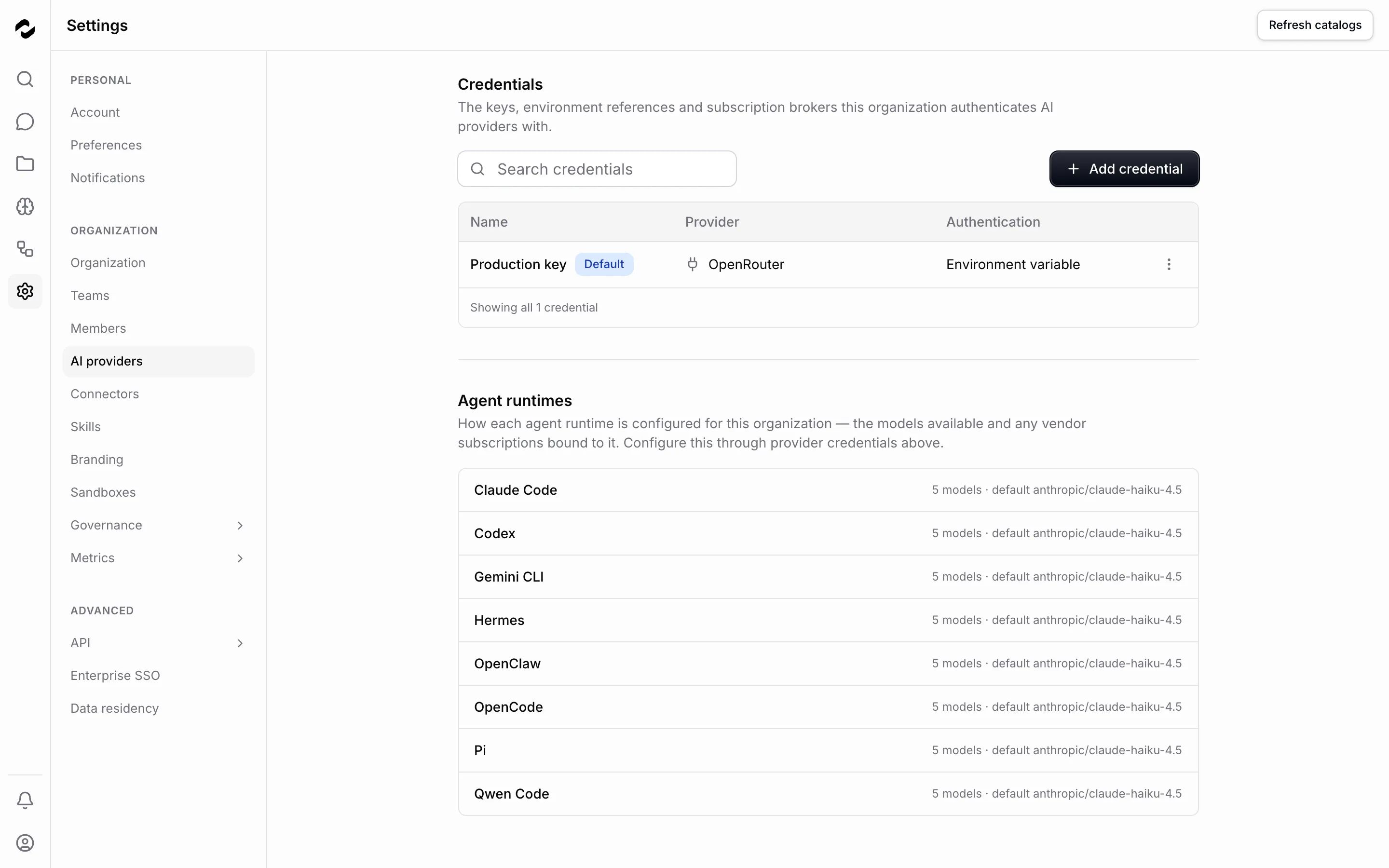
Open **Home**, choose **New chat**, and select an available model. Send a self-contained prompt such as “Write a three-item meeting checklist.” Wait for the answer to finish. A saved credential alone does not prove that its account has access to the selected model.
If the model list is empty or the provider rejects the request, use the recovery steps in [AI providers](/platform/admin/providers).
## Add people with the access they need
Open **Settings > Members** and select **Add member**. For a new account, the form sets an initial password; an existing account keeps its credentials. This flow does not send an invitation email. Follow [members and roles](/platform/admin/members-and-roles) for the fields and secure handover of the initial credentials.
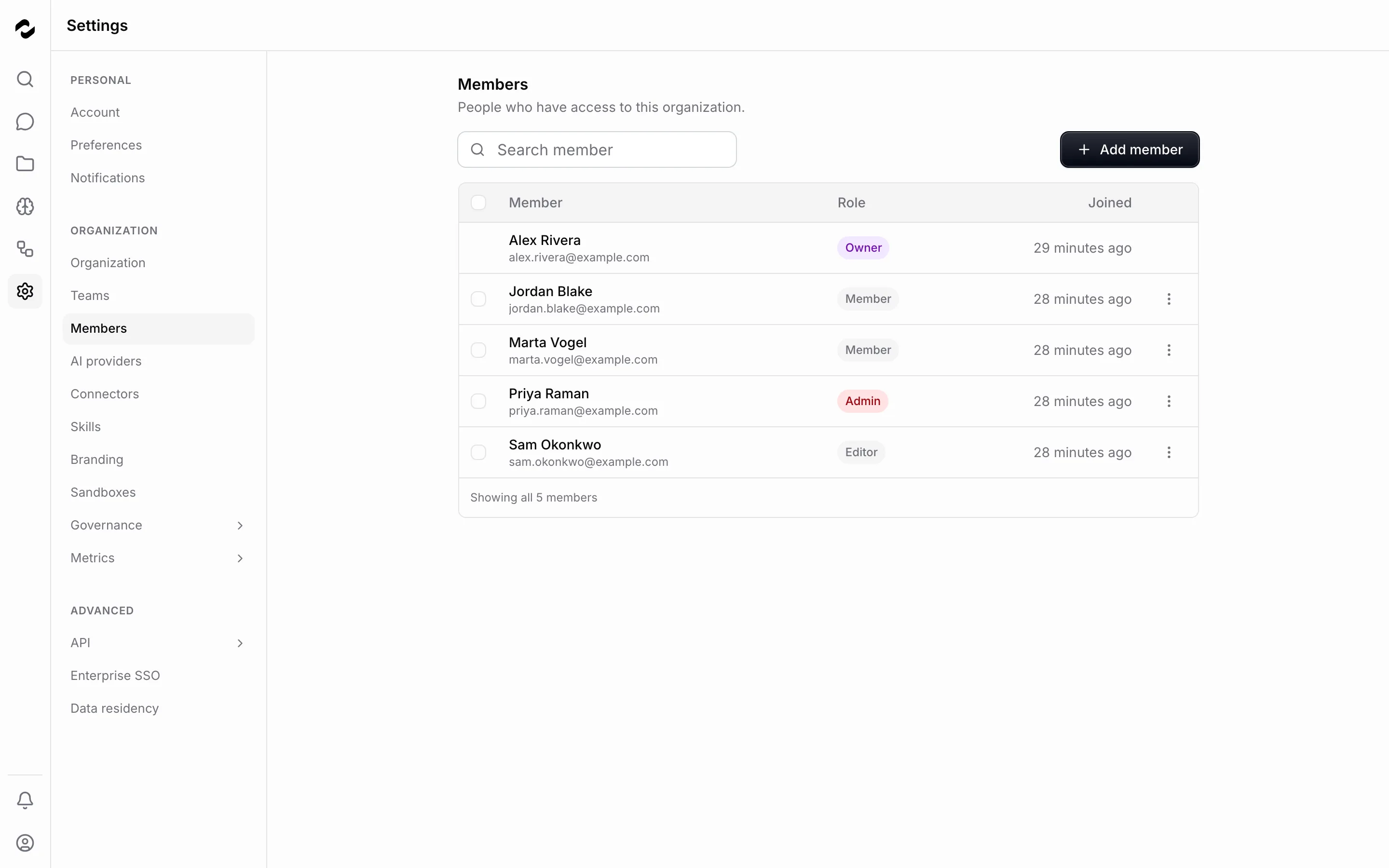
Choose the role for the job: Members use the workspace, Editors maintain shared content, Developers work on integrations and automations, and Admins manage the organization. Use the detailed permission table when the task crosses those boundaries. Teams and project sharing further determine which project work a person can access.
## Verify the team’s first workflow
Ask a teammate to sign in with their own account, send a message, and open the project they need. Check any shared source with that account too. Testing only as Owner can hide missing permissions or access that is broader than intended.
Start with one representative project and a small set of source documents. Confirm that people can find the work and that the intended accounts can access its files before importing a large library.
## Set the operating rules
Review [policies and limits](/platform/admin/governance/policies-and-limits), [audit logs](/platform/admin/governance/audit-logs), and [SSO](/platform/admin/enterprise-sso) as needed. Assign responsibility for provider credentials, access reviews, and responding to failed jobs. Self-hosted operators also need a tested [backup and restore process](/self-hosted/operate/backups-and-restore).
# Make your first API request
Source: https://docs.tale.dev/get-started/developers
Start an integration by proving three things: the key authenticates, it targets the right organization and that organization has the resources you need. This guide gets you through those checks with curl. You need a running Tale instance and permission to create API keys, normally the Developer, Admin or Owner role.
## Create a key for the integration
Open **Settings > API > REST** and select **Create API key**. Name the key for its purpose, choose an expiration and select **Create key**. Copy the value immediately; Tale displays the secret once.
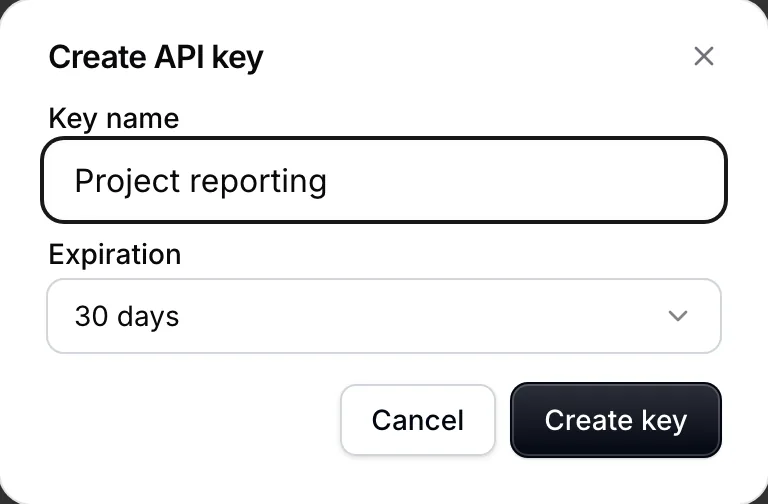
Load the secret into `TALE_API_KEY` from a secret manager or private shell environment. Set `TALE_BASE_URL` to your instance, for example `https://your-host.example.com`. Do not include a trailing `/api/v1`; the commands below add that path.
## Identify the account and organization
Call `/me` without an organization header. With one membership, it returns the key’s identity and organization. With several memberships, it returns `400 ORG_SLUG_REQUIRED` and lists your choices in `data.organizations`:
```bash
curl --fail-with-body --silent --show-error "$TALE_BASE_URL/api/v1/me" \
-H "Authorization: Bearer $TALE_API_KEY"
```
Set `TALE_ORG_SLUG` to your chosen slug, then repeat `/me` with that scope. The dashboard URL contains an organization ID; do not use it as the slug. A `400` in the first request makes curl exit with code 22 while still printing the JSON body.
```bash
curl --fail-with-body --silent --show-error "$TALE_BASE_URL/api/v1/me" \
-H "Authorization: Bearer $TALE_API_KEY" \
-H "X-Organization-Slug: $TALE_ORG_SLUG"
```
Check the successful response’s account, organization, capabilities and `key.expiresAt` before proceeding.
The key acts with its holder’s current membership and permissions. Creating several keys for one account does not create several independent roles or rate-limit budgets. Plan key replacement before expiration; `/api/v1` does not manage API keys for you.
## Find an available model
Send the organization explicitly when listing models:
```bash
curl --fail-with-body --silent --show-error "$TALE_BASE_URL/api/v1/models" \
-H "Authorization: Bearer $TALE_API_KEY" \
-H "X-Organization-Slug: $TALE_ORG_SLUG"
```
A `200` response with a `models` array confirms this authenticated, organization-scoped request. The array may be empty; that confirms access to the endpoint, not readiness to generate a reply.
Use a model’s `id` in chat requests and its `providerSlug` when that ID is available from several providers. A model can be listed yet unavailable to the provider account because of credit or plan restrictions. Ask an admin to check provider credentials and model access if the list is empty.
## Resolve the first error
| Response | What to do |
| --- | --- |
| `401` | Check the bearer key, expiration and revocation state. |
| `400` with `ORG_SLUG_REQUIRED` | Choose a slug from `data.organizations` in this error and send `X-Organization-Slug`. |
| `404` with `ORG_SLUG_INVALID` | The header names no organization at all — a typo, or the dashboard URL's organization ID pasted as the slug. Send the slug from `data.organizations`. |
| `403` with `ORG_FORBIDDEN` | The organization exists, but the key holder is not a member of it. Pick a slug from `data.organizations`. |
| `403` | Check the permission needed for the operation. |
| `429` | Wait as directed by `Retry-After`; read [Rate limits](/develop/rate-limits). |
If curl reports a TLS or network error before receiving JSON, check the host and certificate. Avoid disabling certificate verification in production scripts.
## Choose the next task
| You want to… | Continue with |
| --- | --- |
| Print a completed assistant reply | [Call Tale from a script](/tutorials/developer/call-tale-from-a-script). |
| Start an automation from another system | [Trigger an automation via webhook](/tutorials/developer/trigger-automation-via-webhook). |
| Connect an MCP client | [MCP endpoint](/develop/mcp-endpoint). |
| Use Tale from opencode, Claude Code or a shell script | [Use Tale from your editor or a script](/develop/use-tale-from-your-editor). |
| Work with project files, tasks or runs | [API reference](/develop/api-reference). |
Use project routes under `/api/v1/projects/{id}/...` for project-scoped work. The project ID belongs in that path; the organization slug belongs in the header. Keep both explicit in your integration configuration.
# Create and test a project agent
Source: https://docs.tale.dev/get-started/editors
A project agent is a reusable brief for work on project tasks. You choose its instructions, runtime, model, and tools, then start it on a task and review what it produces.
## Before you begin
You need edit access to a project, a suitable model provider, and an available agent runtime with its required infrastructure. A successful ordinary chat verifies the provider’s chat path; it does not prove that an agent runtime or sandbox is ready. Ask an administrator to check [agent runtimes](/platform/agents/harnesses) if none is available.
Create or open a project first. For the project’s sharing and knowledge setup, follow [use projects](/tutorials/member/use-projects).
## Give the agent a focused job
Open the project’s **Agents** tab and select **New agent**. Name it for the job, such as “Launch reviewer”. Choose an **Agent type** and **Model** supported by your workspace. When a model has multiple provider entries, choose the intended provider too.
In **Instructions**, describe the job, the source material, the expected output, and the limits. For example:
> Review the launch brief attached to the task. List missing decisions, unclear owners, and contradictions. Quote the relevant passage for each finding. Do not change files or contact external services. If the brief is missing, ask for it.
Grant only the **Skills, connectors & tools** and **Secrets** needed for that task. Select **Create agent** to save. You can edit the brief after reviewing a result.
Create a task with a clear description and the required input files. Assign the agent, then select **Start agent**. Assignment and starting are separate actions. Watch the task’s status and activity while it runs.
If it cannot start, inspect the displayed reason before retrying. A missing provider, unavailable runtime, policy restriction, or absent input needs a different correction.
## Review the work
Read the agent’s task comment and any output files. Compare the result with the brief: did it inspect the right source, support each finding, and stay within scope? A completed run means execution finished, not that the result is correct.
Keep review and completion explicit. Use the project’s task controls to record feedback, request another pass when needed, and mark accepted work as done. [Project tasks](/platform/projects/tasks) explains the statuses and reviewer field.
Test a missing-input case as well as a normal task. An agent that asks for a missing brief is more useful than one that invents what the brief might say.
## Refine one thing at a time
Improve the instruction that caused a poor result, then try a comparable task. Add tools only when the job needs them, and review the [approval behavior](/platform/approvals/concepts) before enabling external writes. For a longer worked example, follow [your first agent end to end](/tutorials/editor/first-agent-end-to-end).
# Use Tale with your team
Source: https://docs.tale.dev/get-started/members
Your everyday work in Tale starts with a conversation or a project. This guide helps you find the right place for a question, a document, and work you want to share with your team.
## Know what you can access
Start with a signed-in account and a working [first chat](/get-started/quickstart). Your role and project access determine what you can read or change. Members can chat and work in accessible projects. Editing organization-wide knowledge requires Editor or higher; project work follows the project’s access rules. Check [members and roles](/platform/admin/members-and-roles) when a control is missing.
## Ask a question with enough context
Open **Home** and select **New chat**. Describe the task, provide the information needed, and say what the result should look like. For example, paste meeting notes and ask for decisions, owners, and open questions.
Read the result before using it. When the answer cites a source, open it and check that it supports the claim. A fluent answer is not evidence that the model used the correct document. [Chat effectively](/tutorials/member/chat-effectively) shows how to improve an answer with follow-up questions.
## Put information in the right place
| You want to… | Use… |
| --- | --- |
| Discuss a file in this conversation | A [chat attachment](/platform/chat/attachments) |
| Keep source material with a project | The project’s [Knowledge tab](/platform/projects/manage-files) |
| Make approved material available as organization knowledge | [Knowledge documents](/platform/knowledge/documents) |
| Maintain a short reusable article | A [knowledge entry](/platform/knowledge/knowledge-entries) |
Choose the intended audience before uploading. Organization knowledge and a project’s files have different access boundaries. Uploading a file and making it searchable are separate stages; wait for indexing before testing retrieval.
If you cannot add a shared source, ask someone with edit access. Include the intended audience and where the file should live.
## Work in a project
In Home, choose a project you can access under **Projects**. Use **Tasks** to see the work, **Knowledge** for project files, and **Chats** for conversations. Project chats remain personal until shared with the project.
Open a task to read its description, assignee, and discussion. If you have edit access, update the task and reload it to check the saved result. Follow [manage project tasks](/platform/projects/tasks) for ordinary task work and [use projects](/tutorials/member/use-projects) for a complete example.
## Return to your work
Every section opens on its own first page, whatever you did there last. On a computer, **Home** is the exception: it reopens the chat you last read, and choosing it again starts a new chat. The [navigation guide](/platform#navigation) explains the desktop and phone controls.
Home lists your chats together with the open tasks assigned to you or waiting for your review; choose **Chats** or **Tasks** above the list to see one kind only. If the Home panel is hidden, **Show sidebar** at the start of the header brings it back. Use a new chat for a new subject and share a project conversation deliberately when teammates need it.
Your language and theme are available from **Manage account**. The [preferences guide](/platform/member/preferences) explains the other account settings and which features use them.
# Send your first message
Source: https://docs.tale.dev/get-started/quickstart
Start here when you have access to a Tale workspace and want to get your first answer. You will send a short prompt, read the response, and find the conversation again.
## Before you begin
You need your instance address, an account, and a workspace with an AI provider connected. Ask the person who manages your workspace for access. To install your own instance, follow the [self-hosted quickstart](/self-hosted/install/quickstart); for a managed instance, follow [Cloud onboarding](/cloud/onboarding).
An account lets you sign in. Your organization is the workspace that holds your team’s members, projects, and configuration. Your role controls which actions you can take there.
## Start a conversation
Open your instance and sign in with the method your administrator provided. If you belong to several organizations, choose the one where you want to work. Open **Home**, then choose **New chat**, the pencil at the top of the Home list.
Use the model control below the message field to inspect the available models. It may show **Auto**; you can choose a specific model when you want to control which one answers. The available choices depend on your workspace’s connected providers and access rules.
For a first test, use a self-contained request: “Write a three-item checklist for preparing a team meeting. Keep each item to one sentence.” This does not depend on uploaded documents or connected tools.
Select **Send message** or press Enter. Your message appears in the conversation, followed by the assistant’s response. A thinking indicator may appear before the answer. Wait for the response to finish before evaluating it.
Check whether it followed the requested length and format. Ask a follow-up such as “Add who should prepare each item.” The same conversation retains the context of your earlier messages.
## Find the chat again
Home lists the conversation under **Today**; choose it to reopen it. A new chat starts a separate conversation; it is useful when you change subjects. For names, history, and response controls, read [Chat basics](/platform/chat/basics).
Give the model the goal, the information it should use, and the format you need. “Summarize these notes as decisions and open questions” gives it a clearer task than “Help with this.”
## If you cannot get an answer
| What you see | What to do |
| --- | --- |
| You cannot sign in | Check the instance address and sign-in method with your administrator. |
| No models are available | Ask an administrator to check [AI providers](/platform/admin/providers) and your model access. |
| A provider or model error | Try another available model and report the displayed error to the administrator. |
| A usage limit message | Ask the administrator to review the relevant [policy](/platform/admin/governance/policies-and-limits). |
| An answer without your documents | This first prompt did not supply a source. Follow [chat attachments](/platform/chat/attachments) or [knowledge](/platform/knowledge/overview) to add one. |
Continue with [using Tale with your team](/get-started/members) or [writing effective prompts](/tutorials/member/chat-effectively).
# Tale documentation
Source: https://docs.tale.dev/
Tale brings conversations, projects, knowledge, and automations into one workspace. Start with the task you want to complete; you do not need to understand every feature first.
## Get started
Sign in, choose a model, and get an answer.
Find your chats, work with sources, and join a project.
Give an agent a clear job and review its first result.
Connect providers, add people, and choose their access.
## Find the right guide
- **[Do a complete task](/tutorials/overview)** — Guided examples for members, builders, and administrators.
- **[Look up a product feature](/platform)** — Controls, permissions, expected behavior, and troubleshooting.
- **[Connect another system](/develop/overview)** — REST API, MCP, WebDAV, and webhooks.
- **[Run Tale yourself](/self-hosted)** — Installation, configuration, backups, and upgrades.
- **[Use managed hosting](/cloud)** — Cloud onboarding, commercial terms, and operational responsibilities.
## How to use these docs
The same product guides apply to Cloud and self-hosted instances. What you see depends on your role and which providers and services your administrator has configured. If a control is missing, start with [members and roles](/platform/admin/members-and-roles).
Instructions use the labels shown in the app. Screenshots illustrate the English interface; German and French pages use the labels from their respective interfaces. For a first visit, follow [the quickstart](/get-started/quickstart).
# Govern project agents
Source: https://docs.tale.dev/platform/admin/agents
Govern an agent through its project and the organization resources it uses. There is no separate organization-wide agent roster to configure: open the project from **Projects** in Home, then **Agents** to inspect or edit its workers.
## Establish who can change the agent
Anyone who can read the project can see its agents. People with project edit access may create, update or delete agents while the project is active. Archived projects remain readable. Review [members’ roles](/platform/admin/members-and-roles) and [team access](/platform/admin/teams) when the wrong person can or cannot manage a roster.
An agent belongs to one project. Neither its ID nor access to a second project lets an integration use it as that second project’s agent. Projects allow up to 50 agents, with names unique inside each project.
## Review the resources before work starts
Open the agent’s edit dialog and review the combination, rather than checking the model alone:
| Check | Why it matters | Where to resolve a problem |
| --- | --- | --- |
| Harness, model and provider | The credential must support that execution path. | [AI providers](/platform/admin/providers). |
| Skills and their sharing | The project’s team scope determines which bundles can be equipped. | [Skill library](/platform/workspace/skills) and project access. |
| Connectors and platform tools | They grant access to services and supported data operations. | [Connector credentials](/platform/admin/connectors) and the agent’s equipment. |
| Secrets | The running session can read the granted values. | The agent’s **Secrets** controls, available to Owners and Admins. |
| Sandbox capacity and spending | Work needs an available environment and an allowed budget. | [Sandboxes](/platform/admin/sandboxes) and [Policies and limits](/platform/admin/governance/policies-and-limits). |
For a review agent, repository read access and reporting tools may be enough. Granting a write tool authorizes its operations within its access rules; a standing instruction to ask first is not a substitute for removing an unnecessary grant.
## Handle secret changes deliberately
Only an Owner or Admin can change secret grants. An editor can update other fields while preserving the existing grants. Secret values are encrypted in organization storage and are not returned with the agent configuration, but a running agent receives the values it is granted.
Use narrowly scoped, replaceable credentials. A secret name may be shared by several agents or automation nodes, so rotating or deleting its organization value affects every future run that refers to it. Review those uses before changing it.
## Apply the same review to API clients
The public API reads and writes the same project roster and applies the key holder’s project permissions. Every operation includes a project ID. An update provides the full configuration, including secret grants to retain; omitting them requests their removal and therefore requires administrative permission.
Use the [project-agent API example](/develop/api-reference#manage-a-projects-agents) for integration details. After a configuration change, reopen the agent to check the saved model, equipment and grants, then give it a small task with an outcome a person can review. [Project agents](/platform/projects/project-agents) covers that workflow.
# API keys
Source: https://docs.tale.dev/platform/admin/api-keys
Create an API key when a script or service needs to call Tale's REST API. A key belongs to the person who created it, not to the organization whose settings page created it: it acts as that person, follows their current permissions, and works in every organization they are a member of. A REST call names the organization it addresses with the `X-Organization-Slug` header; a key whose holder belongs to one organization may omit it. Owners, Admins, and Developers manage their keys under **Settings > API > REST**.

## Create a key
1. Select **Create API key**.
2. Enter a **Key name** that identifies the caller, such as `Billing sync` or `Document import`.
3. Choose **Expiration**: 7, 30, or 90 days, one year, or never. The form starts at 30 days.
4. Create the key and copy its secret into the caller's approved secret store before closing the confirmation.
The complete secret is shown once. The table later shows only a masked fragment, the creation date, and when the key was last used. It lists your keys, not your teammates' keys.
Anyone holding a key can act with its owner's permissions. Keep it out of source code, chat messages, screenshots, and logs. Use an account with only the access the integration needs.
## Verify the caller
Follow the authenticated request in the [API quickstart](/get-started/developers). Confirm the returned identity and organization before starting a write or import. After an authenticated request, check **Last used** in the key table.
A successful authentication does not guarantee permission for every resource. Project access and the key owner's current role still apply. If a request fails, use the API's error response to distinguish an expired or revoked key from missing resource permissions.
## Rotate without an outage
1. Create a replacement key before the old one expires.
2. Update the caller's secret store and restart or reload it as its configuration requires.
3. Run an authenticated request with the replacement and check that it works.
4. Revoke the old key only after every dependent caller has moved.
Tale does not automatically rotate keys. Key creation and revocation happen in this UI, not through `/api/v1`. A caller can inspect its key's name and expiry through `GET /api/v1/me` and alert the responsible person before expiration.
## Revoke a key
Open its row menu, select **Revoke key**, and confirm. Future requests with the key can no longer authenticate. Revocation cannot be undone; create a new key if you revoke the wrong one. Creating and revoking a key each leave a row in the audit log under **Settings > Governance > Logs**, in every organization you belong to.
Do not use an old **Last used** date as the only reason to revoke a key. A monthly job or a recovery process may legitimately be idle. Check the caller identified by the name first.
## Understand permissions and limits
Role changes take effect for existing keys on subsequent requests. Disabling the owner's membership removes their access; a key does not preserve the role it had when created.
Give an integration the narrowest access that works. A notification mirror, for example, does not need an Admin account: an Admin can grant an ordinary member the `tale:notifications.export` capability, which permits that export and none of the other rights of the Admin role. The grant applies only in that organization, can expire, and ends when the member is removed. Grant it under [Competences](/platform/admin/governance/competences), where an integration that relays people's answers and review decisions gets `tale:rest.act-as` the same way; [Delegate the export without an Admin role](/develop/api-reference#delegate-the-export-without-an-admin-role) covers the API side.
REST rate limits apply to the authenticated key holder. Several keys owned by the same person do not provide separate rate-limit allowances. See [Rate limits](/develop/rate-limits). A [budget rule](/platform/admin/governance/policies-and-limits) can additionally cap what requests authenticated with one key may spend: their usage counts toward the key, and a send over the cap is refused with `429 BUDGET_EXCEEDED`. Automation runs started with the key count toward it as well, alongside the personal limits of the member the key acts for. [How usage is counted](/platform/admin/governance/usage-attribution) has the full rule.
API keys authenticate software calling Tale. [Connector credentials](/platform/admin/connectors) serve the other direction: they let Tale call an external service. [Use Tale from your editor or a script](/develop/use-tale-from-your-editor) shows where a key goes in opencode, Claude Code, and a shell script.
# Branding
Source: https://docs.tale.dev/platform/admin/branding
Give an organization its own logo, browser-tab icons, and accent color under **Settings > Branding**. Owners and Admins can edit these settings. They apply to the organization you have open, so check the organization name before changing shared branding.
## Choose the assets
| Setting | What to prepare |
| --- | --- |
| **Logo** | A mark that stays readable at sidebar size and works on light and dark backgrounds. SVG is preferred; raster images should be at least 64 × 64 pixels. |
| **Favicon** | A small, recognizable tab icon. You can provide separate light and dark variants. |
| **Accent color** | Your brand's hex color, then a visual check in both themes. Tale derives the displayed palette for the current theme. |
The organization name supplies the text wordmark when there is no logo. Change that name under **Settings > Organization**; there is no separate application-name field on Branding.
## Upload a logo or favicon
Use the corresponding upload field and select the image. Uploading or removing an image takes effect immediately; it is not held until you select Save. The preview and organization branding refresh after the operation succeeds.
When no explicit favicon is configured, Tale can derive one from the uploaded logo. Provide an explicit icon when the full logo becomes hard to recognize at tab size. Check the tab icon and sidebar after uploading, including in the other theme.
The header's Discard action applies to pending form edits. It does not undo an image that has already been uploaded or removed.
## Change the accent color
Edit **Accent color** and inspect the preview. Select **Save** in the settings header to persist the change, or **Discard** to return to the saved value. The color field reflects the current theme, so a derived dark-theme color may differ from the stored light-theme value. The preview shows the color as it will look once saved, so in the dark theme it can differ from the value in the field. Saving a change, uploading an image or removing one each leave a row in the audit log under **Settings > Governance > Logs**.
Buttons keep your color as closely as legibility allows. Other marks drawn in the accent use your color only where it reads as text on the page. Where it does not, Tale uses a deeper shade of it, or a lighter one in the dark theme. These marks include a link, a mention, a source reference, the selected navigation item, an unread dot, the keyboard focus ring, a switch that is on, and a progress bar. A mid-tone color can therefore look slightly different on a link or a switch than on a button.
After saving, reload the page and check a selected navigation item, a button, and keyboard focus. A color that looks good as a large swatch may be hard to recognize in a small control.
## Check where branding appears
Organization branding applies inside that workspace. Switching organizations loads the destination organization's branding. Sign-in screens appear before an organization is selected and use the platform's default branding.
If you still see an old browser icon, reload the page and check the explicit favicon fields. An explicit favicon takes precedence over one derived from the logo. Use **Reset** only when you intend to remove the organization's configured branding, and read the confirmation first. Confirming takes effect immediately: the images are deleted and the cleared accent color is saved, so no further **Save** is needed and nothing is left unsaved.
# What’s new
Source: https://docs.tale.dev/platform/admin/changelog
Open **What's new** to read release notes for the Tale platform. Every signed-in member can view them; you do not need an administrator role.
## Open the release notes
Use **What's new** in the user menu, or select **View** on an upgrade notification. Opening the notes acknowledges the update and clears its unread indicator. The page shows the relevant releases, or tells you when you are up to date.
Expand a release to read its version, date, title, and notes. Focus on changes to the tasks your team uses, then open the linked product guide when you need the current instructions.
## Find older or unavailable notes
Use the link to older releases on GitHub when the change you need is outside the displayed range. The viewer obtains public release information from GitHub and caches it; a deployment with no network access may be unable to load uncached notes.
A version that has not yet been published can have no matching release entry. Check the linked release history rather than assuming that an empty view proves nothing changed.
## Distinguish releases from organization activity
Release notes describe changes to Tale itself. They do not show who changed an organization's settings or content; use [audit logs](/platform/admin/governance/audit-logs) for that investigation.
If you operate a deployment, follow [the upgrade guide](/self-hosted/operate/upgrades) for the upgrade procedure, then review the release notes for changes your team needs to know.
# Connector credentials
Source: https://docs.tale.dev/platform/admin/connectors
Add connector credentials so Tale can use services such as a mailbox, file store, or issue tracker. Owners, Admins, and Developers manage them under **Settings > Connectors**. Choose the service and account your work needs; the [connector catalog](/platform/connectors/overview) explains each service's available actions.
## Add an account
1. Select **Add credential**, then the connector. Already configured connectors appear first and can hold additional credentials.
2. Check the **Name**. It starts as the connector's name, with a number added when another credential for that connector already uses it: `GitHub`, then `GitHub 2`. A name such as `Support inbox` or `EU store` is easier for an automation author to recognize. An OAuth connection has no name field: Tale names it the same way when consent completes (a second Slack workspace takes the workspace's name), and **Edit credential** renames it.
3. Complete the authentication method offered by that connector. For OAuth, select **Connect** and complete the vendor's consent flow. Each **Connect** adds a new credential for the account you authorize and never replaces an existing one, so sign in to the vendor as the account you want to add.
4. Complete the form and check the resulting row, including its connector, account or instance, and status.
Slack connects one credential per workspace. Authorizing a workspace that is already connected renews that workspace's credential instead of adding a second one.
The connector determines which fields appear. Use the account's actual credentials, not a Tale API key.
| Method | Required information |
| --- | --- |
| API key | The key issued by the service, such as Tavily or Shopify. |
| Token | A service token, such as a GitHub personal access token or Discord bot token. |
| Username and password | The service's expected pair. This can be a login and app password, or a vendor-specific ID and token. |
| OAuth | Authorization in the vendor's browser flow; Tale stores the returned authorization. |
Some connectors also require an instance address. For Confluence, use the Atlassian site origin. For Shopify, use the store's `myshopify.com` origin, not the customer-facing storefront domain.
## Choose the default
The table contains one row per credential. The **Default** badge marks the credential used when an action does not explicitly name one. Select **Make default** in a row's menu to change it; one default is allowed per connector.
A connector with several credentials and no default can still serve callers that name a credential. Callers that omit the name need a default. Name accounts clearly before wiring automations so a future administrator can identify the intended account.
Mailbox synchronization and inbox triage can inspect every active credential for a mailbox connector. A second mailbox does not have to become the default before these operations can find it. When you compose a new email, the **Inbox** field lists each mailbox by its name, and the email leaves from the one you choose. Replies in that conversation, including a retry of a failed send, leave from the same mailbox.
## Rotate a secret or pause access
Use the row's replacement action for its method, such as **Replace API key** or **Replace token**. The new secret replaces the stored one while preserving the credential's name, default choice, and references. Test an appropriate service action after replacement.
**Disable** pauses a credential while retaining its configuration; **Enable** restores it. **Edit credential** handles other editable details, including its name or instance address where supported.
Deleting credentials removes access for automations and agents that depend on them. Move callers first and select a new default when needed. Deletion cannot be undone by reopening the same row.
## Prepare an OAuth app
Owners and Admins use **OAuth apps** at the bottom of the page to configure the vendor app registrations used during consent. An organization app overrides the deployment-wide app. If neither exists, the connector cannot start authorization and the page shows that it is not configured.
Select **Configure**, enter the vendor's client ID and secret, and register the exact redirect URIs shown in the dialog with the vendor. Microsoft apps may also require a directory/tenant ID. On a later edit, leave a stored secret blank to keep it.
The Google Drive app also supports Knowledge import. The OneDrive/SharePoint import entry is for Knowledge rather than a separate connector. Slack's app is configured by the deployment operator. Read the relevant [connector guide](/platform/connectors/overview) before assigning vendor permissions.
For OneDrive/SharePoint, **Use Entra ID SSO app** can copy an existing SSO registration into the import configuration. This is a one-time copy: after rotating the SSO secret, copy it again and review the redirect URI and delegated permissions listed by the confirmation.
## Reconnect or diagnose a failure
**Reconnect needed** means stored OAuth authorization can no longer refresh. Choose **Reconnect** in that row's menu and authorize the same account again. Tale renews exactly that credential: its name, default choice and references stay, and no other credential changes. Reconnect does not re-enable a deliberately disabled credential; **Enable** returns it to service.
If the credential is removed before consent completes, or your role no longer allows you to manage credentials, Tale saves nothing and shows the reason. For Slack, authorize the workspace the credential already connects. Tale refuses a different workspace; connect that one with **Add credential**.
If the connection cannot start, check whether the OAuth app is configured. If the vendor rejects the return to Tale, compare the registered redirect URI with the exact URI shown by Tale. If an action fails after connecting, check the account's permissions and the required scope for that action.
For systems without a built-in connector, see [MCP and custom integrations](/platform/connectors/mcp-servers). Registering an arbitrary outbound MCP server is not part of this credential page.
# Enterprise SSO and provisioning
Source: https://docs.tale.dev/platform/admin/enterprise-sso
Enterprise SSO lets members sign in through your identity provider (IdP). SCIM lets that provider create, update, and deactivate members without waiting for them to sign in. An organization has one connection; you can enable sign-in, provisioning, or both in **Settings > Enterprise SSO** as an Admin or Owner.
## Before you start
You need permission to register an application with your IdP, its client credentials or SAML metadata, and the public Tale address members will use. Keep a working administrator session open while testing so you can correct the connection if a test sign-in fails.
Choose a **Display name** members will recognize. When more than one organization on the deployment has SSO enabled, it appears in the organization picker on the public sign-in page, so avoid internal or confidential information.
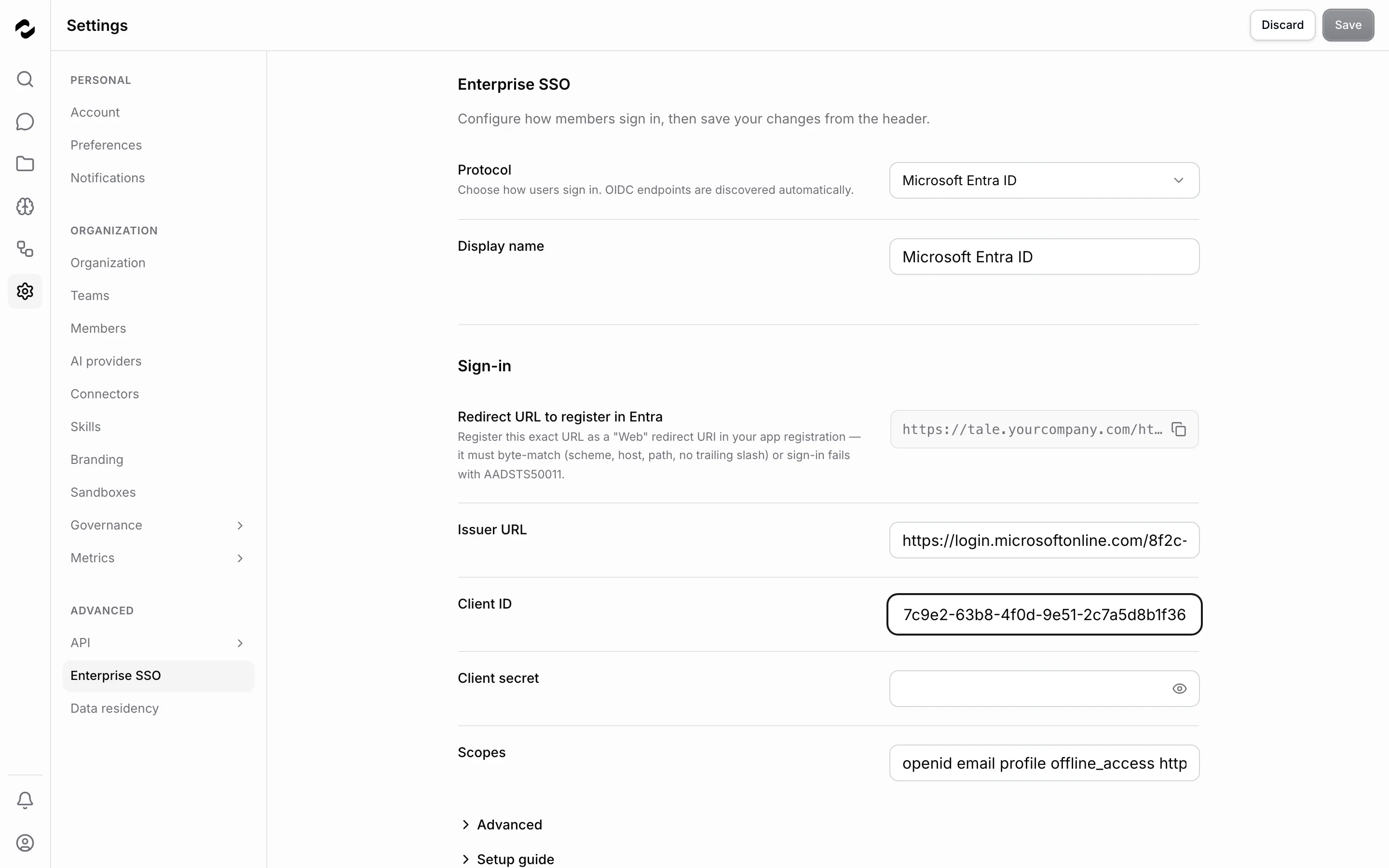
## Choose the protocol
| Protocol | Use it when | Information to prepare |
| --- | --- | --- |
| **Microsoft Entra ID** | Your organization uses Entra; optional team sync uses Microsoft Graph. | Tenant issuer URL, client ID, client secret. |
| **Generic OIDC** | Your provider supports OpenID Connect discovery. | Issuer URL, client ID, client secret. |
| **OAuth2** | Your provider has no OIDC discovery document. | Client credentials and authorization, token, and userinfo endpoint URLs. |
| **SAML 2.0** | Your IdP uses SAML assertions. | IdP metadata or its entity ID, sign-on URL, and signing certificate. |
## Connect an OIDC or OAuth2 provider
1. Select the protocol in Tale and open **Setup guide** to find the callback URL.
2. Register a web application with your IdP. Copy the callback URL exactly, including scheme, host, and path. Register each additional callback URL Tale shows if members use several deployment domains.
3. Enter the client ID and secret in Tale. For OIDC, enter the issuer URL; Tale discovers the endpoints. For OAuth2, enter the three endpoint URLs yourself.
4. Review **Scopes** and **Advanced**. Request the identity claims your provisioning rules need. Map nonstandard claim names where necessary; claim paths can use dots, such as `realm_access.roles`.
5. Select **Test connection**, resolve any error, then **Save** in the header. Continue with a real sign-in test below.
For Entra, use a tenant-specific issuer such as `https://login.microsoftonline.com/{tenant-id}/v2.0`, register the callback as a Web redirect URI, and copy the client secret's value rather than its ID. Microsoft's [application registration guide](https://learn.microsoft.com/en-us/entra/identity-platform/quickstart-register-app) explains the provider-side setup. Group-to-team sync requires the Microsoft Graph `GroupMember.Read.All` permission and admin consent. App roles you define in the app registration and assign to users or groups in the enterprise application arrive in the sign-in token, so an **App role** rule matches the role's **Value** (for example `Administrator`) and needs no Graph permission.
For Google, choose **Generic OIDC** with issuer `https://accounts.google.com`; see Google's [OpenID Connect setup](https://developers.google.com/identity/openid-connect/openid-connect). Standard Google OIDC does not provide group memberships, so signing in with Google alone does not enable group-to-team sync.
Microsoft 365 file import has a separate consent flow under Knowledge. Do not add `Files.Read` or `Sites.Read.All` to SSO scopes just to let members sign in. Configure import access through [connector OAuth apps](/platform/admin/connectors).
## Connect a SAML provider
1. Choose **SAML 2.0**. Copy the **SP metadata URL** and **ACS (reply) URL** into your IdP's SAML application. Use the service-provider metadata for its entity ID/audience and set the Name ID format to email address.
2. Under **Import IdP metadata**, import the IdP's metadata URL or select **Upload XML**. Review the entity ID, sign-on URL, and signing certificate filled in by the import. You can also enter them manually.
3. Under **Advanced**, map email, name, and groups if the IdP uses different attribute names. Keep **Require signed assertions** enabled.
4. Save the connection, then test a sign-in through the IdP.
If your IdP encrypts assertions, add a matching **SP certificate (PEM)** and **SP private key (PEM)** under **Advanced**. The certificate is published in SP metadata; the private key is stored as a secret and is not shown again. Configure the IdP to encrypt before enabling **Require encrypted assertions**. Tale refuses that setting without a decryption key and rejects unencrypted assertions when it is enabled.
Both IdP-initiated and Tale-initiated SAML are supported. For a sign-in started in Tale, finish in the same browser so the callback can validate the cookie created at the start.
## Assign roles and teams at sign-in
| Setting | What it controls |
| --- | --- |
| **Default role** | Role for newly provisioned members when no role rule matches; initially Member. |
| **Auto-assign roles from the IdP** | Maps groups, app roles, job titles, or claims to Tale roles. Review who could match an Admin rule before enabling it. |
| **Sync IdP groups to teams** | Creates or joins teams from group membership at sign-in. |
| **Exclude groups** | Comma-separated group names to leave out of team sync. |
Role rules are checked from top to bottom, and the first rule that matches decides the role. A person who matches several rules — for example, someone with both an `Administrator` and an `Employee` app role — gets the role of the rule higher in the list, not automatically the most privileged one. Put the most privileged rules first: drag a rule by its handle or use its **Move up** and **Move down** arrows, then save.
Team sync removes memberships it previously granted when groups disappear and deletes teams it created once empty. It preserves memberships created manually or through SCIM, and leaves excluded groups alone. See [teams](/platform/admin/teams) for manual membership management.
## Provision members through SCIM
1. In **SCIM provisioning**, select **Generate token** and copy it immediately; it is shown once.
2. Enter the token as a bearer credential and the displayed **SCIM base URL** in your IdP's provisioning configuration.
3. Provision a test user and group. Confirm the member and team appear in Tale, then test updates and deactivation before enabling a wider rollout.
SCIM Users map to members and Groups to teams. Deactivation (`active: false`) disables the member's access; reactivation restores their previous role. Deleting a SCIM user removes their organization membership but preserves their account. Provisioning them again starts with the connection's default role.
The organization owner cannot be deactivated or removed through SCIM. Groups can contain only members of this organization. A username change is refused if the new email is in use or the account belongs to multiple organizations, protecting its shared sign-in identity.
## Sign members in through an authenticating proxy
An application that already authenticates its users can hand them into this organization through its reverse proxy, so members never see Tale's sign-in form. The **Trusted headers** card on the same page holds the switch, the role ceiling and the keys the proxy presents.
1. Turn on **Accept sign-ins from a trusted proxy** and choose the **Highest role a proxy may assert**. The role header is capped at this role; Owner is never assertable. On every sign-in the member's seat follows the asserted role; an Owner seat never changes.
2. Select **Create key**, name it after the proxy that will hold it, and copy the key immediately; it is shown once. An organization holds at most 10 live keys.
3. Configure the proxy to send its sign-ins to the **Hand-off URL** with the key in the key header and the identity headers listed under **Header names**. A member who arrives through the proxy is signed in on the app's first request and never sees a sign-in page; the app offers them no sign-out, since the proxy owns that session. Pointing the proxy's `/log-in` at the same address remains supported.
To show the pages inside the application's own page, turn on **Allow embedding in a frame** under **Embedding** and list the page's origin under **Allowed origins**; Tale then admits that origin as a frame ancestor. A frame carries the signed-in session only when the surrounding page is on the same site as Tale.
The key decides the organization: a member signs in, an address Tale has never seen becomes a new member with the asserted role, and an existing account from another organization is refused. Turning the switch off refuses every key without revoking one. **Revoke** stamps a key so the proxy can no longer sign anyone in; sessions it already started stay signed in. The operator's [authentication configuration](/self-hosted/configuration/authentication) covers header names and proxy requirements.
## Verify and troubleshoot
Open a separate browser session and choose **Continue with SSO**. The organization picker appears only when more than one organization on the deployment has SSO enabled; select the organization by its display name there. Otherwise the button opens the one enabled organization's identity provider directly, and an address typed into the e-mail field is passed along only as a login hint — Tale does not route by e-mail domain. Complete sign-in, then check the expected role and team memberships. **Test connection** checks connection details; it does not prove that a real user receives the right access.
| Symptom | What to check |
| --- | --- |
| Redirect mismatch, including `AADSTS50011` | Compare the registered callback with Tale's exact URL; check domain, scheme, path, and trailing slash. |
| Connection test fails | Check issuer/endpoints, client ID, secret value and expiry, and required provider consent. |
| Browser-binding error | Start sign-in again in the same browser and allow the cookies needed across redirects. |
| Wrong role or missing team | Inspect the IdP's actual claims, role rules and their order, exclusions, and group permissions. An **App role** rule matches the app role's Value, not its display name or ID. |
| SCIM cannot connect | Check the base URL, bearer token, and whether provisioning is enabled. |
| Proxy sign-in is refused | Check that the card is on, the key is not revoked, and the proxy sends the email header and the key on the hand-off request. |
| Missing redirect URL or server-configuration warning | Ask the deployment operator to check [authentication configuration](/self-hosted/configuration/authentication). |
**Disable sign-in** stops new SSO sign-ins while keeping active sessions. **Remove** deletes the connection configuration and credentials. Arrange another working sign-in method before using either action.
# Audit logs
Source: https://docs.tale.dev/platform/admin/governance/audit-logs
Open **Settings > Governance > Logs** as an Admin or Owner to investigate recorded actions in your organization. Start with the event and time you need, then inspect its actor, target, result, and available change details.
## Find a change
1. Select **Audit logs** and open **Filter**.
2. Choose a category relevant to the action, such as member changes, security, or data.
3. Find the event by timestamp, action, and target. Open its row to inspect the details.
4. Check the status before interpreting the event: an attempted action marked denied or failed does not establish that the change succeeded.
The active tab and category are reflected in the URL, so you can bookmark the view. Access still depends on your organization permissions.
## Read an event
| Field | What to look for |
| --- | --- |
| Timestamp | When Tale recorded the action. |
| Action | The operation that was attempted or completed. Some newer actions appear by their technical name. |
| User | The person or system actor responsible for the action. |
| Resource and target | The kind of item and the particular record affected. |
| Category | The grouping used by the filter. |
| Status | Success, failure, or denied. |
| Detail view | Available previous/new state, changed fields, metadata, and error information. Not every event has every field. |
Treat the log as evidence of the events it records. It is not a complete copy of every conversation, provider response, or external service's activity.
## Choose the right tab
**Audit logs** contains individual events; the table loads more as you scroll, and its footer states how many events are loaded so far, so a count is never the whole history until the footer says so. **Sign-in blocks** helps investigate authentication lockouts. **Activity logs** summarizes activity and outcomes over a period: the period chosen in its **Filter** (7, 30, or 90 days) is named above the totals, and every number on the tab covers that period only. **Error logs** focuses on failures; its category filter helps narrow the investigation.
When a member cannot sign in, begin with the sign-in blocks and the [account security guidance](/platform/admin/two-factor-authentication). When a configuration changed unexpectedly, use the audit event and its detail view.
## Export results
Set the category filter, then open **Export** and choose CSV or JSON. CSV provides flat columns for spreadsheets, including UTC timestamps, actor identifiers, resource identifiers, status, and errors. JSON preserves the fuller event objects, including available change payloads and integrity hashes.
Exports honor the category filter and contain at most 10,000 rows, newest first. They are generated on the server and downloaded through a temporary link. A filtered or capped export is a selection of evidence; it is not necessarily the entire audit history or a complete hash chain.
## Retention and integrity
Use **Verify now** in **Chain integrity** to check the stored audit chain. The panel shows its status and the latest automated check. If a check reports a break, preserve the reported details and investigate with the deployment operator before relying on that segment of history.
A successful check covers the retained records it examined; it does not establish an independently signed origin for the history. The [operator integrity guide](/self-hosted/operate/security/audit-log-integrity) explains the checks and their limits.
Hash chaining helps detect changes to stored records; it does not prove that every possible action was logged. Audit retention is configurable under [Policies and limits](/platform/admin/governance/policies-and-limits). Check the active policy and deployment bounds instead of assuming a fixed retention period. Recoverable audit records can appear in [Trash](/platform/admin/governance/trash); permanent cleanup limits the history available here.
Scheduled retention cleanup records each of its runs here as system events in the **Data** category: when the run started, how many records each category deleted, and whether the run completed or failed.
# Competences
Source: https://docs.tale.dev/platform/admin/governance/competences
Use **Settings > Governance > Competences** as an Admin or Owner to keep the organization's competence register. A competence is one of two things:
- A **platform capability** lets a member do one narrow thing that otherwise needs an Admin role. Grant it to the account behind an integration instead of making that account an Admin, which would also let it manage members, single sign-on and passwords.
- A **qualification** is a name your organization's review policy can require of the person who approves a review.
A grant applies in this organization only. Tale records every grant and revocation in the audit log, and removing a member from the organization revokes their grants.
## Platform capabilities
| Capability | What it allows |
| ------------------------------------------------------ | --------------------------------------------------------------------------------------------------------------------------------------------------------- |
| **Export notifications** (`tale:notifications.export`) | Read the notifications another member can see through the REST API, so another application can mirror them. |
| **Act for another member** (`tale:rest.act-as`) | Name the member an API call answers a question or decides a review for. The task timeline and the audit log then show that person instead of the API key. |
| **Publish skills to the organization** (`tale:skills.publish`) | Share a skill with the whole organization even when the [skill sharing policy](/platform/admin/governance/policies-and-limits#skill-sharing) reserves that for Editors or admins. |
Owners and Admins have all three through their role. Any other member, for example a Developer account whose API key an integration uses, needs the capability granted here. Without it, the REST API answers an export or an `actor` with `403 ROLE_FORBIDDEN`. The [API reference](/develop/api-reference#name-the-member-the-gesture-is-for) describes both requests.
**Publish skills to the organization** matters only while the skill sharing policy reserves organization-wide skills. Under **Editors and above**, Editors and Developers already have it through their role. Without it, a member can share skills with their own teams only, and the skill editor, uploads, and the REST API refuse an organization-wide skill with `403 SKILL_PUBLISH_FORBIDDEN`.
## Grant a competence
1. Select **Grant competence**.
2. Choose the **Member**.
3. Choose the **Competence**: a platform capability, or **Qualification**, then type the **Qualification name** your review policy uses. Names that start with `tale:` are reserved for platform capabilities.
4. Choose when it **Expires**: **Never**, **In 30 days**, **In 90 days** or **In 1 year**.
5. Optionally note the **Evidence**: why the member holds it, such as a certificate, a ticket or the system it serves. It stays in the register.
6. Select **Grant**.
The grant applies to the member's next request, so an integration does not need a restart. A member holds each competence once at a time: to change its expiry or evidence, revoke the grant and grant it again. If the member already holds it, the dialog says so and grants nothing.
## Revoke a competence
Select **Revoke** on the row and confirm with **Revoke**. The member loses the competence right away. The grant stays in the register as history with the status **Revoked** and the revocation date; point at the date to see who revoked it.
## Read the register
The list opens on **Active** grants. Use **Filter > Status** to include **Expired** and **Revoked** grants, or select **Clear all** to see every grant.
| Status | Meaning |
| ----------- | ------------------------------------------------------------------------------------------------------------------------- |
| **Active** | The member holds the competence. The line below shows its expiry date, or **No expiry**. |
| **Expired** | The expiry date has passed, shown below the status. Grant it again if the member still needs it. |
| **Revoked** | An Admin or Owner revoked it, or a new grant replaced it after it expired. The revocation date is shown below the status. |
Removing a member revokes every active grant they hold — capabilities and qualifications alike — so a re-added member starts without them. A revoked grant whose holder has left the organization names them **Former member**. The register lists every active and expired grant, and the 1,000 most recent revoked ones as history.
An integration can check its own key with `GET /api/v1/me`: `capabilities.actAs`, `capabilities.notificationExport`, and `capabilities.skillPublish` say whether the key may use each capability, through its role or a grant.
# Models
Source: https://docs.tale.dev/platform/admin/governance/content-models
Use **Settings > Governance > Models** as an Admin or Owner to choose the models members start with and the models they may use. Defaults guide a choice; access rules enforce a restriction. Configure [provider credentials](/platform/admin/providers) first so the intended models are available.
## Set a default model
1. Under **Default models**, select **Add rule**.
2. Choose **Default** for the baseline, **Role** for a role, or **Team** for a team. Select the target when needed.
3. Choose a provider and model, then **Confirm**. Save the page's pending changes in the header.
4. Start a chat as a member of the target group with its model on **Auto**, and check the resolved model.
The default is used when there is no explicit model choice. A team rule takes precedence over a role rule, followed by the baseline default; when someone belongs to several teams with a rule, the first matching team rule in the table wins (see [How rules combine](/platform/admin/governance/policies-and-limits#how-rules-combine)). A default does not prevent someone from selecting another permitted model.
## Restrict model access
Under **Model access**, choose the mode and add rules for the users, teams, roles, or default scope you want to cover.
| Mode | Effect for a matching rule |
| --- | --- |
| **Allowlist** | Only listed allowed models may be used; a blocked model remains denied. |
| **Blocklist** | Models are permitted unless listed as blocked. |
Access resolves user rules before team rules, then role rules, then the default. Multiple matching team rules combine their lists; an explicit block still wins for that model. If no rule matches, the policy does not restrict that user. Add a baseline rule when you intend to cover everyone.
For chat, access is checked when a model is used, including an explicitly selected or pinned model. A configured default must also pass the check. If it is denied, automatic selection can fall back to an allowed model. The editor warns about a default that conflicts with access rules; resolve that warning so the intended default is actually used.
Test both cases after changing access: an allowed model should work and a denied model should be refused for the affected member. Testing only as the admin does not prove a role-specific rule.
## Choose the image-reading model
A text-only agent needs help reading an image, such as a screenshot or scanned page. **Vision model** selects the model that describes it for the agent. An agent whose own model reads images reads them itself; the vision model still serves the image tools that scripts and coding agents call inside their sandbox, such as batch transcription of scanned pages, so every managed agent gets one when a reachable model exists.
Leave **Model that reads images** on **Automatic** to follow the available provider catalog. Tale prefers a recommended vision model and otherwise selects a reachable low-cost option. The text below the picker identifies the current choice and reason.
Pin a model if you need a stable choice. The picker offers models that can read images. If a pin later becomes unavailable, restore its provider access or explicitly choose **Automatic** and save. Tale does not silently switch a pinned model. Review the current choice after rotating credentials or changing model availability.
## Choose the audio transcription model
**Audio transcription model** controls server transcription for audio and video attachments, the audio fallback for video links, and dictation in browsers without built-in speech recognition. Browser speech recognition uses its own service and keeps priority when supported.
An active default credential for OpenRouter also makes its dedicated speech-to-text models available here. Tale discovers them from the OpenRouter catalog. Check that the credential’s allowed models include your intended transcription model, then use **Automatic** or select that model explicitly.
1. Under **Model that transcribes audio**, leave **Automatic** selected to let Tale choose an available compatible model, or select a specific provider and model.
2. Save the page's pending changes in the header. Until you save, the selection is a draft; discard it to keep the saved setting.
3. Check the current model shown below the picker. Test a short recording before relying on the setup for a longer upload.
A model change applies to new transcription work; completed attachments keep their existing transcript. Uploading the same bytes again reuses completed work for the same transcription target, but transcribes them again when the target provider or model differs.
An explicit selection stays fixed. If that model becomes unavailable, Tale reports it and does not switch to another model. Choose another available model or **Automatic**, then save. If no compatible model is available, configure an active credential in [AI providers](/platform/admin/providers) and check the credential’s allowed models. A temporary failure to check the configuration calls for a retry, not a new model selection.
If unavailable server transcription prevents a member’s attempt to dictate or attach audio or video, a dismissible dialog explains the problem. Settings actions appear according to their access; otherwise, they are asked to contact an admin. A temporarily failed availability check can be retried. For deployment-managed selection and custom audio endpoints, see the [self-hosted provider reference](/self-hosted/configuration/providers#configure-audio-transcription).
## Diagnose an unexpected choice
Check the member's roles and teams, the explicit chat selection, the matching default, the access rule, and the provider credential's model list. A model appearing in a catalog does not establish that the organization has usable credentials for it. Spending and token caps still apply through [Policies and limits](/platform/admin/governance/policies-and-limits).
# Data subject requests
Source: https://docs.tale.dev/platform/admin/governance/data-subject-requests
Use **Settings > Governance > Data subject requests** as an Admin or Owner to process a person's erasure request. Tale tracks the request, its approval and waiting period, and the result of the deletion process. Confirm the person's identity and the appropriate scope through your organization's process before filing.
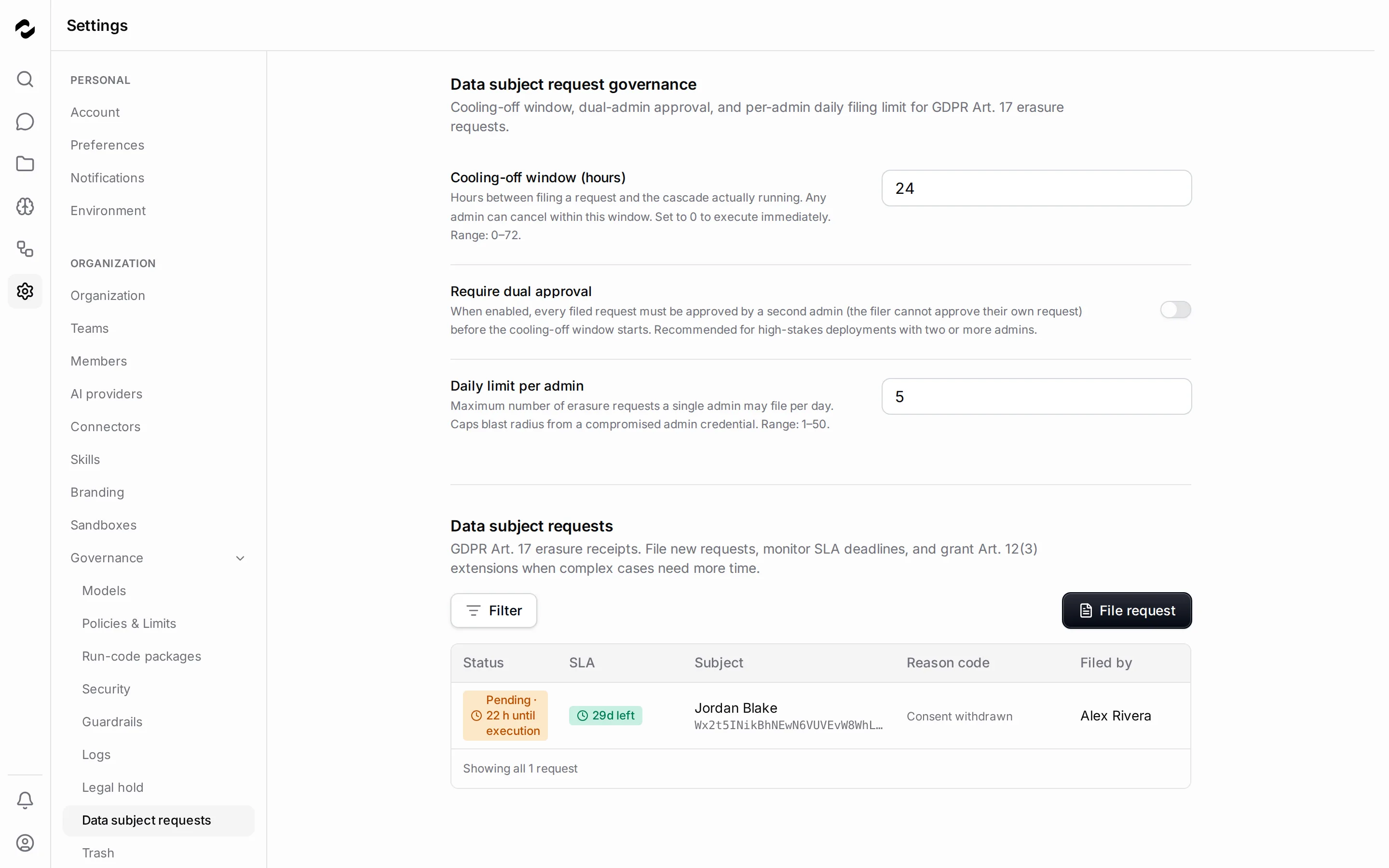
## File a request
1. Select **File request** and choose the **Subject** by name or email. Check that you selected the intended account.
2. Select the **Lawful ground** and write a **Reason narrative** that explains the request and references your internal case.
3. Type `ERASE` exactly, then select **File request**.
4. Open the receipt and check its status, deadline, and next required action.
Erasure permanently removes covered data; it is not a move to Trash. The receipt records the affected categories and counts, including chats, documents and uploads, preferences, feedback, notifications, usage, and audit-identifier scrubbing.
Tasks that name the person as **Reviewer** lose that designation. A task review still waiting on them moves to the task creator or project creator, as **Clear reviewer** does, and that person is notified. On an archived task the review moves without a notification. Review decisions the person already made stay on record without their name.
## Check the policy before filing
| Setting | Effect |
| --- | --- |
| **Cooling-off window (hours)** | A waiting period of 0–72 hours before execution. Admins can cancel while waiting. Zero allows immediate execution once other requirements are met. |
| **Require dual approval** | A different admin must approve before the cooling-off window begins. The filer cannot approve their own request. |
| **Daily limit per admin** | Limits each admin to 1–50 filings per day. |
Only the Owner can change this policy. Stronger safeguards apply immediately; weaker safeguards are staged for 24 hours so any admin can cancel the change. Review the effective settings and any pending-change banner before relying on a new value.
## Follow the receipt
| State | What to do |
| --- | --- |
| Pending / awaiting approval | Check whether another admin must approve or the cooling-off window must finish. Cancel or reject if the request should not run. |
| Running | Wait for the category results; do not file a duplicate request. |
| Completed | Review the recorded counts and retain the receipt with your case. |
| Partial | Inspect the skipped categories and errors. Resolve the cause before retrying. |
| Blocked | Inspect the [legal hold](/platform/admin/governance/legal-hold). Covered data remains protected. The receipt names the hold that still applies; once the hold is released it says so, and the erasure continues only when you choose **Retry**. |
| Failed | Read the failure details. Use **Retry** when available; a watchdog timeout may require a new request. |
| Cancelled | No further execution is scheduled by this receipt. File a new request if the case must resume. |
An open receipt for a subject can prevent a duplicate filing. Work from that receipt rather than creating repeated requests. A retry blocked at initial filing must satisfy the current approval and waiting-period policy again. A receipt awaiting approval keeps the approval requirement captured when it was filed: turning dual approval off later does not release it.
## Manage the deadline
The list shows the tracked deadline and whether it is overdue. Use **Extend deadline** for a justified extension while it is still available: the application permits one extension before the original deadline expires and records the reason and admin.
The deadline is a tracking aid. Your organization remains responsible for assessing the request and communicating with the person. Completing a Tale receipt does not by itself confirm deletion from unrelated external systems or backups.
## Verify the outcome
Open the receipt's category counters, errors, and audit timeline. A completed action, a held category, and a failed pass have different outcomes; record those distinctions in your case. Review [audit logs](/platform/admin/governance/audit-logs) for the associated administrative events.
# Feedback analytics
Source: https://docs.tale.dev/platform/admin/governance/feedback-analytics
Use **Settings > Metrics > Feedback** as an Admin or Owner to review the feedback members submit in chat. Ratings tell you what people judged useful; their comments help explain why.
## Find the feedback you need
Choose a period, then narrow by feedback type, assistant, or model. The available windows are 1, 7, 30, and 90 days, plus all time; the initial view uses 7 days. Selecting an assistant or model in a breakdown filters the view. Clear the filter chips to broaden it again. Tale attributes each rating from the rated reply itself: the model and provider that answered, and the assistant the conversation runs under. The assistant is the one the conversation runs under when the rating is given, not necessarily the one that wrote the reply: after a conversation switches assistants, a rating on an earlier reply counts for the new assistant. A reply in a plain chat, outside any assistant, is listed as **Unattributed**.
Use **Comments only** to focus on written explanations. If no feedback appears, check the period and filters before concluding that nobody has rated a reply. Feedback is voluntary; an unrated answer is neither a positive nor a negative vote.
## Keep the signals separate
| Signal | What it tells you |
| --- | --- |
| Thumbs up/down | Whether a member found a particular reply helpful. An optional comment provides context. |
| Arena verdict | Which answer a member preferred in a specific pair, or whether the pair tied or both were bad. A verdict cast on two copies of the same model is counted under **Same model**, apart from the verdicts and the matchup table. |
Members can change or withdraw a rating. The dashboard reflects the current state, not a permanent count of every click. [Arena mode](/platform/chat/arena-mode) explains how members compare two answers.
## Compare results fairly
Read the number of ratings alongside the helpful ratio. One positive vote is weaker evidence than repeated feedback across the tasks a model actually handles. Compare similar periods and tasks before attributing a change to a model or an assistant configuration.
Use the assistant and model tables to locate the change, the trend to find its timing, and **Recent feedback** to read comments. For arena results, compare the same model pairing; a win against one model does not establish superiority over every model.
Pair this review with [usage analytics](/platform/admin/governance/usage-analytics). A model can cost less per request while requiring more retries to produce a useful answer.
## Understand partial results
Large windows can reach the aggregation limit of 50,000 entries. If Tale shows a partial-results notice, narrow the period before drawing conclusions. Retention and deletion also affect which ratings and comments remain available; this view is not a permanent archive of member feedback.
# Guardrails
Source: https://docs.tale.dev/platform/admin/governance/guardrails
Use **Settings > Governance > Guardrails** as an Admin or Owner to control how chat text is checked before and after a model call. Enabled layers run in order: content safety, personal-data detection, then external moderation. Start with one clear rule and verify its effect before broadening the policy.
## Add a content rule
1. Under **Content safety**, choose whether to check **User input**, **Model output**, or both.
2. Select **Add category**, give it a recognizable **Label**, and choose its **Mode**.
3. Add the words or phrases to detect, one per line. You can import a text list; review it before applying it.
4. Save the category, enable the intended category and layer, then save the page's pending changes.
5. Test with synthetic text containing a match and with ordinary text that should pass. Check **Recent events** and the visible chat outcome.
| Mode | What happens on a match |
| --- | --- |
| **Flag** | Records the detection and allows the message. Useful while tuning a rule. |
| **Mask** | Replaces matched text with the configured placeholder. |
| **Block** | Refuses the message. |
When several categories match, block takes precedence over mask, then flag. Word matching ignores case. Check variants and false positives that matter for your languages; one successful test does not establish complete coverage.
## Protect personal data
**PII protection** detects configured patterns such as email addresses, phone numbers, and identifiers. Select the relevant built-in types and any custom patterns, then choose the intended behavior.
Masking removes matched values from the text sent onward. In a chat, the masked text is also what Tale stores and shows as the message; the original wording is not kept. Blocking refuses a match. Tokenization replaces detected values with indexed tokens for the model and restores them in its reply. Tokenization is therefore useful for processing with reduced exposure, but it is not a promise that the final reply will contain no personal data.
A built-in identifier that is digits only, such as a Swedish passport number or a Ukrainian tax ID, is recognized only next to a word that names it, for example `passnummer` or `ІПН`. Order numbers, compact dates, and build numbers pass through. Each detection in **Recent events** names the pattern that fired, such as `se-passport`.
Test the formats you actually use with synthetic values. Pattern detection can miss unusual formats and can flag ordinary text. Check input and output separately.
## Add external moderation
The moderation layer sends text to a configured classifier, such as OpenAI, Azure, Perspective, or a custom endpoint. Configure its credentials, categories, and actions, and choose the directions it should inspect.
Decide what should happen if the provider is unavailable: fail-open allows the message, while fail-closed refuses it. Review provider errors and circuit-open events when unexpected refusals or unfiltered messages occur. Enabling this layer introduces another service that processes the text; use the provider and endpoint approved for your organization.
## Set organization instructions
**Custom instructions** adds organization instructions ahead of the chat assistant's instructions and ahead of every agent's own: project agents working tasks and agent nodes in automations. Members cannot edit this organization policy. Use it for shared behavior and terminology; use access rules and filters for restrictions that must be enforced independently of a model following prose instructions.
## Review and tune
**Recent events** shows the latest 50 detections, blocks, and provider errors. Filter by layer or outcome and inspect category, direction, and time. Raw matched text is not stored in these events, so a row explains the detection without reproducing the sensitive match.
If a rule is too broad, adjust its category or patterns and repeat the synthetic tests. If a detection is absent, check that the layer, category, and intended direction are enabled. How long events stay depends on the **Chat filter events** category of the [retention policy](/platform/admin/governance/policies-and-limits). The category is off by default, and events are kept until an admin enables it. While it is enabled, scheduled cleanup deletes events older than its period plus the deletion grace period, up to 50,000 per night; a larger backlog, such as months of events when the category is first enabled, is cleared over several nights. Recent events and the guardrail figures under **Settings > Metrics > Chat health** only show the events still kept: if the period plus the grace period is shorter than 30 days, the older part of a 30-day view stays empty.
A [legal hold](/platform/admin/governance/legal-hold) protects events from cleanup: an organization hold keeps every event, and a member hold keeps the events raised in that member's chats. An event whose chat was permanently deleted before the hold has no owner left to protect it and is not kept.
# Legal hold
Source: https://docs.tale.dev/platform/admin/governance/legal-hold
A legal hold preserves covered data while a matter is open. Admins and Owners manage holds under **Settings > Governance > Legal hold**. Place the hold while the data still exists: it cannot recover records that were already permanently deleted.
## Place a hold
1. Select **Place legal hold**.
2. Choose the target: a user as custodian, or the whole organization. For a user hold, select the intended member.
3. Enter a reason that lets another admin understand what must be preserved. Link the hold to a matter if you are tracking a case.
4. Confirm, then check the target and reason in **Active holds**.
A placed hold takes effect immediately. Covered data is protected from retention and erasure; attempts to delete held content are refused. Use your organization's preservation process to decide the correct scope.
## Organize holds by matter
Use **Create matter** to group related holds under a case name and number. The matter's linked-hold count helps you check that the intended custodians are covered.
Closing a matter requests the release of its linked holds. It does not release them immediately: each request still needs the separate review below.
## Release a hold
1. On the active hold, choose **Request release** and record why preservation is no longer needed.
2. A different admin reviews the request and chooses **Approve** or **Reject**. The requesting admin cannot approve their own release.
3. After approval, check the cooldown shown in **Release requests**. The hold remains effective while the request awaits that cooldown.
4. Check **Release history** for the completed outcome and **Active holds** to confirm which holds remain.
Placing a hold takes one admin; releasing it uses two-person review and a delay. Approval is therefore not the same as completed release.
## Understand blocked deletion
A hold can block a person's erasure request, deletion of their covered chats or documents, and deletion of a folder that contains held files. Any active organization or member hold also prevents deletion of the organization itself.
If a deletion fails, inspect the relevant hold instead of repeatedly trying the action. Releasing one hold does not remove another overlapping hold, and release allows the applicable retention or erasure process to continue. An erasure receipt the hold blocked does not resume on its own: open it under Data subject requests and choose **Retry**.
## Review related requests
Use [Data subject requests](/platform/admin/governance/data-subject-requests) to inspect an erasure receipt blocked by a hold, and [audit logs](/platform/admin/governance/audit-logs) to investigate recorded hold actions. The [retention policy](/platform/admin/governance/policies-and-limits) determines normal cleanup after preservation no longer applies.
# Policies and limits
Source: https://docs.tale.dev/platform/admin/governance/policies-and-limits
Use **Settings > Governance > Policies & Limits** as an Admin or Owner to control resource use and data handling. Choose the section that matches the problem: spending, uploads, retention, feature availability, the notice members see in chat, who may share skills with the whole organization, or who receives inbound conversations.
## Add a spending budget
1. Under **Budget rules**, select **Add rule**.
2. Choose the scope and its target. Use a role for a group such as Editors, a team for a shared workload, a user for an individual, an API key for one credential, or the organization for a shared ceiling. The API key list offers every active key held by a member of the organization, named with its owner, so you can cap one person's script or coding tool.
3. Select a daily, weekly, or monthly period. Enter at least one positive token, cost, or request limit. Cost is entered in USD; an empty field leaves that dimension uncapped by this rule.
4. Optionally set **Warning threshold (%)** between 0 and 100 to warn before the cap is reached.
5. Select **Confirm**, save the pending page changes, and check the saved rule's scope, target, period, and limits.
For example, a monthly role rule can give Editors a USD 50 personal spending limit, while an organization rule caps everyone's combined spend at USD 500. These are example amounts, not recommended defaults.
Budgets apply to new billable work, including chat, voice output, and managed agent runs. Tale checks every chat request before it runs — a sent message, a regenerated or edited reply, both sides of a model comparison, a message waiting for an attachment, and a send through the REST API — and refuses it once a cap that applies is reached, naming the cap and when it resets. Replies still being written hold what they may spend, so requests sent at the same moment cannot pass a nearly reached cap together. Investigate warnings in [Usage analytics](/platform/admin/governance/usage-analytics).
## Understand which caps apply
Personal limits resolve each dimension from the most specific rule that defines it: user, then team, role, and default. When someone belongs to several teams with a rule, the strictest of those caps applies to them personally. Organization limits apply in addition. A team budget also caps the combined usage of the team's current members, even when a member has a more specific personal rule: a new member's usage in the current period counts at once, and someone who leaves no longer counts. API-key limits independently cap requests authenticated with that key, and those requests' usage counts toward the key; they do not cap unrelated in-app work.
Managed agent runs count against the person who started them. A run you start from a task, a comment, the REST API, or the MCP endpoint uses your personal and team caps, and a run started with an API key also counts toward that key. Runs that a schedule, a webhook, or an event started have no person behind them: only the organization's limits apply to them, and [Usage analytics](/platform/admin/governance/usage-analytics) lists them under **Automations (triggers)**. [How usage is counted](/platform/admin/governance/usage-attribution) explains the rule for every kind of work.
If a request is refused unexpectedly, check all applicable caps and their periods. Increasing one personal limit does not remove an organization, shared-team, or API-key ceiling.
Members can check their own standing under [Settings > Usage](/platform/member/preferences#usage-limits). It lists each personal, team, and organization cap that applies to them with its current usage and next reset, without showing the rules themselves.
### How rules combine {#how-rules-combine}
Every policy here and under [Content & models](/platform/admin/governance/content-models) reads its rules the same way. The most specific scope wins: a user rule before a team rule, a team rule before a role rule, and a role rule before the default. When a person belongs to several teams that carry a rule, the team rules combine by what they are:
- A limit, such as a budget cap or a context-window cap, combines to the strictest value. Joining a lenient team never raises anyone's cap.
- A permission list, such as model access, combines as the union of the allowed models; a block in any of the rules still wins for that model.
- A single choice, such as the default model, follows the order of the rules in the table: the first matching team rule wins.
## Control uploads
**Upload policy** sets allowed and blocked extensions, allowed MIME types, maximum file size in MB, and total volume per user in GB. Use the types your workflows need and test an allowed file and a rejected file after saving.
A filename extension, content type, and size are separate checks. If an upload fails, compare all three with the policy. Check existing per-user storage when individual files fit but further uploads are refused.
## Set retention and recovery time
Under **Retention policy**, select **Edit** and configure the categories your organization needs. The summary shows effective values, including disabled categories and temporary-file cleanup. Disabling a category's scheduled retention does not prevent an explicit deletion or erasure request.
Check the deployment's minimum and maximum bounds before changing a period. Changes that require review or a delay appear as proposals or pending changes; read their effective time instead of assuming they apply immediately.
The deletion grace period is the recovery window for supported soft-deleted records. A positive value leaves time to restore them in [Trash](/platform/admin/governance/trash); zero permits immediate permanent cleanup. Not every category has a restore path. A [legal hold](/platform/admin/governance/legal-hold) protects covered data from cleanup.
For self-hosted deployments, [Retention configuration](/self-hosted/configuration/retention) explains the operator controls and category-specific behavior. Do not infer an archive guarantee from a disabled policy or a displayed period alone.
## Review feature controls
Feature controls include scoped context-window limits and the organization-wide voice-output switch. A context limit controls how much context can reach an AI reply; it is different from a spending budget. A limit below 200,000 tokens also applies to Claude Code agent runs, as set for the person who started the run: the agent compacts its conversation into a summary before it outgrows the limit, and Claude Code treats any limit below 100,000 tokens as 100,000. Turning off voice output prevents members from enabling it through their own defaults or conversation choices.
The custom-instructions default switch stores the organization default for members’ personal instructions: while it is on, every member’s custom instructions apply to their chat replies unless they turned the feature off themselves under **Settings > Preferences**. Organization-wide mandatory instructions are a separate setting under [Guardrails](/platform/admin/governance/guardrails).
## Show a confidentiality notice in chat
**Confidentiality notice** adds a short line under the chat message field for every member of your organization, such as a reminder not to share sensitive data. It stays off until you turn it on.
1. Turn on the **Confidentiality notice** switch. Members see the notice in chat right away, in their language; open chats update without reloading.
2. Optionally enter your own text in the language tabs **English**, **Deutsch**, and **Français**, up to 280 characters per language. Save the pending page changes.
Members see the text for their language. A tab marked **untranslated** has no text of its own: members reading that language see your English text, or the default notice when English is empty too, and the empty field previews that text. A red dot marks a language whose text is too long, and saving stays unavailable until you shorten it. Turning the notice off keeps your texts for when you turn it on again.
The notice is a reminder only. It does not check, block, or change what members send. To act on sensitive content, configure [Guardrails](/platform/admin/governance/guardrails).
## Decide who shares skills with everyone {#skill-sharing}
By default, every member can share a skill with the whole organization. Use **Skill sharing** to reserve that for fewer people: choose who may **Share skills with the organization**, then save the pending page changes.
- **Every member** keeps the default.
- **Editors and above** admits Editors, Developers, Admins, and Owners: the roles that equip agents.
- **Owners and admins only** admits Owners and Admins.
Owners and Admins can always share with everyone. To let one more person do it without a higher role, grant them **Publish skills to the organization** under [Competences](/platform/admin/governance/competences).
Everyone else can still create skills and share them with their own teams. They cannot create a skill for the whole organization, widen one of theirs to **Organization**, or change an organization-wide skill in place. They can narrow a skill of theirs to their teams, with other changes in the same save, or delete it. The rule applies in the skill editor, to zip and folder uploads, to automation packages that carry skills, and to the REST API. Each refusal appears in the [audit logs](/platform/admin/governance/audit-logs) as **Skill publishing refused**.
A stricter setting does not narrow skills that are already shared with the organization. To review them, open **Settings > Skills**, choose **Filter > Visibility > Organization**, and check the **Created by** column. Narrow or delete the ones that should not stay shared with everyone.
A managed configuration release installs its skills as the member who deploys it. Before you choose a stricter setting, make sure that member can still share with everyone, through their role or the competence; otherwise the next release that carries an organization-wide skill is refused.
## Conversation routing
Use **Conversation routing** to assign new conversations by where they arrive. Add a rule, set its fields, then save it:
- **Arrives on**: **Any mailbox**, one mailbox by its name, or an API app. An API app is listed once it has synced a conversation.
- **Sent to**: the address the conversation was sent to. It is required for **Any mailbox**, optional for one mailbox, and absent for an API app. Address matching ignores case.
- **Route to**: a team, a person, or both.
A rule for `support@example.com` also catches plus-addressed mail such as `support+billing@example.com`, and a rule for the tagged address wins for that address. When several rules match, the most specific one applies: a mailbox with its exact address, then a mailbox with the base address, then an address on any mailbox, then a mailbox alone.
A team assignment makes the conversation visible to that team's members; a person assignment makes it visible to that person. When both are set, either membership grants visibility. Unassigned conversations are for Admin and Owner triage.
Rules apply when a new conversation arrives. They do not reassign an existing conversation when a reply joins it. If a rule points to a deleted person, team, or mailbox, the conversation still arrives without that routing assignment. Test with a new message and verify the resulting assignee.
## Configure sign-in limits separately
Password requirements, sign-in attempt limits, session idle timeout, and [two-factor policy](/platform/admin/two-factor-authentication) live under **Settings > Governance > Security**. An organization idle timeout can tighten the deployment's limit. For trusted-header authentication, coordinate session expiry with the proxy or identity provider, which can authenticate the member again.
# Trash
Source: https://docs.tale.dev/platform/admin/governance/trash
Use **Settings > Governance > Trash** as an Admin or Owner to recover records that are still stored after soft deletion. Permanent deletion cannot be undone here, and not every deletion in Tale goes through Trash.
## Restore a record
1. Open Trash and use **Filter > Category** to narrow the list, or leave it unfiltered to see all supported types.
2. Check the record's name, owner, type, and deletion time. These help distinguish records with similar names. A chat is listed under its title; the answer discarded in an [Arena](/platform/chat/arena-mode) comparison keeps the title of its conversation.
3. Select **Restore** on the row and review the confirmation.
4. For a retention-expired record, type `restore` exactly. Confirm the action, then look for the record in its original location: for example, its chat list or Knowledge.
The restored row disappears from Trash. Tale records the restoration in the audit log. If the row is no longer available, refresh the list: cleanup may already have permanently removed it.
## Understand the status
| Status | Meaning |
| --- | --- |
| **Trashed** | The record was soft-deleted and is still available for restoration. |
| **Expired** | Retention policy expired the record. Restoring it overrides that policy, so confirmation requires the word `restore`. |
**Expired** does not mean the recovery window has already ended. Retention marks records expired when their grace window starts; permanent cleanup follows once that window elapses.
The category filter lists the record types that pass through Trash: chats, documents, temporary files, message feedback, contacts, and external conversations. A chat's earlier versions travel with it: they are trashed and restored together with the chat and never appear as rows of their own. Other data, such as automation runs, usage records, audit records, and chat-filter events, is deleted directly or as part of a parent record's cleanup and has no restore action here.
## Check the recovery window
The organization's retention policy sets the grace period. With a positive grace period, supported expired records remain recoverable until cleanup removes them. A grace of zero allows immediate permanent cleanup. Check the active policy under [Policies and limits](/platform/admin/governance/policies-and-limits) instead of relying on an assumed number of days.
An empty Trash means there are no recoverable records in the current view. It does not prove that nothing has ever been deleted. Clear category filters before concluding a record is absent.
## Account for legal holds
A [legal hold](/platform/admin/governance/legal-hold) prevents covered data from being deleted by retention or erasure. It preserves data that still exists; it cannot recover data already permanently deleted. Check the hold and retention history when investigating why an expected record did or did not enter Trash.
# Usage analytics
Source: https://docs.tale.dev/platform/admin/governance/usage-analytics
Open **Settings > Metrics > Usage** as an Admin or Owner to understand which workloads consume AI resources. Start with the reporting period, then use the breakdowns to investigate a change in cost or volume.
## Investigate a usage increase
1. Open **Filter** and choose a **Period** of 7, 30, or 90 days. The initial view covers 30 days.
2. Compare total requests, total tokens, total cost, and active users. More requests and larger replies have different causes.
3. Choose the chart's metric and granularity in the filter menu to see when the change happened.
4. Inspect **Top assistants**, **Top models**, and **Per-user usage**. Select an assistant or model breakdown to narrow the view; remove its filter chip to return to the wider view.
Assistant names can include supporting work such as chat-title generation. A request count therefore does not always equal the number of messages members sent. Voice synthesis has its own **Top voice models** table.
**Per-user usage** attributes every request to a person: the member who sent the chat message or started the agent run, including runs started through the REST API or the MCP endpoint. Runs that a schedule, a webhook, or an event started have no person behind them. Their usage appears as one row named **Automations (triggers)**, which does not count as an active user. In **Top assistants**, a project agent and an automation each appear under their name. [How usage is counted](/platform/admin/governance/usage-attribution) explains the rule for every kind of work.
## Read cost alongside tokens
The dashboard uses recorded usage and metering information. Input and output tokens are separate, and services such as voice output may have different billing units. A token total alone cannot explain every cost.
Treat the displayed cost as recorded application usage, not an invoice from your provider. Provider pricing, subscriptions, credits, and unmetered calls can affect how it compares with the bill. A displayed zero does not prove that a provider charged nothing.
## Respond to a budget warning
Use the same period and affected workload when investigating a budget notice. Find the user, assistant, or model behind the increase, then decide whether to change the workflow, choose another model, or adjust a cap under [Policies and limits](/platform/admin/governance/policies-and-limits).
Compare [feedback analytics](/platform/admin/governance/feedback-analytics) before making a model change solely for cost: lower spend is useful only if the results still meet the task.
## Understand missing history
Charts reflect the usage records Tale still retains. The organization and deployment retention settings determine the available history; there is no universal 365-day guarantee. Check the selected period, filters, and usage-ledger retention if expected activity is missing.
# How usage is counted
Source: https://docs.tale.dev/platform/admin/governance/usage-attribution
Every AI request Tale makes for your organization is recorded once, against one person, and measured against the [budget rules](/platform/admin/governance/policies-and-limits) that apply to that person. This page explains who that person is for each kind of work, which limits the work counts against, and where you find it in [Usage analytics](/platform/admin/governance/usage-analytics). Members see their own share under [Settings > Usage](/platform/member/preferences#usage-limits).
## What counts as usage
Tale records a request whenever a model or a metered service runs for your organization: a chat reply, including a regenerated or edited one and both sides of a model comparison; the short model call that names a new chat; a turn of a managed agent working on a task or inside an automation; voice output; the transcription of an uploaded recording; and a metered connector call. Each record carries the tokens or units used and the cost estimated from the provider's list price at that moment.
## Who a request counts against
The rule is the same everywhere: a request counts against the person who asked for the work. The door the request came through, such as the app, the REST API, or the MCP endpoint, changes nothing about who that is.
| Work | Counts against | Also counts toward | Appears in Usage analytics as |
| --- | --- | --- | --- |
| A chat reply, or the title of a new chat | The member who sent the message | The API key, when the message was sent through the REST API | The assistant used; a title under `thread-title` |
| An agent run on a task | The member who started the run from the task, or with a comment or a task description that mentions the agent | — | The agent's name under **Top assistants** |
| An automation run someone started | The member who started it from the run list, the builder, a chat, a task, the REST API, or the MCP endpoint | The API key, when the run was started with one | The automation's name under **Top assistants** |
| An automation run a trigger started | Nobody: a schedule, a webhook, or an event has no person behind it | — | The **Automations (triggers)** row under **Per-user usage** |
| Voice output or a transcription | The member who requested it | — | **Voice output** or **Transcription** under **Top assistants**; voice output also under **Top voice models** |
| A metered connector call | The member whose request made the call | — | The assistant that made it, or **Connector** |
A retry of an agent run continues the run its starter kicked off, so its usage stays with that person. When an integration uses an API key to act for another member, the run counts against the member acted for, and the key's own limit counts it too.
## Which limits apply
- **Personal, team, and role limits** bind the person a request counts against. A run a schedule, a webhook, or an event started has no such person and is not measured against any of them.
- **Organization limits** bind every request, including trigger-started runs.
- **API-key limits** bind the requests authenticated with that key: the chat messages it sent and the runs it started.
When a limit is reached, Tale refuses the next request before it runs and names the limit. A managed agent turn is refused at its start; a turn already running keeps the allowance it was given. [How rules combine](/platform/admin/governance/policies-and-limits#how-rules-combine) covers the case of several rules applying to one person.
## Three situations worth knowing
**A teammate mentions your agent in a task comment or a task description.** Posting the comment or saving the description starts a run, and that run counts against the teammate who wrote it, not against you as the agent's creator.
**A scheduled automation spends every night.** Its runs appear on the **Automations (triggers)** row. They never raise anyone's personal usage or the active-user count, and only the organization's limits can stop them. Set an organization cost or request limit when you need a ceiling for them.
**An integration uses an API key on behalf of a member.** The member's personal and team limits see the run, and so does the key's limit. Two ceilings apply, and the stricter one refuses first.
## What members see
**Settings > Usage** lists every limit that applies to the signed-in member with its current usage: the chats they sent, the voice output they requested, and the agent runs they started, whichever way they started them. Shared team and organization limits appear there too, because they can be reached before a personal one.
# Members and roles
Source: https://docs.tale.dev/platform/admin/members-and-roles
Add people under **Settings > Members**, then choose the role that matches their work. Roles determine permitted actions; project access, teams, and conversation assignments determine which resources a person can reach.

## Add a person
You need an Owner or Admin account to manage members.
1. Open **Settings > Members** and select **Add member**.
2. Enter the person's **Email** and, optionally, **Name**.
3. Choose a **Role**. Start with Member for everyday use; the comparison below explains when to grant more access.
4. For a new Tale account, enter a **Password** that meets the displayed policy. If the email already belongs to an account, Tale reuses its credentials and hides the password field.
5. Select **Add member**. For a new account, save the credentials shown in the confirmation before closing it, then share them through your organization's approved channel.
The person appears in the member list. Tale does not send an invitation or password-reset email for this flow: adding someone is your confirmation of their address, so the account works everywhere at once — including applications people sign in to with their Tale account. If the address is already a member of this organization, the form reports that instead of adding a duplicate.
After adding a person, assign the teams they need. A role alone does not put them into a team's project access or conversation queue.
## Choose a role
| Role | Typical work | Organization administration |
| --- | --- | --- |
| **Owner** | All product and administration work | Includes transferring ownership and deleting the organization; deleting asks you to type the organization's name before the button enables. |
| **Admin** | Manage people, services, policies, and the team's work | Full organization settings; cannot transfer ownership. |
| **Developer** | Build agents, automations, and integrations | Technical settings such as providers, connectors, and API access; no member administration. |
| **Editor** | Maintain content and operate day-to-day work | Content editing; workflow and connector resources are read-only. |
| **Member** | Use chat and read resources shared with them | No organization administration; can submit message feedback. |
| **Disabled** | No active access | Retains the membership record without granting permissions. |
People who are not Owners or Admins cannot open **Settings > Members**; they see their own role under [**Settings > Account > Your role**](/platform/member/preferences#role).
These are role capabilities, not a promise that every record is visible. Conversation reads follow assignment: a person sees work assigned to them or their teams; unassigned conversations remain with Owners and Admins for triage. See [conversation routing](/platform/admin/governance/policies-and-limits#conversation-routing).
Audit-log viewing is restricted to Owners and Admins. Actions by other roles can still produce audit entries; producing an entry does not grant access to the log.
## Change a role or reset a password
Open the person's row menu, choose **Edit**, and change **Role**. Select **Save**, then check the role badge in the list. To restore a disabled member's access, explicitly select the role they should receive.
The edit dialog also changes the display name. Email is read-only. To set a replacement password, enable **Update password**, enter a password that meets the displayed requirements, and save. Use your organization's identity-checking process before resetting an account.
You cannot edit your own role through this menu, assign Owner through the role picker, or demote the last administrator. Existing Owners and the organization creator also have protected roles. If a change is refused, check the relevant account before trying a different role.
## Transfer ownership
An Owner can choose **Transfer ownership** from another member's row menu. Read the confirmation carefully: the selected person becomes Owner and the transferring Owner becomes Admin. Use this action for an ownership handover, not an ordinary role promotion.
## Remove or recover access
Use **Disabled** when access should stop while the membership remains. Use the row's **Delete** action to remove the membership from this organization. Review shared work and team responsibilities first; removing membership is different from a [data subject erasure request](/platform/admin/governance/data-subject-requests).
If a member loses an authenticator or passkey, open **Edit** and use the relevant security controls. [Two-factor authentication](/platform/admin/two-factor-authentication) explains reset, recovery, and session consequences.
# Admin
Source: https://docs.tale.dev/platform/admin/overview
Use organization settings to give people access, connect the services they need, and control how Tale handles work and data. Start with the task you need to complete; you do not have to configure every area before your team can begin.
## Set up a working organization
1. [Add members and choose their roles](/platform/admin/members-and-roles). Give each person the access their work requires.
2. [Create teams](/platform/admin/teams) when several people need the same project or conversation access.
3. [Connect an AI provider](/platform/admin/providers) so chats and agents have models available.
4. [Add connector credentials](/platform/admin/connectors) for the external services your workflows use.
Owners and Admins manage organization settings. Developers can reach the technical settings needed for integrations, but cannot manage members or open the full governance area. Personal account settings remain separate.
## Choose the right control
| You need to… | Open… |
| --- | --- |
| Choose default models or restrict model choices | [Models](/platform/admin/governance/content-models) |
| Limit usage, uploads, or retention | [Policies and limits](/platform/admin/governance/policies-and-limits) |
| Filter messages and set organization instructions | [Guardrails](/platform/admin/governance/guardrails) |
| Investigate actions or spending | [Audit logs](/platform/admin/governance/audit-logs) or [usage metrics](/platform/admin/governance/usage-analytics) |
| Recover retained data or preserve it against deletion | [Trash](/platform/admin/governance/trash) or [legal hold](/platform/admin/governance/legal-hold) |
| Review an erasure request | [Data subject requests](/platform/admin/governance/data-subject-requests) |
## Sign-in, integrations, and appearance
Configure [enterprise SSO](/platform/admin/enterprise-sso) for your identity provider and [two-factor authentication](/platform/admin/two-factor-authentication) for account protection. Use [API keys](/platform/admin/api-keys) when software needs to call Tale.
[Branding](/platform/admin/branding) changes the organization's logo and colors. [Sandboxes](/platform/admin/sandboxes) shows execution capacity and workload limits; with [sandbox devices](/platform/admin/sandbox-devices), your organization's sandboxes run on machines of your own. For a project agent's access to these resources, read [Agents (admin view)](/platform/admin/agents).
After an upgrade, [What's new](/platform/admin/changelog) helps you check which platform changes affect your team.
# AI providers
Source: https://docs.tale.dev/platform/admin/providers
Connect an AI provider before asking Tale to run chats or agents. Under **Settings > AI providers**, Owners, Admins, and Developers manage the credentials their organization uses. The provider defines the connection and supported authentication; a credential supplies your organization's access to it.

## Add your first credential
1. Select **Add credential** and choose the provider. The catalog shows configured providers first; choosing one again adds another credential.
2. Choose an **Authentication method** if the provider offers more than one.
3. Check the **Name**. It starts as the provider's name, with a number added when another credential for that provider already uses it: `OpenRouter`, then `OpenRouter 2`. A name that identifies the purpose, such as `Production key` or `Finance team`, makes several credentials for one provider easier to tell apart. Fill in that method's required fields.
4. Review **Model allowlist**. For a provider with a catalog, leaving it empty allows the credential to use that catalog. Providers without a catalog need explicit model IDs.
5. Select **Add credential**. Check the new row and make it the default for that provider when ordinary requests should use it.
For **API key** or **Environment variable** credentials, open a chat and send a short test message with the intended model. A model must be available through an enabled credential and permitted by the organization's model-access rules. Verify subscription credentials with a task or automation agent, as described below. Saving a credential alone does not prove the provider will accept requests.
## Choose an authentication method
| Method | What you provide | When to use it |
| --- | --- | --- |
| **API key** | The provider's secret key | Standard metered API access. The stored secret is encrypted and later shown only as a masked fragment. |
| **Environment variable** | The name of a deployment variable | An operator manages the secret outside the UI. The name must start with `TALE_PROVIDER_KEY_`. |
| **Subscription key** | A supported vendor subscription secret | Runs through the vendor's supported agent runtime, rather than a direct API call. |
| **Subscription broker** | A broker endpoint and token-response configuration | The deployment obtains usable subscription tokens from a broker. |
Only methods supported by the selected provider appear. An environment reference does not create the variable: ask the operator to provision it using the [provider configuration guide](/self-hosted/configuration/providers).
## Connect a subscription broker
Subscription brokers support Anthropic subscriptions through Claude Code and OpenAI ChatGPT subscriptions through Codex. These credentials serve task and automation agents; chats require direct API credentials.
| Provider and runtime | Target variable |
| --- | --- |
| Anthropic · Claude Code | `CLAUDE_CODE_OAUTH_TOKEN` |
| OpenAI · Codex | `TALE_SUBSCRIPTION_TOKEN` |
When adding the credential, choose **Subscription broker** and obtain the endpoint and authentication details from your operator. Use an endpoint that serves only the selected provider. For Tale AI gateway, that is `/api/tokens/anthropic` or `/api/tokens/openai`.
Set **Token array path** to `$.tokens`, **Token field** to `access_token`, and **Target environment variable** to the value above. Under **Advanced**, use `status` for **Status field**, `active` for **Active status value**, and `expires_at` for **Expiry field**, and leave **Expiry safety margin (ms)** at its default. The gateway itself holds back an account whose token is about to be refreshed while another account can take the work; Tale still uses it when no other available account can take the turn, for example while the others cool down after a rate limit. Other brokers may use different paths. OpenAI pools must also supply the vendor's `account_id` for every usable token; the broker's own `id` is a separate account identifier.
For OpenAI, restrict **Model allowlist** to model IDs your ChatGPT plan supports. The OpenAI API catalog can include models that the subscription cannot use.
Choose **Token selection** according to how you want to distribute new agent turns:
- **Random**, the initial choice, picks uniformly from the usable accounts for each selection.
- **First usable** always takes the first usable account in the broker's order. Use it for an ordered preference, not to spread work.
- **Round-robin** picks the usable account that was selected least recently. All backend processes share the selection history for this organization and credential, including concurrent requests. Reordered responses and backend restarts preserve that history; stable broker account IDs also preserve it across token refreshes. This distributes selections; it does not promise equal token usage or equal numbers of running agents.
Save the credential, then run a short task or automation with the matching provider and agent runtime. Check that the agent completes a reply. If no account is usable, ask the operator to check account authorization, token expiry and planned refreshes, and reported quota. The [broker configuration reference](/self-hosted/configuration/providers#connect-a-subscription-broker) explains the optional account metadata, defaults and recovery.
## Configure Azure or another custom endpoint
Azure OpenAI requires **Endpoint URL**, typically `https://.openai.azure.com/openai/v1`. Each credential belongs to that resource. Azure model IDs are the deployment names configured in the Azure resource, so enter those names in **Model allowlist**; an empty list provides no models when there is no catalog to inherit.
Use the provider's documented endpoint and model identifiers. A display name from a marketing page is not necessarily the identifier accepted by its API.
## Define a custom provider
An organization can connect an endpoint the shipped catalog does not list: a self-hosted model server such as vLLM or Ollama, or an internal gateway that speaks the OpenAI or Anthropic API. Select **Add credential** and choose **Custom provider**, the entry pinned under the catalog:
1. Enter a **Provider name**. It names the provider and this credential, and the provider's identifier is derived from it.
2. Choose the **API format** the endpoint speaks and enter its **Base URL**, the API root the platform appends its paths to. A public host needs `https`.
3. Under **Models**, keep **Discover from the endpoint** to read the server's `/models` listing with this key, or choose **Enter model IDs** and list the exact IDs in the **Model allowlist** for an endpoint that cannot list them.
4. Fill in the **API key** (or the environment variable) and select **Add credential**.
The credential row now shows the provider with a **Custom** badge, and the provider appears in the **Add credential** catalog with the same badge; choosing it there adds another credential for it. A private or loopback address also needs the deployment's private-host opt-in, which an operator sets; saving the credential does not grant it. Ask your operator to prepare endpoint access and deployment policy, then follow [Connect a local model server](/tutorials/admin/connect-local-provider). If coding agents will use the provider, test an agent session too: their model traffic passes through a separate gateway, which also needs network access and certificate trust.
From the row's menu, **Check models** reads the endpoint's model list again with this key, **Edit credential** changes the base URL, API format and model source beside the credential's name, and **Delete** removes the credential. Deleting a provider's last credential removes the provider itself, and the dialog says so beforehand. Every saved version of the definition stays in the organization's configuration history. Facts the form does not cover, such as a coding-agent endpoint, are set in the definition file the [provider configuration guide](/self-hosted/configuration/providers) describes.
## Select a default and restrict model access
Choose **Make default** from a credential's row menu. There is one default per provider; selecting another moves the badge. Disabled credentials cannot become the default. If no default exists, a caller must explicitly name a credential.
A credential's **Model allowlist** limits only that credential. [Models](/platform/admin/governance/content-models) sets default models and access rules for people, teams, and roles across providers. Both restrictions apply; widening one list cannot bypass the other.
The **Agent runtimes** section below the credentials is read-only. It shows available models and subscriptions for each runtime; change the credentials above to change that configuration.
## Recover a missing or failing model
- If a provider has no default, select the intended active credential and make it the default.
- If the catalog failed to load, use **Refresh catalogs** and inspect the provider's result. Live catalogs are cached; built-in catalogs change with the platform.
- If a model is missing, check both the credential's allowlist and organization model-access rules. For a catalog-free provider, check the exact model IDs.
- If a request is rejected, verify the credential's enable state, provider account access, endpoint, and provider-side quota before changing model rules.
## Rotate or retire credentials
Use the row's replacement action to rotate a secret while keeping its name and references. **Disable** pauses a credential without removing its configuration; **Enable** restores it. Confirm a replacement works with the intended model.
Deleting a credential removes access for callers that depend on it. Move those callers first. If you delete the default, select a replacement default so unnamed requests can resolve a credential. A credential the knowledge embedding model resolves — the one named under **Settings > Data residency > Embedding model**, or that provider's last active default — cannot be deleted: the delete dialog names the dependency and Tale refuses the delete. Choose another credential for the embedding model first.
# Run sandboxes on your own devices
Source: https://docs.tale.dev/platform/admin/sandbox-devices
A device is a machine you connect to your organization so its sandboxes run there instead of on the Tale server: a spare workstation, a build server or a Mac with capacity to share. Owners and Admins add and remove devices under **Settings > Sandboxes**. Developers can see the list.
## Check what the machine needs
- Linux on x86_64 or arm64, or macOS on Apple silicon or Intel.
- Docker: Docker Engine on Linux; Docker Desktop, OrbStack or Colima on macOS. If Docker is missing, the Tale CLI offers to install it.
- Outbound HTTPS to your Tale site. The device connects out to Tale; nothing has to reach the machine, so it works behind a router or firewall.
- Disk space for the sandbox images, several gigabytes, and for the workspaces it will hold.
By default a device runs one sandbox for every two CPUs and every 4 GiB of memory that Docker can use, up to 16 at a time, because each agent sandbox gets 2 CPUs and 4 GiB. You can choose another number when you connect the machine.
A device runs your organization's work. Agent workspaces, the files they process and the short-lived credentials a task uses pass through the machine, and anyone with administrator access to it can read them. Connect only machines you control and trust as much as the Tale server. In turn, the Tale site decides what runs on the device, including the updates it installs by itself, so connect a machine only to a Tale site you trust with it.
## Add a device
Open **Settings > Sandboxes** and select **Add device** in the **Devices** section. Under **Install and connect**, select **Copy command**.
The command works once, within an hour. It carries a single-use token that the machine trades for a credential of its own.
Paste the command into a terminal on the machine and run it. It installs the Tale CLI and connects the machine:
```text
Connecting this machine to https://your-org.tale.dev as "studio-mac"…
Starting the sandbox device (Tale 0.5.60). The first start downloads the sandbox images, which can take a few minutes…
```
If the machine already has the Tale CLI, run the shorter command under **Already have the Tale CLI? Run this instead**.
As soon as the machine reaches Tale, the dialog shows **studio-mac is connected.** and the device appears in the **Devices** list as **Online**. Select **Done**.
The device keeps running after the machine restarts, as long as Docker starts with it. When Tale is updated, the device updates itself to the same release.
## Understand where sandboxes run
New agent and automation workspaces start on a connected device that has room. When none has, they start on the Tale server. A workspace stays with its files on the machine where it started, so an agent that already has a workspace on the server keeps using it. Pages rendered for website crawling always stay on the server.
Once your organization has a device, the **Workspaces** list shows where each workspace runs: **On the server** or on a device by name. While a device is offline, work that needs one of its workspaces fails with a message that the device is not connected. Start the work again once the device is back online; workspaces never move to another machine by themselves.
Sandboxes on a device reach the internet through the machine's own connection, through the same egress proxy as on the server. The proxy blocks private network addresses, so sandboxes cannot reach other machines on your local network.
Connected devices also raise the ceiling for your organization's [workload limits](/platform/admin/sandboxes#change-a-workload-limit): their total may use the deployment capacity plus the sandboxes your devices run.
## Read the device list
| Column | What it shows |
| --- | --- |
| **Device** | The name the machine connected with, and its operating system. |
| **Status** | **Online**, **Updating**, **Update needed**, **Update failed** or **Offline**. |
| **Sandboxes** | Sandboxes running now, and how many the device runs at once. |
| **Machine** | CPUs and memory that Docker can use on the machine. |
| **Version** | The Tale release the device runs. |
| **Last seen** | **Now** while connected, otherwise when the device was last in contact. |
A device on another release than the server takes no new sandboxes until it updates. **Update needed** means the device does not update itself; **Update failed** means its last automatic update did not succeed. In both cases, run `tale sandbox update` on the machine.
## Look after a device from the machine
Run these commands on the device itself:
| Command | What it does |
| --- | --- |
| `tale sandbox status` | Shows the connection, the organization, the release and the sandboxes running now. |
| `tale sandbox logs --follow` | Follows the device's log. |
| `tale sandbox update` | Moves the device to the server's release now, with the server's current addresses for its sandboxes. |
| `tale sandbox disconnect` | Removes the device from its organization, stops its sandboxes and deletes their workspaces from the machine. Add `--keep-data` to keep the workspaces. |
## Remove a device
In the **Devices** list, open the device's row menu, select **Remove** and confirm. The device stops running sandboxes for your organization right away. Its workspaces stay on the machine but can no longer be reached from Tale, so their agents start with fresh workspaces the next time they run.
To clean up the machine as well, run `tale sandbox disconnect` on it.
## Fix a device that does not connect
- **The command has expired or was already used.** Select **Add device** again to get a new command.
- **The device started but has not reached the server yet.** Run `tale sandbox logs --follow` on the machine and check that it can open HTTPS connections to your Tale site, including through any proxy between them.
- **The connection fails with a certificate error.** The machine must trust your Tale site's TLS certificate. A deployment that uses a self-signed certificate cannot take devices.
- **Add device is unavailable, and the section says the sandbox service doesn't accept devices.** The deployment runs without its device hub. On a self-hosted deployment, the operator turns it on as described under [Sandbox devices](/self-hosted/configuration/environment-reference#sandbox-devices).
# Manage sandbox capacity
Source: https://docs.tale.dev/platform/admin/sandboxes
Open **Settings > Sandboxes** when agent work or crawling cannot obtain an execution environment. The page separates your organization’s workload limits from the deployment’s actual infrastructure. Owners and Admins can change limits; Developers can read limits and aggregate capacity, without the private workspace list.
## Identify the limit that matters
| Workload | Default | What uses a slot |
| --- | --- | --- |
| **Project agent sessions** | 2 | An agent workspace starting or doing work. The agent reuses its workspace across tasks. |
| **Workflow sessions** | 2 | A workflow run’s sandbox, shared by its sandbox work. Concurrent runs use separate slots. |
| **Render sessions** | 2 | A temporary sandbox rendering pages during website crawling. |
These are concurrency limits, not a count of tasks or a spending budget. An agent can work on several tasks in its one workspace. Limits do not reserve infrastructure for the organization; all organizations share the deployment capacity.
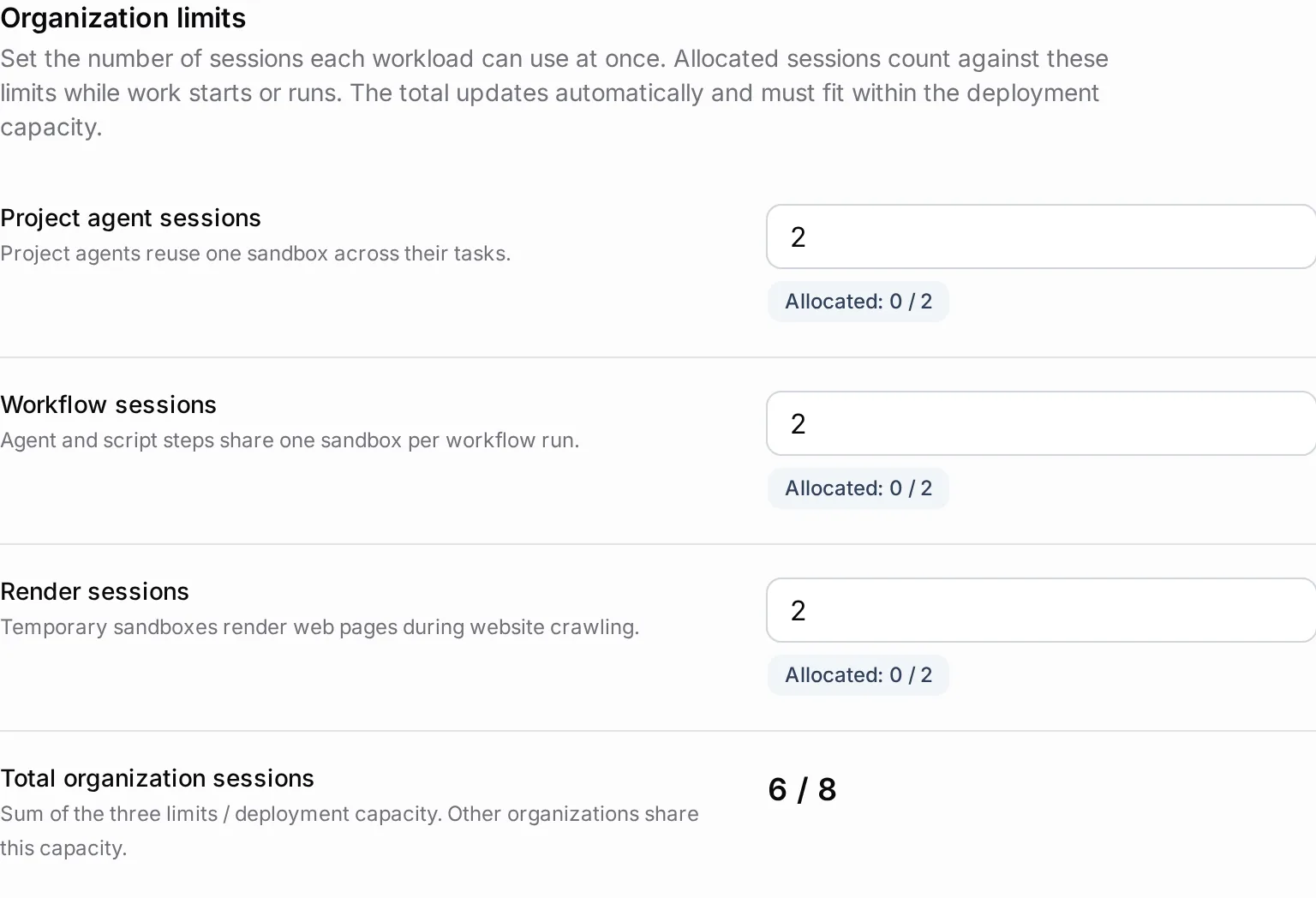
## Change a workload limit
1. Check the workload’s **Allocated** count and the infrastructure measurements below it.
2. Enter a whole number from 1 to 500 for the relevant limit. **Total organization sessions** recalculates the sum of all three fields.
3. Keep that total within deployment capacity, then select **Save** in the header. **Discard** restores the saved values.
4. Reopen the page to confirm the saved limits and inspect whether new work can obtain an allocation.
For example, the defaults total 6. If deployment capacity is 8, a total of 8 is valid and 9 is refused. The server rechecks capacity when saving, so another observation may differ from the one you first saw. Your organization's connected [devices](/platform/admin/sandbox-devices) add the sandboxes they run to the ceiling: with one device that runs 4, the total may reach 12.
Lowering a limit affects future admissions; it does not interrupt active work. If infrastructure data is unavailable, reductions remain possible but increases need a fresh capacity observation. If the operator lowered capacity below your existing total, reduce your limits before saving again. If organization allocation data itself cannot load, the fields remain unavailable instead of showing editable defaults.
## Read the infrastructure measurements
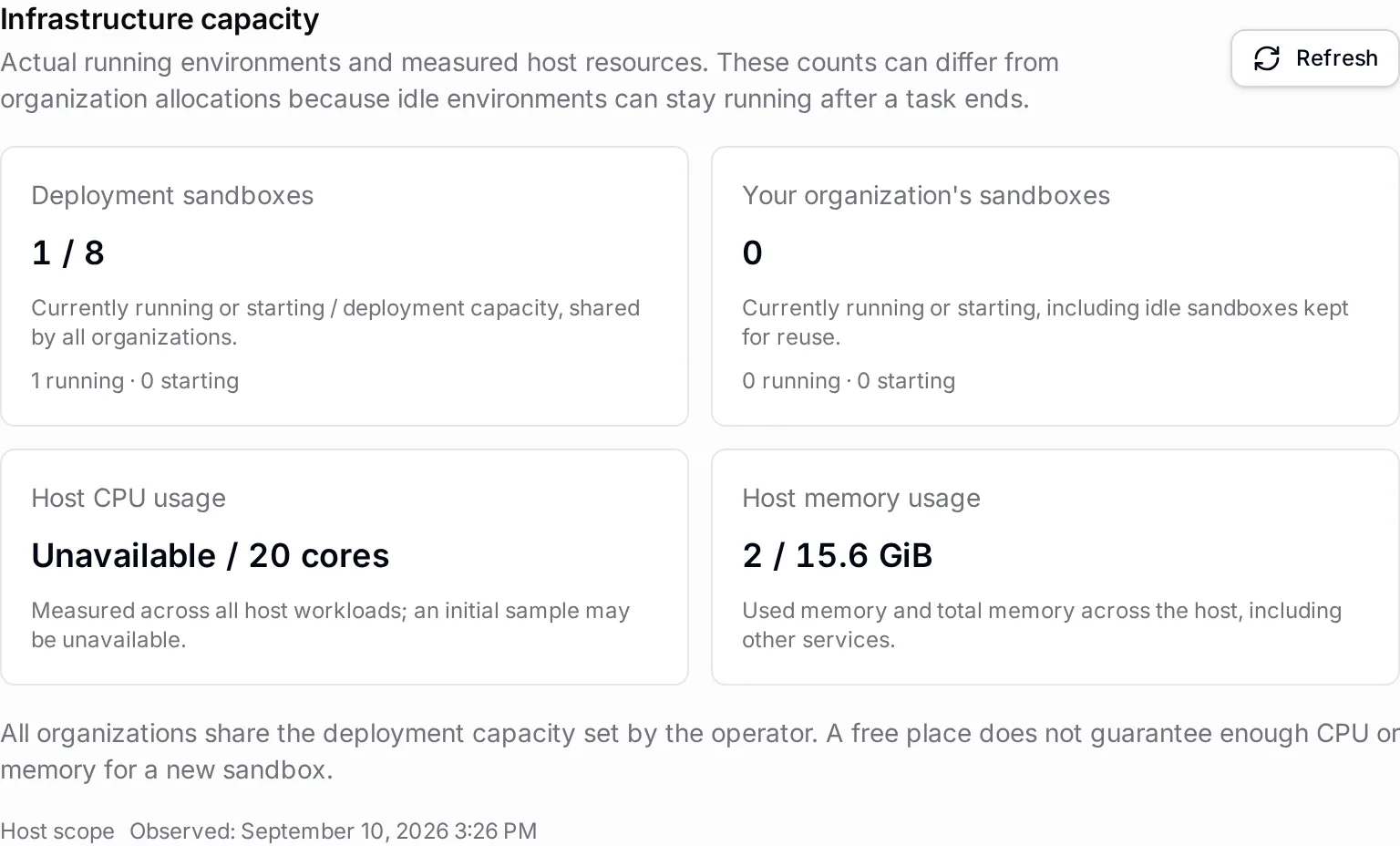
| Measurement | What it means |
| --- | --- |
| **Deployment sandboxes** | Running and starting environments across all organizations, compared with shared capacity. Kubernetes reports the namespace boundary. |
| **Your organization's sandboxes** | This organization’s running and starting environments, including idle ones kept for reuse. This is a count, not another organization limit. |
| **Host CPU usage** | Recently used and total CPU cores for the host, including its other services. |
| **Host memory usage** | Used and total host memory, including other services and allowing for reclaimable cache. |
Measurements refresh every 15 seconds; **Refresh** requests a new observation. Check its timestamp before interpreting it. CPU usage is the change between two samples; a first observation after a long gap takes about a second longer. Remote hosts may expose totals without usage. Kubernetes namespace access does not expose host measurements. **Unavailable** means unknown, not zero.
## Explain an allocated or idle workspace
Owners and Admins can inspect **Workspaces**. A row identifies its agent or workflow run, runtime state, allocation state and running tasks. These states answer different questions: a container may remain running for reuse after it has released its organization slot. A project agent’s workspace stays listed while the agent is idle, as **Stopped** with **Quota released**, and leaves the list only when you destroy it; once the agent itself is deleted, the row reads **Deleted agent** until you destroy it. A workflow run’s workspace is reclaimed shortly after the run ends.
**Spend** adds the metered cost of finished turns. A turn still running is included when it ends. Temporary crawler environments appear in capacity counts even without a standing workspace row.
When deployment capacity is full, Tale may reclaim an unpinned idle environment whose allocation is released and which confirms it has no ongoing work. Its persistent workspace files remain for the next start. Busy, pinned or unresponsive environments are not candidates. If there is no safe candidate, new work must wait for capacity.
## Manage an existing workspace
Owners and Admins can use a workspace’s row menu:
| Action | Effect |
| --- | --- |
| **Stop task** | Cancels all currently running operations in that workspace. Check the listed tasks first; one agent may have several. |
| **Pin** / **Unpin** | Keeps the workspace exempt from automatic idle and expiry cleanup, or restores normal cleanup. A pinned allocation can continue holding capacity. If a pinned workspace’s environment disappears, for example after a host restart, Tale starts it again with its workspace files, and the workspace stays pinned. |
| **Destroy** | Asks for confirmation, cancels running work and removes the sandbox and its workspace files. It unpins the workspace first. If destruction fails, the workspace remains listed, unpinned, and you can retry **Destroy** to finish removing it. The next agent start creates a fresh environment. |
Use stop when the current work should end but its files should remain. Before destruction, preserve outputs you still need and read the confirmation. Idle capacity reclamation preserves workspace files; explicit destruction does not.
## Resolve a blocked start
Raise a workload limit only when its allocations are full and the new total fits shared capacity. If the deployment itself is full, increasing an organization limit cannot create infrastructure. To add capacity of your own, [connect a device](/platform/admin/sandbox-devices): new workspaces start on it. Otherwise, ask the operator to inspect capacity and host resources; a free container slot alone does not guarantee enough CPU or memory.
For a credential or model refusal, use [AI providers](/platform/admin/providers). For a spending refusal, use [Policies and limits](/platform/admin/governance/policies-and-limits). Self-hosted operators can inspect the deployment setting in the [environment reference](/self-hosted/configuration/environment-reference#sandbox-infrastructure).
# Teams
Source: https://docs.tale.dev/platform/admin/teams
A team is a label on work, not a place you switch into. A document, folder, or project carries the teams that may see it, and a conversation can wait in a team's queue. A person's role controls what they may do; their teams decide which restricted work they can reach. Owners and Admins manage teams under **Settings > Teams**.
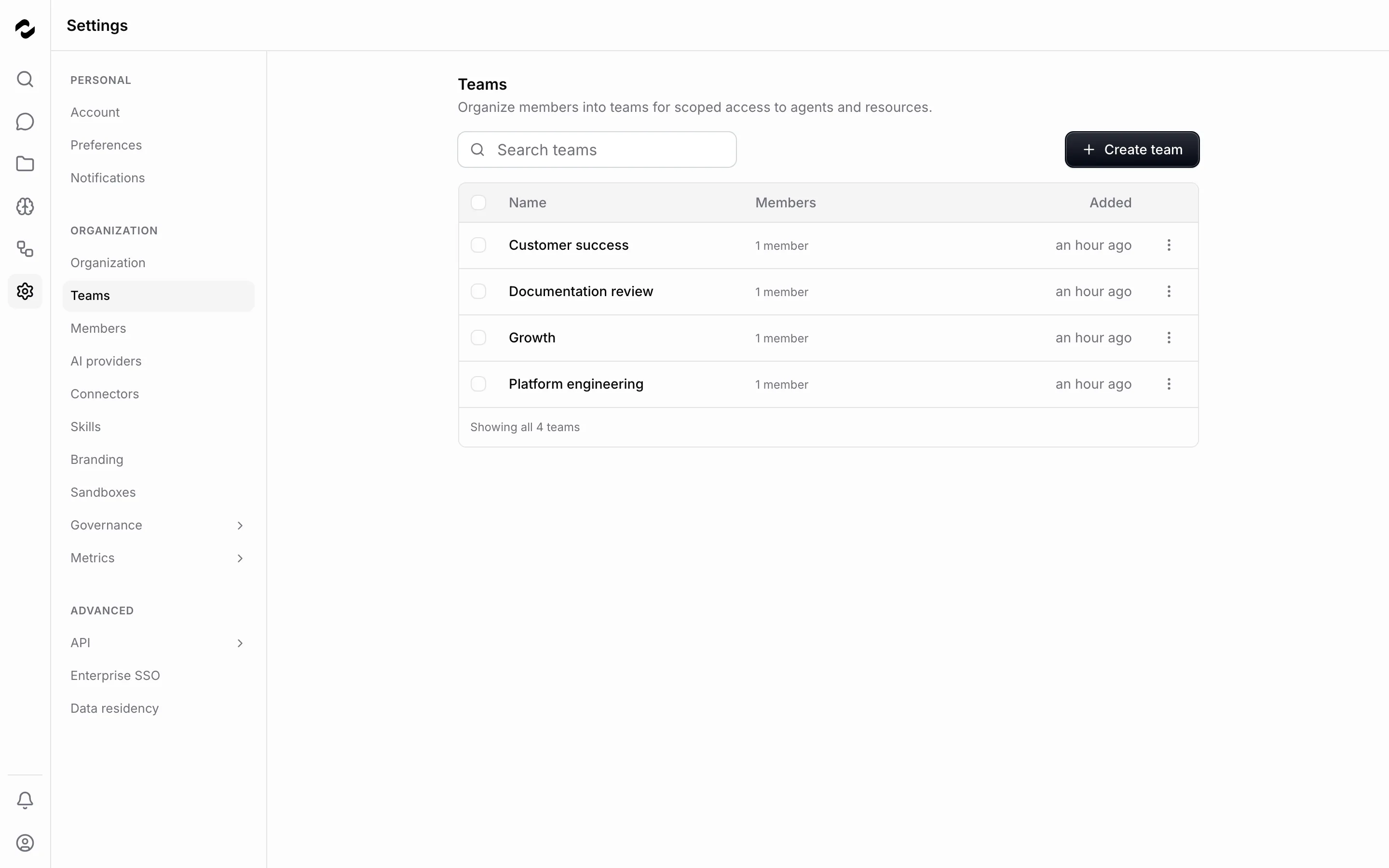
## Create a team
1. Select **Create team** and enter a **Team name**, such as `Customer support`.
2. Select the organization's members who should join. If you select nobody, Tale adds you to the team.
3. Select **Create team**. Check the new row and its member count in the list.
Choose a name that people will recognize wherever teams are shown: the audience of a document or project, a queue in the inbox, a list filter. The form accepts up to 80 characters. A name is unique within the organization: one that another team already uses — in any letter case or spacing — is refused. Creating the team does not put existing work under it; choose the team on the documents, projects, and conversations it should cover.
## Change membership or the name
Open a team's row to inspect its members. The row menu offers **View**, **Edit**, and **Delete**. Use **Edit** to change the name or membership, then save your changes and check the member count.
A team keeps at least one member. To remove the last one, delete the team instead.
A person can belong to more than one team. Their access can come from several teams or from a direct assignment, so removing them from one team does not necessarily remove all access to a resource. Review those other routes when withdrawing access.
A team your identity provider provisions shows **Synced** in the list. The provider owns its name and members: the edit dialog shows them read-only, because a local change would be undone by the next synchronization. You can still delete such a team locally; the provider may recreate it.
Rename an existing team when its purpose changes but the same people should retain access. Deleting and recreating it creates a different team and changes existing resource assignments.
## What a team decides
Every team-scoped resource follows one rule. A resource with no team is visible to everyone in the organization. A resource with teams is visible to the members of any of those teams. Owners and Admins see everything either way, so a team is never a way to hide work from administrators.
| Resource | How teams matter |
| --- | --- |
| Projects | **Audience** on **General** lists the teams that can open the project; empty means the whole organization. |
| Documents and folders | A document or folder carries the teams that can read it. Anything filed into a team folder takes the folder's teams and cannot name a team outside them. |
| Skills | Team visibility makes a skill available to the selected teams. |
| Conversations | Assignment to a team places the conversation in that team's queue. |
When you restrict work to teams, you can only choose teams you belong to; Owners and Admins can choose any team of the organization. Team membership does not grant actions that a role forbids: an Editor and a Member in the same team can have different editing rights.
Members see their own teams under **Settings > Account > Your teams** and in the **Teams** row of the profile menu. To narrow a list to certain work, each list offers a **Teams** filter with **Organization-wide**, **My teams**, and every team by name; the inbox uses an **Assignee** filter instead, which covers people as well as teams. See [Manage your account](/platform/member/preferences#teams).
For inbound conversations, [routing rules](/platform/admin/governance/policies-and-limits#conversation-routing) can select the team when the conversation arrives. Without a person or team assignment, the conversation stays in administrator triage.
## Retire a team carefully
Choose **Delete** from the row menu. The confirmation counts the team's members, the projects, folders, and documents it is on, and the conversations in its queue. It also says how many of those items have no other team and will become visible to everyone in the organization. Reassign work that must remain restricted before you confirm.
Deleting a team cannot be undone. Every project, folder, and document drops the team and keeps its other teams. An item whose only team it was becomes organization-wide, which can make it visible to more people.
The team, its memberships, its place on every resource, and any identity-provider link go in one step, so a half-deleted team cannot remain. A conversation loses its team assignment; if no person is assigned either, it returns to administrator triage. Imported-file configurations also lose that team scope. Deleting a team does not delete its members' accounts.
Teams synchronized through [enterprise SSO or SCIM](/platform/admin/enterprise-sso) also depend on the identity provider's provisioning rules. Check that source before making a local change you expect to persist.
# Two-factor authentication
Source: https://docs.tale.dev/platform/admin/two-factor-authentication
Protect your account with an authenticator app or a passkey. Members set up their own sign-in methods in **Settings > Account**; admins can require a second factor and help a member recover access.
## Choose a sign-in method
| Method | What you need | How you use it |
| --- | --- | --- |
| Authenticator app | A Tale password and an app that supports time-based codes (TOTP) | Enter your password, then the app's six-digit code. |
| Passkey | A compatible device or security key | Approve the browser's sign-in prompt with your device or key. You can also use it after a password sign-in. |
| Backup code | A saved code from authenticator setup | Use it once in place of an authenticator code when you cannot access the app. |
A passkey satisfies Tale's two-factor policy even if you have never set up an authenticator. Accounts that sign in only through SSO do not show authenticator setup because it requires a Tale password; your organization's SSO exemption determines whether you need a Tale passkey.
## Set up an authenticator
1. Open **Settings > Account**, find **Security**, and select **Enable two-factor**.
2. Enter your current Tale password and select **Confirm**.
3. Scan the QR code with your authenticator app. If scanning is unavailable, enter the displayed setup secret manually in the app.
4. Enter its current six-digit code in **Verification code**, then select **Verify and enable**.
5. Download or copy the backup codes before selecting **Done**. Tale does not display them again.
The account page now confirms that two-factor authentication is active. At your next password sign-in, enter a code from the same authenticator entry.
Keep recovery codes somewhere you can reach without the device you use to sign in, such as a password manager available on another trusted device.
## Add a passkey
1. Under **Settings > Account > Security**, select **Add a passkey**.
2. Give **Passkey name** a recognizable name, such as `Work laptop`.
3. Leave **Authenticator type** on **Any (recommended)** to see the browser's available options, or choose the built-in device authenticator or a security key/phone.
4. Select **Add a passkey** and complete the browser prompt.
The passkey appears in your account's list. On the sign-in page, choose **Sign in with a passkey**. After a password sign-in, **Use a passkey instead** is also available on the verification screen.
To stop using a passkey, select its **Remove** button and confirm. If it was your only second factor and the organization requires one, you must set up another.
## Recover access and replace codes
On the verification screen, select **Use a backup code instead** and enter one saved code. Each code works once. After signing in, open **Settings > Account** and select **Regenerate backup codes** if you need a fresh set; confirm your password and save the new codes. This invalidates every previous code, including unused ones.
If a code is rejected, check that you selected the authenticator entry for this Tale account, use the current code, and check the device's clock. Repeated failures can temporarily block verification; follow the message shown instead of repeatedly submitting.
If you have no usable authenticator, passkey, or backup code, contact an organization admin. Do not send them your password, setup secret, or remaining codes.
## Require a second factor for the organization
Admins configure the policy in **Settings > Governance > Security**. Arrange a recovery contact and give members time to set up a method before enabling it.
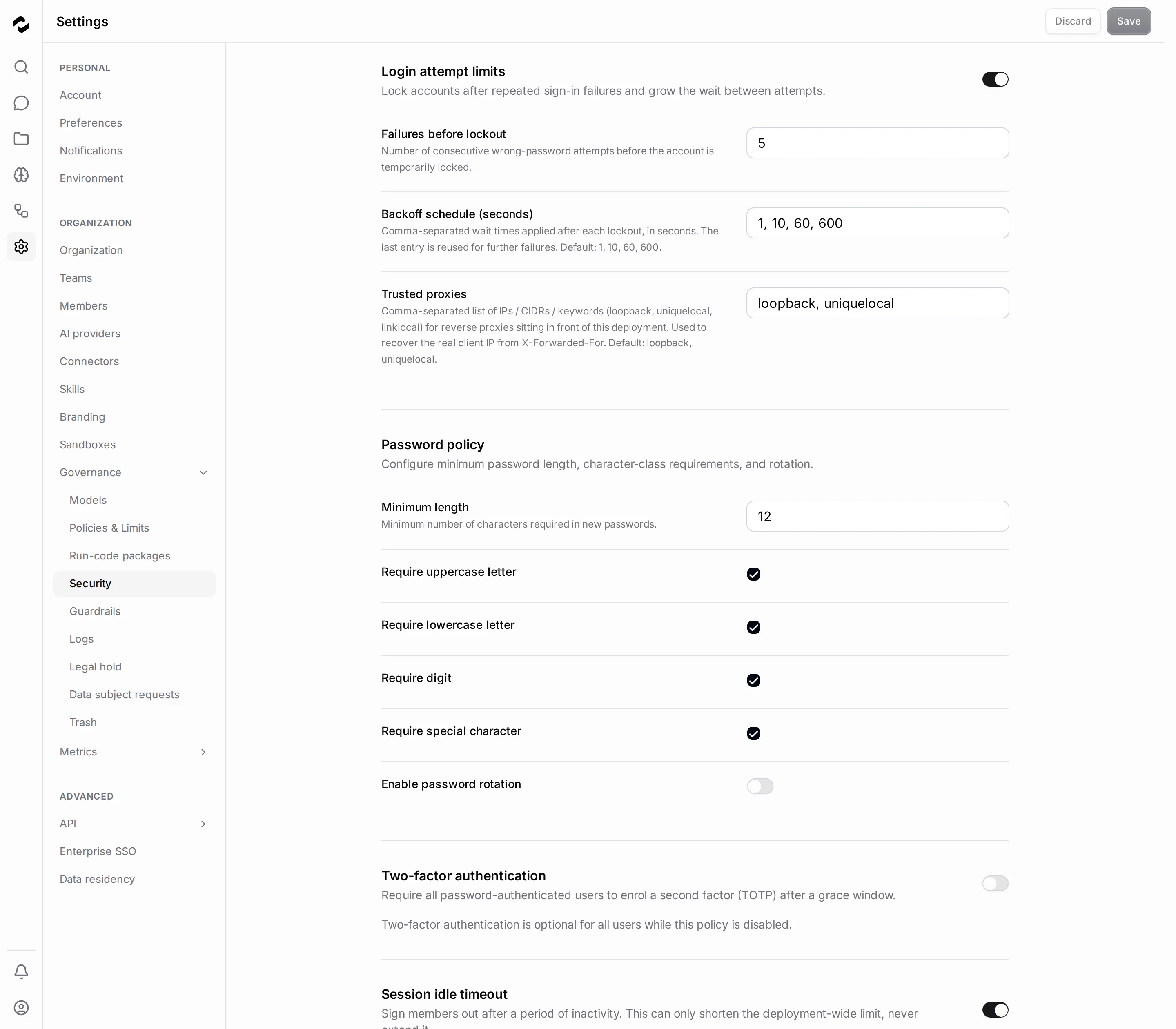
| Setting | Effect |
| --- | --- |
| **Require two-factor authentication** | Enables the requirement after confirmation. A registered passkey or authenticator satisfies it. |
| **Grace period (days)** | Time to enroll, counted from the member's first sign-in under the policy. Zero requires enrollment immediately. |
| **Exempt SSO-only users** | Lets members without a Tale password rely on their identity provider's authentication. |
During the grace period, members see a reminder. After it expires, Tale blocks organization access until they enroll. Disabling your personal authenticator does not exempt you from this policy.
## Help a locked-out member
Verify the person's identity through your organization's recovery process first. Then open **Settings > Members**, edit the member, and select **Reset two-factor**. Confirming clears their authenticator setup and ends all active sessions. They can sign in again and set up a new authenticator; an enforced policy requires enrollment before they continue.
For a lost passkey, remove that credential in the member dialog's **Passkeys** section instead. Admin removal also ends all of that member's sessions. Review recovery actions in [audit logs](/platform/admin/governance/audit-logs).
# Understand project agents
Source: https://docs.tale.dev/platform/agents/concepts
A project agent is a named worker for tasks in one project. You configure how it runs and what it may use, then give it a task with a reviewable outcome. It can work on files and commands in a sandbox; a person reviews the result before completing the task.
## Choose the right working mode
| Use | Suitable work | What you configure |
| --- | --- | --- |
| Chat | Ask a question, retrieve knowledge or draft text in a conversation. | The message, model and optional project context. |
| Project agent | Review a repository, prepare files or carry out a task over several turns. | A reusable worker in the project. |
| Automation | Run defined steps, react to events or wait for an approval between actions. | A versioned workflow and its inputs. |
A project chat still uses the built-in chat assistant. Adding a project to a chat does not select one of the project’s agents. An automation’s agent node has its own configuration.
## Give the agent a clear responsibility
Start with a responsibility you can evaluate, such as “Review changes for regressions and report evidence.” Keep that in the agent’s standing instructions. Put the particular repository, files, acceptance criteria and deadline in each task.
An agent belongs to exactly one project. People who can read the project can see its agents; people with project edit access can manage them while the project is active. Names must be unique within the project, and a project can contain up to 50 agents. Another project needs its own configuration even if it uses the same name and instructions.
## Understand the configuration
| Part | What it controls | Example decision |
| --- | --- | --- |
| Harness | The coding program that runs the session in a sandbox. | Choose a runtime supported by the available credential. |
| Model and provider | The model called and the provider serving it. | Select the provider/model pair approved for the work. |
| Instructions | The agent’s reusable responsibility and working rules, up to 20,000 characters. | Require evidence and a report of checks performed. |
| Skills | Instruction bundles and supporting files. | Add the team’s review checklist. |
| Connectors and tools | Connected services and allowed platform operations. | Grant repository access and only the task tools needed. |
| Secrets | Named organization credentials supplied to the running session. | Use a narrowly scoped token for a service without a connector. |
The skills, connectors, tools and secret-name lists each allow up to 25 entries. A grant to a write tool authorizes its supported writes within its access rules; an instruction asking the agent to be careful does not remove that permission. Only an Owner or Admin may change secret grants.
```mermaid
flowchart LR
P[Project task and acceptance criteria] --> A[Configured agent]
H[Harness and model] --> A
I[Standing instructions] --> A
E[Skills, connectors, tools and secrets] --> A
A --> R[Report and files for human review]
```
## Check readiness before assigning work
The provider credential must support the selected harness and model, and sandbox capacity must be available. Success in ordinary Chat proves neither condition. A task should explain what success looks like and include the material the agent needs to inspect.
[Create a project agent](/platform/projects/project-agents) once those choices are clear. [Task automation](/platform/projects/task-automation) explains starting, steering and reviewing its work.
# Choose an agent runtime
Source: https://docs.tale.dev/platform/agents/harnesses
A harness is the coding program that runs an agent’s session in a sandbox. It asks the model what to do, reads and writes files, runs commands, and returns a report. Choose it for project-agent tasks or an automation’s `agent` node; the ordinary Chat model picker does not select a harness.
## Select the runtime and check access
In a project’s **Agents** tab, open an agent and choose **Agent type**. An automation’s agent node calls the field **Harness**. Then choose the model and provider. Under **Settings > AI providers**, **Agent runtimes** shows which execution paths the organization can currently serve.
A runtime needs both compatible credentials and [sandbox capacity](/platform/admin/sandboxes). A working chat model is not enough. If a runtime is missing or has no models, inspect its status and provider credential before changing the task prompt.
## Compare supported runtimes
“Managed” means the runtime calls through Tale’s model gateway. “Direct” means the session receives a credential for the provider’s own tooling. The built-in definitions support these combinations; your deployment and credentials determine what is available.
| Harness | Credential path | Receives new instructions in the running process | Tale’s MCP channel |
| --- | --- | --- | --- |
| Claude Code | Managed or direct | Yes | Yes |
| Codex | Managed or direct | No | Yes |
| Cursor | Direct only | No | No |
| Gemini CLI | Managed or direct | No | Yes |
| Hermes | Managed or direct | No | No |
| OpenClaw | Managed or direct | No | Yes |
| OpenCode | Managed only | No | Yes |
| Pi | Managed or direct | No | No |
| Qwen Code | Managed or direct | No | Yes |
**Claude Code (compact prompt)** is an optional choice for focused workflows that already supply complete task instructions. It shortens the runtime’s built-in instructions and some tool descriptions while retaining tools, hooks, MCP and Tale’s added guidance. Check task results and elapsed time with your model before adopting it; a smaller prompt does not guarantee a faster run. Choose ordinary **Claude Code** to restore its full prompt on the next fresh run. A provider subscription restricted to Claude Code does not automatically support the compact choice.
To guide project work, comment on the task and mention its agent. Claude Code receives that guidance at a tool boundary. For the other runtimes, Tale stops the current process and continues the conversation in a new process with the comment. This is why a running task may restart its process after you give it direction.
## Understand credential exposure and cost
With a stored API key or deployment-environment credential, Tale supplies a session-scoped gateway key. The original model-provider key stays at the platform. Calls through this gateway are metered and subject to the applicable spending rules, including allowance already assigned to other running turns.
Vendor subscriptions use their supported harness and receive the subscription credential in the session environment. They cannot be used as ordinary chat credentials or with an incompatible harness. Their direct provider calls bypass Tale’s gateway metering and spending caps; review usage with the subscription provider.
These model-credential rules do not mean the sandbox contains no secrets. Explicitly granted **Secrets**, and the token supplied for an equipped GitHub connection, can be available inside it. Grant only the access the task needs.
## Understand files and connected tools
A project agent reuses a persistent workspace across its tasks. Task attachments are available read-only under `/agent/inputs//attachments/`. Files written to `/agent/output//` are collected as task **Deliverables** when the turn ends. Automation agent output is collected from `/agent/output/`.
Equipped skill bundles are staged as files and named in the run’s instructions. Review their instructions and scripts before granting them; [Skills on agents](/platform/agents/skills) explains staging and visibility.
Every runtime also finds Tale’s built-in `visual-aspect-analyzer` skill among its own skills, without equipping it. It drives a real browser over a finished UI change and reports layout shifts, flicker and other visual regressions. A skill of the same name in the workspace repository’s `.claude/skills` and `.agents/skills` folders takes its place in every runtime that reads a repository’s skills.
Tale’s connector broker keeps ordinary connector credentials at the platform and returns action results. It exposes read actions to agents, and refuses writes through that broker. Use an automation connector node for a governed connector write. GitHub tooling and explicitly granted secrets have their own access paths, so the broker’s read-only rule is not a general ban on all shell writes.
Outbound access normally permits package installation and repository cloning while blocking private addresses and cloud metadata targets. Operators can restrict permitted hosts further. If a command cannot reach a site, check the network policy instead of assuming the credential is wrong.
Tale’s built-in document skills `docx`, `pptx`, `xlsx` and `pdf` find the libraries they call already installed in the sandbox, so an agent equipped with them creates and reads Word, PowerPoint, Excel and PDF files even where package installation is blocked. Their instructions still include install commands such as `npm install -g docx`; where the registry is blocked, that step fails while the preinstalled library stays available. Text recognition (OCR) for scanned PDFs is not included.
## Check the result
The runtime determines when its turn is finished; Tale collects the report and output. Read both before marking the task complete. Confirm which checks actually ran and which depend on services unavailable in the sandbox. [Task automation](/platform/projects/task-automation) explains the review loop; [execution logs](/platform/automations/execution-logs) explains an automation’s agent-step result.
If the runtime cannot start at all — a configuration it refuses, a state directory it cannot find — the run fails at once and its reason quotes the last lines the runtime wrote, so the cause is named rather than a bare exit code. Such a run is not retried automatically; fix the cause, then retry.
# Equip agents with skills
Source: https://docs.tale.dev/platform/agents/skills
Equip an agent with a skill when it needs a reusable procedure or reference material from the organization's [skill library](/platform/workspace/skills). The library stores the bundle; the agent's equipment determines which bundles are available to its runs.
## Choose a skill for the task
A useful skill explains when to use it, how to perform the work, and what a good result looks like. For example, equip a release-note skill with the agent that prepares releases, then give it a small set of changes and check its output against your expected format.
The bundle contains `SKILL.md` and may include references, assets, or scripts. Importing it does not execute those files. Once equipped, its instructions can guide a coding agent that has a shell or other tools, including running a bundled script. Review the whole bundle before use; a skill does not add a separate permission boundary.
## Equip a project agent
Open the [project agent](/platform/projects/project-agents) and select the needed skills in its equipment. The available list follows the project's access, even if you personally can read more skills:
| Project scope | Available skills |
| --- | --- |
| Organization-wide project | Organization skills |
| Project shared with teams | Organization skills and team skills shared with at least one of the project's teams |
Legacy private skills cannot be equipped on a project agent. The same access rule is checked when a task runs; selecting a skill does not grant the project permanent access to it.
A new project agent starts with the document skills `docx`, `pptx`, `xlsx` and `pdf` ticked when the project can access them. Untick those the job does not need.
Each skill in the list names who created it: a member, **Built-in** for the skills your organization starts with, or **Configuration release** with the member whose upload installed it. Check where an unfamiliar skill comes from before you equip it.
## Use skills in an automation
An automation's agent nodes declare the skills they need. A run bound to a project uses that project's scope. An organization-level run can use organization skills only. Your personal membership in additional teams does not expand either scope.
During sandbox setup, Tale stages the equipped bundles as files and lists each skill with a description excerpt of up to 300 characters and the path to its `SKILL.md` instructions. The excerpt helps the agent choose a skill for a plain-language task; it is a selection hint, not an instruction to execute. Supporting files are available alongside the instructions.
For a skill marked `disable-model-invocation`, the list tells the agent to wait until the task asks for that skill by name. This is guidance, not an access control. Keep the equipment focused and name the procedure when it matters; availability alone does not prove that the result followed it.
## Resolve missing or changed skills
Deleting a skill unequips it from every agent that carried it, and the audit log records which ones. If a required skill is no longer shared with the run's scope, staging fails and names the unavailable skill; the run is not retried automatically, because nothing about a retry changes that. In the agent's dialog the skill is listed as unavailable so you can untick it — every other setting of the agent still saves. Restore the intended access or remove the obsolete equipment before retrying.
Changes to a shared bundle affect later staging for its users. Review replacements and test an agent with a known input after a substantial change. Do not assume a repository's similarly named skill overrides the equipped bundle.
## Choose skills or agent instructions
| Put it in a skill when… | Put it in agent instructions when… |
| --- | --- |
| Several agents share the procedure. | It defines this agent's role or voice. |
| The procedure needs reference files or scripts. | It is a short, stable rule for this agent. |
| Maintainers should update the procedure in one place. | It describes how this agent should use its equipped skills. |
Use the [skill library guide](/platform/workspace/skills) to create, import, edit, and share a bundle.
# Understand operation approvals
Source: https://docs.tale.dev/platform/approvals/concepts
An operation approval lets a person review a proposed connector write before it happens. For example, an automation can prepare an email, then wait for you to check its recipient and body before sending it.
## When a write waits
A live automation pauses when it reaches a connector write that the organization's policy requires someone to approve. By default, writes to external systems need approval; writes through internal, platform-authenticated connectors do not. The organization can change that rule for a connector or a specific action. See [Configure approvals](/platform/approvals/configure).
Reads do not request operation approval. **Test run** uses mock connectors, so it does not perform the external write or show its live approval card. Passing a test does not prove that the proposed live action is appropriate.
## Review the proposed operation
Open the automation's [run list](/platform/automations/execution-logs) and select the run marked **Waiting**. Its approval card names the operation, such as `imap-smtp.send`, and the node requesting it. **The step would call with** shows the exact input.
Check the destination, recipients, content, and identifiers against the intended task. Review sensitive details in the input before choosing:
- **Approve** allows this operation to execute when the run resumes.
- **Reject** prevents this operation and causes the step and run to fail.
The card does not edit the operation. If an input is wrong, reject it, correct the workflow or its input, and start a new run.
Organization members can decide connector operation approvals. These cards do not route to a named reviewer or approver group; the run detail is where the decision is made. Other kinds of review can have stricter permissions.
## Check what happened next
Approval permits execution; it does not guarantee that the connector succeeds. Check the resumed run's status, node result, and effects. A rejected run shows the rejection as its failure reason. The [audit log](/platform/admin/governance/audit-logs) records the decision and actor.
An existing pending approval stays pending if the policy is relaxed. The same operation in the same run keeps its recorded decision; starting a new run creates a new execution that is evaluated again. A finished or cancelled run cannot use an outstanding approval to perform its write.
## Distinguish approval from a question
An agent node may also pause because it needs information from a person. Answering that question supplies input; it is not approval of a connector write. [Approvals in workflows](/platform/automations/approvals-in-workflows) explains both interactions. Task reviews, controlled document reviews, and erasure requests have their own [review rules](/platform/approvals/configure#distinguish-the-other-human-decisions).
# Decide which actions need approval
Source: https://docs.tale.dev/platform/approvals/configure
An approval policy decides which connector writes must wait for a person during a live automation run. Review the workflow’s outbound actions before deploying it, especially when it sends messages or changes another system. [Approval concepts](/platform/approvals/concepts) explains the decision card itself.
## Start with the default behavior
Reads do not require operation approval. By default, writes to external systems, such as sending mail, posting to Slack, creating a GitHub issue, or writing to WebDAV, pause for approval. Internal operations, such as updating a task or saving a document in Tale, do not ask by default.
An allowed operation still runs under the relevant access rules. A missing approval card is not evidence that an operation is read-only: it may be an internal write or one that your organization explicitly auto-approves.
## Request a policy change
There is no per-action approval switch in the connector settings page. The organization’s approval policy can require or bypass approval for a connector or an individual action. A rule for one action takes precedence over a rule for its connector.
Ask the person managing your deployment to apply the [approval policy configuration](/self-hosted/configuration/approvals). Name the exact operation, why it should ask or proceed automatically, and which workflow uses it. Cloud administrators should coordinate the change with whoever manages their deployment.
An operation already waiting for approval keeps its pending decision after a policy change. Approve or reject that card explicitly; loosening the policy does not release it.
## Check a workflow before it goes live
1. Inspect each connector node and identify whether it reads or writes.
2. Confirm which writes the organization’s effective policy auto-approves.
3. Run **Test run** to check inputs and output against mocks.
4. During a controlled live run, inspect the operation and exact input on any pending card before deciding.
A mock test does not prove that a live approval will appear. Mock connectors do not change external systems and do not request approval.
## Distinguish the other human decisions
| Decision | Where to read the rules |
| --- | --- |
| Accept an agent’s task result | [Task automation](/platform/projects/task-automation). A person moves the result from In review to Done. |
| Approve a controlled document version | [Documents](/platform/knowledge/documents). The named reviewer decides on the frozen version. |
| Authorize an erasure request | [Data subject requests](/platform/admin/governance/data-subject-requests). A second Admin provides the required approval. |
| Answer an agent node’s question | [Approvals in workflows](/platform/automations/approvals-in-workflows). The run needs information to continue. |
These decisions have their own rules; the connector approval policy does not disable them. Chat has read-only retrieval tools and does not create operation approval cards.
# Respond to a waiting workflow
Source: https://docs.tale.dev/platform/automations/approvals-in-workflows
A run can wait for a decision before writing through a connector, or for information an agent needs to continue. Open the run detail to see which response is required. A waiting run has not finished, even if earlier nodes succeeded.
## Find the waiting run
Open the automation and its [execution logs](/platform/automations/execution-logs), then select the run marked **Waiting**. Check the version and run input so you know which execution you are reviewing.
An operation approval names a connector action and shows its proposed input. An agent question instead asks for an answer, with choices or a text field. These are separate interactions: answering a question does not approve a later write.
## Approve or reject a write
Read the operation and **The step would call with** carefully. Check the recipient or destination, the content, and any identifier that selects what will change.
Choose **Approve** to allow the operation. The run resumes and attempts the write; check the node result and effects afterwards. Choose **Reject** if the request is wrong or should not happen. Rejection prevents that operation and fails the run.
A live run checks that the connector has a usable credential before it asks for approval: when none is configured, the node fails with that reason instead of waiting for a decision.
You cannot revise parameters on the approval card. Reject an incorrect request, fix the workflow or run input, and test the correction before starting a new live run. Changes to the approval policy do not release an already pending card. See [Approval concepts](/platform/approvals/concepts) for the decision lifecycle and [approval policy configuration](/self-hosted/configuration/approvals) for operator rules.
## Answer an agent’s question
When an agent node uses `ask_human`, the run detail displays **The agent needs your answer to continue**. If choices are offered, answer the questions on the card. For an open question, enter text under **Your answer**, then choose **Send answer & resume**.
Give the missing information directly. If the agent asks which document to use, name the document or provide its identifier rather than a general instruction to continue. The waiting node resumes with your answer, and the run may later need another answer or an operation approval. Organization members can answer these questions.
## Correct and test the workflow
Changing a workflow definition is separate from responding to its current run. Save a corrected version in the [workflow editor](/platform/automations/editor), test it against mocks, then deploy it when it is ready for live use. Saving a version does not revise a call already waiting for approval.
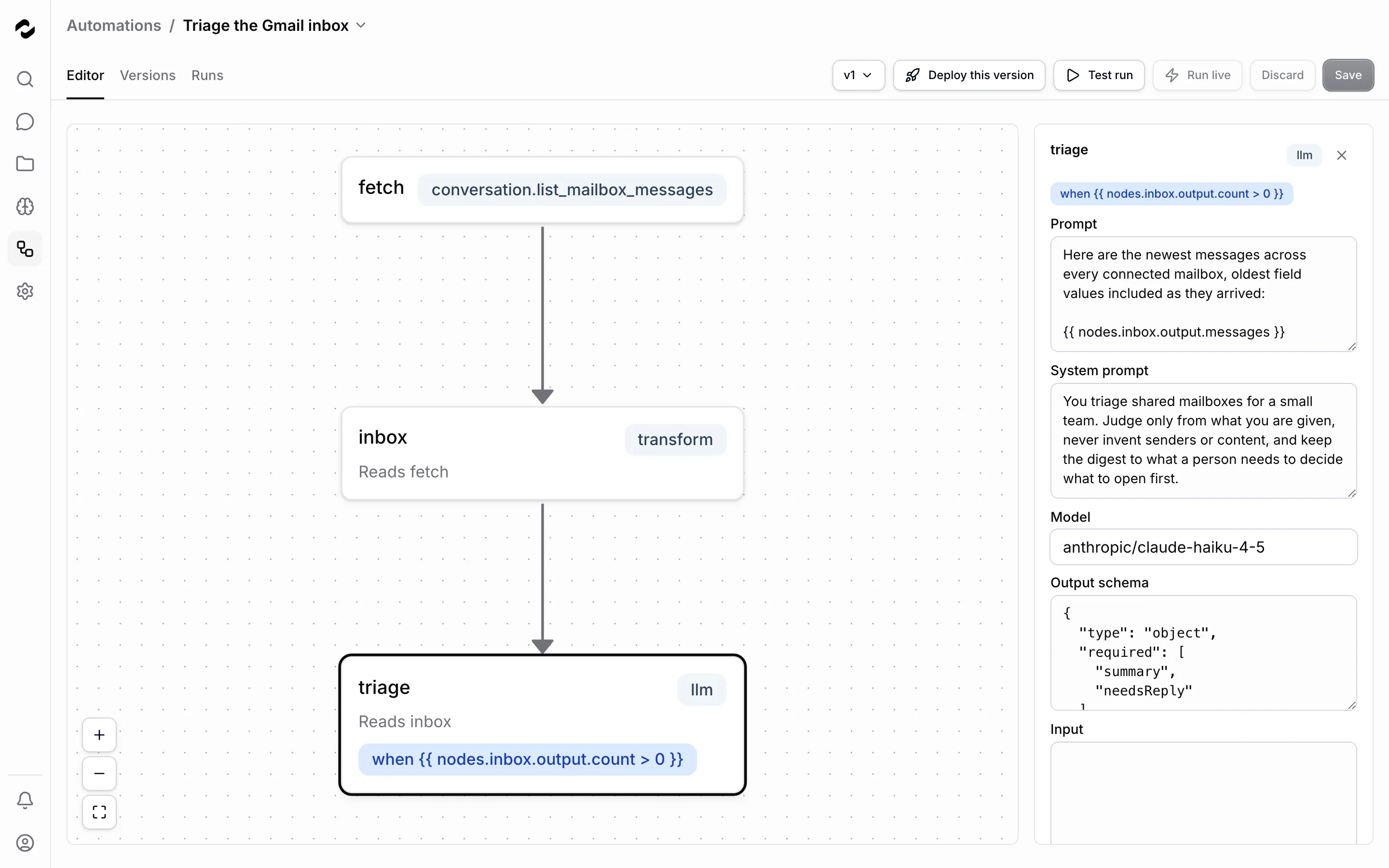
A mock test does not perform external connector writes or request their live approvals. For a practical walkthrough, follow [Build a workflow with approvals](/tutorials/editor/workflow-with-approvals). After a live decision, inspect both the run outcome and the [audit log](/platform/admin/governance/audit-logs); permission to proceed and successful execution are different results.
# Choose how to author an automation
Source: https://docs.tale.dev/platform/automations/assistant
Edit an automation directly on its canvas, or connect an external assistant through MCP to author it with Tale’s tools. Both routes save versions of the same workflow and use the same validation and deployment rules. You need Developer-level permission to author and deploy automations.
## Make a change in the visual editor
Open **Automations** and select the workflow. Select a node to inspect its input, model, code, or other configuration. Save the change with a version message, run a test, and deploy the intended version when its checks pass.

[The workflow editor](/platform/automations/editor) covers these steps in detail, including inspecting a run and returning to an earlier version. The canvas does not include a conversational assistant panel.
## Use an external assistant through MCP
Configure your client with the endpoint under **Settings > API > MCP** and an appropriate organization API key. Give it the desired inputs, output, and the systems the workflow may change. Ask it to inspect existing automations and available capabilities before creating another one.
The [MCP endpoint](/develop/mcp-endpoint) provides documentation, validation, save, test, and deploy tools. Review the resulting workflow and its test output before deployment. A successful save creates a version; it does not make that version live.
## Keep runtime decisions separate
An agent node inside an automation performs work during a run. It is separate from the client you use to write the workflow. Similarly, an [approval](/platform/approvals/concepts) authorizes one pending operation during execution; it does not approve a proposed edit to the workflow definition.
Choose [the editor](/platform/automations/editor) for a change you want to make directly, or [MCP](/develop/mcp-endpoint) for authoring from your own client. Start from [an existing automation](/platform/automations/catalog) when a suitable one is already available.
# Built-in automations
Source: https://docs.tale.dev/platform/automations/builtin
Tale includes ten automation packages: three mailbox syncs, three inbox digests, two GitHub review workflows, and GitHub and GlitchTip issue imports. Each starts as version 1 and **Not deployed**. The issue importers run manually; the other packages include schedules. Inspect their inputs, model, connections, and writes before an Owner, Admin, or Developer deploys a version.
## Start with one package
Open **Automations**, select a package, and inspect its nodes in the [workflow editor](/platform/automations/editor). Check that the required connector is connected and that the model used by any `llm` node is one your organization serves — the packages name a model your providers may not offer, and validation warns about it when you save; pick a served model in the node’s **Model** field before a live run. A test run uses mock responses; it validates the flow without proving access to your real mailbox or repository.
The packages are added when an organization is created. Existing versions are preserved when the shipped package changes; only its shipped name and description refresh. A deleted package stays deleted. Your edits create new versions, which you deploy separately.
## Sync mail into the Inbox
These workflows pull new messages into conversations every five minutes. Each declares the **Inbox** view: deploying one adds that view to [Home](/platform#home) and offers its connected mailbox in the compose form. Before deployment, Home has no **Inbox** view. A link to the inbox shows a setup notice instead: for Owners, Admins, and Developers it points to **Automations**; everyone else is told that one of those roles must deploy an email automation.
| Automation | Required connector | Schedule |
| --- | --- | --- |
| Sync Gmail emails | Gmail | Every 5 minutes |
| Sync Outlook emails | Outlook | Every 5 minutes |
| Sync emails via SMTP/IMAP | IMAP/SMTP | Every 5 minutes |
Connect the matching mailbox first. After the first live run, inspect its [execution log](/platform/automations/execution-logs) and check that the expected messages appear in the **Inbox** view in Home.
## Read a digest of recent mail
These workflows read recent messages from every connected mailbox of their kind every six hours. They return a summary and identify messages that appear to need a reply today. The digest is the run’s output: open the run to read it. They do not write back to the mailbox or change conversation status.
| Automation | Required connector | Schedule |
| --- | --- | --- |
| Triage the Gmail inbox | Gmail | Every 6 hours |
| Triage the Outlook inbox | Outlook | Every 6 hours |
| Triage the IMAP inbox | IMAP/SMTP | Every 6 hours |
## Import and synchronize issues
**Import GitHub issues** and **Import GlitchTip issues** use the same form to turn source issues into tasks. They start without a schedule. These imports read the source and write Tale tasks; they never comment on, close, or change the upstream issue and do not start an agent.
1. Connect the source under **Settings > Connectors** and choose its default credential. GitHub needs repository access with read permission for issues. GlitchTip needs its instance URL and a token with `project:read` and `event:read`; a project-provisioning token alone cannot read issues. Self-hosted instances must be allowed by the deployment's connector host policy.
2. Open the importer and choose **Test run**. Select the **Tale project**, then enter the GitHub owner and repository or the GlitchTip organization and project slugs. Optional labels or a GlitchTip search narrow new issue discovery. **Maximum issues** accepts 1–500, defaulting to 100.
3. Inspect the test result, deploy the version, and choose **Run live** with the same destination and filters. A test run uses fixtures and creates no tasks; only a live run verifies the real connection.
4. Open **Runs** and select the run. **Imported tasks** links to the corresponding Tale tasks. If another batch remains, **Continue import** carries the same source, destination, and continuation position into the next run.
Each synchronization discovers new issues and refreshes up to 500 linked issues, prioritizing the oldest checks. Linked issues are refreshed even when they no longer match the discovery filter. Run again to keep large collections current. GitHub pull requests are excluded. Repeating or retrying an import reuses the same source identity within a Tale project; repository and project renames update the canonical source link instead of creating a second task. Issues moved to another repository or source project remain linked and continue to refresh through earlier imports, provided the connection can read their new location.
A task's source card shows the latest source title, description and status separately. When it imports an issue, Tale cuts a title over 200 UTF-16 code units or a description over 20,000 (most emoji count as 2) to that length on the task, ending it in "…"; the source card and the linked issue keep the full text. Closing or resolving a source issue leaves the Tale task's status, title, description, assignee and priority unchanged. A source issue that becomes unavailable retains its last known snapshot; authentication and rate-limit errors fail the run rather than declaring the issue deleted. Review and complete work in Tale as usual.
## Review GitHub work
**Triage GitHub issues** reads open issues, scores whether they are actionable and their priority, and returns a ranked shortlist with reasons. It does not write to GitHub or create project tasks. Its default limit is 50 issues per run.
**Review GitHub pull requests** reads open pull-request diffs and posts findings as review comments. Its default limit is 10 pull requests per run. It does not approve or merge a pull request. Review the target repository before running it live, because a repeat run can add another comment.
| Automation | Required connector | Shipped schedule | Writes |
| --- | --- | --- | --- |
| Triage GitHub issues | GitHub | Daily at 07:00 UTC | None; read the run output |
| Review GitHub pull requests | GitHub | Every 30 minutes | A review comment per processed pull request |
Both workflows require `owner` and `repo`. In **Test run**, supply **Run input (JSON)** using your repository’s values:
```json
{
"owner": "your-organization",
"repo": "your-repository",
"limit": 5
}
```
The shipped GitHub schedules do not supply `owner` and `repo`; deploying alone does not make those scheduled runs valid. A schedule sends only `trigger` and `firedAt`, so the required repository input is missing and the start is refused. Run manually with the required input, or adapt the workflow’s schema and repository configuration before enabling scheduled execution. A refused scheduled start appears as `start_refused` on the [trigger](/platform/automations/triggers).
Before deploying, read the resolved input and output of the test run. For a live run, also check connector permissions and any approval requirements. [Execution logs](/platform/automations/execution-logs) explains waiting, failure, and the recorded writes.
# Create or import an automation
Source: https://docs.tale.dev/platform/automations/catalog
Open **Automations** to find the workflows available in your organization. Owner, Admin and Developer roles can manage them. Members and Editors see only deployed automations. The navigation entry appears for them once an organization-wide automation is deployed; project-bound automations remain available on their project’s tab. Start with a [built-in automation](/platform/automations/builtin) when it matches your task, or create a draft you can test before making it live.
Search by name or slug. For example, enter `Triage` to compare the shipped triage workflows.

## Choose a starting point
Each row shows the automation’s name, project bindings, version count and deployed version, or **Not deployed**. Open it on the **Editor** tab to inspect the workflow. **General** holds its trigger and its projects: **Projects** controls which boards can use it; without project bindings, it serves the organization. **Projects** offers only the projects you can open, and saving keeps any binding to a project you cannot see. An automation bound only to such projects does not appear in your list. The **Version** selector beside the tabs shows its saved history; **Runs** shows recent executions.
The **Create automation** menu offers two routes:
| Choice | Use it when | What happens next |
| --- | --- | --- |
| **Blank (trigger + agent)** | You want to configure the workflow yourself. | Set the name, model, instructions and equipment, then choose when it runs. Creation opens the editor for further changes. |
| **Upload package** | You already have a workflow file or a reusable pack. | Tale validates the files and saves a draft version. |
Shipped automations are already installed when the organization is created. They still need configuration and a deployed version before automatic use. Follow [the workflow editor](/platform/automations/editor) to test inputs, inspect results and deploy deliberately.
## Import a package
A pack contains the required `workflow.yml`, an optional `automation.yml` manifest and, optionally, skill bundles:
```text
review-invoices/
├── workflow.yml
├── automation.yml
└── skills/
└── invoice-rules/
├── SKILL.md
└── references/
└── checklist-rules.md
```
Choose **Create automation > Upload package**. Upload the workflow and optional manifest as individual files, or select one `.zip` containing the pack. Use a zip when carrying skills; upload that archive on its own. Markdown notes outside `skills/`, dotfiles and build leftovers such as `node_modules/` and `__pycache__/` are ignored.
Under **Install into**, choose **Organization** or an existing project. A manifest declaring `scope: project` requires a project. Installing an existing automation into another project adds that binding; it does not remove previous ones. You can adjust the full set later under **Projects** on the automation's **General** tab.
Choose **Upload package** and resolve any reported document, manifest or skill issues. Validation completes before the upload writes the automation and carried skills. A successful upload creates a draft; uploading the same automation again appends a version and preserves its history.
Choose **Later** to inspect and test the draft in the editor. The success dialog also offers deployment of the numbered version. Uploading alone does not change the live version. Configure required credentials and check the supplied skills before deploying.
Keep a zip within 20 MiB compressed and 20 MiB expanded, with at most 500 files, 2 MiB per file and 20 skill bundles. If rejected for size, remove generated artifacts and split unrelated material into separate skills rather than increasing compression alone.
## Resolve skill conflicts
The manifest’s `skills` list must match the folders carried under `skills/`: undeclared folders and declared-but-missing bundles are rejected. Each bundle needs valid `SKILL.md` frontmatter with a `name` matching its folder. Carried skills follow the skill library's rules: a new skill belongs to the person uploading the package, and a replacement keeps its owner or belongs to the uploader if it had none. New or changed team lists may name only teams the uploader may share with; existing lists can stay unchanged. Tale checks every carried skill's audience before installing any of them.
```yaml
# automation.yml
name: Review invoices
skills:
- invoice-rules
```
New bundles are installed into the organization’s [skill library](/platform/workspace/skills), and identical bundles remain unchanged. Different content pauses the upload and lists the affected slugs. Confirm replacement only after reviewing them: the package replaces those shared bundles, and the previous `SKILL.md` remains in each skill’s history. No automation or skill is written before that confirmation.
A workflow may also refer to library skills it does not carry. If one is missing, the upload reports a warning; install an accessible bundle before running the agent that needs it. A saved draft does not prove all its dependencies are ready.
## Configure a project through package forms
A manifest can declare forms that appear when someone selects the automation’s task template. Values belong to the project, so two projects can use the same automation with different policies.
```yaml
# automation.yml
settings:
folder: Setup
forms:
- file: validation-policy.yaml
title: Validation policy
required: true
fields:
- key: method
label: Validation profile
type: select
default: strict_rules
options:
- value: strict_rules
label: Strict checklist
```
A required form appears before the task’s own fields if that project has not been configured. **Save and continue** writes the forms and proceeds to task creation. Later, **Settings** reopens them as tabs; a dot marks unsaved changes, and **Save** writes every changed form. Closing with unsaved edits asks for confirmation.
Saving replaces the form’s flat YAML file, such as `Setup/validation-policy.yaml`. Existing values prefill the form, including values uploaded by hand. Supported field types are `text`, `number`, `boolean` and `select`; stored values are strings. Text fields can specify a `pattern`, and per-entry `i18n` blocks localize titles, labels, help and options. Keep nested structures and lists in separate files the workflow reads.
## Supply reference files through an upload form
An upload form manages files directly instead of producing YAML:
```yaml
settings:
folder: Setup
forms:
- kind: uploads
title: Reference documents
subdir: reference
accept: ['.pdf', '.json']
match: '\.(pdf|json)$'
requireFolder: true
```
`subdir` chooses a subfolder of the settings folder. `accept` limits extensions offered by the picker; `match` filters listed names case-insensitively and rejects uploads that would not appear. With `requireFolder: true`, select or create a subfolder before uploading, for example one per reporting period.
Uploads apply immediately and have no **Save** action. They never block task creation. Runs read the folder’s current contents, so finish preparing the reference set before starting work that depends on it.
## Define what the reviewer should receive
The manifest can name deliverables in the task’s **Outcome** area. Declared files stay in the specified order; other attachments and working files remain under **Files**.
```yaml
subjects:
task:
outcome:
files:
- return.xml
- report.md
- name: audit-summary.md
optional: true
```
A required file appears as **Not ready yet** until a run files it. An optional file appears only once it exists. Patterns support `*` and `?`, such as `return-*.xml`. Without declarations, the outcome shows all files filed by runs, newest first. Use a short explicit list when the reviewer needs to distinguish the final report from supporting work.
## Ask before an approval that decides more
**Approve** closes the task in one click. When approving means more than closing the task, declare that consequence, for example when an integration reports the approval to a client as a filing. **Approve** then asks first and shows your sentence:
```yaml
subjects:
task:
review:
requestChanges: true
approve:
confirm: Approving tells the client this return has been filed with the tax authority. Approve only after you have filed it.
i18n:
de:
confirm: Mit der Freigabe erfährt der Kunde, dass diese Abrechnung bei der Steuerverwaltung eingereicht ist. Gib sie erst frei, wenn du sie eingereicht hast.
```
Without `approve`, **Approve** stays a one-click close. Translate the sentence under `i18n`; a locale without its own sentence uses its base language, then the English one.
# Automation concepts
Source: https://docs.tale.dev/platform/automations/concepts
Use an automation for work that follows a repeatable process. Its workflow describes the steps; saved versions preserve each revision, deployment chooses the version used for live runs, and a trigger can start it on a schedule or event. You can inspect each run to see its input, results, and operations.
Prefer to watch first? Episode 5 opens the triage automation end to end and decides an approval card on camera, captions included — recorded on the earlier version, where the card sat in chat; in this version it sits on the run's detail page.
## The workflow document
An automation’s `name` identifies it. Use lowercase slug segments separated by dashes; `/` groups related automations into folders, as in `billing/dunning-reminder`. The first segment must not be a reserved page name: `asks`, `builder`, `catalog`, `listing`, `metrics`, `runs`, `serving-preview`, or `upload`.
The document also contains a `description`, an `inputs` JSON Schema for the data a run receives, `nodes` for the steps, and an `output` expression for the result. Its `tests` describe examples and expected outcomes that are checked before deployment.
```yaml
name: billing/dunning-reminder
description: Remind a customer about an overdue invoice.
inputs:
type: object
properties:
invoiceId: { type: string }
required: [invoiceId]
nodes:
- id: invoice
type: transform
input:
id: '{{ input.invoiceId }}'
code: 'return { id: input.id, daysLate: 14 };'
- id: message
type: llm
model: openai/gpt-4o-mini
prompt: 'Write a polite reminder for invoice {{ nodes.invoice.output.id }}.'
output:
text: '{{ nodes.message.output.text }}'
tests:
- name: builds a reminder
input: { invoiceId: 'inv-1' }
```
The `ui` block stores canvas positions. Moving a node changes the layout, without changing its execution.
### Edges are derived, not declared
There is no edge list. One node reads another by referencing it — `{{ nodes.invoice.output.id }}` — and that reference _is_ the edge the canvas draws. Execution order is a topological sort over those derived edges, which is why deleting a reference also removes an arrow, and why two nodes that read each other are refused as a cycle.
Templates use a single `{{ }}` JavaScript-expression grammar over `input`, `nodes..output`, and, inside an iterating node, `item` and `index`.
### Control flow rides on the node
Branching and looping are fields on a node rather than separate step types, so the canvas shows them as badges on the box they affect.
| Field | What it does |
| ---------------------------- | ------------------------------------------------------------------------ |
| `when` | Run the node only when the expression is truthy; dependents skip with it |
| `elseOf` | Run exactly when the named node was skipped by its own `when` |
| `forEach` | Run once per item of a collection, with `item` and `index` in scope |
| `repeatUntil` / `maxRepeats` | Re-run until the expression is truthy, capped (default 5, maximum 20) |
| `onError` | `fail` halts the run; `continue` records the error and skips dependents |
### Node types
Four types are built in, and every connector action and platform native — knowledge search, document operations — joins the same table alongside them.
**`transform`** runs pure JavaScript to reshape data. It has no network and no imports: the body reads the node's resolved `input` and must return a value.
**`llm`** calls a language model with a templated prompt. `model` is required and always explicit — an automation never picks one on your behalf (the chat composer's Auto is a chat-only affordance). The output is `{text}`, or the schema-shaped object when the node declares an `outputSchema`.
**`agent`** runs one turn of a coding agent (Claude Code, Codex, and the other harnesses) in the sandbox. It reads staged `files`, uses `skills`, brokered `connectors`, granted platform `tools`, and injected `secrets`, and returns `{text, files, status}`; `model` is required. Reach for `llm` when a one-shot completion is enough, and for `agent` only when the step needs tools, files, or several turns — a live agent node runs as an asynchronous turn, so it sits at the top level rather than inside a `subautomation` and does not iterate with `forEach`.
**`subautomation`** runs another saved automation as a single node, its `automation` field naming `"name"` or `"name@version"`. Without a version it uses the deployed one, and nesting is capped at three levels.
### Structured and unstructured output
A **structured** output has named fields that you can reference with `nodes..output.`. An **unstructured** output is free text. Reference it through `nodes..output.text` in a string expression; do not treat it as an object with additional fields.
A tool without an output schema is unstructured. To turn its text into structured data for later steps, use an `llm` node with an `outputSchema`. Validation errors identify the invalid reference and the fields or context that are allowed. Correct that reference before saving again.
## Versions never change
Saving creates a new version instead of overwriting the previous one. Versions are numbered from 1 for each automation and carry the author’s change message. An existing version’s workflow stays unchanged.
A running automation keeps the version it started with, so later edits do not alter its steps. When inspecting an older run, open its recorded version to compare the input and workflow. This immutability is distinct from retention: deleting an automation or its history can remove the records.
## Deploying is a separate act
One version per automation is the deployed one, and that is the version triggers run. Promoting a version, or rolling back to an earlier one, is a single act that overwrites no history — the version list stays exactly as it was and only the pointer moves. An automation may also have no deployment at all and live purely as drafts.
A version with a failing test cannot be deployed; a version whose tests pass, or that carries no tests at all, can. Tests are stored with the document: each has a name, an input, and expectations about the output and about the effects the run should produce. Whether a version's tests passed is recorded when it is saved, so promoting reads that recorded fact instead of re-running the suite.
A live run needs a deployed version. You can still test a saved draft with **Test run** before deployment.
## What starts a run
Start a saved version manually in test mode, or run the deployed version live. For automatic starts, configure one of three trigger kinds: a schedule with a cron expression and IANA timezone, a webhook URL protected by a token, or a named platform event.
The trigger belongs to the automation’s name. Deploying another version keeps its trigger configuration and webhook URL while changing the version used by subsequent starts. Disable the trigger when you need to pause automatic runs. [Workflow triggers](/platform/automations/triggers) explains timing, authentication, and the input each kind supplies.
## What a run records
A run records its status (`queued`, `running`, `waiting`, `success`, `failed`, or `cancelled`), mode, starting event, input, output, and a checkpoint for each completed node. Its trace explains the steps the engine attempted.
If processing yields before the workflow finishes, the same run resumes from its checkpoints without repeating completed nodes. The effects list records connector writes; it is not a complete inventory of changes made through a sandbox or other direct tools. Run history remains subject to deletion and retention settings.
**Mock** mode simulates external operations for authoring feedback. **Live** mode can perform them and requires developer-level permissions to start. Use [Execution logs](/platform/automations/execution-logs) to inspect the saved version, resolved inputs, errors, and recorded effects.
## Where a human decides
An approval pauses the run in `waiting` before a protected write. Approving permits the engine to attempt that write; it does not guarantee success. Rejecting blocks it and fails the run. A question also pauses the run, but asks for information rather than permission.
A `waiting` status can also mean that an agent is still working or a node is polling a condition. Check `waitingFor`: `approval` and `ask` require a person, while `agent` and `repeat` normally resume automatically. [Approvals in workflows](/platform/automations/approvals-in-workflows) explains how to inspect and answer each human request.
## Choose a chat, task, or automation
| Need | Use |
| --- | --- |
| Ask a question and discuss the answer | Chat |
| Produce a reviewed result with an owner | A project task, optionally assigned to an agent |
| Run several dependent steps or react to a schedule, webhook, or event | An automation |
Check the [built-in automations](/platform/automations/builtin) before building. A webhook starts an automation; it is not a separate kind of project agent.
## Putting the model to work
The workflow, versions, deployment, and trigger are separate parts of one automation. Follow [The workflow editor](/platform/automations/editor) to test and deploy a change; use [Execution logs](/platform/automations/execution-logs) to inspect what happened.
# The workflow editor
Source: https://docs.tale.dev/platform/automations/editor
Use the workflow editor to change what an automation does and decide which saved version runs live. You need Developer, Admin, or Owner permissions to make changes. Saving, testing, and deployment are separate steps: editing a draft leaves the deployed version in place.
Open **Automations**, then select an automation. It opens on **Editor**. To create one first, use [Create or import an automation](/platform/automations/catalog).
| Tab | Use it to |
| --- | --- |
| **Editor** | Change the workflow, test a saved version and choose what runs live. |
| **General** | Choose what starts the automation and which projects can use it. |
| **Runs** | Inspect recent executions and open a run’s full record. |
The **Version** selector stays at the right of the Editor, General and Runs tabs on desktop and mobile. Open it to read version messages, dates, test results and the live marker, then select a row to open that version. On desktop, run actions sit beside the tabs together with **Save** and **Discard**; on **General**, only **Save** and **Discard** sit there. A dot on a tab marks its unsaved changes. Leaving the tab or switching versions asks you to resolve those changes first.
On a phone, opening an automation starts with compact navigation. The editor canvas fills the available height, and its run and deploy controls sit inside the canvas beside the zoom controls. Selecting a node opens its fields — and Save and Discard — in a panel at the bottom of the screen.

To switch without returning to the list, click the current automation's name in the breadcrumb trail. The menu includes every automation in the organization, even after switching to another project, except one bound only to projects you cannot open. Automations with no project assignments appear first, followed by those assigned to projects, with a horizontal divider between the two groups. Search by name or slug and select an entry. The switch keeps the current tab; from a run’s detail, it opens the other automation’s **Runs** list. A selected version number does not carry over: **Editor** opens the other automation’s latest saved version.
## Read the canvas
Each box is a node. Its label identifies the step and type; **Reads** lists the nodes whose outputs it uses. Arrows come from references such as `{{ nodes.draft.output.text }}`. Edit the reference to change the dependency. The canvas does not create dependencies by drawing an arrow.
Badges show conditions and loops: `when`, `else of`, `for each`, `repeat until`, and `continue on error`. A cycle warning means two or more nodes depend on one another; remove the circular reference before saving a runnable version.
## Edit a node
Select a box to open its fields. On a wide screen, the panel opens beside the canvas; until you select a node, the canvas takes the full width. On narrower screens, the fields open in a dialog over the canvas. A `transform` has **Code**; an `llm` has prompt, model, and output-schema fields; an `agent` also has harness and equipment. The **Model** picker of an `llm` or `agent` node lists the models your organization’s connected providers serve; a model that is not listed can still be typed, but validation warns that a live run would fail at that node until its provider is connected. **Input** contains JSON values and references passed to the node. Incomplete JSON is reported and does not update the node.
Open **Control flow** for conditions and iteration; it is already open on a node that has one. Use **Close** to return to the canvas. On a wide screen, clicking the empty canvas or pressing Escape outside a text field also closes the panel. The automation's trigger and project settings are on the **General** tab. [Automation concepts](/platform/automations/concepts) explains the node types and expression rules.
## Save and test a version
1. Edit the required fields and click **Save**.
2. Enter a **Version message** that explains the change, then **Save version**. This appends a version and preserves earlier ones. If someone saved another version while you were editing, Tale refuses the save and asks: **Discard my changes and reload** shows the newer version, **Save anyway** appends your version on top of it — the newer one stays in the version history, but the latest version is then yours.
3. Click **Test run**. If the workflow declares an input schema, fill **Run input (JSON)** in the dialog. Expand **Input schema** to inspect required fields and types. Invalid JSON or a schema mismatch prevents the start.
4. Start the test, switch to the **Runs** tab and inspect its row. Open it to compare the resolved input, output, and proposed operations with your expected result.
For a workflow requiring `owner` and `repo`, an input might be:
```json
{
"owner": "your-organization",
"repo": "your-repository"
}
```
Use the workflow's actual schema. A field typed as a number must receive a JSON number, not a quoted string. Where a project selector is offered, check the scope before starting.
**Test run** uses the selected saved version with deterministic mocks. It does not send mail or change external records. A draft can be tested before it is deployed; a successful mock does not verify live credentials or outside services.
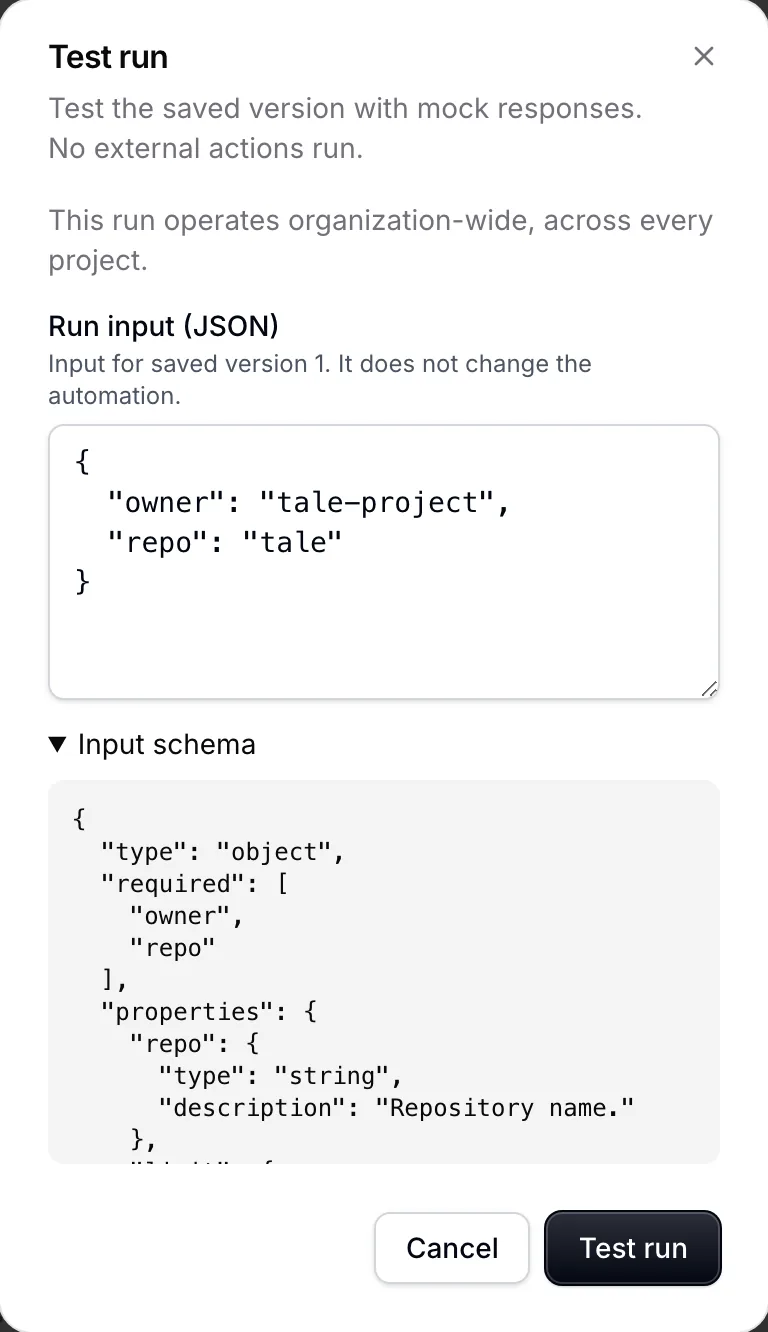
## Deploy and run live
Choose the tested version under **Version** and click the deploy button beside it, which names that version, such as **Deploy v3**. The **Live** badge marks the deployed version. A version whose saved tests failed cannot be deployed; correct the cause and save a new version.
**Run live** starts the deployed version, even if you are viewing another one. Its confirmation shows the scope and, when required, **Run input (JSON)** for that deployed version. Check both before confirming. Live runs may act on connected systems and may wait for an [approval](/platform/approvals/concepts).
A trigger also runs the deployed version. Set it up only when you are ready for repeated or externally initiated execution; see [Automation triggers](/platform/automations/triggers).
## Diagnose a result
**Show last run** overlays run states on the canvas. Select a node to see **In this run**, its **Resolved input**, **Output**, and effects. This is often enough to find a wrong reference: compare the input received by the failed node with the output of the node it reads.
Switch to **Runs** and open a row for the full record. The tabs remain visible with **Runs** active; **Editor** returns to the workflow. Check whether it was a test or live run and inspect already completed operations before starting another run. [Execution logs](/platform/automations/execution-logs) explains waiting, failures, automatic retries, and stopping.
## Roll back or delete
To roll back, open **Version** at the right of the tab strip, read the version messages and select an earlier version. Its row opens **Editor** at that version; click its deploy button there, such as **Deploy v2**. Future starts use it; version history remains intact. A version message such as “Restore the previous recipient mapping” makes that choice easier to review.
To delete the automation, return to the list, open its row menu, and select **Delete**. Read the named confirmation. All versions, deployment, trigger, and project bindings are removed. An unfinished run blocks deletion; stop it or let it finish first. Past runs remain subject to retention. Deleting an automation does not undo the actions its runs already performed.
# Read automation runs and recover from failures
Source: https://docs.tale.dev/platform/automations/execution-logs
Open an automation, switch to its **Runs** tab and select a row to understand what happened. Start with its status, version and mode, then inspect the relevant node. A successful test run proves the workflow’s mocked execution; it does not prove that a real external account will accept the same action.
## Read the run’s state
The **Runs** tab lists the latest 50 runs you can see, newest first. Every member sees the organization’s own runs; a run in a project, and any question it waits on, appears only to people who can open that project. Each row identifies its version, time, mode and starter, or gives a failure or waiting reason. The detail shows the workflow with node results and run timing; an unfinished run has no completion time. The tabs stay visible while you inspect a run. Choose **Runs** to return to the list or **Editor** to change the workflow.
| Status | Meaning | What to do |
| --- | --- | --- |
| **Queued** | Accepted, waiting for execution. | Wait and inspect capacity if it does not progress. |
| **Running** | The engine is processing the workflow. | Follow node progress. |
| **Waiting** | A decision, reply, agent turn or polling condition is outstanding. | Read what it is waiting for. |
| **Succeeded** | Reached nodes completed and the workflow produced its output. | Review output and effects. |
| **Failed** | Execution ended with an unhandled failure. | Open the failed node and read its error. |
| **Stopped** | The run was cancelled. | Inspect work already performed before restarting. |
A waiting approval or question requires a person; a running agent or polling node may continue without you. A decision or answer can also be refused or expire. Use the displayed reason, not **Waiting** alone, to decide whether action is needed. [Approvals in workflows](/platform/automations/approvals-in-workflows) explains the decision controls.
## Inspect the node that matters
Select a node on the run’s canvas. **Resolved input** shows the actual values after template evaluation; **Output** shows what the step returned. These fields distinguish a bad reference from a service failure.
Node states include **Ran**, **Skipped**, **Failed**, **Never reached**, **Not reached yet** and, on a stopped run, **Stopped here** for the node the run was on when it was stopped. A skipped node may have a false condition, an unmet dependency, an alternate branch or a failure rule that permits continuation. Do not assume every skipped node is an error.
For example, a reminder node may receive a customer name but an empty invoice ID. Inspect its upstream output: if the record now uses another field, correct the reference there rather than replacing the mail credential. Verify the corrected resolved input in a new test run.
Applications reading the [run API](/develop/api-reference) also receive `failureCode` when a failed run has a classified cause. For example, `approval_rejected` means a person refused the operation, while `llm_output_invalid` means a model response did not match the required structure. Historical failures can lack a code. Use it to route an investigation; it does not establish that retrying is safe or will succeed.
## Check what the run changed
The effects list records connector writes, with the node, connector and input. A test uses deterministic stand-ins; live actions can change external systems. The run explicitly reports when it has no recorded effects.
Read effects before retrying. A failure later in the graph does not undo an earlier message or update. For delivery-sensitive work, confirm the result with the receiving service as well. Effects are retained with the run until deletion or retention removes that record; they are not a permanent independent archive. Deleting the automation keeps its runs: a run page still opens, marked with the deletion date and drawn from the run’s own trace, until retention removes it.
## Understand continuation and automatic retries
The engine checkpoints completed nodes and resumes after those checkpoints when execution continues. An unfinished run whose continuation was lost can be picked up after a grace period. A separate run starts with separate checkpoints and can repeat writes, so “run again” is different from resuming the existing run.
An eligible agent-step failure can receive up to three automatic retries after the original attempt. Upstream checkpoints remain intact, and the header reports **Auto-retry 1 of 3** and subsequent attempts. An attempt that performs at least fifteen minutes of execution refreshes that retry budget. Subscription pools can choose another account for a new attempt. When a subscription broker refreshed the account while the step worked and the provider rejected the old token, the retry continues on a fresh token without using one of the three retries; a third such interruption in a row counts like any other failure. When the step could not start because every account of the pool was cooling down after a rate limit, the retry starts once the first account is available again, at most a minute later, and continues the conversation the refused attempt was to resume. That wait uses one of the three retries unless the refused attempt was itself retrying a rate-limit failure. When the failed turn had announced its conversation handle, the retry resumes that conversation over the preserved workspace — the agent continues where the cut landed instead of reasoning from the start; a turn that died before announcing one, or whose sandbox session is gone, starts fresh.
An agent step also fails when its model returns nothing at all: no text, no tool call and no generated tokens. A model server can answer this way when it breaks down mid-answer. The run then reports “The model returned an empty answer, so the agent did nothing this turn.” This failure receives those retries too. A step whose model only used tools, or reported generated tokens but no visible text (reasoning, for example), has answered and does not fail this way.
An exhausted budget, full execution-window timeout, or expired question does not receive those retries. Each attempt consumes its own resources; retrying does not erase earlier charges. If repeated attempts cannot fix the cause, stop the run and correct the dependency before starting another.
## Stop or repair the workflow
Select **Stop the run** for an unfinished run you want to cancel, and confirm. Cancellation stops further work at the engine’s execution boundaries; it does not roll back completed effects. If the run finishes before the cancellation reaches it, its completed outcome is retained.
To repair a document problem, return to the editor, change the relevant input or node, and save a version with a useful message. Run a test with representative input and inspect the values and output, not only the success badge. Deploy that version when the result is ready. Scheduled and webhook starts then use the deployed version; an older failed run remains a record of the old version.
If the run never started, inspect its [trigger](/platform/automations/triggers). A disabled trigger, missing deployment or rejected input can explain the absence of a run altogether.
# Start automations automatically
Source: https://docs.tale.dev/platform/automations/triggers
Use the **Trigger** section on the automation’s **General** tab when work should start on a schedule or in response to an event. Every trigger starts the deployed version in live mode. Before enabling one, test the workflow with the input shape it will receive and check that its external actions are ready.
## Choose how the automation starts
| Trigger type | Use it for | Input passed to the run |
| --- | --- | --- |
| **Schedule** | Periodic work at a local time or regular interval. | `{ trigger: "schedule", firedAt: }` |
| **Webhook** | A delivery from another system. | `{ trigger: "webhook", payload: … }` |
| **Platform event** | A named event inside the organization. | `{ trigger: "event", event: "…", payload: … }` |
An automation has one configured trigger at a time. Changing its type replaces the previous binding. Replacing a webhook revokes its URL immediately; configuring another webhook later does not recover that credential.
An API or MCP client can also start work without a configured trigger. Its API key and project permissions authorize the request, and it sends the workflow’s input directly. See the [API reference](/develop/api-reference).
## Set a schedule
Open the automation, then its **General** tab. Without a binding, the **Trigger** section says that the automation runs only when started by hand or through the API; choose **Add trigger**, then **Schedule** under **Trigger type**. A new trigger starts with **Enabled** off — keep it off while preparing a workflow that should not start yet.
Fill **Cron** and choose **Timezone**. A cron expression has five fields: minute, hour, day of month, month and day of week. Use an IANA timezone such as `Europe/Zurich` when local business hours matter; an unspecified timezone means UTC.
Review the next occurrence shown for a valid expression, then click **Save** beside the tabs. Confirm that the workflow’s deployed version accepts the schedule input above. When ready, turn on **Enabled** and save again. Check the next started run under **Runs**.
```text
*/15 * * * * every fifteen minutes
0 9 * * 1-5 09:00 on weekdays
0 6 1 * * 06:00 on the first of the month
30 8 1 * 1 08:30 on the 1st and on every Monday
```
Fields support `*`, numbers, ranges, steps and comma-separated lists. Both 0 and 7 mean Sunday. If both day-of-month and weekday are restricted, either match is enough; the last example runs on Mondays as well as the first day of each month.
Local time follows the timezone’s daylight-saving rules. A 09:00 Zurich schedule stays at 09:00 locally. Timing has one-minute resolution. Missed occurrences during an outage are not replayed; work resumes at the next occurrence. Impossible calendar dates are rejected when saving.
## Receive a webhook
Choose **Webhook**, then save to generate the credential. Copy the full URL when it appears: the token is shown once and only its hash is stored. The section supplies an organization URL and a project URL pattern. Use the project URL for an active project in which the automation is installed; an automation with project bindings cannot run through the organization-only URL.
Post a small payload to the URL. JSON becomes `payload` inside the input wrapper, not the workflow’s top-level input. Other request bodies pass through as text. The limit is 256 KiB; upload large documents separately. An accepted request returns a run ID without waiting for completion.
For example, a posted `{ "invoiceId": "inv-1" }` reaches the workflow as:
```json
{
"trigger": "webhook",
"payload": { "invoiceId": "inv-1" }
}
```
Use a delivery ID, such as `Idempotency-Key` or the sender’s supported delivery header. Repeating that ID within 24 hours returns the original run. Without an ID, an identical body on the same URL within two minutes is treated as a duplicate. Send distinct IDs if identical payloads represent separate work. [Webhooks](/develop/webhooks) lists supported headers, project routes, errors and response formats.
The URL authorizes a run. Store it as a credential and share it only with the sending system. **Rotate token** generates a replacement and invalidates the old URL; removing or replacing the trigger also revokes it. Update the sender after a rotation.
## React to a platform event
Choose **Platform event**, select **Event name**, then save and enable when ready. Match the workflow’s schema to the `trigger`, `event` and `payload` wrapper in the table. Events raised by automation runs do not fire triggers, preventing a workflow from repeatedly starting itself through its own changes.
A workflow expecting required top-level fields such as `owner` and `repo` cannot accept schedule metadata or a wrapped webhook unchanged. Adapt its input schema and references, or use an API-started run that supplies those fields. The trigger settings do not provide arbitrary saved input fields.
## Diagnose a missing start
First check **Enabled**, the deployed version and the last-fired information. Then inspect any recorded skip reason:
| Reason or symptom | What to check |
| --- | --- |
| `not_deployed` | Deploy a tested version. A saved draft is insufficient. |
| `start_refused` | Compare the deployed input schema with the trigger’s actual wrapper and resolve the reported validation or start error. |
| `unusable_cron` | Correct the expression or timezone and save it again. Other schedules continue while this one is skipped. |
| `paused_after_failures` | The schedule turned itself off after repeated failures. See [When a schedule pauses itself](#when-a-schedule-pauses-itself). |
| Webhook credential refused | Check the current URL and enabled state. Unknown and disabled tokens intentionally receive the same refusal. |
| Run exists but did not finish | Open [execution logs](/platform/automations/execution-logs); the start succeeded and the issue is inside the run. |
The last-fired timestamp advances when a run actually starts. A due trigger that cannot start work records a skip instead. This separates a broken schedule from a workflow that started and later failed.
## When a schedule pauses itself
A schedule whose runs fail the same way at every occurrence would otherwise keep failing indefinitely. Tale counts the runs a trigger starts that fail with an error a retry won't fix: the automation's own code (`node_error`), a connector (`connector_error`), a model reply that does not match its schema (`llm_output_invalid`), or the organization's model provider (`auth_error`, `missing_api_key`, `credit_exhausted`, `model_not_found`). A successful run resets the count, and other failures, such as a rate limit or an unreachable provider, neither count nor reset it. A schedule that has already paused itself is the exception: it keeps the count that paused it, even when a run that was still in progress succeeds afterwards, and only saving the trigger clears it.
After five such failures in a row, the schedule turns **Enabled** off and records `paused_after_failures`. The **Trigger** section then shows the pause, the last failure's code and time, and **View run**, which opens that run. While runs are failing but the schedule is still on, the section shows how many failed in a row. Owners and Admins get a bell notification, which also reaches them by email when the organization has a connected mailbox, and the audit log records the pause. They can switch these notices off with **Automation alerts** under **Settings > Notifications**.
Open the failed run to read the error, and fix the automation or its connection. Then turn on **Enabled** and save. Saving the trigger starts a new count, whether it turns the schedule back on or leaves it off, and marks the notices read.
Webhook and platform-event triggers count failures the same way but are never paused. Their runs carry a delivery or an event, which a paused trigger would drop.
## Pause or replace the trigger
Turn off **Enabled** and save to pause starts while retaining the configuration and run history. Re-enable it to resume. **Remove trigger** deletes the binding; for a webhook, its URL becomes unusable.
Triggers belong to the automation’s name, not a version. Deploying or rolling back keeps the same schedule or URL and changes which version future starts execute. Editing a trigger does not create a workflow version, so review trigger settings alongside any deployment that changes expected inputs.
# Compare models in Arena
Source: https://docs.tale.dev/platform/chat/arena-mode
Use **Arena Mode** to compare two models on the same prompt. Both sides use the chat assistant and the same starting context. Choose a question you can evaluate: preference alone cannot establish that an answer is correct.
## Start a comparison
Open a private chat, open the composer’s **+** menu and select **Arena Mode**. Shared chats cannot enter Arena. Choose the models under **Model A** and **Model B**, then send your prompt. You may choose the same model twice to compare variation, or two different models to compare their behavior.
For a useful first comparison, give both sides a short source and a precise request, such as “List the three decisions in these meeting notes and cite the sentence supporting each.” Keep the source, instructions and requested format the same.
Each reply appears in its own column. The prompt is admitted for both columns together: a usage limit that would stop it stops it for both sides, never for one column alone. Wait until both have finished before selecting a verdict; the controls stay unavailable while either side is answering. A slow reply is still part of the comparison. If a side fails, its column shows the error and the round cannot be judged: the four verdict buttons stay unavailable until both columns hold a finished reply, while **Exit without verdict** remains available. Inspect the error before treating the result as a quality judgment.
## Judge the replies
Check factual accuracy against the source, whether the reply followed the instructions, whether essential details are missing, and how much editing you would need before using it. A longer or more confident response is not necessarily better.
| Verdict | Use it when | Conversation continues with |
| --- | --- | --- |
| **A is better** | A is more useful or accurate. | Column A. |
| **B is better** | B is more useful or accurate. | Column B, and the composer switches to Model B. |
| **Tie** | Both meet the request equally well. | Column A. |
| **Both bad** | Neither is acceptable. | Column A. |
| **Exit without verdict** | You do not want to record a comparison. | Column A, without a verdict. |
Every choice ends the two-column comparison. The next message goes to the remaining conversation. To compare again, enable Arena again; a tie does not keep both columns active.
The other column's answer is discarded and goes to the organization's [Trash](/platform/admin/governance/trash), where an administrator can restore it as a chat of its own until the retention grace window ends. It no longer appears in your chat list or in search, and a link to it reports that the chat is not available.
## Find the recorded feedback
When both models have produced replies, a verdict contributes to the organization’s [Feedback analytics](/platform/admin/governance/feedback-analytics). Administrators can inspect **Arena verdicts** and model matchups there. A round in which only one column answered is never recorded: the verdict is refused, so the analytics only contain comparisons of two finished replies. Exiting without a verdict does not add a rating.
Use several representative questions before drawing a conclusion about a model. A result for a short summary may not predict its performance on code or long documents, and organization-wide preferences include other people’s tasks.
## Resolve a blocked comparison
If a model is absent, check its provider and access rules through the [model catalog](/platform/models). If the verdict buttons remain disabled, wait for both generations to end, or check that both columns show a finished reply: a side that failed or never answered leaves nothing to compare, so exit without a verdict, fix the cause and send the prompt again. A failed request may reflect credentials, availability or policy rather than answer quality; use its displayed reason to decide what to fix before retrying.
# Ask about files and images
Source: https://docs.tale.dev/platform/chat/attachments
Attach a file when it is needed for the current conversation. The assistant receives images, retrieves text from supported documents, and reads transcripts of recordings. For files that several chats should reuse, upload them to a [project](/platform/projects/manage-files) or the [Knowledge library](/platform/knowledge/documents) instead.
## Add an attachment
Open the `+` menu beside the message field and choose **Add photos & files**. You can also drag files onto the composer or paste a screenshot into the message field. A message can carry up to ten files.
Images appear as thumbnails; other files appear as named chips with their processing status. Check the filenames before sending. Use a staged attachment’s remove control to leave it out of the message.
Write a question that tells the assistant what to look for, such as “Read the meeting note and list the decisions, their owners, and any missing deadlines.” Attaching a file without a question leaves the intended task unclear.
When you try to attach audio or video, Tale checks whether the organization has an available transcription model. If the check prevents the upload, a dialog explains the problem and offers the recovery actions you can use. Those files are refused before transfer; other supported files in the same selection can still upload. Close the dialog to keep composing, follow the settings action if you have access, or ask an admin to check [Models](/platform/admin/governance/content-models).
## Understand what the assistant receives
| Attachment | What the model uses | What to check |
| --- | --- | --- |
| Image or pasted screenshot | The image itself, when the selected model supports vision. | Confirm the picker offers an image-capable model and the text is legible. |
| PDF, modern Office document, or supported text file | Text made available through the assistant’s retrieval tools. | Wait for processing and check for a reading step in the reply. |
| Audio or video file | A text transcript. | An admin must configure transcription; check names, numbers, and specialist terms against the recording. |
| Legacy Office file without a text extractor | The filename, without searchable document text. | Save it as `.docx`, `.xlsx`, or `.pptx` and attach that copy. |
File upload support and text extraction are separate. A file that appears in the chat is not necessarily a file whose contents the assistant can read.
## Send while processing continues
If documents or recordings are still processing when you send, Tale queues the message and sends it after they are ready. The queued message appears above the composer. Cancel it there if you need to change the question; its text returns to the field.
Paste a supported video link into the message field to start creating an attachment. A URL entered by typing stays ordinary message text. Tale retrieves captions first and uses audio transcription when captions are unavailable, then supplies the transcript to the assistant. Pasting a link remains available without a transcription model because usable captions do not need one. If that link fails, retry it or remove it before sending.
A model change applies to new transcription work; completed attachments keep their existing transcript. Uploading the same bytes again reuses completed work for the same transcription target, but transcribes them again when the target provider or model differs.
## Keep the file in the right place
Chat attachments belong to that conversation. They do not automatically enter the organization’s Knowledge library or become available in another chat. Switching conversations clears staged attachments, so check the chips again after changing chats.
A regenerated reply uses the original message’s stored attachments. If you need to ask about a different version of a file, send the new file and identify which version the assistant should use.
For recurring questions about a brief or policy, put the file in the appropriate project once. Start later chats inside that project instead of uploading a separate copy each time.
## Resolve attachment problems
| Symptom | Action |
| --- | --- |
| The image cannot be read by the selected model | Choose a vision-capable model. On Auto, Tale considers compatible image models; if none are available, ask an admin to configure one. |
| Processing fails | Retry the file. If a small supported file also fails, ask an admin to check storage, indexing, or transcription as indicated by the error. |
| The assistant knows the name but not the contents | Check the format and processing status. Convert legacy files to a supported modern format. |
| The answer invents detail from a recording | Check the transcript against the recording and supply the corrected passage before continuing. |
| A queued message has not sent | Inspect every attachment’s status, including video links. Remove or retry failed items. |
Return to [Chat basics](/platform/chat/basics) to check sources and continue the conversation.
# Ask questions in chat
Source: https://docs.tale.dev/platform/chat/basics
Use chat to ask questions, understand a document, or investigate information in Tale. The assistant can search accessible knowledge and read public pages. Start with a specific question, then use follow-up messages to narrow the answer.
## Send your first message
Open **Home**. On a computer, it reopens the chat you last read, if there is one. To begin a new subject, choose **New chat** at the top of the Home list or, on a computer, choose **Home** again while it is active. Type in the message field. Press **Enter** to send or **Shift+Enter** for a new line. A starter prompt fills the same role as your own first question; edit your request to include the source, subject, and kind of answer you need.
For example: “Find the onboarding feedback and summarize the three most common problems. Cite the documents and separate reported problems from your suggestions.”
If your organization turned on a confidentiality notice, it appears under the message field as a reminder of what not to share in chat.
While the reply streams, the send control becomes a stop control. Stopping keeps the text already received, which may end mid-sentence. Use a follow-up message to clarify the question or ask for missing detail.
## Choose a model when the choice matters
The model picker starts on **Auto** when several usable models are available. Auto selects a model for each message from your organization’s available models; organization rules can set a default or restrict the choices. The details under a reply identify the model that actually answered.
Pick a named model when you need consistent comparisons or know which model the work requires. Your choice stays selected until you change it, including which provider serves the model when two providers offer the same one. If that model supports adjustable reasoning, the picker also offers an effort setting. More reasoning can take longer; it is not a substitute for checking the answer.

If no models are available, ask an admin to check active provider credentials and model access. [Models](/platform/models) explains how the catalog is built.
## Give the assistant the right sources
Choose the conversation’s location before asking about files:
| Where you ask | Files the assistant can retrieve |
| --- | --- |
| The organization’s chat | Knowledge-library documents you can access and this chat’s own attachments. |
| A chat inside a project | That project’s files, Knowledge-library documents you can access, and the chat’s own attachments. |
| A shared chat link | A read-only snapshot; viewers cannot ask follow-up questions there. |
Project chat also receives the project’s standing instructions. File access is enforced by Tale, so asking a project chat to read a different project does not grant access. Trashed or expired files are not searchable.
Use [attachments](/platform/chat/attachments) for material needed in this conversation, [project files](/platform/projects/manage-files) for recurring project work, and [Knowledge](/platform/knowledge/overview) for shared reference material. The assistant retrieves content when it needs it; uploading a document does not mean every answer has read it.
Questions about Tale itself need no upload: the assistant looks up the public documentation at docs.tale.dev before explaining how a screen or setting works. If the server cannot reach docs.tale.dev, for example on a self-hosted installation without internet access, the timeline shows a failed reading step and the answer is not grounded in the documentation. The documentation describes the latest release, so the assistant points out when your workspace may differ.
## Check what the assistant used
Above the reply, the timeline shows search and reading steps. A failed step explains what could not be read; it is useful evidence when an answer is incomplete. Expand the thinking section when one is available, but judge factual claims against sources rather than the fluency of that explanation.
**Sources** below the answer lists documents and pages the assistant loaded. Open a source and check that it supports the relevant claim. A citation establishes which material was used, not that every conclusion is correct. A reply without a retrieval step may rely on the model’s prior knowledge.
The assistant can search workspace information such as documents, knowledge entries, websites, contacts, products, accessible tasks, and the Inbox conversations you can see, including the text of the emails they received and of their attachments. A task can be named by its key, such as `DOCS-12`, as the board shows it. It can fetch the details behind a result and read a public web page. Chat does not run code, change connected systems, produce file deliverables, or use [skills](/platform/workspace/skills); assign that work to a [project task](/platform/projects/tasks).
## Continue, copy, or keep the conversation
Use the reply toolbar to copy an answer, give feedback, inspect its details, or fork a conversation at that point. A fork lets you try another direction while preserving the earlier exchange.
Find earlier chats in [Home](/platform#home); **Chats** above the list hides your tasks and inbox conversations. Pin frequently used chats, give a chat a recognizable title, or move it into a project when the topic becomes ongoing work: drag it onto the project or choose **Move to project…** in its menu. [Shared chats](/platform/chat/shared-threads) explains how to publish a read-only snapshot for colleagues.
Very long conversations may exceed the model’s context window. Tale displays a notice when older messages are omitted. Restate an important requirement or start a new chat with the relevant sources instead of assuming the assistant still sees the entire history.
## Improve an incomplete answer
| Problem | Try this |
| --- | --- |
| The answer is too broad | Ask one question, name the audience, and specify the desired length or format. |
| A file was not used | Check the chat’s project, the file’s indexing status, and the retrieval steps. Name the file explicitly. |
| Search reports an unavailable source | Ask an admin to check the named service or embedding configuration; an empty result is not proof the information does not exist. |
| A reply stops with an error | Read its error, check the selected model, and retry after the cause is resolved. Tale does not silently switch providers. |
For a guided example with source checking, follow [Chat effectively](/tutorials/member/chat-effectively).
# Chat
Source: https://docs.tale.dev/platform/chat/overview
Chat is the quickest place to ask about a document, understand a topic, or refine an answer through follow-up questions. The assistant can search accessible knowledge and fetch public pages when the question needs them. Check its sources before relying on a factual answer, especially when the information may have changed.

## Start with a useful question
Open **Home**, choose **New chat**, type in the composer, and send. A starter prompt can help if you are unsure where to begin. Include the outcome you need and the relevant source: “Using the onboarding guide, list the steps a new customer needs to complete. Cite the guide.”
When several usable models are available, the model picker can start on **Auto**. Select a named model when you want control over which available model answers, and adjust reasoning effort where supported. You can attach a file for a question about its contents or open a project chat for recurring reference material.
## Choose the surface for the work
| You want to | Start in |
| --- | --- |
| Ask, compare information, or clarify an answer | A **chat** |
| Reuse the same files and instructions across conversations | A **project chat** |
| Produce a deliverable with an owner and a review | A project **task** |
| Run a repeatable process on a schedule or incoming event | An **automation** |
Chat focuses on conversation and retrieval. For a substantial deliverable, the assistant may direct you to a task so an agent can work in a sandbox and a person can review the result. See [Tasks](/platform/projects/tasks) and [Automations](/platform/automations/concepts).
## Use the conversation well
Send, choose a model, read sources, and resume a conversation later.
Add a document or image and understand upload and indexing states.
Compare two answers to the same question and keep the one that works better.
Dictate a message or listen to a response, with the required provider setup.
Publish a read-only snapshot for your organization and stop sharing later.
Work through a focused question, a source check, and a useful follow-up.
# Share a chat with your organization
Source: https://docs.tale.dev/platform/chat/shared-threads
Share a chat when a colleague needs to read the question and answer without continuing your conversation. The link publishes a snapshot for signed-in members of your organization. It is not a public link, and it does not update automatically as you keep chatting.
## Create the snapshot
1. Open the chat’s header menu and choose **Share**.
2. Select **Share with organization** in the **Share chat** dialog.
3. Click **Create share link**.
4. Use **Preview** to check the snapshot, then **Copy link** when it is ready to share.
The snapshot is the branch you are viewing. If you used **Edit message** or **Try again**, the link publishes the version of each edited or regenerated turn that is on screen. Switch to the version you want colleagues to read with **Previous branch** and **Next branch** before you create the link.
Read the transcript before distributing the link. A reply can contain details copied or summarized from a restricted source; sharing that reply makes its text readable to the organization members who have the link.
## Include a later answer
New messages stay outside the published snapshot. Open **Share** again and choose **Include newer messages** when you want the same link to show the newer exchange. The snapshot is taken again from the branch you are viewing, so switch to the version you want to publish first. Preview it again before treating that version as the one colleagues should read.
A recipient who wants to continue the topic starts their own chat. A snapshot does not create a collaborative conversation, and it does not grant access to every source mentioned in it.
## Stop sharing
Choose **Keep private** in the share dialog or **Stop sharing** in the chat's menu in the Home list. The link becomes unavailable. Deleting the original chat also makes its share unavailable.
If the dialog can't load the sharing status, it selects neither option and says that the chat may still be shared. Choose **Try again**; once the status appears, you can choose **Keep private**. An existing link keeps working until then.
Stopping a share prevents future viewing through that link. It cannot retract text someone already copied, which is why reviewing the snapshot before sharing matters.
## Share with a project instead
For ongoing collaboration, use **Share with project** on a chat in a [project](/platform/projects/concepts). The project’s **Chats** tab separates personal chats from those shared with the project. Project membership alone does not share your personal chats automatically.
Arena comparisons cannot be shared while they remain Arena chats. Finish the comparison before sharing the conversation you keep; see [Arena Mode](/platform/chat/arena-mode).
# Voice mode
Source: https://docs.tale.dev/platform/chat/voice-mode
Dictation lets you speak a message instead of typing it. Voice output reads an assistant reply aloud. You can use either on its own: dictating does not require spoken replies, and listening does not require microphone access.
## Dictate and check a message
1. Click **Start dictation** on the composer's microphone control.
2. Allow microphone access in the browser if asked, then speak clearly.
3. Click **Stop dictation**. Where server transcription is used, wait for it to finish.
4. Read and correct the text in the message field, especially names, numbers, and dates. Send when it is ready.
Dictation adds text to the composer; it does not automatically send the message. Sending stops an active dictation. The chat model receives the text you submit.
Tale first uses the browser's speech-recognition capability when available. Otherwise, it can record and transcribe through your organization's configured transcription model. Browser speech recognition may use a browser-vendor service; do not assume dictation works offline.
The server fallback needs browser recording support through MediaRecorder, microphone permission, and an available organization transcription model. An admin chooses **Audio transcription model** under [Settings > Governance > Models](/platform/admin/governance/content-models). This setting also serves audio and video attachments. It does not change the browser's own recognition service: supported browser dictation remains usable when the organization's server model is unavailable.
If you try to start server dictation and its transcription model is unavailable, a dialog explains the problem. Follow the recovery action offered: open settings, retry a temporarily failed availability check, or ask an admin for help. You can close the dialog and continue typing.
## Listen to a reply
Enable **Voice mode** in the composer to hear replies in the current chat. A text-to-speech model prepares audio from the answer. Use the reply's playback control to stop or play it again; the written response remains available for checking details.
An organization policy can hide voice output. A disabled control can also mean there is no usable speech model. An administrator checks the configured [AI providers](/platform/admin/providers); changing the chat model alone does not supply a speech provider.
The voice setting on an existing chat applies to that chat. Setting it on a new chat also establishes the default for later chats. There is no separate voice configuration on each project agent.
## Recover a voice problem
| Symptom | What to check |
| --- | --- |
| The microphone will not start | Browser microphone permission, the selected input device, and whether another app is using it. |
| A message says dictation is unavailable | The browser's speech service could not be reached: check the connection, a proxy or a content blocker, then try again. |
| Words are missing or wrong | Reduce background noise and correct the transcript before sending. |
| Server transcription failed | Use the retry control while the failed recording remains available, or discard it and type. |
| A reply is ready but silent | Check device volume and browser playback permission, then use the reply's play control. |
| Voice reports a configuration error | Ask an administrator to check the speech model and credential. |
A failed server-transcription recording is held in the current page's memory for retry. Leaving or reloading the page can lose that recording. It is not a saved audio attachment; use [attachments](/platform/chat/attachments) when you want to upload an existing recording.
## Understand the audio path
Browser dictation follows the browser's speech service. The server fallback sends the recording to Tale for transcription with the organization's configured provider; this dictation path does not store it as a document. Once sent, the transcript becomes part of chat history.
Voice output sends answer text to the configured speech provider and streams audio for playback. If the answer contains information from a restricted source, that text is included in the speech request. Administrators should choose speech services consistent with the organization's [data-residency requirements](/cloud/data-residency).
# Connect an external client with MCP
Source: https://docs.tale.dev/platform/connectors/mcp-servers
Tale exposes an MCP endpoint that lets an external coding assistant or other MCP client work with your organization. Use it to discover capabilities, author automations, and inspect runs through the client’s tools. Access follows the organization API key and its holder’s permissions.
## Find your endpoint
Open **Settings > API > MCP**. The page shows the deployment’s endpoint URL, the organization slug, available tool groups, and a request you can copy to check connectivity. Create a suitable key under **Settings > API** if you do not already have one.
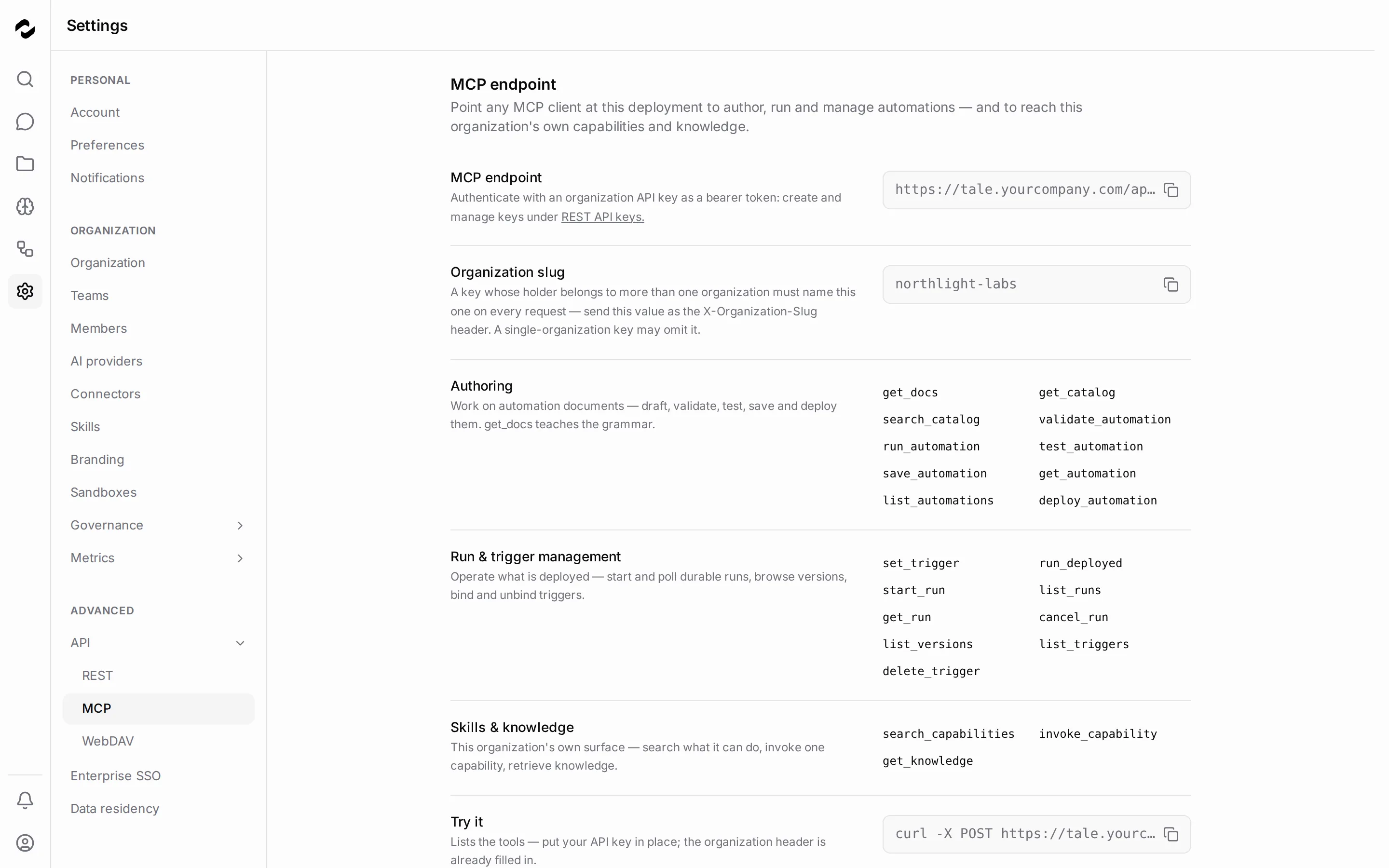
Follow [MCP endpoint](/develop/mcp-endpoint) for client configuration, authentication, and permission requirements. Store the key in the client’s credential settings; do not put it in a prompt or a shared document.
## Choose the direction of the connection
Tale’s MCP endpoint accepts connections from external clients. Tale does not provide a settings form for registering an external MCP server as equipment for its own project agents.
For an agent inside Tale that needs another service, check the [connector catalog](/platform/connectors/overview). When there is no suitable connector, a [project agent](/platform/projects/project-agents) can use an appropriately scoped secret to call a service from its sandbox. That grants the running agent access to the secret, so choose the scope for the specific job.
## Verify access before authoring
Start with the connectivity request on the MCP page and confirm that the client can list the tools. Then read the tool’s required permission before trying a write. Saving an automation and deploying it are separate operations; connecting a client does not bypass the deploy gate or approval rules.
Use [API keys](/platform/admin/api-keys) for key rotation and revocation, and [Automation concepts](/platform/automations/concepts) for the save, test, and deploy lifecycle.
# Connect Tale to external services
Source: https://docs.tale.dev/platform/connectors/overview
Use a connector when Tale needs to read or change data in an external service. The connector defines supported actions; a credential authorizes the account those actions use. A Developer, Admin or Owner manages credentials under **Settings > Connectors**.
## Choose the connection for the task
| Connector | Typical use | Authentication |
| --- | --- | --- |
| Confluence | Import Confluence Cloud pages into knowledge. | Username and password/token pair. |
| Discord | Work with messages and channels. | Token. |
| GitHub | Read or manage repositories, issues and pull requests. | Token. |
| Gmail | Read, send and organize mail. | OAuth. |
| Google Drive | Import files into knowledge. | OAuth. |
| IMAP / SMTP Mailbox | Read or send mail through a private mail service. | Username and password. |
| Microsoft Outlook | Work with mail, calendars and contacts. | OAuth. |
| Shopify | Work with products, customers and orders. | API key. |
| Slack | Work with messages and channels. | OAuth. |
| Tavily | Search the web and extract pages. | API key. |
| Microsoft Teams | Work with messages and channels. | OAuth. |
| Twilio | Send SMS and make voice calls. | Username and password/token pair. |
| WebDAV Files | Read, write and list the organization’s WebDAV files. | Username and password. |
The deployed catalog’s cards show the current actions and authentication methods. These definitions arrive with the platform; adding an account does not install arbitrary new connector code.
Knowledge imports use the [document indexing pipeline](/platform/knowledge/documents). OneDrive and SharePoint use the import flow in **Knowledge > Documents**, with per-user consent, rather than a separate organization connector. Mounting Tale’s documents on your own device is the other direction; use [WebDAV](/platform/connectors/webdav).
## Add the intended account
Select **Add credential**, search for the service and choose its card. Connectors with existing credentials appear first, but you can add another account for the same service. The form asks for the authentication that connector supports.
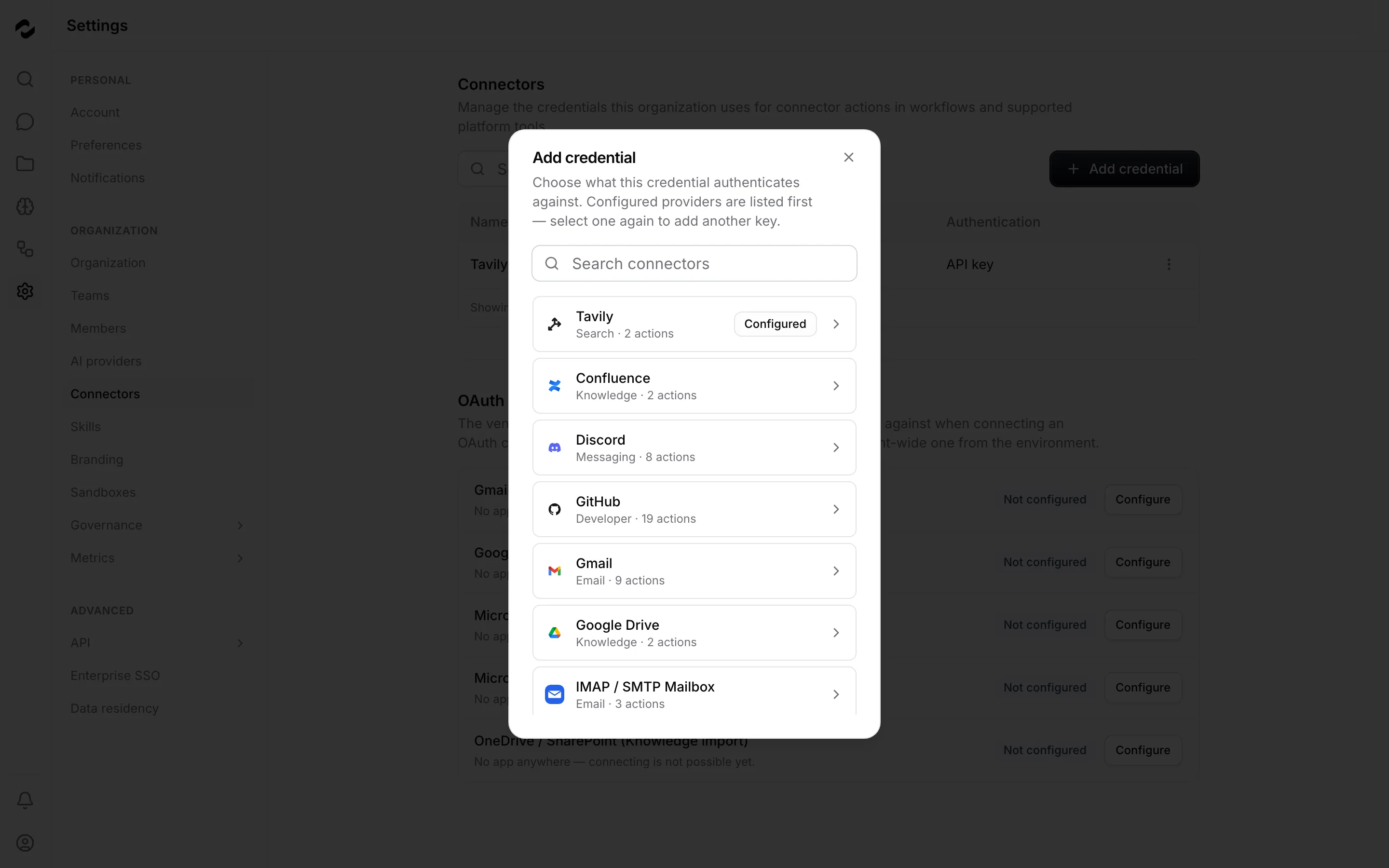
The **Name** field starts with the connector’s name. When you add several accounts for the same service, change it to one that identifies the purpose, such as `Support inbox` or `Release bot`. Use the external service’s credentials, not a Tale API key. For OAuth, sign in to the provider as the account you want to add and complete its consent. Each connection adds a new credential named after the connector and numbered (`Gmail`, then `Gmail 2`); Slack keeps one per workspace. Rename a new credential so the accounts stay distinguishable. If consent cannot start, an administrator may need to configure its OAuth app first.
Confluence and Shopify require an **Instance URL** per credential. Use the Atlassian site origin or the store’s `myshopify.com` origin, rather than an unrelated page or customer-facing domain. [Connector credentials](/platform/admin/connectors) covers setup fields, reconnection and rotation.
## Choose which account an action uses
An action uses the credential it explicitly names, or the connector’s default when no name is supplied. Only one credential per connector is the default. With no default, an unnamed call fails even if other credentials exist.
For example, two support mailboxes are two credential rows. Choose names that distinguish them and inspect a workflow’s resolved input before running it live. A default is a fallback for selection, not proof that every job should use that account. Mailbox operations designed to inspect all active accounts are a separate case.
Disabling a credential retains its configuration but stops use through it. Replacing its secret updates the account connection used by existing references. Check dependent workflows before disabling, deleting or changing the default.
## Understand reads and writes
Automations use connector actions as workflow nodes. Each action declares an input schema, output and read or write effect. In a test run, connector responses are mocked. In a live run, a write can send a message or change external data and is subject to the organization’s approval policy.
Equipped project agents receive supported read actions through Tale’s connector broker. It keeps those connector credentials outside the sandbox and returns results. The broker refuses connector writes. Direct GitHub tooling or explicit agent secrets use separate paths and must be reviewed separately.
Adding a credential does not add arbitrary tools to the ordinary Chat assistant. Use [automations](/platform/automations/editor) for a defined connector workflow and [project agents](/platform/projects/project-agents) for sandbox work.
## When the service is missing
An equipped agent can use a narrowly scoped secret to call a service from its sandbox. A `transform` node only reshapes data and cannot make an external API request. Review the permissions and expected effects before choosing a direct integration.
If the external application needs to call Tale, use the [REST API](/develop/api-reference) or [MCP endpoint](/develop/mcp-endpoint). [MCP and custom integrations](/platform/connectors/mcp-servers) explains that distinction.
# Open Tale documents through WebDAV
Source: https://docs.tale.dev/platform/connectors/webdav
WebDAV lets a compatible file client read and edit Tale’s organization documents as a remote folder. Changes use the same document store as **Knowledge > Documents**. Project-specific Knowledge files are not included in this mount.
## Get the connection details
Open **Settings > API > WebDAV**. Owners, Admins and Developers can generate their own device credentials. Copy the displayed URL, including the organization slug and `/documents/` path; do not construct it from an organization ID or use another organization’s address.
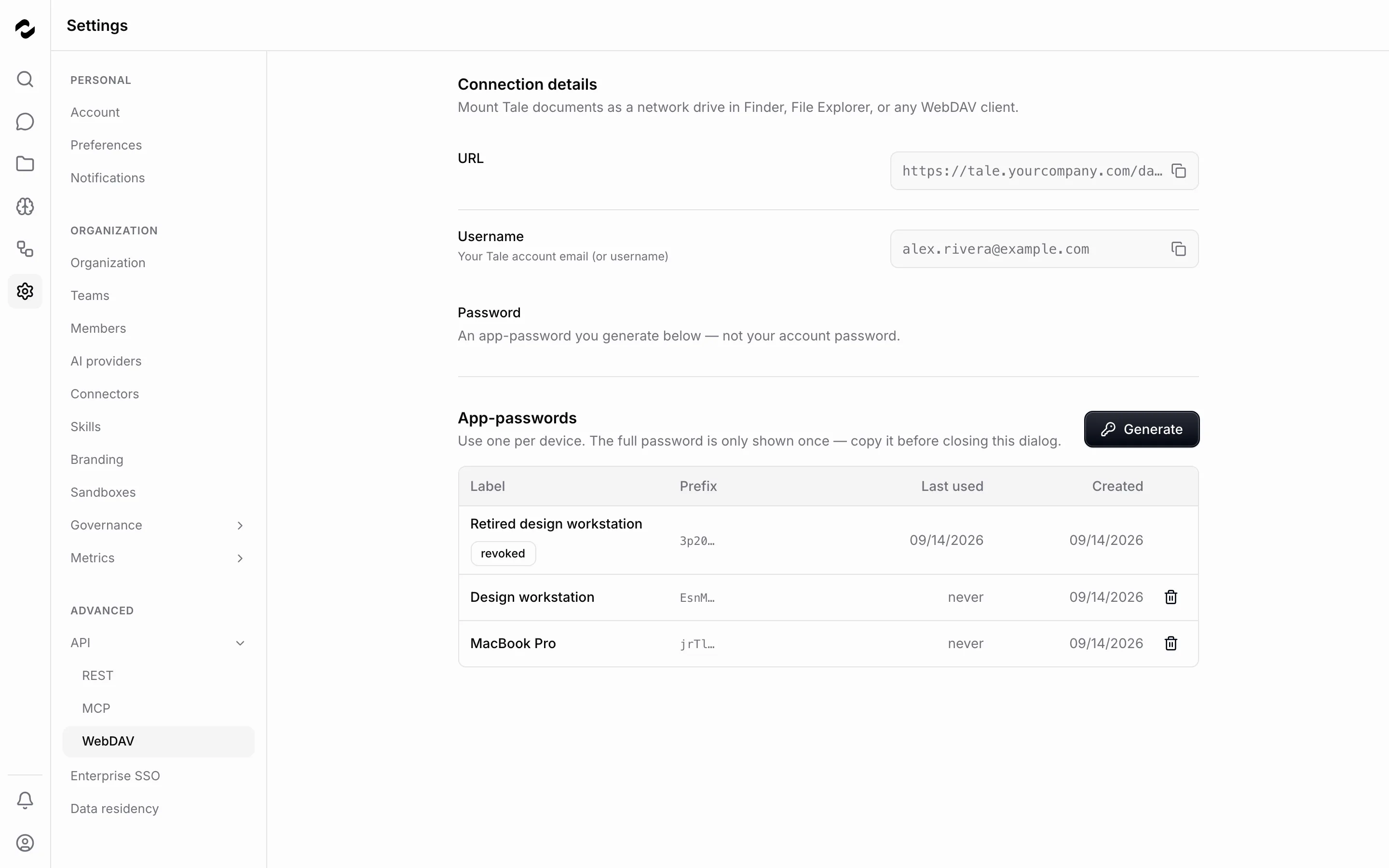
Use your Tale account email as the username and an app-password as the password. Your normal account password does not authenticate WebDAV. On a deployed service, connect over HTTPS; avoid credentials embedded in URLs or saved in command history.
## Generate one password per device
1. Select **Generate** and enter a **Label** such as `Design laptop`.
2. Generate the password and copy it before closing the result. The full value appears only once.
3. Store it in the device client’s credential manager, then select **I have saved it**.
The list keeps the label, prefix and usage dates, not the recoverable password. If you lose it, generate a replacement and revoke the old one once you have updated the client. Separate passwords let you disconnect one device without changing every other connection.
## Configure your client
In Finder, press **⌘K** to open **Connect to Server**. Paste Tale’s WebDAV URL and connect with your email and app-password. Open the mounted folder and inspect a known document before copying files into it. Save the credential only on a device you trust.
Use File Explorer’s network-drive connection with the HTTPS WebDAV address and your generated credentials. The Windows WebClient service must be available. If connection or large transfers fail, check Microsoft’s [WebDAV client requirements and limits](https://learn.microsoft.com/en-us/iis/publish/using-webdav/using-the-webdav-redirector) with IT, or use a dedicated WebDAV client. Keep HTTPS authentication enabled.
A desktop file manager with WebDAV support can use the displayed host and path. GNOME Files uses `davs://` for secure WebDAV; KDE Dolphin uses `webdavs://`. If the dialog separates server and folder, enter the host in the server field and `/dav//documents/` as the folder, with HTTPS and the correct port.
Choose a client that explicitly supports WebDAV and give the device its own app-password. Tale’s browser-based Documents page also works for occasional access. Do not assume the Files app’s generic server dialog supports this protocol. Direct WebDAV upload from Pages, Numbers and Keynote is [no longer supported](https://support.apple.com/en-us/101948).
Run `rclone config` and create a WebDAV remote with Tale’s URL, your email and app-password. Choose vendor `other`. Enter the password through the interactive prompt. Follow [rclone’s WebDAV guide](https://rclone.org/webdav/) to list files and copy a small test directory before a larger transfer.
## Verify a small transfer
Open or download a document you can already read in Tale. If your role permits writes, upload a small uniquely named text file in a test folder. Confirm its name and content in **Knowledge > Documents**, then check its indexing status before expecting it in search.
A WebDAV upload follows document permissions and indexing rules; the source is recorded as `webdav`. A successful file transfer does not mean indexing has finished. If a project file seems missing from the mount, open that project’s Knowledge tab instead.
## Handle locks and deleted files
A compatible editor can lock a file while editing. A conflicting write receives **423 Locked**; finish or close the other editing session rather than repeatedly overwriting. Revoking an app-password also releases locks held by that credential.
The `.trash/` area lists soft-deleted documents read-only. Download a retained file if you need to inspect it; use Tale’s UI to restore it. You cannot use this area to retrieve a file that has already been permanently removed. A file you upload, overwrite, copy or delete over WebDAV leaves a row in the audit log under **Settings > Governance > Logs** in your name; a deletion shows as a document moved to trash.
## Revoke or repair a connection
Use **Revoke** on the password’s row and confirm. Subsequent requests with it are rejected, while other app-passwords remain usable. Revocation cannot be undone; update the client with a new password if needed. Generating and revoking an app-password each leave a row in the audit log under **Settings > Governance > Logs**.
Repeated sign-in prompts usually warrant checking the exact URL, organization membership and whether the password was revoked. A permission refusal after authentication is different from a wrong password. Use the [WebDAV API reference](/develop/webdav-api) for status codes and protocol diagnostics, or [API keys](/platform/admin/api-keys) for software that needs the REST API instead.
# Developer
Source: https://docs.tale.dev/platform/developer/overview
As a Developer, configure the technical connections and automations that support your team’s work. You have content-editing capabilities as well as access to technical settings such as providers, connectors, and API credentials. Member administration remains with Owners and Admins.
## Choose a connection or workflow
Authorize a script or service to call Tale and plan for rotation and revocation.
Let an external client discover and use Tale’s exposed tools.
Add a credential, choose its default, and recover expired authorization.
Start from a blank workflow or import a package, then test and deploy a version.
## Work from a concrete boundary
For incoming requests, start with the [API reference](/develop/api-reference) or [webhooks](/develop/webhooks). For an agent calling another system, prefer a supported connector; direct credentials in a sandbox require careful scoping. [Project agents](/platform/projects/project-agents) explains equipment. Deployment files and environment variables belong in the [self-hosted configuration guide](/self-hosted/configuration/environment-reference).
# Editor
Source: https://docs.tale.dev/platform/editor/overview
As an Editor, keep shared information useful: upload documents, correct knowledge entries, and maintain records. You can work on projects where you have edit access. Begin with one source and a question it should answer, then expand the collection as the team’s needs become clear.
## Choose a content task
Choose files, short facts, websites, or structured records for the information.
Bring files and instructions together and ask a question in project chat.
Record acceptance criteria, ownership, progress, and review.
Create and share skills for the agents that need a repeatable method.
## Know when to involve a Developer
The Editor role does not grant workflow authoring or connector administration; those resources are read-only. A Developer, Admin, or Owner handles automation changes and technical credentials. Project-agent management also requires project edit access and working provider and sandbox setup. Check [Members and roles](/platform/admin/members-and-roles) before starting a guide that needs additional permissions.
# Platform
Source: https://docs.tale.dev/platform
Use these guides to work in Tale, whether your organization uses Cloud or runs its own deployment. Start with a question in a chat, keep recurring work in a project, or follow a specific feature guide when you need to change a setting.
## Move between sections {#navigation}
On a computer, the rail along the left edge shows the sections as icons: **Home**, **Knowledge**, and **Automations**, with **Settings**, your notifications, and your profile menu at its foot. Point to an icon to see its name. On a phone, the tab bar at the bottom offers **Home**, **Knowledge**, **Automations**, and **Settings**. **Automations** always shows for Owners, Admins, and Developers, who build automations; everyone else sees it once the organization runs a live organization-wide automation. Automations bound to a project show on that project's own tab.
On a phone, navigation sits in a rounded capsule floating above the page. Content scrolls behind it, while message fields and page actions stay above it. The capsule hides when the on-screen keyboard opens and returns when you close the keyboard.
As you scroll down, the navigation becomes smaller and moves slightly lower, showing just the icons. Scroll up to bring back the full bar and labels. Every destination stays available in both sizes.
A section always opens on its own first page, whatever you did there last, so the same choice leads to the same place every time. For example, open an automation's **Runs** tab, switch to **Home**, then choose **Automations**: the automation list opens, not the tab you left. On a computer, Home is the one section that picks up where you were: it reopens the chat you last read, or a new chat if you have none, and choosing **Home** again while you are there starts a new chat. The shortcut **⌥⌘N** on a Mac, or **Alt+Ctrl+N** on Windows or Linux, also starts a new chat.
**Settings** lists its pages in a panel beside the page, and the page header names the page you opened; on a phone, Settings starts from a list of its pages. **Knowledge** shows its pages as tabs under its header.
| You want to… | Do this |
| --- | --- |
| Open another section | Choose that section in the rail or, on a phone, in the tab bar. |
| Start a new chat | Choose **New chat** in Home, or choose **Home** while you are already there. |
| Open a project | Choose the project under **Projects** in Home. |
| Return to the project list | Choose **All projects** in Home, or use the **Projects** breadcrumb above the project. |
| Return to the Documents list | Choose **Knowledge**. |
Bookmarks and shared links to a particular project, task, or document still open that destination.
### Find your work in Home {#home}
Home keeps your chats, tasks, projects, and customer conversations together. On a computer, the Home panel stays beside every chat, task, project, and inbox page. On a phone, **Home** opens the same list as a screen of its own. A chat, task, or conversation you open from it has a single header: a back arrow that returns to the list, its title, and its actions. Your profile menu stays at the top of the Home screen and of Settings.
On desktop, drag the Home panel’s right edge to adjust its width. You can also focus the divider with Tab and press Left or Right. The width is remembered for this organization in your browser.
At the top of the panel, **All**, **Chats**, **Tasks**, and **Inbox** switch what the list shows, and **New chat**, the pencil beside them, starts a chat; its tooltip shows the shortcut. **Inbox** appears only when your organization has an inbox: a deployed mail-sync automation, or an API app that has synced a conversation.
**Projects** lists every project you can open. Choose a project to open its page with the task board, **General**, **Chats**, **Knowledge**, and **Agents**. The two icons beside the **Projects** heading are **All projects**, which opens the full project list, and **New project**. Drag a chat onto a project to file it there. A project's menu offers **New chat** and **Pin project**.
Below the projects, one list groups your work under **Pinned**, **Today**, **Yesterday**, **Previous 7 days**, and **Earlier**:
- Your chats.
- The open tasks assigned to you or waiting for your review, from every project you can read.
- In **All**, the open inbox conversations you can see.
An empty **All** or **Chats** view offers **New chat**, and an empty **Tasks** view offers **All projects**, which opens the project list.
Each row starts with a chat bubble, a colored circle for the task's status, or the customer's initials. The title follows with how long ago the item last changed, and one line of context below: the chat's project, the task's key and status such as `WEB-2` **In review** or **Waiting for your review**, or the customer and their latest message. A dot in the accent color marks an unread chat or conversation and a task waiting for your review. **Draft** with a pencil at the start of the context line marks a chat, task, or conversation holding text you typed but have not sent, except the one you have open. Drafts stay in the browser you typed them in. A chat's menu offers **Pin chat**, **Mark as read** or **Mark as unread**, **Rename**, **Move to project…**, **Share**, **Stop sharing** for a shared chat, **Archive**, and **Delete**. Archived chats move to **Archived** at the bottom of the list.
The **Inbox** view lists the conversations of one status: choose **Open**, **Closed**, **Spam**, or **Archived** in its status menu. It also offers **New email**, a search field, and a **Filter** button for **Assignee**, **Read status**, and **Channel**. To act on several conversations at once, point to a conversation's initials and tick the checkbox that appears. The bar above the list then offers **Send messages**, **Close**, and **Mark as spam** for open conversations, or **Reopen** for closed and spam ones, together with **Archive** or **Unarchive** and **Clear selection**.
A chat, task, or conversation opens under a header with its icon, its title, one line of context, and its actions. **Hide sidebar** at the start of that header folds the Home panel away for more room, and **Show sidebar** brings it back; the button's tooltip shows the shortcut. In a conversation, the first action, **Copy link**, copies a link that opens the same conversation for a teammate.
### Keyboard shortcuts {#shortcuts}
On a computer, you can also move through Home and open search from the keyboard:
| Mac | Windows or Linux | What it does |
| --- | --- | --- |
| **⌥⌘N** | **Alt+Ctrl+N** | Starts a new chat from any page. |
| **⌘K** | **Ctrl+K** | Opens search from any page, as the magnifying glass in the rail does. |
| **⌘\\** | **Ctrl+\\** | Hides or shows the Home panel on a chat, a task, or an open conversation. |
| **⌥↑** or **⌥↓** | **Alt+↑** or **Alt+↓** | Opens the previous or next chat, task, or conversation in the current view, even while the panel is hidden. |
| **↑** or **↓** | **↑** or **↓** | Moves to the row above or below once a row in the Home panel has keyboard focus. |
When nothing from the list is open, **⌥↓** (**Alt+↓**) opens its first item and **⌥↑** (**Alt+↑**) its last. In a text field, these keys keep their usual meaning. Once a row has keyboard focus, the **Home** and **End** keys jump to the first and last row of its list, and **Enter** opens the focused row.
## Choose a feature
Ask questions, attach files, check sources, compare models, and share a conversation.
Keep files, instructions, personal and shared chats, and tasks together.
Configure agents to work on project tasks with a chosen harness, model, and equipment.
Build a repeatable process, test it, deploy a version, and inspect its runs.
Maintain documents, short facts, public websites, contacts, and products.
Review an automation’s proposed operation before allowing it to proceed.
Create reusable instructions and share them with teams or the organization.
Understand model capabilities, availability, and selection.
Connect external services and understand which actions agents and automations can use.
## Find your starting point
Your role controls which actions are available. Teams and project access decide which resources you can reach. Follow the route closest to your work; an administrator can explain a missing action.
Ask, read shared knowledge, and organize your personal settings.
Maintain shared content and work with the projects you can edit.
Build automations and connect code, clients, and external services.
Set up people, providers, infrastructure, and organization policies.
# Add websites to knowledge
Source: https://docs.tale.dev/platform/knowledge/crawling
Add a website when your team needs to ask about public content that changes over time. Tale fetches the selected pages and indexes their readable text for knowledge search. You need Editor permissions or higher to manage website sources. Pages behind a login need another import route, such as [Documents](/platform/knowledge/documents).
## Add a website or selected pages
Open **Knowledge > Websites** and click **Add website**. Choose the source type before entering the address:
| Source type | Use it when | What to enter |
| --- | --- | --- |
| **Whole website** | You want content discovered across a domain | A **Domain**, such as `example.com` |
| **URL list** | You need a selected set of pages or public documents | One address per line under **URLs** |
Whole-website mode accepts a URL but uses its hostname; pasting a path does not restrict the crawl to that path. Choose URL list for that purpose. An `http://` address is refused, because the crawler fetches over HTTPS only, and a trailing dot is dropped. The `www` and non-`www` spellings count as the same website, so adding both produces a duplicate warning.
Choose **Scan interval** and **Save**. The default interval is six hours; the available choices range from one hour to thirty days. A newly saved source is picked up by the scheduler. Saving does not mean all pages have already been fetched or indexed.
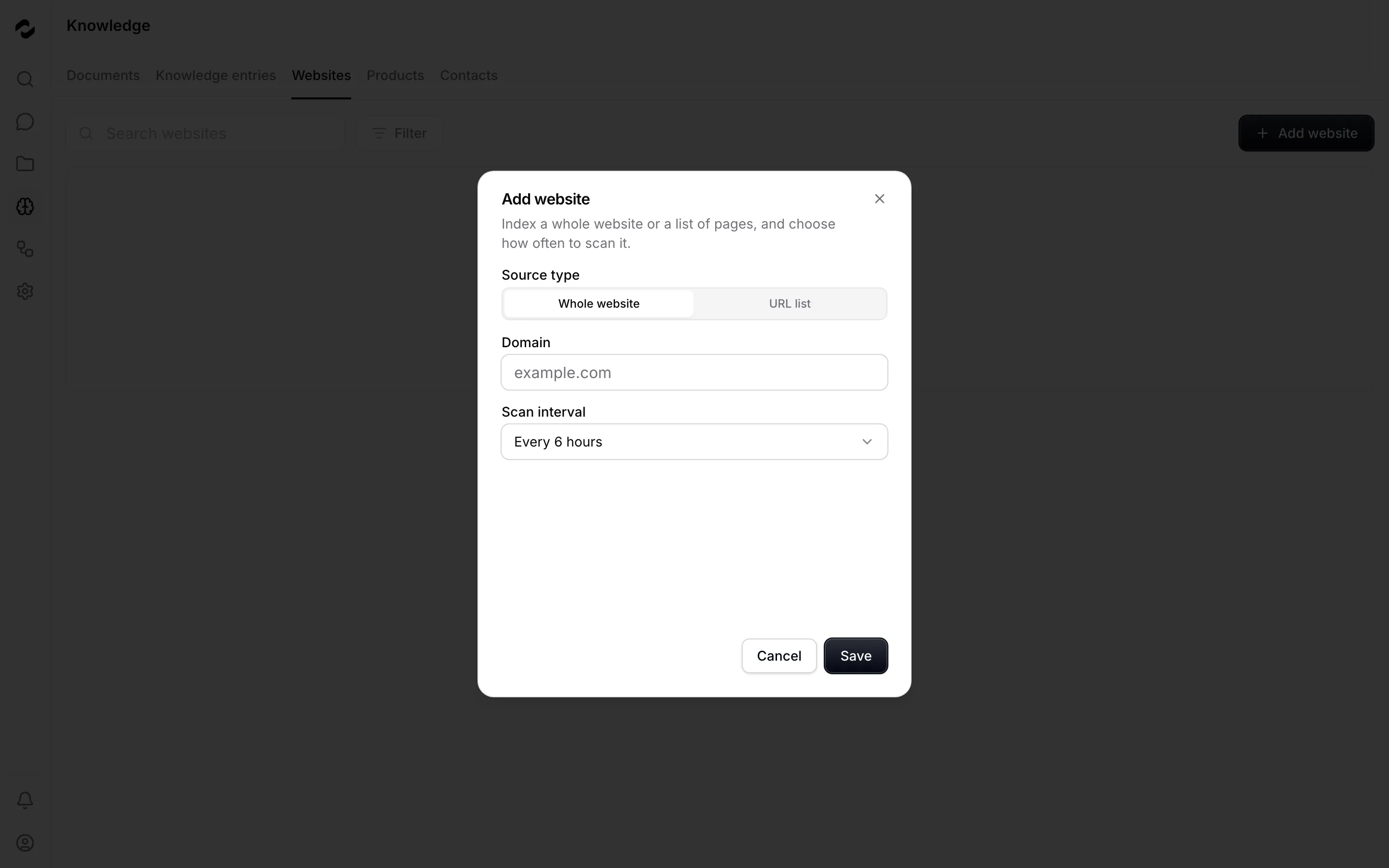
## Keep a URL list focused
A URL list fetches only the addresses you provide and follows no additional links. It can contain pages from several websites; Tale groups them into one source per website. A listed `http://` address is accepted and fetched as `https://`, unlike a whole-website `http://` domain, which is refused; a page that serves plaintext only stays out of reach either way. Adding another list for an existing URL-list source adds addresses without dropping the existing ones and updates its scan interval.
Use complete public URLs. Linked PDF and modern Office documents can be indexed when they contain readable text. Images and scans without extractable text do not become searchable content.
## Understand discovery and refresh
For a whole website, the crawler uses the homepage and published sitemaps, including sitemap indexes and sitemaps declared in `robots.txt`. If usable sitemaps are missing, it follows links within the domain from the homepage. A page absent from both sitemaps and reachable links may be missed; use a URL list when specific coverage matters.
Scans are incremental. Unchanged content is skipped, changed content is indexed again, new pages are added, and removed pages leave the index — and so do pages `robots.txt` has come to disallow. The row's page counts follow the scan as pages land, after discovery and after every stored batch, so the table moves while a scan runs. A URL list follows the same refresh schedule with its fixed selection. There is no separate publish step after successful indexing.
The crawler visits as an anonymous reader. Content that depends on a private session is not made accessible by adding its URL. It identifies itself on every request as `TaleBot/ (+https://docs.tale.dev/platform/knowledge/crawling)`, so a `robots.txt` group can address it by name — `User-agent: TaleBot` — to allow, throttle or refuse it alone.
The crawler applies `robots.txt` `Disallow` rules for the `*` agent on every path a URL can enter by — the sitemaps, the link walk and the links a rendered JavaScript page reveals — and again before every fetch: a page a rule covers is never fetched, and a page a rule added later covers leaves the index on the next scan. The rules do not filter an explicit URL list: a listed address is your instruction. On each content fetch, an HTTP `X-Robots-Tag: noindex` or `none`, or an HTML `` tag, prevents indexing, including for listed URLs, and drops whatever an earlier scan stored of that page. These rules are courtesy, not access control: do not rely on Tale's crawler as an access-control mechanism.
Use HTTPS on the standard port, and register a hostname: addresses with a non-default port, such as `:8001`, and bare IP addresses are rejected — the crawler dials by host name and verifies the certificate against it. Private addresses and redirects into private networks are blocked unless the operator has configured an allowed private-network deployment.
## Work within crawl limits
| Limit | Effect on coverage |
| --- | --- |
| 10,000 tracked URLs per website | A larger site can have undiscovered pages. Use a focused URL list for the material you need. |
| Three minutes for discovery, at most 50 sitemap fetches | Large or slow sitemap collections can be incomplete. |
| 25 MiB and 30 seconds per content fetch | Oversized downloads and slow responses fail (`timeout` for the download and the 20-second browser-render budgets); so does a page behind more than five redirects (`redirect_limit_exceeded`). |
| Five-minute processing budget per batch, up to 200 continuations | Long scans continue in batches. Work already being fetched or rendered can outlast a batch's budget; this is not a guaranteed total scan duration. |
| Five consecutive failures for an automatically discovered URL | The crawler stops scheduling that URL. Listed URLs remain eligible on each scan, and a listed page the site answers 404 for stays in the list with that answer on it. |
There is no configurable page cap, include/exclude path filter, or stop-scan button. A URL list narrows what you request; it does not remove these limits.
## Check what was indexed
The table shows **Status**, the **Indexed** page count, **Scanned**, and **Interval**. Open the source row to inspect its page list, word and chunk counts, and last-crawled times. Expand a page to read its stored text chunks. A failed fetch shows its reason and number of consecutive failures.
| Status | Meaning |
| --- | --- |
| **Scanning** | A scan is in progress; a site you just added starts here. |
| **Active** | A scan completed successfully. Check page-level results for coverage. |
| **Error** | The scan failed, or attempted pages left the source with no stored content. Open the source for its reason. |
| **Deleting** | The source is being removed. |
The page view also offers search over indexed content. Try a distinctive phrase from a page before relying on it in chat, then ask a specific question and inspect the citation.
## Resolve a missing page
First check the address, source type, and latest scan time. Then open the source and read the affected page's error.
| Reported issue | What to check or change |
| --- | --- |
| Certificate not trusted | The website operator must fix an expired, self-signed, mismatched, or otherwise untrusted TLS certificate. Repeated scans do not repair it. |
| Private address, refused redirect, or invalid URL | Use the intended public HTTPS address. Ask your operator about approved internal sources if needed. |
| HTTP error, network failure, or timeout | Open the original page and check availability. A later scan can recover after the source service is repaired. |
| Response too large | Publish a smaller document or split the source; the fetch limit is 25 MiB. |
| Source requests no indexing | The response sends `X-Robots-Tag: noindex` or `none`, or the page carries ``. The source owner must change that directive before Tale can index it. |
| Unsupported content or no readable text | JSON/XML endpoints, binary downloads, images, or scans may provide no supported page text. Supply an HTML page or a supported document with extractable text. |
| Rendering or document extraction failed | Check that the public page loads and the original document opens. Repair or re-export the source if it is damaged. |
A successful later fetch clears the previous error. A failed refresh can leave an earlier indexed copy available: **Active** and an indexed count do not prove every page is up to date. Compare the stored chunks and last-crawled information with the original before relying on a recent change.
If the source shows **Paused**, repeated failures to reach the knowledge database stopped scans. Ask an administrator to repair the connection under **Settings > Data residency**, then use **Resume scanning**.
# Documents
Source: https://docs.tale.dev/platform/knowledge/documents
Use **Knowledge > Documents** for files that belong in the shared library: policies, guides, reports, and supporting evidence. Members read documents within their access; Editors and higher roles can upload and manage them. For material that belongs to one project, use that project's [Knowledge tab](/platform/projects/manage-files).

## Upload from your device
1. Open **Knowledge > Documents** and the folder where the files should go. Use **New folder** if you need one.
2. Choose **Upload documents > From your device** and select the files.
3. Wait for the upload to finish, then find each row in the table.
4. Open a document to check its preview and details. Check the **RAG status** before asking the assistant about its content.
Use a descriptive filename and include a date or revision when it helps distinguish sources. Uploading another file with the same name creates a separate document; it does not replace the existing one.
## Understand upload and search support
A stored file and a searchable file are different states. Tale needs to extract text before it can index a document for knowledge search.
| Format | What to expect |
| --- | --- |
| PDF with embedded text, `.docx`, `.xlsx`, `.pptx`, `.odt`, CSV, plain text | Supported for text extraction and indexing. Check the result for the particular file. |
| Legacy Office `.doc`, `.xls`, `.ppt` | Can be stored and downloaded; convert to a modern format for indexing. |
| Images such as JPG, PNG, GIF, WEBP | Can be stored and downloaded; the knowledge index does not extract text from them. |
| Microsoft Loop files (`.loop`) imported from Microsoft 365 | Can be imported and downloaded; Tale cannot extract their text, so their status is **Not supported**. |
| Scanned PDF without readable text | Supply an OCR-processed or text version if search needs its content. |
Unsupported formats are not made searchable by repeatedly reindexing. For a question about an image, see [Chat attachments](/platform/chat/attachments), where an available vision model may read it directly.
## Read the indexing status
| Status | What it means and what to do |
| --- | --- |
| **Queued** | Waiting for an indexing slot. A busy library processes files in batches. |
| **Indexing** | Text is being prepared for search. Wait before testing the source. |
| **Indexed** | Indexing completed. Test a specific question and open its citation. |
| **Needs reindex** | The index is stale. Use **Retry indexing** beside the status. |
| **Failed** | Inspect the error, resolve its cause, then retry. |
| **Not supported** | These file contents cannot be indexed: the format may be unsupported, the text empty or unreadable, or the PDF damaged. Open the badge for the cause. |
| **Not indexed** | No completed index is available. Check the file and start indexing where offered. |
Interrupted jobs recover in the background or report a failure with a retry option. If a status does not progress, give an administrator the document name and error. They can check indexing services and the embedding configuration. Failed and unsupported files still use storage until removed.
## Recover from an indexing problem
Click **Failed** or **Not supported** to read the explanation. The next action depends on the cause, not just the filename extension.
| Cause | Next action |
| --- | --- |
| Unsupported format or image | Convert to a supported document with readable text. Uploading an image alone does not run OCR for knowledge search. |
| Empty text or scanned PDF without a text layer | Add the missing content or supply an OCR-processed version. Whitespace alone is also empty. |
| Binary contents behind a text extension | Export readable text, preferably UTF-8. Renaming a binary file to `.txt` does not convert it. |
| PDF cannot be parsed | Check that the original opens, remove password protection where permitted, or export a new PDF. A corrupt Office file may instead report a general indexing failure; check the original before repeatedly retrying. |
| A secret or personal-data policy blocks indexing | Remove the credential from the source, or ask an administrator to review the reported policy restriction. Then upload the corrected material or retry after the configuration is repaired. |
| Embedding model missing or provider account refused | An administrator must configure the model under **Settings > Data residency**, or repair the provider key, model access, plan, or balance. Then retry. |
| Embedding credential missing or unusable | The credential the embedding model uses was deleted or disabled, its provider has no default credential left (**Settings > Data residency** shows **Credential missing**), or its secret cannot be read: it was stored under an earlier encryption key, or it names an environment variable the server does not set. An administrator adds or repairs the credential under **Settings > AI providers**, or chooses another one for the embedding model. Either save puts the affected documents back in the queue. After a fix on the server itself, such as setting the environment variable, use **Retry indexing**. |
| Temporary provider or indexing-service failure | Background jobs retry transient failures. If the error persists, give an administrator the document name and error; after repair, use **Retry indexing**. |
| Search index rebuilding or repair failed | Rebuilding can recover automatically. A failed repair needs the operator to repair or restore the knowledge database before retrying. |
**Not supported** has no retry action: another attempt with the same bytes cannot fix the cause. Failed files can also require a source or configuration change before a retry helps. Applications can distinguish these cases using `indexing.errorCode`; the [API reference](/develop/api-reference) lists the stable codes.
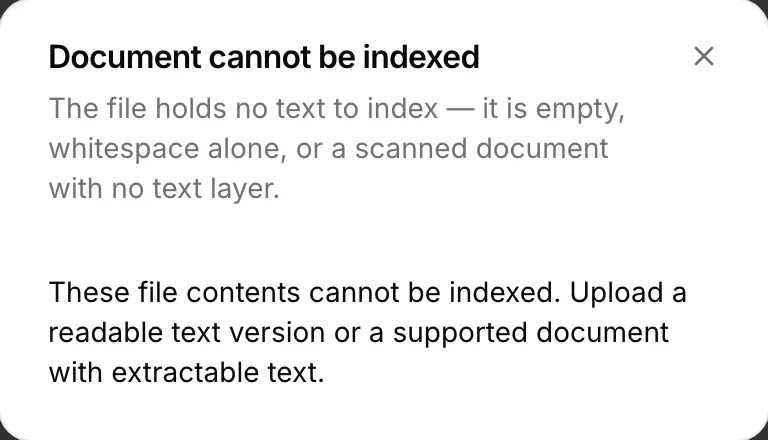
## Choose who can read it
Library documents default to **Organization-wide**. Use **Assign team** in the row menu to restrict a document to the chosen teams: members of any of those teams can read it, and Owners and Admins always can. Unless you are an Owner or Admin, you can only choose teams you belong to. A document inside a team folder takes the folder's teams and cannot name a team outside them, and moving a document into such a folder applies the folder's teams. These restrictions also apply to knowledge retrieval; an agent cannot make an inaccessible document visible through search.
The library root shows folders and documents that have not been filed in a folder. Open a folder to see its contents; a document inside it does not also appear as a file row at the root.
Folders organize the library; to rename one, use **Rename** in its row menu. A synced folder, the folders inside it and the folders that contain it keep their names, because each sync rebuilds that path. Check the **Teams** cell for access and the **Source** column for where a file came from. The **Teams** filter narrows the list to **Organization-wide** items, **My teams** (anything one of your teams can see), or a team by name; the selection is part of the page address, so a filtered list can be bookmarked. Project files are a separate scope and do not appear in this library. See [Knowledge](/platform/knowledge/overview) when deciding where to keep a source.
## Import from Microsoft 365 or Google Drive
Choose **From Microsoft 365** or **From Google Drive** under **Upload documents**. On first use, connect your account and authorize the import. If Tale reports that import is not configured, an administrator must set up the service under [Connectors](/platform/admin/connectors) before you can continue.
Select files or folders, then choose the import mode:
| Mode | Result |
| --- | --- |
| **One-time import** | Copies the selection once and preserves its folder structure. Later source changes do not update the copy. |
| **Sync import** | Keeps the supported selection current. New files arrive on a later sync; changed files reindex; deleted source files are removed from the mirror. |
In the library, the **Source** column shows where each file came from. An imported file carries the OneDrive, SharePoint, or Google Drive logo. Circling arrows beside the logo mean a sync import keeps the file current, and they appear on the synced folder itself too; the same arrows struck through mean a one-time import. Uploads, files an agent or automation wrote, knowledge entries, and API imports each show their own icon. Point to an icon to read the source in words.
Starting a folder sync can also reorganize an earlier import. If the same source file is already in Tale, the sync adopts that document and moves it into the matching sync folder, even when its content has not changed. This is a match to the source file, not merely to its name. A sync without a destination folder keeps the existing placement.
For Microsoft 365, choose **My OneDrive** or **SharePoint Sites**. Sync is available for personal OneDrive folders; SharePoint selections import once. For Google Drive, select from My Drive. Native Google Docs, Sheets, and Slides are skipped: export them to PDF or Office formats first.
If a folder is too large to list completely, Tale refuses that import. Select smaller subfolders or use sync where supported. If the selected source folder or file is deleted, its mirror is removed and the sync ends.
A sync runs about every 15 minutes, under the account of the member who set it up. A file added at the source shows up in its folder within that window and then indexes like an upload. When a run cannot reach the source, the folder row's **Source** cell replaces the circling arrows with a red warning sign whose tooltip reads **Sync failed**, or with a red unplugged plug reading **Reconnect needed** when that member's Microsoft 365 or Google Drive connection has expired. Select the icon to see the cause, when the failures began, and whose account the sync uses; the files synced so far stay in place. That member is also notified in the bell and by email: at once for an expired connection, otherwise once the sync has been failing for an hour. Reconnecting the account, which the dialog offers to that member, resumes the sync on its next run. Any member who can import documents can instead start a new sync import of the same item to run it under their own account. The notice clears with the next successful run.
To keep the imported files without further updates, use **Stop syncing** on the file or folder row. Deleting the imported item also stops its sync. These actions leave the originals in OneDrive or Google Drive untouched. **Disconnect Google Drive** in the import dialog revokes that connection; reconnect when you need to import again.
## Revising a controlled document
Use a controlled document when approval must stay tied to the exact file that a reviewer saw. Replacing its draft updates the existing record; uploading another file with the same name still creates a separate document.
For a regular upload, open the row menu and click **Mark as controlled**. It becomes `v1 · Draft`. An approved record offers both **Replace file** and **New revision**: use **New revision** only when you need the next draft without replacing its file.
Open the draft or approved record's row menu and click **Replace file**, then choose one file in the same format. A draft keeps its current revision. For an approved record, the dialog preserves approved vN and opens draft vN+1 only after the replacement succeeds; cancelling or a failed upload leaves vN approved. A legal hold blocks either path.
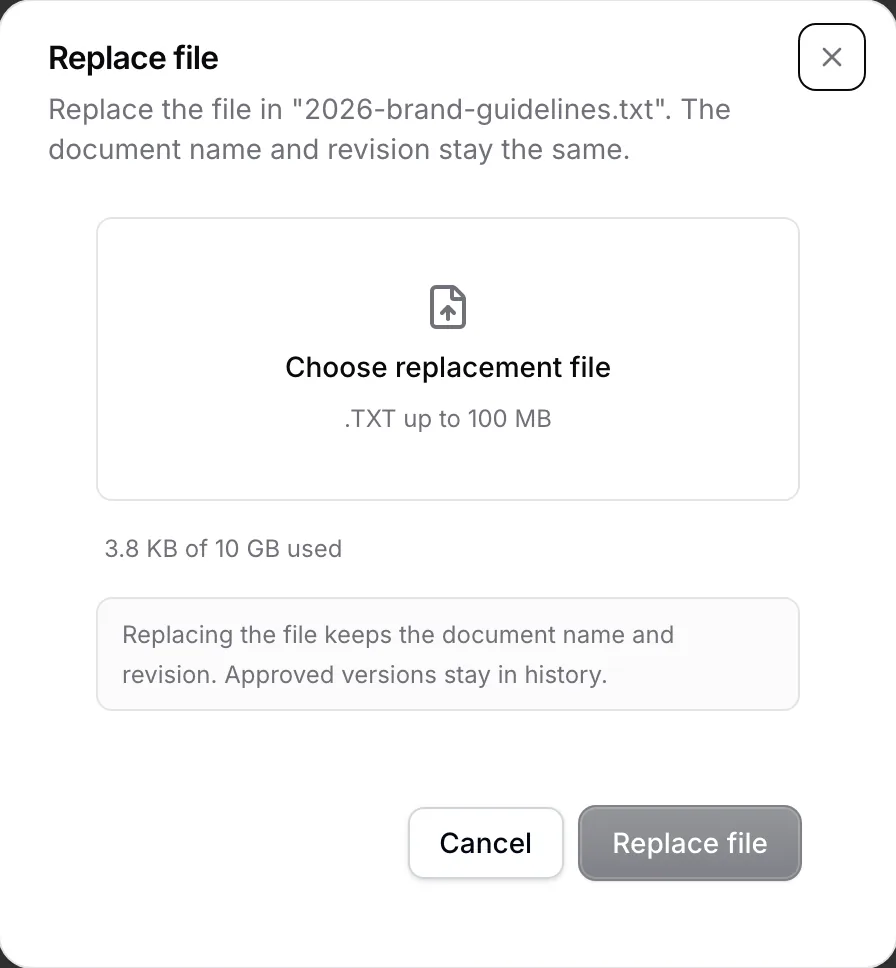
Open the document preview and confirm that it shows the replacement. Then open the row menu and click **Submit for review**. The picker offers only members who can actually open the document — a project file needs project edit access — and never yourself: only the reviewer you name can approve or request changes, so every review is a second pair of eyes.
The draft freezes while the reviewer decides on that exact file; the reviewer is notified in the bell and by email, and the decision comes back to you the same way — a request for changes carries the reviewer's feedback, which the submit dialog also shows before your next attempt.
If the reviewer can no longer decide — they left the organization, were disabled, or lost access to the document — open the row menu and click **Change reviewer**: the pending request moves to the member you name, and the record stays frozen on the same file.
## Delete with the contents in mind
**Delete** removes the document and its indexed content. The confirmation explains the impact; keep a copy if you will need the file later. Re-uploading creates a new document.
Deleting a folder permanently deletes its files and subfolders. For a synced folder, it also removes the sync configuration and history. The originals in Microsoft 365 or Google Drive remain untouched.
A controlled document with an approved version is protected from deletion, including while a later draft is being prepared. Its menu shows **Protected controlled record**. A folder containing such a record cannot be deleted either. Legal holds can also block changes or deletion; ask an administrator to check the specific restriction rather than uploading duplicates to work around it.
# Knowledge entries
Source: https://docs.tale.dev/platform/knowledge/knowledge-entries
Use a knowledge entry for a short fact that colleagues should be able to find again: support hours, a return window, or the owner of a process. Each entry has a topic and a body. Choose a [document](/platform/knowledge/documents) when the source is a whole policy or report, and [structured data](/platform/knowledge/structured-data) when named fields and exact values matter.
Members can read entries. Creating, editing, and deleting them requires the Editor role or higher. Entries belong to the organization's shared knowledge; do not use one for a personal note or a fact intended only for a particular project.
## Add a fact
Go to **Knowledge > Knowledge entries** and click **Add entry**. If the action is missing, ask an administrator to check your role.
Enter a **Topic** such as `Support response target`. Use a name you would keep even if the answer changes. The topic can contain up to 120 characters and must be unique; edit the existing entry when Tale reports a duplicate.
In **Content**, state the fact, its scope, and any conditions. Markdown is supported, up to 8,000 characters. For example:
```markdown
Support aims to send a first response within 45 minutes during business
hours: Monday–Friday, 09:00–17:00 CET. This is a response target, not a
resolution deadline. Owner: Support Operations.
```
Avoid relative dates such as “next Friday” or references such as “the policy above.” An entry needs to make sense when retrieved on its own.
Click **Save**. The entry appears in the table with its topic, content, source (**Manual** for the form, **Chat** for a fact the assistant captured, **API** for one an integration wrote over REST), indexing status, and update time. Open it to read the full content. Indexing happens in the background; saving the row does not mean search is already using it.
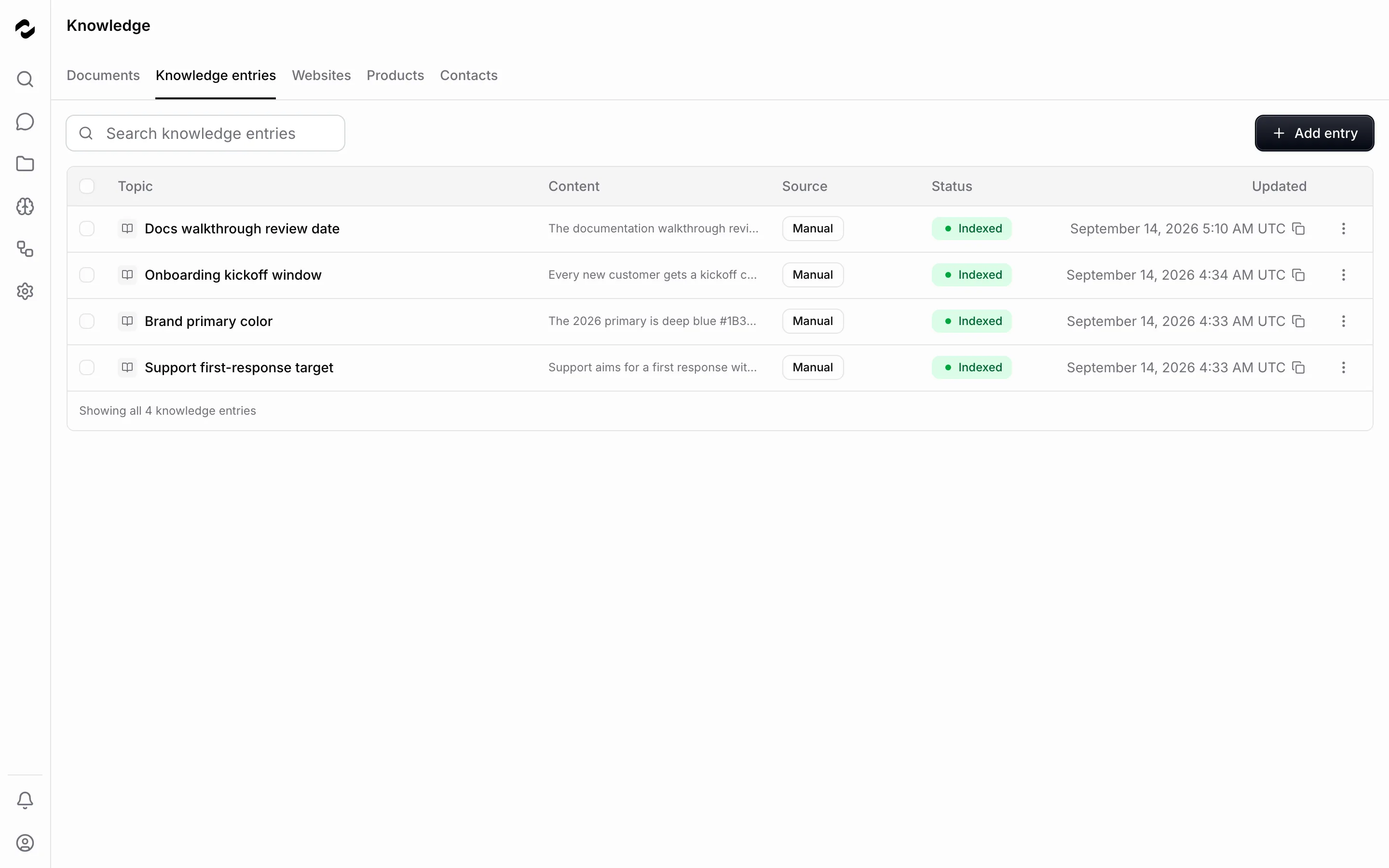
## Correct an existing fact
Open the entry's row menu, choose **Edit**, change the content, and **Save**. Editing creates a new current version and queues its updated text for indexing. There is one current entry per topic, so correcting the existing fact avoids competing answers.
Open the entry's details to inspect **Version history** after a correction. Previous versions record what changed and when they were replaced; they are not additional current facts. The **Version ID** shown in the details belongs to the current version and changes with every edit; the topic identifies the entry across versions. An application can also create or update entries through the [REST API](/develop/api-reference).
When a chat uncovers a useful fact, verify it against the source, then add or edit an entry yourself. Chat does not automatically save facts to the organization's knowledge base.
## Remove an obsolete entry
Use **Delete** in its row menu and read the confirmation. Deletion removes the entry and its version chain from this view and makes its backing document unavailable to knowledge retrieval. Keep a copy before deleting if you still need the text; use **Edit** for a correction instead.
## If the fact is missing from an answer
Check the current entry before changing the prompt. Has it been saved, is its indexing complete, and does the question use a clear topic? If indexing failed, use the retry control after resolving the reported cause. Repeated failures need an administrator to check the organization's embedding configuration and indexing services.
Ask the assistant to cite the source, then open that source and compare it with the entry. A plausible answer alone does not establish that the latest fact was used. [Documents](/platform/knowledge/documents) explains the shared indexing states in more detail.
# Knowledge
Source: https://docs.tale.dev/platform/knowledge/overview
Knowledge is your organization's shared library. Add documents, short facts, public websites, contacts, and products so people and agents can work from the same sources. Start with the information you need to answer a real question; a small, current collection is easier to trust than an unreviewed archive.

## Choose the right place
| You have | Use | Why |
| --- | --- | --- |
| A policy, guide, spreadsheet, or report | **Documents** | Keep the original file and retrieve passages from supported formats. |
| A short fact such as support hours | **Knowledge entries** | Give it a stable topic and update one current answer. |
| Public pages that change over time | **Websites** | Crawl a whole website or a chosen URL list on a schedule. |
| People, organizations, and their contact details | **Contacts** | Keep names and other fields as structured records. |
| Items with product details | **Products** | Look up the record's fields instead of searching a paragraph. |
| Reference files for one piece of work | A project's **Knowledge** tab | Keep them within that project's access and chat context. |
Members can read content within their access. Editors and higher roles curate the shared library. Open a row, or choose **View** in its row menu, to see its details. If you can change a source, the same menu offers the actions that change it, such as **Delete**; contacts, products, websites, and knowledge entries also offer **Edit** there and in their details. The [structured-data guide](/platform/knowledge/structured-data) helps when a spreadsheet could be either a source document or a set of records.
## Make a source useful for answers
Uploading or saving is the first step. Documents, entries, and website pages also need to be **indexed**: Tale extracts their text and prepares it for search. Check the status before asking about newly added content. A file can remain downloadable even when its format cannot be indexed.
Use a clear title, include dates and scope in the content, and remove or correct outdated guidance. If two sources disagree, tell the assistant which one is authoritative and verify its citation. Adding more files does not resolve a contradiction between them.
Test a new source with a question whose answer you already know: “What are our support hours? Cite the source.” Open the cited source and compare the answer. This checks usefulness more directly than asking for a general summary of everything in the library.
## Understand access and search
Organization chat can search the shared library within your permissions. Project chat can also search that project's files and uses its saved instructions; it does not search another project's files. Project agents need the corresponding platform tools in their equipment.
Team restrictions continue to apply during retrieval. A file you can see in one workspace may therefore be absent from a different project's context. Use [project files](/platform/projects/manage-files) for project-specific material and document team access for shared library files.
If all searches fail, ask an administrator to check the embedding model and knowledge connection in **Settings > Data residency**. Operators can find setup details in [Data residency](/self-hosted/configuration/data-residency).
## Maintain each source
Upload, import, check indexing, and maintain approved document revisions.
Add a concise fact, correct it, and read its version history.
Choose pages to crawl, set the interval, and investigate missing pages.
Choose records for exact fields and documents for supporting explanations.
# Choose documents or structured records
Source: https://docs.tale.dev/platform/knowledge/structured-data
Use documents for information that needs paragraphs to explain, such as a contract or a meeting note. Use structured records for information that belongs in named fields, such as a contact’s email address or a product’s identifier. Most teams need both: the record identifies the thing, and the documents explain its history or context.
## Choose a home for the information
| Information | Put it in | Why |
| --- | --- | --- |
| A policy, contract, manual, or meeting note | **Documents** | Tale searches the text and retrieves relevant passages. |
| A short fact that needs its own update history | **Knowledge entries** | One topic has one current version, with earlier versions retained. |
| A person or organization you work with | **Contacts** | Named fields keep details together in a record you can update. |
| A product and its attributes | **Products** | Product details stay in fields instead of being buried in a file. |
| Pages on a public website | **Websites** | Tale crawls the pages and updates their searchable content on a schedule. |
| Reference files for one project | The project’s **Knowledge** tab | Access follows the project, and project chats can retrieve the files. |
The way information is stored affects how it is retrieved. Finding a passage in a document does not establish that the whole file was reviewed. Reading a record’s fields gives Tale those values; it does not guarantee that the source is current or that an answer based on it is correct.
## Combine records with supporting documents
Suppose you need to prepare for a call with Acme. Keep its contact details in **Contacts** and its contract and meeting notes in **Documents**, or in the relevant project’s **Knowledge** tab.
Ask the chat assistant to find Acme’s contact record and summarize the open questions from the latest notes. Check the record for the email address and the cited notes for the decisions. If the files belong to a project, start the chat inside that project so it can reach them.
Use the same recognizable company or product name in record titles and supporting files. Add dates to meeting notes and revision identifiers to policies so you can distinguish a current source from an old one.
## Create a contact
You need an Editor role or higher to maintain organization records. Open **Knowledge > Contacts**, choose **Add contact**, then **Manual entry**.
1. Enter the contact’s **Email**. Add a **Name** and **Phone** if useful.
2. Check **Locale**, which starts as `en`, and set the language appropriate to the contact.
3. Choose **Save**. The new row appears in Contacts with its details and added date.
The form holds each field to what Tale stores before it saves: a **Name** of up to 300 characters, a **Phone** of up to 50, a **Locale** of up to 20, and an **Email** with at most 64 characters before the `@`. A value past a limit is named under its field, and nothing is saved until you fix it.
You can also add a contact while writing to them. In the **Inbox** view in Home, choose **New email** and type an address into **To**: if no contact carries it, the list offers **Add “…” as a contact**, which opens this same form with the **Email** already filled. Saving makes that contact the recipient, so you never leave the message you are writing.
If the email address already exists, find the existing contact and update it through the row menu instead of creating a duplicate; from **New email**, Tale selects the existing contact for you. Saving a contact creates a record; it does not send that person an email.
## Create a product
Open **Knowledge > Products**, choose **Add product**, then **Manual entry**. The form has three stages.
1. Under **Basics**, enter a **Product name**. Add a description and image if they help someone identify the product, then choose **Next**.
2. Under **Pricing & inventory**, set **Price** and **Currency** together. For example, enter `12.50` and select `CHF`; changing the currency does not convert the amount. Add stock and category when relevant, and check **Status**. A new product starts as **Draft**.
3. Under **Review**, check the details and choose **Create**. The product appears in the table with its price, status, and updated date.
Use the row menu to edit a saved product. Keep product names distinct so teammates can identify the right record, and review the price and currency before changing its status.
To add a product image, choose **Upload image** or drop a PNG, JPEG, WebP, GIF, or SVG file into the image area. The limit is 5 MiB. Wait for the preview before moving on. Tale checks the uploaded bytes; if it refuses the file, the message under the image field says why — an unsupported format, a file over the limit, or an SVG that carries scripts or event handlers — so you know whether another file is needed.
The uploaded image stays available after you save and reload the product. Other organization members with product access can view it once the product is saved; the image address requires a signed-in session and is not a public sharing link. To remove it, edit the product, choose **Remove image**, then save. Removing or replacing the image, or deleting the product, removes the upload itself as well, unless another product still shows it.
If you choose **Or paste a URL**, enter a complete public HTTPS address, starting with `https://`. The form names an incomplete address under the field before you can continue. Tale refuses unsafe or disallowed hosts; ask an administrator if you need an internal image source. Images loaded from external addresses follow that source’s access rules.
## Keep access and freshness in view
A record or document is useful only to people who can access it. Check its team scope when a teammate cannot find it. Project files follow project access rather than the document library’s team tags; see [Project files](/platform/projects/manage-files).
Update the authoritative record when a detail changes. For a revised document, wait until indexing finishes before testing a question against its new text. Website content follows its configured scan interval, so it may lag behind the live page.
## Work with the available record types
The Knowledge area provides Contacts, Products, and Websites. **Settings > Governance > Models** controls AI model access and defaults; it does not create custom record types or database fields.
If the available fields do not fit your material, keep the detail in a document and link the surrounding process to the appropriate record. For programmatic imports and the fields each resource accepts, use the [API reference](/develop/api-reference).
Read [Documents](/platform/knowledge/documents) to upload and verify a file, [Knowledge entries](/platform/knowledge/knowledge-entries) to maintain one fact, or [Crawling](/platform/knowledge/crawling) to keep public pages searchable.
# Install Tale as an app
Source: https://docs.tale.dev/platform/member/install-as-app
Install Tale if you want a launcher icon and a separate app window. Use the same Tale address and account as in your browser. Installation does not create another organization or copy your chats into a new account.
## Install on a computer or Android
Open your Tale instance in a supported browser. Open the account menu from your name or avatar and choose **Get app**, then accept the browser’s installation prompt. Tale shows this action when the browser makes installation available.
If the action is missing, check the browser’s own menu. Chrome provides **Cast, save, and share > Install page as app** on desktop; wording varies by browser and device. [Chrome’s app guide](https://support.google.com/chrome/answer/9658361?hl=en) covers installation and management.
Open the new icon and confirm that you reach the intended Tale instance. Sign in if asked, then check the organization in the account menu. A browser profile or an installed app may have a different sign-in state.
## Install on iPhone or iPad
In Tale’s account menu, **Get app** opens manual installation instructions on iOS. The browser performs the installation.
In Safari, open Tale, choose **Share > Add to Home Screen**, and confirm **Add**. If **Open as Web App** is shown, leave it enabled for a standalone window. Apple documents the current controls in its [iPhone app installation guide](https://support.apple.com/guide/iphone/open-as-web-app-iphea86e5236/ios).
Other iOS browsers can also offer **Add to Home Screen**. If your browser does not expose it, open the same address in Safari. The installed app’s cookies can become separate from the browser’s after installation, so signing out in one window does not necessarily sign out the other. [WebKit’s web-app behavior](https://webkit.org/blog/14787/webkit-features-in-safari-17-2/) explains this separation.
## Understand what changes
Your organization, permissions and saved content stay on the Tale instance. Installation changes how you launch and display it. It does not install a local model or make server-dependent work available without a connection.
Notifications still depend on browser and operating-system support, permission, and your Tale preferences. Installing the app alone does not grant notification permission. If you change device or reinstall, check those permissions again.
## Remove the installed app
Use the browser or operating system’s **Uninstall** or **Delete App** action. Removing an icon from the macOS Dock only removes that shortcut. In Chrome, use the installed app’s menu or `chrome://apps`; deleting its browser data may also sign you out.
Uninstalling the app does not delete your Tale account, organization or server-side documents. Use [Profile and account](/platform/member/preferences) for account changes. On a shared device, sign out of both the app and any browser session you used.
## If installation is unavailable
| What you see | What to try |
| --- | --- |
| No **Get app** action | Check the browser’s installation menu and whether the app is already installed. |
| No install option in a private or managed browser | Try a regular window, or ask the device administrator about installation policy. |
| The icon opens the wrong instance | Check the address in the original browser, then install the intended instance. |
| App opens but cannot load content | Check network access and whether the Tale instance is running. |
# Member
Source: https://docs.tale.dev/platform/member/overview
As a Member, use Chat to ask questions and read the knowledge and project content shared with you. Your organization’s setup and team memberships determine the resources you see. You can also maintain your account preferences and create reusable skills.
## Start your day
Practice with a source, check the facts, and ask a follow-up.
Find documents, facts, and records, and understand why a source may be unavailable.
Learn which files and conversations belong to a project and which chats remain personal.
Edit your profile, check your usage limits, and understand saved preferences and chat management.
Move between your daily work with the [main navigation](/platform#navigation). Each section opens on its own first page; on a computer, **Home** reopens the chat you last read instead, and choosing it again starts a new chat. [Home](/platform#home) also lists your projects, the open tasks assigned to you or waiting for your review, and the inbox when your organization has one.
## Follow a notification
A notification link opens the related task, document or conversation. If you need to sign in first, Tale keeps the destination and opens it after sign-in. Your account still needs access to the organization and the linked content. For a private deployment, connect to its required network before opening the link.
## If an action is missing
Members read the shared library; Editors and higher roles maintain its content. Managing automations and technical setup requires Developer or administrator permissions. The **Automations** navigation entry appears for Members and Editors once an organization-wide automation is deployed; project-bound automations are available on their project’s tab. Ask for the access needed for your task rather than assuming every visible resource is editable. [Members and roles](/platform/admin/members-and-roles) explains the differences.
# Manage your account and preferences
Source: https://docs.tale.dev/platform/member/preferences
Your account settings control how teammates recognize you and how you sign in. Your profile menu also lets you switch organization and language and shows the teams you belong to. These controls are available without an administrator role.
## Update the name your teammates see
Open **Settings > Account**. Under **Profile**, edit **Name** and click **Save** in the page header. **Discard** restores the saved value. Your email address is shown as read-only because it identifies the account used to sign in and receive notifications.
The name is visible to teammates and can be at most 100 characters long. It is not a private instruction to the assistant.
## Protect your sign-in
The **Password** section offers **Change password**, or **Set password** for an account that does not yet have one. Follow the password requirements shown in the dialog. They come from your organization's password policy. If you belong to several organizations, your password must meet the requirements of every one of them. Changing the password signs out your sessions, so keep the new password available before confirming.
Set up an authenticator under **Two-factor authentication** or add a passkey under **Passkeys**. Store backup codes somewhere you can reach without signing in to Tale. [Two-factor authentication](/platform/admin/two-factor-authentication) covers setup, recovery, and organization requirements.
## Switch language or workspace
Open the profile menu from your avatar. **Language** changes the interface language. When you belong to several organizations, **Organization** switches the workspace. The **Teams** row names the teams you are in and opens the account page; it switches nothing, because a team is not a workspace.
Check the organization name before changing settings or adding content.
## See your role {#role}
**Settings > Account > Your role** shows your role in this organization, such as Editor or Member. Your role decides what you can do; your teams decide which team work you can see. Admins assign roles under [Members and roles](/platform/admin/members-and-roles). With single sign-on, your identity provider can also set your role each time you sign in. Owners and Admins see a **Manage members** button beside the section's title.
## See your teams {#teams}
**Settings > Account > Your teams** lists the teams you belong to. Teams decide which team documents, projects, and inbox queues you can see; work shared with the whole organization is visible to you regardless. When you are in no team, the section says so.
To narrow a list to certain work, use its **Teams** filter: **Organization-wide** shows only items without a team, **My teams** shows items any of your teams can see, and each team is listed by name. The inbox offers an **Assignee** filter behind its search box, listing people and teams together. A filter changes the current view; it does not grant access to another team’s data.
Owners and Admins manage membership under [Teams](/platform/admin/teams); the section's **Manage teams** button takes them there.
## Set custom instructions for the chat assistant
Open **Settings > Preferences**. **Custom instructions** are standing instructions the chat assistant follows in every reply to you, such as a preferred tone, a default programming language, or how much detail you want. The switch can follow the organization default or store your own choice; the hint under it says which applies. The text field appears while the feature is on. Type your instructions and click **Save** in the page header.
Your instructions never override the organization’s mandatory instructions or a project’s **General > Instructions**; where they conflict, those take precedence. Turning the switch off keeps the text for later without applying it.
## Check your usage limits {#usage-limits}
Open **Settings > Usage** to see how much you have used of each limit your organization applies to you. The page says so when no limit covers you.
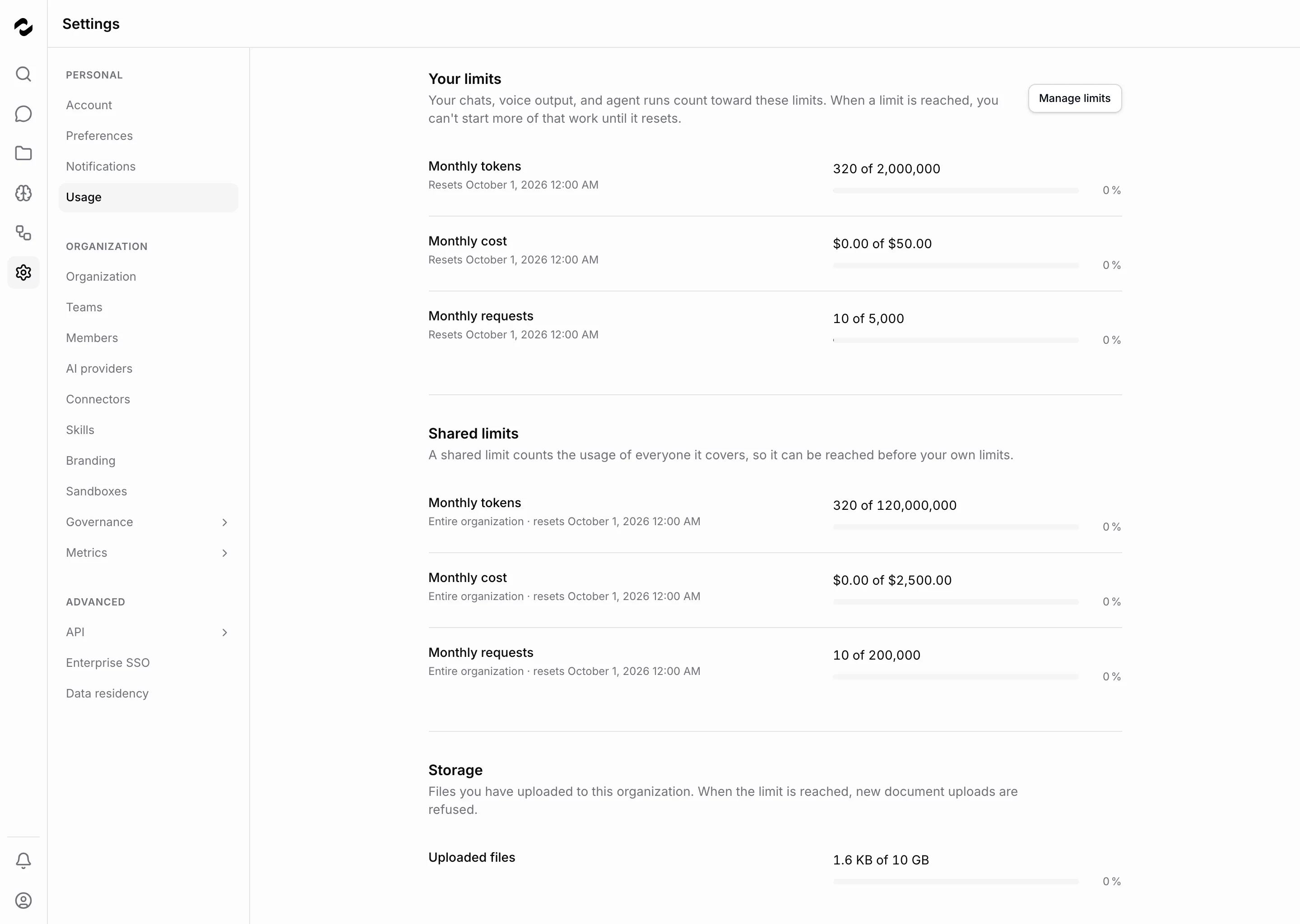
- **Your limits** count your own chats, voice output, and agent runs, whichever way you started them; [How usage is counted](/platform/admin/governance/usage-attribution) explains who a run counts against. When one is reached, you can't start more of that work until it resets: a message you send then is refused with a notice that names the limit, and it stays in the composer.
- **Shared limits** count the usage of everyone they cover, such as a team you belong to or the entire organization, so they can be reached before your own limits.
- **Storage** compares the files you have uploaded with your storage limit. New document uploads are refused once it is reached.
Each usage limit shows the amount used, the limit, and when it resets in your local time. Periods follow UTC: daily limits reset at midnight, weekly limits on Monday, and monthly limits on the first of the month. If an administrator set a warning threshold, the bar turns amber once your usage reaches it. When a banner above the composer warns about a limit, **View usage** opens this page. Administrators also see **Manage limits**, which opens **Governance > Policies & Limits**.
## Archive old chats or sign out
**Settings > Account > Your chats** offers **Archive all chats** and **Delete all chats** for your own chats in the current organization, including project chats. Archiving affects unarchived chats; deleting also includes archived chats and moves them to Trash, where they can be restored during the retention grace period. Chats under legal hold remain unchanged, and chats with a running reply cannot be deleted.
Read the confirmation before proceeding. The result reports how many chats changed and how many could not be changed. Use an individual chat's menu in Home when you only want to organize that conversation. Archived chats stay under **Archived** at the bottom of the Home list, where **Unarchive** in a chat's menu brings it back.
**Log out** in the profile menu ends the current session and returns you to sign-in. Sign out on a shared device when you finish using Tale. For a dedicated app window on your own device, see [Install as app](/platform/member/install-as-app).
If your session ends while Tale is open, for example because you logged out in another tab, a refused request shows **Your session has ended. Sign in again.**, and a document upload fails with the same sentence and no retry. A project's **Environment** tab you open afterwards shows **Admin access required** instead. One that was already open, or that you open again less than five minutes after it last loaded, still shows its variables, and saving there shows the same sentence. **Settings > Data residency** says **You're not allowed to manage this organization's data residency.** On your organization's pages, whose addresses start with `/dashboard`, Tale checks the session and asks before opening sign-in. Signing in leaves the page, so unsaved changes may be lost. Choose **Stay here** to keep the page and copy any work you need. Further refusals do not reopen the confirmation. On other pages, Tale doesn't ask: reload the page to sign in again.
When you are ready, close any open dialog and choose **Sign in** in the notice that stays at the top of the page, above its header, then confirm. Tale checks again before leaving; if another tab has already restored your session, your page stays open. Otherwise, the sign-in page shows the same session notice. After signing in, you return to the page you were on; copied work can be re-entered, but unsaved drafts are not restored automatically.
# Choose an available model
Source: https://docs.tale.dev/platform/models
The model picker shows what your organization can currently use, not every model a vendor sells. A usable provider credential, its model allowlist and the organization’s access rules all affect the result. An administrator manages these under **Settings > AI providers** and [Content & models](/platform/admin/governance/content-models).
## Choose automatic or explicit selection
In Chat, **Auto** selects a model for each message using the message’s characteristics, such as length, code and attached documents. It uses a lightweight heuristic, not a second AI request. Inspect a reply’s details to see which model actually answered.
Choose a specific model in the composer when you need to compare results, control the choice or use a model suited to a known task. That selection remains until you change it or return to Auto. [Arena](/platform/chat/arena-mode) lets you compare two available models with the same prompt.
Project agents and workflow model steps use their configured model. An agent’s picker distinguishes entries from different providers, even when the model ID is the same. Selecting an entry pins that provider/model pair. A model failure is reported rather than silently answered by a different model.
## Understand where the list comes from
Open **Settings > AI providers** to inspect the provider and its offered models. The catalog count describes the provider’s available definitions; it does not establish that your organization has permission or credentials to call all of them.
| Source | How models enter the catalog | When it changes |
| --- | --- | --- |
| Built-in catalog | Model definitions ship with Tale. | With a platform/catalog update. |
| OpenRouter catalog | Tale fetches OpenRouter’s list. | After a fetch or explicit refresh. |
| Provider models endpoint | Tale fetches the provider’s own model list. | After a fetch or explicit refresh. |
| No catalog | Model IDs come from the credential’s allowlist. | When an administrator edits that list. |
Azure OpenAI and Nous Portal use credential-defined model IDs. For Azure, enter your resource’s deployment names, which may differ from public model names. An empty allowlist on a provider with no catalog makes no models available.
## Refresh a fetched catalog
Owners, Admins and Developers can select **Refresh catalogs** in the settings header. Read the result for each provider: it reports the model count or the error that prevented refresh. A failed refresh is not evidence that the provider offers zero models.
Remote catalogs are cached for 24 hours and refreshed on demand when the cache is stale. The button forces a fresh attempt. A failed automatic fetch can continue serving a previous catalog or shipped defaults; a forced refresh reports the failure. A newly published model also needs to pass credential and policy checks. Built-in-only deployments have no remote catalogs to fetch.
## Find why a model is missing
Check these boundaries in order, or give the details to an administrator if you cannot edit settings:
1. Confirm the provider has an enabled, usable credential. A catalog entry by itself is not an account connection.
2. Inspect that credential’s **Model allowlist**. For a catalog provider it restricts the list; for a provider without a catalog it defines the list.
3. Check the model-access rules for the relevant organization, team or user under [Content & models](/platform/admin/governance/content-models).
4. For a project agent, check that the credential supports its selected [harness](/platform/agents/harnesses). A subscription may work only with its required runtime.
If the model is visible but a call fails, read the displayed reason. Expired credentials, provider failure, budget limits and lack of sandbox capacity are different problems. Refreshing a catalog cannot repair all of them. [AI providers](/platform/admin/providers) covers credentials; [Policies and limits](/platform/admin/governance/policies-and-limits) covers spending refusals.
# Triage the project backlog
Source: https://docs.tale.dev/platform/projects/backlog
Use **Backlog** for proposed work the team has not committed to yet. It is a normal task status, shown first in the board and list. A proposal can already have an assignee; assignment alone does not make it active work. A proposal assigned to you still appears among your tasks in [Home](/platform#home), marked **Backlog**.
## Capture a proposal
Open the project’s **Tasks** and create a task. Choose **Backlog** in the status picker; new tasks otherwise default to **To do**. Give the proposal a title describing the outcome and enough context for someone to decide whether to pursue it.
For example, “Check the mobile checkout error” is easier to triage with the affected page, a reproducible symptom and a screenshot than with a title alone. Leave implementation detail open until the problem is understood.
A project agent with the task-creation tool can also create a proposal. That tool allows initial **Backlog** or **To do** status, not a working or finished status. The same boundary applies when an automation uses the project’s task tools.
## Decide what happens next
| Decision | Action |
| --- | --- |
| More information is needed | Keep **Backlog** and explain the missing information in the description or a comment. |
| The team accepts the work | Set **To do** and choose an assignee. |
| Work has started | Move to **In progress**. |
| The proposal will not be pursued | Set **Cancelled**, preserving the task’s discussion. |
Change status in the task detail or drag the card between board columns. These are the same controls used for other tasks; Backlog has no separate accept or reject workflow.
## Hand the task to an agent
Choose an agent from the same project and make the expected result explicit before clicking **Start agent**. Assigning it does not replace that start action. Use [Task automation](/platform/projects/task-automation) for prerequisites, progress and review.
## Understand where proposals come from
The shipped **Triage GitHub issues** automation returns a ranked report. It does not create project tasks or fill Backlog automatically. A person or an appropriately equipped agent must turn a selected issue into a task. This keeps the decision to accept work separate from the report that recommends it.
[Manage project tasks](/platform/projects/tasks) covers task details, comments, dependencies and the rest of the board.
# Project concepts
Source: https://docs.tale.dev/platform/projects/concepts
Use a project when several questions or tasks depend on the same reference material. A project brings together files, instructions, chats, a task board, and task agents. A one-off question can stay in an ordinary chat; a launch, customer handover, or ongoing investigation usually benefits from a project.
## What the project keeps together
| Area | What belongs here |
| --- | --- |
| **General** | Name, description, standing instructions, and sharing settings. |
| **Chats** | Your project conversations and the conversations explicitly shared with the project. |
| **Knowledge** | Reference files organized into folders and scoped to this project. |
| **Tasks** | Work with an owner, status, comments, and a result to review. |
| **Agents** | Named agents configured to work on tasks. |
Project chat starts with the saved project instructions. It can search this project's files together with the organization's accessible knowledge. This gives later conversations a common starting point without copying a brief into every message. Other projects' files are outside that search scope.
## Create an identity people can recognize
**Create project** asks for a name and a **Project key**, with an optional description, icon, and color. The key becomes the prefix of task IDs such as `WR-1` and cannot change after creation. Choose a short, durable abbreviation.
You can revise the name, description, icon, color, and instructions on **General** later. Use **Save** to apply field edits or **Discard** to abandon them. For a complete walkthrough, follow [Use projects](/tutorials/member/use-projects).
Write instructions for recurring context: what this work covers, which sources take precedence, and how to handle missing information. Put a one-time request in a chat or task description. Project instructions should not become a log of every past decision.
## Check who can open it
New projects default to **Org-wide** access. Choose teams under **Who can see it** when you create a project, or under **Audience** on **General** later. An empty audience means everyone in the organization; otherwise members of any listed team can open the project, and organization administrators always can. Unless you are an Owner or Admin, you can only pick teams you belong to. Removing a team later hides the project from members outside the remaining teams, and the page asks you to confirm that. Sharing is based on teams rather than individual invitations; the project list shows each project's teams in its **Sharing** column and offers a **Teams** filter.
Project files follow project access. They do not appear as ordinary library documents, and a team tag on a library file does not make that file a project attachment. [Manage files](/platform/projects/manage-files) explains moving documents and how removing a file from a project can widen its audience.
## Keep personal and shared chats distinct
A chat inside a project starts as your own conversation. Other project members do not see it simply because they can open the project. **Chats** separates **Your chats** from **Shared with project**; use **Share with project** when the conversation is ready for colleagues.
Colleagues open a shared chat read-only: they cannot reply, edit a message, or rate an answer. Where you edited a message or retried an answer, they read the version you have selected, not the one it replaced.
Read the messages before sharing, including any sensitive information the answer quotes. Moving a shared chat to a different project, or out of the project, ends its project share. Share it again deliberately if the new audience should read it.
Use **Move to project…** in a chat's actions, or drag the chat onto the project in Home, when an existing conversation belongs with this work. Organization-wide snapshot links are a separate option, described in [Share a chat](/platform/chat/shared-threads).
## Turn discussion into work
Create a [task](/platform/projects/tasks) when a decision needs an owner or a result. A teammate can complete it manually, or a configured [project agent](/platform/projects/project-agents) can work on it. Keep the acceptance criteria in the description so the reviewer can judge the result.
Archive a finished project when you want it out of the active list. An archived project is read-only for everyone — its settings, tasks, files, and agents can be read but not changed — until a project administrator restores it from **General**. Before deleting, read the choice about its contents: detaching leaves files in the library and chats as personal conversations; deleting the contents removes them too. Detaching files can widen access, so choose according to what should remain available.
# Manage project files
Source: https://docs.tale.dev/platform/projects/manage-files
The project’s **Knowledge** tab holds files that its chats can retrieve. Upload a reference once and use it across conversations in that project. You need project edit access to add, organize, or remove files.
## Upload into the right folder
1. Open the project and select **Knowledge**.
2. Select a folder, or leave the root selected.
3. Click **Add file** or drop files onto the upload area.
4. Check that each file appears in the intended folder and finishes indexing.
**New folder** creates a folder at the root. A folder’s **New folder inside** action creates a subfolder. **Upload folder** imports a folder from your device and recreates its structure under the selected location. A folder upload is limited to 200 files and 200 MB; split larger folders and check the report for skipped files.
## Check whether chat can read a file
| Status | Meaning and action |
| --- | --- |
| **Queued** | The file is waiting to be processed. |
| **Indexing…** | Tale is preparing its text for search. |
| **Indexed** | The text is searchable; verify a question against the original file. |
| **Failed** | Open the failure detail when available and use **Retry indexing**. Ask an admin if the failure returns. |
| **Not supported** | These contents cannot be indexed. Supply readable text or a supported format; retrying the same file cannot help. |
| **Not indexed** | The file is stored but not searchable. Use **Index now** when offered, or convert a format without a text extractor. |
An integration can upload a file without indexing it. Such a file is still visible in the tree; a supported plain-text file can be read directly when named, but it will not appear in text search until indexed.
When not every file arrives, the upload report lists the rest with a reason: **Skipped** files failed the type or size check before uploading, and **Not added** files were refused by Tale, which says why. Per-file and storage limits may be restricted further by organization policy. When an upload fails, first try a small supported file. An admin can check [Policies and limits](/platform/admin/governance/policies-and-limits), storage, and the embedding model.
## Ask about the files from a project chat
Open **Chats** in this project, start a chat, and ask about the file by name or topic. The assistant can retrieve this project’s files and the organization’s Knowledge documents that you can access. It cannot retrieve another project’s files from here.
The organization’s general chat does not search project files. Files also stay out of the organization’s document list and WebDAV library while they belong to the project. Project access determines who can read them; project files do not have separate team tags.
## Replace a controlled file without losing its review history
Uploading another file with the same name creates a separate document; a matching filename is not a revision link. For a file whose approval must remain tied to exact bytes, use the row menu’s **Mark as controlled** action.
A controlled record starts as a draft. **Replace file** updates a draft or opens the next draft from an approved version while preserving that approved version. **Submit for review** freezes the draft for the named reviewer. See [Controlled documents](/platform/knowledge/documents#revising-a-controlled-document) for the complete lifecycle and reviewer rules.
## Move to Knowledge or delete
**Remove from project** moves the file to the organization’s Knowledge library. It does not delete the file.
Removing a file from the project makes it visible to everyone in the organization. Use this only when you intend to publish it to that wider audience. Read the confirmation before proceeding.
To remove a file entirely, use **Delete** in its row menu and read the deletion confirmation. Folder deletion removes its contained files and subfolders as well as their search entries. These actions cannot be undone through the file tree. Legal holds and protected controlled records can block deletion.
**Delete** is offered for files uploaded here and for files an agent wrote into the project, such as readings or generated reports. A file synced from a connector offers no Delete in the project, because the next sync would restore it; remove it at its source instead.
If a file serves several unrelated projects, consider keeping an appropriately scoped copy in the [Knowledge library](/platform/knowledge/documents). Avoid maintaining several conflicting copies of the same policy.
# Projects
Source: https://docs.tale.dev/platform/projects/overview
A project keeps the files, instructions, conversations, and tasks for one piece of work together. Use one when context needs to last beyond a single chat or when a result needs an owner and a review. Start with [Use projects](/tutorials/member/use-projects) to create a project and ask a question about its reference file.

## Find the next step
Learn what the project shares, which chats stay personal, and how teams control access.
Upload and organize files, check indexing, and manage controlled revisions.
Set an owner, reviewer, dates, and acceptance criteria; follow progress on the board.
Choose a harness, model, tools, and instructions for an agent that can take tasks.
Start a task, review the result, request rework, and recover a failed run.
Use Backlog to review ideas before committing them to the team's work.
Every project you can open is listed under **Projects** in [Home](/platform#home), where **All projects** opens the full list. A project opens on its task board; **General**, **Chats**, **Knowledge**, and **Agents** sit beside the task views. A bound automation adds an **Automations** surface, and project administrators can configure **Environment**. Installed apps may add further tabs; you do not need them to start with files, chats, and tasks.
# Create and manage project agents
Source: https://docs.tale.dev/platform/projects/project-agents
Create a project agent when you want a reusable worker for that project’s tasks. It combines a coding runtime, a model, instructions and allowed equipment. You need project edit access; the project must be active. Only Owners and Admins can change secret grants.
## Prepare the first task
Choose a small outcome, such as reviewing a launch brief for missing approvals. The agent needs compatible [provider credentials](/platform/admin/providers) and an available [sandbox](/platform/admin/sandboxes). It can be configured without proving that a sandbox run will succeed.
Separate reusable instructions from the task. “Identify missing evidence and report the checks you performed” belongs on the agent. The document, review date and acceptance criteria belong on the task.

## Configure the agent
Open the project’s **Agents** tab and select **New agent**. Give it a recognizable **Name**, then choose **Agent type**, the coding [harness](/platform/agents/harnesses). Names are unique within the project; a project supports up to 50 agents.
Search **Model** by name or API ID. The same model can appear once per provider; read the provider on the entry before selecting it. Selecting an entry pins that pair for future runs. Subscription entries appear only for a compatible runtime.
An older configuration may name a model without a pinned provider. The dialog reports which provider currently resolves it, or why none can serve it. Select an entry if you want to pin that choice.
Under **Skills, connectors & tools**, add the bundles, services and platform operations the work needs. A new agent preselects the document skills `docx`, `pptx`, `xlsx` and `pdf` that are available to the project. They provide instructions for working with Word, PowerPoint, Excel and PDF files. Untick any the agent does not need; editing an existing agent keeps its saved equipment. Skill availability follows the project’s team access, not merely what you personally can see. A missing skill may therefore require a sharing change.
Read the **Writes data** label before granting a platform write tool: it authorizes real operations within that tool’s access rules. Connector broker actions available to agents are read-only; direct GitHub tooling or explicit secrets use separate access paths.
A run’s connector calls act for the member who started it, whether with **Start agent**, **Retry**, a move to **In progress** or an @mention of the agent. They use the organization’s [connector credentials](/platform/admin/connectors) and are recorded under that member. If that member leaves the organization or is disabled, the calls are refused: use **Cancel run** (or let the run finish), then start it again so it acts for you.
Write **Instructions** that define responsibility, evidence and boundaries. For the launch reviewer: “Read the supplied brief. Report missing approvals and conflicting dates with the source passage. Do not mark the task complete.”
If the work needs **Secrets**, an Owner or Admin grants named organization credentials. The running agent can read their values, so use narrowly scoped, replaceable tokens. Shared names affect other agents and workflow nodes when their underlying value changes.
Select **Create agent**. Check the new row’s runtime, provider and model, then reopen it if you need to inspect the saved equipment or instructions.
## Assign and start work
Open a task in the same project, choose the agent as assignee and select **Start agent**. Assignment and execution are separate actions. Provide the files and acceptance criteria before starting.
The agent’s report appears in task comments and collected files appear as deliverables. Successful agent work moves to **In review** for a person’s judgment. Mention the agent in a comment to guide a running task or continue the conversation; the chosen harness determines whether guidance enters the existing process or starts a continuation.
[Task automation](/platform/projects/task-automation) explains progress, stopping and review. The ordinary Chat assistant remains separate, even when a chat has project context.
## Update or remove an agent
Use the agent’s row actions to edit or delete it. Changes apply to later runs; an active run keeps its starting configuration. Deleting the agent clears task assignment references while preserving task history. Review current work before removing the worker it belongs to.
If creation or execution fails, use the displayed reason to distinguish a duplicate name, missing project access, an unavailable provider/model, a skill visibility issue or unavailable sandbox capacity. Changing instructions does not fix those dependencies.
# Delegate a task to an agent
Source: https://docs.tale.dev/platform/projects/task-automation
A project agent works on a task and returns a result for a person to review. Choose its assignment, start the work, and keep feedback on the task so the agent and reviewer have the same context. You need project edit access; the organization also needs a working provider, compatible harness, and available sandbox capacity.

## Prepare and start the task
1. Create a [task](/platform/projects/tasks) with the desired result, completion criteria, and input files.
2. Choose a [project agent](/platform/projects/project-agents) under **Assignee**.
3. Set **Reviewer** to the person who should check the result. Without a named reviewer, the request falls back to the task creator or project creator.
4. Click **Start agent**, or move the task to **In progress**.
Assignment alone does not start execution. A task may remain assigned in **Backlog** while the team decides whether to proceed. When started, the agent uses the task description, comments, and input files in its sandbox. Its run card shows whether it is queued or working.
Agents are instructed to keep task updates, reports, related tasks and questions in the language of the task's title and description. If those do not establish a language, they use the organization's default agent language. An identifier, quarter or generated title template does not choose a language. Changing your interface language does not change the task's language; an explicit request to the agent can.
Workflow progress comments can carry translations for each supported interface language. The same saved comment then follows the reader's language selection. Comments without translations retain their original text.
## Read and accept the result
The agent posts its report as a task comment and adds produced files as deliverables. It then moves the task to **In review**. The reviewer receives a notification and, when email delivery is configured, an email.
Tale lists delivered or skipped files in a separate system comment that follows your interface language. A missing or shortened report is noted there too, so the report keeps the task's language.
Read the report, open the deliverables, and compare them with the completion criteria. Move the task to **Done** only when you accept the work. Tale records the human decision; the agent cannot mark its own task Done.
**Reviewer** routes the notification and review queue. It does not exclude other project editors from accepting the result, and changing the reviewer does not reassign the work away from the agent.
Changing **Reviewer** while the task waits in **In review** hands the pending request to the new reviewer: it leaves the previous reviewer's queue, and the new reviewer receives the notification and, when email delivery is configured, an email. **Clear reviewer** returns the request to the task creator or project creator.
## Ask for changes
Add a task comment that names what needs to change and **@mention the assigned agent**. The mention is an instruction: an active agent can receive it during its run, and an idle agent starts a rework run that continues the previous conversation. The result returns to **In review**.
A plain comment keeps a note without starting that agent action. The mention picker indicates when an agent cannot respond, for example because task automation is disabled or paused.
For an automation-owned task, mention the owning automation to request another run. Mentioning a different automation does not transfer ownership or start it. See [Automations](/platform/automations/concepts) for workflows that coordinate several steps.
A task can have only one queued, running, or waiting run at a time, whichever automation started it. Repeating a start request while one is active returns the existing run, even when it names another automation. Once it finishes, another start can create a new run and repeat the work. Check the current run and its effects before requesting another attempt.
## Handle waiting and failed runs
| State or symptom | What to do |
| --- | --- |
| Waiting for a sandbox slot | Available capacity may be exhausted for the organization or shared infrastructure. Wait for a slot, or ask an admin to inspect [Sandboxes](/platform/admin/sandboxes). |
| Automatic retry is shown | Tale is retrying a recoverable failure. Read the attempt count and avoid starting another run. |
| The run remains failed | Read the error and resolve its cause, then use **Retry** to continue the conversation. Deleted agents and time-limit failures need intervention. |
| Reassignment is refused | Cancel the live run before choosing another assignee. |
| Two automations keep mentioning each other on one task | There is no per-task rate cap: the one-engine rule is what stops a loop. Cancel the live run, then read the timeline before letting either start again. |
| The task cannot close | Finish its open subtasks first. |
Recoverable failures get up to three automatic retries, which start right away except in the case below. A run that makes sustained progress for at least fifteen minutes receives a fresh retry allowance. This helps long work recover from interruptions; it does not prove the resulting work is correct.
An agent served by a subscription broker can lose its token while it works, when the broker refreshes the account. The retry then continues the conversation on a fresh token, and the attempt count does not advance: the retry shows the same count as the run it replaces, or **Resumed after a token refresh** when that run showed none or had worked for at least fifteen minutes, which earned it a fresh retry allowance. After two such interruptions in a row, a further one counts like any other failure.
A run can also fail to start because every account of its subscription broker is cooling down after a rate limit. Its retry is queued at once but starts only when the first account is available again, at most a minute later. The wait uses no attempt when the refused run was itself retrying a rate-limit failure; otherwise the refused start counts as one.
## Cancel or pause work
Use **Cancel run** to stop the active agent. Moving a running agent-owned task out of **In progress** can also cancel the run; read the confirmation before proceeding. A task cannot have two active agent runs at once.
An admin can disable task automation for the organization. That blocks new starts while existing work finishes. Organization limits and budget policies still apply to each run; see [Policies and limits](/platform/admin/governance/policies-and-limits).
## Choose the right assignee
Assign a person when the task needs human judgment or work outside an agent’s permitted access. Assign a project agent for a bounded job using its configured files and tools. Use an automation when the work follows a defined process with stages, triggers, or connector approvals.
For a first run, follow [Build your first agent](/tutorials/editor/first-agent-end-to-end). Keep the task small enough that you can inspect its result yourself.
# Manage tasks on a project board
Source: https://docs.tale.dev/platform/projects/tasks
A task keeps a piece of work together: its purpose, owner, status, files, and the conversation about the result. Use the project board for work a person will do as well as work you delegate to an agent. You need permission to edit the project to change its tasks, and the project must be active: an archived project is read-only until an administrator restores it.

## Create a task with a clear result
1. Open the project’s **Tasks** tab and click **Create task**.
2. Write a **Title** that names the result, such as “Review the launch brief”.
3. Use **Description** to explain what is needed and how the result will be checked. Add supporting files under **Attachments** when the work depends on them.
4. Choose **Status**, **Priority**, and an **Assignee** as needed. New tasks default to **To do**; use **Backlog** for a proposal the team has not committed to.
5. Click **Create task**. Open the new card to continue adding details.
A title can have up to 200 characters and a description up to 20,000; most emoji count as 2. A longer description, pasted in or left on a task by an earlier import, is not cut: the field names the limit and counts the length, and **Create task** or **Save** stays unavailable until you shorten it.
Tale gives the task an identifier built from the project key, such as `WEB-1`. Use that identifier when referring to the work so similarly named tasks remain distinguishable.
A useful description states the input, the requested output, and a check for completion. For example: “Compare the review date in the attached brief with the meeting notes. Comment with any mismatch and cite both files.”
## Choose an owner and a reviewer
**Assignee** identifies who does the work: a person, a project agent, or an automation available to the project. **Reviewer** identifies the person to notify when an agent’s result needs review. Only members who can edit the project can be reviewers.
Assigning an agent and starting its run are separate choices. After assigning it, click **Start agent**, or move the task to **In progress**. Read [Task automation](/platform/projects/task-automation) before starting work that can use connected services or produce files.
The reviewer receives the review request, but the designation does not reserve the decision exclusively to that person. Another member with project edit access can also accept the result.
## Use statuses to communicate progress
Change **Status** in the task details, or drag a card to another column on **Board**. The status picker is the keyboard-accessible alternative to dragging.
| Status | Meaning |
| --- | --- |
| **Backlog** | Proposed work that has not been committed to. |
| **To do** | Work ready to be picked up. |
| **In progress** | Work is underway. Moving an agent-owned task here starts its run. |
| **In review** | A result is waiting for a person to check it. |
| **Done** | A person has accepted the completed work. |
| **Cancelled** | The work is no longer going ahead. |
For an agent-owned task, changing status can start or cancel execution. Read the action hint before moving it. An agent reports back at **In review**; it cannot mark its own work **Done**.
## Keep decisions with the work
Open the task to add a description, attachments, dates, labels, subtasks, or comments. Use comments for questions, decisions, and feedback that future reviewers need to understand.
Typing `@` in a comment opens the mention picker. A mention of an assigned agent is an instruction: it can steer a running agent or start another run when the agent is idle. A plain comment records the discussion without requesting that agent action.
Mentions in the task description work the same way when you save the task: the people you name are notified, and a named agent is steered or starts a run as described above. A run it starts moves the task to **In progress**, whichever column you created it in. When you edit the description later, only the mentions you add take effect. Rewording the text around an existing mention notifies no one again. The agent reads the description as it is when its run starts, so an edit you make while the run is still waiting is the version it works from.
Use **Subtasks** to split work that has separately checkable results. A subtask names its parent at the top of its details (**Part of …**); click it to go back up. A parent task cannot close while its subtasks remain open. **Dependencies** shows which tasks block this task and which it blocks; circular dependencies are refused.
## Repeat a task
Give a task a repeat when the same work comes back on a schedule, such as a weekly status report. Each time the task closes, the next one appears in **To do**, due on the next day the repeat names.
Click **Repeat** below **Due date**, in the task's details or in **Create task**, and choose how the task repeats. A choice is saved as soon as you click it:
- **Never**
- **Daily**
- **Every weekday**, Monday to Friday
- **Weekly on …**, **Monthly on day …**, or **Yearly on …**, which take their day from the due date; a task without one uses its start date if that is still ahead, or else today
**Next due dates** shows when the next three tasks will be due. A task without a due date gets one when you choose a repeat: the first matching day from today, or from its start date when that is later. A monthly repeat on the 31st falls on the last day of shorter months. If you clear the due date of a task that already repeats, the repeat stays: the next task then comes when this one closes, due on the first matching day after that, and **Repeat** says so when you open it. Any change to the repeat gives the task a due date again.
If the dates exceed the supported calendar range, the preview explains this. Choose an earlier start or due date before setting the repeat.
### Set a custom repeat
For any other schedule, choose **Custom** in the same list. Pick **Day**, **Week**, **Month**, or **Year**, set how often the task comes back, and choose the weekdays, the day of the month, or the date, such as every 2 weeks on Tuesday and Thursday. **Next due dates** follows each change. Click **Save** to keep the repeat. **Cancel**, **Escape**, or a click outside the list discards your changes; the back arrow returns to the list and keeps them.
### Create the next task on the due date
Normally, the next task appears when you move this one to **Done** or **Cancelled**. When the work has to come back on time even if the last round isn't finished, open **Repeat** on a repeating task, select **Create the next task on the due date** below the dates, and click **Save**. The next task then appears at the start of the due date, midnight in the time zone of whoever set up the repeat, even while this task is still open. If the task is already due, the next one appears within a few minutes, and closing the task before its due date creates the next one at once. **System** appears as its creator in the task's activity. **Repeat** shows a calendar icon, and the tooltip of the repeat icon on **Board** and **List** ends in **next task on the due date**.
Open tasks no longer hold such a series back, so they can pile up when nobody closes them. A series never has more than 10 open tasks: the next one waits until someone closes one of them. Changing the repeat, or choosing **Never** and then a repeat again, still counts the tasks that remain open in the series.
### What the next task brings back
The next task has its own identifier and starts in **To do**. It keeps the title, description, priority, labels, attachments, assignee, reviewer, the people watching the task, and the repeat. Its subtasks come back with it, each in **To do** with its dates moved by the same step, along with the dependencies between them. Comments, dependencies on other tasks, archived subtasks, and the files an agent produced stay with the earlier task. People carry over only while they still have access: the assignee while they can still be assigned, the reviewer while they can still edit the project, and watchers while they can still see it. Whoever stopped watching the task doesn't watch the next one either, even if they created it.
The next task is due on the first day the repeat names after the earlier task's due date, and a start date keeps the same number of days before it. That due date is never in the past: close a task late, and the next one is due today or on the next matching day, so missed dates don't pile up as overdue tasks.
Under **Repeat**, the earlier task links to the next one, such as **Next task: WEB-13**; reopening the earlier task and closing it again creates no second one. On **Board** and **List**, a repeat icon marks the task that currently carries the series, and its tooltip names the repeat.
### Stop a series
When you close a repeating task, the message **Next task created** tells you when the next one is due and offers **Stop repeating**. The same button stays under **Repeat** on the task that created the next one, beside **Next task**, while the next task still repeats. If nobody has touched the next task yet (it is still in **To do**, unchanged, with no comments or agent runs), it is removed together with its subtasks. Otherwise it stays and no longer repeats. Either way, the series ends: on the task you stopped it from, **Repeat** reads **Never**, and its tooltip says **This series has stopped.** If you used the button under **Repeat**, the focus then moves to **Repeat**. You can also set **Repeat** to **Never** on the latest task of the series.
Deleting the latest task of a series ends the series. The task before it doesn't create another one, even if you reopen it and close it again: it shows no repeat icon, and its **Repeat** stays locked, with the tooltip **Its next task was deleted. This task cannot repeat again.** Deleting an earlier task leaves the series going on from the latest one.
### When the repeat can't be changed
Point at **Repeat**, or move the keyboard focus to it, to read why it is locked:
- A task that already created its next task has handed the series on and doesn't repeat again, even if you reopen it. While the series goes on, change the repeat on the next task, which the **Next task** link opens. Once the series has stopped or its next task was deleted, **Repeat** says so.
- Any other task in **Done** or **Cancelled** keeps the repeat it closed with. Reopen it to change the repeat.
- A subtask has no repeat of its own. While its parent repeats, **Repeat** reads **With WEB-3**, for example, and each next task of the parent brings a fresh copy of the subtask. An archived subtask has no **Repeat**: it doesn't come back. Work that follows its own schedule needs a task of its own.
- A task an automation owns doesn't repeat, and assigning a repeating task to an automation ends its series.
- In **Create task**, **Repeat** reads **Never** while **Status** is **Done** or **Cancelled**, or while an automation is the assignee.
## Review the result before closing
For a human-owned task, compare the work with the description’s completion check. For agent work, read the report in the task’s comments and inspect any produced files. A finished run means the agent has stopped working, not that a person has accepted the result.
Move the task to **Done** when the result meets the requirement. If an agent needs to revise it, add specific feedback and mention that agent. [Task automation](/platform/projects/task-automation) explains retries, rework, and cancellation.
## Open your tasks from Home
[Home](/platform#home) lists the open tasks assigned to you and those waiting for your review, from every project you can read; **Tasks** above the list shows only them. A task you open there appears as a page of its own beside the Home panel, not in the board's dialog:
- The brief comes first as a card: the description, attachments, and subtasks.
- The discussion follows like a conversation, oldest first under day labels. It combines the comments with the task's history, such as status changes, assignments, and agent runs.
- The comment box sits at the bottom. Send with **⌘+Enter** or **Ctrl+Enter**, or with the round send button; **Enter** alone starts a new line. Type `@` to mention an agent or a person, with the same effect as in the board's dialog. Text you have not sent stays in the box for that task, here and in the board's dialog, and the task's row in Home shows **Draft** while you work elsewhere.
- **Details** beside the discussion holds the status, priority, assignee, reviewer, dates, repeat, labels, and dependencies, together with **Watch** and **Archive**. Organization owners and admins also find **Delete** there: it removes the task with its subtasks, their comments, and their files for good, and stops their running agent runs. **Hide details** at the end of the header folds it away, and **Show details** brings it back. In a window too narrow to keep both side by side, **Show details** opens it as a sheet over the discussion instead — from the side, or from the bottom on a phone.
**Board** in the header opens the project's task board. A task you open from the board still appears in its dialog; both views edit the same task. **Copy link**, the link icon beside **Board**, copies a link to this task page. To copy the task's identifier, such as `WEB-2`, click it in the line under the title; a message confirms each copy.
## Find work that needs attention
Use **Filter** to narrow the board, or switch to **List** to scan rows. Keep proposals in [Backlog](/platform/projects/backlog) until they are ready to start; use labels for distinctions that do not need another status.
In **Board** and **List**, press **Tab** until the task title is focused, then press **Enter** to open the task.
If you can edit the task, press **Space** on its title to pick it up, move it with the arrow keys, and press **Space** again to drop it. **Escape** cancels the move and leaves the task where it was. A screen reader names the task when you pick it up and announces its status and position as you move it.
If a change is refused, check the task’s current state before trying again: a live agent run blocks reassignment, open subtasks block closure, and project access determines whether you can edit at all.
# Skill library
Source: https://docs.tale.dev/platform/workspace/skills
A skill packages a repeatable way of working: writing release notes, checking a brief, or preparing a document in your house style. It contains a `SKILL.md` instruction file and, optionally, supporting files. Use **Settings > Skills** to maintain it once, then [equip the agents](/platform/agents/skills) that need it.
Skills take effect where an agent does the work: a [project agent](/platform/projects/project-agents) working a [task](/platform/projects/tasks), or an agent node in an [automation](/platform/automations/concepts). Chat answers questions and searches your knowledge; it does not use skills, run code, or produce files. To get a document made with a skill, assign a task to an agent equipped with it — creating tasks and agents needs the Editor role or higher.
Every member can create a skill. You can edit your own; editing or deleting another person's shared skill requires an organization administrator. Your organization can reserve sharing with everyone for some roles; see [Who can share with everyone](#who-can-share-with-everyone).
## Create a small skill
Open **Settings > Skills**, then **Add skill > Blank skill**. Enter a **Name** such as `brief-summary` and a **Description**:
```text
Summarize a project brief into its review date, owner, and open questions.
Use when someone asks for a handover or a quick check of a brief.
```
The name is a unique slug: lowercase letters, digits, and single hyphens, up to 64 characters. The description tells the model when the skill is relevant. Under **Visibility**, choose who sees the skill: **Organization**, or **Teams** with at least one team. Click **Create** to add it and open its editor.
Under **Instructions (body)**, give a short procedure and a recognizable result. For example:
```markdown
Read the supplied brief. Return a table with three rows: review date,
owner, and open questions. Quote the sentence supporting each answer.
Write "Not stated" where the brief supplies no answer. Do not infer a
launch date from a review date.
```
Add reference files only when they help perform the procedure. Keep detailed examples in those files and tell the agent when to open them.
**Organization** is preselected when you create a skill, unless your organization reserves it. If the content belongs to a different audience, change it under **Visibility**: **Teams** needs at least one team. Add an icon or labels if they will help people find the skill, then click **Save**.
Creating a skill does not equip an agent automatically. Open the intended project's agent and select the skill in its equipment. Run a small task with a known input and check the result against the instructions.
## Import an existing bundle
Use **Add skill > Upload zip** or **Upload folder**. The bundle must contain `SKILL.md` at its root. References, assets, and scripts can accompany it:
```text
brief-summary/
├── SKILL.md
└── references/
└── example-brief.md
```
The preview shows metadata, sharing, license, and the file list before **Upload bundle** writes anything. Check the contents and audience. Missing `visibility` means organization-wide sharing. If your organization reserves that and you may not publish, the preview says so and **Upload bundle** stays unavailable; add `visibility: team` and your team IDs to `SKILL.md`. When you create a team skill or change its teams, you may name only your organization's teams, and only your own unless you are an administrator. Keeping an existing team list is allowed even if a team has since been deleted. An `owner` in the file is ignored: a new skill is yours, and a replacement keeps its current owner or becomes yours if it had none. If the name already exists, Tale asks whether to replace that skill; replacement affects the agents that use it.
Importing a skill does not start a task or execute its files. Once equipped, however, its instructions guide a coding agent that may have tools, credentials, and a shell. Review unfamiliar instructions and scripts before equipping the bundle. A skill is not an additional permission boundary.
## Understand sharing
| Visibility | Who can read it | Which project agents can equip it |
| --- | --- | --- |
| **Organization** | Every organization member | Agents in any project |
| **Teams** | Members of the selected teams | Agents in projects with a matching team |
The project's access decides its equipment, even if you personally can read more skills. An organization-wide project can equip organization skills. Legacy private skills remain visible to their owner, but cannot be equipped; new private skills are not accepted.
Narrowing visibility asks for confirmation because some agents may lose access. Deleting a skill has the same practical consequence: runs that require the missing bundle cannot stage it. Check where a shared skill is used before restricting or retiring it.
### Who can share with everyone {#who-can-share-with-everyone}
By default, every member can share a skill with the whole organization. An administrator can reserve this for Editors and above, or for Owners and Admins, under [Skill sharing](/platform/admin/governance/policies-and-limits#skill-sharing), and can let individual members publish with the **Publish skills to the organization** competence. When your organization reserves it and you may not publish:
- **Organization** is unavailable under **Visibility**, and a new skill starts with **Teams**. You can share with your own teams.
- An organization-wide skill you created cannot be changed in place. Narrow it to your teams, with any other change in the same save, or delete it.
- The upload preview flags a bundle that would be shared with the whole organization, one without `visibility` included, and **Upload bundle** stays unavailable.
Skills that were already shared with the organization stay shared.
## See who created and changed a skill
The **Created by** column names the member who created each skill. Search the library for a name to find everything that person shared. The column shows **Built-in** for a skill without a recorded creator, such as the document skills your organization starts with, and **Configuration release** with the member whose upload installed it for a skill a managed configuration release installed. Once the creator leaves the organization, it shows **Former member**.
Open a skill to see **Created by** and **Last edited by**: the member whose save or upload in Tale produced the current version. **Last edited by** is left out when nobody has edited the skill since it was created, or when its file changed outside Tale since the last edit. The skill list in an [agent's equipment](/platform/agents/skills) names the creator under each skill as well.
Tale records creating, editing, uploading and deleting a skill, and every change to its visibility or teams, in the audit log. Administrators and owners find these entries under **Settings > Governance > Logs** in the **Skill** category.
## File reference
A minimal `SKILL.md` looks like this:
```markdown
---
name: brief-summary
description: Summarize a project brief. Use for brief handovers and checks.
visibility: org
---
Read the supplied brief. Report its review date, owner, and open questions.
Quote supporting text and mark missing information as "Not stated".
```
| Field | Meaning |
| --- | --- |
| `name` | Matches the bundle's folder name. `anthropic` and `claude` are reserved. |
| `description` | When and why the model should read the skill; maximum 1,024 characters. |
| `visibility` / `teams` | `org`, or `team` with the team IDs. The UI fills these in for you. |
| `owner` | The user ID of the member who created the skill. Tale sets it; a value in an uploaded file is ignored. |
| `license` | The terms supplied by the author. |
| `recommended-packages` | Suggested dependencies; importing does not install them. |
| `disable-model-invocation` | Requests explicit use of the skill. Treat this metadata as an instruction, not an access restriction. |
| `icon` / `labels` | Library presentation; up to eight labels. |
Tale preserves unrecognized frontmatter keys. The frontmatter limit is 16 KB and the complete `SKILL.md` limit is 512 KB. Keep frequently read instructions much smaller than these ceilings.
## Update and troubleshoot
Open a row to edit its description, instructions, labels, and visibility. The **Bundle** tree lets you inspect supporting files. Changes are not pinned per agent: later staging uses the current bundle, so test shared changes with a representative task.
If an agent cannot find the skill, check that it is equipped and visible to the project. Tale shows the agent a description excerpt of up to 300 characters to help it choose a relevant skill, so start the description with when the skill applies. If it ignores an equipped skill, name the skill in the task and check the result against its instructions. Read [Skills on agents](/platform/agents/skills) for how the equipped bundle is staged and presented to the agent.
For an import error, check that `SKILL.md` is at the root, its frontmatter is valid, and its name is a valid slug. The error names rejected paths or size limits. To retire a bundle, open it and choose **Delete skill** after checking the affected agents.
# Set automation approval rules
Source: https://docs.tale.dev/self-hosted/configuration/approvals
Automation approval rules decide whether a live connector write runs immediately or waits for a person. The default requires approval for writes to external systems; writes through platform-authenticated internal connectors are allowed. Override that behavior for one organization when its review process needs a different boundary.
## Define the organization’s policy
Store rules in `TALE_CONFIG_DIR//governance/approval-policy.yml`. Each rule names exactly one `connector` or one qualified `action`, followed by `decision`.
This example requires review for writes through the internal `task` connector and allows `imap-smtp.send` without a separate approval:
```yaml
rules:
- connector: task
decision: require_approval
- action: imap-smtp.send
decision: auto_approve
```
`auto_approve` permits the matching write without a human review at this gate. Check the exact action, credentials and intended recipients before allowing an external action such as sending email.
Use connector and action identifiers from the shipped catalog, not translated display names. The action form is `.`; the allowed decisions are `auto_approve` and `require_approval`.
## Resolve overlapping rules
An action rule wins over a connector rule regardless of their order. Among equally specific matching rules, the last one wins. If no rule matches, Tale uses the internal-versus-external default above. Keep each target once where possible so readers can predict the result without tracing overrides.
The policy affects new gate evaluations. A pending approval is retained when you relax the rule; it does not silently become approved. This file also does not remove independent review gates such as publishing an automation or completing a task that needs review.
## Verify the effect
Test with an isolated automation and harmless data before enabling a rule for production work. Confirm one matching operation and one operation that should keep its default behavior. Inspect the pending approval and run trace through the [approval workflow](/platform/approvals/configure).
New write decisions read the current policy and organization slug without the short display cache. If the policy is invalid or its configuration root is unavailable, the operation stops before the write; repair the configuration before retrying. Only an absent policy file in an available configuration tree uses the default rules. A malformed `.yml` file never falls back to a sibling `.json`. Existing approval records keep their recorded decision, including pending approvals and previously granted operations.
# Choose an authentication setup
Source: https://docs.tale.dev/self-hosted/configuration/authentication
Tale supports local email-and-password accounts, organization-specific enterprise sign-in and identity supplied by a trusted reverse proxy. Choose based on where your team’s identities are managed and who owns account provisioning. Sign-in and provisioning are separate decisions: SSO authenticates a person, while invitations, sign-in provisioning or SCIM control membership.
## Choose the right integration
| Your environment | Configure | Main prerequisite |
| --- | --- | --- |
| Local accounts managed in Tale | Local sign-in and invitations | Stable deployment secrets and a reachable instance URL. |
| An existing corporate identity provider | Enterprise SSO: Microsoft Entra ID, generic OIDC, OAuth2 or SAML 2.0 | An IdP application configured with Tale’s exact callback or metadata URLs. |
| An application or proxy already authenticates its users | Trusted headers, per organization | A key from **Settings > Enterprise SSO** and a proxy that injects it with the identity headers. |
Enterprise SSO and trusted headers are both configured per organization. Plan and test changes to identity mapping before moving existing accounts to another mechanism.
## Establish the public URL first
Set `SITE_URL` and any supported base-path configuration to the URL people will actually open. Complete [TLS and domain setup](/self-hosted/configuration/tls-and-domains) before registering redirect URLs with an identity provider.
Keep `BETTER_AUTH_SECRET` stable across the backend processes that serve the instance. Use the generated secret from your deployment tooling or inject it from your secret manager. A mismatch can interrupt authentication even when the identity provider accepts the user.
## Use local accounts
Local sign-in stores password hashes in the application database. The [first-admin setup](/self-hosted/install/first-admin) creates the initial Owner; later members join by invitation. Configure mail delivery if your onboarding and password-recovery process relies on email.
Verify the complete flow with a test account: invitation, sign-in, sign-out and recovery. A working owner session does not prove that a new member can join.
Tale sends no verification mail, so an address is confirmed by whoever provisioned it: the setup wizard’s first Owner, an admin adding a person under **Settings > Members**, and the operator’s deployment all count as that assertion, and the account is usable straight away. Connected applications read this as the `email_verified` claim on the identity Tale issues, so a colleague an admin just added can sign in to them immediately. An account that comes from enterprise SSO, SCIM or trusted headers keeps whatever its directory reports instead.
## Connect enterprise sign-in
Configure the organization under **Settings > Enterprise SSO**. Microsoft Entra ID and generic OIDC use issuer discovery; OAuth2 takes explicit authorization, token and userinfo endpoints; SAML uses metadata, an assertion-consumer URL and signing certificates.

Use the callback and metadata URLs shown there rather than reconstructing them. Current native OIDC callbacks use `/api/sso/callback`; the compatibility route `/http_api/api/sso/callback` is also supported for existing registrations. The IdP registration must match the URL used by the flow.
Follow [Enterprise SSO and provisioning](/platform/admin/enterprise-sso) for protocol-specific setup, claim mapping, default roles, team synchronization and SCIM. Test sign-in in a separate browser session before ending the administrator session used to configure it. Discovery passing does not prove claims, group permissions or a complete sign-in.
## Trust an authentication proxy
An application that already signs its users in can hand them into one organization through its reverse proxy. An Admin turns the feature on under **Settings > Enterprise SSO**, in the **Trusted headers** card: choose the highest role the proxy may assert, then create a key and copy it, because it is shown once. Point the proxy's sign-in at `/api/trusted-headers/authenticate` with that key in the `Remote-Internal-Secret` header and the identity headers `Remote-Email`, `Remote-Name`, `Remote-Role` and `Remote-Teams`. The [environment reference](/self-hosted/configuration/environment-reference) lists the `TRUSTED_*_HEADER` variables for renaming those headers.
The key decides the organization. A member of that organization signs in; an address the deployment has never seen becomes a new member with the asserted role; an existing account from another organization is refused. Owner is never assertable, and a role above the organization's ceiling is lowered to it. On every sign-in the member's seat follows the asserted role, so **Settings > Members** shows what the proxy asserted; an Owner seat never changes. Turning the card off refuses every key without revoking one; revoking a key does not end the sessions it started.
The proxy must remove client-supplied identity headers, set its own authenticated values and add the key only on the hand-off request. Anyone holding the key can sign in as any member the proxy names within that organization. Treat it like a password and rotate it from the card.
`Remote-Teams` lists team names separated by commas, for example `Finance,Operations`; an `id:name` entry such as `t-fin:Finance` is accepted too, and teams are matched and created by name. An omitted header leaves team management alone; a present empty header removes memberships previously granted by this synchronization. Invalid entries can therefore remove synchronized memberships. Manually granted memberships are preserved.
A proxied visitor is signed in on the app's first own request: when that request carries the key and the identity header but no session cookie, the backend mints the session right there and the app opens signed in — no sign-in page, no redirect. Should the app still land on its sign-in page (a stale cookie, for example), the page hands the browser to the hand-off address by itself, and a refusal comes back to that page with its reason. Routing the proxy's `/log-in` straight to the hand-off address remains supported; the address answers a success with a redirect to the app and a refusal as a page with its status. Because the proxy owns the session, the app offers no sign-out to a proxied member; after an inactivity sign-out the automatic sign-in pauses until the member continues from the notice.
To show Tale inside the application's own page rather than in a tab, an Admin lists that page's origin under **Embedding** on the same settings page. Tale's pages then answer with a `frame-ancestors` policy naming `'self'` and the listed origins instead of refusing every frame, and the `X-Frame-Options` header is left off. The list belongs to one organization, but the sign-in shell is one document for the whole deployment, so an origin any organization admits may load it. The browser sends the session cookie into a frame only when the surrounding page is on the same site as Tale, for example a subdomain of the host or Tale served under the host's own domain; a cross-site frame shows the sign-in page instead.
## Diagnose sign-in failures
| Symptom | Check first |
| --- | --- |
| IdP rejects a redirect | Compare its registered URL with the URL shown by Tale, including scheme, host and path. |
| Redirect returns but sign-in fails | Check callback reachability, cookies and the configured claim names. |
| Member receives the wrong role | Check default role and mapping rules with that person’s actual claims. |
| Synchronized teams disappear | Inspect the groups claim or `Remote-Teams` value; distinguish absent from empty. |
| Trusted-header sign-in is refused | Check that the card is on for that organization, that the key is not revoked, and the proxy's header names. |
Use a staging organization for mapping changes and keep a tested administrative recovery path. Authentication changes can affect every member whose identity depends on the connection.
# Release client configurations
Source: https://docs.tale.dev/self-hosted/configuration/config-releases
A configuration release installs a reviewed workflow and its owned skills into an existing organization and project. Its identity is the full source commit. Use this procedure when the application runtime stays in place; use [managed deployments](/self-hosted/install/cli-install#managed-deployments) for a new instance or runtime change.
## Know what each command produces
| Command | Result to check before continuing |
| --- | --- |
| `config build` | A manifest and compiled archives from a committed source revision. |
| `config verify --rebuild` | Independent reconstruction agrees with the reviewed artifacts. |
| `config stage` | A transferable directory containing only the deployment files and their hashed inventory. |
| `config deploy` | The workflow and owned skills are installed, read back, and recorded in a persistent receipt. |
| `config verify-native` | A read-only comparison with the currently installed content. |
A **native** ID or session in these commands belongs to the target Tale instance. A **receipt** records a deployment result; it does not replace checking the current server. Format and byte verification do not prove the automation's business result, so keep domain tests in the client repository.
## Before you begin
Install the [Tale CLI](/self-hosted/install/cli-install) and pin a revision that supports the target server's pack format and APIs. Configuration commands take explicit source and target options; they need no local `tale.json`, Docker context or adjacent Tale source checkout. The bundled parser and validator check supported fields, without adding newer server capabilities to an older instance.
You need a committed client descriptor and pack, an existing organization and project, and an authorized native operator session. If the pack owns skills, use that user's native ID as the build owner. The ID is distinct from a project, organization or external identity ID.
For a new instance without native IDs, use managed deployment with an explicit fresh identity, symbolic project and `skillOwner: "operator"`. It carries verified source and compiles only after proving the native operator; these standalone release commands still require resolved IDs. Keep business configuration in its client-owned source tree. External model settings belong to the deployment declaration.
The examples use the synthetic `example-team` client and `document-review` automation. Inject the full operator session cookie through `TALE_CONFIG_COOKIE` from your secret manager. Keep it out of arguments, source, archives, receipts and logs.
## Commit the descriptor and pack
Store the descriptor at `tale/client.json`, packs beneath `tale/packs/`, and domain tests beside them. Keep any retained historical release catalogue there too. Descriptor paths resolve relative to its own directory.
Ignore `.tale/` if it is not already in the client's `.gitignore`. Default builds keep local coordination state there; explicit output operations coordinate beside their output. Maintained configuration uses `tale/` without the dot.
```json
{
"schemaVersion": 1,
"clientId": "example-team",
"sourceRepository": "https://github.com/example-team/client-app",
"automations": [
{
"name": "document-review",
"displayName": "Document review",
"packPath": "packs/document-review",
"releasesPath": "releases/document-review",
"logicalSkillSlugs": ["record-check"],
"requiredExternalSkills": []
}
]
}
```
`logicalSkillSlugs` lists the skill directories carried by this pack. `requiredExternalSkills` lists dependencies already installed in Tale: the CLI checks their presence, but this release does not pin their bytes. Keep credentials, target hostnames and project IDs in deployment configuration. Commit the descriptor and pack; the compiler reads Git objects rather than uncommitted edits.
## Build and verify the source commit
Set `CONFIG_REPO` to the checkout, `CONFIG_SOURCE_COMMIT` to its full 40-character source commit, and `TALE_NATIVE_USER_ID` to the native operator ID. Choose a new absolute `CONFIG_BUILD` output directory outside the checkout. These commands build the release and independently reconstruct its bytes.
```bash
tale --json config build \
--repo "$CONFIG_REPO" \
--descriptor tale/client.json \
--automation document-review \
--source-commit "$CONFIG_SOURCE_COMMIT" \
--skill-owner "$TALE_NATIVE_USER_ID" \
--output "$CONFIG_BUILD"
tale --json config verify \
--repo "$CONFIG_REPO" \
--descriptor tale/client.json \
--automation document-review \
--manifest "$CONFIG_BUILD/$CONFIG_SOURCE_COMMIT.json" \
--rebuild
```
The default manifest uses schema 4/compiler 3 and records `releaseRef` equal to `sourceCommit`, plus the pack tree, descriptor hash and complete compiled inventory. The output contains a canonical ZIP, one ZIP per owned skill and a workflow-only installation ZIP. Owned skill slugs carry the full source SHA, with compiler metadata preserving their logical identity. The complete skill bytes include the declared owner; changing that owner requires a new source commit and release.
Require identical bytes on rebuild and run the client's correctness tests against the extracted canonical ZIP. Preserve the reviewed artifacts and record `artifactSha256` as `CONFIG_ARTIFACT_SHA256`. Native format validation proves that the pack can be interpreted, not that its business results are correct. New source-based deployments do not need an extra commit containing generated release files.
## Prepare the transfer directory
Use a checkout whose `HEAD` matches `CONFIG_SOURCE_COMMIT`. Set `CONFIG_STAGE` to a new absolute output directory outside that checkout. The optional `DEPLOYMENT_COMMIT` records the full commit of your deployment declaration; omit `--deployment-ref` if you do not track one.
```bash
tale --json config stage \
--repo "$CONFIG_REPO" \
--descriptor tale/client.json \
--automation document-review \
--config-ref "$CONFIG_SOURCE_COMMIT" \
--skill-owner "$TALE_NATIVE_USER_ID" \
--client example-team \
--deployment-ref "$DEPLOYMENT_COMMIT" \
--output "$CONFIG_STAGE"
```
The stage builds the committed descriptor and pack, independently verifies the archives and prepares only allowlisted deployment files with a hashed inventory. Dirty source edits do not enter it. Check that its artifact hash matches the reviewed build. Preserve the stage as one unit during transfer; the native destination needs neither the client checkout nor its Git credential.
Pin the client repository URL and full source SHA, Tale CLI revision and optional deployment revision. Source provenance also depends on your trusted checkout: a URL in a descriptor does not establish which remote supplied a local Git object.
## Deploy and read the result back
Set `TALE_CONFIG_URL`, `TALE_CONFIG_ORIGIN`, `TALE_ORG_ID` and `TALE_PROJECT_ID` to the approved native target. Keep `CONFIG_RECEIPT` on persistent storage. After reviewing the stage, supply `--yes` for an authorized unattended deployment, then run a separate read-only verification. Use the same optional deployment reference as the stage.
```bash
tale --json --yes config deploy \
--stage "$CONFIG_STAGE" \
--url "$TALE_CONFIG_URL" \
--origin "$TALE_CONFIG_ORIGIN" \
--org "$TALE_ORG_ID" \
--project "$TALE_PROJECT_ID" \
--receipt "$CONFIG_RECEIPT" \
--config-ref "$CONFIG_SOURCE_COMMIT" \
--source-repository https://github.com/example-team/client-app \
--artifact-sha256 "$CONFIG_ARTIFACT_SHA256" \
--deployment-ref "$DEPLOYMENT_COMMIT"
tale --json config verify-native \
--stage "$CONFIG_STAGE" \
--url "$TALE_CONFIG_URL" \
--origin "$TALE_CONFIG_ORIGIN" \
--org "$TALE_ORG_ID" \
--project "$TALE_PROJECT_ID" \
--config-ref "$CONFIG_SOURCE_COMMIT" \
--source-repository https://github.com/example-team/client-app \
--artifact-sha256 "$CONFIG_ARTIFACT_SHA256" \
--deployment-ref "$DEPLOYMENT_COMMIT"
```
The target URL is where the API is reachable; the origin is the canonical browser origin, including when the API URL is loopback behind a proxy. The authenticated native user must match the declared skill owner.
Deployment creates missing owned skills through native create-only upload and verifies every installed byte. Existing exact bytes can be reused; differing bytes at the release slug cause a refusal. Workflow-only import cannot write skills. Before reporting success, the CLI checks the deployed workflow, settings, presentation, task contract and project binding.
Run `verify-native` after deployment and operational tests. It imports nothing and creates no version or receipt. A repeat deployment also reads current native content before reporting an unchanged release; a stored receipt alone does not prove current bytes.
## Recover a stopped deployment
Keep the exact stage and receipt while investigating. Choose the next action from the state the CLI reports:
| State | Safe next step |
| --- | --- |
| A trusted receipt records partial progress | Retry with the same stage, target, and receipt. Exact skills can be reused. |
| A matching version is already deployed | Read it back with `verify-native`; a repeated deploy also verifies before reporting no change. |
| An upload response was lost and only an unpublished version is visible | Stop and investigate. The native API cannot read its complete task contract before deployment, so the CLI cannot prove that version safe to reuse. |
| A release skill slug exists with different bytes | Preserve the evidence and identify the conflicting release or edit. Do not overwrite it to make verification pass. |
| A receipt is unreadable or names another target | Restore the correct record or resolve the mismatch before retrying. Never manufacture a successful receipt. |
Coordinate deployments that share a destination. Local locking does not prevent another host or an administrator from changing native content. After recovery, rerun the client's operational checks and the independent native verification.
## Reconstruct a historical release
Existing semantic releases remain a compatibility path: `build --config-version` selects schema 3/compiler 2; `stage --config-version` uses the committed catalogue and its explicit catalogue/ops pins. Keep original manifests and archives unchanged. A descriptor can register checksummed historical source snapshots for offline reconstruction; only that format's supported fields can be verified. Legacy shared skills may be reused only when explicitly allowed and already byte-identical. Restore different historical content through a new release.
Historical reconstruction needs additional tools. Schema 1 uses Git's `archive --mtime` capability; check your selected Git supports it. Schema 2/compiler 1 uses Python 3's standard library. Schema 3/compiler 2, schema 4/compiler 3 and native deployment do not need Python.
Retain the source, client tests, reviewed archives, CLI revision, deployment pins, and receipt together. Keep session cookies and credentials in your secret manager, outside those artifacts. [Upgrades](/self-hosted/operate/upgrades) and [Backups and restore](/self-hosted/operate/backups-and-restore) cover recovery of the surrounding runtime and data.
# Choose and move data stores
Source: https://docs.tale.dev/self-hosted/configuration/data-residency
Choose storage for three kinds of data: application records, searchable knowledge, and original files. Moving one does not move the others. Storage placement also does not determine where a model provider or connector processes a request; include those destinations in your residency assessment.
## Choose the scope of the change
| Store | Deployment-wide setting | Organization-specific setting |
| --- | --- | --- |
| Application database: users, chats, runs, and audit data | `DATABASE_URL` | No separate application database setting on this page. |
| Knowledge database: extracted text, embeddings, search indexes, and crawled content | `KNOWLEDGE_DATABASE_URL` | **Settings > Data residency > Knowledge database** |
| Original files: documents, attachments, audio, and generated media | `OBJECT_STORE_*` | **Settings > Data residency > Object storage** |
The packaged stack puts `tale_app` and `tale_knowledge` in one Postgres service, while keeping them separate databases. Other layouts can use separate services. The environment values generated by the deployment select the defaults; a bare application process does not invent working object-store credentials.
Organization settings require Admin or Owner permissions. Without an organization-specific connection, Tale uses the deployment default and keeps organization data scoped. An invalid configured knowledge connection fails rather than silently using a different database.
## Prepare an external database
Provision the database and credentials before changing Tale. The application database needs a role with permission to apply its schema migrations. The knowledge database needs `vector` installed; `pg_search` enables the BM25 part of hybrid search. A target with only pgvector provides vector search without that keyword leg. Tale prepares knowledge schemas and tables but does not install extensions on a database you own.
Use a direct or session-compatible Postgres connection. Transaction-mode pooling is incompatible with session locks, `LISTEN`, and prepared statements used by the stack. For `sslmode=verify-ca` or `verify-full`, supply the required PEM roots through `POSTGRES_CA_FILE` and mount the file in the backend roles. Check connectivity and permissions from the deployment network.
Before a cutover, choose how existing application or knowledge data will reach the destination, and take coordinated backups. Saving a database connection only changes where subsequent operations go; it does not copy old rows or reindex old documents automatically.
## Change deployment defaults
Update `.env`, then deploy or recreate the affected backend services. `docker compose restart` keeps the old environment. If you are moving both databases out of the bundled service, preserve its old volume until the new stores and recovery plan are accepted.
For the default object store, the backend reconciles `default/object-storage/connection.json` and its secret sidecar from the environment at startup. The boot result distinguishes `seeded`, `reconciled`, `skipped` when credentials are absent, and `ignored` for an operator-managed file. `"managedBy": "operator"` makes you responsible for that file instead of environment reconciliation.
Changing the default bucket or endpoint does not copy existing blobs. Copy them with storage tooling, retaining keys and required metadata, and coordinate the switch before removing the old store. An external database or bucket is outside the CLI volume snapshot's data coverage; update [Backups and restore](/self-hosted/operate/backups-and-restore) procedures as part of the change.
## Connect an organization's knowledge database
1. Open **Settings > Data residency** in the target organization and configure **Knowledge database** with host, port, database, user, SSL mode, and password.
2. Use **Test connection**. It first checks the fields the way **Save** does and names a missing host, database, or user under its field instead of running. Check both connectivity and extension availability; a successful connection does not prove the old corpus has migrated.
3. Save only when the destination and existing-data plan are ready. Subsequent requests use the selected connection without a container restart.
4. Index a controlled document, search for a known phrase, and verify that pre-existing content required by your users remains available.
The files live under `$TALE_CONFIG_DIR//knowledge/`: `connection.json`, `connection.secrets.json`, and `embedding.json`. Secrets use SOPS when an age key is configured. Removing the connection returns routing to the deployment default; it leaves data in the external database and makes that data inaccessible through the removed connection.
### Match the embedding model to the corpus {#the-organizations-embedding-model}
In **Embedding model**, choose the provider and stored credential, then the model. **Model** lists the embedding models the provider's catalog carries and fills the vector width the catalog states. A provider that offers no embedding model at all, such as Anthropic, cannot be chosen: the row reads **Cannot embed**, and you pick another provider. Where Tale knows no vector width for the provider, type the model tag (for Azure OpenAI, your deployment name) and the vector width that model produces. That applies to a shipped provider whose catalog lists no embedding model, to a provider your organization defined itself whose model listing carries none, and to Azure OpenAI, whose deployments carry your own names. The provider's [`embedding` declaration](/self-hosted/configuration/providers#what-a-connector-declares) decides between the two, and saving refuses a provider declared unable to embed however the request arrives. If Tale cannot check the declarations, the section says so and offers **Try again**; until the check answers, no model can be chosen. An optional base URL selects an OpenAI-compatible endpoint. Without a configured embedding model, knowledge indexing and search cannot operate normally.
Vector width is pinned per database on first use. Organizations sharing a database must use that width; a different width needs a separate compatible database. Changing the model can also make existing vectors incompatible even when the width stays the same. Plan reindexing with the chosen model instead of mixing embeddings blindly.
`embedding.json` can set `minSimilarity`, the assistant search's vector-leg floor; its default is `0.45`. The settings form preserves this file value but does not expose a field for it. Tune it against representative queries. REST knowledge search applies a floor only when its request supplies one; this is not a universal score threshold for all searches.
### Pace requests to a self-hosted embedding server {#embedding-server-capacity}
Two more optional `embedding.json` settings describe how much work the embedding server can take. Set them when you run the server yourself, for example a model server on your own hardware that computes one request at a time and queues the rest. Like `minSimilarity`, they exist only in the file: the settings form keeps them when you save, and the CLI declares them in the `knowledge-embedding` resource.
- `maxConcurrentRequests` (1 to 64, default 3) is how many embedding requests to this model Tale keeps in flight at once for the organization. Document indexing, the indexing of incoming email, website scans and searches share this limit. Further requests wait in arrival order, except that a search query goes ahead of waiting indexing batches. Each Tale process counts separately, so the API and every worker replica can each reach the limit. A lower value takes effect at once; a higher one once the requests started under the old value have finished. On a server that computes one request at a time, a higher value adds no load; each request only waits longer.
- `minTokensPerSecond` (any positive number) is the slowest rate at which the server computes embeddings for this model under its usual load. Measure it while other work runs on the same hardware, such as a chat model, but leave out the time a request waits behind other requests. Tale adds that waiting time itself.
```json
{
"providerSlug": "local-embedding",
"model": "example-embedding",
"dimensions": 1024,
"baseUrl": "https://embeddings.example.internal/v1",
"maxConcurrentRequests": 2,
"minTokensPerSecond": 800
}
```
Each embedding request has a ceiling: 15 minutes for indexing, and 5 minutes for a search query, which a chat answer waits on. Without `minTokensPerSecond`, Tale cannot tell how long the server's queue may take, so a request may use its whole ceiling. With it, Tale gives each request time for the work that can be ahead of it or beside it on the server, plus its own. That work is the request's own tokens, estimated generously from its characters, plus the other requests this Tale process may have in flight and `maxConcurrentRequests` more from other clients. Tale counts each of those requests as at least a full batch of 64 texts with 1,024 tokens each, divides the total by `minTokensPerSecond`, and adds 50%, but never allows less than 60 seconds or more than the ceiling. With the example above, a full batch of ordinary text gets about eight minutes, and a search query gets its five-minute ceiling. A search query also ends after five minutes in total, including any wait for a free slot. If more clients share the server than one more Tale process with the same limit, state a lower rate.
A request that runs out of time is not sent again at once: the server had it the whole time, and a repeat would only lengthen its queue. A refused connection, a rate limit or a server error is retried after a pause that grows with each attempt, or after the pause a busy server asks for with `Retry-After`, up to one minute. A server that asks for a longer pause is left alone. When one batch of a request made of several batches fails, for example on a long web page, Tale cancels the other batches, whether they are running or still waiting, so the server stops working on them.
Indexing a document gets at most 15 minutes per attempt. When a large document or a long queue needs more, the attempt stops at that limit and cancels its open request; a request that runs out of time ends the attempt too. The next attempt starts after a pause that grows with each attempt and continues after the chunks already stored. If a document is still unfinished after six attempts, it shows as failed; **Retry indexing** continues from the stored chunks.
## Connect an organization's bucket
1. Provision an S3-compatible bucket and the required object permissions. Configure CORS for the actual browser origins and the needed `GET`, `PUT`, and `HEAD` methods.
2. In **Object storage**, enter region, endpoint when needed, bucket, optional key prefix, and credentials. Use path-style addressing when your store requires it.
3. Run **Test connection**, then save. A missing region or bucket, or a value past a field's length limit, is named under its field before anything is sent. The server test writes, reads, and deletes a test object; it does not test browser CORS.
4. Upload and download a controlled file in the browser before relying on the new connection.
New uploads use the organization's bucket. Earlier default-store files can remain readable through mixed references, so connecting the bucket does not by itself meet a requirement to relocate history. Configuration lives under `$TALE_CONFIG_DIR//object-storage/connection.json` and `connection.secrets.json`.
Removing this connection sends new uploads to the default store. Existing objects remain in the organization's bucket but require the connection to be restored before Tale can read them again.
### Move existing files deliberately
With the organization bucket saved, use **Move existing files** in the same section. Review any preview, confirm the move, and follow its progress. Keep the connection stable until it finishes.
The backfill walks that organization's referenced documents and history, uploaded files, synthesized audio, and video transcripts. It copies each blob with its content type, checks the destination size, then deletes the source copy. It preserves object keys and can resume a previously verified copy without duplicating the move. This is a move, not an additional backup or a cryptographic content audit.
The destination must differ from the default store. If the run fails, inspect its last error and progress before starting another; preserve both stores until the final result and representative old-file downloads are verified. See [Secrets with SOPS](/self-hosted/configuration/secrets-with-sops) for protecting the connection sidecars.
# Environment reference
Source: https://docs.tale.dev/self-hosted/configuration/environment-reference
Use this reference to find a deployment variable, its default and the process that needs it. The project `.env` is one way to supply values; container environment settings and secret-manager injection are also deployment inputs. The [example environment file](https://github.com/tale-project/tale/blob/main/.env.example) carries the corresponding source configuration.
After changing an environment value, recreate the consuming services through your deployment workflow. `docker compose restart` retains the container’s existing environment. File-based organization configuration has a separate lifecycle.
## How to read this page
Tables list names, defaults, and purpose. Required values must reach the consuming service; deployment tooling may generate some of them. Optional values can remain unset. A documented default can come from the shipped Compose configuration rather than the process itself.
Use the example file alongside this reference and inspect your effective service environment before diagnosing a missing value.
## Domain identity (required at first boot)
| Name | Default | Description |
| ----------- | ------------------- | ------------------------------------------------------------------------------------------------------------------------- |
| `HOST` | `localhost` | **Required.** Hostname without protocol. Used for Docker networking and outbound email. |
| `SITE_URL` | `https://localhost` | **Required.** Full canonical URL including scheme and any non-standard port. Auth callbacks and external links use this. |
| `ADDITIONAL_SITE_URLS` | unset | **Optional.** Other origins the same deployment answers on, comma- or whitespace-separated (e.g. `https://a.example,https://b.example`). Each is a full entry point. See [TLS and domains](/self-hosted/configuration/tls-and-domains#several-domains-at-once). |
| `BASE_PATH` | unset | **Optional.** Path prefix for subpath deployments behind a reverse proxy (e.g. `/app`). Leave unset for root deployments. |
| `DOCS_URL` | `https://docs.` | Public origin for the proxy’s separate documentation host. The deployment must also include the docs service. |
`SITE_URL` identifies the canonical public origin. Keep scheme, hostname, and port consistent with the browser address and registered callbacks; `BASE_PATH` supplies a deployment path prefix. A trailing slash is normalized by the proxy. Additional addresses belong in `ADDITIONAL_SITE_URLS` as bare origins. Invalid additional origins stop backend startup.
The prose documentation uses its own origin. On the platform origin, `/docs` opens the interactive API reference and `/openapi.json` serves its schema. `DOCS_URL` changes the proxy’s docs host; it does not install the docs service or rewrite links in existing client bundles. The SEO tooling’s `TALE_DOCS_URL` and the docs service’s build/runtime path prefix `DOCS_BASE_URL` are separate settings.
## TLS
| Name | Default | Description |
| ----------- | ------------ | --------------------------------------------------------------------------------------------------------------------------------- |
| `TLS_MODE` | `selfsigned` | One of `selfsigned`, `letsencrypt`, `external`. See [TLS and domains](/self-hosted/configuration/tls-and-domains) for trade-offs. |
| `TLS_EMAIL` | unset | Contact email for Let's Encrypt notifications. Optional but recommended in production. |
| `TRUSTED_PROXIES` | `private_ranges` | With `TLS_MODE=external`, the addresses whose forwarded headers the proxy accepts: CIDR ranges separated by spaces, or `private_ranges`. The other modes ignore it. See [TLS and domains](/self-hosted/configuration/tls-and-domains). |
`selfsigned` runs Caddy with a generated cert — the browser warns, fine for development. `letsencrypt` requires a real domain and ports 80/443 reachable from the public Internet. `external` makes Caddy serve plain HTTP; an upstream reverse proxy terminates TLS.
## Security secrets (required)
| Name | Default | Description |
| ----------------------- | ----------------------------- | --------------------------------------------------------------------------------------------------------------------------------------------------------------------------------------------------------------------------------------------------------------------------------------------------------------------------------------------------------------------------------------------------------------------------------------------------------------------------- |
| `BETTER_AUTH_SECRET` | example value in shipped file | Authentication secret shared by backend replicas. Generate a high-entropy value, for example with `openssl rand -base64 32`. Keep it stable; changing it can invalidate sessions and active sign-in flows. |
| `ENCRYPTION_SECRET_HEX` | example value in shipped file | 32-byte hex encryption root for stored secrets; generate with `openssl rand -hex 32`. Preserve the value matching existing encrypted data. Replacing it does not migrate ciphertext: restore the matching key or re-enter affected secrets through their supported flow. |
| `INSTANCE_SECRET` | example value in shipped file | **Required.** The instance's root secret: 64 hex chars, generated by `tale init` (`openssl rand -hex 32` by hand). At boot the WebDAV app-password HMAC key (`WEBDAV_APP_PASSWORD_HMAC_KEY`) is derived from it unless you set that key yourself, and the short-lived tokens sandbox sessions use to fetch blobs are signed with a subkey of the same derivation. Keep it stable across deploys: rotating it re-derives that key and invalidates every WebDAV app-password. |
| `SANDBOX_TOKEN` | example value in shipped file | **Required.** Shared HMAC secret between the backend and the sandbox spawner: the backend signs every spawner call with it, and the spawner rejects unsigned ones. The spawner refuses to start without it — it holds the host docker socket, so there is no unsigned mode. `tale init` and `bun run dev` mint it; a stack you compose yourself sets it (`openssl rand -hex 32`) before the first boot. Rotating it means restarting the backend and the spawner together — they must agree. |
| `SANDBOX_LLM_GATEWAY_ADMIN_PASSWORD` | unset | **Required for sandbox harness turns.** Gateway management credential used by the backend to provision session keys. The backend provisions the gateway on first use; the gateway retains a password hash in `llm-gateway-data`. Keep the matching secret or use the gateway’s supported credential recovery/rotation procedure. Do not wipe its state as routine recovery. The username defaults to `admin` (`SANDBOX_LLM_GATEWAY_ADMIN_USERNAME`). |
Replace the values that ship in `.env.example` before exposing the instance — they are intentionally insecure placeholders.
## Database
Tale keeps two databases: the operational store (`tale_app` — agents, runs, the audit log) and the knowledge corpus (`tale_knowledge` — document chunks, embeddings, crawled pages). A production stack folds both into one ParadeDB service (`db`, port 5432, aliased `knowledge-db`). Both share `DB_PASSWORD`, and the corpus can be pointed at external infrastructure on its own.
| Name | Default | Description |
| ----------------------------------------- | ------------------------------------------------------------------- | ----------------------------------------------------------------------------------------------------------------------------------------------------------------------------------------------------------------------------------------------------------------------------------------- |
| `DB_PASSWORD` | `tale_password_change_me` | **Required for bundled Postgres.** Password shared by the application and knowledge databases in the packaged layout. Replace the example value before production. |
| `DATABASE_URL` | constructed from `DB_PASSWORD` | **Optional.** Connection URL for the operational database. Set it to point the backend at a Postgres of your own; it needs no extensions and no superuser, only a database and a role that may create schemas. Read on every start. |
| `DATABASE_POOL_MAX` | `10` | **Optional.** Maximum connections in each operational database pool. Each `backend-api` or `backend-worker` replica normally needs up to twice this value (app pool plus job queue). Sandbox lifecycle operations can temporarily add one connection per occupied app-pool slot, for a peak of three times this value per replica. Count that peak against the database’s `max_connections`. |
| `POSTGRES_CA_FILE` | unset | **Optional.** Path to a PEM bundle trusted for **every** Postgres connection: the operational database, the knowledge corpus, and the databases organizations bring themselves. Needed whenever a URL asks for `sslmode=verify-ca` or `verify-full` against a provider whose root is not one Node ships (Amazon RDS is the common one). Concatenate several roots into one file if your databases use different providers. |
| `KNOWLEDGE_DATABASE_URL` | `postgresql://tale:${DB_PASSWORD}@knowledge-db:5432/tale_knowledge` | Connection URL for the default knowledge corpus. Pointing it elsewhere selects another database; it does not migrate existing chunks or vectors. |
| `KNOWLEDGE_DB_POOL_MAX` | `10` | **Optional.** Connections one backend process opens to the knowledge corpus. Every indexing job holds one while it commits a slice of chunks, so a worker allowed more concurrent jobs than this (`WORKER_CONCURRENCY`) queues on the pool — raise the two together. Like `DATABASE_POOL_MAX`, it counts per replica against the corpus database's `max_connections`. |
| `KNOWLEDGE_DB_NAME` | `tale_knowledge` | Name of the knowledge database created by the bundled database initialization. |
| `KNOWLEDGE_INDEX_REPAIR_INLINE_MAX_BYTES` | `1073741824` | **Optional.** Largest BM25 search index (in bytes) the backend rebuilds synchronously at boot when it finds it corrupted; a larger one is rebuilt by a background job while writes to that corpus are refused. See [Container architecture](/self-hosted/operate/container-architecture). |
| `KNOWLEDGE_INDEX_REPAIR_DISABLED` | unset | `1` or `true` disables automatic boot-time BM25 verification and repair. It does not fix corruption; failed queries or writes need investigation and a controlled repair. |
The auto-constructed operational form is `postgresql://tale:${DB_PASSWORD}@db:5432/tale_app` (override the database name with `APP_DB_NAME`). The knowledge corpus lives in `tale_knowledge` with the `private_knowledge` and `public_web` schemas. These variables set the deployment defaults every organization shares; an organization can additionally point its own corpus and its own bucket at infrastructure of its own under **Settings > Data residency** (per-organization files, applied live, no restart), covered in [Data residency](/self-hosted/configuration/data-residency).
Two things to know before pointing either database at infrastructure of your own:
- **The knowledge corpus needs `pgvector` installed.** Tale creates its schemas and tables on a database that starts empty, but it never installs extensions — the chunk table has a `vector` column, so `CREATE EXTENSION vector;` has to have been run on the target database first. ParadeDB's `pg_search` is optional: without it, search degrades to vector-only rather than failing. The operational database needs no extensions at all.
- **Use a direct or session-compatible Postgres connection.** Job notifications, migration locks, and prepared statements need session semantics. Validate any managed connection proxy against those requirements.
## Object store
Files and media use S3-compatible storage. These variables configure the deployment default. An organization’s explicit connection takes precedence; an unavailable default does not imply that every organization’s own bucket is unavailable.
| Name | Default | Description |
| -------------------------------- | ------------------------------ | ----------------------------------------------------------------------------------------------------------------------------------------------------------------------- |
| `OBJECT_STORE_ACCESS_KEY` | unset | Access key for the deployment’s default S3 connection. For bundled MinIO, configure the same value as `MINIO_ROOT_USER`. Missing credentials do not create a default connection; an organization can still have its own valid connection. |
| `OBJECT_STORE_SECRET_KEY` | auto-generated by `tale init` | Secret key for the default store. For bundled MinIO, it must match `MINIO_ROOT_PASSWORD`. Rotate the store and backend credentials together and verify reads and writes; changing a password does not migrate or inherently orphan blobs. |
| `OBJECT_STORE_BUCKET` | `tale-blobs` | Bucket blobs are stored in. Created if it is absent and the key is allowed to; an existing bucket is used as it is. |
| `OBJECT_STORE_ENDPOINT` | `http://object-store:9000` in the shipped compose | Backend endpoint for the store. AWS S3 uses no custom endpoint; remove or explicitly clear the bundled endpoint in your effective Compose environment. Set a custom URL for MinIO, R2, or another compatible service. |
| `OBJECT_STORE_REGION` | `us-east-1` | Signing region. Meaningful for AWS; arbitrary but required by the signer for a self-hosted store. |
| `OBJECT_STORE_FORCE_PATH_STYLE` | `true` with an endpoint, `false` without | Address the bucket as `endpoint/bucket/key` rather than `bucket.endpoint/key`. The default follows the endpoint, which is right for both the self-hosted case and AWS; set it only for a store that disagrees with its own shape. |
| `OBJECT_STORE_PREFIX` | unset | Key prefix inside the bucket, so Tale's blobs can share a bucket with other data. Empty means the bucket root. |
| `OBJECT_STORE_PUBLIC_ENDPOINT` | `${SITE_URL}` (set by the CLI) | Where the **browser** reaches the store. The proxy publishes the bundled store at `//*` and forwards presigned URLs verbatim, so uploads and downloads run browser↔store directly. When this endpoint is one of the deployment's origins, a link for a browser on another configured origin is signed for that origin. Leave it unset for a bucket the browser can already reach. |
The packaged proxy exposes the bundled store’s object route to browsers without publishing the store’s administration port. An external store can be reached directly through its configured public endpoint.
### How these variables reach the running deployment
At startup, the backend reconciles `default/object-storage/connection.json` with its environment. Apply changed values by recreating `backend-api` and `backend-worker`. The startup messages identify these outcomes:
| Line | Meaning |
| --- | --- |
| `object store (seeded)` | there was no connection; one was written from the environment |
| `object store (reconciled)` | the environment changed; the connection was updated to match |
| `object store (adopted)` | a connection written by an older release was recognised and is now kept in step |
| `object store (ignored)` | the connection is marked `"managedBy": "operator"`, so these variables do nothing |
| `object store (skipped)` | No credential pair was supplied to create a deployment default. Check whether a usable existing or organization connection remains. |
| *(nothing)* | already in step — the steady state |
To manage the store by hand instead, set `"managedBy": "operator"` in `connection.json`; the backend then never touches that file. A file with no `managedBy` at all — written before this behaviour existed — is taken over only if it still names the same bucket at the same endpoint the environment does; if you had repointed it by hand, that edit is kept.
Bucket permissions: the backend checks the bucket exists (`HeadBucket`) and creates it only if it does not. A key that may read, write and delete objects but not create buckets is therefore fine, as long as you create the bucket yourself. Presigned uploads and downloads run in the browser, so an external bucket also needs a CORS policy allowing your deployment's origin with `GET`, `PUT` and `HEAD` — see [Data residency](/self-hosted/configuration/data-residency).
## Audit log privacy
A pepper pseudonymizes personal data recorded after failed sign-ins. Earlier releases also generated `TALE_AUDIT_SIGNING_KEY` and `TALE_AUDIT_SIGNING_KEY_PREVIOUS`. Nothing reads either, so you can keep or delete an existing value.
| Name | Default | Description |
| --------------------------------- | ----------------------------- | ---------------------------------------------------------------------------------------------------------------------------------------------------------------------------------------------------------------------------------------------------------------------------------------------------------------------------------------------------------------------------- |
| `TALE_AUDIT_PEPPER` | auto-generated by `tale init` | At least 16 characters for failed-sign-in pseudonymization: HMAC-SHA256 of email and truncated IP address. Without it, these audit fields retain plaintext values and the backend warns. Rotation breaks correlation with earlier identifiers; retention follows each organization’s applied policy. |
See [Audit log integrity](/self-hosted/operate/security/audit-log-integrity) for the verification model.
## Observability
| Name | Default | Description |
| --------------------------- | ------- | -------------------------------------------------------------------------------------------------------------------------------------- |
| `SENTRY_DSN` | unset | Sentry DSN for error tracking. Leave unset to disable. Compatible with self-hosted GlitchTip and Bugsink. |
| `SENTRY_TRACES_SAMPLE_RATE` | unset | Optional sample rate for browser performance traces (`0.0`–`1.0`). Browser-only — the backend reports errors, never traces. |
| `METRICS_BEARER_TOKEN` | unset | Bearer token for the proxy’s `/metrics/*` routes. Without a configured token they return 401. Internal process endpoints remain a separate network-access concern. |
| `UMAMI_URL` | unset | HTTPS origin of the authenticated collector gateway. HTTP is accepted only for local testing on `localhost`, `127.0.0.1` or `[::1]`. Requires a valid website ID and proxy token; no path, query or credentials in this URL. |
| `UMAMI_WEBSITE_ID` | unset | Umami website UUID. Unset or invalid disables aggregate analytics; use a separate ID for each deployment. |
| `UMAMI_PROXY_TOKEN` | unset | Server-only bearer token for the collector gateway: 16–256 ASCII letters, digits or characters from `._~-`. Never inject it into browser configuration. |
Setting `METRICS_BEARER_TOKEN` exposes the metrics endpoints behind the token: `/metrics/platform`, `/metrics/backend` (the application backend's metrics), and `/metrics/sla-rules`. See [Observability config](/self-hosted/configuration/observability-config) for the scrape config.
## Provider secrets encryption
SOPS protects supported configuration secret sidecars. Current provider credentials in the database use `ENCRYPTION_SECRET_HEX`, listed with the security secrets above.
| Name | Default | Description |
| --- | --- | --- |
| `SOPS_AGE_KEY` | unset | One inline private age key. Takes precedence over the key-file setting. |
| `SOPS_AGE_KEY_FILE` | unset | Path visible to the consuming process, containing one or more private age keys, one per line. Mount the file into each container that needs it. |
Without an age key, the SOPS helper writes supported sidecars as plaintext at mode `0600`; existing encrypted files still require their key. Read [Secrets with SOPS](/self-hosted/configuration/secrets-with-sops) before changing either variable.
Provider credentials may instead reference a variable under `TALE_PROVIDER_KEY_` (maximum name length 40). Subscription-broker credentials use the separate `TALE_TOKEN_SOURCE_` prefix (maximum 60). These fields store variable names, not secret values. Inject values into the backend processes and recreate the consumers when values change. [Providers](/self-hosted/configuration/providers) describes this setup.
## Connector OAuth apps
OAuth connectors (Gmail, Google Drive, Outlook, Teams, Slack, …) resolve their vendor app per organization first: an app configured under **Settings > Connectors > OAuth apps** wins for that org. The environment supplies the deployment-wide default underneath (and is the only source for Slack, whose inbound event verification runs before any org is known). For each connector slug:
| Name | Default | Description |
| -------------------------------------- | ------- | ------------------------------------------------------------------------------------------------------- |
| `CONNECTOR_OAUTH__CLIENT_ID` | unset | OAuth client ID for that connector. Slug is upper-cased with dashes as underscores (`gmail` → `GMAIL`). |
| `CONNECTOR_OAUTH__CLIENT_SECRET` | unset | Matching client secret. |
| `CONNECTOR_SLACK_SIGNING_SECRET` | unset | The Slack app's signing secret. The inbound Events endpoint verifies every delivery with it and answers 503 while it is unset. |
Register `${SITE_URL}${BASE_PATH}/api/connectors/oauth2/callback` on the vendor app, and for Slack also `${SITE_URL}${BASE_PATH}/api/connectors/slack/events` as the Events Request URL. Details: [Connectors (develop)](/develop/connectors).
## Knowledge cloud import (Documents)
Per-user OneDrive / Google Drive authorizations for **Knowledge → Documents** are separate from org connectors and from login. An org-level app configured under **Settings > Connectors > OAuth apps** takes precedence here too — the **google-drive** entry is shared with the connector lane, and **OneDrive / SharePoint (Knowledge import)** has its own entry. The chains below resolve wherever the org has not configured one. Register this redirect URI on the Microsoft (or Google) app:
`${SITE_URL}${BASE_PATH}/api/cloud-import/oauth2/callback`
Credential resolution for OneDrive (first match wins):
| Name | Description |
| ---------------------------------------------- | ------------------------------------------- |
| `CLOUD_IMPORT_MICROSOFT_CLIENT_ID` / `_SECRET` | Dedicated Knowledge import app (preferred). |
| `CLOUD_IMPORT_MICROSOFT_TENANT_ID` | Directory (tenant) ID for that app. |
| `AUTH_MICROSOFT_ENTRA_ID_ID` / `_SECRET` | Login Microsoft app. |
| `AUTH_MICROSOFT_ENTRA_ID_TENANT_ID` | Directory (tenant) ID for the login app. |
Single-tenant Entra app registrations must use a tenant-specific authorize URL — `/common` fails with AADSTS50194. Set the tenant ID (or `organizations` / `common` for a multi-tenant app). When unset, Tale falls back to the org's Entra SSO issuer tenant if configured.
The Microsoft consent screen requests Graph **Files.Read** and **Sites.Read.All** (list/download OneDrive and SharePoint), **User.Read** (account label), and **offline_access** (refresh token for sync). That grant is intentional and per user — it is not attached by signing in to Tale.
Google Drive uses a dedicated app only (no login-app fallback):
| Name | Description |
| ------------------------------------------------- | ---------------------------------- |
| `CLOUD_IMPORT_GOOGLE_DRIVE_CLIENT_ID` / `_SECRET` | Knowledge Google Drive import app. |
Register the same cloud-import callback URI on the Google OAuth client. Consent requests **drive.readonly** and **userinfo.email**.
## Feature flags
These variables configure backend authentication, file events, and operator permissions. Recreate the consuming backend roles when their environment changes; changing only the web container is insufficient.
| Name | Default | Description |
| --------------------------------- | ------------------------ | --------------------------------------------------------------------------------------------------------------------------------------------------------------------------------------------------------------------- |
| `TRUSTED_SECRET_HEADER` | `Remote-Internal-Secret` | Name of the request header that carries the organization's trusted-header key on the hand-off request. |
| `TRUSTED_EMAIL_HEADER` | `Remote-Email` | Name of the request header carrying the user's email — the identity the session is minted for. |
| `TRUSTED_NAME_HEADER` | `Remote-Name` | Name of the request header carrying the display name. Falls back to the local part of the email. |
| `TRUSTED_ROLE_HEADER` | `Remote-Role` | Name of the request header carrying the organization role the session acts with, capped at the organization's ceiling (`member` when the header is absent). |
| `TRUSTED_TEAMS_HEADER` | `Remote-Teams` | Name of the request header carrying team memberships as comma-separated team names (`id:name` entries are accepted too). Absent = teams untouched; present = the proxy's list is authoritative for the memberships it granted (empty revokes them). |
| `TALE_FILE_EVENTS` | `false` | Streams config-file changes under `TALE_CONFIG_DIR` to open browser tabs (`/events/file`), so an agent, skill, or branding file edited on disk shows up without a reload. On in the dev compose, off in production. |
| `TALE_DEPLOYMENT_CONFIG_ADMINS` | unset | Comma-separated email allowlist of operators allowed to write the deployment config file (`deployment.yml`, today the sandbox runtime section) through the API. Empty/unset = read-only for all admins. Data residency is configured per organization and is not gated by this list. |
| `TALE_ALLOW_PRIVATE_PROVIDER_HOSTS` | unset | Set to `1` in the backend environment to admit private model-provider destinations, including their sandbox gateway configuration. Cloud-metadata targets remain blocked. See [Providers](/self-hosted/configuration/providers). |
| `TALE_ALLOW_PRIVATE_CRAWL_HOSTS` | unset | Set to `1` to admit intranet crawl targets and private product `imageUrl` hosts. Cloud-metadata targets remain blocked. |
| `TALE_ALLOW_OPEN_SIGN_UP` | unset | Set to exactly `true` to keep `POST /api/auth/sign-up/email` open after the deployment's first account. For throwaway test stacks only — the local dev orchestrator and the dev compose overlay set it themselves. A real deployment leaves it unset, so an administrator creates every account after the first. |
| `TALE_ORGANIZATION_CREATORS` | unset | Comma-separated email allowlist of the accounts that may create an organization, matched case-insensitively. Unset, every signed-in user may create one. Set, every other user is refused with `403 ORGANIZATION_CREATION_FORBIDDEN` once the deployment holds an organization — the first one is always allowed — and the app hides **Create organization** from them. A set but empty value closes creation to everyone. A managed deployment writes it from `organizations.creators` in its specification; see [Install the tale CLI](/self-hosted/install/cli-install#managed-organization-creators). |
The private-crawl opt-in affects two boundaries: website registration and crawler requests, and validation of a product’s `imageUrl`. Without it, a private website target returns `400 WEBSITE_DOMAIN_NOT_CRAWLABLE`; a private product image URL returns `400 INVALID_BODY`. Product validation checks the hostname string without fetching the image or resolving DNS. Website registration and crawling also check resolved addresses. Enable the flag only for a deployment that needs these private destinations; it is separate from the private-provider flag.
## Deployment topology
These values shape the application roles of a workspace deployment: the replica counts, which `tale deploy` reads from the project environment and clamps to the supported range with a warning, and how much work one worker replica takes on at once.
| Name | Default | Description |
| ------------------------------ | ------- | ---------------------------------------------------------------------------------------------------------- |
| `TALE_PLATFORM_REPLICAS` | `1` | Replicas of the web tier that serves the app shell. Range `1`–`16`. |
| `TALE_BACKEND_API_REPLICAS` | `1` | Replicas of the API — every application door, auth, and the hint stream. Range `1`–`16`. |
| `TALE_BACKEND_WORKER_REPLICAS` | `1` | Replicas of the job runner: ingestion, crawls, automations, agent turns. Range `1`–`16`. |
| `WORKER_CONCURRENCY` | `5` | Jobs one `backend-worker` replica runs at once — ingestion, crawls, automations and agent turns share it. Read by the worker process itself; range `1`–`64`. The lever to pull before adding worker replicas when a backlog lags. Every running indexing job commits through the knowledge pool, so raise `KNOWLEDGE_DB_POOL_MAX` with it. |
| `TALE_BACKEND_URL` | `http://backend-api:3005` | Where the web tier reaches the application backend: the public `/status` page probes it and the web server asks it for the answers only a database can give. The shipped compose and the container entrypoint default it to the in-compose alias; set it only when your backend service has another name. Read by the `platform` service only. |
A workspace rollout temporarily runs both colors. Plan capacity for that overlap. Increase the role whose measured workload is the bottleneck; more replicas also increase database connections and memory use. See [Upgrades](/self-hosted/operate/upgrades).
## Sessions
| Name | Default | Description |
| ------------------------------ | ------- | -------------------------------------------------------------------------------------------------------------------------------------------------------------------------------------------------------- |
| `SESSION_IDLE_TIMEOUT_MINUTES` | unset | **Optional.** Sign a session out after this many minutes of inactivity (`1`–`1440`). The window slides on activity and is enforced server-side across email/password, SSO, and trusted-headers sessions. |
Leave it unset to keep the default session lifetime. When set, an idle session expires server-side once the window elapses, while an active one keeps sliding forward on each request. Org admins can tighten the effective window per organisation — never loosen it past this cap — via the [session idle timeout governance policy](/platform/admin/governance/policies-and-limits); idle sessions under that policy are revoked by a sweep that runs about every five minutes.
## Support link
| Name | Default | Description |
| -------------------------- | -------------------------- | ----------- |
| `TALE_CONTACT_SUPPORT_URL` | `https://tale.dev/contact` | **Optional, read by the `platform` service.** Where the **contact support** link on the app's error screens points. An absolute `http://` or `https://` URL. |
Set it to your own help desk so people who hit an error reach the team that runs your deployment. Where the error screen knows the organization, the link adds `organizationId=` to the query string, after any query the URL already carries, and replaces an `organizationId` the URL already has. Any other value, such as `mailto:` or a URL without a scheme, is ignored with a warning in the `platform` service's log, and the link keeps the default.
## Sandbox infrastructure
The sandbox spawner reads the settings below. Pass them into its environment and recreate that service after a change. `SANDBOX_MAX_SESSIONS` sets the capacity shared by all organizations; an organization's three workload limits add up automatically and cannot be saved above that capacity. Manage those limits in [Sandboxes](/platform/admin/sandboxes), where actual runtime counts and host measurements appear separately from workload allocations.
| Name | Default | Description |
| --- | --- | --- |
| `SANDBOX_MAX_SESSIONS` | `8` | Maximum running and starting sessions across all organizations on the Docker host or in the Kubernetes namespace, including idle containers kept for reuse. This capacity does not reserve CPU or memory. Concurrent Kubernetes replicas enforce it on a best-effort basis; use ResourceQuota for hard namespace resource bounds. |
| `SANDBOX_AGENT_CPUS` | `2` | CPU limit per agent session. Account for overlapping builds and other host workloads when choosing the session count. |
| `SANDBOX_AGENT_MEMORY` | `4g`; `8g` with Docker inside the sandbox | Memory limit per agent session, shared with its inner Docker daemon and nested containers. An explicit value overrides either default and applies to newly created sessions. |
| `SANDBOX_SESSION_MAX_IDLE_MS` | `1800000` (30 min) | Idle window for stopping unpinned sessions. Organization build-cache helpers also stop after this window with no potentially active organization session; their networks and cache volumes are retained. |
| `SANDBOX_RUNTIME_IMAGE` | `tale-sandbox-runtime:latest` | **Optional, read by the spawner.** The image every session container is created from. The default is the tag the development stack builds locally, so a host that pulls its images sets the registry one: `ghcr.io/tale-project/tale/tale-sandbox-runtime:`, matching the rest of the stack. `tale deploy` sets it for you. |
| `SANDBOX_DIND_INNER_POOL` | unset (automatic) | Optional inner Docker address pool for agent sessions on Docker or Kubernetes. Use a canonical RFC1918 IPv4 `/16` outside your Pod, Service and VPC networks. The runtime rejects overlaps with networks and addresses it discovers. |
At full capacity, the spawner can stop a released, unpinned idle session before the idle timeout to admit new work. The daemon must confirm that no work is in progress; busy sessions and sessions with unknown state are protected. Stopping compute preserves the persistent workspace directory or volume. If no safe session can be reclaimed, admission remains blocked by the deployment capacity.
### Size session capacity
Start with 8, then test the tasks your deployment will run together. Browser rendering and Docker builds have different peaks; include agents, workflows and crawling across all organizations. A free session slot does not guarantee enough resources, and the spawner does not automatically adjust this setting to host memory.
On Docker, sample resource use while representative tasks overlap. Repeat this command during the run; an idle snapshot does not show task peaks:
```bash
docker stats --no-stream --format 'table {{.Name}}\t{{.CPUPerc}}\t{{.MemUsage}}'
```
Subtract the operating system, platform services, databases, build-cache helpers and a safety margin from host memory. Divide the remaining memory by the measured peak per active session and round down. For example, a 32 GiB host with 8 GiB set aside and a measured peak of 3 GiB per session gives `(32 - 8) / 3 = 8` sessions. This is a sizing example, not a benchmark. For mixed workloads, budget their simultaneous peaks together and check CPU saturation and task duration before raising the limit.
An agent's 4 GiB or 8 GiB memory limit is a ceiling, not memory reserved at startup. Eight agents running Docker builds can therefore require much more memory than eight mostly idle sessions. Measure under representative load and keep headroom; increase capacity to 16 or higher only when the host can sustain it. Before lowering capacity, reduce any organization totals that exceed the new value. The default organization limits total 6, so a smaller deployment capacity also needs smaller organization limits.
### Apply a capacity change
Add or update this line in the deployment's `.env`, keeping its other entries. Explicit values remain in effect across upgrades; the default of 8 applies when the variable is unset.
```dotenv .env
SANDBOX_MAX_SESSIONS=8
```
For a Compose stack you manage yourself, recreate only the sandbox service using its existing local image:
```bash
docker compose up -d --no-deps --no-build --pull never sandbox
```
Use the same project, `-f` files and environment-file options as the running stack. A restart alone does not load an edited `.env`. For CLI-managed installations, apply the change through the deployment workflow in [Upgrades](/self-hosted/operate/upgrades). On Kubernetes, set the variable on the sandbox spawner Deployment and roll out that Deployment.
Confirm the new deployment capacity in [Sandboxes](/platform/admin/sandboxes). With organization limits at 2/2/2 and deployment capacity at 8, the total reads **6 / 8**. Existing organization settings are preserved; saving still requires their total to fit the current capacity. Changing the capacity does not increase any container's CPU or memory limit.
### After an upgrade
The default capacity used to be 16, and organizations created before this release were seeded with limits of 2/4/4, a total of 10. A deployment that never set `SANDBOX_MAX_SESSIONS` therefore starts the new version with a capacity of 8 and organizations whose saved total exceeds it. Running work is not affected, and each organization keeps admitting work under its saved limits; only saving the Sandboxes page is blocked until its total fits, and lowering limits still saves. Either set `SANDBOX_MAX_SESSIONS=16` explicitly to keep the previous capacity, or ask each affected organization to lower one limit.
### Docker build caches
Docker build caches are isolated by organization. Each organization uses one privileged builder and three unprivileged registry mirrors. Once no session may still use them, the helpers stop after the session idle window; the next build restarts them with their cache volumes intact. Networks and volumes remain available for reuse. Kubernetes sessions use their own inner Docker builder; Kubernetes reconciliation does not invoke the Docker CLI for these helpers.
The spawner packs organization bridges into the first available Docker address pool before moving to the next. Its default `/23` gives each bridge 512 addresses; an otherwise unused `/16` holds 128 such organization networks. Smaller subnets configured in Docker’s pools remain smaller. It excludes existing Docker networks, routes and DNS server addresses on the Docker daemon’s host, and `172.31.0.0/16` for older runtime images, then validates the created network.
To observe the daemon’s host even with remote Docker, the spawner briefly runs the configured BuildKit image in the host network namespace with a read-only filesystem, all capabilities dropped and no mounts. If that observation fails or no safe subnet remains, sessions build locally without the shared cache. An unused owned network left with an invalid subnet is rebuilt; in-use and foreign networks are preserved.
Upgrades create cold organization caches and retain the old global cache data. Old helper containers stop automatically after no running session depends on them. Drain or stop old pinned sessions to complete that transition; until then the old shared cache service remains reachable. Browser automation uses headless Chromium; live browser viewing and manual browser takeover are retired.
### Inner Docker networks
On Docker and Kubernetes, automatic selection checks IPv4 routes and gateways from all routing tables, interface addresses and prefixes, DNS servers, and the resolved addresses of proxy and gateway hosts configured in the container environment at startup. Hosts supplied later during an agent turn are outside that initial observation. It also accounts for a Docker organization bridge that will attach later. The runtime prefers a free `172.31.0.0/16`, then tries other private `/16` ranges. The first `/24` serves `docker0`; inner Compose networks use `/24` blocks from that same pool. In automatic mode, failed observations or exhausted private space prevent session startup.
A Pod cannot discover the cluster’s complete Pod, Service and VPC CIDRs from its own network namespace. Set `SANDBOX_DIND_INNER_POOL` to a private `/16` you have checked against all those networks when deploying DinD on Kubernetes. An explicit pool still fails on every discovered overlap or invalid value. If some observations are unavailable, the runtime names them in a warning and can continue with the explicit pool; responsibility for the unseen address space remains with the operator.
After changing this pool, restart the spawner and recreate existing sessions to apply it. Restarting a runner container inside the same Kubernetes Pod retains that Pod’s environment and inner Docker store.
The egress proxy allows upstream DNS queries to the validated nameserver IPs in its `/etc/resolv.conf`, including private cluster DNS. Each exception covers only that exact IP and UDP/TCP destination port 53. Other private destinations and forwarding between attached networks stay blocked.
### IPv6 forwarding protection
Keep `sandbox`, `sandbox-egress` and `SANDBOX_RUNTIME_IMAGE` on the same release when upgrading. Before attaching an organization’s Docker build network, the spawner verifies the session’s forwarding protection. Compose and generated Docker session containers disable IPv6 with `net.ipv6.conf.all.disable_ipv6=1` and `net.ipv6.conf.default.disable_ipv6=1`; preserve both in custom Docker definitions.
Kubernetes Pods do not receive unsafe sysctls automatically. The egress proxy needs working IPv6 firewall support or IPv6 disabled in its network namespace. If the IPv6 firewall is unavailable, the entrypoint attempts that local disable and verifies the default and every interface. A read-only `/proc/sys` or denied write can prevent it; enabled IPv6 without protection still stops startup. Configure the egress Pod according to the cluster’s permitted networking settings before deployment.
## Sandbox devices
Organizations can run their sandboxes on their own machines, which they connect under [Settings > Sandboxes](/platform/admin/sandbox-devices). A device connects out over HTTPS to `/sandbox/tunnel` and keeps one WebSocket open. The bundled proxy forwards that path, and only that path, to the spawner's device hub; the spawner's signed API stays on the internal network. Devices need the Docker backend: the hub is off with Kubernetes.
| Name | Default | Description |
| --- | --- | --- |
| `SANDBOX_HUB_PORT` | `8004` | **Read by the spawner.** Port of the device hub, which answers only a ticket-authenticated WebSocket upgrade and a health check. `0` turns devices off: **Add device** is then unavailable. If you change the port, point `SANDBOX_HUB_UPSTREAM` at it too. |
| `SANDBOX_DEVICE_TUNNEL_URL` | `/sandbox/tunnel` as `wss://` | **Optional, read by the backend.** Where devices connect, when a proxy in front of Tale publishes the hub under another host or path. An `https://` address is used as `wss://`. |
| `SANDBOX_DEVICE_IMAGE_REGISTRY` | `GHCR_REGISTRY`, else `ghcr.io/tale-project/tale` | **Optional, read by the backend.** Where devices pull the sandbox images of the server's release. |
| `SANDBOX_HUB_UPSTREAM` | `sandbox:8004` | **Optional, read by the proxy.** Where the proxy forwards `/sandbox/tunnel`, when the spawner is not the `sandbox` service. |
A device always runs the server's release. It learns the release each time it renews its connection and replaces its own containers when the server moves on, unless it was connected with `--no-auto-update`. It keeps no data on the server: its workspaces stay on the machine. Sandboxes on a device call the backend's sandbox endpoints and the model gateway through the device's connection, along the same paths sessions use on the server; the gateway's management API is never reachable that way. A device keeps the backend and gateway addresses it received when it joined: after changing `SANDBOX_HTTP_API_BASE_URL` or `EXTERNAL_AGENT_GATEWAY_URL`, run `tale sandbox update` on each device.
A device must trust the site's TLS certificate. A deployment with `TLS_MODE=selfsigned` cannot take devices.
With a proxy of your own instead of the bundled one, forward `/sandbox/tunnel` to port `SANDBOX_HUB_PORT` of the spawner, keep WebSocket upgrades and the `Authorization` header intact, and allow connections that stay open for hours.
## Sandbox agent turns
| Name | Default | Description |
| -------------------------------- | -------------------- | ------------------------------------------------------------------------------------------------------------------------------------------------------------------------------------------------------------------------------------------------------------------------------------------------- |
| `TALE_EXTERNAL_TURN_DEADLINE_MS` | `1800000` (30 min) | **Optional.** How long an in-sandbox coding-agent turn (Claude Code, OpenCode, Codex) may sit with nobody draining its output before the sandbox daemon reaps it. A sliding window, re-armed every time the platform re-attaches to the output — not an absolute cap on the turn. Milliseconds. |
| `SANDBOX_LLM_GATEWAY_STREAM_IDLE_TIMEOUT_SECONDS` | `600` (10 min) | **Optional.** How long the sandbox model gateway waits for the next byte from a silent upstream model before it aborts the stream, including while a slow local model is still processing a long prompt. The backend reads it and configures the gateway. Claude Code and Codex turns wait at least as long before they give up on a silent stream and send the request again, so you can raise it for a slow local model without either of them sending a turn twice. A stalled upstream model then also holds a turn longer before the gateway aborts it. A value above 600 also raises the gateway's per-request timeout to match: it bounds a whole non-streaming answer, which an agent falls back to when a stream breaks. Seconds. |
Investigate why output consumption stopped before increasing this deadline. It limits orphaned output streams, not total task duration. Recreate the consuming backend roles after changing the environment.
## Video-link ingestion (yt-dlp)
The worker uses these values for video transcript retrieval. Its image includes yt-dlp and a PO-token plugin. Use [Video ingestion](/self-hosted/configuration/video-ingestion) to distinguish source restrictions, egress problems, and authorized session handling. Recreate the worker after changing deployment environment values; rereading a variable inside a process does not reload `.env`.
| Name | Default | Description |
| -------------------------------- | ------------------------------------- | ------------------------------------------------------------------------------------------------------------------------------------------------------------------------------------------------------------------------------------------------------------------------------------------------------- |
| `VIDEO_INGEST_PROXY_URL` | unset | Proxy for yt-dlp requests. Supported schemes: `http`, `https`, `socks4`, `socks4a`, `socks5`, `socks5h`; the last resolves destination DNS at the proxy. Use an approved egress service. |
| `VIDEO_INGEST_POT_PROVIDER_URL` | `http://bgutil-provider:4416` (baked) | PO-token provider URL. Defaults to the bundled sidecar when the image plugin is present. Tokens can help retrieval but do not grant access to private content or guarantee success. |
| `VIDEO_INGEST_FETCH_POT` | `always` when a provider is wired | When to request provider tokens: `never`, `auto`, or `always`. The bundled provider path defaults to `always`. Use `never` only when deliberately disabling that token path. |
| `VIDEO_INGEST_YTDLP_PLUGIN_DIRS` | `/opt/yt-dlp/plugins` (baked) | Directory yt-dlp loads plugins from — each plugin nested one level down (`//yt_dlp_plugins/…`). Defaults to the baked-in bgutil plugin dir when present; override only to add your own plugins. |
| `VIDEO_INGEST_COOKIES_FILE` | unset | Path inside the worker to a Netscape cookie file. Protect it as account credentials and use only an authorized session. The organization-scoped browser-session pool in the video guide offers managed import and revocation. |
| `VIDEO_INGEST_PLAYER_CLIENT` | `default,tv_simply` | Comma-separated YouTube player-client fallback list. When a PO-token provider is wired the default widens to `default,mweb,tv_simply` (mweb needs a GVS token); set explicitly to force a list. |
| `VIDEO_INGEST_PO_TOKEN` | unset | Manually pinned PO token (`CLIENT.CONTEXT+TOKEN`). Mainly for testing — tokens are video-ID-bound and short-lived; prefer the provider. |
| `VIDEO_INGEST_IMPERSONATE` | unset | Browser TLS/JA3 impersonation target (e.g. `safari`). Requires `curl_cffi` in the image; leave unset unless you know it's available. |
| `VIDEO_INGEST_BIN_DIR` | unset | Directory prepended to the yt-dlp/ffmpeg child's `PATH` so a self-provisioned `yt-dlp` (and its Deno runtime) installed outside the image's pinned bin dirs is found first. The backend image bakes yt-dlp into `PATH`, so leave it unset there; set it on a host or dev box running its own toolchain. |
| `VIDEO_INGEST_FFMPEG_LOCATION` | `/usr/bin/ffmpeg` | Absolute path to the ffmpeg yt-dlp uses for post-processing (subtitle conversion, audio extraction). Override when ffmpeg lives elsewhere — e.g. Homebrew's `/opt/homebrew/bin/ffmpeg` on a macOS dev box. |
# Observability configuration
Source: https://docs.tale.dev/self-hosted/configuration/observability-config
Start with container logs and dependency health. Add Prometheus metrics for trends and alerts, and configure error reporting if you need a searchable history of failures. Tale does not send these signals to an external monitoring service unless you configure one.
## Read the application logs
Containers write logs to stdout and stderr. The shipped Compose configuration uses Docker’s `json-file` logging driver with rotation at 10 MB per file and three files per container. Use the service names from your deployment’s Compose file:
```bash
docker compose logs --tail=100 backend-api backend-worker
docker compose logs -f backend-api
```
Stop following with `Ctrl-C`; the containers keep running. Look at `backend-api` for requests, authentication, and interactive chat generation; use `backend-worker` for background jobs, queued agent turns, and ingestion. Use `docker compose ps` to find a container that is restarting.
`journalctl -u docker` shows the Docker daemon’s journal. With the default `json-file` driver, it does not replace container logs. If you use journald or a log aggregator, configure the Docker logging driver and collection separately. Tale does not include a log shipper. Changing a logging driver requires recreating the affected containers.
## Enable authenticated metrics {#metrics}
Set a strong `METRICS_BEARER_TOKEN` in the deployment environment and apply the change by recreating the affected services through your deployment workflow. A simple container restart does not reload Compose environment values. Store the same token in your monitoring system’s secret store.
The proxy requires `Authorization: Bearer ` for these routes. Without a configured token, requests receive **401**.
| Route | Content | How to use it |
| --- | --- | --- |
| `/metrics/platform` | Web-tier process metrics and response-time targets | Prometheus scrape target |
| `/metrics/backend` | Backend HTTP and process metrics, queue depth, active generations and drain state | Prometheus scrape target |
| `/metrics/sla-rules` | Generated recording and alerting rules in YAML | Load as a Prometheus rules file |
The backend serves knowledge requests and runs ingestion jobs. Its HTTP and queue metrics help detect failures and backlog; they are not dedicated measurements of retrieval or generation latency. `BACKEND_UPSTREAM` selects the backend target for a split deployment. It does not create a separate knowledge metrics service.
Use a separate scrape job for each metrics route. In this example, `/run/secrets/tale_metrics_token` is a file inside the Prometheus container containing only the token. Create it through your secret-management system and grant Prometheus read access.
```yaml
scrape_configs:
- job_name: tale-platform
scheme: https
metrics_path: /metrics/platform
authorization:
credentials_file: /run/secrets/tale_metrics_token
static_configs:
- targets: ['tale.example.com']
- job_name: tale-backend
scheme: https
metrics_path: /metrics/backend
authorization:
credentials_file: /run/secrets/tale_metrics_token
static_configs:
- targets: ['tale.example.com']
```
Do not scrape `/metrics/sla-rules` as metrics. The generated rules reference latency series that need additional instrumentation; loading the file alone does not measure response-time compliance. Review them before loading through Prometheus’s rule configuration; [Prometheus and Grafana](/self-hosted/operate/observability/prometheus-grafana) covers the full setup.
## Choose where errors go
`SENTRY_DSN` enables optional error reporting. It can point to Sentry or a compatible service such as GlitchTip or Bugsink. Both the browser and backend use the DSN; backend events carry the process role and release version.
```bash
SENTRY_DSN=https://your-key@your-sentry-host/project-id
SENTRY_TRACES_SAMPLE_RATE=0.1
```
The trace sample rate applies to browser performance traces. The backend sends errors, not performance traces. Browser traces default to 1.0 in development; choose a production sample rate that fits your monitoring budget. Backend events never include request cookies or bodies. Authorization, cookie, API-key, token, secret and session headers, webhook and share tokens in URLs, and credential query values such as OAuth codes are replaced with `[Filtered]` before sending. Stack frames and error messages are sent as they are, so choose the destination according to your data-handling requirements.
A database restart is not reported as an error; a managed upgrade recreates the database on every release. While it is unreachable, requests answer `503 DATABASE_UNAVAILABLE` with `Retry-After`, background jobs fail and retry under their queue's policy, and open live-update streams back off and resume. Each logs a warning line instead. The job queue logs one for the whole outage, not one for every failed poll. When the database stays unreachable for more than about a minute, an API process with live-update streams open sends one warning-level event for that outage.
The backend does not report a request its client abandoned either, for example when you close a tab or cancel an upload while its body is still arriving. The request is answered with status `499`, counted among the client errors in the request metrics, and logged as a single debug line. Any other error in a request whose client has disconnected is still reported. An app request whose JSON body is empty or cut short is answered with `400 INVALID_JSON` and is not reported.
The browser leaves out errors that do not indicate a defect in Tale:
- errors thrown inside a browser extension
- requests the page cancelled itself, for example because you left the page before it finished loading
- requests the backend refused with a status below 500, such as a missing permission or a name that is already taken
- requests that got no response at all, for example while the device was offline
Server errors, with a status of 500 or above, are still reported.
## Aggregate analytics with Umami
Aggregate traffic collection is disabled by default and enabled separately for each deployment. Set `UMAMI_URL`, `UMAMI_WEBSITE_ID` and `UMAMI_PROXY_TOKEN` as described in the [environment reference](/self-hosted/configuration/environment-reference). Use a separate website ID for each deployment. Apply environment changes by recreating the affected production service; no image rebuild is needed. Clear the website ID and apply the change to disable collection. The Vite development server does not inject this configuration.
The browser loads the Umami tracker from its own origin at `/_a/script.js` and sends curated events to `/_a/api/send`. A configured base path prefixes these URLs. Only the website ID and proxy path enter the browser configuration; the collector origin and bearer token stay on the server.
`UMAMI_URL` must point to a collector gateway that authenticates `GET /_collect/script.js` and `POST /_collect/api/send` with that bearer token. A stock Umami dashboard URL alone does not provide this gateway contract. Caddy must overwrite `X-Analytics-Client-IP` from a trusted client address. Keep application ports private, and configure trusted proxy ranges when another proxy sits in front. The server forwards the validated IP, browser User-Agent and required Umami headers; it drops browser cookies, credentials and referrer headers.
Reports contain known public page paths or private platform route templates, referrer origins, browser language, screen size, browser/OS/device information and approximate location. The collector derives visits and location from the IP without storing the raw address. Private organization and resource IDs become placeholders. Page titles, query strings, fragments, form fields and product content are excluded. The marketing site also counts completed contact and demo submissions without their contents. There is no cross-site identity, automatic click capture or session replay. Do Not Track and Global Privacy Control disable collection.
After rollout, verify the behavior with a browser that permits analytics:
1. Open a known page, navigate to another page and confirm both pageviews in the deployment’s Umami website.
2. Inspect the request body. Private routes contain placeholders; query strings, titles and form data are absent.
3. Enable Do Not Track or Global Privacy Control and confirm that collection stops.
4. Block the collector or test with it unavailable. Normal navigation must continue to work.
## Know the limits
Tale does not currently export OpenTelemetry traces through OTLP. An OpenTelemetry Collector can collect the Prometheus metrics, but scraping metrics does not produce distributed traces. End-to-end trace export needs application instrumentation as well as a collector.
For alert thresholds and response procedures, continue with [Operations](/self-hosted/operate/observability/operations). For a failing service, use the symptom tables in [Troubleshooting](/self-hosted/operate/observability/troubleshooting).
# Providers
Source: https://docs.tale.dev/self-hosted/configuration/providers
Configure an AI provider by keeping three things distinct: the connector definition, the organization’s credentials and the model server. The connector describes the endpoint and protocol; credentials control access; the endpoint operator runs the model service.
Use this page for custom provider definitions and environment-backed secrets. For creating credentials and choosing defaults in the app, follow [AI providers](/platform/admin/providers).
## Local provider endpoints
A local inference server needs both a provider definition and permission for the backend to reach its host. The definition does not install the server or load a model.
1. Make the inference server reachable from every backend role that will call it. `localhost` inside a container refers to that container, not the host machine. Test name resolution, network access and any TLS certificate from the actual runtime network.
2. For a private or loopback endpoint, set `TALE_ALLOW_PRIVATE_PROVIDER_HOSTS=1` in the backend deployment environment. This permits private provider hosts across that deployment; it is not a per-provider allowlist. Cloud-metadata endpoints remain blocked. Apply the change by recreating the affected containers; restarting them retains their existing Compose environment.
3. Declare the organization’s provider in `TALE_CONFIG_DIR//providers/local-models.yml`, or through the [managed configuration workflow](/self-hosted/configuration/config-releases). Use the native provider schema and a name that does not collide with a shipped definition. An organization admin can also create the same file from the app: **Add credential** > **Custom provider** under **Settings > AI providers**; see [Define a custom provider](/platform/admin/providers#define-a-custom-provider).
For example, replace the private IP and port below with your own reachable server. HTTP is accepted only for hosts recognized as private or loopback; public endpoints require HTTPS. An internal DNS name alone does not bypass the request-time private-host check.
```yaml
name: local-models
displayName: Local models
apiFormat: openai
baseUrl: http://192.168.1.20:8000/v1
catalog:
source: models-endpoint
auth:
- method: api-key
- method: env
```
This uses an OpenAI-compatible chat API and discovers models from `/v1/models`. Check the server’s actual compatibility; model listing alone does not prove that generation, tool calls or streaming work. If the server cannot list models, use `catalog.source: none` and enter exact model identifiers in the credential’s allowlist. Organization-defined providers do not load an organization-side static model file.
Then have an organization admin add a credential through [AI providers](/platform/admin/providers), refresh the catalog and select a specific model for a short chat. Verify the completed request in the intended inference server’s logs. Embeddings, speech and tool traffic require their own routing review; a local chat endpoint does not make them local.
## Configure audio transcription
The organization policy lives at `TALE_CONFIG_DIR//governance/transcription-model.yml`, with policy type `transcription_model`. The [Models page](/platform/admin/governance/content-models) edits the same selection. An absent file or an empty object means automatic selection:
```yaml
{}
```
To pin a model, supply both fields. This example uses the shipped OpenAI Whisper model and still requires an active, usable organization credential:
```yaml
providerSlug: openai
modelId: whisper-1
```
A partial pin is invalid. An unavailable pin never falls back to another model; restore its credential or the credential’s allowed models, or explicitly return to automatic selection. A configuration read or validation failure also refuses server transcription. The policy covers audio/video file transcription, video-link audio fallback and server dictation. Browser speech recognition remains independent.
With an active default credential for OpenRouter, Tale also discovers dedicated speech-to-text models from `/models?output_modalities=transcription`. The same credential and its allowed models apply. Use the exact identifier from that catalog when pinning a model, or keep automatic selection. See [OpenRouter’s speech-to-text guide](https://openrouter.ai/docs/guides/overview/multimodal/stt) for the provider’s endpoint contract.
For a custom OpenAI-compatible endpoint, use `catalog.source: models-endpoint` and have its `/models` response declare the audio model with an exact `id` and either `type: transcription` or `architecture.output_modalities: [transcription]`. A pure transcription model may omit `context_window` or report `0`; other models still require a positive value. An audio-input chat model or a text-to-speech model is not automatically a transcription candidate.
Tale sends bearer-authenticated multipart `file` and `model` fields to `POST /audio/transcriptions`. For OpenRouter it requests `response_format: json`, because some of its models reject `verbose_json`. Other compatible endpoints must accept `response_format: verbose_json`. The JSON response provides the transcript as `text`. Tale prefers a valid `duration` and falls back to valid `usage.seconds`. When neither is usable, it uses a local duration measurement where available. Timestamped `segments` can supply video timestamps; without them, the transcript remains plain text. Listing the model does not prove this API works. Refresh the catalog, select the model, then test a short recording and verify the request in that endpoint’s logs.
## Verify sandbox model access
Chat calls a provider from the backend. Coding-agent sessions use `sandbox-llm-gateway`, so a successful chat does not prove the agent path. Make the endpoint resolvable and reachable from both the backend and the gateway; each HTTPS client must trust its certificate. A hostname such as `https://models.internal/v1` still needs the private-provider opt-in when DNS resolves it to a private address. Plain HTTP remains limited to hostname forms accepted by the provider schema, such as private IP literals, `localhost` and `.local`.
When a new sandbox session starts, the backend checks the custom provider’s hostname and DNS answers before provisioning its gateway configuration. Private destinations require `TALE_ALLOW_PRIVATE_PROVIDER_HOSTS=1`; metadata destinations are refused even with it. This preflight does not pin DNS for the gateway’s later requests. Keep provider configuration and DNS under trusted operator control.
After recreating the affected backend processes, start a new sandbox session with the intended provider, model and compatible agent runtime. Use a harmless request and verify a completed reply and the matching inference-server log entry. Inspect `sandbox-llm-gateway` logs if chat works but the agent cannot reach its model. `SANDBOX_EGRESS_ALLOWLIST` controls general sandbox web access, not this separate model connection.
Coding agents also rely on the context window the catalog reports for the model: the `context_length` or `context_window` your server lists on `/v1/models`, or 128,000 tokens when the listing publishes neither, as for a provider configured with `catalog.source: none`. Make the listing report the context your server actually serves. When that window, or a lower [context limit](/platform/admin/governance/policies-and-limits) for the person who started the run, is below 200,000 tokens, a managed Claude Code session compacts its conversation into a summary before the prompt outgrows it. Claude Code treats any value below 100,000 tokens as 100,000, so a model that serves less can still receive longer prompts than it holds. Give Claude Code a model with at least that much context.
A managed Claude Code session on a model other than Claude also leaves out the attribution line Claude Code otherwise puts at the start of every system prompt. That line changes with each request, so a server that caches prompt prefixes would recompute the whole conversation on every turn.
## Where the connectors live
Shipped definitions live at `configs/platform/system/providers//provider.yml`. Their static catalogs live at `configs/platform/system/models//models.yml`; for example, Anthropic uses `providers/anthropic/provider.yml` and `models/anthropic/models.yml`. These files belong to the image and change with its release.
Shipped files are read-only image inputs and are replaced on upgrade. For an external provider, use the reviewed `configuration` deployment declaration described in [CLI installation](/self-hosted/install/cli-install#configure-the-platform). It creates an organization-owned connector under `TALE_CONFIG_DIR//providers/` through the same native schema, while credential and policy changes use native APIs. The **Custom provider** entry of **Add credential** in the app writes the same organization-owned file and keeps every saved version under `.history/`.
## What a connector declares
A definition describes protocol, endpoint, catalog, and accepted authentication methods. It contains no organization credentials. These two excerpts show the format:
```yaml anthropic.yml
name: anthropic
displayName: Anthropic
apiFormat: anthropic
baseUrl: https://api.anthropic.com
catalog:
source: static
auth:
- method: api-key
- method: env
- method: subscription-broker
constraints:
execution: sandbox
harness: claude-code
```
```yaml openrouter.yml
name: openrouter
displayName: OpenRouter
apiFormat: openai
baseUrl: https://openrouter.ai/api/v1
catalog:
source: openrouter-api
auth:
- method: api-key
- method: env
```
| Field | Meaning |
| --- | --- |
| `apiFormat` | The request format: `openai` or `anthropic`. |
| `wireDialect: openai-modern` | For OpenAI-format endpoints: use `max_completion_tokens` and omit custom temperature for reasoning models. Leave it unset for endpoints that need the classic fields. |
| `baseUrl` | A fixed endpoint shared by credentials. |
| `endpointMode: per-credential` | Use an endpoint supplied with each credential instead of `baseUrl`, as Azure OpenAI does. |
| `catalog.source` | `static`, `openrouter-api`, `models-endpoint`, or `none`. Static entries use the model catalog described above. |
| `embedding` | Whether the provider serves embeddings: `supported` when its catalog ships a curated vector width, `unsupported` when the vendor offers no embedding model, so **Settings > Data residency > Embedding model** refuses it, or `unknown`, the default, when an admin enters the model and its vector width. Declare `unsupported` only where the vendor's own documentation says so. |
| `auth` and `constraints` | Allowed credential methods and any execution requirements, such as a named sandbox harness. |
## Environment-variable key source
For **Environment variable** authentication, the credential stores a variable name; the backend reads its value from its process environment when making a request. Inject the value through your deployment secret manager. This method does not store the API key in the application database.
Only names beginning with `TALE_PROVIDER_KEY_` are accepted. The complete name may contain at most 40 characters; the suffix uses letters, digits, or underscores. The form supplies the prefix automatically.
```bash
TALE_PROVIDER_KEY_OPENROUTER=sk-or-...
TALE_PROVIDER_KEY_OPENAI_PROD=sk-...
```
The reserved prefix prevents a credential from selecting unrelated secrets such as `SOPS_AGE_KEY` or `BETTER_AUTH_SECRET`. Validation rejects an invalid name before it can be saved.
After adding or rotating the value, recreate both `backend-api` and `backend-worker` with the updated environment. A Compose restart retains old environment values. Leading and trailing whitespace is removed before use; verify a real request after the rollout.
## Connect a subscription broker
A subscription broker supplies a pool of OAuth access tokens; Tale chooses a usable account for each agent turn. The shipped integrations are Anthropic with Claude Code and OpenAI ChatGPT with Codex, for task and automation agents. Keep direct API credentials for chats and other direct model calls. An OAuth token is not a provider API key.
Use a separate endpoint for each provider. Tale AI gateway exposes `/api/tokens/anthropic` and `/api/tokens/openai`, authenticated with its API key as a bearer token. Its combined `/api/tokens` endpoint is not the right source for a single-provider credential. The backend must reach the broker under the same host policy described for provider endpoints above.
The following example is the broker credential document built by the [AI providers form](/platform/admin/providers#connect-a-subscription-broker), not a provider definition file. Replace the hostname with your broker and provision `TALE_TOKEN_SOURCE_AI_GATEWAY` in both backend processes with that broker's API key. The mapped property names match Tale AI gateway; adapt them for another broker.
```json
{
"endpoint": "https://broker.example.com/api/tokens/anthropic",
"httpMethod": "GET",
"auth": {
"method": "bearer",
"secretEnv": "TALE_TOKEN_SOURCE_AI_GATEWAY"
},
"responseMapping": {
"tokensPath": "$.tokens",
"tokenField": "access_token",
"statusField": "status",
"activeValue": "active",
"expiresField": "expires_at"
},
"targetEnvVar": "CLAUDE_CODE_OAUTH_TOKEN",
"selection": "round-robin"
}
```
For OpenAI, change the endpoint suffix to `/api/tokens/openai` and `targetEnvVar` to `TALE_SUBSCRIPTION_TOKEN`. Every usable OpenAI item must also contain its vendor `account_id`. Tale passes that value as `TALE_SUBSCRIPTION_ACCOUNT_ID`, alongside the token, to Codex's ChatGPT connection. Do not substitute the gateway's `id` or `CODEX_ACCESS_TOKEN` for these values. Restrict the credential's model allowlist to model IDs supported by the ChatGPT plan; the OpenAI API catalog may contain models that are unavailable to subscriptions.
For Anthropic OAuth, use `CLAUDE_CODE_OAUTH_TOKEN`. The legacy `ANTHROPIC_AUTH_TOKEN` target remains supported when explicitly configured; it uses Claude Code's generic bearer-authentication path. Tale clears competing provider credential variables before supplying the chosen token. A target variable unsupported by the selected runtime is refused.
### Account identity and quota
Alongside the mapped token, status and expiry fields, a broker may provide these standard fields on each token item. Their names are fixed and require no additional response mapping.
| Field | Role |
| --- | --- |
| `id` | Broker account identifier |
| `provider` | Provider identifier |
| `account_id` | Vendor account identifier |
| `available` | Availability for new work |
| `available_at` | Time it becomes available again |
| `hold` | Why an unavailable account is held back |
| `usage` | Usage snapshot |
Keep `id` stable when the account's access token rotates, so retries recognize the same account. It is distinct from the vendor's `account_id` required by OpenAI. If `provider` names a different provider than the credential, the item is excluded.
`available: false` excludes the account until the ISO timestamp in `available_at`. If no reset is known, omit that timestamp or use `null`; the account then stays excluded until the broker reports it available. Status and token expiry are checked separately. Tale AI gateway computes availability from a `usage` snapshot containing `checked_at` and `windows`, each with its kind, utilization and reset time.
Older brokers can omit the optional metadata. Without `id`, retry identity falls back to a hash of the token, so it cannot recognize an account after its token changes. Missing quota information leaves an account eligible; it does not establish that quota remains.
Tale AI gateway excludes an account when a fresh usage snapshot reports a global session or weekly window at 100% and its reset has not passed. A vendor's explicit limit signal (`usage.limited: true`) also makes the account unavailable, even when its displayed utilization is lower or missing. Model-specific limits do not exclude the whole account. Usage is considered stale after 15 minutes, so unknown or stale readings leave the account eligible; an exhausted window with no reset time is held only while its reading is fresh. The next token request refreshes stale usage where the vendor supports it. After the applicable reset, the account can rejoin the pool. Provider-side rejection is still possible between usage refreshes. The gateway also reports an account as unavailable until its planned token refresh, `refresh_at`, once that refresh is less than an hour away (its default hand-out floor) and another account can take the work. Such an account carries `hold: "refresh"`, while a spent quota reads `hold: "quota"`. The gateway decides that another account can take the work without seeing Tale's own rules: the cooldown after an HTTP 429 described below, and the `account_id` that OpenAI requires. When those leave no available account, Tale uses the account held for its refresh whose refresh is furthest away instead of refusing the work. A turn therefore starts on a token that is about to be revoked only when the pool has nothing better, and a pool of one account is never held back this way. A broker that sends no `hold` field keeps every unavailable account excluded.
### Selection and recovery
`random` is the form's initial selection; `first` follows broker order. `round-robin` chooses the usable account selected least recently, with selection history stored per organization and credential. Concurrent requests from different backend processes update that history atomically; response reordering and backend restarts do not reset it. Preserving the account's history across token refreshes requires a stable `id`. These strategies distribute account selections, not tokens or active-agent capacity. Existing credentials retain their saved strategy.
When an account returns HTTP 429, Tale excludes it from new selections for this organization and credential for 60 seconds. Retries prefer accounts not yet tried during that run's failure streak. If every otherwise usable account was tried, retries may reuse one; quota and cooldown exclusions still apply. When every account is cooling down, an automatic task or automation retry is queued at once but starts only when the first account is available again. That wait uses no automatic retry when the refused run was itself retrying a failure on an HTTP 429.
An HTTP 401 during a turn served by a broker token can mean the token rotated while the agent worked. Tale requests credentials from the broker again and resumes the conversation when its handle and sandbox session remain available; otherwise it starts a fresh turn. The first two consecutive interruptions of this kind do not spend an automatic retry or exclude the account, so a replacement token on the same account can be used. A third counts like any other failure. This bound also handles a 401 caused by invalid authorization rather than rotation. An interruption after at least fifteen minutes of work starts the count again.
Unless overridden, pool requests time out after 10 seconds and accept at most 262,144 bytes. A mapped token expiry must be further away than the expiry safety margin, `expirySkewMs`, which defaults to five minutes. Keep the status and expiry mappings when using Tale AI gateway so inactive or nearly expired tokens are skipped; its own hand-out floor already holds back accounts that are about to be refreshed. The gateway's `refresh_at` field is the moment its refresh ends a token, earlier than the vendor's `expires_at`. Mapping `refresh_at` as the expiry and raising `expirySkewMs` (at most 3,600,000 ms) makes that rule strict: no turn starts on a token with less than the margin left, but while every account is that close to its refresh, the pool refuses new work, and a pool of one account does so before every refresh. Expiry values may be ISO timestamps or Unix timestamps in seconds or milliseconds.
The minimum remaining lifetime protects the start of a turn, not its full length. Long task or automation runs can outlast a token and need the bounded recovery described above. A broker retry does not guarantee that the account will provide working credentials.
If the pool has no usable account, inspect broker authorization, account status, token expiry and planned refreshes, quota resets and the response mapping. Renew the account authorization, or wait for the quota reset or the token refresh, as appropriate. Then verify a completed task or automation reply with the intended provider and runtime. A successful broker fetch alone does not test the vendor connection.
## Broker secrets from the environment
A **Subscription broker** credential can read its broker secret from the deployment environment. Use the separate `TALE_TOKEN_SOURCE_` prefix in **Secret from environment variable** and leave **Broker secret** empty. Names outside that namespace are rejected. If you supply both, the stored broker secret takes precedence. Recreate the consuming processes when rotating an environment-backed value.
When the replacement configuration still uses broker authentication, leaving both secret fields empty preserves its existing stored secret. Entering an environment reference without a new broker secret switches to the environment source. Choosing **None** for broker authentication removes the stored secret from the replacement configuration.
## Keep organization settings with the organization
Credential names, allowed models, defaults, and enabled state remain organization data, normally managed under [AI providers](/platform/admin/providers). A managed configuration release can create exact environment-backed credentials through native APIs after verifying the organization and operator. It does not install an inference server or prove model behavior; complete the local endpoint checks above after deployment.
# Configure retention bounds
Source: https://docs.tale.dev/self-hosted/configuration/retention
Retention controls how long Tale keeps each category of data. Operators set the allowed bounds; organization admins enable categories and choose a duration within those bounds. A shorter duration can delete existing history, so review its effect before applying it.
## Understand bounds and policy
Two files under `TALE_CONFIG_DIR//governance/` have different jobs:
| File | Purpose |
| --- | --- |
| `retention.yml` | Operator bounds and defaults for every category. JSON is also accepted. |
| `retention-policy.yml` | The organization’s chosen enabled states and durations. Managed by the governance settings. |
The organization gets its own files when it is created. A change to one organization’s file does not change another organization’s policy. There is no fallback to a `default` organization when an organization’s bounds file is missing.
Each category has `min`, `max`, `default` and `unit`. Raising `min` requires data to be kept longer; lowering `max` limits how long it may be kept. Neither value enables cleanup by itself. The applied policy determines whether the category is enabled.
## Edit the organization’s bounds
Start from the organization’s existing complete file. Preserve categories you are not changing. This fragment shows the shape of one category, rather than a replacement for the whole file:
```yaml
chatHistory:
min: 30
max: 730
default: 90
unit: days
```
Most categories use days; `userTempHours` and `agentTempHours` use hours. The token-usage category is named `usageLedger`. Use the category identifiers already present in the file so validation can catch mistakes.
Environment overrides are declared explicitly by the file’s root `_metadata.envNames`, with an optional `_metadata.envPrefix`. The bundled file maps `TALE_RETENTION_AUDIT_MIN` to `auditLog.min`, for example. A minimum override can only raise the floor; a maximum override can only lower the ceiling. Restart the backend processes after changing their environment.
## Review and apply a change
After editing bounds, ask the organization admin to review the proposed change in [Policies and limits](/platform/admin/governance/policies-and-limits). Cleanup uses the applied bounds snapshot; an operator’s file edit alone does not silently apply new bounds.
Review enabled categories, the old and new durations, and any grace period before applying. A value such as `auditLogRetentionDays: 730` is a chosen duration, while `auditLog.min: 365` is a lower bound. Keep those meanings separate when reviewing a diff.
Test a shorter policy on synthetic data first. Confirm that a record inside the window remains, an expired record follows its category’s deletion behavior, and a held record remains protected.
## Understand the cleanup result
The backend worker runs scheduled cleanup per organization. Threads, documents, contacts and external conversations have lifecycle handling; row-level categories can be deleted directly after their applicable retention and grace period. Do not assume that every deleted record appears in Trash.
Each run deletes a limited number of records per category and organization: up to 50,000 chat filter events, and batches of up to 1,000 records for every other category. A larger backlog, such as a long history when a category is first enabled, takes several daily runs to clear.
Audit retention is also organization-scoped. It removes the oldest eligible prefix of that organization’s audit chain, stopping when a held row must remain. One tenant’s shorter window does not shorten another tenant’s history.
Each run is recorded in the organization’s [audit log](/platform/admin/governance/audit-logs) as system events in the data category. It begins with **Retention run started**, adds one event for each category that deleted records, carrying the number removed rather than one event per record, and ends with **Retention run completed**. A run that stops on an error, or keeps due records because their deletion failed, ends with **Retention run failed** instead; the next scheduled run retries those records. All events of one run name the same retention run as their target, and a run that finds nothing to delete still records its start and end.
`TALE_RETENTION_DISABLED=true` pauses scheduled retention cleanup for an operator-controlled maintenance window. It does not restore deleted data or disable other deletion paths. Record when you enable it and remove it when the maintenance is complete.
## Preserve held data
Legal holds override retention for their supported scope. An organization-wide hold protects the organization; narrower holds protect the matching entities or custodians. Review the [legal hold workflow](/platform/admin/governance/legal-hold) before changing a policy that affects held data.
A hold is not a backup. Once deletion has completed outside a hold, increasing the retention duration cannot recover the data; recovery depends on a retained backup and its matching deployment state.
# Protect configuration secrets with SOPS
Source: https://docs.tale.dev/self-hosted/configuration/secrets-with-sops
Tale uses SOPS and age for supported configuration secret sidecars, including knowledge-database and object-storage connection files. Current AI-provider credentials are stored separately in the application database and use `ENCRYPTION_SECRET_HEX`. Rotating an age key does not rotate those database credentials.
## Identify the secret you are changing
Use the storage mechanism to choose the correct key:
| Secret storage | Encryption control | Operational consequence |
| --- | --- | --- |
| SOPS-enabled `*.secrets.json` configuration sidecar | `SOPS_AGE_KEY` or `SOPS_AGE_KEY_FILE` | Preserve a key that can decrypt every retained file and backup. |
| Database provider credentials and other secret-box values | `ENCRYPTION_SECRET_HEX` | Replacing the key makes existing ciphertext unreadable; age rotation does not migrate it. |
| Provider credential backed by an environment variable | `TALE_PROVIDER_KEY_*` | Rotate through the deployment’s secret manager and restart the consumers. |
A retired `providers/.secrets.json` file may still exist in old configuration trees. Its presence does not mean that current provider credentials use that file. See [Providers](/self-hosted/configuration/providers) for the current credential model.
## Choose an age-key source
An inline `SOPS_AGE_KEY` takes precedence over `SOPS_AGE_KEY_FILE`. Use one source deliberately. The file form accepts one private age key per line and ignores blank lines and `#` comments; all configured recipients are included when Tale writes new SOPS ciphertext.
The file path is resolved inside the process that reads it. A host path in `.env` is insufficient by itself: mount the key file into each container that needs it, set the in-container path and restrict filesystem access. Recreate the consuming containers after changing their environment; `docker compose restart` does not load changed environment definitions.
If both variables are unset, the SOPS helper writes supported sidecars as plaintext JSON with mode `0600`. It still recognizes existing encrypted files and refuses to read them without a key. Unsetting the variables does not decrypt existing files.
## Prepare a rotation
Inventory the SOPS-encrypted files and their backups before replacing a key. Keep a protected copy of the old key and verify that you can decrypt a representative file without printing its contents or sending them to logs.
Create a new age key through your existing secret-management tooling. Build a protected key file containing **both the existing private key and the new private key**. Do not overwrite the old key file with a command that generates only the new key.
Update the deployment to mount that file and use `SOPS_AGE_KEY_FILE`. Remove the inline value from the consuming environment, or it will continue to take precedence. Roll out the environment change and confirm that existing connections still work.
## Re-encrypt and verify
Rewrite each affected sidecar through its supported configuration save path or an operator-controlled SOPS re-encryption procedure. Tale addresses newly encrypted files to all currently configured recipients; merely adding a key leaves existing ciphertext unchanged.
Do not remove the old key until every active encrypted file has been checked with the new key alone. Keep the old key protected for historical backups that still require it.
After that verification, deploy a key file containing only the new key. Restart the consuming processes to clear decrypted caches, then test each affected connection. A successful process restart alone does not prove that every file can be decrypted.
## Recover a decryption failure
| Symptom | Check |
| --- | --- |
| Encrypted file found without a key | Restore the matching key source; disabling encryption does not convert the file. |
| Key-file read fails | Check the mount, in-container path, ownership and permissions. |
| Old key is still selected | Remove the non-empty inline `SOPS_AGE_KEY` before relying on the file. |
| New key cannot decrypt one file | Keep the old key and re-encrypt that file before completing the rotation. |
| Provider credential fails after changing `ENCRYPTION_SECRET_HEX` | Follow the database-secret recovery path; changing age keys cannot repair it. |
For secrets managed by Vault, Kubernetes or another external store, prefer a provider’s [environment-variable key source](/self-hosted/configuration/providers#environment-variable-key-source) where supported. Keep encryption keys with your recovery plan, separately protected from the data backups they unlock.
# TLS and domains
Source: https://docs.tale.dev/self-hosted/configuration/tls-and-domains
Choose the URL users will open and the service that terminates TLS before configuring sign-in or inviting people. Tale's Caddy proxy can use its internal certificate authority, obtain public certificates, or serve HTTP behind your own TLS proxy.
## Choose a TLS mode
| `TLS_MODE` | Use it when | What you operate |
| --- | --- | --- |
| `selfsigned` | Developing locally or using a private environment whose clients trust your CA. | Install Caddy's root certificate in each client trust store. |
| `letsencrypt` | Serving a public hostname through Tale's proxy. | Public DNS, reachable ports 80/443, and persistent Caddy certificate storage. |
| `external` | A load balancer or reverse proxy already handles TLS. | The upstream certificate, trusted forwarding, and the private HTTP connection to Tale. |
Keep `SITE_URL` as the public URL and `HOST` as its hostname. Applying new environment values requires recreating the affected services. With the workspace CLI, use the deployment workflow and include `--stop` when the proxy must be recreated; inspect the preview and allow for downtime. With your own Compose file, the service is `proxy`, not the generated container name.
## Trust a private development certificate
`TLS_MODE=selfsigned` makes Caddy issue certificates from its internal CA. A browser warning means that client does not trust the issuing CA or the hostname does not match; check both.
Copy the **public root certificate** from the running proxy container. Set `TALE_PROXY_CONTAINER` to the actual container name from your deployment:
```bash
docker cp "$TALE_PROXY_CONTAINER:/data/caddy/pki/authorities/local/root.crt" ./tale-local-root.crt
```
Verify that the certificate came from your own instance, then install it using the operating system's or browser's trusted-certificate settings on each client that needs access. Do not distribute the CA's private key. Running `caddy trust` through `docker exec` affects the container's trust store, not your workstation's. See [Caddy's local HTTPS guidance](https://caddyserver.com/docs/automatic-https#local-https) for the trust boundary.
## Obtain a public certificate
1. Point the hostname's public DNS records at the intended host. Check both A and AAAA records when IPv6 is configured.
2. Make ports 80 and 443 reachable at that proxy, and preserve its `caddy-data` volume across replacements.
3. Configure the public URL and certificate mode:
```bash
HOST=tale.example.com
SITE_URL=https://tale.example.com
TLS_MODE=letsencrypt
TLS_EMAIL=ops@example.com
```
4. Apply the configuration, inspect `tale logs proxy`, and open the public URL from another machine. Check the hostname and certificate chain in the browser.
Caddy handles issuance and renewal. DNS, firewall, ACME, and storage problems can delay or prevent them, so monitor certificate expiry and proxy errors rather than assuming a fixed issuance time. `TLS_EMAIL` provides the ACME contact address; it is not a substitute for expiry monitoring. [Caddy's automatic HTTPS requirements](https://caddyserver.com/docs/automatic-https) describe the public network prerequisites.
## Use an upstream TLS proxy or custom certificate
Set `TLS_MODE=external` when another proxy terminates TLS, while keeping the browser-facing HTTPS URL:
```bash
HOST=tale.example.com
SITE_URL=https://tale.example.com
TLS_MODE=external
TRUSTED_PROXIES=10.20.0.0/16
```
Tale's Caddy instance serves HTTP inside this arrangement, so your proxy has to report how the browser connected. Forward the original `Host` header and send `X-Forwarded-Proto: https`; Tale uses both to keep each browser on the origin it opened. Caddy accepts forwarded headers only from the addresses in `TRUSTED_PROXIES`: CIDR ranges separated by spaces, or `private_ranges` for every private and loopback address, which is the default when the variable is unset. Set it to the range your proxy connects from. The proxy refuses to start on any other value, and the other TLS modes ignore the variable.
Keep the HTTP hop private. The proxy container publishes port 80, so allow only your TLS proxy to reach it: a client inside a trusted range could otherwise claim an HTTPS connection it never made. Verify sign-in callbacks, secure cookies, uploads, and streaming through the complete path. A custom certificate installed on the upstream proxy is independent of Tale's TLS mode.
If you maintain a custom Tale proxy image and Caddyfile instead, mount your certificate and private key read-only and configure Caddy's `tls ` directive yourself. Merely mounting the files or setting `TLS_MODE=external` does not make Caddy load them. The custom configuration must retain Tale's routes, health behavior, and metrics protection.
## Change the public domain or base path
Update `HOST` and `SITE_URL` together, plus any browser-facing storage endpoint and identity-provider callback registrations that use the old origin. Recreate the affected application and proxy services, then test sign-in, an existing file download, an upload, and a live-updating page at the new URL.
For a managed deployment created with `identity.bootstrap: "fresh"`, follow the [managed hostname migration procedure](/self-hosted/install/cli-install#managed-origin-migration) as part of this transition. It requires the retained deployment state and an explicit `identity.migrateOriginFrom`; changing only `HOST` and `SITE_URL` does not update the managed identity and client journals. Keep the existing account, organization and client credentials, then export the consumer configuration for the new issuer after the deployment is ready.
For a subpath such as `https://example.com/app`, also set `BASE_PATH=/app`. Keep that prefix on requests sent to Tale's proxy: its generated routing strips the prefix internally. Check absolute links and callbacks rather than verifying only the home page. Keep the old domain available during a planned transition if users still need its existing links or sessions.
## Serve several domains {#several-domains-at-once}
List additional bare origins in `ADDITIONAL_SITE_URLS`, separated by commas or whitespace:
```bash
HOST=tale.example.com
SITE_URL=https://tale.example.com
ADDITIONAL_SITE_URLS=https://tale.partner.example,https://app.example.org
```
An origin has a scheme, host, and optional port, but no path. Caddy serves the listed origins and requests their public certificates in `letsencrypt` mode. Configure DNS and reachability for each. These origins are separate entry points, with cookies scoped to the domain where the user signs in.
Tale accepts only configured origins when deriving browser-facing URLs; an unrecognized host falls back to `SITE_URL`. Do not use that fallback as a domain-configuration shortcut.
In a managed deployment, declare these origins as `additionalOrigins` in the deployment specification instead of editing the runtime environment; see [Serve additional origins](/self-hosted/install/cli-install#managed-additional-origins). The CLI manages `ADDITIONAL_SITE_URLS` there and keeps the native identity on the primary origin.
### Keep canonical settings stable
| Setting | Why the canonical domain matters |
| --- | --- |
| E-mail links and notifications | Background work has no browser origin to use. |
| SAML SP entity ID | The identity provider identifies one stable service provider. |
| SCIM resource locations | Directory synchronization needs stable resource URLs. |
| Passkeys | Credentials are bound to a relying-party domain and do not transfer automatically between domains. |
| Public object-storage endpoint | Background work signs file links for this endpoint. A link handed to a browser uses the domain the browser is on when the endpoint is one of this deployment's origins; review a separate file host when changing domains. |
### Register every provider callback
Open **Settings > Enterprise SSO** to copy each domain's OIDC redirect or SAML ACS URL. SAML metadata includes the configured ACS entries. For connector consent, use the per-domain redirect URLs under **Settings > Connectors > OAuth apps**. Register the required URLs with each provider and test a fresh sign-in from every supported origin.
# Configure video transcript ingestion
Source: https://docs.tale.dev/self-hosted/configuration/video-ingestion
Tale uses `yt-dlp` to retrieve content for video-link ingestion. Availability depends on the video, supported captions or extraction path, and the source platform's access checks. A video that plays on your laptop may still reject the server's network or session.
This operator guide covers transcript retrieval configuration. Start with a public video you can access and inspect its ingestion error before adding credentials or changing egress.
## Identify the failing stage
| Observation | Check first |
| --- | --- |
| One video fails | Whether the URL is supported, the content is still available, and a usable transcript or audio path exists. |
| Many videos fail from one host | Worker extractor errors, source-platform responses, and that host's network path. |
| Retrieval works but knowledge search does not | The organization's embedding configuration and indexing status. |
| Failures begin after a session worked | Session expiry, source-account state, and cooling or retirement in the pool. |
Read `tale logs backend-worker --tail 200` and the item's failure reason. Keep the URL and error category, but remove account cookies, signed URLs, and credentials before sharing diagnostics. Retries may help a transient failure; repeated identical refusals need investigation.
## Check the built-in token provider
The platform image includes the token plugin, and the packaged deployment starts `bgutil-provider` on the internal network. The default endpoint is `http://bgutil-provider:4416`. It supplies proof-of-origin tokens used by supported extractor requests; it does not grant access to private content or guarantee that a source accepts the request.
Check `tale logs bgutil-provider` and whether the worker can reach the service. The sidecar is best-effort: its failure does not prevent the core deployment from starting, though transcript retrieval may degrade.
`VIDEO_INGEST_POT_PROVIDER_URL` selects another provider endpoint. `VIDEO_INGEST_PO_TOKEN` supplies a manually obtained token. Keep token material in your secret configuration. The [environment reference](/self-hosted/configuration/environment-reference) also lists extractor-client and plugin options; change them only when the observed error calls for it.
## Configure an egress proxy
Use `VIDEO_INGEST_PROXY_URL` when your deployment requires video retrieval through an approved proxy. Metadata, captions, and audio requests use that configured path. Supported schemes include `http`, `https`, `socks4`, `socks4a`, `socks5`, and `socks5h`; the latter resolves DNS at the proxy.
```bash
VIDEO_INGEST_PROXY_URL=socks5h://proxy.example.com:1080
```
Add credentials through your secret-management workflow if the proxy requires them. An invalid or unsupported proxy URL is ignored with a warning, so confirm the applied configuration and a real retrieval result. Recreate the worker after changing its container environment; restarting the existing container does not import a changed `.env`.
A different route is not a promise of access. Confirm that your proxy and the source account are authorized for the content you need. If the source remains unavailable, import a transcript you already have as a [Knowledge document](/platform/knowledge/documents).
## Import an authorized browser session
The server can draw cookies from a session pool keyed by **organization and domain**. It encrypts cookie jars using `ENCRYPTION_SECRET_HEX` and does not return those cookies in list responses. Pool access is part of server-side video ingestion, not a cookie export to agent scripts.
There is no in-app import form. The REST write requires a key whose user is an organization administrator and is on `TALE_DEPLOYMENT_CONFIG_ADMINS`; the key must also resolve the target organization. `GET /api/v1/me` reports `capabilities.deploymentEditor` for the key. Name the organization explicitly with `X-Organization-Slug`, especially when the user belongs to several organizations.
1. Export a Netscape-format cookie jar from an authorized browser session for the source domain. Treat the file as account credentials and keep it outside source control.
2. Set `TALE_URL`, `TALE_API_KEY`, and `TALE_ORG_SLUG` for the intended instance and organization. Keep `cookies.txt` readable only by the operator's account.
3. Import the jar without placing its content in command arguments:
```bash
jq -n --arg domain youtube.com --rawfile cookiesJar cookies.txt \
'{domain: $domain, cookiesJar: $cookiesJar, label: "operator-managed session"}' |
curl --fail-with-body -sS -X POST "$TALE_URL/api/v1/browser-sessions/import" \
-H "Authorization: Bearer $TALE_API_KEY" \
-H "X-Organization-Slug: $TALE_ORG_SLUG" \
-H 'Content-Type: application/json' \
--data-binary @-
```
A successful import returns HTTP 201 with a `sessionId`. Invalid data returns a validation refusal; a permission failure returns 403. Resolve the named gate rather than granting a broader role just to make the request pass.
## Check and retire sessions
```bash
curl --fail-with-body -sS "$TALE_URL/api/v1/browser-sessions" \
-H "Authorization: Bearer $TALE_API_KEY" \
-H "X-Organization-Slug: $TALE_ORG_SLUG"
```
The list shows metadata such as status, expiry, and failure count. The default lifetime is 14 days; an import can set positive `ttlMs` up to 180 days. Source cookies can expire earlier, so an unexpired pool record does not prove the account session still works.
Blocked retrieval cools a session; repeated blocks can retire it, and a scheduled sweep handles cooled or expired records. A later retry can use another healthy session for the same organization and domain. If no session is available, retrieval can continue without one using the other configured options.
To revoke an imported session, use `DELETE /api/v1/browser-sessions/` with the same organization scope and write permissions. Confirm the ID from the list first. Rotate or revoke the source account's session as well if its cookie jar was exposed. Finally, retry a controlled video and verify the transcript and indexing result; importing cookies alone does not prove ingestion succeeded.
# Run Tale on your infrastructure
Source: https://docs.tale.dev/self-hosted
Self-hosted Tale gives your organization control of the deployment, storage, and model connections. The open-source platform provides the same product functionality used in the enterprise edition. Your team operates the infrastructure and decides which external services it may contact.
## Choose your starting point
| What you need | Start here |
| --- | --- |
| Try a local instance or install a new workspace | [Installation quickstart](/self-hosted/install/quickstart) |
| Understand services, data, and network connections | [Architecture overview](/self-hosted/overview) |
| Supply your own Compose or Kubernetes deployment | [Run your own stack](/self-hosted/install/own-compose) |
| Change the application source | [Contributor setup](/develop/contributor-setup) |
| Use an instance someone else operates | [Send your first message](/get-started/quickstart) |
## Plan what your team will operate
Assign responsibility for access, TLS, upgrades, backups, monitoring, and incident response before inviting users. Configure an AI provider and, when you need searchable documents, an embedding model and knowledge storage. Test an upload and a complete chat before treating the instance as ready.
Hosting the application yourself does not keep every request on the same network. A configured model provider, connector, web crawler, or external monitoring destination can receive data. Review the actual destinations in [Security hardening](/self-hosted/operate/security/hardening) and your provider configuration. An isolated deployment needs locally available images, models, credentials, and dependencies.
## Configure and maintain the instance
Use the [environment reference](/self-hosted/configuration/environment-reference) for deployment variables and the configuration guides for organization settings. The [container architecture](/self-hosted/operate/container-architecture) explains operational dependencies; [Backups and restore](/self-hosted/operate/backups-and-restore) covers recovery planning.
If your team wants Tale to operate the service, read [Tale Cloud](/cloud). Platform guides apply to both hosting options.
# Install the tale CLI
Source: https://docs.tale.dev/self-hosted/install/cli-install
The `tale` CLI installs, deploys and operates Tale. Install it on the machine where you will run operator commands, then choose the [local quickstart](/self-hosted/install/quickstart) or the deployment workflow below.
The same CLI owns workspace container operations, managed deployments from exact source commits, and client configuration releases. Your deployment automation selects destination, pins and credential references, then calls the CLI. [Release client configurations](/self-hosted/configuration/config-releases) covers content from the client's own repository.
## Before you begin
You need:
- A workstation running macOS, Linux, or Windows with PowerShell.
- For local container operations: Docker with Compose and a running Docker daemon.
- For a remote workspace: access to its Docker daemon, usually through an SSH Docker context. The remote operator must be able to run Docker.
The bundled object store currently ships only a `linux/amd64` image. On an ARM64 host, local development and workspace deployment need working amd64 emulation: Docker Desktop includes it; a standalone Linux Docker host needs [QEMU registered on the host](https://docs.docker.com/build/building/multi-platform/#install-qemu-manually). Tale selects the amd64 image but does not install emulation. Managed bundles still require native images for their declared architecture, so an ARM64 managed deployment must wait for a native object-store image.
The installer downloads a release binary from GitHub. It needs access to `raw.githubusercontent.com`, `api.github.com`, `github.com` and the release download destinations that GitHub redirects to.
## Run install-cli.sh or install-cli.ps1
On macOS or Linux:
```bash
curl -fsSL https://raw.githubusercontent.com/tale-project/tale/main/scripts/install-cli.sh | bash
```
On Windows PowerShell:
```powershell
irm https://raw.githubusercontent.com/tale-project/tale/main/scripts/install-cli.ps1 | iex
```
The Unix installer selects the binary for your OS and CPU. By default, it replaces an existing `tale` executable found on `PATH`, or installs into `/usr/local/bin`; it requests `sudo` only when needed to write there. The Windows installer uses `%LOCALAPPDATA%\Programs\tale` by default and updates your user `PATH`.
Release binaries cover macOS on Apple Silicon and Intel, Linux on x86_64 and arm64, and Windows x64. Windows ARM requires x64 emulation. An unsupported Unix architecture produces a build-from-source message.
Set `VERSION` to a release version to pin the install, and `INSTALL_DIR` to choose another destination. In a Unix shell, **export** these variables before running the pipeline so the `bash` process receives them; setting them only before `curl` does not pass them to the installer. In PowerShell, use `$env:VERSION` and `$env:INSTALL_DIR`.
| OS | Installer script |
| ------- | ------------------------- |
| macOS | `scripts/install-cli.sh` |
| Linux | `scripts/install-cli.sh` |
| Windows | `scripts/install-cli.ps1` |
## Verify
```bash
tale --version
```
The CLI prints its installed version. If the command is not found, check the destination in the installer output and ensure that directory is on `PATH`. On Windows, open a new terminal after installation. If the download fails, check the network destinations above; an optional `GITHUB_TOKEN` environment variable authenticates the release lookup when anonymous GitHub API requests are rate limited.
## Confirm configuration
For workspace container operations, use the project created by `tale init` in the [quickstart](/self-hosted/install/quickstart). The CLI walks up the directory tree to find its `tale.json`; check the selected project before operating on it:
```bash
tale config show
```
Configuration releases and [managed deployments](#managed-deployments) select their sources and destinations explicitly and do not align to a nearby workspace. `config show` keeps its existing local-project behavior.
For a workspace deployment, the host the proxy answers on, TLS settings, and every secret live in the project's `.env`. To change the host, edit `HOST` there or pass `--host` to `tale dev` / `tale deploy`. To operate a remote workspace host, point your shell's Docker context (or `DOCKER_HOST`) at it. Managed bundle deployment instead runs on its declared destination with the local Docker daemon.
## Run tale deploy
```bash
tale deploy
```
Without `--bundle`, `tale deploy` ships the CLI's own version: it pulls that version's images, restarts affected containers in order and runs schema migrations. Use `tale update` first to choose another workspace version. For independently pinned runtime and client source commits, follow [Managed deployments](#managed-deployments).
## Command reference
The CLI groups its commands by what you are doing, the same way `tale --help` does. Each command and its arguments are listed below. How to read the notation:
- A positional argument in `[square brackets]` is **optional**; one in `` is **required**.
- Required options are named explicitly for configuration releases; other flags are optional unless command help marks them as required.
- A flag written `--flag ` **requires a value** when you use it (e.g. `--port 8443`); a bare flag like `--detach` is a boolean switch.
- **Defaults** are shown in parentheses after the description. No default means the flag is off, or the command resolves the value from `.env` / context.
Run `tale --help` for the authoritative list at your installed version.
**Global flags** work on every command:
- `--verbose` — verbose output: debug logs and the raw subprocess stream (long form only; there is no `-v`).
- `-q, --quiet` — only warnings and errors.
- `-y, --yes` — assume "yes" for all prompts (non-interactive).
- `--no-color` — disable ANSI colour (also honours `NO_COLOR` / `FORCE_COLOR`).
- `--json`—machine-readable JSON on stdout; supported by `status`, `sandbox status`, every `config` subcommand and managed deployment commands.
- `--ci` — force non-interactive, append-only output (no cursor control).
Commands exit `0` on success, `2` on a usage error, `3` on an unmet precondition (no project, Docker not running, port in use), `4` on a user abort (Ctrl-C, or a required prompt with no terminal), and `5` on an external-dependency failure — so scripts can branch on the cause.
### Setup
`tale init [directory]` — create a project: it scaffolds the example configs, `AGENTS.md` + a `CLAUDE.md` pointer, and a local-default `.env` (localhost, self-signed certificate, generated secrets). No Docker is needed, and the production domain and TLS are chosen later, at `tale deploy`. In a terminal it asks for a project name when `directory` is omitted, confirms before overwriting an existing project, and asks once whether agents may run `docker` inside sandboxes (default: no — enabling it runs a privileged inner Docker); non-interactive runs skip all prompts. `directory` is optional (default: the current directory).
- `-f, --force` — overwrite an existing `tale.json` instead of aborting.
- `--no-env` — scaffold the project but skip `.env` generation.
`tale dev` — launch all services locally with a self-signed certificate.
- `-d, --detach` — run in the background instead of streaming logs.
- `-p, --port ` — HTTPS port to expose (default `443`).
- `--host ` — host alias for the proxy (default `localhost`).
- `-y, --yes` — non-interactive: auto-accept prompts (e.g. installing or starting Docker).
`tale deploy` — deploy the current CLI version with blue-green replacement of application roles. Shared execution services roll in place; database and proxy replacement needs `--stop`. On first deployment, the CLI asks for the production domain and TLS email unless supplied. Read [Upgrades](/self-hosted/operate/upgrades) before changing an existing installation.
- `--stop` — also update the stop-gated tier (`db`, `proxy`) — recreates those containers, so accept a brief downtime; without it, running `db`/`proxy` are left untouched.
- `-s, --services ` — update only these comma-separated services (default: all rotatable services).
- `--host ` — host alias for the proxy (default: the `HOST` value from `.env`).
- `--override` — overwrite container config from the host workspace (encrypted `*.secrets.json` and `.history/` are always preserved).
- `--override-all` — factory-reseed the builtin catalog into every org server-side; implies `--stop`.
- `-q, --quiet` — suppress container logs during the deploy.
- `-y, --yes` — auto-accept destructive confirmation prompts (e.g. `--override-all`).
- `--skip-backup` — skip the automatic pre-deploy volume snapshot.
- `--dry-run` — preview what would change without touching anything.
### Managed deployments
Use a reviewed deployment specification when the runtime and client configurations must follow exact source commits. Deployment automation selects the destination, credentials and pins and calls the Tale CLI. The CLI acquires source, resolves and verifies image digests, prepares the transfer, preserves supported existing state, takes recovery snapshots when required, rolls the stack, provisions the native instance and verifies configuration content. Keep those deployment internals in Tale.
#### Prepare the runtime and source pins
Run preparation with a compiled CLI built from a clean, committed Tale checkout on Linux, matching the destination's `linux/amd64` or `linux/arm64` architecture. That same executable is included for backend-local provisioning. Preparation needs Git and Docker for source/image verification; applying runs on the destination with its local Docker daemon, retained state directory and environment. The full CLI commit, runtime source commit and client configuration source commit are separate pins.
A managed deployment records its recovery point before it changes anything: the pre-deployment snapshot and the bundle being applied, kept in the state directory until the ready receipt is written. An interrupted deployment therefore expects the same bundle on retry and refuses a different one, naming the pending bundle's sha256. When that bundle can no longer complete — a corrected CLI is now pinned, say — declare the named sha256 as `supersedesPendingBundle` in the deployment specification and prepare again: the reviewed bundle takes over the same snapshot, the ready receipt lists it under `supersededBundles`, and the declaration comes out afterwards. The backend-local phases (`deploy provision`, `deploy export-client-native`) run inside the backend as its own user, the owner of its data directory, and when one fails the deploy result repeats the inner CLI's own summary.
Managed bundle commands are unavailable on Windows, including `deploy verify-bundle` and backend-local `deploy provision`: their custody checks require POSIX executable modes. Run the complete managed deployment on a Linux host. Ordinary workspace commands and standalone `config build`, `verify`, `stage`, `deploy` and `verify-native` remain available on Windows.
This synthetic specification targets an existing organization and project. Replace its public identifiers and set the named environment values. `revision` accepts a full commit SHA directly or an environment reference; credentials remain references and are resolved privately at the destination. `tlsMode: "external"` means an existing edge handles public TLS; `letsencrypt` additionally requires `tlsEmail`.
For Linux or macOS ARM64 GitHub Actions jobs, use Tale's `.github/actions/setup-cli` composite action. Pin the action itself to a full Tale commit and pass that full commit as its `revision` input. It builds with Bun 1.4.2, verifies the final executable, returns `executable` and adds the binary to `PATH`. macOS builds support general configuration preparation; managed Linux stack preparation still requires a matching Linux executable. Set `linux-baseline: 'true'` on a Linux x64 runner when the destination CPU lacks AVX2 (Intel before Haswell, for example): the default executable aborts there with `Illegal instruction`; the baseline one runs. Other runners refuse the option.
`origin` and individual native `redirectUris` can also use environment references, so a deployment registry can own public addresses. Preparation resolves them to literal validated HTTPS URLs in the bundle.
The example sets `runtime.containerPrefix` to make its environment recognizable in container listings. This optional setting is explained below.
```json
{
"schemaVersion": 1,
"name": "example-native",
"stateDirectory": "/opt/tale-example",
"composeProject": "tale-example",
"runtime": {
"revision": { "env": "TALE_RUNTIME_REF" },
"platform": "linux/amd64",
"containerPrefix": "north-desk-prod"
},
"origin": { "env": "TALE_PUBLIC_ORIGIN" },
"tlsMode": "external",
"identity": {
"email": { "env": "EXAMPLE_OPERATOR_EMAIL" },
"password": { "env": "EXAMPLE_OPERATOR_PASSWORD" },
"slug": "example-team",
"name": "Example team",
"ssoEnabled": false,
"nativeClients": [
{
"key": "example-portal",
"name": "Example portal",
"clientId": { "env": "EXAMPLE_NATIVE_CLIENT_ID" },
"redirectUris": [{ "env": "EXAMPLE_PORTAL_CALLBACK" }]
}
]
},
"configs": [
{
"repository": "https://github.com/example-team/client-app",
"revision": { "env": "EXAMPLE_CONFIG_REF" },
"client": "example-team",
"descriptor": "tale/client.json",
"automation": "document-review",
"projectId": "existing-project-id",
"skillOwner": "native-operator-id"
}
]
}
```
#### Choose container names
Set `runtime.containerPrefix` when you want names such as `north-desk-prod-db` and `north-desk-prod-backend-api` in container listings. The prefix starts with a lowercase letter and uses lowercase letters, digits and single hyphens, up to 40 characters. Spaces, underscores, repeated hyphens and a trailing hyphen are refused.
| Setting | What it identifies |
| --- | --- |
| `runtime.containerPrefix` | Visible container names: `-` for every managed service. |
| `name` and `composeProject` | The retained deployment and its Compose project, including volume ownership. |
| `stateDirectory` | The existing deployment state, credentials and recovery records. |
Keep the last two rows unchanged when renaming an existing deployment's containers. The prefix leaves service DNS names unchanged, so internal service addresses continue to use their existing names. Omit it to use the source's container naming policy.
Adding, changing or removing a prefix recreates containers and can briefly interrupt service. Prepare a new bundle, review its dry run, then apply it through the normal snapshot and recovery flow. If application is interrupted, retry that exact bundle; a pending rollout refuses a different bundle. Once the rollout is ready, removing the prefix through another prepared bundle restores the source naming policy.
Run one complete managed runtime per Docker daemon. A name prefix does not allocate separate ports, sandbox networks or host workspaces.
#### Serve additional origins {#managed-additional-origins}
Declare `additionalOrigins` when the same instance also answers on other HTTPS origins, such as a partner domain or the previous hostname during a move. Each entry is a bare HTTPS origin on the default port, or an environment reference that preparation resolves to one. List 1 to 16 distinct origins; none may repeat `origin`.
```json
{
"origin": "https://desk.example.org",
"additionalOrigins": [
"https://desk.partner.example",
{ "env": "TALE_EXTRA_ORIGIN" }
]
}
```
The CLI writes the list to the runtime's `ADDITIONAL_SITE_URLS` and manages that variable, so an `environment` entry cannot set it. Every origin is a full entry point with its own sessions, file links, sign-in doors and connector callbacks. With `tlsMode: "letsencrypt"`, the proxy obtains a certificate for each origin, and local hostnames or IP addresses are refused. With `tlsMode: "external"`, your TLS proxy must forward each origin's original `Host` and send `X-Forwarded-Proto: https` from an address the Tale proxy trusts. When that address range is narrower than the private ranges, set `TRUSTED_PROXIES` through an `environment` reference.
The native identity stays on `origin`: account and organization bindings, client journals, the OIDC issuer, passkeys and email links use it alone. An entry may equal `identity.migrateOriginFrom` to keep the previous hostname answering while a migration completes.
Preparation refuses a runtime revision whose proxy cannot trust an external TLS terminator and reports `Runtime does not serve additional origins`. Adding, changing or removing the list recreates the services that read it. After you remove the declaration, applying the next bundle removes the variable. Register each origin's callback URLs with your identity and connector providers, and plan DNS and certificates with [TLS and domains](/self-hosted/configuration/tls-and-domains#several-domains-at-once).
#### Name who may create organizations {#managed-organization-creators}
A managed deployment refuses organization creation at its proxy for everyone: the organization picker shows no **Create organization** entry, and `POST /api/auth/organization/create` answers 403. To let named people open further workspaces, declare `organizations.creators` — 1 to 64 distinct sign-in addresses, literal or as environment references that preparation resolves.
```json
{
"organizations": {
"creators": ["ops@example.org", { "env": "TALE_WORKSPACE_LEAD" }]
}
}
```
The CLI writes the list to the runtime's `TALE_ORGANIZATION_CREATORS` and manages that variable, so an `environment` entry cannot set it. With the declaration in place the proxy no longer refuses organization creation; the backend judges every caller against the list instead, answers anyone else with `403 ORGANIZATION_CREATION_FORBIDDEN`, and the app shows **Create organization** only to the people named. Addresses are matched case-insensitively, so two spellings of one address are refused as a duplicate.
The managed organization itself is unaffected: the deployment creates it during bootstrap, and a deployment's first organization is always allowed. Remove the declaration and apply the next bundle to restore the proxy refusal and remove the variable. The same variable works on a deployment you run yourself; see the [environment reference](/self-hosted/configuration/environment-reference).
#### Prepare, verify, and apply the bundle
Set `TALE_DEPLOY_SPEC` to that JSON file, `TALE_DEPLOY_BUNDLE` to a new absolute output directory, and `TALE_CLI_COMMIT` to the compiled CLI's full commit. `DEPLOYMENT_COMMIT` is optional orchestration provenance; omit its flags when unused. Prepare and verify, transfer the whole directory to the destination, then preview and apply there with the same pinned CLI.
```bash
tale --json deploy prepare \
--spec "$TALE_DEPLOY_SPEC" \
--deployment-ref "$DEPLOYMENT_COMMIT" \
--output "$TALE_DEPLOY_BUNDLE"
tale --json deploy verify-bundle \
--bundle "$TALE_DEPLOY_BUNDLE" \
--cli-ref "$TALE_CLI_COMMIT" \
--deployment-ref "$DEPLOYMENT_COMMIT"
tale --json deploy --bundle "$TALE_DEPLOY_BUNDLE" \
--cli-ref "$TALE_CLI_COMMIT" \
--deployment-ref "$DEPLOYMENT_COMMIT" --dry-run
tale --json --yes deploy --bundle "$TALE_DEPLOY_BUNDLE" \
--cli-ref "$TALE_CLI_COMMIT" \
--deployment-ref "$DEPLOYMENT_COMMIT"
```
`deploy prepare` accepts optional `--sources-file ` mapping `repository@fullSHA` to an existing exact checkout. Otherwise it fetches canonical GitHub repositories. Inject the read-only private-client SSH key contents through `TALE_SOURCE_SSH_KEY` only during preparation; the CLI verifies GitHub's SSH host keys over HTTPS and keeps the key out of the bundle and runtime. Registry access must already be available to Docker.
Preparation checks each configuration first, with this CLI's own schemas, and only then pulls and verifies the runtime images. It names each phase and image as it goes. A pack that declares fields this CLI does not know is refused within seconds with `native manifest normalization changes release semantics at `; prepare it with a CLI at least as new as the Tale the pack targets. A failure the CLI raises deliberately shows its own cause. Any other error keeps a fixed summary, so no credential or registry output reaches the log.
`deploy verify-bundle` checks the complete file inventory and hashes without a destination. `deploy --bundle --dry-run` checks configuration artifacts and destination preconditions without applying changes. Managed bundle deployment does not accept workspace-only overrides such as `--services`, `--host` or `--override-all`. It is a state-preserving stack rollout with health and provenance checks; the workspace blue-green behavior described above is a separate path.
#### Provision the native identity
`deploy provision [--bundle ]` is the backend-local phase normally invoked by bundle deployment. It reads at most 64 KiB of private JSON from stdin, proves the local account and selected organization, and always signs out before reporting success. Its fields include `origin`, `email`, `password`, `slug`, `name`, `ssoEnabled`, optional Entra credentials, and `nativeClients`. Existing-account behavior remains the default. An explicit `identity.bootstrap: "fresh"` permits creation of the initial local account and organization. A bundle binds this choice and the staged configurations before native changes. `deploy provision` refuses workspace flags and `--dry-run`; use read-only bundle/config verification for review. Its optional `--cli-ref` and `--deployment-ref` expectations require `--bundle` and are checked before login.
For an administratively verified fresh operator, explicitly declare `identity.emailVerification: "operator-attested"`. This is an operator assertion of the authenticated account’s email ownership, not proof of mailbox delivery. The backend uses a short-lived native verification token bound to that exact account and email, retaining native hooks without sending email, changing the address or creating another session. It is permitted only with `bootstrap: "fresh"`. Omit it to retain normal native email verification. A previously ready account whose verification changes holds for review.
For a fresh target, replace a config's `projectId` with `project: { "key": "NORTH", "name": "Configuration" }`. Native project keys have 2–6 uppercase letters and names at most 80 characters. `skillOwner: "operator"` transfers a verified source capsule and compiles it for the authenticated native user inside the backend; the host independently checks the resulting artifact. Existing explicit IDs and owner-bound releases retain their exact behavior.
Each native client chooses an existing `clientId` or explicit `managed: true`. Managed creation persists its private intent before the native request, then returns only a private handoff path and SHA for client credentials. Replays preserve IDs, security policy and secrets; uncertain request acceptance without a matching native object holds. Existing clients converge only their display name and HTTPS callback URLs. On maintained 0.5 backends, necessary create/update operations use fixed backend-local auth adapters and close their connections. This enables no public registration/update route, arbitrary module path or secret rotation.
#### Change a managed deployment’s hostname {#managed-origin-migration}
Use the retained managed deployment and its private state directory. This changes the origin bindings of the existing account, organization and clients; it does not move a database or create replacement identities.
1. Set the deployment specification’s `origin` to the new HTTPS origin and `identity.migrateOriginFrom` to the exact previous HTTPS origin, for example `https://old.example.org`. The two origins must differ. Keep `identity.bootstrap: "fresh"`, the same account and organization, and the same managed client keys.
2. Check the retained state before preparing the bundle. Bootstrap must be complete. Every declared email attestation and managed client needs its matching completed journal. Missing, pending or unrelated identity/client journals block migration.
3. Prepare, verify, preview and apply the bundle through the workflow above. The CLI authenticates the retained account and verifies client credentials before updating origin bindings. Completed journals at either declared origin are accepted on retry, preserving IDs and secrets.
4. After the deployment receipt is ready, export consumer configuration for the new issuer. Remove `migrateOriginFrom` from future deployment specifications.
When native configuration is declared, its retained receipt is required too. Migration preserves the organization ID and slug and checks every resource through the normal plan and readback flow. An interrupted configuration write at the new origin resumes only its exact pending plan. A pending configuration receipt at the old origin blocks migration.
To reverse a completed migration, explicitly swap the two origins and repeat the verified deployment workflow. Plan DNS, certificates, callback registrations and access checks with [TLS and domains](/self-hosted/configuration/tls-and-domains); changing the bundle origin does not perform those external changes.
#### Rename the deploy operator’s address {#managed-operator-address-migration}
A managed deployment signs in as its `identity` operator on every run. To give that account a machine address, so that people sign in with accounts of their own, keep the account and change only its sign-in address. Its user ID, and everything bound to it — managed clients, operator-owned skills, API keys and retained journals — stays.
1. Set `identity.email` to the new address and `identity.migrateEmailFrom` to the exact previous address. The two must differ. Keep `identity.bootstrap: "fresh"` and the account’s password. Bootstrap must be complete, and a declared email attestation needs its completed journal.
2. Prepare, verify, preview and apply the bundle. The CLI reads the retained account’s current address inside the backend, signs in with it and proves the retained user ID. It journals the change, renames the account through the native adapter, ends every session the account holds and signs in again with the new address. The rename is guarded by the previous address, so a concurrent change is refused rather than overwritten. A declared email attestation then verifies the new address.
3. A retry after an interruption finds the address already moved and completes the journals without a second rename. Keeping `migrateEmailFrom` declared afterwards is harmless; remove it once the deployment receipt is ready.
Another account holding the new address, a retained account holding neither address, or a single sign-on link on the operator account stops the deployment before any change. Remove such a link first: it belongs to the person who signed in with it, not to a machine account.
#### Declare a break-glass administrator {#managed-break-glass}
`identity.breakGlass` keeps one administrator for when the deploy operator is unavailable, for example `{ "email": "break-glass@example.org", "passwordHash": { "env": "TALE_BREAK_GLASS_PASSWORD_HASH" } }`. The address is a literal or a required environment reference and must differ from the operator’s current and previous address. The password never reaches the deployment: create its hash where the password is kept, with `tale auth hash-password`, and supply only the hash.
Every deployment makes the backend match the declaration. An absent account is created with a verified address and exactly the declared credential, and a retained journal binds the address to its account ID as soon as the account exists. Later deployments set the bound account back to the declared credential and end every session it held whenever the credential changes, also when they finish an interrupted run. An account at the address that this deployment did not create, or a different account holding it later, stops the deployment. The account becomes an `admin` of the managed organization through the native member endpoints; an `owner` is never changed. The deployment never signs in as this account. Rotate its password by changing the declared hash, not in the application. The deployment records no password-change time, so an organization password rotation policy may ask this account for a new password, which the next deployment sets back.
#### Enforced two-factor sign-in
A managed deployment signs in as its operator with the password alone. When the organization enforces `two_factor_policy`, give the operator a passkey and never an authenticator app: a password sign-in of an account with an authenticator app is answered with a challenge, and an account with neither factor is held at enrolment once its grace period ends. The CLI stops at either answer and names the one it received. People sign in with their own accounts and may use either factor.
#### Export native-client credentials
To hand a managed client’s credentials to a separate application, set `NATIVE_CLIENT_KEY` to its declared key and `PRIVATE_EXPORT_DIRECTORY` to a new private output directory. Its parent must already belong to your account, have mode `0700` and have trusted ancestors. Export from the same ready deployment without interpreting backend paths or container names:
```bash
tale --json deploy export-client --bundle "$TALE_DEPLOY_BUNDLE" \
--client "$NATIVE_CLIENT_KEY" --output "$PRIVATE_EXPORT_DIRECTORY" \
--env-prefix TALE_OIDC --cli-ref "$TALE_CLI_COMMIT" \
--deployment-ref "$DEPLOYMENT_COMMIT"
```
The output directory has mode `0700`. Its regular `0600` files are `client.json`, `receipt.json` and, when `--env-prefix` is selected, `consumer-env.json`. The latter is a literal four-string map: `TALE_OIDC_ISSUER`, `TALE_OIDC_CLIENT_ID`, `TALE_OIDC_CLIENT_SECRET` and `TALE_OIDC_ORG_SLUG`. The issuer is the Tale origin followed by `/api/auth`. Transfer these bytes through your private credential channel and let the application read JSON; do not source the file as shell or publish it as a CI artifact. Stdout contains only safe metadata, paths, sizes and hashes. An identical export is reused only after current ready-state and complete artifact checks; partial, stale or foreign output holds without overwrite.
### Configure the platform
Use `tale config` to manage existing platform settings through the native APIs. Save this declaration as `configuration.json` to set the accent color and a 45-minute idle timeout:
```json
{
"schemaVersion": 1,
"resources": [
{
"kind": "branding",
"config": {
"accentColor": "#336699"
}
},
{
"kind": "governance",
"key": "session_idle_timeout",
"config": {
"enabled": true,
"idleTimeoutMinutes": 45
}
}
]
}
```
Set `TALE_URL` to the instance’s HTTPS origin and `TALE_ORG_ID` to the native organization ID. Provide an authorized session cookie through `TALE_CONFIG_COOKIE`; keep it out of arguments and committed files. Validate locally, save and review the plan, then apply it and compare native state:
```bash
tale --json config validate --file configuration.json
tale --json config plan --file configuration.json \
--url "$TALE_URL" --org "$TALE_ORG_ID" --output configuration-plan.json
tale --json --yes config apply --file configuration.json \
--url "$TALE_URL" --org "$TALE_ORG_ID" \
--plan configuration-plan.json --receipt configuration-receipt.json
tale --json config read --file configuration.json \
--url "$TALE_URL" --org "$TALE_ORG_ID"
```
The output and receipt directories must already exist. A loopback HTTP connection also needs `--origin` with the instance’s public HTTPS origin. `read` reports `matches` for each declared resource. The plan identifies organization versus instance scope, current and desired hashes, and native side effects. Applying requires the exact declaration and target; a conflicting native edit refuses the write instead of overwriting it. Undeclared resources remain unchanged. There is no delete or arbitrary file-writing command.
These resource kinds use the platform’s shared schemas and native permissions:
| Kind | Configuration | Scope |
| --------------------- | ---------------------------------------------------------- | ------------ |
| `branding` | Native branding fields | Organization |
| `governance` | A file-backed policy `key` and its native `config` | Organization |
| `provider` | A custom provider definition and optional `expectedModels` | Organization |
| `provider-credential` | Named environment credential metadata | Organization |
| `knowledge-embedding` | Provider, model, dimensions, endpoint and server limits | Organization |
| `deployment` | Instance deployment settings, including sandbox runtime | Instance |
Retention and DSAR policies require their dedicated native workflows. Pause uploads, synchronization and crawls before changing the embedding model. The CLI checks organization-wide document and website counts; it does not lock ingestion or migrate existing vectors. For an organization with documents or registered websites, a model change requires a separate native indexing migration. A change limited to `minSimilarity`, `maxConcurrentRequests` or `minTokensPerSecond` keeps existing vectors valid, so it skips this check. Instance settings also require the native deployment editor allowlist. Standalone application reports `restartRequired` for boot settings; saving those settings alone does not activate them. Review the plan’s effects before applying.
Managed deployments use the same engine through `configuration`. Merge this example into the deployment declaration when an external operator already serves the provider. Replace the synthetic endpoint and catalog with verified values, and inject `EXTERNAL_PROVIDER_SECRET` from your secret manager:
```json
{
"environment": {
"TALE_PROVIDER_KEY_EXTERNAL": {
"env": "EXTERNAL_PROVIDER_SECRET"
}
},
"configuration": {
"schemaVersion": 1,
"resources": [
{
"kind": "provider",
"config": {
"name": "external-chat",
"displayName": "External chat",
"apiFormat": "openai",
"baseUrl": "https://models.example.invalid/v1",
"catalog": {
"source": "models-endpoint"
},
"embedding": "unknown",
"auth": [
{
"method": "env"
}
]
},
"expectedModels": [
{
"id": "Example-chat",
"provider": "external-chat",
"tags": ["chat"],
"supportsTools": true,
"supportsVision": false,
"contextWindow": 131072
}
]
},
{
"kind": "provider-credential",
"config": {
"providerSlug": "external-chat",
"authMethod": "env",
"name": "Managed external provider",
"envName": "TALE_PROVIDER_KEY_EXTERNAL",
"modelAllowlist": ["Example-chat"]
}
}
]
}
}
```
`envName` uses the native `TALE_PROVIDER_KEY_` prefix and 40-character limit. Each alias needs a required `environment` reference. Private endpoints additionally require an explicit `TALE_ALLOW_PRIVATE_PROVIDER_HOSTS` reference whose value is `1`; native host restrictions still apply. `expectedModels` checks Tale’s freshly resolved catalog during readback. It does not prove inference capacity, latency or business output.
Use `governance` with `key: "vision_model"` and native `providerSlug`/`modelId` fields for vision selection. Embedding uses `knowledge-embedding` with `providerSlug`, `model`, `dimensions` and `baseUrl`, plus the optional settings the platform keeps next to the model in [`embedding.json`](/self-hosted/configuration/data-residency#the-organizations-embedding-model): `minSimilarity`, the assistant's cosine floor for this model, and the server limits `maxConcurrentRequests` and `minTokensPerSecond` ([Pace requests to a self-hosted embedding server](/self-hosted/configuration/data-residency#embedding-server-capacity)). Each follows the platform's own rule: a value sets it, an omitted key leaves whatever the file holds (a hand-set value survives a release that does not mention it), and `null` clears it — `"minSimilarity": null`, for example, is the only way to remove a floor through the CLI. To replace a default credential, also declare the existing environment credential with `isDefault: false`; the CLI applies that explicit change first. Credential values never enter the declaration or receipt.
Native provisioning runs after identity and before configuration releases. The `native.configuration` receipt binds the declaration and bundle hashes, organization, resource hashes and native revisions. Writes retain a pending receipt before the first change; if a later resource fails, earlier changes may remain. Read the native state and retained receipt, then retry the same reviewed plan. Native compare-and-set protects each resource against concurrent admin changes; there is no cross-resource transaction. Keep deployment state, snapshots and receipts for recovery.
Managed deployments also activate a declared `deployment` resource before reporting ready. The CLI records the pending activation, drains the verified sandbox spawner for up to five minutes, and restarts that container once sessions have finished. If sessions remain, the operation stays pending. The `configurationActivation` receipt records the mounted configuration and observed container boot; ready requires fresh health checks. Retrying an interrupted operation verifies an already accepted restart, and an unchanged ready replay does not restart the service again.
#### Replace a pending configuration plan
If an interrupted plan can still complete, retry that same plan. Use explicit replacement when its declared settings can no longer work, for example because an embedding endpoint is no longer available. Keep the existing receipt: it records writes that may already have reached the platform.
1. Read the pending receipt and compare the declared resources with current native state. Prepare `replacement-configuration.json` with corrected settings, the same target and exactly the same resource identities. You cannot use replacement to add or drop resources.
2. Calculate the hash of the retained receipt’s `plan`, not the whole receipt or the replacement plan. The following command requires Bun and hashes canonical JSON: object keys sorted recursively, array order preserved, and no whitespace.
```bash
PENDING_PLAN_SHA=$(bun -e '
const receipt = await Bun.file(process.argv[1]).json();
if (receipt.phase !== "pending") throw new Error("Receipt is not pending");
function canonical(value) {
if (Array.isArray(value)) return "[" + value.map(canonical).join(",") + "]";
if (value !== null && typeof value === "object") {
return "{" + Object.keys(value).sort().map(key =>
JSON.stringify(key) + ":" + canonical(value[key])
).join(",") + "}";
}
return JSON.stringify(value);
}
console.log(new Bun.CryptoHasher("sha256")
.update(canonical(receipt.plan)).digest("hex"));
' configuration-receipt.json)
```
3. Create a fresh plan from the replacement declaration and review it before applying:
```bash
tale --json config plan --file replacement-configuration.json \
--url "$TALE_URL" --org "$TALE_ORG_ID" --output replacement-plan.json
```
After reviewing the plan, apply it with the original receipt path and the retained plan’s hash:
```bash
tale --json --yes config apply --file replacement-configuration.json \
--url "$TALE_URL" --org "$TALE_ORG_ID" \
--plan replacement-plan.json --receipt configuration-receipt.json \
--supersedes-pending-plan "$PENDING_PLAN_SHA"
tale --json config read --file replacement-configuration.json \
--url "$TALE_URL" --org "$TALE_ORG_ID"
```
Each resource must still match the pending plan’s original state, intended write, or verified result. An unrelated native edit blocks replacement before any write. Resolve that difference with the administrator who made it; do not remove the receipt to bypass the check.
The receipt retains the previous plan and its verified resources under `superseded`, including across interruption and replay. Check that the receipt reaches `phase: "ready"` and that `config read` reports matching resources. Omit the one-shot selector from later operations.
For a managed deployment, set `supersedesPendingConfigurationPlan` to the same retained plan hash in the deployment specification, alongside the corrected `configuration`, then prepare and review a new bundle. If that bundle also replaces a pending rollout, select its hash separately with `supersedesPendingBundle`. That bundle selector alone does not authorize replacing a native configuration plan. Remove both recovery selectors from later specifications after the operation is ready.
The public `native.configuration` proof records each resource’s intended hash as `configurationSha256` and its native readback hash as `observedConfigurationSha256`. These can differ when a setting preserves an existing value, such as an omitted embedding similarity floor or server limit. The private receipt retains the exact observed state for recovery.
### Operate
`tale status` — show the current deployment status. No arguments.
`tale logs ` — stream a service's logs (`service` is one of the running services; on a dev-only stack with no deployment, it falls back to the dev container).
- `-f, --follow` — follow log output as it is written.
- `-n, --tail ` — show only the last N lines.
- `--since ` — show logs since a relative time (e.g. `1h`, `30m`).
- `-c, --color ` — target a specific deployment colour (`blue` or `green`).
- `--raw` — stream raw, unfiltered log output (no classification).
`tale backup` — snapshot the supported, existing project volumes. No arguments. External databases and buckets need separate backups; see [Backup coverage](/self-hosted/operate/backups-and-restore).
`tale restore [snapshot-id]` — restore a snapshot; omit the id to list available snapshots.
- `--stop` — stop running project containers before restoring.
- `-y, --yes` — skip the confirmation prompt.
`tale rollback` — roll back to the previous patch version (patch-level only). Prompts for confirmation before it touches anything.
- `-y, --yes` — skip the confirmation prompt (required when running non-interactively).
### Maintain
`tale update`—move a workspace instance to a new version: update the CLI binary, then sync project files; run `tale deploy` afterward. Workspace commands align to that version. Managed bundles and configuration releases retain their separately pinned CLI revision.
- `-v, --version ` — update to this exact version (e.g. `0.9.0`) instead of the latest; allows downgrades.
- `-f, --force` — force re-sync and overwrite locally modified project files.
- `--dry-run` — show what would change without modifying anything.
`tale migrate` — re-provision the built-in defaults for every organization against the running deployment — the same idempotent step every deploy runs, on demand. Schema migrations are not a command: the backend applies them at boot, so a deployed container is always at its own schema.
- `--dry-run` — show what would run without executing it.
`tale cleanup` — remove inactive (non-current colour) containers. No arguments.
`tale reset` — remove all blue-green containers.
- `-f, --force` — skip the confirmation prompt.
- `-a, --all` — also remove the stateful infrastructure containers.
- `--dry-run` — preview the reset without making changes.
`tale uninstall` — remove the `tale` CLI binary from this system. It prompts before deleting anything and _offers_ to also disconnect this machine's [sandbox device](#sandbox-device), remove `~/.tale-daemon` left by the retired `tale daemon`, and tear down a project's Docker resources and files. Without `--purge`, a project and its containers are left intact — run `tale reset --all` inside one to remove those. If the sandbox device cannot be stopped, nothing is uninstalled.
- `-f, --force` — skip the confirmation prompt (removes the binary only; the optional cleanups still need `--purge`).
- `--purge` — also disconnect the sandbox device and delete its workspaces, remove `~/.tale-daemon` and, for a project found from the current directory, tear down its Docker resources and delete its files. Irreversible.
- `--dry-run` — show what would be removed without removing anything.
`tale config show`—print the resolved local project directory and CLI version. Outside a project, it reports that no project was found and exits successfully.
### Configuration releases
These commands use the selected CLI revision without instance alignment or Docker operations. [Release client configurations](/self-hosted/configuration/config-releases) covers descriptors, source commits, credentials and recovery. The default release identity is the full source SHA: manifest schema 4/compiler 3, with `releaseRef === sourceCommit`. Native integer automation versions remain separate.
`build`, `verify` and `stage` require `--repo `, `--descriptor ` and `--automation `. The descriptor is repository-relative. A verification manifest may be absolute or repository-relative.
| Command | Required options | Optional options |
| -------------------- | -------------------------------------------- | ------------------------------------------------------------------------------------------------------------------------- |
| `tale config build` | `--source-commit ` | `--skill-owner ` (required for owned skills), `--output `, compatibility `--config-version ` |
| `tale config verify` | `--manifest ` | `--rebuild` for exact offline reconstruction |
| `tale config stage` | `--config-ref `, `--output ` | `--skill-owner `, `--client `, `--deployment-ref ` |
Source staging requires checkout `HEAD` at that full commit and output outside the checkout. It rebuilds committed content without a generated catalogue commit. Explicit `stage --config-version` instead selects the compatibility catalogue path and requires `--catalogue-commit`, `--catalogue-repository`, `--client` and `--ops-commit`. Do not mix `--config-ref` and `--config-version`.
Native commands require `--stage `, `--url `, `--org ` and `--project `. HTTPS is required except for loopback HTTP; use `--origin ` for the canonical browser origin behind a proxy. Both read `TALE_CONFIG_COOKIE` only from the environment.
| Command | Required options | Optional options |
| --------------------------- | ------------------------- | ------------------------------------------------------ |
| `tale config deploy` | `--receipt ` | Global `--yes` for an authorized unattended deployment |
| `tale config verify-native` | No extra required options | `--native-version `, `--allow-retained` |
Both native commands accept exact expectations through `--config-ref`, `--source-repository`, `--artifact-sha256`, `--deployment-ref`, `--client` and `--automation`. Historical catalogue expectation flags remain available for compatibility. `verify-native` is read-only; `--allow-retained` verifies an explicitly selected retained version without claiming it is deployed. Without `--native-version`, verification selects the latest saved version. The native API exposes the task contract only for the deployed version, so retained verification cannot attest that field.
Configuration commands have no `--dry-run`: use `stage`, `verify --rebuild` and `verify-native`. Success JSON is `{ok:true,command:"config ",data}`. Build and verify data include `automationName`, `releaseRef`, `sourceCommit`, `artifactSha256`, `artifactPath` and `verified`; compatibility output uses `configVersion` instead of `releaseRef`. SHA stage and native receipts use schema 2. A deploy result includes `automationVersion` and `unchanged`; the explicit `verified` field belongs to verification output.
### Sandbox device
These commands run your Tale organization's sandboxes on the machine where you run them. [Run sandboxes on your own devices](/platform/admin/sandbox-devices) covers adding a device under **Settings > Sandboxes**, which hands out the `connect` command. The device keeps its configuration and workspaces in `~/.tale/sandbox`; `TALE_SANDBOX_HOME` moves them.
`tale sandbox connect --token ` — connect this machine to the organization that issued the token: it checks Docker (and offers to install it), registers the machine, and starts the device's containers at the server's release. `site` is your Tale site, such as `https://your-org.tale.dev`. The token (`tsdj_…`) works once, within an hour. Linux and macOS only.
- `--name ` — the name Tale shows for the device (default: the machine's hostname). Characters other than `A`–`Z`, `a`–`z`, digits, `.`, `-` and `_` become dashes.
- `--max-sessions ` — how many sandboxes run here at once, from 1 to 256 (default: one per two CPUs and per 4 GiB of memory Docker can use, at most 16).
- `--no-auto-update` — do not follow the server's release automatically; run `tale sandbox update` after each Tale update instead.
- `--docker-socket ` — the Docker socket the device's containers use, for rootless Docker (default: `/var/run/docker.sock`).
`tale sandbox status` — show the device's connection, organization, release and containers, and the sandboxes running now. No arguments.
`tale sandbox update` — move the device to the server's release now, and take the server's current addresses for its sandboxes (needed after the backend or model gateway address changed). No arguments.
`tale sandbox logs` — show the device's log.
- `-f, --follow` — keep printing new lines.
- `--tail ` — how many lines to show first (default: `200`).
`tale sandbox disconnect` — remove the device from its organization, stop its sandboxes and delete their workspaces from this machine. It prompts first, and changes nothing while Docker is not running. If the server cannot be reached, the machine is cleaned up anyway, and an admin removes the device under **Settings > Sandboxes**.
- `--keep-data` — keep the workspaces on this machine.
- `-f, --force` — skip the confirmation prompt.
### Advanced
`tale auth hash-password` — print the Better Auth hash of a password, for a [break-glass administrator](#managed-break-glass).
It reads the password from stdin, or from a hidden prompt with confirmation in an interactive terminal. It refuses a password that fails the platform’s default password policy and prints nothing but the hash.
`tale auth reset-owner` — reset the owner account credentials.
For a manual recovery, run it without flags in an interactive terminal to enter the new password through a masked prompt. This avoids putting the password in shell history or command arguments. The reset invalidates existing sessions.
- `-e, --email ` — set a new owner email address.
- `-p, --password ` — set a new owner password.
## Troubleshooting
- **`tale deploy` targets the wrong machine.** The CLI uses your shell's Docker context / `DOCKER_HOST`. Switch with `docker context use …` (or set `DOCKER_HOST`) so it points at the intended host, then re-run.
- **`tale deploy` uses the wrong host alias.** The host the proxy answers on comes from `HOST` in the project's `.env`, not a separate CLI store. Edit `.env` or pass `--host` to override it for one run.
- **Installer fails on macOS because the binary cannot execute.** When the freshly installed binary refuses to run (e.g. Gatekeeper kills it), the installer fails with recovery hints instead of reporting success — follow them, then re-run the installer.
- **`tale` not found after install on Linux.** The installer drops the binary in `/usr/local/bin`; verify the directory is on the user's `PATH` (`echo $PATH`).
For ongoing operations, use [Upgrades](/self-hosted/operate/upgrades), [Backups and restore](/self-hosted/operate/backups-and-restore), or [Container architecture](/self-hosted/operate/container-architecture).
# Create the first owner account
Source: https://docs.tale.dev/self-hosted/install/first-admin
On an empty instance, Tale’s setup flow creates the first account and organization. That account becomes the Owner. Complete this step while you still control access to the new instance, before sharing its address with others.
## Confirm the instance is ready
Open the configured `SITE_URL` and check the certificate and hostname. For a CLI deployment, run `tale status`; for a deployment you maintain yourself, inspect its services and probes. An unhealthy backend needs [troubleshooting](/self-hosted/operate/observability/troubleshooting) before account setup.
A login page instead of setup usually means an account already exists. This is expected in a seeded development environment. Do not erase the database to recover access; sign in with the existing account or ask an administrator for an invitation.
## Complete setup
Open the instance URL. Follow the setup flow to create your account and name the organization. Keep your sign-in credentials in a password manager.
The model-provider step can be completed during setup or later under **Settings > AI providers**. Without a provider you can inspect the app, but a real model reply still needs valid credentials and an available model. Follow [AI providers](/platform/admin/providers) when you are ready to connect one.
## Confirm ownership
Open **Settings > Members** and verify that your account has the **Owner** role. The organization name and account should match the instance you intended to initialize.

Sign out and sign in again to verify the credentials independently of the setup session. Keep another tested administrative recovery path before changing authentication settings.
## Invite teammates
Add people through **Settings > Members** and choose their roles deliberately. After the initial account, local account creation uses invitations rather than open self-service registration. Corporate SSO and provisioning have their own [setup and membership rules](/platform/admin/enterprise-sso).
The backend enforces that, not only the proxy in front of it: once any account exists, `/api/auth/sign-up/email` answers 403. This matters because the backend is also reachable from the agent sandbox network, which the proxy never sees, so code running in an agent session cannot create accounts either. **Settings > Members** creates accounts server-side and is unaffected. A throwaway test deployment that needs the open route sets `TALE_ALLOW_OPEN_SIGN_UP=true`; never set it on a real one.
Creating a further organization is open to every signed-in user unless you name who may do it: set `TALE_ORGANIZATION_CREATORS` to their sign-in addresses, and everyone else loses the **Create organization** entry in the organization picker and is refused at the API with `403 ORGANIZATION_CREATION_FORBIDDEN`. The first organization is always allowed, so setup is not affected. A managed deployment declares the same list as `organizations.creators` in its specification; see [Install the tale CLI](/self-hosted/install/cli-install#managed-organization-creators) and the [environment reference](/self-hosted/configuration/environment-reference).
Use [Members and roles](/platform/admin/members-and-roles) to choose access. Then [create a first agent](/tutorials/editor/first-agent-end-to-end) and test a real reply. A working dashboard confirms access to the application; it does not verify the model provider or every background service.
# Choose an installation method
Source: https://docs.tale.dev/self-hosted/install
Use the Tale CLI for the standard workspace installation. Choose a custom stack when your infrastructure tooling must own the service definitions. Both paths need the same application services and an operator responsible for configuration and maintenance.
## Install with the CLI
The [quickstart](/self-hosted/install/quickstart) takes you through the prerequisites, project creation, startup, and first sign-in. `tale init` prepares a project directory; `tale dev` starts a development instance and `tale deploy` deploys that workspace.
The CLI manages container operations, but you still own the project's configuration, credentials, volumes, and updates. Keep the project directory and its deployment settings together. [Install the CLI](/self-hosted/install/cli-install) covers supported systems, remote Docker access, commands, and managed deployment options.
## Use your own service definitions
[Run your own stack](/self-hosted/install/own-compose) describes the services, volumes, networking, readiness checks, and boot order you must preserve. Use it when maintaining Compose yourself. [Deploy on Kubernetes](/self-hosted/install/kubernetes) translates that contract into Deployments, Services, and NetworkPolicies, and lists the checks a cluster must pass. Tale does not ship an official Helm chart.
For changes to Tale's source code, follow [Contributor setup](/develop/contributor-setup) instead of starting with a production deployment.
## Complete the first setup
After the instance is ready, [create the first administrator](/self-hosted/install/first-admin), connect a provider, and test a chat. Add team members through [Members and roles](/platform/admin/members-and-roles), using the account and sign-in options available in your organization.
Before using production data, configure TLS and backups, confirm the [environment settings](/self-hosted/configuration/environment-reference), and read the [operating architecture](/self-hosted/operate/container-architecture).
# Deploy on Kubernetes
Source: https://docs.tale.dev/self-hosted/install/kubernetes
Tale runs on Kubernetes when you translate the [service contract](/self-hosted/install/own-compose) into Deployments, Services, and volumes and switch the sandbox spawner to `SANDBOX_BACKEND=kubernetes`. There is no official Helm chart. This guide carries a complete manifest set for one namespace, verified end to end with Tale 0.5.31 on a single-node cluster, together with the checks that prove the result. You own the cluster, its storage, its public entry point, and the rollout procedure.
## Check the prerequisites
| Requirement | Why it matters |
| --- | --- |
| A CNI that enforces NetworkPolicy, such as Calico, Cilium, or kube-network-policies | The sandbox egress fence and the backend fence are NetworkPolicy objects. Every API server accepts them; only the CNI makes them block traffic. |
| A default StorageClass whose `ReadWriteOnce` volumes re-bind where a Pod is scheduled | The database, the object store, the proxy certificates, the gateway state, and every sandbox workspace live on PersistentVolumeClaims. |
| `ReadWriteMany` storage, or a single node, for the organization configuration | The backend roles write `config-data`; the web tier and the spawner read it. `ReadWriteOnce` is enough on one node. Several nodes need `ReadWriteMany` or a node pin for those Pods. |
| Nodes that grant `NET_ADMIN` and provide ip6tables, or allow the IPv6 sysctls | The egress proxy installs its firewall at start and refuses to start without it. |
| Ports 80 and 443 reachable at the public address | Caddy obtains certificates itself in `selfsigned` and `letsencrypt` mode. Behind an Ingress that terminates TLS, set `TLS_MODE=external`. |
| Pull access to `ghcr.io/tale-project/tale/*` on every node, including the sandbox runtime image | Session Pods start from `SANDBOX_RUNTIME_IMAGE`. A node that cannot pull it fails the first session scheduled there. |
| A sysbox or kata RuntimeClass if agents need Docker inside their sandbox | Without one, keep `SANDBOX_DOCKER_IN_CONTAINER=false`. The `runc` tier would need privileged Pods. |
| `kubectl` and `envsubst` on the machine that applies the manifests | The manifests carry one `${VERSION}` variable that kubectl does not expand. |
Reserve memory for the application roles plus one agent session per concurrent task; `SANDBOX_AGENT_MEMORY` and the other session limits are in the [environment reference](/self-hosted/configuration/environment-reference#sandbox-infrastructure).
## Lay out the namespace
Every service runs in one namespace, `tale`. Session Pods must reach `backend-api` and `sandbox-llm-gateway` directly, and the egress fence the spawner installs allows only the namespace it runs in, so the application roles belong there too. The Service names equal the Compose service names: the images resolve `db`, `knowledge-db`, `object-store`, `backend-api`, `platform`, `sandbox`, `sandbox-egress`, `sandbox-llm-gateway` with its `llm-gateway` alias, and `bgutil-provider` by name.
Every Pod below sets `enableServiceLinks: false`. Kubernetes otherwise injects Docker-style variables for each Service in the namespace, such as `SANDBOX_PORT=tcp://10.96.6.49:8003` and `DB_PORT=tcp://10.96.150.113:5432`. The spawner reads `SANDBOX_PORT` as its listen port and exits at start, and the platform image derives its database URL from `DB_PORT`.
| Compose service | Kubernetes objects | Notes |
| --- | --- | --- |
| `db` with the `knowledge-db` alias | StatefulSet `db`; Services `db` and `knowledge-db` selecting the same Pod | `TALE_DB_ROLE` stays unset: the image creates both databases and applies the knowledge migrations, and the backend migrates the application schema at boot. An in-memory `emptyDir` of 256 MiB serves `/dev/shm`. The image stops on `SIGINT` within 60 seconds of grace. |
| `object-store` | Deployment with strategy `Recreate`, PVC at `/data`, Service on 9000 | The backend creates the bucket at boot. |
| `platform` | Deployment; Service on 3000 | `config-data` read-only, `TALE_BACKEND_URL=http://backend-api:3005`. |
| `backend-api` | Deployment with two replicas; Service on 3005 | `config-data` read-write. Two replicas give a rollout without a gap. |
| `backend-worker` | Deployment | No Service and no HTTP probe. |
| `proxy` | Deployment with strategy `Recreate`; `hostPort` 80 and 443; PVC for `/data` | The certificate store survives restarts on the PVC. |
| `sandbox` | ServiceAccount, Role, RoleBinding, Deployment; Service on 8003 | `SANDBOX_BACKEND=kubernetes`; `config-data` read-only at `/app/platform-config`. No Docker socket. |
| `sandbox-egress` | Deployment; Service on 3128 | The shipped capability set, no sysctls. |
| `sandbox-llm-gateway` | Deployment with strategy `Recreate`, PVC at `/app/data`; Services `sandbox-llm-gateway` and `llm-gateway` on 8080 | The image runs as uid 1000; `fsGroup: 1000` lets it write its state. |
| `bgutil-provider` | Deployment; Service on 4416 | Optional video-token provider. |
The probes translate the Compose health checks:
| Service | Startup probe | Readiness probe | Liveness probe |
| --- | --- | --- | --- |
| `backend-api` | `GET /ping` on 3005, allow five minutes for migrations | `GET /ready` on 3005 | `GET /ping` on 3005 |
| `platform` | `curl -sf http://localhost:3000/api/health && [ -f /tmp/platform-ready ]`, allow three minutes | the same command | none |
| `db` | `pg_isready -U tale -d tale && [ -f /tmp/.db_ready ]`, allow three minutes | the same command | `pg_isready -U tale -d tale` |
| `object-store` | none | `mc ready local` | none |
| `proxy` | none | `GET /health` on 2020 | none |
| `sandbox` | `GET /health` on 8003 | `GET /health` on 8003 | none |
| `sandbox-egress` | none | `curl -sS -o /dev/null --max-time 3 --noproxy '*' http://127.0.0.1:3128/` | none |
| `sandbox-llm-gateway` | none | `GET /health` on 8080 | none |
Kubernetes has no `depends_on`. A backend role that starts before Postgres answers exits once with `ECONNREFUSED`, and the restart policy heals it.
## Prepare the manifests
Save each YAML block in the following sections as the file named in its first line, in one directory. Edit the Secret: replace every `<...>` placeholder and set `HOST`, `SITE_URL`, `TLS_MODE`, and `OBJECT_STORE_PUBLIC_ENDPOINT` for your address. If that address carries a non-standard port, also set it as the proxy's `containerPort` and `hostPort` in `30-proxy.yaml`; Caddy listens on the port in `SITE_URL`. Then pin one release for every Tale image, `0.5.31` at the time of writing, and apply the files in order:
```bash
export VERSION=0.5.31
for f in 00-namespace.yaml 10-stores.yaml 20-application.yaml 30-proxy.yaml 40-sandbox.yaml; do
envsubst '${VERSION}' < "$f" | kubectl apply -f -
done
```
`envsubst` replaces only `${VERSION}`; every other value in the files is literal. The same loop applies an upgrade: change `VERSION`, run it again, and the Deployments roll to the new image.
## Create the shared environment
The first file holds the namespace, the deployment-wide values from the Compose `.env`, and the shared configuration claim. Generate each secret once and keep it; `ENCRYPTION_SECRET_HEX` in particular must stay stable for existing encrypted values. The [environment reference](/self-hosted/configuration/environment-reference) explains every variable.
```yaml
# 00-namespace.yaml
apiVersion: v1
kind: Namespace
metadata: { name: tale }
---
apiVersion: v1
kind: Secret
metadata: { name: tale-env, namespace: tale }
type: Opaque
stringData:
HOST: tale.example.com
SITE_URL: https://tale.example.com
TLS_MODE: letsencrypt
POSTGRES_USER: tale
POSTGRES_DB: tale
DB_PASSWORD:
DATABASE_URL: postgresql://tale:@db:5432/tale_app
KNOWLEDGE_DB_NAME: tale_knowledge
INSTANCE_SECRET:
BETTER_AUTH_SECRET:
ENCRYPTION_SECRET_HEX:
TALE_AUDIT_PEPPER:
SANDBOX_TOKEN:
SANDBOX_LLM_GATEWAY_ADMIN_PASSWORD:
OBJECT_STORE_ACCESS_KEY: tale
OBJECT_STORE_SECRET_KEY:
OBJECT_STORE_BUCKET: tale-blobs
OBJECT_STORE_ENDPOINT: http://object-store:9000
OBJECT_STORE_REGION: us-east-1
OBJECT_STORE_PUBLIC_ENDPOINT: https://tale.example.com
---
# Organization configuration: backend roles write, platform and spawner read.
# ReadWriteOnce is enough on one node; several nodes need ReadWriteMany.
apiVersion: v1
kind: PersistentVolumeClaim
metadata: { name: config-data, namespace: tale }
spec:
accessModes: [ReadWriteOnce]
resources: { requests: { storage: 2Gi } }
```
`DATABASE_URL` carries the same password as `DB_PASSWORD`; the knowledge connection defaults to `knowledge-db:5432/tale_knowledge` with that password. `SITE_URL` must match the address in the browser, including a non-standard port.
## Run the stores
The StatefulSet keeps the data volume across Pod replacements and gives the image the shutdown it expects. MinIO runs as a single Deployment on its own claim.
```yaml
# 10-stores.yaml
apiVersion: v1
kind: Service
metadata: { name: db, namespace: tale }
spec:
selector: { app: db }
ports: [{ name: pg, port: 5432, targetPort: 5432 }]
---
apiVersion: v1
kind: Service
metadata: { name: knowledge-db, namespace: tale }
spec:
selector: { app: db }
ports: [{ name: pg, port: 5432, targetPort: 5432 }]
---
apiVersion: apps/v1
kind: StatefulSet
metadata: { name: db, namespace: tale }
spec:
serviceName: db
replicas: 1
selector: { matchLabels: { app: db } }
template:
metadata: { labels: { app: db } }
spec:
enableServiceLinks: false
terminationGracePeriodSeconds: 60
containers:
- name: postgres
image: ghcr.io/tale-project/tale/tale-db:${VERSION}
envFrom: [{ secretRef: { name: tale-env } }]
ports: [{ name: pg, containerPort: 5432 }]
volumeMounts:
- { name: data, mountPath: /var/lib/postgresql/data }
- { name: shm, mountPath: /dev/shm }
startupProbe:
exec: { command: [sh, -c, 'pg_isready -U tale -d tale && [ -f /tmp/.db_ready ]'] }
periodSeconds: 5
failureThreshold: 36
readinessProbe:
exec: { command: [sh, -c, 'pg_isready -U tale -d tale && [ -f /tmp/.db_ready ]'] }
periodSeconds: 5
livenessProbe:
exec: { command: [sh, -c, 'pg_isready -U tale -d tale'] }
periodSeconds: 15
resources:
requests: { cpu: 250m, memory: 512Mi }
volumes:
- name: shm
emptyDir: { medium: Memory, sizeLimit: 256Mi }
volumeClaimTemplates:
- metadata: { name: data }
spec:
accessModes: [ReadWriteOnce]
resources: { requests: { storage: 20Gi } }
---
apiVersion: v1
kind: PersistentVolumeClaim
metadata: { name: object-store-data, namespace: tale }
spec:
accessModes: [ReadWriteOnce]
resources: { requests: { storage: 20Gi } }
---
apiVersion: v1
kind: Service
metadata: { name: object-store, namespace: tale }
spec:
selector: { app: object-store }
ports: [{ name: s3, port: 9000, targetPort: 9000 }]
---
apiVersion: apps/v1
kind: Deployment
metadata: { name: object-store, namespace: tale }
spec:
replicas: 1
strategy: { type: Recreate }
selector: { matchLabels: { app: object-store } }
template:
metadata: { labels: { app: object-store } }
spec:
enableServiceLinks: false
terminationGracePeriodSeconds: 30
containers:
- name: minio
image: ghcr.io/tale-project/ops/minio:RELEASE.2025-04-22T22-12-26Z
args: ['server', '/data', '--address', ':9000', '--console-address', ':9001']
env:
- name: MINIO_ROOT_USER
valueFrom: { secretKeyRef: { name: tale-env, key: OBJECT_STORE_ACCESS_KEY } }
- name: MINIO_ROOT_PASSWORD
valueFrom: { secretKeyRef: { name: tale-env, key: OBJECT_STORE_SECRET_KEY } }
- { name: MINIO_BROWSER, value: 'off' }
ports: [{ name: s3, containerPort: 9000 }]
volumeMounts: [{ name: data, mountPath: /data }]
readinessProbe:
exec: { command: [sh, -c, 'mc ready local'] }
periodSeconds: 10
resources:
requests: { cpu: 100m, memory: 256Mi }
volumes:
- name: data
persistentVolumeClaim: { claimName: object-store-data }
```
For an external Postgres, set `DATABASE_URL` and `KNOWLEDGE_DATABASE_URL` as described in [Connect external stores](/self-hosted/install/own-compose#connect-external-stores) and drop the StatefulSet and its Services; for an external bucket, set the `OBJECT_STORE_*` values and drop the MinIO objects.
## Run the application roles
The three roles share the platform image: the API and the worker write `config-data`, the web tier reads it. The file also carries the optional video-token provider the worker uses; remove its two objects if you do not ingest videos.
The backend roles run without `NET_ADMIN` and with `TALE_SKIP_SSRF_FIREWALL=1`. With that capability the image installs its iptables egress fence, which accepts only the subnets the Pod is directly connected to and rejects the rest of the private address space. On a Pod network that rejects the cluster DNS and every Service address, so the role fails with `getaddrinfo EAI_AGAIN db` and restarts until you remove the capability. The NetworkPolicy at the end of the file provides the fence instead: the roles reach every peer in the namespace, the cluster DNS, and the public internet, and never the cloud metadata service, the nodes, or private networks. Extend its last rule when your model providers or connectors live on a private range.
```yaml
# 20-application.yaml
apiVersion: v1
kind: Service
metadata: { name: backend-api, namespace: tale }
spec:
selector: { app: backend-api }
ports: [{ name: http, port: 3005, targetPort: 3005 }]
---
apiVersion: apps/v1
kind: Deployment
metadata: { name: backend-api, namespace: tale }
spec:
replicas: 2
selector: { matchLabels: { app: backend-api } }
template:
metadata: { labels: { app: backend-api, tale.tier: backend } }
spec:
enableServiceLinks: false
terminationGracePeriodSeconds: 45
containers:
- name: backend-api
image: ghcr.io/tale-project/tale/tale-platform:${VERSION}
envFrom: [{ secretRef: { name: tale-env } }]
env:
- { name: TALE_ROLE, value: api }
- { name: PORT, value: '3005' }
- { name: TALE_CONFIG_DIR, value: /app/data }
- { name: SANDBOX_URL, value: http://sandbox:8003 }
- { name: SANDBOX_HTTP_API_BASE_URL, value: http://backend-api:3005 }
- { name: TALE_SKIP_SSRF_FIREWALL, value: '1' }
ports: [{ name: http, containerPort: 3005 }]
volumeMounts: [{ name: config-data, mountPath: /app/data }]
startupProbe:
httpGet: { path: /ping, port: 3005 }
periodSeconds: 5
failureThreshold: 60
readinessProbe:
httpGet: { path: /ready, port: 3005 }
periodSeconds: 5
livenessProbe:
httpGet: { path: /ping, port: 3005 }
periodSeconds: 10
resources:
requests: { cpu: 500m, memory: 1Gi }
volumes:
- name: config-data
persistentVolumeClaim: { claimName: config-data }
---
apiVersion: apps/v1
kind: Deployment
metadata: { name: backend-worker, namespace: tale }
spec:
replicas: 1
selector: { matchLabels: { app: backend-worker } }
template:
metadata: { labels: { app: backend-worker, tale.tier: backend } }
spec:
enableServiceLinks: false
terminationGracePeriodSeconds: 45
containers:
- name: backend-worker
image: ghcr.io/tale-project/tale/tale-platform:${VERSION}
envFrom: [{ secretRef: { name: tale-env } }]
env:
- { name: TALE_ROLE, value: worker }
- { name: TALE_CONFIG_DIR, value: /app/data }
- { name: SANDBOX_URL, value: http://sandbox:8003 }
- { name: SANDBOX_HTTP_API_BASE_URL, value: http://backend-api:3005 }
- { name: TALE_SKIP_SSRF_FIREWALL, value: '1' }
volumeMounts: [{ name: config-data, mountPath: /app/data }]
resources:
requests: { cpu: 500m, memory: 1Gi }
volumes:
- name: config-data
persistentVolumeClaim: { claimName: config-data }
---
apiVersion: v1
kind: Service
metadata: { name: platform, namespace: tale }
spec:
selector: { app: platform }
ports: [{ name: http, port: 3000, targetPort: 3000 }]
---
apiVersion: apps/v1
kind: Deployment
metadata: { name: platform, namespace: tale }
spec:
replicas: 1
selector: { matchLabels: { app: platform } }
template:
metadata: { labels: { app: platform } }
spec:
enableServiceLinks: false
terminationGracePeriodSeconds: 45
containers:
- name: platform
image: ghcr.io/tale-project/tale/tale-platform:${VERSION}
envFrom: [{ secretRef: { name: tale-env } }]
env:
- { name: TALE_BACKEND_URL, value: http://backend-api:3005 }
- { name: TALE_CONFIG_DIR, value: /app/data }
ports: [{ name: http, containerPort: 3000 }]
volumeMounts: [{ name: config-data, mountPath: /app/data, readOnly: true }]
startupProbe:
exec: { command: [sh, -c, 'curl -sf http://localhost:3000/api/health && [ -f /tmp/platform-ready ]'] }
periodSeconds: 5
failureThreshold: 36
readinessProbe:
exec: { command: [sh, -c, 'curl -sf http://localhost:3000/api/health && [ -f /tmp/platform-ready ]'] }
periodSeconds: 5
resources:
requests: { cpu: 250m, memory: 512Mi }
volumes:
- name: config-data
persistentVolumeClaim: { claimName: config-data }
---
apiVersion: v1
kind: Service
metadata: { name: bgutil-provider, namespace: tale }
spec:
selector: { app: bgutil-provider }
ports: [{ name: http, port: 4416, targetPort: 4416 }]
---
apiVersion: apps/v1
kind: Deployment
metadata: { name: bgutil-provider, namespace: tale }
spec:
replicas: 1
selector: { matchLabels: { app: bgutil-provider } }
template:
metadata: { labels: { app: bgutil-provider } }
spec:
enableServiceLinks: false
automountServiceAccountToken: false
containers:
- name: provider
image: brainicism/bgutil-ytdlp-pot-provider:1.3.1
ports: [{ name: http, containerPort: 4416 }]
readinessProbe:
tcpSocket: { port: 4416 }
periodSeconds: 30
resources:
requests: { cpu: 50m, memory: 128Mi }
limits: { memory: 512Mi }
---
apiVersion: networking.k8s.io/v1
kind: NetworkPolicy
metadata: { name: tale-backend-egress, namespace: tale }
spec:
podSelector:
matchLabels: { tale.tier: backend }
policyTypes: [Egress]
egress:
- to:
- podSelector: {}
- to:
- namespaceSelector: {}
ports:
- { protocol: UDP, port: 53 }
- { protocol: TCP, port: 53 }
- to:
- ipBlock:
cidr: 0.0.0.0/0
except:
- 169.254.0.0/16
- 10.0.0.0/8
- 172.16.0.0/12
- 192.168.0.0/16
```
The platform containers start as root, fix the ownership of `/app/data`, and drop to the application user; do not set `runAsNonRoot` on them.
## Expose the proxy
The proxy is the only public service. It binds `hostPort` 80 and 443 on the node it runs on, so point the public name at that node's address. Caddy listens on the port named in `SITE_URL`: with `https://tale.example.com:8443` the pod must expose 8443 instead of 443, while port 80 keeps serving the redirect to HTTPS. The strategy is `Recreate`: two proxy Pods cannot share one `hostPort` or one `ReadWriteOnce` volume.
```yaml
# 30-proxy.yaml
apiVersion: v1
kind: PersistentVolumeClaim
metadata: { name: caddy-data, namespace: tale }
spec:
accessModes: [ReadWriteOnce]
resources: { requests: { storage: 1Gi } }
---
apiVersion: apps/v1
kind: Deployment
metadata: { name: proxy, namespace: tale }
spec:
replicas: 1
strategy: { type: Recreate }
selector: { matchLabels: { app: proxy } }
template:
metadata: { labels: { app: proxy } }
spec:
enableServiceLinks: false
containers:
- name: caddy
image: ghcr.io/tale-project/tale/tale-proxy:${VERSION}
envFrom: [{ secretRef: { name: tale-env } }]
env:
- { name: BACKEND_UPSTREAM, value: 'backend-api:3005' }
- { name: OBJECT_STORE_UPSTREAM, value: 'object-store:9000' }
ports:
- { name: http, containerPort: 80, hostPort: 80 }
- { name: https, containerPort: 443, hostPort: 443 }
volumeMounts:
- { name: caddy-data, mountPath: /data }
- { name: caddy-config, mountPath: /config }
readinessProbe:
httpGet: { path: /health, port: 2020 }
periodSeconds: 10
resources:
requests: { cpu: 50m, memory: 64Mi }
volumes:
- name: caddy-data
persistentVolumeClaim: { claimName: caddy-data }
- name: caddy-config
emptyDir: {}
```
Two alternatives keep the same Pod:
- A LoadBalancer Service on 80 and 443 in front of the proxy instead of the `hostPort` entries. `TLS_MODE=selfsigned` and `letsencrypt` work unchanged; the proxy also serves `docs.` and obtains that certificate.
- An Ingress that terminates TLS. Set `TLS_MODE=external` and `TRUSTED_PROXIES` to the Ingress address range so forwarded headers are accepted, as described in [TLS and domains](/self-hosted/configuration/tls-and-domains).
## Run the sandbox tier
The egress proxy needs the capability set from the Compose contract and no sysctls: the entrypoint installs the IPv6 firewall with ip6tables when the node kernel offers it, and otherwise disables IPv6 in its own network namespace. A cluster that denies both blocks the Pod at start; allow the `net.ipv6.conf.*` sysctls on the kubelet in that case. The spawner creates session Pods, Secrets, and workspace claims through the Kubernetes API, so it runs with a namespaced Role and no Docker socket.
```yaml
# 40-sandbox.yaml
apiVersion: v1
kind: Service
metadata: { name: sandbox-egress, namespace: tale }
spec:
selector: { app: sandbox-egress }
ports: [{ name: proxy, port: 3128, targetPort: 3128 }]
---
apiVersion: apps/v1
kind: Deployment
metadata: { name: sandbox-egress, namespace: tale }
spec:
replicas: 1
selector: { matchLabels: { app: sandbox-egress } }
template:
metadata: { labels: { app: sandbox-egress } }
spec:
enableServiceLinks: false
automountServiceAccountToken: false
containers:
- name: egress
image: ghcr.io/tale-project/tale/tale-sandbox-egress:${VERSION}
securityContext:
runAsUser: 0
capabilities:
drop: ['ALL']
add: ['NET_ADMIN', 'DAC_OVERRIDE', 'CHOWN', 'SETUID', 'SETGID', 'NET_BIND_SERVICE', 'KILL']
ports: [{ name: proxy, containerPort: 3128 }]
readinessProbe:
exec: { command: [sh, -c, "curl -sS -o /dev/null --max-time 3 --noproxy '*' http://127.0.0.1:3128/"] }
periodSeconds: 10
resources:
requests: { cpu: 50m, memory: 64Mi }
limits: { memory: 512Mi }
---
apiVersion: v1
kind: PersistentVolumeClaim
metadata: { name: llm-gateway-data, namespace: tale }
spec:
accessModes: [ReadWriteOnce]
resources: { requests: { storage: 1Gi } }
---
apiVersion: v1
kind: Service
metadata: { name: sandbox-llm-gateway, namespace: tale }
spec:
selector: { app: sandbox-llm-gateway }
ports: [{ name: http, port: 8080, targetPort: 8080 }]
---
apiVersion: v1
kind: Service
metadata: { name: llm-gateway, namespace: tale }
spec:
selector: { app: sandbox-llm-gateway }
ports: [{ name: http, port: 8080, targetPort: 8080 }]
---
apiVersion: apps/v1
kind: Deployment
metadata: { name: sandbox-llm-gateway, namespace: tale }
spec:
replicas: 1
strategy: { type: Recreate }
selector: { matchLabels: { app: sandbox-llm-gateway } }
template:
metadata: { labels: { app: sandbox-llm-gateway } }
spec:
enableServiceLinks: false
automountServiceAccountToken: false
securityContext: { fsGroup: 1000 }
containers:
- name: gateway
image: ghcr.io/tale-project/tale/tale-sandbox-llm-gateway:${VERSION}
envFrom: [{ secretRef: { name: tale-env } }]
ports: [{ name: http, containerPort: 8080 }]
volumeMounts: [{ name: data, mountPath: /app/data }]
readinessProbe:
httpGet: { path: /health, port: 8080 }
periodSeconds: 10
resources:
requests: { cpu: 50m, memory: 128Mi }
limits: { memory: 512Mi }
volumes:
- name: data
persistentVolumeClaim: { claimName: llm-gateway-data }
---
apiVersion: v1
kind: ServiceAccount
metadata: { name: tale-sandbox-spawner, namespace: tale }
---
apiVersion: rbac.authorization.k8s.io/v1
kind: Role
metadata: { name: tale-sandbox-spawner, namespace: tale }
rules:
- apiGroups: ['']
resources: ['pods']
verbs: ['create', 'get', 'list', 'delete', 'patch']
- apiGroups: ['']
resources: ['secrets']
verbs: ['create', 'delete', 'list']
- apiGroups: ['']
resources: ['persistentvolumeclaims']
verbs: ['get', 'create', 'delete']
- apiGroups: ['networking.k8s.io']
resources: ['networkpolicies']
verbs: ['create', 'update']
---
apiVersion: rbac.authorization.k8s.io/v1
kind: RoleBinding
metadata: { name: tale-sandbox-spawner, namespace: tale }
roleRef: { apiGroup: rbac.authorization.k8s.io, kind: Role, name: tale-sandbox-spawner }
subjects: [{ kind: ServiceAccount, name: tale-sandbox-spawner, namespace: tale }]
---
apiVersion: v1
kind: Service
metadata: { name: sandbox, namespace: tale }
spec:
selector: { app: sandbox }
ports: [{ name: http, port: 8003, targetPort: 8003 }]
---
apiVersion: apps/v1
kind: Deployment
metadata: { name: sandbox, namespace: tale }
spec:
replicas: 1
selector: { matchLabels: { app: sandbox } }
template:
metadata: { labels: { app: sandbox } }
spec:
enableServiceLinks: false
serviceAccountName: tale-sandbox-spawner
terminationGracePeriodSeconds: 30
containers:
- name: spawner
image: ghcr.io/tale-project/tale/tale-sandbox:${VERSION}
envFrom: [{ secretRef: { name: tale-env } }]
env:
- { name: SANDBOX_BACKEND, value: kubernetes }
- { name: SANDBOX_K8S_NAMESPACE, value: tale }
- { name: SANDBOX_RUNTIME_IMAGE, value: 'ghcr.io/tale-project/tale/tale-sandbox-runtime:${VERSION}' }
- { name: NODE_EXTRA_CA_CERTS, value: /var/run/secrets/kubernetes.io/serviceaccount/ca.crt }
- { name: SANDBOX_RUNTIME, value: runc }
- { name: SANDBOX_DOCKER_IN_CONTAINER, value: 'false' }
- { name: SANDBOX_EGRESS_PROXY, value: 'http://sandbox-egress:3128' }
ports: [{ name: http, containerPort: 8003 }]
volumeMounts: [{ name: config-data, mountPath: /app/platform-config, readOnly: true }]
startupProbe:
httpGet: { path: /health, port: 8003 }
periodSeconds: 5
failureThreshold: 24
readinessProbe:
httpGet: { path: /health, port: 8003 }
periodSeconds: 10
resources:
requests: { cpu: 100m, memory: 256Mi }
limits: { memory: 512Mi }
volumes:
- name: config-data
persistentVolumeClaim: { claimName: config-data }
```
| Setting | Requirement |
| --- | --- |
| `SANDBOX_BACKEND` | `kubernetes`. Docker-only host paths and bridge names do not configure this backend. |
| `SANDBOX_K8S_NAMESPACE` | The namespace the session Pods, Secrets, and workspace claims are created in; the spawner's own namespace in this layout. Defaults to `tale-sandbox`. |
| `SANDBOX_RUNTIME_IMAGE` | The matching Tale sandbox runtime image, available to every node. |
| `NODE_EXTRA_CA_CERTS` | The cluster CA file, normally `/var/run/secrets/kubernetes.io/serviceaccount/ca.crt` inside the spawner. It is the only CA-trust mechanism the spawner honors; keep TLS verification on. |
| `SANDBOX_K8S_WORKSPACE_SIZE_LIMIT` | The size of each `/agent` workspace claim, default `4Gi`; also bounds the inner Docker temporary store when that is enabled. |
| `SANDBOX_K8S_CACHE_STORAGECLASS` | The StorageClass for workspace claims; unset uses the cluster default. |
| `SANDBOX_RUNTIME` / `SANDBOX_RUNTIME_CLASS` | A supported runtime tier and, when needed, the installed RuntimeClass name. |
| `SANDBOX_EGRESS_PROXY` | The egress Service the sessions use, default `http://sandbox-egress:3128`. |
The spawner scales horizontally. Any replica resolves a session it did not create by its deterministic Pod name and adopts it, so exec, stop, and destroy work through whichever replica the Service picks. `SANDBOX_MAX_SESSIONS` counts the namespace, but simultaneous admissions on several replicas can exceed it briefly; use a ResourceQuota for a hard bound. The [sandbox Kubernetes contract](https://github.com/tale-project/tale/blob/main/services/sandbox/docs/kubernetes.md) documents the Pod shape and runtime details.
### What the spawner enforces
At start the spawner applies the NetworkPolicy `tale-sandbox-session-egress`: session Pods may reach DNS and the Pods of their own namespace and nothing else, so the cloud metadata service, the nodes, and other namespaces stay unreachable even for a process that ignores `HTTP_PROXY`. Public destinations pass through `sandbox-egress`. A missing `networkpolicies` permission is logged and does not stop the spawner; verify that the policy exists before you admit workloads.
Session Pods run the runner as uid 65534 with all capabilities dropped, a read-only root filesystem, no ServiceAccount token, and the session Secret mounted only as environment. The `/agent` workspace is a claim that survives an idle stop; only an explicit destroy deletes it. Session operations use plain HTTP to runnerd on the Pod IP, port 8200; no `pods/exec` is involved.
The namespace-wide allowance is broader than the Compose network. From a session Pod, Postgres and the object store answer on their Service ports, although the session holds no credentials for them. Keeping those stores in another namespace would tighten this; that layout was not verified and needs its own policy for the backend roles.
For Docker inside sessions, choose an explicit `SANDBOX_DIND_INNER_POOL` outside the Pod, Service, and VPC ranges and read the [inner Docker network prerequisites](/self-hosted/configuration/environment-reference#sandbox-infrastructure); a Pod cannot discover every cluster network.
## Roll out and verify
After the apply loop, wait for every Pod to become ready and check the signals that matter:
```bash
kubectl -n tale get pods
kubectl -n tale logs -l 'app in (backend-api,backend-worker)' --tail=-1 | grep -c 'applying app migration'
kubectl -n tale get networkpolicy tale-sandbox-session-egress tale-backend-egress
curl -s https://tale.example.com/api/health
```
Whichever backend role boots first applies the migrations under an advisory lock, so the count comes from both roles together and the API log ends with `api listening on :3005`; the health endpoint answers `{"status":"ok","version":"0.5.31"}`. Then open the site, [create the first owner](/self-hosted/install/first-admin), and connect a provider.
Under **Settings > Sandboxes**, the deployment card carries the namespace scope in its title and shows no host CPU or memory figures; that is expected on this backend. Assign a task to an agent and wait for its deliverable: the run creates a session Pod named `tale-sbx-ses-` in the namespace, together with a `-spec` Secret and a `-ws` claim.
Prove the fence from a live session Pod:
```bash
POD=$(kubectl -n tale get pods -l tale.sandbox/role=session -o name | head -1)
kubectl -n tale exec $POD -c runner -- curl -m 5 http://169.254.169.254/
kubectl -n tale exec $POD -c runner -- curl -m 20 -s -o /dev/null -w '%{http_code}\n' https://example.com/
```
The first command times out; the second prints `200`, reached through the egress proxy. Then test the lifecycle the way an operator would rely on it: a runner restart keeps the Pod and the workspace, an idle session stops after `SANDBOX_SESSION_MAX_IDLE_MS` and leaves its claim behind, the next task resumes it with the files intact, and destroying it removes the Pod, the Secret, and the claim. With two spawner replicas, repeat a task after scaling and confirm that the second replica serves it.
Roll the API without a gap by keeping two replicas and restarting the Deployment:
```bash
kubectl -n tale rollout restart deploy/backend-api
kubectl -n tale rollout status deploy/backend-api
```
Migrations run at boot under an advisory lock while the previous image keeps serving, so the health endpoint stays green through the roll. Pin one `VERSION` across all Tale images and follow [Upgrade and recover a deployment](/self-hosted/operate/upgrades) before changing it; a release that changes the proxy image needs the proxy Pod recreated too.
The CLI's snapshots, blue-green flips, and rollback checks do not run on Kubernetes. Back up the claims with your storage provider's snapshots and keep the Secret, the encryption key, and the organization configuration with them; [Backups and restore](/self-hosted/operate/backups-and-restore) lists what a restore needs.
## Verified scope
These five files were applied unchanged, apart from the Secret values, to a fresh single-node kind cluster with Kubernetes 1.36, kube-network-policies, the local-path StorageClass, and Tale 0.5.31: boot and migrations, the public edge, the first-owner setup and the Sandboxes card, an agent task with a deliverable, the session lifecycle including idle stop, resume, and cross-replica access, the fence probes above, and a rolling restart of the API with two replicas. Multi-node scheduling with `ReadWriteMany` configuration storage, Docker inside sessions on a sysbox or kata RuntimeClass, an Ingress with `TLS_MODE=external`, and highly available stores were not part of that run.
# Run Compose yourself
Source: https://docs.tale.dev/self-hosted/install/own-compose
Use this reference when your team maintains the deployment files and rollout process. The [CLI quickstart](/self-hosted/install/quickstart) is the shorter path when you want Tale to generate those files and coordinate upgrades. There is no official Helm chart. The sandbox spawner supports Docker and Kubernetes backends; choose the matching runtime and network configuration.
This is a deployment contract with an application-tier example, not a complete Compose file ready to start. Assemble and validate the storage, proxy, and sandbox services before using that example.
## Choose the service layout
| Group | Services | Lifecycle |
| --- | --- | --- |
| Replicable application | `platform`, `backend-api`, `backend-worker` | Same image and release. Keep shared wire contracts compatible during replacement. |
| Persistent stores and edge | `db`, `object-store`, `proxy` | Preserve volumes, credentials, certificates, and stable network names when replacing containers. |
| Shared execution services | `sandbox`, `sandbox-egress`, `sandbox-llm-gateway` | Coordinate active sessions before replacement; the spawner needs the Docker daemon and matching workspace paths. |
| Optional video support | `bgutil-provider` | Best-effort token provider; its failure can affect video retrieval. |
The packaged layout keeps `tale_app` and `tale_knowledge` in one Postgres service with a `knowledge-db` alias. Separate database services or managed databases are also possible; configure their connections and backup coverage explicitly. Recreating a stateful container does not inherently destroy its data, but removing or replacing its volume can.
## Pin compatible images
Set `VERSION` in Compose's `.env` to the Tale release you have reviewed and tested. Export that same value in your shell when running the separate runtime-image pull below. Keep Tale images on one release; the two upstream services have their own pinned versions.
| Service | Image |
| --- | --- |
| `platform`, `backend-api`, `backend-worker` | `ghcr.io/tale-project/tale/tale-platform:` |
| `proxy` | `ghcr.io/tale-project/tale/tale-proxy:` |
| `db` | `ghcr.io/tale-project/tale/tale-db:` |
| `sandbox` | `ghcr.io/tale-project/tale/tale-sandbox:` |
| `sandbox-egress` | `ghcr.io/tale-project/tale/tale-sandbox-egress:` |
| `sandbox-llm-gateway` | `ghcr.io/tale-project/tale/tale-sandbox-llm-gateway:` |
| `object-store` | `ghcr.io/tale-project/ops/minio:RELEASE.2025-04-22T22-12-26Z` |
| `bgutil-provider` | `brainicism/bgutil-ytdlp-pot-provider:1.3.1` |
Session containers use the additional image `ghcr.io/tale-project/tale/tale-sandbox-runtime:`. Set `SANDBOX_RUNTIME_IMAGE` on the spawner and pull it before startup. Its default local development tag is not sufficient on a host that never built it. If you enable Docker-in-container or shared build caching, also provision the compatible runtime and cache images described in the [environment reference](/self-hosted/configuration/environment-reference).
## Prepare secrets and public addresses
Generate unique values before the first start, and persist them in your secret-management system. Do not copy the sample credentials from a development environment into a production stack.
| Value | Requirement |
| --- | --- |
| `BETTER_AUTH_SECRET` | Stable, high-entropy authentication secret. |
| `ENCRYPTION_SECRET_HEX` | A 32-byte hex value, for example generated with `openssl rand -hex 32`; preserve it for existing encrypted database values. |
| `DB_PASSWORD` or external database credentials | Match the database role the backend actually uses. |
| `SANDBOX_TOKEN` | The same high-entropy token in backend and spawner. |
| `SANDBOX_LLM_GATEWAY_ADMIN_PASSWORD` | Stable gateway management credential shared with the backend; the username defaults to `admin`. |
| `OBJECT_STORE_ACCESS_KEY`, `OBJECT_STORE_SECRET_KEY` | Credentials valid for the chosen store. Map them to `MINIO_ROOT_USER` and `MINIO_ROOT_PASSWORD` on bundled MinIO. |
| `OBJECT_STORE_PUBLIC_ENDPOINT` | The browser-reachable endpoint, usually `SITE_URL` when Tale's proxy forwards the bundled store. |
| SOPS age identity | Required to decrypt the configuration sidecars you have encrypted; see [Secrets with SOPS](/self-hosted/configuration/secrets-with-sops). |
The backend reconciles an environment-managed default object-store connection at startup. A `managedBy: operator` file is deliberately left alone. Changing storage credentials does not move or inherently orphan blobs, but the store and backend must agree before reads and writes work. The gateway retains its established password hash; restore the matching secret or follow its credential-rotation procedure rather than deleting its volume as routine troubleshooting.
Set `HOST`, `SITE_URL`, and `TLS_MODE` for the public path. [TLS and domains](/self-hosted/configuration/tls-and-domains) covers certificates, additional origins, and subpaths.
## Assemble the application tier
The three roles share an image. `TALE_ROLE=api` and `TALE_ROLE=worker` select backend roles; keep that variable unset for the web service. Do not put a fixed `container_name` on roles you intend to scale.
```yaml
# Application-tier fragment; add the stores, proxy, and sandbox services.
# No container_name on replicated services.
services:
platform:
image: ghcr.io/tale-project/tale/tale-platform:${VERSION}
env_file: [.env]
volumes: ['config-data:/app/data:ro']
restart: unless-stopped
stop_grace_period: 45s
healthcheck:
test:
[
'CMD-SHELL',
'curl -sf http://localhost:3000/api/health && [ -f /tmp/platform-ready ]',
]
interval: 5s
timeout: 3s
retries: 3
start_period: 180s
networks:
internal:
aliases: [platform]
backend-api:
image: ghcr.io/tale-project/tale/tale-platform:${VERSION}
environment:
TALE_ROLE: api
PORT: '3005'
TALE_CONFIG_DIR: /app/data
DATABASE_URL: ${DATABASE_URL:-postgresql://tale:${DB_PASSWORD:?required}@db:5432/tale_app}
SANDBOX_URL: http://sandbox:8003
SANDBOX_HTTP_API_BASE_URL: http://backend-api:3005
OBJECT_STORE_ENDPOINT: ${OBJECT_STORE_ENDPOINT-http://object-store:9000}
env_file: [.env]
volumes: ['config-data:/app/data']
cap_add: [NET_ADMIN]
restart: unless-stopped
healthcheck:
test: ['CMD-SHELL', 'curl -sf http://localhost:3005/ping']
interval: 10s
timeout: 3s
retries: 3
start_period: 30s
networks:
internal:
aliases: [backend-api]
sandbox:
aliases: [backend-api]
backend-worker:
image: ghcr.io/tale-project/tale/tale-platform:${VERSION}
environment:
TALE_ROLE: worker
TALE_CONFIG_DIR: /app/data
DATABASE_URL: ${DATABASE_URL:-postgresql://tale:${DB_PASSWORD:?required}@db:5432/tale_app}
SANDBOX_URL: http://sandbox:8003
SANDBOX_HTTP_API_BASE_URL: http://backend-api:3005
OBJECT_STORE_ENDPOINT: ${OBJECT_STORE_ENDPOINT-http://object-store:9000}
env_file: [.env]
volumes: ['config-data:/app/data']
cap_add: [NET_ADMIN]
restart: unless-stopped
healthcheck: { disable: true }
networks: [internal]
volumes:
config-data:
networks:
internal:
sandbox:
name: tale-sandbox-net
internal: true
enable_ipv6: false
```
Explicit `environment` entries override `env_file`. The fragment therefore preserves external database and object-store overrides instead of silently forcing bundled addresses. Add health-based dependencies in a single Compose project, or enforce startup ordering in your orchestrator when services live in separate projects.
## Preserve network names and isolation
| Address | Target and network requirement |
| --- | --- |
| `platform` | Web replicas on the internal application network. They reach the backend at `TALE_BACKEND_URL`, `http://backend-api:3005` unless you set it. |
| `backend-api` | API replicas on the application and sandbox networks, reachable on port 3005. |
| `knowledge-db` | The knowledge Postgres target, or use `KNOWLEDGE_DATABASE_URL`. |
| `object-store` | Bundled MinIO on the application network. |
| `sandbox` | Spawner reachable by the backend on port 8003. |
| `sandbox-egress` | Egress proxy reachable by sandbox sessions on port 3128. |
| `sandbox-llm-gateway` / `llm-gateway` | Gateway reachable from backend and sandbox sessions on port 8080. |
| `bgutil-provider` | Token sidecar reachable by the worker on port 4416. |
The sandbox network must be isolated from direct outbound access. The generated stack names it `tale-sandbox-net`; if you choose another name, keep `SANDBOX_EGRESS_NETWORK` and the actual network consistent. Egress must still go through `sandbox-egress`.
Configure `BACKEND_UPSTREAM=backend-api:3005` on the proxy. For bundled file storage, set `OBJECT_STORE_UPSTREAM=object-store:9000` and use the same `OBJECT_STORE_BUCKET` on proxy and backend. Publish the public proxy's ports 80/443; keep databases, store administration, gateway, and sandbox APIs private. Preserve trusted client forwarding if another proxy sits upstream.
## Mount persistent state and required capabilities
| Resource | Required mounts or settings |
| --- | --- |
| Organization configuration | `config-data:/app/data` read-write on backend roles, read-only on `platform`; read-only at `/app/platform-config` on the spawner. |
| Application and bundled knowledge data | `db-data:/var/lib/postgresql/data`; separate knowledge service needs its own persistent volume. |
| Bundled object storage | `object-store-data:/data` and MinIO `command: server /data`. |
| Proxy certificates and state | `caddy-data:/data`, `caddy-config:/config`. |
| Gateway state | `llm-gateway-data:/app/data`. |
| Spawner | `/var/run/docker.sock` and `/var/lib/tale-sandbox` mounted at the same host/container paths. Docker-socket access gives control over the host daemon. |
| Backend roles | `cap_add: [NET_ADMIN]` for the shipped entrypoint's network fence. |
| Egress service | The shipped restricted capability set after dropping all others: `NET_ADMIN`, `DAC_OVERRIDE`, `CHOWN`, `SETUID`, `SETGID`, `NET_BIND_SERVICE` and `KILL`. Without `KILL` the root supervisor cannot signal tinyproxy after it has dropped to `nobody`, so a stop waits out the grace period and ends in exit 137 instead of draining. |
| Egress IPv6 | `sysctls` with `net.ipv6.conf.all.disable_ipv6: '1'` and `net.ipv6.conf.default.disable_ipv6: '1'`, as in the shipped stack. The egress firewall fails closed: it needs working IPv6 firewall support or IPv6 disabled for the default and every interface, and a container cannot write those sysctls itself through a read-only `/proc/sys`. Without them the proxy refuses to start on a kernel without the `ip6_tables` module; see [Sandbox infrastructure](/self-hosted/configuration/environment-reference#sandbox-infrastructure). |
| Postgres shutdown | `stop_signal: SIGINT`, `stop_grace_period: 60s`, `shm_size: 256mb` in the reference stack. |
| Web and spawner shutdown | Allow the web tier's 45-second and spawner's 30-second stop grace; coordinate active work before stopping. |
Keep `db-backup` if your database tooling writes to `/var/lib/postgresql/backup`; mounting it alone does not create a backup schedule. Older `convex-data` configuration volumes need a deliberate transfer into `config-data`, not deletion. Preserve the old copy until verified.
## Use the right health probes
| Service | Probe | Meaning |
| --- | --- | --- |
| `backend-api` | `curl -sf http://localhost:3005/ping` | Process liveness; stays available during drain. |
| `backend-api` | `GET /ready` on port 3005 | Whether the backend is accepting new work; separate from external-store health. |
| `platform` | `curl -sf http://localhost:3000/api/health && [ -f /tmp/platform-ready ]` | Web service startup completed. |
| `backend-worker` | Disable the image's web healthcheck. | No HTTP server; monitor jobs and worker progress separately. |
| `proxy` | `curl -sf http://127.0.0.1:2020/health` | Proxy process responds. |
| `db` | `pg_isready -U tale && [ -f /tmp/.db_ready ]` | Postgres and initialization are ready; adapt the user to your configuration. |
| `object-store` | `mc ready local` | Bundled MinIO readiness. |
| `sandbox` | `curl -fsS http://127.0.0.1:8003/health` | Spawner readiness after runtime-image preparation. |
| `sandbox-egress` | `curl -sS -o /dev/null --max-time 3 --noproxy '*' http://127.0.0.1:3128/` | The proxy answers a non-proxy request itself (400 page), so this proves it serves without reaching a third-party website. Do not probe the port with a bare TCP connect: tinyproxy logs every connect-and-close at error level, one line per interval. |
| `sandbox-llm-gateway` | `wget -q -O /dev/null http://127.0.0.1:8080/health` | Use the image's available client; it does not ship `curl`. |
Give cold starts enough time: downloading the sandbox runtime can take longer than a warm-host probe budget. A successful readiness probe does not prove file access, model credentials, or an entire user task. Check those separately.
## Connect external stores
External application Postgres replaces `DATABASE_URL`; external knowledge uses `KNOWLEDGE_DATABASE_URL`. The latter needs pgvector and, for full hybrid search, pg_search. Supply a session-compatible connection and any required `POSTGRES_CA_FILE`. Do not assume a transaction pooler preserves the session behavior Tale needs.
For external S3-compatible storage, set the `OBJECT_STORE_*` values and browser endpoint explicitly. AWS S3 can use an empty custom endpoint; other stores may need path-style addressing. Provision object permissions and browser CORS, then test an actual upload and download. Remove only the bundled services you no longer use, along with their `depends_on` references; keep old volumes until migration is verified.
Changing URLs does not migrate existing rows or files. [Data residency](/self-hosted/configuration/data-residency) describes the per-organization and deployment-wide choices. External stores require their own coordinated backups, outside `tale backup`'s volume archives.
## Start and accept the installation
Bring stores up before dependent services and use restart policies such as `unless-stopped`. Prepare `VERSION` in the shell as described above, then validate your complete Compose file:
```bash
docker compose config --quiet
docker pull "ghcr.io/tale-project/tale/tale-sandbox-runtime:$VERSION"
docker compose up -d
docker compose ps
docker compose logs --tail=100 backend-api backend-worker
```
Confirm healthy services, successful backend migrations, and worker progress. Open the public URL, follow [First administrator](/self-hosted/install/first-admin), configure a provider and embedding model, and test a controlled chat, file upload/download, and knowledge query. If harnesses are required, verify a sandbox session too.
Database migrations run at backend boot. Your deployment procedure must keep compatible versions serving during that work, stop on migration failures, drain active work before replacement, and retain a recovery record. The CLI's blue-green coordination, pending-flip recovery, automatic snapshots, and rollback checks do not happen merely because you copied its service layout.
## Map the contract to Kubernetes
[Deploy on Kubernetes](/self-hosted/install/kubernetes) translates this contract into Deployments, Services, StatefulSets, and NetworkPolicies, switches the sandbox spawner to `SANDBOX_BACKEND=kubernetes`, and lists the checks a cluster must pass before you admit users. Keep this page as the reference for the service names, volumes, probes, and environment the Kubernetes objects must reproduce.
# Run your first self-hosted instance
Source: https://docs.tale.dev/self-hosted/install/quickstart
Start a local Tale instance with the CLI, create the first owner account and test a chat. The CLI prepares the project and container stack; you keep the project configuration and persistent data on infrastructure you control.
## Prepare the local machine
Use a machine that can run Docker with Compose and has enough free storage for container images and your data. The CLI can help install or start Docker when it is missing. The initial image pull needs network access and can take longer on a slow connection.
You also need credentials for a supported model provider before an agent can answer. You can add them after account setup. Keep this first instance private while creating its initial owner.
## Install the CLI
Choose the installer for your operating system:
```bash
curl -fsSL https://raw.githubusercontent.com/tale-project/tale/main/scripts/install-cli.sh | bash
```
```powershell
irm https://raw.githubusercontent.com/tale-project/tale/main/scripts/install-cli.ps1 | iex
```
Run `tale --version` in a new terminal if necessary. If the command is missing, check the installation directory printed by the installer and add it to `PATH`. The [CLI installation guide](/self-hosted/install/cli-install) covers pinned releases and remote Docker access.
## Initialize and start
Create a new project directory and start its development stack:
```bash
tale init my-project
cd my-project
tale dev
```
`tale init` writes the project configuration and generated secrets. Keep `.env` private and preserve it with the project. Review the sandbox Docker question before enabling it: privileged nested Docker changes the isolation requirements of the host.
`tale dev` starts Docker dependencies and waits for the stack. Open the URL the CLI prints when it is ready. The default local URL uses a self-signed certificate; confirm you are opening your own local instance before accepting the browser warning.
The generated `default/` tree contains catalog examples as well as entries installed automatically. Editing a catalog example does not necessarily change an existing organization. Read its generated `README.md` before relying on live configuration reload.
Keep `tale dev` running while using the instance. `Ctrl-C` stops the foreground run; `tale dev --detach` starts it in the background. Stopping containers does not erase their persistent data.
## Create the owner and test a reply
On an empty instance, complete the setup flow to create your account and organization. Confirm the **Owner** role under **Settings > Members** using [First owner](/self-hosted/install/first-admin).
Connect a model provider during setup or under **Settings > AI providers**, then follow [Create your first agent](/tutorials/editor/first-agent-end-to-end). A provider credential being saved is not enough: send a message and inspect the finished reply to verify the provider, model and execution path.
## Resolve startup problems
| Symptom | Next action |
| --- | --- |
| `tale` is not found | Check the installer destination and terminal `PATH`. |
| Docker cannot start | Open Docker Desktop or start the daemon, then retry. |
| An image pull is slow or fails | Read the image name and network error; confirm registry access and available disk space. |
| HTTPS port is busy | Inspect the process using it or select `tale dev --port 8443`. This changes the HTTPS port only. |
| A container keeps restarting | Read `tale status` and `tale logs `; fix the reported cause before restarting again. |
| The app opens but no reply arrives | Check model credentials and the chosen model, then inspect backend and sandbox logs. |
The sandbox spawner uses `127.0.0.1:8003`, so changing the HTTPS port alone does not isolate two local projects.
## Prepare a production deployment
`tale deploy` deploys the project configuration to the selected Docker host. Prepare DNS, TLS, backups and access controls before inviting a production team. Reusing the project directory does not by itself transfer databases or uploaded files to a different host.
Read [TLS and domains](/self-hosted/configuration/tls-and-domains), [Backups and restore](/self-hosted/operate/backups-and-restore) and [Hardening](/self-hosted/operate/security/hardening). If your infrastructure requires a deployment you maintain directly, use [Run Compose yourself](/self-hosted/install/own-compose).
# Backups and restore
Source: https://docs.tale.dev/self-hosted/operate/backups-and-restore
A recoverable Tale instance needs more than a database archive: keep its files, organization configuration, deployment workspace, and decryption keys together with the version that wrote them. Set your recovery-point and recovery-time objectives first, then test whether your backup schedule and restore procedure meet them.
This guide covers the workspace CLI's Docker-volume snapshots. If you maintain Compose yourself, use a backup process that covers the same stores. External databases and buckets need separate, coordinated backups.
## Prepare an empty recovery host
Recover the original workspace and confirm that your Docker connection targets the recovery host. Keep the stack stopped. Replace `your-project-id` below with the original ID from `tale.json`; for a development snapshot, use `TALE_RESTORE_PREFIX="${TALE_RESTORE_PROJECT}-dev_"` instead. Production and development namespaces are different, and the CLI selects production first when both exist.
```bash
TALE_RESTORE_PROJECT=your-project-id
TALE_RESTORE_PREFIX="${TALE_RESTORE_PROJECT}_"
docker volume create --label "project=$TALE_RESTORE_PROJECT" "${TALE_RESTORE_PREFIX}config-data"
docker volume create --label "project=$TALE_RESTORE_PROJECT" "${TALE_RESTORE_PREFIX}backups"
docker volume inspect "${TALE_RESTORE_PREFIX}backups"
```
This prepares the configuration and backup volumes without starting a backend or applying migrations. Restore the complete saved contents of `backups` into that volume using your backup system; the inspected mountpoint belongs to the Docker host, which may be remote. Snapshot directories and their manifests must retain their original layout. `tale restore` must then list the expected snapshot. During an actual restore, the CLI creates any other missing target volumes after verifying the snapshot.
## Check the snapshot's scope
`tale backup` captures existing project volumes from this inventory:
| Volume | Included data |
| --- | --- |
| `db-data` | Application data and, in the packaged single-host stack, the knowledge database. |
| `knowledge-db-data` | The separate knowledge database when this volume exists, as in source Compose. |
| `config-data` | Organization configuration, supported secret sidecars, and branding. Provider credentials stored in Postgres belong to the database backup. |
| `object-store-data` | Uploaded files and generated media when the deployment default uses the bundled store. |
| `caddy-data`, `caddy-config` | Certificates and proxy state. |
A snapshot contains an archive and SHA-256 sidecar for each captured volume. `manifest.json` is written last and records the platform version when it can be determined. A directory without a manifest is incomplete: it is excluded from restore listings and can be removed by rotation after a newer complete snapshot exists.
Also preserve the workspace containing `tale.json`, its `.env`, and any separately mounted key files. In particular, retain `ENCRYPTION_SECRET_HEX` and the age identity needed to decrypt SOPS sidecars. The gateway's `llm-gateway-data` and sandbox workspaces are outside this snapshot inventory; include them in your own plan if you need to retain their state.
External Postgres data is not captured, even when an unused local database volume still appears in the snapshot. The CLI does not warn about this database configuration. External buckets are also outside the snapshot; the CLI reports a repointed default bucket or organization-specific buckets it discovers. Check each organization's storage connections before declaring backup coverage complete.
## Create and verify a snapshot
Run these commands in the intended deployment workspace:
```bash
tale status
tale backup
tale restore
```
`backup` prints the snapshot result. `restore` without an ID only lists available snapshots, including the recorded version and whether blobs are absent. Record the snapshot ID with your external backup IDs.
The snapshot process pauses containers using each volume while that volume is archived. Uploads, downloads, and database work can stall during the relevant pause; duration depends on data size and host throughput. Docker reports a paused container as `unhealthy` until its next successful health check, so after each archive the snapshot waits until every container that was healthy before the pause reports `healthy` again; this usually takes one health-check interval. If a container does not recover within the retries its health check allows, the snapshot fails. These are volume-level crash-consistent archives, not an atomic transaction across all stores. For a coordinated recovery point, stop incoming writes and scheduled work or use a maintenance window that also covers external stores.
A version-changing `tale deploy`, or a host-config override, takes a snapshot before its mutating steps. Snapshot failure aborts that deployment. `--skip-backup` bypasses this protection; use it only when your recovery plan already provides the required backup.
## Retain a copy off the host
Snapshots live in the project's `backups` Docker volume. A host or disk failure can destroy both live data and local snapshots. Copy completed snapshots, workspace configuration, and keys into your existing protected off-host backup system; Tale does not upload them for you.
Use the project ID from `tale.json` to locate the volume:
```bash
docker volume inspect _backups
```
The mount location belongs to the Docker host, which may be a VM or remote machine. Point your backup agent there rather than assuming the path exists on your workstation. Verify that the off-host copy includes `manifest.json`, every archive it names, and each checksum sidecar.
Local rotation keeps the newest five snapshots **and** snapshots from the last 14 days. It deletes a snapshot only when it is outside both windows. Set `BACKUP_KEEP_COUNT` and `BACKUP_KEEP_DAYS` in `.env` to change these windows; configure off-host retention separately.
## Restore the matching data and version
Restoring replaces the contents of the included data volumes. Preserve the current state if you may need it, verify the destination workspace, and keep users and scheduled integrations away from the recovery environment until it is accepted.
1. Retrieve the completed snapshot, deployment workspace, matching keys, and any external-store backups. On a fresh host, follow the empty-host preparation above before proceeding.
2. Run `tale restore` to select an ID and read its platform version. If that version is unknown, resolve it from your deployment records before starting the application.
3. Restore with the stack stopped. `--stop` stops running project containers; the CLI then verifies archive checksums and asks for confirmation before replacing data.
```bash
tale restore --stop
```
4. Restore external databases and buckets to the coordinated recovery point while traffic remains stopped. A snapshot marked `without blobs` leaves the existing local blob volume untouched.
5. Select the version recorded for the snapshot and deploy it, including the stateful services:
```bash
tale update --version
tale deploy --stop
tale status
```
The version matters because a newer backend can apply migrations as soon as it starts. A data restore followed by an arbitrary current image is not a rollback to the recorded state. Older `convex-data` config archives are restored into the current `config-data` volume by the CLI.
## Prove recovery before reopening traffic
In an isolated drill, sign in, open a known conversation, download an old file, check organization configuration, and run a controlled knowledge query. Verify access to provider secrets and external storage without triggering production notifications or automations. Record lost-data range, elapsed recovery time, and every manual step.
Repeat the drill after material storage, key, or deployment changes and at the interval your recovery objectives require. Use [Upgrades](/self-hosted/operate/upgrades) for version selection and [Troubleshooting](/self-hosted/operate/observability/troubleshooting) if a restored service does not become healthy.
# Find the service behind a failure
Source: https://docs.tale.dev/self-hosted/operate/container-architecture
Use service ownership to narrow an incident before changing containers. The packaged stack combines the application and knowledge databases in `db`; source Compose can run `knowledge-db` separately. Confirm your actual layout with `tale status` or your orchestrator's service inventory.
## Choose the first logs
| Symptom | Start with | Check next |
| --- | --- | --- |
| Public URL or TLS fails | `proxy` | DNS, certificate state, public ports, upstream reachability. |
| App shell fails to load | `platform`, then `proxy` | Web health, static assets, and the selected deployment version. |
| Shell loads, but sign-in or data requests fail | `backend-api` | API health, database access, request errors, and proxy routing. |
| Jobs, scheduled automations, or ingestion stop progressing | `backend-worker` | Queue state, job errors, credentials, and required stores. |
| Reads or writes fail across the application | `db` or the external application database | Connectivity, disk space, locks, and database logs. |
| Files cannot be uploaded or downloaded | `backend-api`, then `object-store` or the external bucket | The resolved organization connection, credentials, public endpoint, and browser CORS. |
| A harness cannot start or reach its model | `sandbox`, `sandbox-llm-gateway` | Session creation, gateway authentication, model availability, and runtime image. |
| Sandboxed network access or page rendering fails | `sandbox-egress`, `sandbox` | Target hostname, allowed ports, egress policy, and session logs. |
| Video transcript retrieval fails | `backend-worker`, `bgutil-provider` | Video access, extractor errors, configured proxy, and browser-session status. |
Use logical service names with `tale logs `. For your own Compose stack, use `docker compose logs --tail=200 `; generated container names may include a project, colour, and replica number.
## Follow an interactive chat request
1. The browser reaches `proxy`. Web assets go to `platform`; application and authentication requests go to `backend-api`.
2. The API checks the session and organization, resolves the chosen model and credential, and executes the interactive turn. It stores progress in the application database.
3. The browser reads turn progress through the thread's stream endpoint. `/events` carries invalidation hints for refreshed data; it is not the token payload stream.
4. Knowledge tools access the requesting organization's knowledge connection. Original files are read through its storage configuration.
5. A turn using a coding harness needs a sandbox session and the model gateway. Queued tasks, workflow agent jobs, and REST chat turns can also depend on workers.
A worker outage therefore has a different scope from an API outage, but it is not safe to declare all chat or agent work unaffected. Check the entry point and execution type that failed. Preserve the original error before retrying a turn that might spend tokens or perform an external action.
## Understand the sandbox dependencies
`sandbox` is a spawner with access to the host's Docker daemon. It creates temporary containers from the pinned sandbox-runtime image and mounts their workspaces. Those sessions use an isolated network: outbound web requests pass through `sandbox-egress`, while model calls use the gateway's scoped session access.
The runtime also supplies Chromium and Playwright for page rendering and document generation. A healthy web UI does not prove that this execution plane works. Check image availability, workspace mounts, the shared sandbox token, and gateway credentials before diagnosing an individual script.
The egress service blocks private and metadata destinations and can enforce a hostname allowlist. An unavailable egress path can cause refusals or network failures; the precise error depends on the operation. [Hardening](/self-hosted/operate/security/hardening) describes the policy, and [Run Compose yourself](/self-hosted/install/own-compose) lists required capabilities and mounts.
## Recognize knowledge-index repair
A damaged BM25 index can cause ingestion failures even when the underlying document tables remain readable. The backend checks knowledge indexes with `pdb.verify_index`; an advisory lock coordinates repair attempts for a database. Organization-specific databases are checked when they are first used.
| Result | Backend behavior | Operator response |
| --- | --- | --- |
| Healthy | Continue normal work. | No repair is needed. |
| Damaged index at or below `KNOWLEDGE_INDEX_REPAIR_INLINE_MAX_BYTES` | Rebuild inline and verify again; the default limit is 1 GiB. | Allow for slower startup and inspect the final result. |
| Larger damaged index | Schedule a concurrent background rebuild; affected indexing can wait with an index-rebuilding reason. | Watch worker progress and the final verification. |
| Repair fails or verification cannot establish health | Record the failure; affected corpus operations can remain unavailable. | Inspect the exact cause, database permissions, and storage health before attempting manual repair. |
Repair events can produce `knowledge_index_repaired`, `knowledge_index_rebuild_scheduled`, or `knowledge_index_repair_failed` audit entries and administrator notifications. A failed rebuild is not proof that source documents are lost, and a successful rebuild does not replace a database backup.
`KNOWLEDGE_INDEX_REPAIR_DISABLED=1` disables the automatic check; it is not a fix for corruption. Repeated damage after restarts warrants investigating the database shutdown path and storage. Prefer normal stops with the configured grace period over forced kills. [Troubleshooting](/self-hosted/operate/observability/troubleshooting) gives the read-only index check and recovery precautions.
# Monitor and respond to incidents
Source: https://docs.tale.dev/self-hosted/operate/observability/operations
Monitor the actions people need to complete, as well as the services beneath them. A successful HTTP probe does not prove that sign-in, a file download, a knowledge query, or an automation finishes. Define alert severity from the impact on your deployment and give each alert an owner and a recovery procedure.
[Observability config](/self-hosted/configuration/observability-config) explains the endpoints and access token. [Prometheus and Grafana](/self-hosted/operate/observability/prometheus-grafana) provides a collection example.
## Choose signals with a useful response
| Signal | How to investigate | When to escalate |
| --- | --- | --- |
| Public URL, certificate, or sign-in fails | Check the public path from outside the host, then proxy and backend logs. | Users cannot reach a required service, or certificates are near expiry without a working renewal path. |
| Backend 5xx responses rise | Compare `tale_backend_http_requests_total` by `route` and `status` with the affected action. | Errors affect active users or critical integrations. |
| A store becomes unreachable | Inspect `tale_backend_store_up` and the store's own monitoring. | The missing store blocks required data, search, or file access. |
| Queued or failed jobs accumulate | Inspect `tale_backend_jobs{state=...}`, workers, and representative run errors. | The backlog stops clearing or a completion deadline is at risk. |
| Disk or connection headroom shrinks | Use host/database monitoring; these are not all Tale-exported metrics. | Forecast exhaustion early enough to add capacity or resolve the cause. |
| A scheduled backup or copy is missing | Check the backup job, completed manifest, and off-host destination. | Your recovery-point objective is no longer met. |
| Provider requests are throttled or rejected | Read the provider response and affected run; check quota, credentials, and provider status. | Required work fails or waits beyond its allowed delay. |
An 80% disk alert can be a starting point, but growth rate and recovery lead time matter more than one universal percentage. A knowledge outage can be critical for a team whose work depends on retrieval; do not automatically defer it because the UI still loads.
## Choose the right health endpoint
Use these paths on the public origin of a production deployment behind the bundled proxy:
| Path | What a successful response establishes |
| --- | --- |
| `/health` | Caddy answers `OK`. This stays healthy while the platform restarts. |
| `/api/health` | The platform web process answers its liveness request. |
| `/status.json` | The public dependency-status report is available; inspect its component verdicts. Results are cached for five seconds. |
| `/status` | The same availability report in a page for people. |
Check the expected response body as well as the HTTP status. An unrecognized frontend path such as `/healthz` can return the app shell with `200`; that is not a health report. See [Status page](/develop/status-page) for the response contract.
## Understand what the metrics prove
The backend exports process metrics, HTTP response counts and durations, queue counts, in-flight generations, open hint streams, the drain flag, and store reachability. Inspect the actual series from your deployed version before writing an alert against it.
- `tale_backend_store_up` probes the **deployment-default** application database, knowledge database, and bucket. Organization-specific connections need their own monitoring.
- Store probes are cached for 30 seconds. An object-store `403` on the bucket probe counts as reachable: it can mean the key cannot list the bucket. A value of `1` does not prove that a particular object can be uploaded or downloaded.
- `/ready` expresses rollout readiness. It does not incorporate external-store health, so a healthy replica can still depend on an unavailable store.
- The public backend metrics URL can reach different API replicas. Process metrics describe the replica that answered; queue and generation collectors read shared database state. Do not sum shared counts as if every replica owned a separate queue.
Use a controlled end-to-end check for the gaps: sign in with a monitoring account, read a known record, and test the file or knowledge flow your team depends on. Keep that check within a dedicated scope and avoid sends or other external effects.
## Keep latency targets separate from measurements
Tale exports `tale_sla_target_seconds` and a rule template at `/metrics/sla-rules`. The current targets are a 1-second mean time to first token over 30 minutes and a 40-second mean long-operation duration over 6 hours. These are target metadata, not observations or a guarantee that your deployment meets them.
The generated rules expect `tale_dialog_ttft_seconds` and `tale_long_operation_seconds` histograms. The backend does not automatically emit those two latency series. Its HTTP request-duration histogram measures request handling, which is not interchangeable with first-token time or the full duration of queued work. Instrument the actual operation boundaries and confirm samples exist before enabling these rules. An empty query is missing evidence, not a passing latency check.
## Investigate before changing state
1. Record the affected organization, URL or action, error code, time range, and scope of impact. Check whether the symptom is reproducible without changing data.
2. Inspect `tale status` and `tale logs `. For a deployment you manage directly, use the Compose service name with `docker compose ps` and `docker compose logs --tail=200 `.
3. Compare browser network failures with API/worker logs and store or provider health. Preserve relevant logs before a restart rotates or obscures them.
4. Address the identified cause: capacity, connectivity, configuration, credentials, or a failed process. Recreate affected containers when changing environment values; `docker compose restart` keeps their previous environment.
5. Verify the original action and related queued work after recovery. Record any interrupted requests or jobs that need an explicit retry, then update the incident timeline.
Escalate as soon as your incident policy requires it. A restart is a recovery action with possible interruption, not a mandatory diagnostic step or a reason to delay escalation. [Troubleshooting](/self-hosted/operate/observability/troubleshooting) maps common symptoms to narrower checks.
# Prometheus and Grafana
Source: https://docs.tale.dev/self-hosted/operate/observability/prometheus-grafana
Use your existing Prometheus and Grafana installation when you have one. The example below runs a separate monitoring Compose project that scrapes Tale through its public proxy. It includes persistent metrics storage, a mounted token file, and two starter alerts.
## Prepare access and files
Set `METRICS_BEARER_TOKEN` for Tale's proxy, then apply the environment change through your deployment workflow. A container restart alone does not load changed environment values. Confirm the token-gated paths in [Observability config](/self-hosted/configuration/observability-config#metrics) before configuring a scraper.
Create a separate monitoring directory with `compose.monitoring.yml`, `prometheus.yml`, `tale-alerts.yml`, and `secrets/tale-metrics-token`. Put only the token value in that secret file using your secret manager. Keep it and the monitoring `.env` out of version control, with access limited to the operator and the container that needs it.
In the monitoring `.env`, pin tested `PROMETHEUS_IMAGE` and `GRAFANA_IMAGE` tags and set `GRAFANA_ADMIN_PASSWORD`. Select supported releases from the projects' official [Prometheus](https://prometheus.io/download/) and [Grafana](https://grafana.com/grafana/download) distribution pages. These versions are independent of Tale's release tag.
## Define the monitoring services
Both interfaces bind to loopback. Reach them on the Docker host or through an SSH tunnel; a remote Docker context does not bind them to your workstation.
```yaml
# compose.monitoring.yml
services:
prometheus:
image: ${PROMETHEUS_IMAGE:?set a tested Prometheus image tag}
volumes:
- ./prometheus.yml:/etc/prometheus/prometheus.yml:ro
- ./tale-alerts.yml:/etc/prometheus/tale-alerts.yml:ro
- prometheus-data:/prometheus
secrets: [tale_metrics_token]
ports: ['127.0.0.1:9090:9090']
restart: unless-stopped
grafana:
image: ${GRAFANA_IMAGE:?set a tested Grafana image tag}
environment:
GF_SECURITY_ADMIN_PASSWORD: ${GRAFANA_ADMIN_PASSWORD:?set a strong password}
GF_USERS_ALLOW_SIGN_UP: 'false'
volumes: ['grafana-data:/var/lib/grafana']
ports: ['127.0.0.1:3001:3000']
restart: unless-stopped
secrets:
tale_metrics_token:
file: ./secrets/tale-metrics-token
volumes:
prometheus-data:
grafana-data:
```
The secret is mounted inside Prometheus at `/run/secrets/tale_metrics_token`. Make sure your container runtime can read the source file without opening it to other users.
## Configure collection and alerts
Replace `tale.example.com` with the reachable Tale hostname, including a port when it is not 443. Add your deployment's base path to each `metrics_path` if needed. Use a trusted HTTPS certificate or configure a CA file; do not disable certificate verification to make a scrape pass.
```yaml
# prometheus.yml
global:
scrape_interval: 30s
rule_files:
- /etc/prometheus/tale-alerts.yml
scrape_configs:
- job_name: tale-platform
scheme: https
metrics_path: /metrics/platform
authorization:
credentials_file: /run/secrets/tale_metrics_token
static_configs:
- targets: ['tale.example.com']
- job_name: tale-backend
scheme: https
metrics_path: /metrics/backend
authorization:
credentials_file: /run/secrets/tale_metrics_token
static_configs:
- targets: ['tale.example.com']
```
The token comes from `credentials_file`, as supported by [Prometheus HTTP configuration](https://prometheus.io/docs/prometheus/latest/configuration/configuration/#http_config). A literal `${METRICS_BEARER_TOKEN}` in this YAML is not a substitution supplied by Docker Compose, because Compose mounts the file without rewriting it.
```yaml
# tale-alerts.yml
groups:
- name: tale
rules:
- alert: TaleTargetDown
expr: up{job=~"tale-.*"} == 0
for: 2m
labels: { severity: page }
annotations:
summary: 'Tale metrics target {{ $labels.job }} is down'
- alert: TaleDefaultStoreUnreachable
expr: tale_backend_store_up == 0
for: 5m
labels: { severity: page }
annotations:
summary: 'Tale cannot reach its default {{ $labels.store }} store'
```
Adjust severity and waiting periods to your service requirements, and configure Alertmanager or Grafana alert delivery. A rule visible in Prometheus does not send a notification by itself. The store alert covers deployment defaults; it does not monitor organization-specific databases or buckets.
## Start and verify collection
Validate the files before starting the services:
```bash
docker compose -f compose.monitoring.yml config --quiet
docker compose -f compose.monitoring.yml run --rm --entrypoint promtool \
prometheus check config /etc/prometheus/prometheus.yml
docker compose -f compose.monitoring.yml up -d
```
Open `http://127.0.0.1:9090/targets`. Both Tale jobs should show **UP**. Check the query `up{job=~"tale-.*"}` and inspect the alert rules. A `401` points to token configuration; DNS, connection, and certificate errors require checking the scraper's own network path. An **UP** target proves a successful scrape, not every application feature.
Open Grafana at `http://127.0.0.1:3001` and add a Prometheus data source at `http://prometheus:9090`. That address is resolved inside the monitoring Compose network.
## Build a useful first dashboard
| Panel | Query | Interpretation |
| --- | --- | --- |
| Scrape availability | `up{job=~"tale-.*"}` | Whether each public metrics path answered the scraper. |
| Backend memory | `process_resident_memory_bytes{job="tale-backend"}` | Memory of the API replica that answered. |
| Backend response rate | `sum by (status) (rate(tale_backend_http_requests_total[5m]))` | Request rates grouped by response status class. |
| Job states | `tale_backend_jobs` | Jobs by queue state; inspect sustained growth and failures. |
| Default stores | `tale_backend_store_up` | Cached reachability for `app_db`, `knowledge_db`, and `object_store`. |
| Deployment drain | `tale_backend_drain_active` | Whether deployment draining is refusing new turns. |
Some collectors read shared database counts; others describe one process. With multiple replicas, collect per-replica process metrics through your private monitoring network and avoid double-counting shared gauges. [Operations](/self-hosted/operate/observability/operations) explains the limits of the store probes and the additional measurements required by the SLA rule template.
# Troubleshoot a self-hosted instance
Source: https://docs.tale.dev/self-hosted/operate/observability/troubleshooting
Record the time, affected organization, URL or action, and error code before restarting anything. Check whether the failure affects one item, one organization, or the whole deployment. That distinction determines whether to inspect a file, an organization connection, or shared infrastructure.
For a workspace deployment, start with `tale status` and `tale logs --tail 200`. In your own Compose project, use `docker compose ps` and `docker compose logs --tail=200 `. Service names such as `platform` and `backend-api` differ from generated container names.
## Public URL, certificate, or sign-in fails
| Symptom | Check | Next action |
| --- | --- | --- |
| Connection fails or TLS warns | DNS, public ports, certificate hostname and issuer, proxy logs. | Fix the failing layer. For an internal CA, install its public root certificate on the client; `docker exec ... caddy trust` does not change the client's trust store. |
| Proxy returns 502/503 | Identify the failing path and upstream. `/api/health` and web assets use `platform`; application requests use `backend-api`. | Inspect that service's startup error and readiness before changing proxy configuration. |
| Requests return `503 DATABASE_UNAVAILABLE` | `backend-api` is running, but its database is restarting or unreachable; its log shows `database unavailable` warnings. | Check the database container's state and logs. Requests recover on their own once it accepts connections again. |
| `400 BODY_LENGTH_MISMATCH` or `400 BODY_CHUNK_MALFORMED` | The request body ended before its declared length, or its HTTP/1.1 chunk framing is malformed. | Correct the sender’s body framing or declared length, then retry the well-formed request. |
| Sign-in returns to the login page | Browser cookie and callback requests; configured `SITE_URL`, additional origins, base path, and provider registration. | Correct the mismatched origin or callback and recreate services after environment changes. |
A loading shell with empty data points first to application requests, not necessarily the web server. Inspect failed requests in the browser and `backend-api` logs. A proxy, expired session, permission refusal, and backend outage require different fixes. [TLS and domains](/self-hosted/configuration/tls-and-domains) and [Authentication](/self-hosted/configuration/authentication) cover their configuration.
## File uploads or downloads fail
Start by comparing the server's response with the browser's request to the presigned URL. A failure for one organization can come from its own storage connection even when the deployment-default bucket is healthy.
| Observation | Meaning and response |
| --- | --- |
| `object store (skipped)` at boot | The default credential pair is absent. Check `OBJECT_STORE_ACCESS_KEY` and `OBJECT_STORE_SECRET_KEY`; do not generate replacements for an existing store without coordinating its credentials. |
| `object store (ignored)` | The file is operator-managed. Inspect `default/object-storage/connection.json`; environment reconciliation deliberately leaves it alone. |
| `seeded` or `reconciled` | The default connection was written or updated from the environment. This does not prove every object permission or browser route works. |
| Store probe is down | Check endpoint, connectivity, credentials, bucket existence, and the detailed backend error. |
| Server connection test passes but browser upload fails | Check the public endpoint, certificate trust, and bucket CORS for the actual browser origin. Include `GET`, `PUT`, and `HEAD` as required by the file flow. |
`tale_backend_store_up` covers deployment defaults and measures reachability, not a complete upload. An object-store `403` can still produce an up value. Verify an actual controlled upload and download after fixing the connection. [Data residency](/self-hosted/configuration/data-residency) explains connection changes and file migration.
## A document stays unindexed
Check the document's status and failure reason, then `backend-worker` logs. Confirm the organization's embedding model and credential, vector dimensions, knowledge-database connection, and file support. A successful upload only proves that the original file was stored.
If the worker or a dependency was unavailable, restore it and inspect whether the job resumes or needs **Index now** in [Knowledge](/platform/knowledge/documents). For a corrupt, encrypted, or unsupported source file, correct the source before retrying. Do not delete a document as the first diagnostic step: its identity, history, and references may matter.
## A website scan reports a certificate error
A crawl error with `tls_error` identifies a failed TLS handshake, such as an expired certificate, a hostname mismatch or an untrusted certificate chain. Fix the site’s certificate or the crawler runtime’s trust configuration, then request another scan. Repeating the same request does not repair certificate trust; do not disable certificate checks to hide the failure.
`network_error` points instead to a connection failure. Read its underlying cause and compare DNS, routing and service availability. [Website crawling](/platform/knowledge/crawling) explains the page-level errors and scan results.
## Knowledge Postgres crashes during ingestion
Repeated `PANIC: corrupted page pointers` or `signal 6` errors can indicate a damaged BM25 index. Inspect the database logs and the automatic repair result described in [Container architecture](/self-hosted/operate/container-architecture#recognize-knowledge-index-repair). Confirm the exact corpus database; in the packaged stack it is `tale_knowledge` inside `db`, while other deployments use a separate service or external host.
From an authorized SQL session on that database, this query only verifies the named index:
```sql
SELECT * FROM pdb.verify_index('private_knowledge.idx_pk_chunks_bm25');
```
A missing function, permission error, or timeout is not the same as a confirmed corrupt index. If damage is confirmed and automatic repair did not succeed, preserve a backup and plan a database maintenance operation. Rebuilding a derived index is different from deleting document tables:
```sql
REINDEX INDEX private_knowledge.idx_pk_chunks_bm25;
```
The non-concurrent command can block work. Coordinate it with your database operator, verify the index again afterward, and check ingestion recovery. Do not run speculative reindex or extension-installation commands against the wrong database. Repeated corruption warrants checking disk health and whether shutdowns are being forced past the configured grace period.
## Chat or an automation stops
Check the run or chat error and the owning API/worker logs. A provider `429`, credential refusal, execution timeout, approval wait, and disconnected browser stream are distinct states. An approval wait needs a decision, not a service restart. A disconnected stream can hide an operation that still runs; inspect its stored result before retrying.
For provider failures, check the selected credential's quota and permissions, and the provider's status. Change models only if the replacement is allowed and suitable for the task. For harness failures, inspect `sandbox`, `sandbox-llm-gateway`, the runtime image, and session logs.
## Sandbox network access is refused
Inspect `sandbox-egress` and the target URL. A configured `SANDBOX_EGRESS_ALLOWLIST` must include the required hostname; private and cloud-metadata targets remain blocked. HTTPS tunnels use the supported port policy. Confirm the intended destination before broadening an allowlist, then recreate the egress service when changing its environment.
A healthy egress process does not prove that the remote host, DNS, certificate, or account is available. Keep the specific request error with the incident report.
## Writes fail or storage fills up
Check application-database connectivity, free space, connection usage, and locks. Stop avoidable growth and follow your database procedure to recover capacity. Do not delete volume contents, reset encryption keys, or assume failed writes will replay after a restart. Retry the original operation only after checking whether it persisted.
When seeking help, include versions, sanitized errors, time range, affected scope, and reproduction steps. `tale diagnostics` collects a diagnostic bundle; inspect it before sharing because deployment details can still be sensitive. Report reproducible defects through the [project issue tracker](https://github.com/tale-project/tale/issues).
# Review a release before upgrading
Source: https://docs.tale.dev/self-hosted/operate/release-notes/format
Read the [GitHub release notes](https://github.com/tale-project/tale/releases) for the version you plan to deploy. Start with your installed version, then review every release you will cross. A patch number alone does not establish that there are no migrations or operator actions.
## Identify your starting point
Run `tale --version` to identify the CLI. Also check the deployed runtime version: updating the CLI and rolling the running containers are separate operations. For a managed deployment, use the deployment receipt and its pinned runtime source and image digests.
The current CLI's `tale update` selects a newer version within its existing `x.y` release line. Moving between release lines requires an explicit `--version`. Use `tale update --help` for the options in your installed CLI; read the notes on GitHub.
## Read for deployment impact
Use this order when scanning a release. Headings and detail vary by release; follow any linked migration or advisory before applying the change.
| Information | Decision to make |
| --- | --- |
| Breaking and behavior changes | Which user workflows, defaults or configuration values change? |
| Migrations and upgrading instructions | What prerequisites, downtime or recovery preparation does this version require? |
| API contract changes | Do clients need updated request fields, endpoint behavior or error handling? This section is generated at release time from the contract fingerprint: when `info.version` moved since the previous tag it lists the old and new version, the operations added or removed and the contract changelog entry; otherwise it states that the contract stayed. |
| Security | Is your deployment affected, and what patched version or mitigation applies? |
| Known issues | Can you accept the remaining limitations, and are the workarounds practical? |
| Highlights and full change list | Which new capabilities or fixes should your users know about? |
Tale is a rolling-release 0.x project. Patch releases can include additive migrations and behavior changes. Security fixes target the latest release, without backports to older versions; see the [security policy](https://github.com/tale-project/tale/security/policy).
## Prepare the change
1. Record the current and target versions, including exact source pins for a managed deployment.
2. Read the notes between them and identify changes to configuration, authentication, data storage and integrations.
3. Arrange the backup, recovery path and maintenance window required by [Upgrades](/self-hosted/operate/upgrades).
4. Try the target in a separate environment and exercise your important workflows, including API clients and approval policies.
5. After deployment, check health and repeat those workflows. Keep the release notes with the deployment record.
A successful image pull is not proof that the application works after a migration. Verify the running platform before considering the upgrade complete. [Security advisories](/self-hosted/operate/security/advisories) explains how to assess and report a vulnerability.
# Follow security advisories
Source: https://docs.tale.dev/self-hosted/operate/security/advisories
Check [Tale’s GitHub Security Advisories](https://github.com/tale-project/tale/security/advisories) and the target version’s [release notes](https://github.com/tale-project/tale/releases) when reviewing a security update. The repository’s [security policy](https://github.com/tale-project/tale/security/policy) defines reporting and supported versions.
## Assess an advisory
Read the affected and patched versions first. Match them to the running runtime and enabled components, not just the CLI installed on your workstation.
| Information | What to establish |
| --- | --- |
| Affected versions and components | Whether the vulnerable code is present in your deployment. |
| Preconditions and impact | Whether your configuration exposes the vulnerable path and what access it could allow. |
| Patched versions | The release that contains the fix. |
| Severity and any CVSS vector | The reported impact and assumptions; also assess your own exposure. |
| Workarounds | The temporary restrictions available if you cannot deploy the fix immediately. |
| Advisory identifier and references | The stable record to use in your incident and deployment notes. |
Do not infer that a deployment is safe solely because it sits on a private network. Authentication, connector behavior and internal access can still matter. Prioritize the response using the advisory and your incident procedure.
## Apply and verify the fix
Tale is a rolling-release 0.x project. Security fixes land in the latest release only; older versions do not receive backports. Read the notes for every release you cross, then follow [Upgrades](/self-hosted/operate/upgrades), including backup and recovery preparation.
Record the installed fix and verify the affected behavior after deployment. If you used a temporary workaround, remove it only when the corrected runtime is running and your checks pass.
## Report a vulnerability privately
Open the repository’s **Security** tab and choose **Report a vulnerability**. If you cannot use GitHub, email `security@tale.dev`. Do not disclose an unpatched vulnerability in a public issue.
Include the affected component and version, reproduction steps and likely impact. Use a minimal reproduction without credentials, personal data or unnecessary production records. Reporters can request credit in the resulting advisory.
The security policy commits to acknowledgement and triage within 72 hours, a fix or workaround shared privately with the reporter within 14 days, and publication of a GitHub Security Advisory with the patched release. Use the private report for coordination while investigation is underway.
## Keep the review repeatable
Bookmark the advisory and release pages and include them in your regular update review. Record who checks them, which deployments they cover and where urgent findings are escalated. [Release review](/self-hosted/operate/release-notes/format) provides the broader checklist; [Hardening](/self-hosted/operate/security/hardening) covers controls that reduce exposure between updates.
# Investigate audit-log integrity
Source: https://docs.tale.dev/self-hosted/operate/security/audit-log-integrity
Use this runbook when **Chain integrity** reports a break or you receive an audit integrity notification. You need an Admin or Owner account to follow the settings workflow, and access to your deployment operator for database investigation.
## Check the reported range
1. Open **Settings > Governance > Logs** and find **Chain integrity**.
2. Record the status and last automated check. **Not yet checked** means there is no scheduled-check result; it is not a successful verification.
3. Select **Verify now**. A successful result reports how many entries were checked. This on-demand check covers at most 1,000 entries from the beginning of the retained chain.
4. If the result is truncated, ask the operator to verify the remaining range. Clicking again starts the same range; it does not advance a cursor. A clean first page does not establish that the entire history is intact.
The on-demand result and scheduled-check status are separate. Clicking **Verify now** does not update the timestamp of the last automated check.
## Understand what is checked
The current PostgreSQL backend checks the SHA-256 hash of each retained, unscrubbed audit entry and the links between entries. The first surviving row supplies the starting hash link. This detects many changes within the retained chain, but it is not an independently signed record of everything that ever existed.
Retention can remove a prefix of the chain. The scheduled check can resume from its recorded progress; if retention legitimately removed its old anchor, it starts from the first surviving link. A missing anchor inside the retention window is not excused in this way.
For rows scrubbed during personal-data erasure, the verifier checks linkage without recomputing the erased content. It also counts scrubbed rows without a matching erasure request. Investigate such a warning against the erasure records; the current backend does not verify HMAC-signed checkpoints or use an audit signing key to repair these findings.
Hash chaining does not prevent database edits or prove that every action was recorded. Protect database access and retain independent evidence appropriate to your investigation. A complete rewrite of the stored chain is outside what this check alone can establish.
## Preserve a failure
A hash or linkage mismatch shows **Chain integrity broken**, the **Entry ID**, occurrence time, **Expected hash** and **Stored hash**. Use **Open this entry** to inspect the event.
1. Save the finding and the affected organization, entry ID, time and deployed version. Preserve the values exactly.
2. Keep database snapshots and relevant deployment, access and backup logs before making repairs. Restrict access to copies containing personal data.
3. Compare the timing with retention, erasure, restore and maintenance operations. An operation occurring at the same time is a lead to investigate, not proof that the mismatch is harmless.
4. Follow your incident procedure if the mismatch remains unexplained. Do not edit or delete the flagged row to make verification pass.
The [audit-log guide](/platform/admin/governance/audit-logs) explains event fields and exports. Its filtered, capped export is not a full backup or necessarily a complete chain.
## Follow the scheduled result
A daily job checks organizations with audit entries incrementally. A detected hash break records an active integrity incident and sends a security notification to organization admins. Repeated checks deduplicate the same finding; a changed finding can produce another notification.
After repair or recovery, confirm the affected range verifies successfully. A subsequent successful scheduled check clears the active incident. Explaining a failure to a colleague or dismissing a notification does not repair the chain.
For deployment controls, see [Hardening](/self-hosted/operate/security/hardening). For the limits that remove old evidence, see [Retention](/self-hosted/configuration/retention).
# Cryptography and key ownership
Source: https://docs.tale.dev/self-hosted/operate/security/cryptography
Use this inventory to determine which key protects each kind of data and what happens if that key changes. Application secrets, database volumes, network traffic and audit evidence have separate controls. Keep those controls distinct when designing a backup or reviewing a deployment.
## Identify encrypted data
Current provider credentials use the database secret box: AES-256-GCM with a purpose-specific key derived from `ENCRYPTION_SECRET_HEX` through HKDF-SHA256. Other database credentials, including connector OAuth tokens, can use the JWE `dir`/`A256GCM` path backed by the same deployment root. These formats are not interchangeable.
Supported configuration secret sidecars use SOPS with age recipients. This includes external knowledge and object-storage connection secrets. SOPS encryption is configured by `SOPS_AGE_KEY` or `SOPS_AGE_KEY_FILE`; without either, the helper supports plaintext files with restricted permissions. See [Secrets with SOPS](/self-hosted/configuration/secrets-with-sops) before changing that setting.
Names, addresses, conversations and document content do not receive blanket field-level encryption from those secret mechanisms. Protect the database, object storage and backups with the storage encryption and access controls required for your deployment. TLS protects traffic, not a database file copied from disk.
## Protect network traffic
The public reverse proxy terminates HTTPS. Set the correct domain and certificate source using [TLS and domains](/self-hosted/configuration/tls-and-domains), then verify the certificate and accepted TLS versions on the deployed endpoint.
Internal Docker networking separates services but is not itself TLS encryption. If your database, object store or other dependency crosses hosts or trust boundaries, configure and verify transport protection for that connection too.
## Preserve password and session controls
Local passwords are hashed with bcrypt. `BETTER_AUTH_SECRET` protects authentication state; keep it stable and consistent across the backend replicas. Changing it can invalidate sessions and disrupt active authentication flows.
An identity provider has its own signing keys and rotation process. Register its current metadata and certificates through [Enterprise SSO](/platform/admin/enterprise-sso); rotating a Tale session secret does not rotate an IdP key.
## Verify audit evidence
Audit entries form a SHA-256 chain. The current PostgreSQL verifier checks retained rows and their links, starting from the first surviving stored link. It accounts for retention and checks scrubbed rows against erasure requests. It does not verify signed checkpoints.
A chain is tamper-evident, not tamper-proof storage. Protect database access, retain evidence independently where needed and investigate an alert through [Audit-log integrity](/self-hosted/operate/security/audit-log-integrity). The separate `TALE_AUDIT_PEPPER` pseudonymizes sensitive failed-sign-in identifiers; rotating it changes correlation across that boundary.
## Plan key recovery
Use this table when assembling a restore plan:
| Control | Keep with the recovery plan | If it changes or is lost |
| --- | --- | --- |
| Database secret encryption | `ENCRYPTION_SECRET_HEX` matching the snapshot | Existing encrypted credentials may no longer decrypt. |
| SOPS sidecars | Matching private age keys, including keys for old backups | Files addressed only to a lost recipient cannot be read. |
| Authentication | `BETTER_AUTH_SECRET` and consistent deployment configuration | Existing sessions and active sign-in flows may stop working. |
| Audit verification | Retained audit rows, erasure records and independent evidence | Lost or rewritten history cannot be established from the current chain alone. |
| Host and managed storage encryption | The storage provider’s recovery material and access | Application keys alone cannot unlock the volume or bucket. |
Keep keys in a secret manager or protected recovery store, separate from publicly accessible source and build artifacts. Retain old decryption keys for old backups even after the active deployment rotates. Test a restore with the actual key material in an isolated environment.
For organization certifications and assurance documents, use [Trust and compliance](/cloud/trust-and-compliance). This implementation inventory explains the technical controls; evaluate the configuration of your own installation alongside those materials.
# Harden a production deployment
Source: https://docs.tale.dev/self-hosted/operate/security/hardening
Review these controls before launch and after changes to your host, network or identity setup. You need operator access to the deployment and a recovery route that remains available while you change access rules.
## Restrict host administration
Use named operator accounts, SSH keys and a supported, patched operating system. Limit access to the host, configuration directory, backups and Docker socket to the people who operate the deployment.
Membership in the `docker` group grants root-level capabilities through the Docker daemon. Running the CLI as a non-root account does not remove that authority. Treat Docker access as privileged administration, as described in [Docker’s post-installation guidance](https://docs.docker.com/engine/install/linux-postinstall/).
## Check public exposure
Allow the intended public proxy ports and restrict administrative access to trusted sources. Keep databases, object-store administration, backend internals and sandbox services off the public network unless a separately reviewed design requires them.
Inspect the ports published by your actual Compose configuration and verify reachability from outside the host. Host firewall rules alone can be misleading because Docker manages forwarding and port-publication rules; follow [Docker’s firewall guidance](https://docs.docker.com/engine/network/packet-filtering-firewalls/).
If you use trusted-header authentication, only the trusted upstream proxy may reach the application. That proxy must remove caller-supplied identity headers before setting its own. See [Authentication](/self-hosted/configuration/authentication).
The platform’s `robots.txt` discourages indexing of the application but explicitly allows public developer and status paths, including `/docs`, `/openapi.json`, `/llms.txt`, `/llms-full.txt` and `/status`. These crawler instructions are not access controls. Keep confidential data behind authentication and review what your public status report exposes.
## Verify TLS at the public address
Use a trusted certificate for the address people actually open. Configure `TLS_MODE=letsencrypt` for the bundled public TLS path, or `TLS_MODE=external` when your edge terminates TLS. A self-signed local setup does not establish public certificate trust.
Check the certificate chain, expiry and renewal process, then exercise sign-in and callbacks through the public address. [TLS and domains](/self-hosted/configuration/tls-and-domains) explains the configuration.
## Protect secrets and keys
Replace the example values before production. Give each deployment its own database password, authentication secrets and encryption key. Restrict `.env` and secret files to the operator; store recovery copies in your secret-management system.
Use [SOPS](/self-hosted/configuration/secrets-with-sops) for supported file-based secrets when appropriate. SOPS does not encrypt every application record or the whole disk. Preserve the matching keys for retained backups. Rotate deliberately using [Cryptography](/self-hosted/operate/security/cryptography); an arbitrary key replacement can invalidate sessions or make stored credentials unreadable.
Set `TALE_AUDIT_PEPPER` for failed-sign-in pseudonymization. Audit retention is organization-scoped: review each organization’s applied policy and your required evidence period in [Retention](/self-hosted/configuration/retention).
## Prove recovery
Choose a backup frequency and retention period that match the data loss your organization can tolerate. Include database, configuration, object storage and the secrets needed to restore them. External storage needs its own coordinated backup.
Keep protected copies off the deployment host and restore to an isolated destination periodically. Verify sign-in, files and essential workflows after recovery. [Backups and restore](/self-hosted/operate/backups-and-restore) explains the CLI snapshot’s scope and service interruptions.
## Limit sandbox destinations
The sandbox egress proxy allows public HTTPS destinations by default while enforcing its private-address and metadata-address restrictions. Set `SANDBOX_EGRESS_ALLOWLIST` to restrict hostnames further. This example belongs in the project’s `.env` and permits two Python package hosts:
```dotenv .env
SANDBOX_EGRESS_ALLOWLIST=^pypi\.org$|^files\.pythonhosted\.org$
```
Recreate the egress service with the updated environment. Confirm required destinations work and an unlisted destination is refused. Add other registries or source hosts only when your workloads need them. The built-in document skills need none to create and read Word, PowerPoint, Excel and PDF files: the libraries they use ship in the sandbox image. Text recognition (OCR) for scanned PDFs is not included. Model traffic uses the separate sandbox model gateway, so this allowlist is not a policy for every outbound connection in Tale.
Review private-network opt-ins separately. `TALE_ALLOW_PRIVATE_PROVIDER_HOSTS=1` admits model-provider destinations, including the sandbox model gateway; it does not open general sandbox egress. `TALE_ALLOW_PRIVATE_CRAWL_HOSTS=1` admits intranet crawl targets and private product image URL values. Enable only the needed path and keep its configuration under operator control. [Providers](/self-hosted/configuration/providers) explains the model checks; the [environment reference](/self-hosted/configuration/environment-reference) distinguishes both flags.
## Monitor and investigate
Configure authenticated metrics access with `METRICS_BEARER_TOKEN` and connect your monitoring system. Test that an alert reaches the responsible operator. [Operations](/self-hosted/operate/observability/operations) covers useful signals.
A daily job verifies retained audit rows incrementally and notifies admins of detected hash-chain breaks. **Verify now** under **Settings > Governance > Logs > Chain integrity** checks at most 1,000 entries. Follow [Audit-log integrity](/self-hosted/operate/security/audit-log-integrity) for the limits and evidence-preservation procedure.
## Check the deployed response
Inspect security headers at the public address after proxy changes. A proxy can alter the headers produced by Tale, so source configuration alone is insufficient. Check content-security policy, framing restrictions, HTTPS transport policy and content-type handling alongside actual sign-in behavior.
Do not copy cross-origin isolation or HSTS preload settings from another deployment without reviewing your callbacks, external assets and subdomains. Keep the results with your deployment record and repeat the checks after upgrades.
# Upgrade and recover a deployment
Source: https://docs.tale.dev/self-hosted/operate/upgrades
For a workspace deployment, `tale update` changes the CLI and workspace files; `tale deploy` changes the running services. Choose the target version and recovery point before either step. A blue-green rollout overlaps application replicas, but snapshots, drain periods, and stateful-service replacements can interrupt work.
Managed deployments use pinned source revisions and prepared bundles instead of this workspace procedure. Follow [Managed deployments](/self-hosted/install/cli-install#managed-deployments) for that workflow, or [Configuration releases](/self-hosted/configuration/config-releases) when only client content changes.
## Prepare the upgrade
1. Run `tale status` in the intended workspace. Record the running version, workspace version, and current deployment state.
2. Read the target release notes for compatibility, required configuration, and known limitations. A pre-0.5 instance needs the separate cutover below.
3. Confirm a restorable off-host backup, the matching keys, and coverage of external databases and buckets. [Backups and restore](/self-hosted/operate/backups-and-restore) defines the recovery set.
4. Allow capacity for old and new application replicas at the same time. Agree on a maintenance window when snapshots, sandbox replacement, or stateful updates can interrupt required work.
5. Preview the selected update and deployment. Inspect warnings rather than treating a successful preview as proof that a live migration will succeed.
## Select the version
Workspace instance commands try to align the CLI with the version recorded in `tale.json`. If downloading that version fails, the CLI warns and continues with the current binary. Resolve an unexpected mismatch before making deployment changes.
Without a version argument, `tale update` selects the newest release in the workspace's current `major.minor` line. Moving to another line is explicit:
```bash
tale update --dry-run
tale update --version --dry-run
tale update --version
```
The update replaces the CLI and synchronizes workspace templates, leaving running containers alone. If file synchronization fails, it attempts to return the binary to the workspace's prior version. Review the resulting files and output before deploying.
## Preview and deploy
```bash
tale deploy --dry-run
tale deploy
tale status
```
A version-changing deployment or host-config override takes a local snapshot before mutation unless `--skip-backup` is supplied. This snapshot is additional protection, not an off-host recovery plan.
| Service group | Ordinary deployment | When to plan extra interruption |
| --- | --- | --- |
| `platform`, `backend-api`, `backend-worker` | Roll together as the new application colour. | Old and new replicas overlap, and draining can refuse new turns. |
| `sandbox`, `sandbox-egress`, `sandbox-llm-gateway` | Replace in place after draining relevant work. | These are shared execution dependencies, not a second blue-green application group. |
| `db`, `object-store`, `proxy` | Keep the running services; the CLI reports skipped updates. | Add `--stop` when these services need replacement. |
```bash
tale deploy --stop
```
The role replica variables `TALE_PLATFORM_REPLICAS`, `TALE_BACKEND_API_REPLICAS`, and `TALE_BACKEND_WORKER_REPLICAS` accept 1–16. Increase the role that measurements show is constrained; adding workers does not solve an unavailable database or provider quota.
## Understand the handover
The CLI starts the idle colour and waits for its replicas to pass health checks before completing the handover. Both versions can serve during the overlap, so releases must remain compatible with the previous application version while migrations run.
The old API is drained before removal: new chat turns can receive a drain refusal while existing turns get time to finish. The chat drain waits up to three minutes; the web drain uses `DRAIN_TIMEOUT`, which defaults to 30 seconds. The web health route stays healthy while its alias is still shared. Disconnecting the old containers from serving networks removes them from DNS and can sever remaining connections, so it follows the drains.
Browser tabs opened before the handover still run the previous version. The first time such a tab needs a part of the application that the new version replaced, such as a document preview, it reloads once and continues on the new version. If that part still cannot load after the reload, for example because the tab reached the old colour again, the tab does not reload a second time. It shows **A new version is available** with a **Reload** action instead. A tab that cannot reach Tale at all does not reload; it shows its connection notice until Tale answers again.
If the new group does not become healthy within `HEALTH_CHECK_TIMEOUT`, the deploy does not complete the flip. Inspect the recorded deployment state and logs before retrying. An interrupted rollout can leave both groups or pending handover state; use the CLI's recovery output rather than deleting containers or state files by hand.
## Check migrations and the user outcome
At boot, the backend applies its numbered migrations in file-name order under a session advisory lock. SQL migrations change the schema; TypeScript data migrations update existing rows by the application's own rules. The `app_migrations` table records both kinds by file name, so each runs once per database. Other replicas wait for that migration path. A migration error prevents the new backend from starting normally; inspect its error and the database before retrying. Forward-only migrations are not undone by changing an image tag.
`tale migrate` refreshes built-in organization defaults; it is not a command for rolling database migrations backward. Review whether local configuration was meant to be replaced before using host-config override options.
After deployment, verify the public certificate and sign-in, open an existing project or conversation, download a known file, and run a controlled check of the knowledge and automation paths you use. Check worker progress, store health, and the final deployed version. Keep the pre-upgrade recovery set until the deployment has met your acceptance criteria.
## Choose a rollback path
| Situation | Recovery path |
| --- | --- |
| Return to the recorded previous version in the same `major.minor` line | `tale rollback` checks that boundary and asks for confirmation before redeploying. Review that release's compatibility notes as well. |
| Return across a minor or major boundary | Restore the coordinated pre-upgrade data and deploy its matching version. `tale rollback` refuses this image-only downgrade. |
| Target version or data compatibility is unknown | Resolve the version and backup provenance before starting an older binary. |
```bash
tale rollback
```
`--yes` skips its confirmation for an already approved unattended operation. The CLI's same-line check is a version guard, not an independent proof that every external integration or locally customized configuration is compatible. Never assume that downgrading is safe merely because an old migration list is a prefix of the new one.
## 0.4 → 0.5: a separate installation
The 0.5 application store replaced the earlier Convex database with Postgres. There is no in-place importer between those stores. Keep the old instance and its backups intact while preparing a fresh deployment in a separate workspace and data set.
Recreate organizations and users, review and transfer compatible configuration, and reimport required documents. Files left in an external bucket do not automatically acquire references in the new application database. Accept the replacement environment before decommissioning the old one.
The CLI refuses the unsupported cutover by default. Its expert `--accept-data-loss` override is not a migration tool and must not be used to preserve old application data. Historical volumes or databases can remain after earlier upgrades; their presence alone is not a reason to delete them during this procedure.
## 0.3 → 0.4: the OpenAI-compatible API was removed
From 0.2.10 through 0.3, Tale served an OpenAI-compatible layer under `/api/v1`: `POST /api/v1/chat/completions` and `POST /api/v1/images/generations` in the OpenAI request and response shapes, and an OpenAI-shaped `GET /api/v1/models`. Its `model` field could name an agent. The 0.4 rebuild removed this layer, and no later release restores it. Callers of these routes, including OpenAI SDKs pointed at the instance, stop working, because 0.4 serves none of the three routes. A current release answers chat completions and image generations with `404 NOT_FOUND`, or with `400 ORG_SLUG_REQUIRED` when the key holder belongs to several organizations and the request carries no `X-Organization-Slug`, which an OpenAI SDK does not send by default. Its `GET /api/v1/models` is Tale's own listing of models and agent harnesses, which an OpenAI client cannot read.
Find those callers before the upgrade and plan their replacement. Scripted questions move to the asynchronous REST chat API, which answers as the workspace assistant rather than as a bare model. Editor integrations that wanted Tale's knowledge use the MCP endpoint with the editor's own model, and work that must run on the organization's models goes to a project agent on a task. [Use Tale from your editor or a script](/develop/use-tale-from-your-editor) describes each path.
# Self-hosted architecture
Source: https://docs.tale.dev/self-hosted/overview
A self-hosted Tale deployment runs the application, its storage, and the sandbox services on infrastructure you operate. One deployment can contain several organizations; each organization's records and configuration remain scoped to that organization.
Start with this map when planning capacity or deciding which data to back up. [Run Compose yourself](/self-hosted/install/own-compose) describes the exact network, mount, and health-probe contract. [Container architecture](/self-hosted/operate/container-architecture) helps locate a failure in a running instance.
## How the services fit together
The packaged single-host stack has ten services before replicas and temporary sandbox sessions are counted. The contributor stack can use a separate knowledge database. Service names are more useful than container counts when comparing those layouts.
| Layer | Services | Responsibility |
| --- | --- | --- |
| Public entry point | `proxy` | Caddy terminates TLS and routes the browser to the web tier, APIs, and file storage. |
| Application | `platform`, `backend-api`, `backend-worker` | The web tier serves the UI; the API authenticates requests and serves application operations; workers process queued tasks, automations, and ingestion. |
| Persistent storage | `db`, `object-store` | Postgres holds application and knowledge data; the S3-compatible store holds original files and generated media. |
| Sandboxed execution | `sandbox`, `sandbox-egress`, `sandbox-llm-gateway` | The spawner creates execution sessions, the egress proxy controls outbound requests, and the model gateway supplies scoped model access. |
| Video support | `bgutil-provider` | Supplies proof-of-origin tokens for video ingestion. Its availability can affect transcript retrieval. |
The browser connects through the public proxy. Internal database, gateway, and sandbox ports should not be exposed as public services. With an external bucket, presigned file requests can instead go directly from the browser to that bucket's public endpoint.
The application roles use the same Tale platform image. `TALE_ROLE=api` starts the API; `TALE_ROLE=worker` starts a worker. Workers do not expose an HTTP server. The sandbox runtime is a separate image used to create temporary session containers, rather than another permanently running Compose service.
## Where persistent data lives
| Location in the packaged stack | Data to preserve |
| --- | --- |
| `db-data` | `tale_app`: users, chats, runs, audit records, and encrypted database secrets. `tale_knowledge`: extracted content, embeddings, search indexes, and crawled pages. |
| `config-data` | Organization configuration files, including agents, skills, provider definitions, governance settings, SSO configuration, and branding. |
| `object-store-data` | Uploaded documents, attachments, audio, and generated files. |
| `caddy-data`, `caddy-config` | Certificates and proxy state. |
| `llm-gateway-data` | Gateway configuration and session access state. |
The packaged stack puts the two databases in one Postgres service and exposes its knowledge connection through the `knowledge-db` network alias. They remain separate databases. A source Compose deployment with a separate knowledge service also has `knowledge-db-data`.
Replacing a container preserves data only if its persistent volumes or external stores remain attached. Keep the deployment workspace, environment, encryption keys, and off-host backups as well. The CLI's snapshot inventory is narrower than every volume above; check [Backups and restore](/self-hosted/operate/backups-and-restore) before relying on it.
## Secrets and sign-in
`ENCRYPTION_SECRET_HEX` protects provider credentials and other encrypted values in the application database. SOPS and age protect supported configuration secret sidecars, such as external storage passwords. Back up the required keys separately from the data they protect; replacing a key does not decrypt existing secrets.
Better Auth runs in the backend. Local sign-in, two-factor authentication, passkeys, enterprise SSO, and trusted-header authentication have different setup requirements. Use [Authentication](/self-hosted/configuration/authentication) to choose the applicable route, and [Members and roles](/platform/admin/members-and-roles) for organization permissions.
## Capacity and isolation choices
Application roles can have multiple replicas. The CLI rolls them as one versioned group; upgrades temporarily run both old and new groups, so allow capacity for that overlap. The database, object store, and sandbox plane need their own capacity and recovery plan.
You can move the application database, knowledge database, or blob storage to external infrastructure. An organization can also select its own knowledge database and bucket. Changing a connection does not migrate existing content: plan the copy, cutover, verification, and backup coverage using [Data residency](/self-hosted/configuration/data-residency).
Self-hosting controls where Tale runs. Provider calls, connectors, web retrieval, and sandbox network access still depend on your configuration. Review those destinations alongside storage placement in [Hardening](/self-hosted/operate/security/hardening).
# Connect a local model server
Source: https://docs.tale.dev/tutorials/admin/connect-local-provider
Connect a local model server when your organization wants a model served from its own infrastructure. You need an enabled inference endpoint, an exact model ID, access to **Settings > AI providers**, and an operator who can configure the deployment’s network policy. Tale does not install or load the model server for you.
A local chat provider controls where that model request goes. Embeddings, speech, tools and other providers have their own routes; connecting this server does not make all organization traffic local.
## Agree on the endpoint with the operator
Ask the operator for the provider name, compatible API format, base URL, model IDs and authentication method. The address must work from the backend processes, not just from your browser. Inside a container, `localhost` names that container.
For a self-hosted deployment, the operator follows [Local provider endpoints](/self-hosted/configuration/providers#local-provider-endpoints). You can also create the provider yourself under **Settings > AI providers** with **Add credential** > **Custom provider** ([Define a custom provider](/platform/admin/providers#define-a-custom-provider)); the operator's steps for network access and policy remain. Private hosts require an explicit deployment opt-in. Public endpoints require HTTPS; supported private addresses can use HTTP when the operator accepts that network arrangement. Adding a proxy hostname does not bypass the private-host policy.
Ollama, LM Studio and vLLM can expose compatible APIs, but compatibility depends on the enabled server features and model. Check the actual model list and a supported chat call before configuring Tale.
## Add the organization’s credential
1. Open **Settings > AI providers** and select **Add credential**.
2. Choose the provider definition the operator prepared, or pick **Custom provider** to define one yourself; a provider you defined carries a **Custom** badge.
3. Name the credential for its purpose and choose the supported authentication method.
4. Supply the server’s real token, or the environment-variable reference the operator provided. If the inference server ignores authentication, agree on the required placeholder with its operator; do not reuse an unrelated secret.
5. Review **Model allowlist**, then save. Make the credential the provider default if ordinary calls should use it.

With a model catalog, an empty allowlist permits that catalog. A provider without a catalog needs explicit model IDs. Use **Refresh catalogs** after changing the server’s available models. The organization’s model-access policy also applies.
## Prove one request reaches the server
Start a chat and explicitly select the local model. Leave **Auto** for later: this check needs a known provider and model. Send a short, harmless prompt, such as “Reply with ready.”
Ask the operator to confirm the request in the intended inference server’s logs. Check that Tale displays a completed reply. A saved credential or a populated model list proves less than a completed generation; timing depends on model size, hardware and load.
If coding agents will use this provider, repeat the check in a new sandbox session with the intended model and compatible runtime. Ask the operator to verify the gateway’s DNS, connectivity and TLS trust as well as the backend’s. General sandbox web-access rules do not configure model access. A chat reply and an agent reply verify different paths.
## Resolve a failed check
| Symptom | What to check |
| --- | --- |
| Provider missing from the selection | Definition location, validation errors and organization scope. |
| Private-host refusal | The deployment’s explicit private-provider opt-in; a DNS name alone does not change the rule. |
| Empty model list | Server model discovery, loaded models, credential allowlist and model policy. |
| Connection or certificate error | Backend network reachability, container hostname and TLS trust. |
| Model rejected or no reply | Exact upstream model ID, authentication, API compatibility and server capacity. |
| Chat works but an agent cannot reach the model | Gateway DNS, network access, TLS trust, private-provider opt-in and runtime compatibility. |
[AI providers](/platform/admin/providers) covers credential rotation and defaults. Keep the endpoint and model ID in the operating handoff so another admin can repeat this test after a server change.
# Make a meeting transcript searchable
Source: https://docs.tale.dev/tutorials/admin/meeting-transcription
Turn an exported meeting transcript into a project reference that people can question from chat. Start with one reviewed text file and verify its scope and indexing before automating the delivery. You need permission to edit the target project and a transcript you are authorized to share with its members.
Tale does not include a dedicated Meetily connector or a watched transcript folder. Export from your transcription tool, then use Tale’s supported document upload or API. This guide starts after transcription; it does not record a meeting or configure the transcription tool.
## Prepare the transcript
Export readable text, preferably a `.txt` file for the first test. Check names, speaker attribution, important numbers and decisions against the meeting record. Automated transcripts can mishear the details people later rely on.
Use a recognizable name such as `2026-09-14-project-review.txt`. Include the meeting date, topic and participants in the file. Remove content the project’s members should not receive. Uploading the text does not require uploading the audio.
## Choose who should find it
Upload to the project’s **Knowledge** tab when the transcript belongs to that project. Project membership controls access, and retrieval happens from that project’s chats. Upload to **Knowledge > Documents** only when it should be organization knowledge under the applicable team scope.
Check the intended audience before uploading. A separate project file is not automatically visible in the organization’s document library or in another project’s chat.
## Upload and inspect
1. Open the target project and select **Knowledge**.
2. Choose the destination folder, then select **Add file** and upload the transcript.
3. Open the file and confirm the title and readable text.
4. Wait for **Indexed** before testing search. **Queued** and **Indexing…** mean the file is still being prepared.

If the status is **Failed**, inspect the error and use **Retry indexing** after addressing it. If it is **Not indexed**, use **Index now** when offered. Persistent failures may need an admin to check storage, extraction and the embedding provider. [Manage project files](/platform/projects/manage-files) explains the states and limits.
## Verify retrieval from the project
Open a chat in the same project. Ask a narrow question whose answer you checked in the transcript, such as “In the September 14 review, who agreed to prepare the next draft?” Inspect the cited source and compare the answer with the original text. A completed upload alone does not prove retrieval works, and an assistant answer is not a substitute for that comparison.
Check provider routing before using sensitive transcripts: indexing may send text to an embedding provider, and answering may send retrieved passages to a chat model. Local transcription alone does not keep these later steps local. Ask the admin or operator to verify both routes.
## Make the delivery repeatable
For occasional meetings, keep the upload checklist. For repeated delivery, have a developer use the [project upload API](/develop/api-reference) or an [automation webhook](/tutorials/developer/trigger-automation-via-webhook) with an explicitly authored ingestion automation. A webhook starts that automation; it is not a transcript-storage endpoint by itself.
The integration must choose the project, avoid duplicate deliveries, request indexing and monitor its result. REST project-file uploads skip indexing by default unless the bind requests `skipRagIndexing: false`. Reusing a filename does not create a revision; use the supported replacement flow when you need reviewed version history.
# Call Tale from a script
Source: https://docs.tale.dev/tutorials/developer/call-tale-from-a-script
Send one message to Tale and print its reply in your terminal. This tutorial creates a personal chat thread, checks each HTTP response and waits for the assistant to finish. It uses Python 3’s standard library and curl; no Python package installation is needed.
## Prepare access
You need a reachable Tale instance, permission to create an API key, your organization’s slug and a directly callable model. Admins and Developers can create keys. A model listed by Tale can still fail if the provider account has no credit or does not include that model.
Open **Settings > API > REST**, choose **Create API key**, enter a name such as `Reporting script` and choose an expiration. Choose **Create key** and copy the secret shown once. Load it into `TALE_API_KEY` through your secret manager or a private shell environment; do not put it in the Python file or commit it.

Set the non-secret connection values below. Use the slug, not the organization ID; send the header on every request so the script stays explicit if your account joins another organization.
```bash
export TALE_BASE_URL="https://your-host.example.com"
export TALE_ORG_SLUG="your-org-slug"
export TALE_MODEL="model-id-from-the-catalog"
```
## Find a model you can call
List the models available to this key holder:
```bash
curl --fail-with-body --silent --show-error "$TALE_BASE_URL/api/v1/models" \
-H "Authorization: Bearer $TALE_API_KEY" \
-H "X-Organization-Slug: $TALE_ORG_SLUG"
```
A `200` response contains a `models` array. Set `TALE_MODEL` to an entry’s `id`. If the same ID appears under several providers, also set `TALE_PROVIDER` to the chosen `providerSlug`. An empty array means there is no directly callable model for this account; ask an admin to check credentials and model access.
## Send and wait for one reply
Save this as `tale-chat.py`, then run `python3 tale-chat.py` in the environment configured above. The script creates data in your personal chat history and may incur model usage charges.
```python
import json
import os
import time
from urllib.error import HTTPError
from urllib.request import Request, urlopen
base = os.environ["TALE_BASE_URL"].rstrip("/")
headers = {
"Authorization": f"Bearer {os.environ['TALE_API_KEY']}",
"X-Organization-Slug": os.environ["TALE_ORG_SLUG"],
"Content-Type": "application/json",
}
def request(method, path, body=None):
data = None if body is None else json.dumps(body).encode()
req = Request(f"{base}/api/v1{path}", data=data, headers=headers, method=method)
try:
with urlopen(req, timeout=30) as response:
raw = response.read()
return json.loads(raw) if raw else None
except HTTPError as error:
detail = error.read().decode(errors="replace")
raise SystemExit(f"HTTP {error.code}: {detail}") from error
models = request("GET", "/models")["models"]
model_id = os.environ["TALE_MODEL"]
provider = os.environ.get("TALE_PROVIDER")
candidates = [m for m in models if m["id"] == model_id
and (not provider or m["providerSlug"] == provider)]
if len(candidates) != 1:
raise SystemExit("Choose one available model/provider pair from GET /api/v1/models")
thread = request("POST", "/threads", {})
path = f"/threads/{thread['id']}"
sent = request("POST", f"{path}/messages", {
"content": "In one sentence: what is Tale?",
"model": candidates[0]["id"],
"providerSlug": candidates[0]["providerSlug"],
})
reply_id = sent["messageId"]
deadline = time.monotonic() + 600
while True:
generation = request("GET", f"{path}/generation")
if generation["status"] == "idle":
break
if time.monotonic() >= deadline:
request("DELETE", f"{path}/generation")
raise SystemExit("Stopped the turn after the local 10-minute deadline")
time.sleep(2)
if generation.get("lastMessageId") != reply_id:
raise SystemExit("The accepted turn did not finish in this thread scope")
reply = request("GET", f"{path}/messages/{reply_id}")
if reply["status"] != "complete":
raise SystemExit(f"Turn {reply['status']}: {reply.get('errorCode', '')} {reply.get('error', '')}")
if reply.get("finishReason") == "length":
raise SystemExit("The reply reached its output limit; inspect it before using it")
text = "".join(part["text"] for part in reply["parts"] if part.get("type") == "text")
if not text:
raise SystemExit("The turn completed without a text answer")
print(text)
```
The message endpoint returns `202` with `messageId` before generation finishes. The generation endpoint becoming `idle` means the turn has settled, not necessarily succeeded. The script then reads that specific assistant message and checks its status, output limit and text before printing.
Keep the thread ID when extending this into an integration. Send later messages to the same thread to preserve conversation context; creating a thread on every invocation starts a new conversation.
## Diagnose a failed request
| Result | Next action |
| --- | --- |
| `401` | Check whether the key expired, was revoked or was copied incorrectly. |
| `400` with `ORG_SLUG_REQUIRED` | Supply the intended organization slug from `data.organizations`. |
| `404` with `ORG_SLUG_INVALID` | The slug names no organization at all — check for a typo, and never paste the dashboard URL's organization ID. Pick a slug from `data.organizations`. |
| `403` with `ORG_FORBIDDEN` | The organization exists, but the key holder is not a member of it — pick a slug from `data.organizations`. |
| `403` | Check the key holder’s permissions for the operation. |
| No model candidate | Read `/models` again and select an exact ID/provider pair. |
| `429` | Honor `Retry-After`; see [Rate limits](/develop/rate-limits). |
| Message status `failed` | Inspect `errorCode`; fix the provider account or model configuration before retrying. |
| Network timeout | Check the instance and the existing thread before submitting another message. |
A timed-out POST may already have been accepted. Do not blindly send it again: inspect the thread’s generation state and messages first.
The ten-minute deadline belongs to this example, not to the server. A queued turn may be waiting behind other clients, and reasoning can keep a model active before any answer text appears. The script does not automatically repeat a failed send. For unattended retries, persist an `Idempotency-Key` of 1–255 printable ASCII characters with the request body, reuse both after a lost response, and honor `Retry-After` on `429`. See [safe message retries](/develop/api-reference#retry-a-send-safely).
## Extend the integration
For project-scoped conversations, use `/api/v1/projects/{id}/threads` consistently for creation, messages, generation and reads. You need access to the active project; adding `projectId` to a personal-thread request does not switch its scope.
The [API reference](/develop/api-reference) covers project access, message parts and automation runs. To start work when an external event arrives, continue with [Trigger an automation via webhook](/tutorials/developer/trigger-automation-via-webhook).
# Trigger an automation via webhook
Source: https://docs.tale.dev/tutorials/developer/trigger-automation-via-webhook
Connect an external event to a deployed automation and verify both acceptance and the finished run. This tutorial uses a project-scoped webhook, an API key for setup and polling, and curl for delivery. The external sender needs only the webhook URL.
## Prepare a harmless test automation
Choose a deployed automation whose tests pass and whose first run cannot send messages, change customer data or trigger other external effects. A transform that returns its input is enough to verify delivery. Create and deploy it through the app or [MCP](/develop/mcp-endpoint); REST does not create or deploy automation definitions.
Use an active project where you have edit access and a Developer-capable API key. Set `TALE_BASE_URL`, `TALE_API_KEY`, `TALE_ORG_SLUG`, `TALE_PROJECT_ID` and `TALE_AUTOMATION`. The organization value is a slug; the project value is an ID. In automation URLs, replace `/` within a name with `__`.
## Install the automation in the project
A webhook delivery requires the automation to be installed in the project named by its URL. Install it with the automation name in the path and an empty request body:
```bash
curl --fail-with-body --silent --show-error --request POST \
"$TALE_BASE_URL/api/v1/projects/$TALE_PROJECT_ID/automations/$TALE_AUTOMATION" \
-H "Authorization: Bearer $TALE_API_KEY" \
-H "X-Organization-Slug: $TALE_ORG_SLUG" \
-H "Content-Type: application/json" --data '{}'
```
The first installation returns `201`; repeating it returns `200`. A request to the collection `/automations` does not install anything. Read the deployed version’s input contract before sending a delivery.
## Create and protect the trigger
For this new test automation, bind a webhook trigger:
```bash
curl --fail-with-body --silent --show-error --request PUT \
"$TALE_BASE_URL/api/v1/automations/$TALE_AUTOMATION/triggers" \
-H "Authorization: Bearer $TALE_API_KEY" \
-H "X-Organization-Slug: $TALE_ORG_SLUG" \
-H "Content-Type: application/json" --data '{"kind":"webhook"}'
```
Copy the returned `token` into the private environment variable `TALE_WEBHOOK_TOKEN`. Tale returns the plaintext only when creating or rotating the token. A later read cannot recover it.
The URL is a credential. Anyone with it can submit deliveries. Keep it out of source, screenshots and public logs. Binding a webhook replaces any existing trigger kind on that automation; do this on the test automation you selected.
The trigger follows the automation name and uses its deployed version. A later deployment can therefore change what the same URL executes. If the URL leaks, rotate or remove the trigger; disabling it only suspends it and re-enabling restores the same token.
## Send one delivery
Post the test event with a stable delivery ID:
```bash
curl --fail-with-body --silent --show-error \
"$TALE_BASE_URL/api/projects/$TALE_PROJECT_ID/automations/webhook/$TALE_WEBHOOK_TOKEN" \
-H "Content-Type: application/json" \
-H "Idempotency-Key: order-12345-paid" \
--data '{"orderId":"12345","amount":199.0}'
```
An accepted response is `202` with `runId`. Store that ID as `TALE_RUN_ID`. The automation receives `{"trigger":"webhook","payload":}`, so the order ID is at `input.payload.orderId`. A declared input schema must describe this wrapper.
Repeat the same command. Within the deduplication window, the response keeps the original `runId` and adds `duplicate: true`; no second run starts. IDs are retained for 24 hours. Without an ID header, identical request bytes are deduplicated only within two minutes. Use a new ID for a genuinely new event.
## Verify the run result
Use your API key to read the run in the same project:
```bash
curl --fail-with-body --silent --show-error \
"$TALE_BASE_URL/api/v1/projects/$TALE_PROJECT_ID/runs/$TALE_RUN_ID" \
-H "Authorization: Bearer $TALE_API_KEY" \
-H "X-Organization-Slug: $TALE_ORG_SLUG"
```
Wait for a terminal status and inspect `output` and `trace`. In the input-returning test automation, confirm that the received payload contains the order ID and amount you sent. A `202` delivery response alone does not prove this result.
When a run fails, read its `failureCode` and `detail`, then inspect the failed node and earlier effects. Replaying the same delivery ID returns the original run, including a failed one; it does not retry its work. A different ID starts new work, so first decide whether repeating already completed nodes is safe.
## Recover the delivery
| Response | Recovery |
| --- | --- |
| `400` | Read `code` and input issues. Fix the payload wrapper or remove a `projectId` query parameter. |
| `403` | Check that the project is active and the automation is installed there. |
| `404` | Check the token and trigger enablement. The endpoint does not reveal which is wrong. |
| `409` | Read `code`: deploy a version, correct the URL scope or resolve the delivery-scope conflict. |
| `413` | Reduce the payload below 256 KiB or send a reference. |
| `429` | Wait for `Retry-After`, then retry with the same delivery ID. |
Retry network failures and temporary server errors with bounded backoff and the same ID. Fix other client errors before retrying; repeated invalid requests cannot repair configuration. Remove the test trigger when you no longer need its URL. The [webhook reference](/develop/webhooks) lists all accepted ID headers, rotation behavior and limits.
# Build your first agent
Source: https://docs.tale.dev/tutorials/editor/first-agent-end-to-end
Build an agent that summarizes a contact message and recommends a next action. This exercise uses the task description as its input, so you can check the whole loop before adding connectors or shared knowledge: configure the agent, start one task, then review the result.
## Before you begin
You need a project you can edit, an available coding-agent harness with compatible model credentials, and a working sandbox allocation. An administrator manages [AI providers](/platform/admin/providers) and [Sandboxes](/platform/admin/sandboxes). A model that works in Chat is not enough by itself: the selected harness must be able to use its credential.
If the Agents page or model list is unavailable, resolve access or setup first. This tutorial does not require skills, connectors, platform tools, or injected secrets.
## Create the agent
Open the project's **Agents** tab and click **New agent**.

1. Set **Name** to `Triage assistant`.
2. Choose an **Agent type** that your administrator has configured.
3. Under **Model**, search by model name or API ID and select the entry for the intended provider. The same model can appear from more than one provider.
4. Under **Skills, connectors & tools**, untick any document skills that are preselected, and leave **Secrets** empty for this exercise.
5. Paste the instructions below into **Instructions**, then click **Create agent**.
```text
Read the contact message in the task description. Return two lines:
Summary: one sentence explaining what the person needs.
Next action: reply, escalate, or close, followed by a short reason.
If the message has no usable request, say what information is missing.
Do not contact anyone or change records.
```
The new row is ready to be assigned a task. There is no separate publish step. Keep the agent's instructions about its recurring job; the individual message belongs in the task.
## Give it a task with a checkable answer
Open **Tasks**, create a task called `Triage the invoice-copy request`, and paste this into its description:
```text
Contact message:
“Hello, I received the order confirmation, but cannot find the invoice.
Could you send me a copy? The order number is A-1042.”
Acceptance criteria:
- Summarize the request in one sentence.
- Recommend reply, escalate, or close, with a reason.
- Do not say the invoice has already been sent.
```
Assign the task to `Triage assistant`. Open its details to set a **Reviewer** if someone else should review it; otherwise the task's creator receives the review request. Click **Start agent**. Assigning alone does not start work.
The task moves to **In progress**. A successful run posts its report as a comment and moves the task to **In review**. The sandbox and provider must be working for that run to complete.
## Review and improve the result
Read the agent's comment against the acceptance criteria. A suitable answer recognizes a request for an invoice copy and recommends replying; it must not claim an email was sent. Wording may vary by model.
Move the task to **Done** when you accept the result. If something is missing, mention the assigned agent in a task comment and give a specific correction, such as “Keep the summary to one sentence and explain why a reply is needed.” The follow-up continues the task conversation and returns a new result for review.
Change the task comment for a one-time correction. Edit the agent's instructions when the same rule should apply to its future tasks. Add tools only when a later exercise needs the agent to read or change something outside the supplied input.
## If the run cannot start or finish
A missing model calls for a provider and harness check. A sandbox error needs an administrator to check capacity and infrastructure. A failed task run stays visible for inspection; correct the cause before retrying. Avoid repeatedly starting the task while a run is already active.
[Task automation](/platform/projects/task-automation) explains retries, cancellation, reviewer handoff, and rework. [Project agents](/platform/projects/project-agents) covers the equipment you can add after this first task works.
# Build a workflow with an approval
Source: https://docs.tale.dev/tutorials/editor/workflow-with-approvals
This exercise creates a two-step workflow: prepare a message, then request permission to send it. You will inspect the exact recipient and text on a waiting run and reject the operation. That gives you a complete approval example without needing to deliver a real message.
## Before you begin
Use a Developer, Admin, or Owner account. Confirm that your organization's approval policy requires approval for `imap-smtp.send`; the default policy does. A custom policy can change that behavior, so check [Configure approvals](/platform/approvals/configure) before starting the live part.
The mock test needs no mailbox credential. A real approved send would need a configured IMAP / SMTP connector and a recipient you intend to contact. This exercise ends with **Reject**.
## Import the example
Save the following as `workflow.yml`. The `draft` node returns fixed text so the result is easy to verify. The `send` node reads it; those references create the connection on the canvas.
```yaml
version: 1
name: docs/approval-check
description: Practice reviewing an outgoing message before it is sent.
nodes:
- id: draft
type: transform
code: |
return {
subject: "Approval practice",
text: "This is a test message for the approval walkthrough."
};
- id: send
type: imap-smtp.send
input:
to: reviewer@example.com
subject: '{{ nodes.draft.output.subject }}'
text: '{{ nodes.draft.output.text }}'
output:
messageId: '{{ nodes.send.output.messageId }}'
tests:
- name: prepares the outgoing message
input: {}
expect:
effects:
- connector: imap-smtp.send
```
1. Open **Automations > Create automation > Upload package**.
2. Choose `workflow.yml` and leave **Install into** set to **Organization**.
3. Click **Upload package**. Tale validates the document and saves `docs/approval-check` as a draft.
4. Choose **Later** in the deployment prompt, then open **Approval check** from the list. It opens on **Editor**.
If that name already exists, uploading adds another version. Use a different workflow `name` if you want a separate exercise.

## Test the data flow
On **Editor**, click **Test run**. This example has no runtime input, so it can run with an empty object. Switch to **Runs**. The list should show a **Succeeded** test run.
Open the run and check that the canvas shows both nodes as **Ran**. Select `send` and inspect its resolved input. The recipient should be `reviewer@example.com`, the subject `Approval practice`, and the text the sentence from `draft`. The connector uses a deterministic mock in this mode. No email is sent and no approval card appears.
The workflow includes a test expecting the `imap-smtp.send` effect. A passing mock confirms the graph and proposed call; it does not prove mailbox credentials or message delivery.
## Start the live approval check
Return to **Editor** and click **Deploy v1** to make the tested version live. Leave the trigger unconfigured; this exercise starts once by hand.
Choose **Run live**, read the confirmation and organization scope, then confirm. Switch to **Runs** and open the new **Waiting** run. Its approval card should show **Waiting for your approval**, `imap-smtp.send`, the `send` node, and **The step would call with** containing the same recipient, subject, and text you checked in the mock.
If the run does not wait, inspect its status and policy before continuing. A failed connector call is not proof that an approval was requested.
## Reject and inspect the outcome
Click **Reject** on the card. The operation is refused and the run ends as **Failed**. This is the expected result of this exercise: the workflow reached its human decision, and the outgoing message was not sent.
You cannot edit a pending call's parameters on the card. If a real proposed message is wrong, reject it, correct the definition or input, and start a new run. Approval of a later correct call authorizes that actual operation; it is not just an acknowledgment that you read the card.
For an agent that needs an answer instead of permission, use its `ask_human` capability. That is a different wait, explained in [Approvals in workflows](/platform/automations/approvals-in-workflows). [Execution logs](/platform/automations/execution-logs) helps distinguish these waits from an agent still working.
# Get a useful answer from chat
Source: https://docs.tale.dev/tutorials/member/chat-effectively
A useful chat answer starts with a clear question and ends with a source check. In this exercise, use a short document you are allowed to upload, ask about a fact in it, then test whether the assistant distinguishes what the document says from what it leaves open.
You need access to Chat and an available model. For document questions, your organization also needs working knowledge indexing. If you already have a suitable indexed document, you can use it instead of the example.
## Prepare a small source
Save this text as `launch-brief.txt` on your device:
```text
Website relaunch brief
The customer review is on 18 September 2026.
Maya Chen owns the review checklist.
The launch date has not been approved.
The review must cover accessibility, redirects, and the contact form.
```
Open a new chat and attach the file through **Add photos & files** in the composer menu. Wait until uploading and indexing have finished before asking about its text. [Chat attachments](/platform/chat/attachments) explains the status shown on the attachment.
## Ask for a specific result
Send:
```text
Using launch-brief.txt, list the review date, the checklist owner, and the
three review topics. Cite the source. Keep the answer to four bullets.
```
The request names the source, the facts you need, and the output shape. It is easier to evaluate than “Tell me about the launch.” **Auto** is a reasonable starting point; choose a model explicitly when you need to compare its behavior with another one.

## Check the answer against the file
The review date should be **18 September 2026**, the owner **Maya Chen**, and the topics **accessibility, redirects, and the contact form**. Open the cited source and compare those values. Formatting can vary; the facts should not.
If the answer lacks a source, ask it to cite the document rather than assuming the attached file was read. If it cannot find the content, check the attachment's indexing state and retry after it is ready. A fluent answer is not evidence of retrieval.
## Ask a follow-up that exposes uncertainty
In the same conversation, ask:
```text
What is the approved launch date? If the brief does not give one, say so.
```
The source does **not** give an approved launch date. A good answer preserves that distinction instead of using the review date as the launch date. When an answer makes an unsupported assumption, point to the conflicting sentence and request a correction.
Change one part of the request at a time. “Make it shorter” tests length; “separate confirmed dates from open decisions” tests interpretation. Changing the source, model, question, and format together makes it difficult to see what improved the result.
## Keep the useful context
Continue the same chat for related questions. Start a new one for an unrelated topic so old assumptions do not distract from the new task. If several conversations need this brief, put it in a [project](/tutorials/member/use-projects) and use project chat.
Before [sharing a chat](/platform/chat/shared-threads), read the messages and any source excerpts in the answer. If the next step is producing a deliverable that needs an owner and review, create a [project task](/platform/projects/tasks) with the verified facts and acceptance criteria.
# Use a project for shared context
Source: https://docs.tale.dev/tutorials/member/use-projects
Create a project when several chats need the same reference material. In this walkthrough, you will set up a small workspace, add a file, and check that a chat inside the project can use it. Allow about ten minutes, plus the time needed to index your file.
## Before you begin
You need the **Member** role or higher and a short text document, PDF with selectable text, or modern Office file. Choose a file whose contents you can verify, such as a project brief with a named owner and a review date. An admin must have configured document storage and an embedding model for searchable uploads.
New projects are **Org-wide**. Use non-sensitive material for this walkthrough; if the real project needs restricted access, set its owning team under **General > Sharing** before uploading its files. Project chats remain personal until you share them.
## Create the project
1. In Home, click **New project**, the folder icon beside **Projects**.
2. Set **Project name** to a recognizable name, such as `Website relaunch`.
3. Check **Project key**, the short prefix used in task identifiers such as `WEB-1`. It cannot be changed after creation.
4. Add an optional **Description** and click **Create project**.
The new project opens on **Tasks** and appears under **Projects** in Home. The project's navigation also includes **General**, **Chats**, **Knowledge**, and **Agents**. You do not need to create an agent to use project chat.
## Upload a reference file
Open **Knowledge** in the project and click **Add file**, or drop your file onto the upload area. The file appears in the project’s file tree. Wait for **Indexed** before relying on search; **Queued** and **Indexing…** mean the file is still being prepared.

A file uploaded here belongs to this project. To ask about it, use a chat inside the project. The organization’s general chat does not search project files.
## Add instructions that apply to every project chat
Open **General**, find **Instructions**, and describe the context or constraints that every chat should follow. For example:
> Use the project files when answering questions about this launch. Cite the source for dates and decisions. If a launch date has not been approved, say that it is unconfirmed.
Click **Save** in the page header. The instructions are part of the project’s chat context; they do not replace the need to upload and retrieve the underlying documents.

## Ask a question and check the source
Open **Chats** and click **New chat**. Leave the model on **Auto** when it is available, then ask a question that your file answers. For a launch brief, try:
> Read the launch brief. Who owns the review, and which dates are confirmed? Cite the file and distinguish confirmed dates from open decisions.
Check the search and reading steps above the reply, then compare the answer with the file. A fluent reply without a supporting source is not proof that Tale used your document. Reopen **Knowledge** to inspect the original when necessary.
Name the document and the specific question. “Which review date is confirmed in the launch brief?” gives the assistant a clearer retrieval target than “Tell me about the project.”
## Share the useful conversation
The **Chats** tab separates **Your chats** from **Shared with project**. Enable **Share with project** on a chat when the people who can access this project should be able to read it. Uploading project files does not share your chats automatically.
For a one-off link to a snapshot for organization members, follow [Shared chats](/platform/chat/shared-threads). Check the transcript before sharing: its text may contain details from sources with a narrower audience.
## If the file is missing from the answer
| What you see | What to check |
| --- | --- |
| Upload fails before a row appears | Retry with a small supported file. If that also fails, ask an admin to check document storage and the upload policy. |
| **Queued** or **Indexing…** | Let processing finish, then ask again. |
| **Failed** | Use **Retry indexing**. If the failure returns, ask an admin to check the embedding model and knowledge service. |
| **Not indexed** | Use **Index now** when offered. Convert a legacy Office file to its modern format if it has no supported text extractor. |
| **Indexed**, but the reply has no relevant source | Confirm the chat belongs to this project, name the file, and ask for one specific fact. Verify the result against the original. |
You now have a reusable place for the project’s sources and conversations. Add work to its [task board](/platform/projects/tasks) when it needs an owner, a due date, or a reviewable result.
# Tutorials
Source: https://docs.tale.dev/tutorials/overview
Choose a task you want to try in your workspace. Each tutorial gives you a starting point, example inputs, and checkpoints so you can tell whether it worked. If you have never used Tale, start with [your first chat](/get-started/quickstart).
## Start with everyday work
Give the model context, refine its answer, and check the result before using it.
Bring a task, a source file, and project instructions together. Choose what to share with your team.
## Build and connect
These tutorials need additional permissions or a configured service. Check the prerequisites on the tutorial before you start; an ordinary chat does not need an agent runtime.
| Your goal | Tutorial | What you need |
| --- | --- | --- |
| Delegate a project task | [Run your first agent](/tutorials/editor/first-agent-end-to-end) | Permission to configure project agents, a model, and a working agent runtime |
| Review a workflow action before it runs | [Build a workflow with approvals](/tutorials/editor/workflow-with-approvals) | Automation editing access and an eligible approver |
| Send a message from your own program | [Call Tale from a script](/tutorials/developer/call-tale-from-a-script) | A running instance, a model, an API key, and Python |
| Start an automation from another system | [Trigger an automation via webhook](/tutorials/developer/trigger-automation-via-webhook) | A published automation and a securely stored webhook credential |
| Connect a local model server | [Connect a local provider](/tutorials/admin/connect-local-provider) | Administrative access and a model server reachable from Tale |
| Make a meeting transcript searchable | [Add meeting transcripts to a project](/tutorials/admin/meeting-transcription) | A reviewed transcript, project editing access, and working document indexing |
## Find a reference while you work
The [Platform guides](/platform) explain individual features and their limits. [Self-hosted documentation](/self-hosted) covers deployment and server configuration. The [developer documentation](/develop/overview) covers APIs and source contributions.
# Episode 5 — Automations & approvals
Source: https://docs.tale.dev/tutorials/videos/automations-and-approvals
By the end of this episode you'll have used an automation for real: you read the installed triage workflow before trusting it, create a task and watch it get scored and assigned on camera, follow that run through its journal, open the one that failed and trace it to its step — and approve an outbound customer email with your own click, then find that decision in the audit log seconds later. Step by step, at a pace you can follow along with. The approval scene was recorded on the earlier version, where the card sat in chat and could be adjusted before submitting; in this version a gated connector write parks the run, and the card — **Approve** or **Reject**, no edits — sits on the run's detail page.
## What the episode shows
| At | Scene |
| ---- | -------------------------------------------------------- |
| 0:27 | The job: a board of unowned tasks |
| 0:48 | The catalog, and what a bundle's preview panel tells you |
| 1:44 | Reading the workflow: trigger, score step, schema |
| 2:45 | The tester — and the honest way to trigger a run |
| 3:04 | A real task, created and auto-assigned on camera |
| 3:58 | The red run, diagnosed down to its step |
| 4:40 | The approval card: read, adjust, submit |
| 5:32 | The decision in the audit log |
## Where to go next
[Automation concepts](/platform/automations/concepts) and the [catalog](/platform/automations/catalog) cover the bundles; the [editor](/platform/automations/editor), [triggers](/platform/automations/triggers), and [execution logs](/platform/automations/execution-logs) go deep on what you saw. For the card itself, read [approval concepts](/platform/approvals/concepts) and [approvals in workflows](/platform/automations/approvals-in-workflows) — then build one with the editor tutorial [a workflow with approvals](/tutorials/editor/workflow-with-approvals).
# Episode 2 — Chat, in depth
Source: https://docs.tale.dev/tutorials/videos/chat-in-depth
Episode 1 toured the workspace; this episode moves into the room your team will actually live in — and runs a full working session. Its core beat is a controlled experiment: the same onboarding question asked twice, once with no context and once with the Q2 support review attached, so you watch a fluent answer and a grounded answer stop being the same thing. Then the grounded thread gets questioned ("which document says that?"), an Arena verdict gets decided with reasons, and a leadership brief lands on the canvas — and gets cut to three bullets with one sentence.
## What the episode shows
| At | Scene |
| ---- | -------------------------------------------------------- |
| 0:27 | The composer's three choices: agent, model, context |
| 0:48 | The experiment, part one: asking with nothing attached |
| 1:06 | The trap, read together — fluent, confident, guessing |
| 1:24 | Part two: the same question, grounded in a real document |
| 2:00 | Questioning the answer: "which document says that?" |
| 2:20 | Rating an answer — where feedback analytics begin |
| 3:00 | Arena Mode: two models, one prompt, a reasoned verdict |
| 3:53 | The canvas: a brief lands as a file, then gets refined |
| 4:39 | Deep research, and where it lives |
## Where to go next
[Chat basics](/platform/chat/basics) covers the composer, the three retrieval tools, and the thought timeline in reference depth. For the model side, read [models](/platform/models) and [Arena Mode](/platform/chat/arena-mode); for work that ends in a deliverable, [Agent concepts](/platform/agents/concepts) is where chat hands off.
# Episode 7 — Connectors & the outside world
Source: https://docs.tale.dev/tutorials/videos/connectors
Your workspace does not live alone. This episode walks the doors to the outside world and the discipline built into each one: a connector you can read before you open it, the capability that lights up when a connector is bound, the MCP door as the earlier version showed it, and a sandbox network that answers no by default.
The MCP segment (1:00–1:31) was recorded on the earlier version's **MCP servers** panel. Registering an external server and its per-tool approval flags are not part of this version — Tale's one MCP surface is the inbound endpoint under **Settings > API > MCP**, where your client drives Tale. Watch it for the pattern at every door; [MCP servers](/platform/connectors/mcp-servers) says what replaced the panel.
## What the episode shows
| At | Scene |
| ---- | -------------------------------------------------------------------- |
| 0:13 | The catalog: connect once, the whole workspace borrows it |
| 0:30 | Reading the door: operations and allowed hosts, before anything runs |
| 0:46 | The payoff: deep research exists because Tavily is bound |
| 1:00 | MCP: your own tools, served to agents like native ones |
| 1:15 | Per-tool approval flags — native-looking is not native-trusted |
| 1:51 | The pattern at every door |
## Where to go next
The [connectors overview](/platform/connectors/overview) covers connecting and sharing connectors; [MCP servers](/platform/connectors/mcp-servers) what stands in for the MCP door in this version. For the network boundary, read [Hardening](/self-hosted/operate/security/hardening) — and for what a bound connector unlocks, see [automation concepts](/platform/automations/concepts).
# Episode 9 — Governance, cost & trust
Source: https://docs.tale.dev/tutorials/videos/governance-and-trust
The finale is for whoever answers for AI in the organization. It tours the control room end to end — which models run and for whom, the guardrails that scan both directions, the audit log where episode five's approval actually landed, the cost and quality charts where episode two's Arena verdicts ended up, and the region dial — then closes the series with its five habits: ground it, gate it, scope it, log it, measure it.
## What the episode shows
| At | Scene |
| ---- | --------------------------------------------------------------- |
| 0:16 | Providers: one gateway, your own keys, or your own hardware |
| 0:32 | Model policy: who may use which model |
| 0:47 | Guardrails: PII masked, unsafe content blocked, both directions |
| 1:06 | The audit log — episode five's approval, on the record |
| 1:24 | Usage analytics: cost with names on it, budgets that warn |
| 1:40 | Feedback analytics: quality measured, Arena verdicts included |
| 1:56 | Data residency: a setting, not a negotiation |
| 2:10 | The five habits of using AI well |
## Where to go next
[Providers](/platform/admin/providers) and [models](/platform/models) cover the machinery; [content models](/platform/admin/governance/content-models) and [policies and limits](/platform/admin/governance/policies-and-limits) the policy layer; [guardrails](/platform/admin/governance/guardrails), [audit logs](/platform/admin/governance/audit-logs), [usage analytics](/platform/admin/governance/usage-analytics), and [feedback analytics](/platform/admin/governance/feedback-analytics) the controls you toured. For residency, see [cloud data residency](/cloud/data-residency).
# Video tutorials
Source: https://docs.tale.dev/tutorials/videos
The video series walks the platform the way a colleague would show it to you: on screen, area by area, with the honest caveats spoken out loud. Episodes are short — three to four minutes — and each one picks up a piece of general AI literacy along the way: what grounding means, why hallucinations happen, where a human belongs in the loop.
Every episode page carries the video with captions in the page's language, a chapter list, and links into the deeper reference pages.
The guided tour: ask a grounded question, find the cited file in Knowledge, meet the agent that answered, and read a live automation's journal. Four minutes.
A real working session: the same question ungrounded and grounded, a source check, a reasoned Arena verdict, and a brief built and refined on the canvas. Six minutes.
Work inside the library: create an entry and hear it cited back, learn what Indexed means, look up a record, read the crawler's boundary — and meet the stale-knowledge trap live. Six minutes.
An agent built end to end on camera in the earlier agent editor — instructions, knowledge scope, tools, model — then tested live; the screens have changed since, the reasoning has not. Capability is exposure: start small. Three minutes.
Use a live automation end to end: read the triage workflow, trigger a real run with a task created on camera, debug the run that failed, and approve an outbound email yourself. Six minutes.
The board mid-flight, files as scoped context, and a task created on camera that an agent visibly takes. Initiative stays human. Two and a half minutes.
Connectors you can read before opening, the MCP door as the earlier version showed it, and egress that fails closed. Every door opened deliberately. Two and a half minutes.
The human half of trust: the role ladder, teams as knowledge walls, and identity hygiene. Access is designed, not assumed. Two minutes.
The finale: providers and model policy, guardrails, the audit log, cost and quality charts, residency — and the five habits of using AI well. Three minutes.
The builder's lap: scoped keys, four API doors, webhooks, and harnesses that fail closed. Two minutes.
## The series ahead
That completes the series: the tour, seven deep dives, and a developer bonus — each in English, German, and French. The documentation around every episode goes further; start wherever your role starts.
# Episode 3 — Knowledge
Source: https://docs.tale.dev/tutorials/videos/knowledge
The grounded answers of episode 2 all came from one place; this episode works in it. You add a real fact as a knowledge entry, learn what the Indexed badge actually means (and why indexing is not training), look a price up in a typed record, read the crawler's scan interval, open the control that limits a document to one team — and then meet the failure you'll actually hit: not a missing fact, an outdated one. At the end, a fresh chat cites the entry you created minutes earlier.
## What the episode shows
| At | Scene |
| ---- | ------------------------------------------------------------- |
| 0:27 | The map: Documents, entries, websites, products — one tab row |
| 0:54 | Entry vs document vs record — picking the right shape |
| 1:18 | A knowledge entry created live: topic, content, save |
| 1:44 | What Indexed means — retrieval at answer time, not training |
| 2:11 | A real lookup in a typed record |
| 2:37 | The crawler: a domain, a scan interval, an honest boundary |
| 3:09 | Who reads what: a document assigned to a team |
| 3:41 | The stale-knowledge trap, asked live |
| 4:35 | The proof: a fresh chat cites the entry you just created |
## Where to go next
The [knowledge overview](/platform/knowledge/overview) maps the whole library; [documents](/platform/knowledge/documents) covers the indexing pipeline, [knowledge entries](/platform/knowledge/knowledge-entries) the curated facts, [structured data](/platform/knowledge/structured-data) the typed records, and [crawling](/platform/knowledge/crawling) the websites. For how a project agent reads it, read [project agents](/platform/projects/project-agents).
# Episode 8 — People, roles & teams
Source: https://docs.tale.dev/tutorials/videos/people-roles-and-teams
Episode five gated the machines; this episode gates the people. It walks the workspace roster and the four-step role ladder, opens the add-member dialog just long enough to learn it, draws the team boundaries that decide who reads what, and closes on the boring guardrails that matter most: two-factor and single sign-on.
## What the episode shows
| At | Scene |
| ---- | ---------------------------------------------------------- |
| 0:13 | The roster: five people, four roles |
| 0:26 | Adding someone — and the role ladder that matters |
| 0:47 | Roles are blast radius, not status |
| 1:02 | Teams: the walls of the smallest library |
| 1:20 | Identity hygiene: 2FA and enterprise SSO |
| 1:35 | One principle, both sides: access is designed, not assumed |
## Where to go next
[Members and roles](/platform/admin/members-and-roles) is the full reference for the ladder; [teams](/platform/admin/teams) covers the boundaries you saw. For identity, read [two-factor authentication](/platform/admin/two-factor-authentication) and [enterprise SSO](/platform/admin/enterprise-sso).
# Episode 6 — Projects with AI
Source: https://docs.tale.dev/tutorials/videos/projects-with-ai
Chat is where you ask; projects are where the work lives. This episode walks the relaunch project the team actually runs — and then creates a task on camera, the usual way, so you can watch the triage automation score it and an agent take it. The backlog closes the loop: agents propose, people promote.
## What the episode shows
| At | Scene |
| ---- | ---------------------------------------------------------------- |
| 0:13 | The relaunch board, mid-flight — avatars say who holds what |
| 0:26 | Project files: the shelf agents read first |
| 0:39 | Discussions live beside the work |
| 0:52 | A task created the usual way |
| 1:08 | The agent takes it: scored, assigned, its reasoning in a comment |
| 1:28 | The backlog: agents propose, a person promotes |
| 1:42 | Each project staffs its own crew of agents and models |
## Where to go next
[Project concepts](/platform/projects/concepts) and the [overview](/platform/projects/overview) map the surface; [task automation](/platform/projects/task-automation) explains the score-assign-report loop you watched, [backlog](/platform/projects/backlog) the proposal flow, and [project agents](/platform/projects/project-agents) the per-project crew.
# Bonus — Tale for developers
Source: https://docs.tale.dev/tutorials/videos/tale-for-developers
Everything the series showed has an API underneath. The bonus episode walks the developer surface: named, revocable API keys; REST, MCP, WebDAV, and sandbox runtimes; webhooks that fire agents from any system; the harnesses — Claude Code, Cursor — working in isolated containers. Power tools, contained blast radius.
## What the episode shows
| At | Scene |
| ---- | ------------------------------------------------- |
| 0:14 | API keys: named, scoped, revocable, audited |
| 0:29 | Four doors: REST, MCP, WebDAV, sandbox runtimes |
| 0:44 | Webhooks: any system can fire an agent |
| 0:59 | Harnesses: Claude Code, Cursor, and peers |
| 1:35 | Power tools, contained blast radius |
## Where to go next
The [develop overview](/develop/overview) maps the whole surface; the [API reference](/develop/api-reference) and [webhooks](/develop/webhooks) carry the contracts. For harness turns, read [Harnesses](/platform/agents/harnesses); for the sandbox network boundary, [Hardening](/self-hosted/operate/security/hardening).
# Episode 1 — Welcome to Tale
Source: https://docs.tale.dev/tutorials/videos/welcome-to-tale
The series opener walks the workspace one area at a time, at a pace you can follow along with. You ask a real question grounded in a company document, watch the answer name its sources, then close the loop: find that exact file in Knowledge, meet the Assistant that answered, and read the journal of an automation that's been running the whole time. Every stop shows a real artifact — nothing is asserted that isn't on screen.
## What the episode shows
| At | Scene |
| ---- | ----------------------------------------------------- |
| 0:18 | Reading the sidebar: every stop on the tour, one rail |
| 0:36 | The hero ask — a document attached as context |
| 1:12 | Why grounding matters (and what a hallucination is) |
| 1:32 | Closing the loop: the cited file, found in Knowledge |
| 1:50 | The Assistant — an agent is AI with a job description |
| 2:12 | Automations: the catalog, and a journal of real runs |
| 2:55 | Projects: your people and your agents on one board |
| 3:12 | Control: providers, data residency, and the audit log |
## Where to go next
The [quickstart](/get-started/quickstart) reproduces the episode's first chat in your own workspace in about five minutes. For the concepts in depth: [chat](/platform/chat/overview), [knowledge](/platform/knowledge/overview), [agents](/platform/agents/concepts), [automations](/platform/automations/concepts), and [approvals](/platform/approvals/concepts).
# Episode 4 — Your first agent
Source: https://docs.tale.dev/tutorials/videos/your-first-agent
Chat taught you to ask; knowledge taught you what answers stand on. This episode builds the thing that puts both to work: an agent, created from scratch on camera. The through-line is the trust boundary — every tool you grant widens what the agent can do, so the smallest agent that does the job is the safest one.
The episode was recorded on the earlier agent editor. The agents list, the create dialog, the **Knowledge** and **Tools** tabs, and the "visible in chat" step are not part of this version — the agents you create now live on a project's **Agents** tab and work board tasks, and chat has no agent picker. Watch it for the reasoning; take the steps from [Build your first agent](/tutorials/editor/first-agent-end-to-end).
## What the episode shows
| At | Scene |
| ---- | --------------------------------------------------------------- |
| 0:13 | The agents list — builtins, and where yours will live |
| 0:26 | Create: a technical name, a display name, continue |
| 0:43 | Instructions — the job description, including the hand-off rule |
| 1:00 | Knowledge scope: the smallest library that does the job |
| 1:13 | Tools: capability is exposure — start with none |
| 1:33 | The model and its fallback |
| 1:44 | Visible in chat, then the first live ask |
| 2:06 | Iterate freely: versions keep every draft |
## Where to go next
[Agent concepts](/platform/agents/concepts) is the mental model behind the four decisions, and [Build your first agent](/tutorials/editor/first-agent-end-to-end) walks them on the screens this version ships — a project agent with a harness, a model, and instructions, put to work on a task. [Project agents](/platform/projects/project-agents) is the field-by-field reference. The create dialog and the Tools, Knowledge, and History tabs the episode shows are not part of this version; the settings they carried live on the project agent's dialog now.
# Privacy and your data
Source: https://docs.tale.dev/legal/privacy
The [Tale privacy policy](https://tale.dev/legal/privacy-policy) explains how Ruler GmbH handles personal data when you visit its website or contact the company. For personal data processed through Tale Cloud on behalf of your organization, read your service agreement and the [Data Processing Agreement (DPA)](https://tale.dev/legal/data-processing-agreement). This page helps you find the right document and product workflow.
## Find the policy that applies
| Your situation | Start here |
| --- | --- |
| You visited the website, requested a demo, or contacted Tale | The [privacy policy](https://tale.dev/legal/privacy-policy) names the controller, purposes, data categories, and contact route. |
| Your organization uses Tale Cloud | Your organization's privacy information and the DPA explain the respective controller and processor responsibilities. |
| Your organization runs Tale itself | Ask its operator for the deployment's privacy information, providers, retention rules, and request process. |
| You are reviewing a supplier | Read the [subprocessor guide](/legal/subprocessors) and [trust and compliance](/cloud/trust-and-compliance). |
## Understand the data involved
Tale stores account information, organization membership, and content created or uploaded in the platform. Depending on the features you use, that content can include conversations, documents, tasks, knowledge entries, automation definitions, and their execution records. Operational records such as audit events serve a different purpose and can have different retention requirements.
A model provider, connector, or other external service may receive data when you use a feature that calls it. Hosting Tale yourself does not make those calls local. Ask your administrator which services are enabled, and use the [data-residency guide](/cloud/data-residency) to distinguish hosting from processing destinations.
Optional aggregate analytics uses self-hosted Umami on Tale’s own sites and on deployments where the operator enables it. It records known public page paths or private route templates, referrer origins, browser language, screen size, device/browser information and approximate location. The IP address derives location and short-lived visit grouping without raw IP storage. No cookies, persistent browser identifiers, cross-site identity, page titles, query strings, form contents, organization/resource identifiers or session replays are collected. Do Not Track and Global Privacy Control disable this collection. The marketing site counts completed contact/demo submissions without their contents.
## Request access, correction, or erasure
Start with the organization responsible for your account and workspace. Describe the data and the request; use its approved secure channel rather than placing sensitive evidence in a public issue. For requests concerning Tale's own website or your contact with the company, use the contact route in the privacy policy.
You can edit account details and content where you have permission. An administrator can manage an erasure request through [Data subject requests](/platform/admin/governance/data-subject-requests), subject to the applicable permissions and legal holds. A workspace user does not gain administrative export or erasure rights merely by submitting a request.
Deleting a record in the UI is not proof that every copy in backups or an external service has been erased. The controller and operator must follow the applicable agreement, retention requirements, and provider processes. [Retention configuration](/self-hosted/configuration/retention) describes the self-hosted controls; it is not a Cloud service retention promise.
## Review the contractual commitments
The DPA covers processing instructions, security measures, subprocessors, data-subject requests, audits, and return or deletion of data. Its AI-processing section sets out the no-training commitment and the requirement for a separate written agreement to vary it; a product toggle is not that agreement. Use the current DPA and your signed agreement for the exact scope and timelines.
# Subprocessors
Source: https://docs.tale.dev/legal/subprocessors
A subprocessor is a third party engaged to process personal data on a customer's behalf. **Appendix A of the [Data Processing Agreement (DPA)](https://tale.dev/legal/data-processing-agreement)** is Tale Cloud's authoritative list: it names the legal entities, service, place of processing, and data categories. Use that appendix and your agreement for a procurement or privacy review.
## Read the list by service
The published appendix distinguishes platform hosting from AI processing. It lists **Akenes SA (Exoscale)** for infrastructure and **OpenRouter, Inc.** for the AI calls routed through that service. A provider's registered address and the contractual processing location are separate facts.
| What you are checking | Where to look |
| --- | --- |
| Hosting region and recovery location | The appendix's EU/EEA and Swiss customer tables, plus your service agreement |
| Data sent for a model call, transcription, or image feature | The service and data-category columns, and the AI-processing section of the DPA |
| Model providers reached through an intermediary | The appendix's notes on upstream providers and the intermediary's terms |
| Training restrictions | Section 5 of the DPA, including the separate written opt-in requirement |
| Changes to the list and objection process | Section 6 of the DPA; follow its notification and subscription conditions |
| Security evidence | The appendix's trust links and [Tale's trust guide](/cloud/trust-and-compliance) |
## Account for organization integrations
An administrator can configure additional model providers and connectors. Review those destinations and their terms as part of your organization's own data-handling decisions; a list of Tale's contracted Cloud subprocessors is not an inventory of every service your organization may choose to connect.
For example, a chat using an external model sends the input needed for that call to its configured provider. A connector can send a search query or action arguments to another system. Uploaded documents may also be processed by the configured embedding service. The [data-residency guide](/cloud/data-residency) explains these distinct paths.
## If you run Tale yourself
Your operator selects the hosting, model providers, object storage, and integrations. Tale Cloud's vendor list does not describe that deployment automatically. Use the [self-hosted data-residency reference](/self-hosted/configuration/data-residency) to inspect configuration and document your own processing destinations.
For a review pack, collect the current DPA, your service agreement, the applicable privacy information, and the security evidence relevant to your deployment. Contact Tale through the route in the DPA if you need clarification or supporting evidence.
# Tarife, Rechnungen und Nutzung
Source: https://docs.tale.dev/de/cloud/billing
Dein Cloud-Vertrag legt die Kosten für Hosting, Support, Plätze und Speicher fest. Hinzu kommt die Modellnutzung: Anbieter und Modell beeinflussen die Kosten jeder KI-Anfrage.
## Die Kosten unterscheiden
Tale bietet die kostenlose Community-Ausgabe für den Eigenbetrieb und Enterprise für die verwaltete Cloud oder betreute eigene Installationen. Beide enthalten dieselben Produktfunktionen. Enterprise ergänzt Dienstleistungen und Support; die Produktkontrollen sind nicht einem gesonderten Tarif vorbehalten.
Die [Preisseite](https://tale.dev/pricing) nennt aktuelle Preise für Plätze und Speicher, Abrechnungszeiträume und enthaltene Leistungen. KI-Nutzung wird dort zu Anbieterpreisen ohne Aufschlag ausgewiesen. Für deine Organisation gelten das vereinbarte Angebot und der Dienstleistungsvertrag.
## Rechnungen finden oder Rechnungsdaten ändern
Wende dich bei Rechnungen, Rechnungsdaten, Änderungen der Platzanzahl oder Fragen zu einer Position an deinen Enterprise-Supportkontakt. Die gemeinsame Produktoberfläche hat keine Seite **Einstellungen > Abrechnung**. Nutzungsansichten dienen dem Betrieb und sind kein Rechnungsportal.
Nenne bei Rückfragen den Abrechnungszeitraum, die Organisation und die Rechnungsnummer. Sende keine Anbieter- oder API-Schlüssel mit.
## Modellnutzung nachvollziehen
Unter [Nutzungsanalyse](/de/platform/admin/governance/usage-analytics) siehst du die erfasste Nutzung. Grenze den Zeitraum ein und prüfe die Aufschlüsselung nach Modell oder Person, um die Aktivität zuzuordnen.
Ein angezeigter Nutzungswert und eine Rechnung erfüllen unterschiedliche Zwecke. Der Vertrag und die Abrechnungsregeln des Anbieters bestimmen den geschuldeten Betrag. Eine Dashboard-Summe ist weder eine Schlussrechnung noch ein Steuerbeleg.
Teste ein neues Modell vor dem breiten Einsatz mit einer typischen Aufgabe. Prüfe Ergebnisqualität und erfasste Nutzung zusammen. Eine günstigere Anfrage hilft nur, wenn dein Team das Ergebnis verwenden kann.
## Grenzen für den Arbeitsbereich setzen
Konfiguriere die benötigten Kontrollen unter [Richtlinien und Limits](/de/platform/admin/governance/policies-and-limits). Prüfe den Geltungsbereich jeder Regel und teste sie mit einem betroffenen Konto. Plattformlimits gelten für die jeweils erfasste Aktivität; sie ändern deinen Hosting-Vertrag nicht.
Bei Community im Eigenbetrieb betreibst du die Infrastruktur und bezahlst deine Anbieter direkt. Dieselben Nutzungs- und Richtlinienseiten helfen dir, diese Aktivität nachzuvollziehen.
# Datenresidenz in der Cloud verstehen
Source: https://docs.tale.dev/de/cloud/data-residency
Datenresidenz betrifft den Speicherort und den Ort der Verarbeitung. Mit einer Cloud-Region legst du den Standort des gehosteten Dienstes fest. Daraus folgt nicht automatisch, wo jeder Modellanbieter oder angebundene Dienst deine Daten verarbeitet.
## Das Hosting klären
Kläre vor der Einrichtung die primäre Region, Sicherungsstandorte, Aufbewahrung, Wiederherstellungsziele und den Supportablauf mit Tale. Maßgeblich sind der Dienstleistungsvertrag und die Datenschutzvereinbarungen für deine Installation. Aus einer Regionsbezeichnung im Produkt lässt sich weder ein Sicherungsstandort noch eine Wiederherstellungsgarantie ableiten.
Tale betreibt den Cloud-Dienst. Konfigurationsdateien, Datenbank-Zugangsdaten und Umgebungsvariablen des Hosts liegen beim Betreiber. Die [Referenz für den Eigenbetrieb](/de/self-hosted/configuration/data-residency) erklärt das technische Modell.
## Den Weg einer Anfrage verfolgen
Eine Chatnachricht erreicht deine Tale-Instanz. Nutzt der Assistent Wissen, lädt er passende Inhalte aus dem Wissensspeicher der Organisation. Die Nachricht und der ausgewählte Kontext gehen anschließend an den Modellanbieter dieser Antwort. Ein Werkzeug kann weitere Dienste aufrufen, etwa eine Website oder eine angebundene Anwendung.
| Datenfluss | Was du klären solltest |
| --- | --- |
| Gespeicherte Chats, Dokumente und Konfiguration | Vereinbarte Hosting- und Sicherungsstandorte |
| Wissensindexierung | Welcher Embedding-Anbieter Dokumentinhalte erhält |
| Modellinferenz | Endpunkt, Verarbeitungsbedingungen und Aufbewahrung des gewählten Anbieters |
| Konnektoren und Webwerkzeuge | Welche externen Systeme Anfragen und Inhalte erhalten |
| Betriebsdaten | Vereinbarter Umgang mit Logs, Sicherungen und Supportzugriff |
Ein Anbieter kann regionale oder lokal betriebene Endpunkte anbieten. Prüfe den tatsächlich konfigurierten Endpunkt. Der Markenname allein belegt keinen Verarbeitungsort.
Prüfe neben dem Chatmodell auch den Embedding-Anbieter. Ein Dokument kann schon während der Indexierung an ihn gesendet werden, bevor jemand eine Frage dazu stellt.
## Eine neue Integration prüfen
Bestimme vor dem Anbinden, welche Daten die geplante Aufgabe sendet und welches Konto der Konnektor nutzt. Prüfe die Verarbeitungsbedingungen, begrenze den Zugriff und teste mit unkritischen Beispieldaten. Halte die Entscheidung in deiner [Sicherheitsprüfung](/de/cloud/trust-and-compliance) fest.
## Die Region wechseln
Stimme einen Regionswechsel mit Tale ab. Der Migrationsplan muss gespeicherte Daten, Sicherungen, externe Endpunkte, Unterbrechungen und die Abnahme berücksichtigen. Eine zweite Organisation verschiebt die Daten der ersten nicht.
Die [Migrationsplanung](/de/cloud/migrate-to-self-hosted) enthält Fragen und Prüfschritte, die auch beim Wechsel zwischen Cloud-Regionen gelten.
# Tale Cloud
Source: https://docs.tale.dev/de/cloud
Mit Tale Cloud nutzt du eine verwaltete Tale-Instanz. Dein Team erhält dieselben Produktfunktionen wie in der Open-Source-Ausgabe; Tale betreibt den Dienst gemäß eurem Enterprise-Vertrag.
## Wähle deine nächste Aufgabe
Eine Instanz anfragen oder der vorhandenen Instanz deiner Organisation beitreten.
Dienstleistungskosten von Modellnutzung trennen und den passenden Kontakt finden.
Hosting sowie die Anbieter und Werkzeuge prüfen, die Inhalte verarbeiten.
Zertifizierungsnachweise sammeln und eure Zuständigkeiten prüfen.
Eine betreute Migration koordinieren und das Zielsystem prüfen.
Für Chats, Projekte, Agenten und Einstellungen nutze die [Plattformanleitungen](/de/platform). Die Cloud-Seiten erklären Hosting und Zuständigkeiten; die Produktabläufe sind dieselben.
# Den Wechsel in den Eigenbetrieb planen
Source: https://docs.tale.dev/de/cloud/migrate-to-self-hosted
Beim Wechsel von der Cloud in den Eigenbetrieb übernimmt dein Team die Infrastruktur. Plane den Umzug mit Tale und dem Betreiber des Zielsystems, damit Anwendungsdaten, Wissen, Dateien, Konfiguration und Verschlüsselungsschlüssel zusammenpassen.
Plane mit dem Betreiber die Übertragung der Datenbanken, Dateien, Konfiguration und benötigten Secrets. Einzelne API-Exporte erfassen ausgewählte Ressourcen; sie ersetzen keine konsistente Sicherung der Instanz.
## Festlegen, was erhalten bleiben muss
Liste die Organisationen und Daten, das erlaubte Wartungsfenster, die Zielversion und die Personen für die Abnahme auf. Prüfe die Infrastrukturvoraussetzungen in der [Installationsanleitung](/de/self-hosted/install/quickstart).
| Bereich | Vor dem Umzug zu klären |
| --- | --- |
| Anwendungsdatenbank | Welche Sicherung ist konsistent und welche Versionen können sie wiederherstellen? |
| Wissensspeicher | Welche organisationsbezogenen Speicher, Indizes und Embedding-Einstellungen müssen mitziehen? |
| Dateien und Konfiguration | Welche Objektspeicherdaten und Konfigurationsverzeichnisse gehören zur Installation? |
| Verschlüsselung | Welche Verschlüsselungs- und Signaturschlüssel müssen sicher erhalten bleiben? |
| Externe Dienste | Welche Rückrufadressen, Webhook-Ziele, Zugangsdaten oder Netzwerkregeln ändern sich? |
| Hintergrundarbeit | Welche Ausführungen müssen vor der letzten Kopie enden oder pausieren? |
Arbeite mit dem Betreiber die [Sicherung und Wiederherstellung](/de/self-hosted/operate/backups-and-restore) durch. Eine Sammlung von API-Exporten ersetzt diesen Plan nicht.
## Die Wiederherstellung getrennt proben
Stelle vor dem Umzug eine Kopie in einer isolierten Umgebung wieder her. Kontrolliere ausgehende Automatisierungen und geplante Aufgaben, damit die Probe keine doppelten Nachrichten sendet oder unbeabsichtigte Änderungen auslöst.
Prüfe Anmeldung, Rollen, repräsentative Dokumente, Projektdateien, eine Chatantwort und die Konfiguration wichtiger Integrationen. Vergleiche Anzahlen und ausgewählte Datensätze mit der Quelle. Wenn der Dienst startet, ist erst die erste Prüfung bestanden.
## Umschaltung und Rückfall vereinbaren
Halte fest, wer Schreibzugriffe sperrt, die letzte Kopie erstellt, die Weiterleitung umstellt und das Ziel prüft. Definiere Rückfallkriterien und verhindere, dass beide Instanzen gleichzeitig Änderungen annehmen. Bewahre Quelle und geprüfte Sicherungen bis zur Abnahme auf.
Passe öffentliche Adressen, TLS, SSO-Rückrufadressen und Integrationsziele bei Bedarf an. Sitzungen oder externe Zugangsdaten können eine Erneuerung erfordern. Teste sie, statt ihre Übernahme vorauszusetzen.
## Den Betrieb übergeben
Kläre Überwachung, Sicherungspläne, Zuständigkeit für Wiederherstellungen, Upgrades und Supportkontakte. Dokumentiere die Abnahme und teile dem Team die neue Adresse mit. Zum laufenden Betrieb gehören danach [Upgrades](/de/self-hosted/operate/upgrades), [Beobachtbarkeit](/de/self-hosted/operate/observability/operations) und geprobte Wiederherstellungen.
# Mit Tale Cloud beginnen
Source: https://docs.tale.dev/de/cloud/onboarding
Der Cloud-Einstieg beginnt mit der Instanz, die deine Organisation nutzen wird. Sobald du Zugang hast, gelten dieselben Chat-, Projekt- und Verwaltungsanleitungen wie im Eigenbetrieb.
## Einer vorhandenen Instanz beitreten
Frage deinen Admin nach Instanzadresse und Anmeldemethode. Öffne diese Adresse und nutze dein eigenes Konto. Verwendet die Organisation SSO, folge diesem Anmeldeweg, statt ein zweites Konto zu erstellen.
Nach der Anmeldung kannst du [deine erste Nachricht senden](/de/get-started/quickstart). Fehlt die erwartete Organisation oder ein Projekt, lass Mitgliedschaft, Rolle und Projektfreigaben prüfen.
## Einen neuen Cloud-Dienst einrichten
[Frage eine Demo an](https://tale.dev/request-demo) oder kontaktiere das Tale-Team. Klärt Hosting-Region, Vertragsbedingungen, Identitätsanforderungen und die zuständige Person für den Arbeitsbereich. [Datenresidenz](/de/cloud/data-residency) und [Sicherheit und Compliance](/de/cloud/trust-and-compliance) helfen bei diesen Entscheidungen.
Nutze die Instanzadresse und Einrichtungshinweise von Tale. Erscheint der Assistent für die Ersteinrichtung, erstelle das erste Konto und die Organisation. Ist eine Organisation schon vorhanden, öffne sie. Eine weitere Organisation erzeugt einen getrennten Arbeitsbereich.
Wenn der Betreiber das Erstellen von Organisationen verwaltet, bietet die Organisationsauswahl keine Aktion dafür an. Ein direkter Link zur Einrichtung erklärt die Einschränkung. Wende dich an den Betreiber, um einen weiteren Arbeitsbereich anzufordern.

Folge [Arbeitsbereich einrichten](/de/get-started/admins), um Anbieter-Zugangsdaten zu hinterlegen, eine Modellantwort zu prüfen und Konten mit passenden Rollen anzulegen. Der Arbeitsbereich kann bestehen, bevor ein Anbieter bereit ist. Ein funktionierender Chat prüft den Modellzugriff.
## Den ersten nützlichen Ablauf prüfen
Wähle eine reale Aufgabe des Teams: ein Dokument besprechen, Projektarbeit organisieren oder einen Projektagenten testen. Prüfe das Ergebnis mit der vorgesehenen Rolle. [Tale im Team nutzen](/de/get-started/members) und [Projektagent erstellen](/de/get-started/editors) zeigen die nächsten Schritte.
Teste vor einem großen Import mit wenigen unkritischen Beispieldaten. So kannst du Zugriff und Datenflüsse prüfen, solange die Einrichtung überschaubar ist.
## Hilfe bei Zugang und Einrichtung finden
Bei Konto- und Projektzugriff hilft zuerst dein Admin. Für Verfügbarkeit, Dienstkonfiguration und Vertragsfragen nutze den vereinbarten Tale-Supportkanal. Nenne Instanzadresse, Zeitpunkt, Aktion und angezeigten Fehler. Sende keine Passwörter oder Schlüssel mit.
# Sicherheit und Compliance
Source: https://docs.tale.dev/de/cloud/trust-and-compliance
Tale verfügt über Zertifizierungen nach ISO/IEC 27001 und SOC 2 Type II. Fordere für eine Sicherheitsprüfung die passenden Zertifikate, den Geltungsbereich der Berichte und ergänzende Unterlagen bei deinem Tale-Kontakt an. Verwende die Nachweise für den Dienst, den deine Organisation bezieht.
Die Produktkontrollen unterstützen eure Prozesse. Ob ein Einsatz eure Anforderungen erfüllt, hängt auch von der Konfiguration, den angebundenen Anbietern und den betrieblichen Abläufen ab.
## Eine Prüfung vorbereiten
Stelle den Dienstleistungsvertrag, die Vereinbarung zur Auftragsverarbeitung, die relevanten Zertifizierungsnachweise und eine Beschreibung der Installation zusammen. Die [Datenschutzerklärung](/de/legal/privacy) und die Angaben zu [Unterauftragsverarbeitern](/de/legal/subprocessors) ergänzen die Prüfung. Halte Version und Geltungsbereich jedes Dokuments fest.
Kläre, welche Organisation und Installation geprüft werden. Eine Zertifizierungsaussage ersetzt nicht die Prüfung, ob ein konkreter Dienst oder eine Konfiguration vom Bericht abgedeckt ist.
## Zuständigkeiten klären
| Bereich | Tale in der Cloud | Deine Organisation |
| --- | --- | --- |
| Hosting und Wartung | Betreibt den vereinbarten Dienst | Wählt das Angebot und stimmt Änderungen ab |
| Identität und Zugriff | Stellt Konten, Rollen und SSO bereit | Fügt Mitglieder hinzu und prüft deren Rechte |
| Modellanbieter und Konnektoren | Stellt Integrationskontrollen bereit | Wählt Dienste, Zugangsdaten und zulässige Nutzung |
| Nutzungs- und Inhaltsrichtlinien | Stellt Regeln und Aufzeichnungen bereit | Konfiguriert Regeln und bearbeitet Ereignisse |
| Datenanfragen und Aufbewahrung | Stellt die unterstützten Abläufe bereit | Legt Anforderungen fest und genehmigt Aktionen |
Im Eigenbetrieb trägt dein Betreiber zusätzlich die Verantwortung für die Infrastruktur. Welche Unterstützung Enterprise umfasst, regelt euer Vertrag.
## Kontrollen im Produkt prüfen
- [Mitglieder und Rollen](/de/platform/admin/members-and-roles) regeln den Zugriff. Prüfe inaktive Konten und erhöhte Rechte.
- [Enterprise-SSO](/de/platform/admin/enterprise-sso) bindet euren Identitätsanbieter an. Teste Anmeldung und Wiederherstellung, bevor du SSO verpflichtend machst.
- [Audit-Logs](/de/platform/admin/governance/audit-logs) helfen bei der Untersuchung erfasster Aktionen. Die [Integritätsprüfung](/de/self-hosted/operate/security/audit-log-integrity) erklärt Manipulationsnachweise und deren Grenzen.
- [Schutzregeln](/de/platform/admin/governance/guardrails), [Legal Hold](/de/platform/admin/governance/legal-hold) und [Betroffenenanfragen](/de/platform/admin/governance/data-subject-requests) unterstützen bestimmte Prozesse. Prüfe ihren Geltungsbereich, bevor du dich auf sie stützt.
## Einen Vorfall melden
Nutze bei einem Betriebsproblem den vereinbarten Enterprise-Supportkanal. Melde vermutete Sicherheitslücken über [GitHubs vertraulichen Meldeweg](https://github.com/tale-project/tale/security) oder an `security@tale.dev`. Nenne die betroffene Version und Schritte zur Reproduktion. Veröffentliche keine Zugangsdaten oder personenbezogenen Daten in einem Issue.
Wo Daten verarbeitet werden, beschreibt [Datenresidenz in der Cloud](/de/cloud/data-residency).
# Konfiguration mit einem Coding-Agenten bearbeiten
Source: https://docs.tale.dev/de/develop/ai-assisted-development
Ein Coding-Agent kann dir helfen, ein mit der CLI verwaltetes Tale-Konfigurationsprojekt zu bearbeiten. Das Projekt enthält Anweisungen, Konfigurationsbeispiele und ausgewählten Quellcode als Referenz. Prüfe den Vorschlag trotzdem selbst und kläre, welche Organisationen er betrifft.
Änderungen am Tale-Anwendungsquellcode folgen einem anderen Ablauf. Beginne dafür mit [Entwicklungsumgebung einrichten](/de/develop/contributor-setup) und der `AGENTS.md` des Repositorys.
## Eine Arbeitsumgebung anlegen
Installiere die [Tale-CLI](/de/self-hosted/install/cli-install) und lege das Konfigurationsprojekt in einem neuen Verzeichnis an:
```bash
tale init agent-config-example --no-env
cd agent-config-example
ls -a
```
Dieser Auszug zeigt die erzeugten Pfade:
```text
AGENTS.md
CLAUDE.md
default/
.gitignore
.tale/
tale.json
```
`--no-env` überspringt die Umgebungseinrichtung. Der Aufruf erzeugt weder eine betriebsbereite Installation noch eine `.env`. So kannst du die Konfiguration zunächst ohne Container prüfen. Wenn du später `tale dev` ausführst, richtet die CLI die lokale Umgebung ein. Prüfe vorher die [Voraussetzungen des Schnellstarts](/de/self-hosted/install/quickstart).
Öffne das Verzeichnis in deinem Editor. Lass den Agenten zuerst `AGENTS.md`, passende vorhandene Konfigurationen und den Quellcode unter `.tale/reference/` lesen.
## Die beiden Anweisungsdateien
`AGENTS.md` enthält die Tale-Konfigurationshinweise. `CLAUDE.md` verweist darauf, damit nur ein gemeinsamer Anweisungstext gepflegt werden muss. Die CLI erkennt auch eine vorhandene `AGENT.md` oder eine `CLAUDE.md` unter `.claude/`.
Die CLI verwaltet den Abschnitt zwischen den Kommentar-Markierungen `tale:begin` und `tale:end`. Ergänze eigene Projektregeln außerhalb dieses Abschnitts; Initialisierung und Updates erhalten diesen umgebenden Text. Zugangsdaten gehören in keine der beiden Dateien.
Die CLI erzeugt keine getrennten Regeln für Cursor, Windsurf oder Copilot. Falls dein Editor die Projektanweisungen nicht automatisch lädt, füge sie ausdrücklich zum Kontext hinzu. Prüfe die tatsächlichen Konfigurationsschemata, statt dich auf das Wissen des Agenten über ältere Releases zu verlassen.
## Die Verzeichnisse unterscheiden
| Pfad | Verwendung |
| --- | --- |
| `default/agents/` | Agentenkatalog mit dem mitgelieferten Beispiel für einen Coding-Agenten. |
| `default/automations/` | Automatisierungen, die installiert oder bereitgestellt werden können. Eine Datei auf dem Datenträger ist noch keine aktive Automatisierung. |
| `default/skills/` | Skill-Bundles für Dokumente und visuelle Analysen; jedes Bundle liegt in einem Verzeichnis. |
| `default/branding/` | Branding-Konfiguration und Bilddateien der Vorlage. |
| `default/governance/` | Beispiele für Richtlinien und Aufbewahrung. Halte dich an die Dateiformate deiner installierten CLI. |
| `default/README.md` | Erläutert die Vorlage und welche Katalogeinträge automatisch installiert werden. |
| `.tale/reference/` | Ausgewählter Quellcode, den die CLI mitliefert. Nutze ihn zum Lesen; die nächste Generierung ersetzt Änderungen. Er ist kein vollständiger Repository-Checkout. |
| `.tale/orgs///` | Laufzeitkonfiguration tatsächlich in der App angelegter Organisationen. |
| `.tale/checksums.json` | Prüfsummen der erzeugten Dateien, anhand derer Updates lokale Änderungen erkennen. |
`default/` ist die Vorlage für neue Organisationen, keine selbst bereitstellbare Organisation. Eine Änderung daran aktualisiert eine vorhandene Organisation nicht automatisch. Git ignoriert `.tale/` und die Geheimnisdateien; öffentliche Vorlagendateien gehören in die Versionsverwaltung.
## Die Referenz aktuell halten
`tale update` aktualisiert die CLI innerhalb ihrer Release-Reihe und erneuert erzeugte Projektinhalte. Es erstellt die Referenz neu, aktualisiert verwaltete Anweisungsabschnitte, ergänzt neue Katalogdateien und ersetzt unveränderte Dateien anhand ihrer Prüfsummen. Lokal bearbeitete Katalogdateien bleiben erhalten, solange du nicht `--force` verwendest.
Prüfe geplante Änderungen mit `tale update --dry-run`. Halte öffentliche Konfiguration unter Versionsverwaltung und sichere Laufzeitkonfiguration sowie Geheimnisse geschützt. Pflege einen eigenen Fork nicht in `.tale/reference/`. Ein CLI-Update ersetzt keine laufenden Container. Für die bereitgestellte Version gilt die [Upgrade-Anleitung](/de/self-hosted/operate/upgrades).
## Cursor beim Bearbeiten und bei der Ausführung
Ein Editor-Agent in diesem Verzeichnis ändert lokale Konfigurationsdateien. Ein Tale-[Projektagent](/de/platform/projects/project-agents) mit Cursor-Harness arbeitet dagegen in einer von Tale verwalteten Sandbox. Beide Kontexte haben eigene Zugangsdaten und unterschiedliche Auswirkungen.
Der Sandbox-Harness nutzt sein konfiguriertes Anbieterkonto und Modell. Die Projektanweisungen im Editor richten dieses Konto nicht ein. Den Laufzeitaufbau erklären die [Harnesses](/de/platform/agents/harnesses).
## Einen Vorschlag prüfen und anwenden
1. Begrenze den Auftrag auf eine konkrete Änderung. Benenne, ob sie die Vorlage für neue Organisationen oder eine vorhandene Organisation betrifft.
2. Prüfe jeden geänderten Pfad, Schemawert, Slug und Zugangsdatenverweis. Halte Geheimnisse aus Prompt und öffentlichem Diff heraus.
3. Validiere oder teste über die passende Produktoberfläche. Prüfe bei einer Automatisierung die Validierung und ihre Mock-Tests vor dem Deployment.
4. Kontrolliere Deployment-Plan und Zielorganisation. `tale deploy --override` kann Laufzeitkonfiguration durch die lokale Kopie ersetzen; nutze es nur für ein bewusst geprüftes Überschreiben.
5. Lies die gespeicherte Konfiguration zurück und teste das Verhalten nach dem Deployment.
Schlägt der Agent ein Feld vor, das im installierten Schema fehlt, korrigiere den Vorschlag vor der Bereitstellung. Bleibt eine vorhandene Organisation nach einer Änderung an `default/` unverändert, prüfe das Ziel, statt die Vorlage wiederholt bereitzustellen.
# API-Referenz
Source: https://docs.tale.dev/de/develop/api-reference
Die REST-API liest und verändert Tale-Ressourcen mit einem API-Schlüssel: Projekte, Dateien, Aufgaben, Automationen, Läufe und Chat-Threads. Prüfe den Zugriff mit [deiner ersten API-Anfrage](/de/get-started/developers) und nutze danach die passenden Abschnitte unten.
Deine Instanz stellt das OpenAPI-Schema mit allen Feldern unter `/openapi.json` und eine interaktive Referenz unter `/docs` bereit. Erzeuge Clients aus dem Schema dieser Instanz. Diese Seite erklärt Berechtigungen, Geltungsbereiche, asynchrone Arbeit und Fehler über die einzelnen Operationen hinweg.
## Eine erste Anfrage
Setze `TALE_URL` auf die Adresse der Anwendung, `TALE_API_KEY` auf deinen Schlüssel und `TALE_ORG_SLUG` auf die gewünschte Organisation. Bewahre Geheimnisse in der Umgebung auf. Prüfe zuerst die Identität, bevor du Ressourcen anlegst:
```bash
curl --fail-with-body --compressed "$TALE_URL/api/v1/me" \
--header "Authorization: Bearer $TALE_API_KEY" \
--header "X-Organization-Slug: $TALE_ORG_SLUG"
```
Bei `200` enthält die Antwort `user`, die ausgewählte `organization`, alle aktuellen `organizations`, Deployment-`capabilities` sowie Name und Ablauf des verwendeten `key`. Prüfe Organisation und Rolle vor den nächsten Schritten. Die weiteren Beispiele verwenden Platzhalter für Projekt-, Datei- und Lauf-IDs. Übernimm echte IDs aus vorherigen Antworten, nicht aus Anzeigenamen oder Vermutungen.
### Alle Seiten einer Liste lesen
Listen liefern benannte Sammlungen statt eines nackten Arrays. Das OpenAPI-Schema der `200`-Antwort nennt mit `x-tale-pagination` die passende Form der Seitennavigation.
| Form | Anfrage | Antwort und Abbruchbedingung |
| --- | --- | --- |
| Keyset | `cursor`, `limit` | Einträge, `isDone` und `continueCursor`; bei `isDone: true` stoppen |
| Offset: nur Website-Seiten | `cursor` oder `offset`, nie beide | `pages`, `total`, `offset`, `hasMore`, zusätzlich `isDone` und signierter `continueCursor` |
| Ohne Seitennavigation | Weder `cursor` noch `limit` | Benanntes Array mit vollständiger oder ausdrücklich begrenzter Auswahl |
Sende bei Keyset-Listen `continueCursor` unverändert zurück. Dekodiere oder erhöhe ihn nicht. Auf der letzten Seite ist er leer; sendest du diesen leeren Wert erneut, folgt `400 INVALID_QUERY`, nicht die erste Seite. Die Obergrenze steht je Operation im Schema: meist 100 oder 200, bei Aufgabenkommentaren 500. Größere Query-Limits werden begrenzt.
Kontakte, Produkte, Dokumente, Wissenseinträge, Threads, Nachrichten, Websites und Benachrichtigungsexporte liefern ihre Keyset-Einträge unter `page`. Läufe, Zustellungen, Aufgabenkommentare, Projekte und Projektdateien verwenden den Ressourcennamen, etwa `runs` oder `files`. Lauflisten sind absteigend nach Zeit sortiert, liefern standardmäßig 50 Einträge und akzeptieren 1–200. `GET /api/v1/runs` umfasst sichtbare Läufe über Automatisierungen hinweg.
Automatisierungen, Agenten, Skills, Ordner, Modelle, Browsersitzungen, Versionen und Trigger haben keine Seitennavigation. Eine Website-Seitenanfrage mit `cursor` und `offset` erhält `400 INVALID_QUERY`. Der signierte Cursor für den nächsten Offset funktioniert auch mit der normalen Keyset-Schleife.
Kontakte und Produkte sind nach `updatedAt`, dann `id`, jeweils absteigend sortiert. Wird ein Eintrag während des Durchlaufens geändert, kann er vor deinen Cursor rücken; dieser Durchlauf erfasst die Änderung dann möglicherweise nicht. Vergleiche für einen vollständigen Abgleich das `updatedAt` jedes Eintrags und wiederhole vollständige Durchläufe. Ein Cursor garantiert keinen unveränderlichen Datenstand. Hub-Dokumente, Projekte, Projektdateien und Websites stehen dagegen nach `createdAt` mit den neuesten zuerst.
## Authentifizierung
Erstelle Schlüssel mit Admin- oder Entwicklerzugriff unter **Einstellungen > API > REST**; [API-Schlüssel](/de/platform/admin/api-keys) erklärt die Oberfläche. Ein Schlüssel erscheint einmal und handelt als sein Ersteller. Diese REST-Oberfläche erstellt, listet, rotiert oder widerruft keine Schlüssel.
| Header | Regel |
| --- | --- |
| `Authorization: Bearer ` | Einzige erlaubte Stelle; die vollständige Zeichenfolge samt Präfix `tale` unverändert übernehmen |
| `X-Organization-Slug: ` | Aktuelle Mitgliedschaft auswählen; in wiederverwendbaren Integrationen immer mitsenden |
| `x-api-key` | Führt zu `401`, auch neben einem gültigen Bearer-Header; macht aus dem Schlüssel keine App-Sitzung |
Bei genau einer Organisation ist der Organisations-Header optional. Mit mehreren Mitgliedschaften braucht jede Anfrage ihn, auch beim Lesen. Die im Dashboard ausgewählte Organisation bestimmt niemals den API-Kontext. Die Groß-/Kleinschreibung des Slugs spielt keine Rolle; leere Werte oder reiner Leerraum gelten als fehlend.
| Organisationsauswahl | Ergebnis |
| --- | --- |
| Mehrere Mitgliedschaften, kein Slug | `400 ORG_SLUG_REQUIRED` |
| Unbekannter Slug oder ein Wert, der kein Slug sein kann | `404 ORG_SLUG_INVALID` |
| Vorhandene Organisation ohne Mitgliedschaft oder mit deaktivierter Mitgliedschaft | `403 ORG_FORBIDDEN` |
| Gültige Mitgliedschaft | Anfrage läuft mit Organisation und Rolle weiter |
Jede dieser drei Ablehnungen nennt in `data.organizations` die Organisationen, die du wählen kannst, jeweils als Paar aus `slug` und `name`. Deaktivierte Mitgliedschaften fehlen darin; bleibt keine übrig, ist die Liste leer. Wiederhole die Anfrage mit einem der genannten Slugs.
`GET /api/v1/me` liefert die Mitgliedschaften auch als `organizations`. `key.expiresAt` enthält Unixzeit in Millisekunden oder `null` bei unbegrenzter Gültigkeit. Rotiere unbeaufsichtigte Zugangsdaten vor dem Ablauf, bevor `401` den Dienst unterbricht. `key.name` benennt den verwendeten Schlüssel.
Prüfe vor einer Operation sowohl die Rolle als auch den Zugriff auf die Ressource. Projektleser dürfen chatten und kommentieren; Änderungen und Aufgaben-Workflows benötigen Bearbeitungszugriff.
| Berechtigung aus `/me` | Bedeutung |
| --- | --- |
| `developer` | Inhaber, Admins und Entwickler dürfen beliebige Live-Läufe starten, Läufe abbrechen oder löschen, Trigger binden oder lösen, Automatisierungen löschen sowie Projekt-Automatisierungen installieren oder deinstallieren. Ohne diese Berechtigung liefern diese REST-Operationen `403 ROLE_FORBIDDEN`. MCP prüft sie ebenfalls beim Speichern, Bereitstellen und für weitere privilegierte Tools, nutzt aber sein eigenes Fehlerformat. Validierung und Mock-Tools bleiben für Mitglieder verfügbar. Der Projektzugriff wird gesondert geprüft. |
| `deploymentEditor` | Die Freigabeliste des Betreibers erlaubt Import und Widerruf von Browsersitzungen. Eine administrative Rolle allein reicht dafür nicht. |
| `notificationExport` | Der Schlüssel darf Benachrichtigungen von Mitgliedern über `GET /api/v1/notifications/sync` exportieren. Inhaber und Admins haben diese Berechtigung durch ihre Rolle, alle anderen Mitglieder nur mit einer gültigen Berechtigung `tale:notifications.export`, die ein Admin erteilt hat; siehe [Export ohne Admin-Rolle delegieren](#export-ohne-admin-rolle-delegieren). Ohne sie liefert der Export `403 ROLE_FORBIDDEN`. |
| `skillPublish` | Der Schlüssel darf über `PUT /api/v1/skills/{slug}` einen Skill mit der ganzen Organisation teilen. Ohne Richtlinie zur Skill-Freigabe darf das jedes Mitglied; mit ihr nur die zugelassenen Rollen und Mitglieder mit einer gültigen `tale:skills.publish`-Zuweisung — siehe [Skill-Pakete speichern und abgleichen](#skill-pakete-speichern-und-abgleichen). Ohne dieses Recht liefert ein solches Speichern `403 SKILL_PUBLISH_FORBIDDEN`. |
| `actAs` | Der Schlüssel darf auf `POST …/runs/{runId}/asks/{askId}` und `POST …/tasks/{taskId}/review` einen `actor` nennen — das verifizierte Mitglied, für das eine weitergereichte Handlung festgehalten wird. Inhaber und Admins haben das Recht durch ihre Rolle; jedes andere Mitglied nur, solange eine `tale:rest.act-as`-Freigabe eines Admins gilt — siehe [Das Mitglied benennen, für das gehandelt wird](#das-mitglied-benennen-fuer-das-gehandelt-wird). Ohne dieses Recht antwortet ein gesendeter `actor` mit `403 ROLE_FORBIDDEN`. |
## Was für jede Anfrage gilt
### JSON und Query-Parameter validieren
Sende JSON in UTF-8. Ungültiges UTF-8, NUL-Zeichen, ungepaarte UTF-16-Surrogate in Schlüsseln oder Werten sowie Ganzzahlen über 2^53 − 1 führen zu `400 INVALID_BODY`. Übertrage große Kennungen als Strings. Bei verschachtelten Werten nennt `data.issues` den vollständigen Pfad, etwa `messages.0.createdAt`. IDs sind Strings, Zeitstempel Unixzeit in Millisekunden. Ein gesendeter Zeitstempel ist eine ganze Zahl von Millisekunden von `0` bis `8640000000000000` (13.09.275760, der späteste Zeitpunkt, den ein JavaScript-`Date` darstellen kann); jeder andere Wert führt zu `400 INVALID_BODY`. `updatedAt` eines Skills bezeichnet den Schreibzeitpunkt seiner `SKILL.md`.
| Eingabe | Regel |
| --- | --- |
| Unbekannter Body-Schlüssel | `400 INVALID_BODY`, mit Angabe des Schlüssels |
| Doppelter JSON-Schlüssel | Der letzte Wert gilt |
| Unbekannter, doppelter oder leerer Query-Parameter | `400 INVALID_QUERY` |
| Query bei einer Schreiboperation | Abgelehnt; Schreiboperationen akzeptieren keine Query-Parameter |
| Query-`limit` außerhalb des Bereichs | Auf den Bereich der Operation begrenzt |
| Body-Zahl außerhalb des Bereichs | `400 INVALID_BODY`, etwa Such-`limit` oder `maxOutputTokens` |
| `Content-Type` | Der Body wird unabhängig davon als JSON gelesen; diese Oberfläche liefert kein `415` |
| `Accept` | JSON-Operationen liefern auch dann JSON, wenn der Header ein anderes Format verlangt oder JSON ausschließt; es gibt kein `406` |
### Größe und Übertragungsdauer begrenzen
| Body | Maximum |
| --- | --- |
| Normale JSON-Anfrage | 1 MiB |
| Eingebetteter Dokumentinhalt | 32 MiB |
| Kontakt-Sammelimport | 8 MiB |
| Konversations-Snapshot | 8 MiB |
| Bereitgestellter Konversationsupload | 30 MiB |
| Skill speichern | 4 MiB |
| Zustellung beanspruchen, Fehler melden oder bestätigen | 64 KiB |
Ein zu großer Body erhält `413 BODY_TOO_LARGE`. Überschreitet schon die deklarierte Größe das Limit, liest die Plattform den Body nicht. Andernfalls stoppt sie beim ersten Chunk über der Grenze. Ein übergroßer Body wird nie vollständig gepuffert. Uploadregeln können niedrigere Grenzen setzen als diese Transportlimits.
Header und Body müssen innerhalb von 15 Minuten eintreffen. Für 30 MiB sind dafür ungefähr 35 KB/s nötig. Eine langsamere Anfrage erhält `408 REQUEST_TIMEOUT`, und die Verbindung wird geschlossen. Nutze eine schnellere Verbindung, kleinere unterstützte Anfragen oder den zweistufigen Projektupload, dessen Dateiübertragung außerhalb dieses JSON-Zeitfensters läuft.
### Methoden und Antwortkennungen
Vorhandene Leserouten unterstützen `HEAD` mit der unkomprimierten `GET`-Länge und ohne Body. `HEAD` wird nie komprimiert. `OPTIONS` benötigt keinen Schlüssel und liefert `204` mit `Allow`. Eine nicht unterstützte Methode auf einer vorhandenen Route erhält `405 METHOD_NOT_ALLOWED` mit den erlaubten Methoden. Ein abschließender Schrägstrich wird toleriert.
Die produktive REST-Oberfläche ist für Server-zu-Server-Aufrufe gedacht und aktiviert kein CORS. Halte API-Schlüssel hinter deinem eigenen Backend. Das schlüssellose Status-JSON ist eine getrennte Oberfläche mit CORS.
Jede API-Antwort enthält `X-Request-Id`. Zur Zuordnung in Logs kannst du bis zu 255 Zeichen aus Buchstaben, Ziffern, `_`, `-` und `=` senden. Ein ungültiger Wert wird durch eine neue UUID ersetzt; die Antwort nennt die tatsächlich verwendete Kennung. Bei `429`, `500`, `413` und `414` steht `requestId` zusätzlich in der JSON-Hülle. Zwei Ablehnungen sind die Ausnahme, weil der HTTP-Parser des Edge sie beantwortet, bevor eine Anfrage existiert, die sich loggen ließe: Die nackte `431` für Kopfzeilen über dem 64-KiB-Budget und die nackte `400` für ein Steuerzeichen in einem Kopfzeilenwert tragen keine `X-Request-Id`, keinen Umschlag und keine `X-Tale-Api-Version` — es gibt nichts zu zitieren, und die Anfrage selbst ist das, was du änderst.
`Idempotency-Key` lesen nur die Operationen, die die Kopfzeile deklarieren — ein Lauf-Start, ein Chat-Senden; das OpenAPI-Dokument listet sie, und die Webhook-Türen lesen sie nach ihrer eigenen Regel als Zustellungs-ID. Jede andere Operation ignoriert die Kopfzeile: Ihr Höchstens-einmal-Schutz ist der natürliche Schlüssel, den ihr Body nennt — die `externalId` eines Kontakts, das `(externalSystem, externalId)` einer Aufgabe, die `externalItemId` eines Projekts. Ein `Expect: 100-continue` holt sich vom Edge ein `100 Continue`, sobald er den Body weiterleitet; das Urteil der Plattform — eine `413` für eine deklarierte Länge über der Grenze — kommt trotzdem, bevor ein Body-Byte gelesen ist.
Antworten von `/api/v1` und Webhook-Routen enthalten `X-Tale-Api-Version`; siehe [Versionierung](#versionierung). Die schlüssellosen Pfade `/api/health`, `/status`, `/status.json` und `/openapi.json` gehören nicht zu diesem Vertrag und haben keinen Versionsheader.
Die URL einschließlich Query ist auf 32 KiB begrenzt; größere URLs erhalten vor der Routensuche `414 URI_TOO_LONG`. Am Proxy gilt für Header insgesamt 64 KiB. HTTP/1.1 lässt vor einer nackten `431` einige KiB Spielraum zu. Eine URL mit 66 KiB kann deshalb die Plattform erreichen und `414` erhalten. HTTP/2 setzt die Headergrenze exakt durch und schließt die Verbindung ohne Antwort.
Steuerzeichen unter 0x20 außer Tabulator sowie DEL in Headerwerten werden vor der Plattform abgelehnt: HTTP/1.1 liefert eine reine Textantwort mit `400` ohne `X-Request-Id`; HTTP/2 setzt den Stream zurück oder schließt eine Verbindung mit Body.
Fehlerhafte HTTP/1.1-Chunk-Kodierung, etwa eine nicht hexadezimale Chunk-Größe oder ein fehlendes CRLF, führt am Proxy zu `400 BODY_CHUNK_MALFORMED`. Korrigiere den HTTP-Client oder die Zwischenstelle, die die Anfrage kodiert. Dieselben fehlerhaften Bytes erneut zu senden hilft nicht.
Bei einem bereits laut Länge zu großen Body kann der HTTP/1.1-Proxy vor der Fehlerausgabe bis zu 256 KiB verwerfen, obwohl die Plattform nichts liest. Endet ein Body vor seiner deklarierten Länge, liefert HTTP/2 `400 BODY_LENGTH_MISMATCH`, sofern nicht die Plattform mit ihrer `413` schneller war. HTTP/1.1 wartet bis zum Ablauf der 15 Minuten auf die fehlenden Bytes.
Proxy-Fehler haben eine eigene Anfragekennung und kein `X-Tale-Api-Version`: Der Proxy kennt den Anwendungsvertrag nicht. Beispiele sind eine `404` für Punktsegmente, `BODY_LENGTH_MISMATCH`, `BODY_CHUNK_MALFORMED` und `502`/`503`/`504 UPSTREAM_UNAVAILABLE` beim Neustart. Ein `503 DATABASE_UNAVAILABLE` kommt dagegen von der Plattform selbst, während ihre Datenbank neu startet, und trägt deshalb wie jede andere Antwort der Plattform deren Anfragekennung und `X-Tale-Api-Version`. Verlasse dich nicht darauf, dass jede Zwischenstelle die JSON-Fehlerhülle der API liefert.
## Caching, Kompression und gezieltes Lesen
### Unveränderte Antworten wiederverwenden
Jede JSON-Leseantwort — ein `GET`, das **200** antwortet — trägt einen `ETag`, der über ihre Bytes berechnet ist, und `Cache-Control: private, no-cache`: Behalte die Antwort und schicke den Tag beim nächsten Lesen als `If-None-Match` zurück. Eine unveränderte Ressource antwortet **304** ohne Body — wer einen fertigen Lauf, einen ruhenden Thread oder den Indexierungsstatus eines Dokuments pollt, zahlt so einen Roundtrip statt der Nutzlast.
Schick den Tag genau so zurück, wie du ihn bekommen hast: Hinter dem komprimierenden Edge lautet der Tag einer komprimierten Antwort `"…-gzip"` oder `"…-zstd"`, und diese Form passt, ebenso die schwache Form `W/"…"`; die 304 trägt den Tag, den die API berechnet hat. Dateiinhalte — `GET /api/v1/projects/{id}/files/{documentId}/content` und das `GET /api/v1/documents/{id}/content` eines Dokuments der Wissensdatenbank gleichermaßen — prüfen `If-None-Match` und `If-Modified-Since` genauso gegen den `ETag` und das `Last-Modified`, die sie ausgeben — ein Spiegel lädt eine Datei nur dann neu, wenn sich ihre Bytes geändert haben.
Das Datum wird sekundengenau beurteilt — genauer ist ein HTTP-Datum nicht —, und reisen beide mit, entscheidet `If-None-Match` allein; bei einem Dokument der Wissensdatenbank mit reinem Inline-Inhalt ist `Last-Modified` das eigene `updatedAt` des Dokuments, das auch ein Patch des Titels oder der Metadaten bewegt — ein Spiegel, der Bytes verfolgt, sendet also den `ETag`. Eine **304** zählt trotzdem als eine Anfrage gegen die [Rate-Limits](/de/develop/rate-limits).
```bash
# Das erste Lesen antwortet 200 und seinen ETag; die Wiederholung mit diesem Tag antwortet 304
curl -sS --compressed -D - -o /dev/null "https://your-host.example.com/api/v1/projects//runs/?fields=status,finishedAt" \
-H "Authorization: Bearer $TALE_API_KEY" \
-H "X-Organization-Slug: $TALE_ORG_SLUG" \
-H 'If-None-Match: ""'
```
### Kompression anfordern
JSON- und Textantworten werden ab ungefähr 512 Bytes komprimiert, wenn die Anfrage `gzip` oder `zstd` über `Accept-Encoding` anbietet. `curl --compressed` fordert unterstützte Formate an; `br` wird nicht ausgeliefert.
`Content-Length` bezeichnet bei einer komprimierten Antwort die komprimierte Größe, falls der Header vorhanden ist. Große Antworten können ohne ihn streamen. Das ETag trägt entsprechend den Zusatz `-gzip` oder `-zstd`. `HEAD` bleibt unkomprimiert und nennt die unkomprimierte Größe. Fordere Kompression für große JSON-Antworten an, wenn dein Client sie unterstützt; die Einsparung hängt vom Inhalt ab und verringert nicht die Zahl berechneter Anfragen.
### Nur benötigte Felder lesen
Wo eine Ressource groß ist und ein Lesen nur einen Teil davon braucht, sagt es die Operation: Ein Lauf-Lesen nimmt `?fields=status,finishedAt` (beliebige Schlüssel des Laufs, kommagetrennt) und antwortet genau mit diesen Schlüsseln, und eine Laufliste, die über `?include=` volle Zeilen einbettet, liest höchstens 25 Zeilen pro Seite und antwortet mit höchstens 8 MiB davon — sie endet bei der letzten Zeile, die noch passt, mit `isDone: false` und einem `continueCursor` an dieser Zeile; folge dem Cursor also weiter, bis `isDone` gilt.
## Mit Tale bei einer Anwendung anmelden
Tale ist auch ein OpenID-Connect-Aussteller. Eine registrierte Anwendung führt dich durch die native Anmeldung und Einwilligung in Tale. Sie erhält eine signierte Identität mit bestätigter E-Mail-Adresse und der Mitgliedschaft in genau der Organisation, an die ihr Client gebunden ist. Ein API-Schlüssel ersetzt in diesem Ablauf keine persönliche Anmeldung.
Registriere die Anwendung mit einer aktiven Owner- oder Admin-Sitzung, deren ausgewählte Organisation `TALE_ORG_ID` entspricht. `TALE_ORIGIN` ist der Ursprung deiner Tale-Instanz, `TALE_SESSION_COOKIE` der Cookie-Header dieser Sitzung. Verwende die genaue HTTPS-Callback-URL der Anwendung; HTTP ist nur auf Loopback für die lokale Entwicklung erlaubt:
```bash
curl -sS --compressed -X POST "$TALE_ORIGIN/api/app/identity/clients?orgId=$TALE_ORG_ID" \
-H "Cookie: $TALE_SESSION_COOKIE" \
-H "Origin: $TALE_ORIGIN" \
-H "Content-Type: application/json" \
-d '{"key":"office-app","name":"Office application","redirectUri":"https://office.example.com/api/auth/oauth2/callback/tale"}'
```
Die erste Antwort lautet **201** mit `{ "created": true, "client": { "client_id": "…", "client_secret": "…", … } }`. Speichere das Geheimnis in der geheimen Umgebungskonfiguration der Anwendung. Derselbe Schlüssel mit unveränderter Konfiguration liefert bei Wiederholung **200**, `created: false` und dieselbe Client-ID ohne Geheimnis. Eine geänderte Callback-URL oder Richtlinie führt zu **409**. Ein erneuter Lauf kann eine bestehende Integration so nicht unbemerkt umleiten.
| Zweck | Endpoint oder Anforderung |
| ------------------- | ------------------------------------------------------------------------------ |
| Aussteller | `https://your-host.example.com/api/auth` |
| Discovery | `GET /api/auth/.well-known/openid-configuration` |
| Autorisierung | `GET /api/auth/oauth2/authorize` |
| Code-Austausch | `POST /api/auth/oauth2/token`, `client_secret_basic` oder `client_secret_post` |
| Signaturschlüssel | `GET /api/auth/jwks` |
| Aktuelle Identität | `GET /api/auth/oauth2/userinfo`, Bearer-Zugriffstoken |
| Angeforderte Scopes | `openid profile email tale:organization` |
Verwende einen gepflegten OIDC-Client mit Authorization Code Flow, S256 PKCE sowie einmaligem State und Nonce. Prüfe Aussteller, Zielgruppe, RS256-Signatur, Ablaufzeit und Nonce des ID-Tokens und verlange `email_verified: true`. Der Claim `https://tale.dev/organization` enthält `{id, slug, role}` für die registrierte Organisation.
Das ID-Token enthält die Standard-Claims der angeforderten Scopes mit denselben Werten, die Userinfo liefert. Um sie zu lesen, brauchst du also keine Userinfo-Anfrage. `email` ergänzt `email` und `email_verified`. `profile` ergänzt `name`, dazu `given_name` (alle Wörter außer dem letzten) und `family_name` (das letzte Wort), wenn der Name aus mindestens zwei Wörtern besteht, sowie `picture`, wenn das Konto ein Bild hat.
Jedes ID-Token trägt denselben Wert `acr: "0"`. Die Discovery führt `"0"` unter `acr_values_supported` und `acr` unter `claims_supported`. Er bescheinigt keinen stärkeren Authentifizierungskontext und keine abgeschlossene MFA-Prüfung; verwende ihn dafür nicht als Zugangskriterium. Die Versionen ab v0.5.45 dokumentierten `urn:mace:incommon:iap:bronze`, während das Token bereits `"0"` trug; eine Relying Party, die auf die URN festgelegt ist, muss `"0"` akzeptieren. `prompt_values_supported` nennt die unterstützten Werte `none`, `login` und `consent`; `select_account` und `create` werden nicht angeboten.
Tale prüft vor der Token-Ausgabe und beim Abruf von Userinfo die aktuelle Mitgliedschaft und die native MFA-Pflicht erneut. Die Anwendung bleibt für ihre eigene Zugangsrichtlinie verantwortlich. Codes, Zugriffs- und ID-Tokens laufen nach fünf Minuten ab, und ein Code lässt sich einmal einlösen. Dynamische Registrierung, Implicit Grants und Refresh Tokens sind deaktiviert.
Zugriffstokens gelten nur für die native Userinfo-Schnittstelle; externe Ressourcenzielgruppen sind deaktiviert. Verwende für REST-Anfragen native API-Schlüssel.
### Fehler des Identitätsanbieters behandeln
Fehler folgen RFC 6749 und RFC 6750 — genau das, was ein gepflegter Client erwartet. `userinfo` antwortet auf ein ungültiges oder abgelaufenes Zugriffstoken mit **401** `invalid_token` und einer `WWW-Authenticate: Bearer`-Challenge — jeder Ablauf nach fünf Minuten nimmt diesen Weg, behandle ihn also als erneute Anmeldung, nicht als Wiederholung — und ohne Token mit **401** und der bloßen Challenge; ein Token ohne den Scope `openid` ergibt **403** `insufficient_scope`.
Token- und Autorisierungs-Endpoint antworten mit `{ "error", "error_description" }`: Ein anderer Grant als `authorization_code` ist `unsupported_grant_type`, eine fehlerhafte Anfrage — ein fehlendes `grant_type` eingeschlossen — `invalid_request`, wobei die Beschreibung den Parameter nennt (`grant_type is required`, `client_id is required`, `response_type must be one of "code"`). Ein Body des falschen Medientyps an einem reinen JSON-Endpoint (ein Formular, das an `register` gepostet wird) ergibt **400** `invalid_request` mit dem Typ, den er nimmt — ein 415 gibt es auf dieser Oberfläche nicht.
Eine Autorisierungsanfrage, deren `client_id` keinen registrierten Client benennt, wird auf die eigene Fehlerseite des Ausstellers umgeleitet — nie auf die `redirect_uri`, die sie geschickt hat — mit `error=invalid_client` und einer Beschreibung, die den Client als unbekannt benennt, damit eine vertippte ID nicht für eine fehlende gehalten wird. Discovery führt `https://tale.dev/organization` unter `claims_supported`; sie nennt außerdem die Introspection-, Revocation- und End-Session-Endpoints des Providers, die der Ablauf oben nicht braucht.
### Anwendungs-Client rotieren oder deaktivieren
Für einen geprüften Client-Schlüssel liefert `POST /api/app/identity/clients/office-app/rotate-secret?orgId=` mit `{}` einmalig ein neues `client_secret` und macht das alte ungültig. `POST /api/app/identity/clients/office-app/status?orgId=